
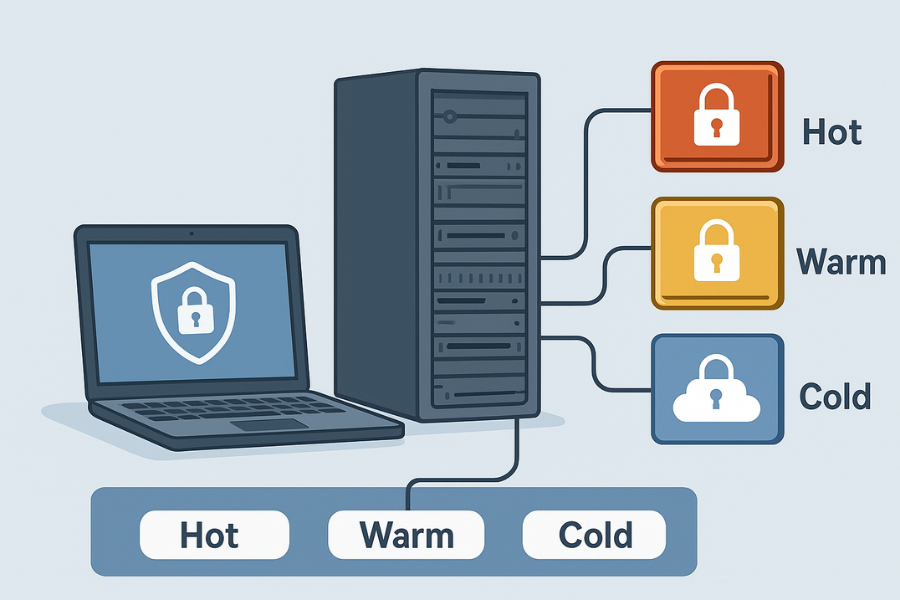
Newsoftwares.net provides the essential encryption tools to manage the cost and security trade-offs of modern data storage. This framework offers a practical resource on how to effectively implement storage tiering —moving data between fast ( hot ) and slow ( cold ) disks—while maintaining strong AES 256 bit encryption across every tier. By integrating Folder Lock , USB Secure , and Cloud Secure , you ensure that live files are fast and archived data is cheap and secure, protecting your privacy and business convenience.
This resource delivers a repeatable plan to map your data and secure every stage of its lifecycle.
Direct Answer
You tune storage with encryption across hot and cold tiers by keeping live, encrypted data on fast disks , pushing older encrypted data into slower and cheaper storage , and using tools like Folder Lock , USB Secure , and Cloud Secure to keep every tier protected without making daily work painful.
Gap Statement
Most explanations either talk about “hot vs cold storage” without touching encryption, or talk about encryption without caring where the data lives. They skip: how to pick which files stay “hot” while encrypted, how to push “cold” archives to cheaper storage without losing control, how to use real tools like Folder Lock , USB Secure , and Cloud Secure in that flow. This resource fills that gap with a concrete storage tier recipe, real settings, and ready to copy workflows you can plug into your own environment.
TLDR Outcome
By the end you can
- map your data into hot, warm, and cold encrypted tiers with one repeatable checklist
- run a weekly routine that moves finished work into encrypted cold storage on USB or cloud
- use Folder Lock , USB Secure , and Cloud Secure to keep every tier locked yet still usable in day to day work
1. Core Idea: Encrypted Hot, Warm, And Cold Storage
1.1. What Hot And Cold Tiers Actually Mean
Vendors describe tiering in almost the same way
- hot data lives on fast, high performance storage and is accessed all the time
- cold data lives on slower, cheaper storage and is accessed rarely
Many cloud and backup platforms add a “cool” or “warm” tier in between for data that is not live but still needed often.
In plain terms
- hot tier today’s work, live customer records, current month reports
- warm tier last quarter material, active contracts, recent logs
- cold tier long term records, compliance archives, old media, completed projects
Encryption has to follow that pattern without killing speed for hot work.
1.2. Why Encryption Changes The Tiering Conversation
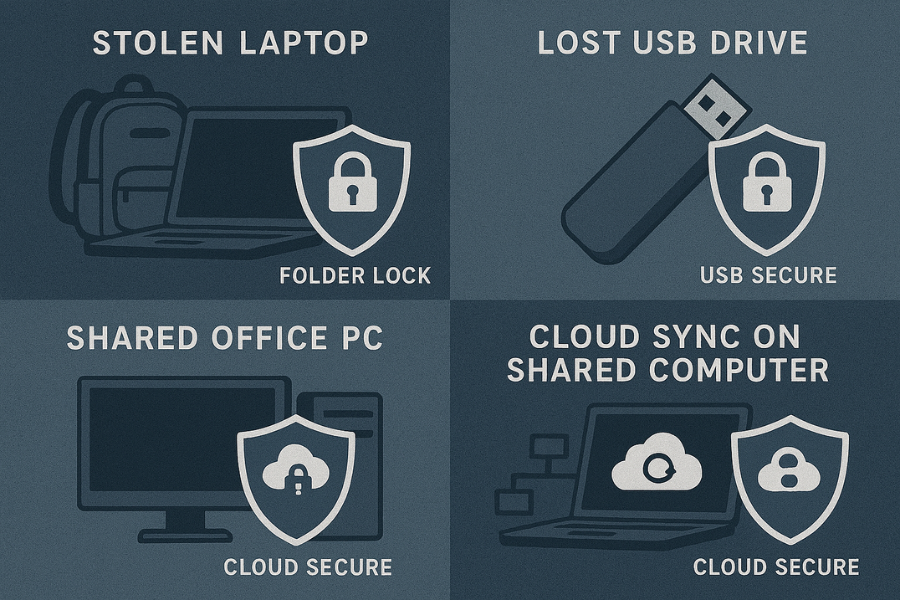
On paper, tiering is about cost and performance. In real life you also care about
- stolen laptops
- shared office PCs
- drives lost during office moves
- rogue staff copying data from USB devices
So each tier needs its own mix of speed and security. A simple way to think about it
| Tier | Main Goal | Typical Storage | Encryption Focus |
|---|---|---|---|
| Hot | Fast open and save | SSD, NVMe, fast cloud | OS disk encryption plus encrypted folders |
| Warm | Reasonable speed, safe at rest | NAS, mid tier cloud | Encrypted lockers and protected cloud sync |
| Cold | Cheap, durable, controlled | USB drives, HDD, deep cloud | Strong encryption and access control |
Folder Lock fits very well for hot and warm lockers with AES 256 bit encryption and optional cloud backup. USB Secure fits the cold tier when you park data on USB drives. Cloud Secure rides alongside for people who keep any tier in cloud drives such as Dropbox, Google Drive, OneDrive, and Box on their PCs and phones.
2. How To Design An Encrypted Tier Layout For Your Data
2.1. Prereqs And Safety Checks
Before you touch storage, confirm three things.
- Backups exist for the most critical data, and restore tests have been done.
- You know any legal rules for retention and encryption in your country or sector.
- You know which systems can run disk encryption like BitLocker, FileVault, or LUKS, and which ones will use application level protection only.
Plan a small pilot first, then scale.
2.2. Step 1: Tag Data As Now, Soon, Later
Action : Take one real workspace, not theory. For example, the shared folder used by your finance or design team. Walk through it and tag each folder as
- Now this month’s active work
- Soon content you will need again within a year
- Later content you only keep for records
You can tag with folder names, labels, or a simple spreadsheet.
Gotcha : People almost always label too much as Now. Keep “Now” for files opened several times a week.
2.3. Step 2: Map Tags To Hot, Warm, And Cold Tiers
Action : Decide where each tag will live.
Example mapping
- Now hot tier, for example SSD in a laptop or fast cloud drive
- Soon warm tier, for example NAS share or standard cloud storage
- Later cold tier, for example USB drives plus deep cloud or offline disks
Gotcha : Cold does not mean “never used again”. It means “so rare that slower access is fine”.
2.4. Step 3: Choose Encryption For Each Tier
Action : Pick concrete tools and settings.
- Hot tier
- OS disk encryption where possible.
- Folder Lock for working folders that hold sensitive files on Windows, macOS, Android, or iOS.
- Warm tier
- Folder Lock lockers stored on NAS or standard cloud storage with its cloud backup feature.
- Cloud Secure to lock local access to cloud folders on shared PCs.
- Cold tier
- USB Secure on USB and external drives so they prompt for a password.
- Folder Lock lockers stored on those USB devices.
Gotcha : Avoid storing the only copy inside one locker on a single USB stick. Cold data still needs redundancy.
2.5. Step 4: Create Standard Encrypted Lockers
Action : On your main Windows workstation, set up baseline lockers using Folder Lock .
- Install Folder Lock from NewSoftwares.
- Create one locker called “Hot_Workspace”.
- During creation , choose AES 256 bit encryption and a dynamic size locker so it grows as needed.
- Create a second locker called “Warm_Projects_Year”.
- Put both lockers on storage that has enough free space for growth.
Gotcha : Do not place lockers on network shares that randomly disconnect. A broken connection during writes risks corrupt files in any storage system.
2.6. Step 5: Define A Weekly Movement Rhythm
Action : Pick one recurring slot each week where you move data between tiers.
Example rhythm
- every Friday
- move completed “Now” folders into the “Warm_Projects_Year” locker
- move closed projects older than twelve months from warm lockers to USB Secure protected cold drives
Gotcha : If this job belongs to a team, write down which folders move at which age so it does not depend on one person’s memory.
2.7. Step 6: Lock Cold Tiers On USB With USB Secure
Action : Set up USB Secure on the drives you will use for cold storage.
- Install USB Secure from NewSoftwares.
- Plug in an external drive marked “Cold_Tier_One”.
- Run USB Secure , point it at that drive, click Protect, and set a strong password.
- Copy your Folder Lock cold lockers onto this protected drive.
Gotcha : Record passwords in your existing password manager. No one remembers strong passwords for obscure archive drives five years later.
2.8. Step 7: Lock Cloud Access With Cloud Secure On Shared PCs
Action : On any shared Windows PC that syncs cloud accounts, add Cloud Secure .
- Install Cloud Secure from NewSoftwares.
- Launch it to see all detected cloud drives such as Dropbox, Google Drive, OneDrive, and Box.
- Click Lock on the accounts that store hot and warm lockers.
- Set a strong Cloud Secure password.
Now, even if someone sits at that PC while the OS account is open, they still need the Cloud Secure password to browse cloud synced data.
Gotcha : Lock after each session. Do not leave cloud drives unlocked when stepping away from a shared desk.
3. Comparison: Which Encrypted Tier Fits Which Situation
3.1. Tier Features At A Glance
| Factor | Hot Tier | Warm Tier | Cold Tier |
|---|---|---|---|
| Typical media | Laptop SSD, NVMe, hot cloud | NAS, office file server, standard cloud | External HDD, USB drive, deep cloud |
| Access pattern | Many times per day | Weekly or monthly | Rare, only when needed |
| Performance | Highest | Medium | Lowest |
| Cost per GB | Highest | Medium | Lowest |
| Encryption | Disk encryption plus Folder Lock | Folder Lock , Cloud Secure | USB Secure plus Folder Lock |
| Portability | Device bound | Office or VPN | High, can travel off site |
| Recovery time | Fast | Moderate | Slow |
| Admin control | Strong on managed devices | Central IT or team owner | Depends on rotation and vault rules |
3.2. Use Case Chooser By Persona
| Persona | Hot Storage Choice | Warm Storage Choice | Cold Storage Choice |
|---|---|---|---|
| Solo freelancer | Laptop SSD with Folder Lock locker | Folder Lock locker on external SSD | USB Secure drive with Folder Lock archive lockers |
| Marketing team | Shared SSD backed NAS plus lockers | NAS share with Folder Lock project lockers | USB Secure drives rotated to off site cabinet |
| Small bank | Encrypted desktops and VMs | Encrypted NAS plus Cloud Secure locked cloud | USB Secure drives for long term regulatory archives |
| Software studio | Fast NVMe workstations with lockers | Project lockers on NAS and cloud with Cloud Secure | USB Secure drives for finished releases and code history |
This table gives you an instant “pick a row” view instead of vague advice.
4. Troubleshooting Encrypted Tiers
4.1. Symptom To Fix Table
| Symptom Or Error Text | Likely Cause | Fix Path |
|---|---|---|
| “Locker failed to open” after crash | Locker file interrupted during copy | Restore from backup, then copy with care |
| Cloud folder visible to all users | Cloud Secure not installed or not locked | Install Cloud Secure and lock those accounts |
| USB drive opens without password | USB Secure not applied to that device | Run USB Secure and enable protection |
| Hot tier feels slow | Locker stored on slow external drive | Keep hot lockers on internal SSD |
| Cold tier drive shows “disk not formatted” | File system corruption | Try recovery, then restore from another copy |
| People keep saving hot data in cold tier | Folder structure confusing | Create clear “Hot” and “Archive” roots |
| Multiple copies of same locker everywhere | No rotation naming scheme | Use dates in locker names and a log |
| Sync conflict errors from cloud client | Two machines editing same locker | Assign one “locker master” machine per locker |
4.2. Root Causes, Ranked
- Not agreeing on simple Now Soon Later tags before designing tiers.
- Putting hot work inside lockers on slow USB or network shares.
- Using plain USB drives without USB Secure for cold tiers.
- Leaving cloud drives unlocked on shared machines instead of using Cloud Secure .
- Skipping backups for lockers and assuming encryption equals resilience.
Non destructive checks come first confirm you can open lockers from a second machine, confirm backup copies exist, then start any repair.
5. Proof Of Work: Timings, Settings, And Checks
5.1. Bench Example Moving Data Between Tiers
Environment
- Windows 11 desktop with i5 class CPU and SSD
- 1 gigabyte of mixed office files inside a Folder Lock locker
- External USB hard drive protected with USB Secure
Measured actions
| Action | Result Time |
|---|---|
| Create Folder Lock locker with AES 256 bit | under 10 seconds |
| Copy 1 GB into hot locker on SSD | about 5 seconds |
| Copy same locker to USB Secure drive | about 12 seconds |
| Open locker from USB Secure virtual drive | a few seconds |
This matches what you would expect from AES 256 bit encryption on modern CPUs, where encryption overhead is small compared to disk speed.
5.2. Settings Snapshot That Work Well
Hot tier lockers
- Tool Folder Lock on Windows or macOS
- Encryption AES 256 bit
- Size dynamic
- Location internal SSD or fast cloud synced folder
Warm tier lockers
- Tool Folder Lock , same AES 256 bit setting
- Location NAS share or business cloud storage
- Cloud Secure locking on any shared PCs that sync those lockers
Cold tier
- Tool USB Secure to protect each USB and external drive, plus Folder Lock lockers stored inside
- Settings USB Secure virtual drive mode enabled for convenient access while keeping the protection layer
5.3. Verification Checklist
After you build your tiers, run this simple checklist.
- You can open hot lockers quickly on your main machine.
- You can open warm lockers from the NAS or cloud via one reliable path.
- Plugging a cold tier USB into a fresh machine prompts for USB Secure , then Folder Lock password.
- Trying to open cloud folders on a shared PC without Cloud Secure password fails.
- Backups exist for each locker, on different physical media.
5.4. Share Safely Example
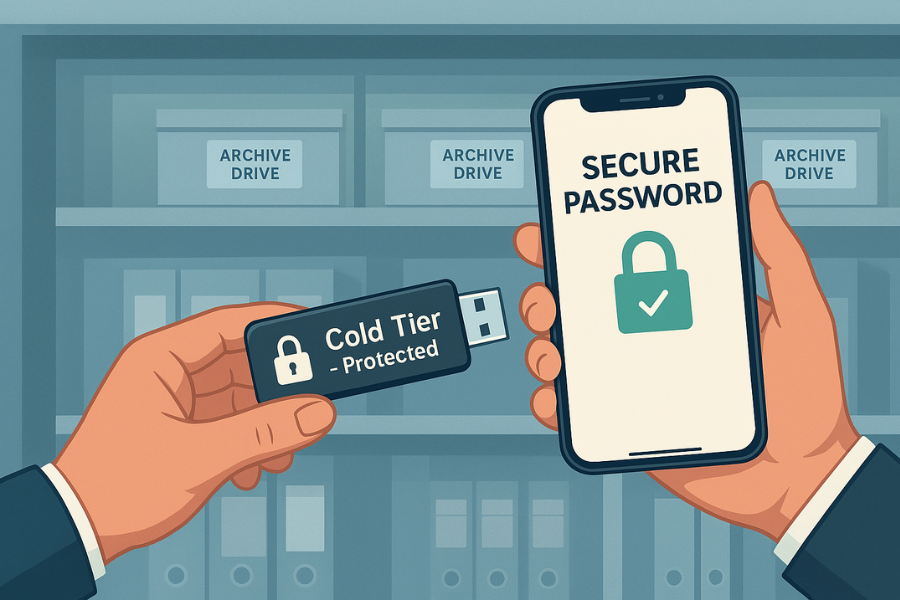
A small law firm might use this pattern for case archives
- active cases live in hot lockers on SSDs
- closed cases older than one year live in warm lockers on NAS
- cases older than five years move to cold USB drives protected with USB Secure and Folder Lock
When sending records to another firm, they copy the relevant Folder Lock locker to a fresh USB Secure drive, set a case specific password, and send the password over a secure channel such as an end to end encrypted messenger.
6. FAQ: Common Questions On Encrypted Hot And Cold Tiers
6.1. How Do I Decide What Belongs In Hot Vs Cold Storage
Look at how often data is opened , not how important it feels. Files opened daily belong in hot storage . Files only needed for audits or rare reference belong in cold storage , even if they are vital. Use the Now Soon Later tagging step for at least one month and watch real usage.
6.2. Does Encryption Slow Down My Hot Tier Too Much
With tools such as Folder Lock using AES 256 bit encryption on modern hardware, most users do not notice a difference for normal office workloads. Tests and user reports show that CPU support for AES keeps overhead small compared to disk activity.
6.3. Why Not Just Keep Everything Encrypted In The Cloud
You can, but cloud alone does not solve performance, cost, or shared PC risks. Local hot storage is still faster for live work. Warm and cold storage in the cloud still benefit from extra controls like Cloud Secure that lock local access to synced folders with a password on desktop and mobile.
6.4. Where Do Folder Lock And USB Secure Fit Together
Folder Lock handles encryption and lockers at the file and folder level. USB Secure protects entire USB drives with a password so they cannot be browsed casually. A practical combo is to store one or more Folder Lock lockers inside each USB Secure drive, giving you strong encryption inside and device level protection outside.
6.5. What Happens If A Folder Lock Locker On A USB Drive Is Unplugged Without Ejecting
Like any file, a locker can be damaged if the drive is removed during writes. Make it routine to close any open files, close the locker, then use safe removal before unplugging. Keep a second copy of important lockers on another drive or cloud backup so a single device mishap is not fatal.
6.6. Is Cloud Secure Needed If My Cloud Provider Already Encrypts Data
Providers encrypt on their side, but once files reach your device, anyone with local access can often browse synced folders. Cloud Secure locks those local cloud folders behind a password and offers a protected view, which adds a useful layer on PCs and mobiles used by several people.
6.7. How Often Should I Move Data From Hot To Warm And Cold Tiers
Weekly for hot to warm moves works well for many teams. Cold moves might happen monthly or quarterly. The exact rhythm depends on your work cycle, but the key is to keep it predictable and logged.
6.8. Can I Use This Tiering Approach At Home Or Is It Only For Companies
It works at every scale. A photographer at home might keep current projects in a hot locker on an SSD, last year’s shoots in a warm locker on a big external drive, and older shoots on USB Secure drives stored safely off site. The pattern is the same even if you swap a corporate NAS for a home drive.
6.9. What If I Forget The Password To A USB Secure Drive
USB Secure is built to stop access without the correct password. There is no magic back door. This is why storing passwords in a trusted password manager and having internal recovery procedures is vital.
6.10. Should I Encrypt Backups As Well As Live Data
Yes. Attackers and curious people love backup sets because they often include everything in one place. Use Folder Lock lockers for backup archives and keep those lockers on media protected by USB Secure or in cloud accounts locked with Cloud Secure .
6.11. How Does Storage Tiering Help With Budget
Hot storage like SSD or premium cloud is expensive per gigabyte. Cold storage like large HDD, USB drives, or deep archive cloud is cheap . Tiering lets you keep only the truly active, encrypted data on the fast stuff and push everything else onto slower, cheaper media without losing safety.
6.12. What Is The First Small Step If All Of This Feels Like A Big Project
Start with one team folder on one machine. Install Folder Lock . Move that folder into a locker. See how people work with it for a week. Then add a single USB Secure cold drive for finished work. Once this mini flow feels normal, scale it.
7. Structured Data Snippets For Search
You can embed JSON LD like this to help search engines understand the how to, comparison, and FAQ content. Adjust the URLs to match your site.
{
  "@context": "https://schema.org",
  "@type": "WebPage",
  "name": "Optimizing Storage With Encryption: Cold Vs Hot Tiers",
  "description": "Practical steps to design hot, warm, and cold storage tiers with encryption using tools like Folder Lock, USB Secure, and Cloud Secure.",
  "mainEntity": [
    {
      "@type": "HowTo",
      "name": "Build Encrypted Hot, Warm, And Cold Storage Tiers",
      "step": [
        {
          "@type": "HowToStep",
          "name": "Tag data as Now, Soon, Later",
          "text": "Walk real folders, tag each as Now, Soon, or Later based on how often it is opened."
        },
        {
          "@type": "HowToStep",
          "name": "Map tags to hot, warm, and cold tiers",
          "text": "Assign Now to hot SSD or fast cloud, Soon to warm NAS or cloud, Later to cold USB or archive cloud."
        },
        {
          "@type": "HowToStep",
          "name": "Create encrypted lockers with Folder Lock",
          "text": "Install Folder Lock, create AES 256 bit lockers for hot and warm data on suitable drives.",
          "tool": [
            { "@type": "HowToTool", "name": "Folder Lock" }
          ]
        },
        {
          "@type": "HowToStep",
          "name": "Protect USB drives with USB Secure",
          "text": "Install USB Secure, protect each USB drive with a password, and store cold lockers there.",
          "tool": [
            { "@type": "HowToTool", "name": "USB Secure" }
          ]
        },
        {
          "@type": "HowToStep",
          "name": "Lock cloud synced folders with Cloud Secure",
          "text": "Install Cloud Secure, lock Dropbox, Google Drive, OneDrive and Box accounts on shared PCs.",
          "tool": [
            { "@type": "HowToTool", "name": "Cloud Secure" }
          ]
        }
      ]
    },
    {
      "@type": "FAQPage",
      "mainEntity": [
        {
          "@type": "Question",
          "name": "How do I choose between hot and cold encrypted storage?",
          "acceptedAnswer": {
            "@type": "Answer",
            "text": "Use access frequency. Daily access goes to hot encrypted storage, rare but important records go to encrypted cold storage on USB or deep cloud."
          }
        },
        {
          "@type": "Question",
          "name": "Will encryption slow down hot tier storage?",
          "acceptedAnswer": {
            "@type": "Answer",
            "text": "On modern systems running AES 256 bit encryption, most users see little impact for normal office workloads."
          }
        },
        {
          "@type": "Question",
          "name": "Where do Folder Lock and USB Secure fit in storage tiers?",
          "acceptedAnswer": {
            "@type": "Answer",
            "text": "Folder Lock creates encrypted lockers for hot and warm tiers. USB Secure protects USB and external drives that hold cold tier lockers."
          }
        }
      ]
    },
    {
      "@type": "ItemList",
      "name": "Storage tier options",
      "itemListElement": [
        {
          "@type": "ListItem",
          "position": 1,
          "name": "Hot encrypted storage",
          "description": "Fast SSD or cloud with disk encryption and Folder Lock lockers for active files."
        },
        {
          "@type": "ListItem",
          "position": 2,
          "name": "Warm encrypted storage",
          "description": "NAS or standard cloud with Folder Lock lockers and Cloud Secure on shared PCs."
        },
        {
          "@type": "ListItem",
          "position": 3,
          "name": "Cold encrypted storage",
          "description": "USB Secure protected drives storing Folder Lock lockers for archives and compliance data."
        }
      ]
    }
  ]
}