
Optimizing BitLocker for SSDs: Max Speed and Minimal Battery Drain
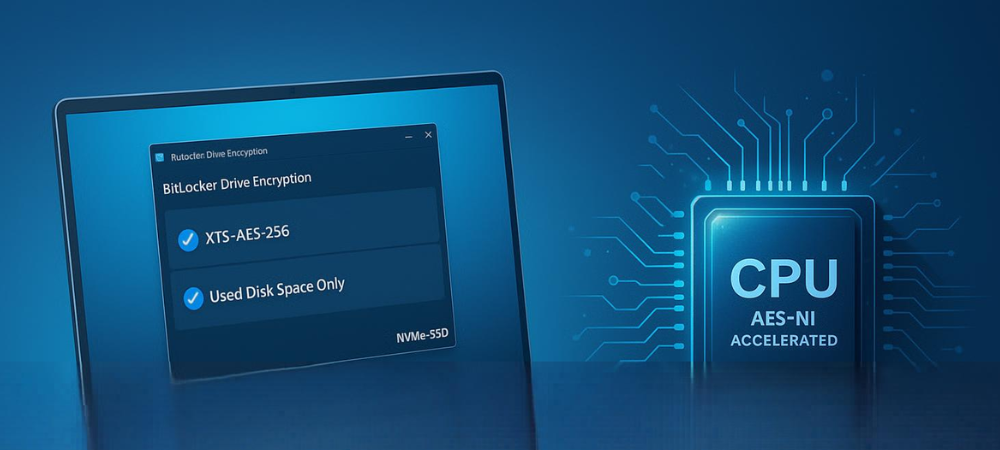
This expert guide, prepared by the security experts at Newsoftwares.net, provides the definitive technical steps for optimizing BitLocker. The most effective way to optimize BitLocker for performance and battery life on modern Solid State Drives (SSDs) is to enforce the most secure encryption method (XTS-AES 256, bit) while leveraging hardware acceleration (AES-NI) and selecting the fastest initial encryption scope (Used Disk Space Only) for new drives. This optimization is crucial for maintaining high speed, conserving battery life, and meeting maximum security standards.
The most effective way to optimize BitLocker for performance and battery life on modern Solid State Drives (SSDs) is to enforce the most secure encryption method (XTS-AES 256, bit) while leveraging hardware acceleration (AES-NI) and selecting the fastest initial encryption scope (Used Disk Space Only) for new drives.
I. The Core Answer: Achieving Optimal BitLocker SSD Configuration
This section provides the necessary steps to secure a drive with the fastest and most power, efficient settings available in Windows 11.
Faster Encryption, Safer Data Summary
- Encryption Method: Mandate the use of XTS-AES 256, bit encryption for all fixed drives. This must be configured using Group Policy or command line tools before activating BitLocker. Modern CPUs equipped with AES-NI handle the processing load, making the performance impact minimal.
- Initial Setup Speed: When encrypting a new drive or a drive with limited existing data, select Encrypt used disk space only. This choice drastically reduces the initial encryption time, often by over 90%, allowing the system to become fully protected and compliant much faster.
- Performance Mitigation: Confirm the system’s CPU supports and correctly utilizes AES-NI (Advanced Encryption Standard New Instructions). This hardware acceleration offloads cryptographic computations, ensuring that CPU utilization, heat generation, and subsequently, battery drain, remain negligible during encryption and decryption operations.
Prerequisites and Safety Check
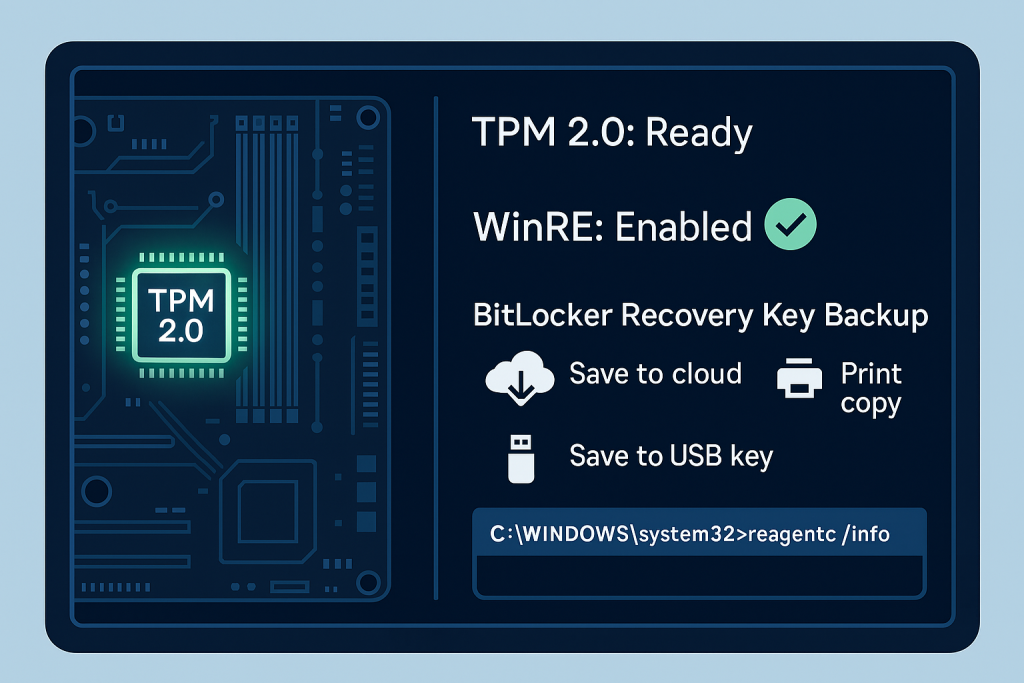
BitLocker relies on specific foundational technologies. Ignoring these checks causes activation failure and potential data loss upon system maintenance.
1. Verifying System Requirements Before Activation
Successful BitLocker deployment depends heavily on the Trusted Platform Module (TPM) and the system recovery environment.
Trusted Platform Module (TPM) Status
BitLocker utilizes the TPM (version 1.2 or later) for secure key management and verification of the pre, boot environment. If the system detects unauthorized changes to the boot sequence, the key is not released, protecting the data.
- Action: Press the Windows Key + R to open the Run dialog.
- Action: Type
tpm.mscand press Enter. - Verify: The status must show the TPM as ready and functional. Gotcha: If the device is uninitialized or disabled in the BIOS, BitLocker activation will fail.
Windows Recovery Environment (WinRE) Status
WinRE must be enabled and correctly configured. BitLocker uses WinRE to store necessary recovery information and handle boot issues.
- Action: Open Command Prompt or PowerShell as an administrator.
- Action: Execute the command
reagentc.exe /info. - Verify: The status should indicate that Windows RE is enabled. On modern UEFI, based systems, the required system, reserved partition must be formatted as FAT32. On older, legacy BIOS systems, this partition must use NTFS.
Key Backup Protocol
The recovery key is the sole lifeline if the TPM fails, is cleared, or if the boot environment is sufficiently altered (e.g., major BIOS update).
Mandatory Action: Before starting encryption, the 48, digit recovery key must be safely stored. Recommended methods include saving it to a secure cloud vault (like a Microsoft Account), printing a physical copy, or escrowing it to Active Directory Domain Services (AD DS) in a managed environment. Failure to store this key guarantees permanent data loss in a recovery scenario.
Understanding TPM Dependency and Policy Conflicts
The default operation mode for BitLocker on modern systems uses the TPM transparently, meaning the user does not need to enter a PIN or password at startup. In corporate settings, administrators often use Group Policy Objects (GPOs) or Intune to enforce BitLocker, frequently requiring silent encryption where no user interaction is permitted during the key setup phase.
A common activation error occurs when an administrator configures a policy setting that is incompatible with silent encryption, leading to a “conflicting Group Policy settings” message. Specifically, if the policy requires storage of recovery information to AD DS but simultaneously prohibits the generation of recovery passwords, or if silent encryption is required while also mandating a TPM startup key or PIN, BitLocker fails to start. Optimizing deployment requires not just selecting the strongest cipher, but ensuring all associated GPOs align to prevent mandated user interaction from breaking the automated deployment process.
II. Optimization Fundamentals: Speed, Security, and Power
Optimizing BitLocker hinges on understanding the technical differences between available encryption modes and the modern hardware designed to accelerate them.
The XTS-AES Cipher: Why it Matters for SSDs
BitLocker originally used the AES algorithm in Cipher Block Chaining (CBC) mode, sometimes with an added Elephant Diffuser. Since Windows 10 version 1511, Microsoft replaced CBC with XTS-AES (XEX, based tweaked, codebook mode with ciphertext stealing) as the recommended standard for fixed drives.
XTS-AES is an encryption mode designed specifically for storage devices (block devices). It provides superior protection against attackers who try to manipulate the ciphertext to cause predictable changes in the plaintext. AES-CBC modes are retained primarily for compatibility with removable drives or legacy systems, but XTS-AES is unequivocally the standard for fixed SSDs.
Deciding the Cipher Strength: 128, bit vs. 256, bit
BitLocker offers XTS-AES in two key lengths: 128, bit (the Windows 10/11 default) and 256, bit. The 256, bit key length offers a higher level of cryptographic assurance and is often required for rigorous security and regulatory compliance.
While conventional wisdom suggests that longer keys slow down performance, the performance difference on modern hardware is negligible. The security upgrade provided by XTS-AES 256, bit is essentially free from a user experience standpoint.
The Role of AES-NI Hardware Acceleration
BitLocker is a software encryption layer, meaning its overhead is determined entirely by the CPU’s capacity to handle cryptographic calculations. The minimal performance cost of XTS-AES 256, bit is directly attributable to the inclusion of AES-NI in modern Intel and AMD processors.
AES-NI instructions offload the entire Advanced Encryption Standard (AES) workload from general CPU cores to specialized hardware circuits. This process significantly reduces the CPU clock cycles required for encryption and decryption, leading to low resource utilization, less heat generation, and minimal impact on overall system performance. Critically, this hardware offload ensures that the cryptographic workload does not drain the battery excessively on portable devices, even when utilizing the more secure 256, bit key. Any noticeable performance impact is typically limited to a reduction in random I/O operations (10, 30% hit) rather than sequential read/write speeds, which are far less critical for general computing tasks.
The Encryption Scope Dilemma: Used Space Only (UDSO)
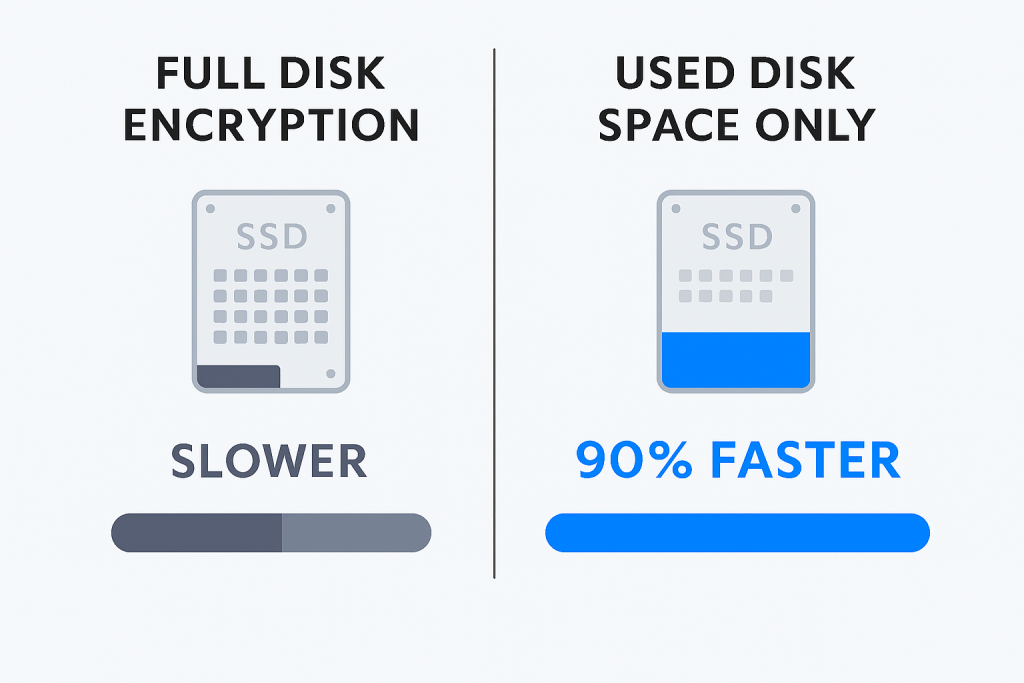
During the activation process, BitLocker asks whether to encrypt the entire drive or only the used disk space. This choice is critical for initial deployment speed, particularly on large SSDs.
Speed Advantage
Selecting Used Disk Space Only (UDSO) drastically accelerates the initial encryption process. For a drive that is mostly empty (common after a fresh OS install or system reset), UDSO skips the lengthy process of encrypting empty sectors, reducing deployment time by over 90%. For example, encrypting a 2TB drive that holds only 200GB of data will take only a fraction of the time required for a full, disk conversion.
The Security Trade, off and SSD Behavior
The trade, off lies in security. If the drive previously contained sensitive, unencrypted data that was deleted, UDSO does not erase or encrypt the sectors where that deleted data resides. This leaves the old data vulnerable to forensic recovery tools.
Furthermore, SSDs use complex Wear Leveling and Garbage Collection (GC) routines. When a file is deleted, the physical block where the data lives is marked for eventual overwriting by the SSD controller, but it is not immediately wiped. If UDSO is used, these sectors containing old, deleted, unencrypted data might persist for a long time. Even writing new, encrypted data to the logical volume might not immediately overwrite the unencrypted physical blocks, as the controller dynamically manages the physical location of the data. Therefore, UDSO should only be employed on brand new, factory, initialized drives or drives that have undergone a secure, industry, standard sanitization procedure prior to OS installation.
III. Implementation Guide: Setting the Optimized Encryption Standard
Because the Windows default BitLocker GUI typically defaults to XTS-AES 128, bit, manual intervention via Group Policy or command line tools is necessary to enforce the optimal 256, bit standard. These configuration changes must be completed before the drive is encrypted.
Method 1: Quick Setup via Control Panel (GUI)
This method is the simplest for initiating encryption but will rely on pre, configured Group Policy settings if XTS-AES 256, bit is desired.
- Action: Open Manage BitLocker: Type “BitLocker” in the Windows Search bar and select Manage BitLocker.
- Action: Turn on BitLocker: Select the desired fixed drive (e.g., C: drive or Data drive) and click Turn on BitLocker.
- Action: Choose Recovery Method: Select the appropriate key storage location (e.g., Save to your Microsoft Account, Save to a file, or Print the recovery key).
- Action: Crucial Scope Setting: When prompted for the encryption scope, select Encrypt used disk space only (faster). This choice maximizes initial deployment speed on new drives.
- Action: Run System Check: Check the Run BitLocker system check option. This ensures the computer can read the recovery and encryption keys correctly before beginning the irreversible encryption process. The system will restart to complete this verification.
Method 2: Enforcing XTS-AES 256, bit via Group Policy (GPO)
Group Policy Editor (gpedit.msc) provides the most reliable mechanism for IT administrators to mandate XTS-AES 256, bit encryption across the entire device or domain. This setting affects all future BitLocker operations on unencrypted volumes.
- Action: Open Group Policy Editor: Press Win + R, type
gpedit.msc, and press Enter. - Action: Navigate to BitLocker Settings: Navigate the tree structure to Computer Configuration > Administrative Templates > Windows Components > BitLocker Drive Encryption.
- Action: Locate Cipher Strength Policy: Double, click on the policy named Choose drive encryption method and cipher strength (Windows 10 [Version 1511] and later). It is important to select this specific entry, even when running Windows 11.
- Action: Configure Encryption:
- Set the policy status to Enabled.
- Under “Select the encryption type,” change the method for “Operating system drives” and “Fixed data drives” to XTS-AES 256, bit.
- Action: Apply and Exit: Click Apply then OK. Gotcha: The settings take effect immediately for any new BitLocker activation on the system. Drives already encrypted must be decrypted and re, encrypted to adopt the new 256, bit method.
Method 3: Command Line Control (manage-bde and PowerShell)
The command line tools are essential for advanced scripting, automation, or deployment in environments without a central Group Policy infrastructure.
- Action: Open Elevated Terminal: Launch Windows PowerShell or Command Prompt as an administrator.
- Action: Pre, configure the Encryption Method (PowerShell): Although GPO enforces the standard, PowerShell can explicitly set the encryption method for immediate use.
# Set the default method for new volumes to XTS-AES 256 Set-BitLockerVolume -EncryptionMethod XTSAES256 - Action: Activate BitLocker (Used Space Only) via PowerShell: Use the
Enable-BitLockercmdlet, explicitly defining the scope for optimization. This example applies the recovery password key protector.# Example: Enable BitLocker on drive E:, using XTS-AES 256, and encrypting only used space Enable-BitLocker -MountPoint "E:" -EncryptionMethod XTSAES256 -UsedSpaceOnly -RecoveryPasswordProtector - Action: Activate BitLocker (Hardware Encryption): If the SSD supports eDrive (Encrypted Hard Drive), which provides faster, hardware, based encryption and reduced CPU/power usage, the
manage-bdeutility can be used to mandate its use.manage-bde -on C: -fet hardwareUsing hardware encryption increases performance and reduces power consumption by leveraging the drive’s built, in cryptographic engine instead of the CPU.
Optimization Comparison Summary
Effective optimization involves balancing the security requirements (XTS-AES 256, bit) with the deployment speed (Used Disk Space Only).
BitLocker Optimization Mode Comparison
| Feature | XTS-AES 128, bit (Default) | XTS-AES 256, bit (Recommended) | Used Disk Space Only (Initial Scope) |
| Security Strength | High | Highest (Regulatory Compliance) | Varies (Risk on pre, owned drives) |
| Performance Impact | Minimal (Near zero, thanks to AES-NI) | Negligible (Near zero, thanks to AES-NI) | Speeds up initial process by 90%+ |
| Best Enforced Via | Windows Default GUI | Group Policy Editor (GPO) | GUI or CLI setup wizard |
| Ideal Use Case | General Consumer Use | Enterprise, High, Security Environments | New, factory, initialized, or sanitized SSDs |
IV. Proof of Work: Verification and Benchmarks
The critical step in optimization is verifying that the desired encryption method and performance profile have been successfully applied.
Confirming the Encryption Method is Active
The manage-bde command, line utility provides the definitive output for the status of an encrypted volume.
- Action: Open Elevated Command Prompt or PowerShell.
- Action: Execute the Status Command:
manage-bde -status - Verification Check:
Action: Examine the output for the target volume (e.g., C: drive). The key fields must be reviewed:
- Protection Status: Should read “Protection On” (or “Protection Off” if the drive is suspended).
- Encryption Method: This field must display XTS-AES 256 if the GPO or command line settings were successfully applied. Gotcha: If this field displays XTS-AES 128, the GPO configuration failed, or the drive was encrypted before the 256, bit policy took effect.
Measured Performance and Conversion Strategy
BitLocker performance heavily relies on the assumption that the CPU is utilizing AES-NI. For modern systems (4th generation Intel or newer, or equivalent AMD), this is standard. If performance seems drastically slow or battery drain is high, confirm the CPU model supports AES-NI.
Windows 10 and 11 implemented a refined conversion model called Encrypt, On, Write (EOW). Unlike previous versions where the drive was not considered compliant until the entire conversion reached 100%, EOW ensures that any data written to the drive after BitLocker is enabled is immediately encrypted. This behavior ensures instant data protection compliance for new sensitive data. The process of encrypting pre, existing data (the conversion phase) then runs non, aggressively in the background, reducing resource contention and performance impact. This slow, background conversion allows the system to remain responsive and maintain optimal battery life during the initial encryption phase.
Proof of Work Block: Expected Performance Profile
The following metrics illustrate the marginal performance penalty expected when running BitLocker XTS-AES 256, bit on an NVMe SSD with AES-NI active, compared to an unencrypted state.
| Metric | Unencrypted SSD (Baseline) | BitLocker XTS-AES 256 (AES-NI Active) |
| Sequential Read (MB/s) | 550 MB/s | 545 MB/s |
| Sequential Write (MB/s) | 520 MB/s | 500 MB/s |
| Random Read/Write IOPS | 90,000 IOPS | 75,000 – 85,000 IOPS |
| CPU Load (Idle/Decryption) | < 1% | < 1% |
Note that while a 10, 15% reduction in random IOPS may occur, the overall CPU overhead and battery impact remain extremely low due to the hardware offload.
V. Troubleshooting Common BitLocker Activation and Runtime Errors
When BitLocker fails to activate or unexpectedly demands the recovery key, the underlying cause is almost always related to TPM, BIOS, or conflicting administrative policies.
Root Causes Ranked
- TPM Misconfiguration (TPM Disabled, pending ownership, or requiring clearance).
- Windows Recovery Environment (WinRE) not enabled or improperly partitioned.
- Conflicting Group Policy requirements related to key protectors or silent encryption.
- Physical changes in the pre, boot environment (e.g., BIOS updates or external media presence).
BitLocker Activation Error Symptoms and Fixes
| Symptom / Error Message | Root Cause | Non, Destructive Fix | Last Resort (Data Risk) |
A compatible Trusted Platform Module (TPM) Security Device cannot be found... |
TPM is physically disabled in the BIOS/UEFI firmware, or Windows cannot take ownership. | Action: Verify TPM status via TPM.msc. If disabled, enter BIOS/UEFI settings (usually under Security) and ensure TPM is activated and enabled. |
If status is ‘ready’ but issues persist, use the TPM.msc tool to clear the TPM. This resets the module and requires the BitLocker recovery key for existing drives. |
Error: BitLocker Drive Encryption detected bootable media... |
External drive or media (USB drive, CD/DVD) is connected during the activation attempt, which invalidates the boot integrity check. | Action: Remove all external storage devices and optical media. Attempt activation again. | Update the system BIOS/UEFI to the latest version to ensure boot path stability. |
WinRE is not configured. |
Windows Recovery Environment is disabled, preventing BitLocker from securely storing recovery information. | Action: Execute reagentc.exe /enable from an elevated command prompt to ensure WinRE is available. Verify partition formatting (FAT32 for UEFI, NTFS for Legacy). |
If the partition structure is corrupted, use disk management tools to ensure the system partition meets format requirements. |
...conflicting Group Policy settings for recovery options... |
Policy mismatch, such as requiring recovery keys to be stored in AD DS without permitting their generation, or blocking necessary user interaction. | Action: Review Group Policy settings under BitLocker Drive Encryption. If silent encryption fails, specifically check if TPM startup key or PIN options are set to Blocked when requiring user interaction for other settings. | Reset relevant, conflicting GPOs to “Not Configured” and force a policy refresh using gpupdate /force. |
| BitLocker repeatedly asks for the recovery key (unexpectedly). | Minor firmware updates, changes in boot order, or internal TPM configuration changes trigger the security check to fail. | Action: Suspend BitLocker protection using the command manage-bde -disable C: (or the relevant drive letter), reboot the system, and then re, enable protection. Ensure BIOS/UEFI is the latest version. |
If multiple attempts fail, the TPM module may require clearing, which necessitates the use of the recovery key to unlock the drive afterward. |
VI. Essential Q&A: BitLocker Myths and Facts
1. How much does BitLocker actually slow down my high, speed NVMe SSD
The performance impact is minor, often misrepresented. Due to AES-NI hardware acceleration, the CPU cost is negligible, minimizing heat and battery drain. The primary measurable loss is a reduction in Random Read/Write IOPS, which can be around 10, 15%. This loss is generally not discernible during typical application loading, multitasking, or general system use.
2. Is XTS-AES 256, bit worth the effort over the default 128, bit setting
Yes. Given the minimal performance difference on any modern system supporting AES-NI, the 256, bit cipher provides maximum security and ensures compliance with high, level regulatory or corporate security mandates. It is the recommended standard for all new fixed drive deployments.
3. If I use “Used Disk Space Only” encryption, what is the actual security risk
The specific risk relates to previously deleted data. If sensitive, unencrypted files were deleted before BitLocker activation, the sectors containing that data remain unencrypted. These old files can be recovered by forensic tools until the SSD’s garbage collection routine overwrites those physical blocks. This method is only fully secure on drives that are brand new or have been securely wiped.
4. Can I enable BitLocker without a physical TPM chip
Yes, BitLocker can be enabled without a TPM, provided the system’s firmware supports reading a USB flash drive during the pre, boot environment. In this configuration, a physical USB startup key or a user, provided password/PIN replaces the hardware integrity check performed by the TPM.
5. How can I confirm my CPU is using AES-NI hardware acceleration
Windows does not offer a direct command to verify active AES-NI use. However, you can check the specific CPU model specifications on the manufacturer’s website (e.g., Intel ARK or AMD product pages). If the processor model lists AES-NI support, the Windows OS automatically utilizes these instructions for all BitLocker operations.
6. Does BitLocker increase the boot time of Windows 11
BitLocker adds a brief, marginal delay during system startup. This time is required for the TPM to verify the boot components and release the necessary decryption key. On fast SSDs, this overhead is usually only a few seconds and is generally considered acceptable given the significant security gain.
7. What if I lose my recovery key and the TPM fails
If the TPM fails (e.g., hardware replacement or clearance) and the recovery key is simultaneously lost or corrupted, the data on the BitLocker protected drive is considered permanently inaccessible. The strength of the AES encryption guarantees that the data cannot be decrypted without the recovery key.
8. Can BitLocker encrypt hybrid SSD/HDD drives
Yes, BitLocker supports encrypting hybrid disk configurations, including those that use a small SSD layer as a non, volatile cache in front of a larger HDD, such as systems utilizing Intel Rapid Storage Technology.
9. How do I change the cipher strength on an already encrypted drive
The encryption method cannot be changed while the volume is protected. The process requires fully decrypting the drive first, setting the new cipher strength (e.g., XTS-AES 256, bit) via GPO or command line, and then re, enabling BitLocker encryption.
10. Does BitLocker prevent cold boot attacks
BitLocker’s Transparent Operation mode, which relies solely on the TPM without requiring a PIN or password, is potentially vulnerable to cold boot attacks. These attacks attempt to extract the encryption key from residual data in RAM immediately after the power is cut. Using the User Authentication mode (requiring a pre, boot PIN or password) significantly reduces this vulnerability.
11. What are the key differences between XTS-AES and AES-CBC encryption modes
XTS-AES is the modern, recommended mode for fixed disk encryption, offering enhanced protection against block manipulation attacks on stored data. AES-CBC mode, a legacy standard, is primarily reserved for compatibility with removable drives or older Windows versions.
12. How does Windows 11 minimize performance impact during the initial encryption process
Windows 11 utilizes the Encrypt, On, Write (EOW) conversion model for internal drives. EOW ensures that newly written data is encrypted immediately upon BitLocker activation. The encryption of pre, existing data runs less aggressively in the background, consuming fewer system resources and preventing the encryption process from negatively affecting performance or battery life during active use.
Conclusion
Optimizing BitLocker for SSDs is a non, mutually exclusive goal: the most secure settings (XTS-AES 256, bit) are also the most power, efficient, thanks entirely to hardware acceleration (AES-NI). The priority for administrators must be enforcing the 256, bit cipher via Group Policy and leveraging the Used Disk Space Only optimization for rapid deployment on new or sanitized drives. This combined approach ensures maximal cryptographic assurance, minimal system overhead, and adherence to high corporate security mandates, provided meticulous key backup protocols are simultaneously established to guarantee recovery resilience.