
Welcome. This detailed playbook provides a systematic strategy for achieving a sub-60-second onboarding time to a user’s first encrypted file. By prioritizing focus, smart defaults, and honest visual feedback, you can minimize friction. We apply this checklist using Folder Lock, USB Secure, and Cloud Secure from Newsoftwares.net, maximizing user security adoption and providing immediate convenience.
Onboarding To First Encrypted File In Under Sixty Seconds
You can take a brand new user from install to their first encrypted file in under sixty seconds with a tight checklist, smart defaults, and one clear path that never makes them think.
Gap Statement
Most encryption onboarding flows are built like long tours instead of fast lanes.
What they usually get wrong:
- The first screen asks for an account, subscription, or email before touching a single file.
- The app opens on a cluttered dashboard instead of a focused “protect this now” path.
- The user must choose cipher, mode, key size, and location before pressing any button.
- Progress is a vague spinner that leaves people guessing if anything is happening.
What some tools already do well:
- Folder Lock uses AES 256 on the fly lockers so users can encrypt by simply dropping files inside.
- USB Secure prompts for a password as soon as a protected USB is plugged in, with a very direct flow.
- Cloud Secure locks desktop access to cloud folders with a single password prompt.
What is missing:
- A concrete onboarding checklist that budgets every second from launch to first encrypted file.
- Clear rules for instant feedback, skeleton screens, and progress when encryption needs a few seconds.
- A ready to use path that works with popular desktop encryption tools such as Folder Lock, USB Secure, and Cloud Secure.
Primary job to be done:
A first time user installs your encryption tool and successfully protects one real file in sixty seconds or less, without reading help pages or guessing what to do.
1. TLDR Outcome
If you follow this walkthrough, you will:
- Cut the time to “first encrypted file” to under one minute on a typical Windows laptop.
- Replace confusing dashboards with one straight path that feels safe and obvious.
- Use Folder Lock, USB Secure, and Cloud Secure in ways that match how people actually work.
2. Time Budget: Sixty Seconds From Zero To Protected
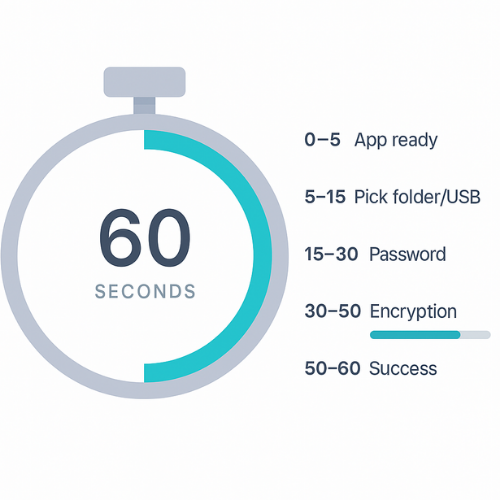
Design your flow against a clock. A realistic budget:
| Time Window | User Should See |
|---|---|
| Seconds 0 to 5 | App launches, immediate visual confirmation that setup is ready. |
| Seconds 5 to 15 | One clear prompt: pick or accept a folder, file, or USB. |
| Seconds 15 to 30 | Password creation and quick strength hint. |
| Seconds 30 to 50 | Encryption runs with honest progress and plain language. |
| Seconds 50 to 60 | Success screen plus simple confirmation that data is now protected. |
Human perception research backs this split. Under one tenth of a second feels instant, one second feels snappy, and anything longer needs visible progress to keep trust.
3. Tools From NewSoftwares To Support A Sixty Second Flow
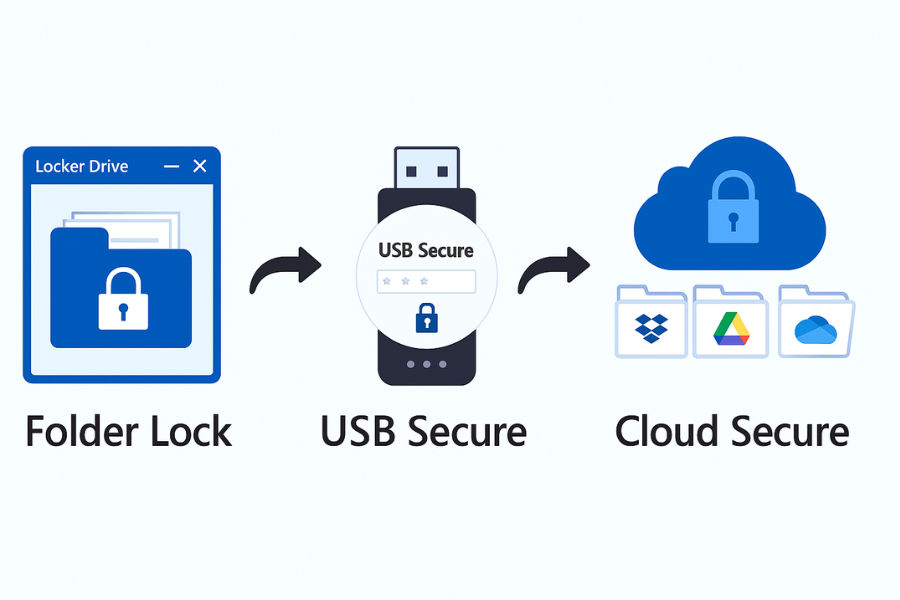
These products give you strong crypto with a UX model that already supports quick wins.
Folder Lock
- AES 256 on the fly encryption with secure “Lockers” that behave like drives.
- File and folder locking to hide content from casual access.
- Cloud backup and sync for lockers with the same encryption applied.
USB Secure
- Password protection for USB drives and external media, with plug and play prompts.
- Virtual drive access to protected areas so users can open files quickly after unlock.
Cloud Secure
- Locks access to Dropbox, Google Drive, OneDrive, and Box on a Windows PC with a single password.
- Allows cloud sync to continue even while desktop access stays locked.
These will be our running examples for a concrete sixty second path.
4. Checklist: Onboarding To First Encrypted File In Sixty Seconds
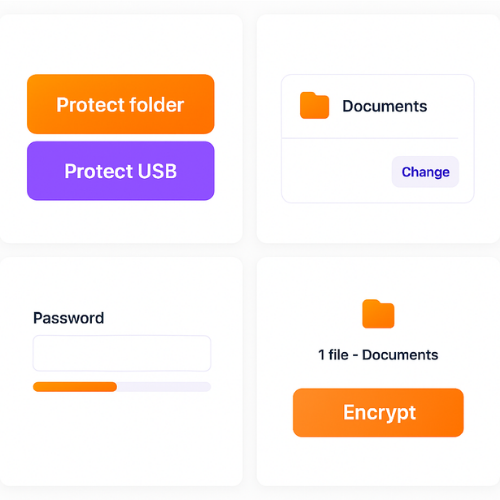
Treat each step as non negotiable. If something does not fit in the minute, it moves to later education.
4.1. Step 1: Launch Straight Into “Protect Something Now”
Action
On first run, open a simple screen with two big options:
- “Protect a folder on this PC”
- “Protect a USB drive” (disabled if none inserted)
Default to the local folder option. Do not show menus, settings, or feature lists yet.
Gotcha
If you show a dashboard with ten tiles, or you ask for an email before this screen, you already lost your sixty second target.
4.2. Step 2: Pre Select A Sensible Folder
Action
Help users avoid decision fatigue. Offer one default folder, such as the current user’s Documents, with a clear button to change.
Example layout:
- “We will protect your Documents folder.”
- Button “Change folder” for advanced choices.
- Next button that stays primary.
You can also mirror Folder Lock’s concept of a “Default Locker” stored in a safe location and open it right away.
Gotcha
Letting people pick system folders or external network drives here can slow the experience and increase support issues. Keep the first choice simple.
4.3. Step 3: Create A Password That People Can Actually Use
Action
Show one password field with strength meter and an optional hint, nothing else.
Copy pattern:
- Title: “Set a password for your protected space.”
- Field: password with show and hide toggle.
- Strength line that moves from “Weak” to “Strong” with color.
- Optional hint field that lives only on the device.
For a Folder Lock based flow, this password becomes the key for the first Locker.
Gotcha
Do not dump password policies into a big paragraph. Show the rules inline and only when broken.
4.4. Step 4: Show A One Tap Summary Screen
Action
Before encrypting anything, show a short summary so users feel in control:
- Folder to protect.
- Where the protected space lives.
- That they will need the password next time.
Copy example:
“You are about to protect: C:\Users\Maria\Documents.
We will place protected content in a secure space only this PC can open with your password.”
Buttons:
- Primary: “Protect now”.
- Secondary: “Back”.
Gotcha
This is not the place to describe every feature your product offers. Stay tight.
4.5. Step 5: Run Encryption With Honest Feedback
Action
Once the user presses “Protect now”:
- Give immediate visual response within one tenth of a second, such as a slight scale or ripple on the button.
- Switch to a progress view that shows three phases: “Preparing files”, “Encrypting”, “Checking protection”.
- Use a clear progress bar and plain text counters.
Skeleton screens and step based progress beat spinners at perceived speed, because people see the structure of what is happening.
Gotcha
Do not leave users staring at a blank window or a spinner alone. If your product uses on the fly encryption like Folder Lock, say that in friendly terms: “We are creating a secure space that will protect everything inside in real time.”
4.6. Step 6: Show A Strong Success State With Next Action
Action
When encryption finishes, show:
- A big lock icon or clear “Protected” label.
- A line that confirms what was protected and where the protected view now lives.
- Two buttons: “Open protected space” and “Finish”.
For Folder Lock, that might open the Locker like a drive so the user sees their Documents inside the encrypted container.
Gotcha
If you quietly drop users into a complex dashboard without this confirmation, many will not realize anything was encrypted at all.
4.7. Step 7: Teach Unlock In One Move
Action
Ask users to close the app and re open the protected space once.
For Folder Lock:
- Close the Locker.
- Ask the user to click the same Locker entry again.
- Prompt for the password they just set.
For USB Secure:
- Eject and re insert the USB drive.
- USB Secure prompts for the password.
This extra half minute is worth it because unlock is the pattern users repeat for years.
5. Concrete Sixty Second Path With Folder Lock
You can craft a real world flow like this for Windows.
- Download and install Folder Lock from NewSoftwares or the official Folder Lock site.
- On first launch, auto open a “Create First Locker” screen with a suggested name such as “My Protected Documents”.
- Ask the user for one password and confirm it once.
- Create a Locker with default size, using AES 256 on the fly encryption behind the scenes.
- Mount the Locker as a drive and open it in Explorer.
- Present a hint bubble asking the user to drag one real file into it.
- Once the file copy finishes, pop a short toast: “This file is now encrypted inside your Locker.”
- Offer the option “Close Locker and ask me for the password next time.”
On a typical machine, this fits inside a minute because Folder Lock does not need to re encrypt every file on each open or close. It encrypts data as it is written into the Locker.
6. Extending The Checklist To USB And Cloud
USB Secure In Under Sixty Seconds
Target:
New user protects a single USB drive with a strong password and locks it before unplugging.
Flow, using USB Secure:
- User inserts USB drive.
- They run USB Secure from the drive or local shortcut.
- USB Secure detects the drive and prompts for a password.
- The user sets password and optional hint.
- USB Secure creates a protected area and offers virtual drive access for quick checks.
- The user copies a test file into that protected area.
- They click “Lock and exit”, then unplug.
That is a clean first success, still within a minute for a small file.
Cloud Secure For Cloud Folders
Goal:
New user locks desktop access to one cloud account so nobody can open its folder without a password.
Flow, using Cloud Secure:
- After install, Cloud Secure scans for Dropbox, Google Drive, OneDrive, and Box folders.
- It shows each detected service with a lock icon.
- User sets a single Cloud Secure password.
- They click “Lock all”, which hides and protects those folders on the PC while sync continues in the background.
- Cloud Secure asks them to try opening one of the cloud folders to see the lock prompt.
Again, the first locked resource appears in under a minute.
7. Verify That The First Encrypted File Is Really Protected
Verification should never require a security background.
Simple Verification Checklist
For a Locker or folder:
- Try to open the protected space after closing the app or Locker. You should see a password prompt.
- Check that the original plain folder either no longer shows the file or is inaccessible without the app.
- Confirm that any copies inside the Locker open normally once you enter the password.
For USB Secure:
- Plug the drive into another Windows machine. USB Secure should prompt before showing the protected content.
For Cloud Secure:
- Attempt to open a locked cloud folder while Cloud Secure is active. You should see a lock screen instead of the usual file list.
8. Common Errors And Quick Fixes
Symptom To Fix Table
| Symptom | Likely Cause | Fix Path |
|---|---|---|
| User quits before first encryption | Too many choices on first screen | Remove registration gates and feature tours |
| “It kept asking for an account” | Account wall before real value | Move sign up after first success |
| “I do not know what got protected” | No clear summary or success screen | Add protection summary and recap |
| “It seems frozen while working” | Spinner or blank state during encryption | Replace with staged progress and skeleton layout |
| “My file is still visible in Explorer” | Protected copy is separate, original left in place | Warn clearly and offer “Move into protected space” button |
9. Conclusion
Achieving a sub-60-second time to the first encrypted file is essential for user adoption of security tools. This requires a focused onboarding path that eliminates friction, prioritizes quick wins (like locking a folder or USB drive), and uses clear, honest progress feedback. By leveraging the fast, AES 256 on-the-fly encryption of Folder Lock, the direct password protection of USB Secure, and the access control of Cloud Secure, you transform encryption from a technical hurdle into a simple, confidence-building action for any new user.
10. Structured Data Snippets
HowTo Schema
{
  "@context": "https://schema.org",
  "@type": "HowTo",
  "name": "Onboarding a new user to their first encrypted file in 60 seconds",
  "description": "A practical checklist for taking a first time user from install to their first encrypted file in under one minute, using clear steps and strong defaults.",
  "tool": [
    "Folder Lock",
    "USB Secure",
    "Cloud Secure"
  ],
  "step": [
    {
      "@type": "HowToStep",
      "name": "Launch directly into protect flow",
      "text": "Open the app into a simple screen that asks the user to protect one folder or USB drive, without any registration gate.",
      "url": "#step-1-launch-straight-into-protect-something-now"
    },
    {
      "@type": "HowToStep",
      "name": "Create a password and start encryption",
      "text": "Prompt for a single password, then run AES 256 based encryption with clear three step progress messages.",
      "url": "#step-3-create-a-password-that-people-can-actually-use"
    },
    {
      "@type": "HowToStep",
      "name": "Verify and teach unlock",
      "text": "Close the protected space, ask the user to open it again, and show the password prompt so they see how to access encrypted data.",
      "url": "#step-7-teach-unlock-in-one-move"
    }
  ]
}
FAQPage Schema Shell
{
  "@context": "https://schema.org",
  "@type": "FAQPage",
  "mainEntity": [
    {
      "@type": "Question",
      "name": "What does “onboarding to first encrypted file” actually mean",
      "acceptedAnswer": {
        "@type": "Answer",
        "text": "It means the time from a fresh install or first launch until a user has at least one real file protected by your encryption product and understands how to open it again."
      }
    },
    {
      "@type": "Question",
      "name": "Is sixty seconds a strict requirement or just a target",
      "acceptedAnswer": {
        "@type": "Answer",
        "text": "It is a design target that keeps teams honest about friction. If you can get average users through the entire path in about a minute on a normal machine, your interface is likely clear and focused."
      }
    },
    {
      "@type": "Question",
      "name": "How can Folder Lock help me reach that one minute goal",
      "acceptedAnswer": {
        "@type": "Answer",
        "text": "Folder Lock uses secure Lockers with AES 256 on the fly encryption, so you can create a default Locker and have users drag files in without long waits or complex settings."
      }
    }
  ]
}
ItemList Schema
{
  "@context": "https://schema.org",
  "@type": "ItemList",
  "name": "Key steps to first encrypted file in 60 seconds",
  "itemListElement": [
    { "@type": "ListItem", "position": 1, "name": "Open with a focused protect screen" },
    { "@type": "ListItem", "position": 2, "name": "Use a simple password setup" },
    { "@type": "ListItem", "position": 3, "name": "Show staged encryption progress" },
    { "@type": "ListItem", "position": 4, "name": "Confirm protection and teach unlock" }
  ]
}