
Cross Platform Cryptography: Moving Encrypted Files Between Windows, macOS, and Linux

This executive guide, created by the security experts at Newsoftwares.net, provides the definitive solution for securing data across disparate operating systems. Most cross, platform file sharing fails instantly. Why? Because the default encryption tools on Windows (BitLocker), macOS (FileVault/DMG), and Linux (LUKS) are deliberately incompatible. Trying to open a BitLocker drive on a Mac requires complex, third, party drivers, and sending a default password, protected ZIP archive leaks critical metadata. You need a single, verifiable standard to secure data across all three operating systems. The solution is two, fold: for persistent, work, in, progress storage, use VeraCrypt containers with the ExFAT filesystem. For one, time sharing and transfers, rely solely on 7, Zip archives configured with AES-256 and Header Encryption. This strategy guarantees verifiable, portable, and secure data exchange for your technical teams.
Most cross, platform file sharing fails instantly. Why? Because the default encryption tools on Windows (BitLocker), macOS (FileVault/DMG), and Linux (LUKS) are deliberately incompatible. Trying to open a BitLocker drive on a Mac requires complex, third, party drivers, and sending a default password, protected ZIP archive leaks critical metadata. You need a single, verifiable standard to secure data across all three operating systems.
The solution is two, fold: for persistent, work, in, progress storage, use VeraCrypt containers with the ExFAT filesystem. For one, time sharing and transfers, rely solely on 7, Zip archives configured with AES-256 and Header Encryption.
The Unified Cross, Platform Solution Summary
- Persistent Storage: Create a VeraCrypt container formatted with ExFAT. This single file mounts as a standard drive (J:, /mnt/vault) and is natively readable and writable on Windows, macOS, and Linux.
- Secure Transfer: Use 7, Zip or a compatible utility (like Keka on macOS) to create a 7z archive using AES-256. You must explicitly check the Encrypt file names option to prevent metadata leakage.
- Critical Failure Point: Never rely on the default Windows ZIP tool or macOS Disk Utility for cross, platform sharing, as both introduce either compatibility or security failures.
Prerequisites and Safety Warnings
- Software Requirement: All users (sender and recipient) must install VeraCrypt (for containers) or 7, Zip/compatible equivalent (for archives) to handle AES-256 encryption. Default operating system tools cannot decrypt this standard.
- Filesystem Constraint (VeraCrypt): When creating a container for cross, platform use, the internal filesystem must be ExFAT. While FAT32 is universally supported, it limits individual file size to 4 GB. NTFS and APFS are platform, locked.
- Recovery Warning: Strong encryption means no backdoors. If the password for a VeraCrypt volume or an AES-256 archive is lost, the data is permanently inaccessible.
I. The Compatibility Wall: Why Native Encryption Fails Cross, Platform
The primary challenge in cross, platform security is not the cipher strength, all modern systems default to high, strength AES, but the lock, in policies dictated by the operating system’s vendors.
The Problem with Native Full Disk Encryption (FDE)
Full Disk Encryption (FDE) tools are intentionally designed to be non, portable. They rely on proprietary hardware and kernel interfaces.
| Native FDE Tool | Operating System Dependence | Access on Foreign OS | Security Vulnerability |
| BitLocker (Windows) | Windows Pro/Enterprise | Requires specialized, often paid, third, party software (e.g., UUByte BitLocker Geeker). | Keys are tied to the proprietary TPM/Windows boot process. |
| FileVault 2 (macOS) | macOS | Encrypted partitions are unreadable on Windows or Linux without complex, non, standard tools. | Encryption is native to the APFS filesystem, which is inaccessible outside of macOS. |
| LUKS/dm-crypt (Linux) | Linux kernel | Requires community, developed, command, line tools like LibreCrypt (Windows) or custom virtual machine setups (Linsk on Mac). | High friction for non, technical users to access. |
This lock, in means that if you encrypt an external drive with BitLocker on your work PC, your MacBook or Linux machine cannot natively read the data. Relying on third, party drivers introduces performance drag and system instability.
The Unsecured Archive: ZipCrypto and Metadata Leakage
When a user tries to create a universal, encrypted file for sharing, they often resort to the standard ZIP format. This results in two unacceptable security risks:
- Obsolete Cipher (ZipCrypto): The default encryption option found in older ZIP utilities and sometimes the native Windows compression tool is ZipCrypto. This algorithm is easily cracked by modern tools and provides inadequate protection for confidential data.
- Filenames in the Clear: Even if the contents are locked with a strong password, the traditional ZIP file structure, specifically the Central Directory, stores all file names, directory names, dates, and file sizes unencrypted. An attacker can trivially list every file inside the archive without ever knowing the password. This compromises confidentiality by revealing the context of the data (e.g., “Q3_Financials_Proprietary.xlsx”).
To ensure cross, platform compatibility and maximum security, the solution must use a tool that enforces AES-256 and explicitly supports metadata encryption.
II. Solution 1: VeraCrypt Containers (Persistent, Live Access)
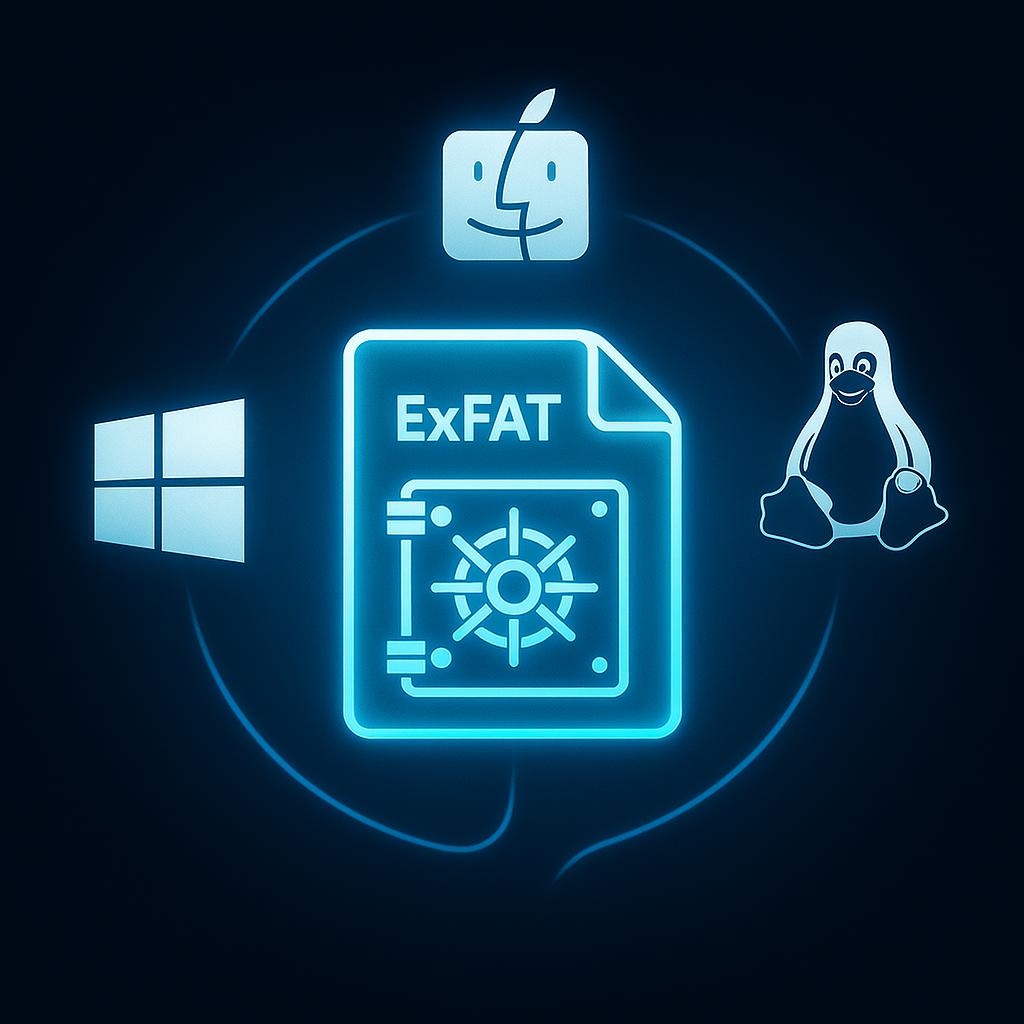
VeraCrypt is the gold standard for cross, platform encrypted storage. It creates a container file that acts as an entire virtual hard drive, encrypting data on the fly. This is ideal for active project files, secure portable drives, or sensitive archives that require frequent updates.
How, To: Creating the Cross, Platform Volume
This process focuses on selecting the ExFAT filesystem for universal compatibility.
Tool: VeraCrypt (Windows, macOS, Linux).
- Launch Volume Creation:
Action: Open VeraCrypt and click Create Volume. Select Create an encrypted file container.
- Set File Path:
Action: Click Select File and choose a location to save your container file (e.g.,
TravelVault.hc). - Configure Encryption:
Action: Accept the recommended defaults: Encryption Algorithm: AES and Hash Algorithm: SHA-512. Gotcha: VeraCrypt automatically uses a high iteration count (500,000 for containers) to maximize brute, force resistance.
- Set Size and Password:
Action: Define the size of the container (e.g., 50 GB) and set a strong, unique password.
- Filesystem Selection (Critical Step):
Action: In the format window, select the ExFAT file system.
- Gotcha: ExFAT is necessary because it is readable and writable on all three operating systems (Windows, Mac, Linux). Choosing NTFS or APFS locks the volume to that native OS.
- Gather Entropy:
Action: Move the mouse randomly within the window for at least 30 seconds to generate the strong random data (entropy) required for key generation. Action: Click Format.
Using the Volume Across Platforms
The mounted container operates transparently, regardless of the host OS, using the local VeraCrypt application to handle all encryption/decryption.
| Operating System | Mounting Command/Action | Access Location | Dismount Action |
| Windows | Select Drive Letter (e.g., J:), select file, click Mount. | Appears as new drive letter (J:). | Select volume, click Dismount. |
| macOS | Use the VeraCrypt GUI or the command line utility. | Appears as a mounted volume in Finder. | Click Unmount in GUI or veracrypt -d /path/. |
| Linux | Use the CLI: sudo veracrypt /path/to/file /mnt/vault. |
Accessed via the mount point (/mnt/vault). |
sudo veracrypt -d /mnt/vault. |
III. Solution 2: AES-256 Archiving (Transportable Security)
When the data is static (e.g., a batch of finalized client contracts) and needs to be transferred quickly, a secure archive file (.7z or encrypted .zip) is ideal. This requires using a tool that explicitly supports AES-256 and metadata protection.
How, To: 7, Zip/Keka for Maximal Archiving Security
Tool: 7, Zip (Windows/Linux), Keka (macOS).
- Initiate Archive:
Action: Right, click the folder(s) to be encrypted and select the Add to archive… option from the 7, Zip context menu.
- Choose Format:
Action: Select the 7z archive format for the highest native security and compression. (While ZIP is supported, 7z is structurally more robust).
- Set AES-256:
Action: Ensure the Encryption method dropdown is set to AES-256. Warning: Never select ZipCrypto.
- Crucial: Encrypt File Names:
Action: Locate and check the box labeled Encrypt file names. Gotcha: This is the step that guarantees confidentiality. Without it, the contents are encrypted, but all internal file names are visible to anyone who opens the archive, even without the password.
- Set Password:
Action: Enter a strong, unique password (12+ characters recommended) and click OK.
Key Exchange Protocol (The Operational Security Requirement)
The most secure cipher is worthless if the decryption key (password) is compromised during transfer.
- Rule 1: Separate the Key and the File. Never send the password via the same channel as the encrypted archive.
- Rule 2: Use an Out, of, Band Channel. Transmit the encrypted archive via email or cloud link. Then, send the password separately via an end, to, end encrypted messaging app (like Signal) or verbally over a verified phone call.
- Verification: Ensure the recipient has 7, Zip installed. If they try to open the archive and are immediately prompted for a password before seeing the file list, the header encryption succeeded.
IV. Cross, Platform Encryption Matrix
Selecting the right tool requires matching the use case to the technology’s strengths and limitations.
| Metric | VeraCrypt (Container) | 7, Zip / Keka (Archive) | Encrypted DMG (macOS Native) | LUKS/BitLocker (FDE) |
| Best Use Case | Multi, OS local project storage, portable drives | One, time file transfer, email attachment, static backup | Mac, to, Mac transfers, Mac, only secure vaults | Single, OS System Security (Full Disk) |
| Cross, Platform Access | Excellent (Windows, macOS, Linux, using ExFAT) | Excellent (Requires compatible AES-256 utility) | Poor (Requires non, standard tools on Windows/Linux) | None (Requires kernel drivers or special proprietary apps) |
| Data Interaction | Live, On, the, fly R/W (Mountable Drive) | Static (Must extract entirely to modify) | Live R/W (Mounts as Disk Volume) | Live R/W (System is always decrypted while booted) |
| Metadata Protection | Excellent (Volume header is obfuscated) | Excellent (If Encrypt file names is checked) | Excellent (File names are protected) | Excellent (Full, disk metadata protected) |
| Key Derivation | PBKDF2-SHA512 (500k+ iterations) | SHA-256 based (High iterations) | PBKDF2 | PBKDF2 |
V. Troubleshooting Cross, Platform Encryption
Most cross, platform failures stem from compatibility errors, not cryptographic compromise.
Symptom $\to$ Fix Table
| Symptom / Error Message | Root Cause | Non, Destructive Fix |
| Recipient cannot open or is not prompted for a password (e.g., using Windows Explorer). | AES-256 encryption is incompatible with the native file extractor. | Action: Recipient must install 7, Zip or WinRAR (v5.0+). |
| VeraCrypt volume mounts, but filesystems report “read failures” or “file system is corrupt.” | Antivirus software is interfering with VeraCrypt’s low, level disk I/O operations. | Action: Temporarily disable antivirus real, time scanning. Ensure the container file does not have an executable file extension (.exe). |
| Archive opens on Mac/Linux but shows file names as visible garbage characters. | Sender used ZipCrypto instead of AES-256, or used an incompatible character set. | Action: Sender must re, archive using AES-256 and mandate “Encrypt file names”. |
| VeraCrypt reports “Incorrect password or not a VeraCrypt volume.” | Volume header corruption (the first 512 bytes are damaged). | Action: Run VeraCrypt Tools > Restore Volume Header to try restoring the internal backup copy. |
| LUKS drive fails to decrypt after system update on Windows/Mac third, party reader. | Incompatibility caused by an OS update breaking the required third, party kernel extension (e.g., osxfuse). | Action: Update the third, party reader (e.g., UUByte, Hasleo) to the latest version, or access the data via the native Linux host. |
VI. Frequently Asked Questions
1. Does AES-256 on a ZIP file still expose my filenames
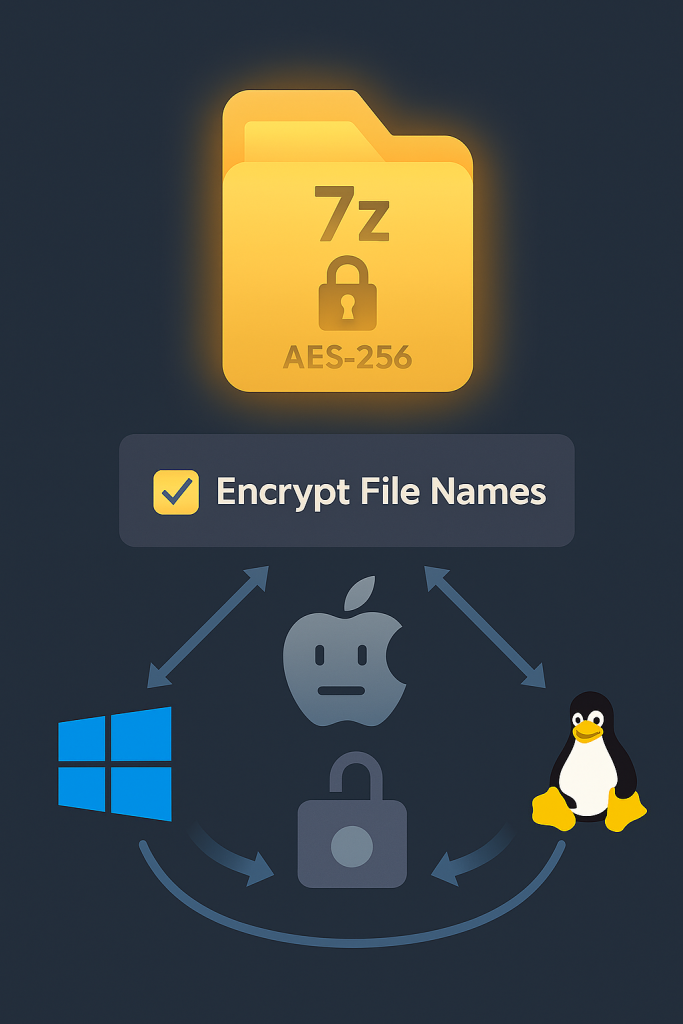
Yes, if you use the standard ZIP format without checking the Encrypt file names option. The ZIP format inherently stores metadata (filenames, file sizes) outside the encrypted content area. Use the 7z format or ensure the “Encrypt file names” box is checked in 7, Zip or a compatible utility.
2. Can I use a regular USB drive with VeraCrypt for cross, platform data
Yes, absolutely. The VeraCrypt volume (the file container) is stored on the USB drive, and it can be accessed on any machine running Windows, macOS, or Linux, as long as the machine has VeraCrypt installed.
3. What is the most compatible file system for a VeraCrypt container
ExFAT is the most compatible internal filesystem. It is natively read/write compatible with Windows, macOS, and Linux, and unlike the older FAT32 format, ExFAT supports individual files larger than 4 GB.
4. Why is ZipCrypto still an option if it’s so insecure
It remains an option purely for backward compatibility. Because it’s an old standard, it is the only encryption format that the default, native compression utilities in Windows and macOS can often handle without requiring extra software.
5. If I encrypt a folder using the Mac Disk Utility (DMG), can my Windows co, worker open it
Not easily. Your co, worker would need to download and install a specific, third, party utility designed to read Apple’s encrypted disk image format and APFS file system. This friction makes it poor for general cross, platform sharing.
6. Is VeraCrypt slower than BitLocker or FileVault
VeraCrypt’s initial mounting process is slightly slower due to its rigorous Key Derivation Function (PBKDF2 running 500,000 iterations). However, due to AES-NI hardware acceleration, the real, time file access and transfer speeds once the volume is mounted are virtually identical to native encryption tools.
7. Can I recover a forgotten VeraCrypt password using a cloud account
No. Unlike BitLocker, which offers the option to link a recovery key to a Microsoft Account, VeraCrypt is designed to be entirely independent and local. If you lose the password, the data is unrecoverable.
8. What is the purpose of the high iteration count in VeraCrypt
The high iteration count (500,000 for containers) forces the computer to spend time processing the password through the Key Derivation Function (PBKDF2). This deliberate slowdown makes dictionary attacks or automated brute, force attempts computationally expensive and impractical for an attacker.
9. Why does sending the password via the same email as the file compromise security
It violates the rule of key separation. If a third party intercepts the single email or gains access to the recipient’s inbox, they instantly possess both the encrypted data and the key required to unlock it.
10. Can I securely encrypt a self, extracting archive (SFX)
While some archivers offer SFX files, they require the password to be hardcoded or handled via script, which is less secure than a standard, password, protected archive. A regular .7z file with a securely transferred password is the better choice for confidentiality.
11. How long should my cross, platform encryption password be
For maximum resistance against brute, force attacks on the key derivation function, a minimum of 12 characters is recommended, including a mix of upper and lower case letters, numbers, and symbols.
12. If I use AES-256 on a Linux machine, can a Windows user open it
Yes, if the Linux user used a compatible tool like 7, Zip or WinRAR and the Windows user also has 7, Zip or WinRAR installed. The algorithm standard is the key to compatibility, not the operating system of creation.
13. What is the difference between AES-128 and AES-256 encryption key strength
AES-256 uses a longer 256, bit key compared to the 128, bit key. While AES-128 is considered extremely secure, AES-256 is the standard mandated by the U.S. government for classified data and is preferred for any highly sensitive files due to its increased cryptographic assurance.
14. What if I want to encrypt files before they go to OneDrive or Google Drive
For cloud synchronization, a dedicated tool like Cryptomator is ideal. It creates a local vault that encrypts files before they are synced by the cloud client, ensuring the cloud provider never sees the unencrypted data.
15. How can I confirm the archive I received actually used AES-256
If using the 7z command, line tool, you can execute 7z l -slt /path/to/file.zip. The output will explicitly list the Method used, confirming if it was ZipCrypto (weak) or AES-256 (strong).
Conclusion
The most effective strategy for cross, platform data security demands bypassing vendor, specific FDE lock, in and standardizing on universal, verifiable tools. For persistent, live access to data across Windows, macOS, and Linux, VeraCrypt containers formatted with ExFAT are the mandatory choice. For one, time transfers and sharing, the protocol mandates 7, Zip archives using AES-256 and the crucial Encrypt file names option. This two, fold approach guarantees both operational flexibility and maximum cryptographic assurance, securing data confidentiality regardless of the receiving operating system.