
macOS Security Trifecta: Implementing FileVault, Encrypted DMGs, and Password, Protected PDFs
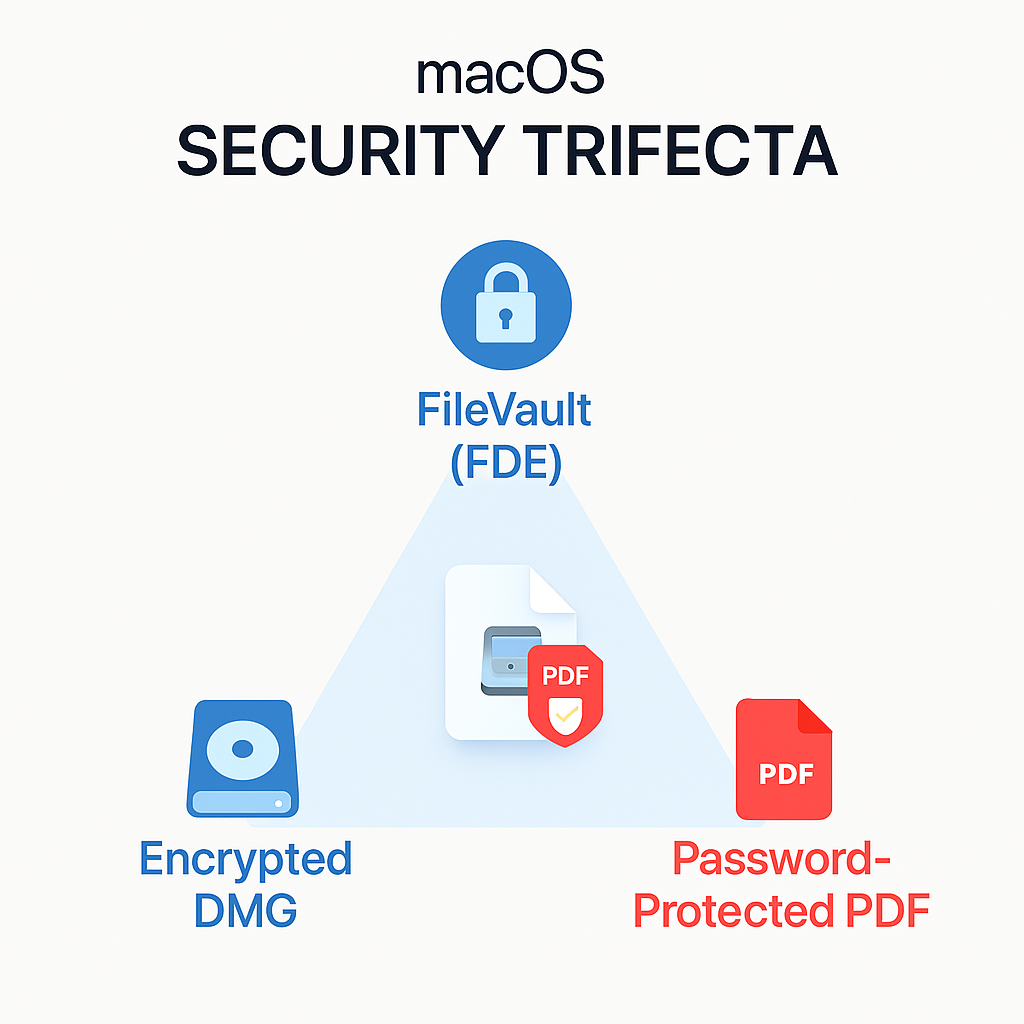
This comprehensive overview, developed by the security experts at Newsoftwares.net, details the three essential layers of macOS data protection. No single security feature can protect digital data across all environments, from system theft to portable archives and external sharing. The solution requires employing three distinct, native macOS tools. FileVault secures the entire startup disk, protecting against physical theft and unauthorized boot access. Encrypted Disk Images (DMGs) create isolated, portable containers for sensitive files that need to be moved or archived. Finally, Password, Protected PDFs restrict access and usage permissions when individual documents are shared with external parties. Combining these three layers ensures comprehensive data protection regardless of where the data resides or how it is accessed, promoting verifiable security and user convenience.
No single security feature can protect digital data across all environments, from system theft to portable archives and external sharing. The solution requires employing three distinct, native macOS tools. FileVault secures the entire startup disk, protecting against physical theft and unauthorized boot access. Encrypted Disk Images (DMGs) create isolated, portable containers for sensitive files that need to be moved or archived. Finally, Password, Protected PDFs restrict access and usage permissions when individual documents are shared with external parties. Combining these three layers ensures comprehensive data protection regardless of where the data resides or how it is accessed.
Three Layers of macOS Data Protection Summary
- System, Wide Security: Activate FileVault 2 for AES-XTS full disk encryption. On modern Macs, this leverages the Secure Enclave for robust key management, essential for protecting data when the device is stolen.
- Portable Containers: Create Encrypted Disk Images (DMGs) using Disk Utility. Select 256, bit AES encryption to secure specific, self, contained archives or project files for transport or off, device backup.
- Secure Document Sharing: Password, protect PDFs directly in the native Preview app. Configure both opening passwords and granular permissions (e.g., blocking printing or copying text) for shared documents.
Prerequisites and Safety Measures
Successful implementation of these encryption methods depends on careful preparation and key management.
- Administrative Access is Mandatory: Activating FileVault and performing disk image operations within Disk Utility require administrator privileges.
- The Absolute Requirement for Backups: Before enabling full disk encryption (FileVault) or erasing and encrypting external devices, users must perform a complete Time Machine backup. Encryption modifies the fundamental structure of the storage medium, and errors during conversion can lead to data loss.
- Critical Key Management: If the choice is made to use a Personal Recovery Key for FileVault, it must be recorded exactly, including all letters and numbers, and stored physically separate from the Mac. If the user forgets their login password and cannot locate this recovery key, the data is permanently inaccessible.
Layer 1: System Security via FileVault (Full Disk Encryption)
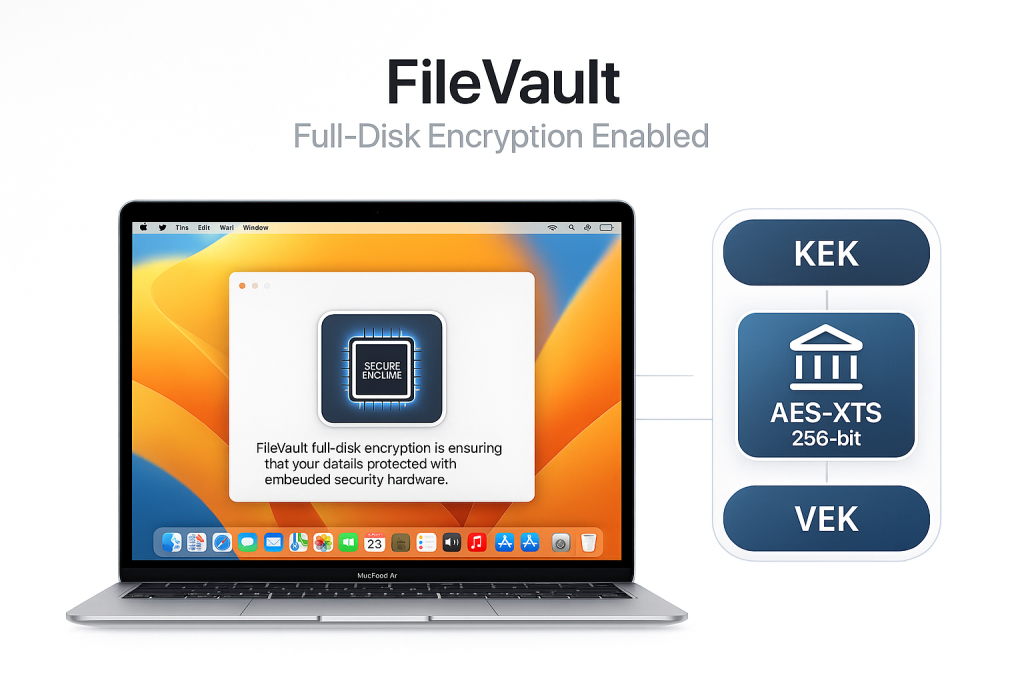
FileVault 2 is Apple’s full disk encryption (FDE) feature, designed to protect the entire startup volume using the AES-XTS algorithm. It is the foundational layer of security, protecting the system against unauthorized access if the Mac is stolen or if the storage medium is physically removed.
FileVault Deep Dive: Built, in Protection and Hardware Acceleration
On a Mac with Apple Silicon or an Apple T2 Security Chip, the data is automatically encrypted by the hardware itself using Data Protection Class C. Because the data is always encrypted, the function of FileVault shifts from basic confidentiality to key protection and strict access control.
FileVault enforces user authentication to unwrap the necessary cryptographic material. The core architecture uses a key hierarchy: the Volume Encryption Key (VEK) encrypts the actual data, but this VEK is protected by a Key Encryption Key (KEK). The KEK only becomes available after the user successfully enters their login password. This architecture is deeply integrated with the hardware security capabilities of the chips. All key handling occurs within the Secure Enclave, ensuring encryption keys are never exposed directly to the operating system.
This hardware integration is crucial for performance. Encryption and decryption are handled by a dedicated hardware AES engine. This integration prevents the CPU from being burdened, resulting in near, zero performance degradation during operation.
Password Security and Brute, Force Defense
The system employs robust defense against brute, force attacks aimed at the user password. FileVault utilizes the PBKDF2 (Password, Based Key Derivation Function 2) algorithm to stretch and strengthen the user password before deriving the KEK. This process is intentionally time, consuming. Apple calibrates the PBKDF2 iteration count so that one single password attempt takes approximately 80 milliseconds. This deliberate slowdown makes dictionary attacks or automated brute, force attempts impractical, requiring potentially years to crack even moderately complex passcodes.
How to Enable FileVault 2 (Step, by, Step How, To)
The process is managed directly within the system settings, requiring administrative credentials.
- Open System Settings:
Action: Click the Apple Menu () in the upper, left corner and select System Settings (or System Preferences on older macOS versions).
- Navigate to Security:
Action: Select Privacy and Security from the sidebar. Users may need to scroll down to locate the settings.
- Find FileVault:
Action: Click the FileVault section to expand the options.
- Authenticate and Start:
Action: Click the Turn On button. Action: If the padlock icon is closed, the system will first require the administrator password to unlock the settings.
- The Critical Recovery Choice:
Action: macOS prompts the user to select how the disk can be unlocked if the login password is forgotten. This is the most critical decision point:
- Option A (iCloud Recovery): Choosing “Allow my iCloud account to unlock my disk” provides convenience, linking the recovery mechanism to the user’s Apple ID. Gotcha: However, relying on iCloud means the master recovery method is tied to the security of the cloud account.
- Option B (Personal Recovery Key): Choosing “Create a recovery key” generates a long, unique string of letters and numbers. Action: This key must be copied exactly and securely stored off the encrypted disk, preferably in a physical or offline location. This limits the attack surface, as the recovery method is entirely separate from the online Apple ecosystem.
- Confirm and Start Encryption:
Action: Click Continue. FileVault immediately begins the encryption process in the background. The system remains usable during this time, often optimizing the process to occur during periods of inactivity.
Proof of Work: Verifying FileVault Status
To confirm that encryption has completed or to monitor the progress, the Terminal application provides explicit status updates.
- Open Terminal:
Action: Use Spotlight search (
Command + Space) and type Terminal. - Run Status Check:
Action: Input the following command:
sudo fdesetup status - Verification Output Interpretation:
Verify: The output verifies the state of the encryption:
- If fully active:
FileVault is On. - If in progress:
FileVault is On. Encryption in progress: Percent completed = XX
- If fully active:
The choice between using iCloud recovery versus a Personal Recovery Key has significant security implications. While using iCloud is simpler, security experts often suggest the Personal Recovery Key for highly sensitive data. The primary risk of using iCloud is that if an attacker compromises the Apple ID, they gain access to the master recovery method. A dedicated, physically stored recovery key limits the recovery attack vector to only physical or digital access to that specific key, strengthening the overall security posture.
Layer 2: Portable Containers via Encrypted DMGs
Encrypted Disk Images (DMGs) are virtual disk containers that are indispensable for data segmentation and portability. They create a secure, password, protected archive that can be stored on external media, backed up to the cloud, or transferred to another Mac. Unlike FileVault, which protects the entire boot volume, DMGs protect specific files when they are removed from the secured system environment.
Setting up Encrypted DMG Containers (Disk Utility Tutorial)
This process uses Disk Utility to create a secure, encapsulated volume.
Prerequisites:
Action: Launch Disk Utility (located in Applications > Utilities).
- Start Image Creation:
Action: Select File > New Image > Blank Image. (Alternatively, choose Image from Folder if the intent is to immediately encrypt the contents of an existing folder).
- Configure Volume Settings:
Action: The “New Blank Image” configuration window requires several parameters:
- Save As: Define the name of the final
.dmgfile. - Name: Input the name that will appear on the desktop when the image is successfully mounted (e.g., “Secure Project Archive”).
- Size: Specify the capacity, selecting a common size (e.g., 10 GB) or using the Custom option.
- Save As: Define the name of the final
- Select Format and Partition:
- Format: Choose an encrypted format suitable for the operating system version, typically APFS (Encrypted) or Mac OS Extended (Journaled, Encrypted). Gotcha: For cross, platform compatibility (e.g., Windows), the user must select ExFAT or MS-DOS (FAT) for the volume format, though this sacrifices some macOS, native functionality.
- Partitions: Select Single partition GUID Partition Map (the standard for modern Mac systems).
- Choose Encryption Strength (The Trade, Off):
Action: Click the Encryption pop, up menu and make a selection:
- 128, bit AES encryption: Provides very strong security and is generally faster for encryption and decryption. It is suitable for common security needs.
- 256, bit AES encryption: Offers the highest level of security due to the longer key size, making it significantly more resistant to theoretical brute, force attacks. This option is recommended for mission, critical or highly regulated data.
- Select Image Format:
Action: Choose Sparse Bundle Disk Image (UDSB). Crucial Step: This format is crucial because the container file only consumes the disk space necessary for the data stored inside, growing dynamically as needed. This is much more efficient than the fixed, size “Read/Write Disk Image”.
- Set Password and Save:
Action: Click Save. Enter a strong password and verify it. Warning: Unlike FileVault, there is no recovery mechanism for a lost DMG password, the data will be permanently locked. Users may opt to uncheck “Remember password in keychain” to prevent easy access if the Mac is left logged in.
Performance and Security Analysis: AES-128 vs. AES-256
While AES-256 is mathematically more secure, modern hardware optimization means the performance difference is often irrelevant, simplifying the decision for users.
AES Encryption Strength Comparison for Encrypted DMGs
| Metric | 128, bit AES | 256, bit AES | Significance |
| Security Level | High (Strong for common use) | Highest (Mission, critical data) | Greater resistance to brute force attacks due to key length. |
| Speed/Performance | Faster encryption/decryption | Slower due to increased complexity | Difference is negligible on modern Apple Silicon/T2 Macs. |
| Key Length | 128, bit key | 256, bit key | The size of the key used in the Advanced Encryption Standard. |
| Recommended Use | General archives, rapid data transfers | Financial records, proprietary IP, regulated data. |
Historically, significant performance differences were observed between macOS versions due to software updates (e.g., macOS 10.14.4 versus 10.14.6). However, the current architecture, utilizing dedicated hardware acceleration in Apple Silicon and T2 chips, standardizes encryption performance. Therefore, users should prioritize the superior security of 256, bit AES encryption, as the performance penalty on modern Macs is minimal and often unnoticeable.
Under the Hood: Key Derivation and Metadata Protection
Encrypted DMGs secure more than just file contents, they protect the context of the data. The external structure of the DMG includes a header that contains the cryptographic salt. When a user enters the password, the system combines this salt and the password, running the resulting string through the PBKDF2 function to derive the actual, strong encryption key. This process strengthens resistance against brute, force attempts.
Crucially, the file names and folder hierarchy within the DMG are also protected. The DMG acts as a raw disk image; thus, the filesystem metadata is encrypted along with the data blocks. This ensures that an unauthorized party cannot glean sensitive information about the contents simply by viewing the internal directory structure.
Proof of Work: Checking Integrity with Checksums
If an encrypted DMG is downloaded or transferred, there is a risk of corruption or tampering. Before mounting a sensitive image, integrity verification using a checksum is standard professional practice.
- Open Terminal.
- Generate Checksum:
Action: Execute the Secure Hash Algorithm 256 (SHA-256) on the file:
shasum -a 256 /path/to/your/EncryptedFile.dmgPro Tip: Instead of typing the full file path, drag the DMG file directly from the Finder into the Terminal window to auto, populate the path.
- Verification:
Action: Compare the generated checksum (a long hexadecimal string) against the checksum provided by the source. Verify: If the values match, the integrity of the file is confirmed. If they mismatch, the file is either corrupt or has been altered, and it should not be mounted.
Layer 3: Document Access Control (PDFs)
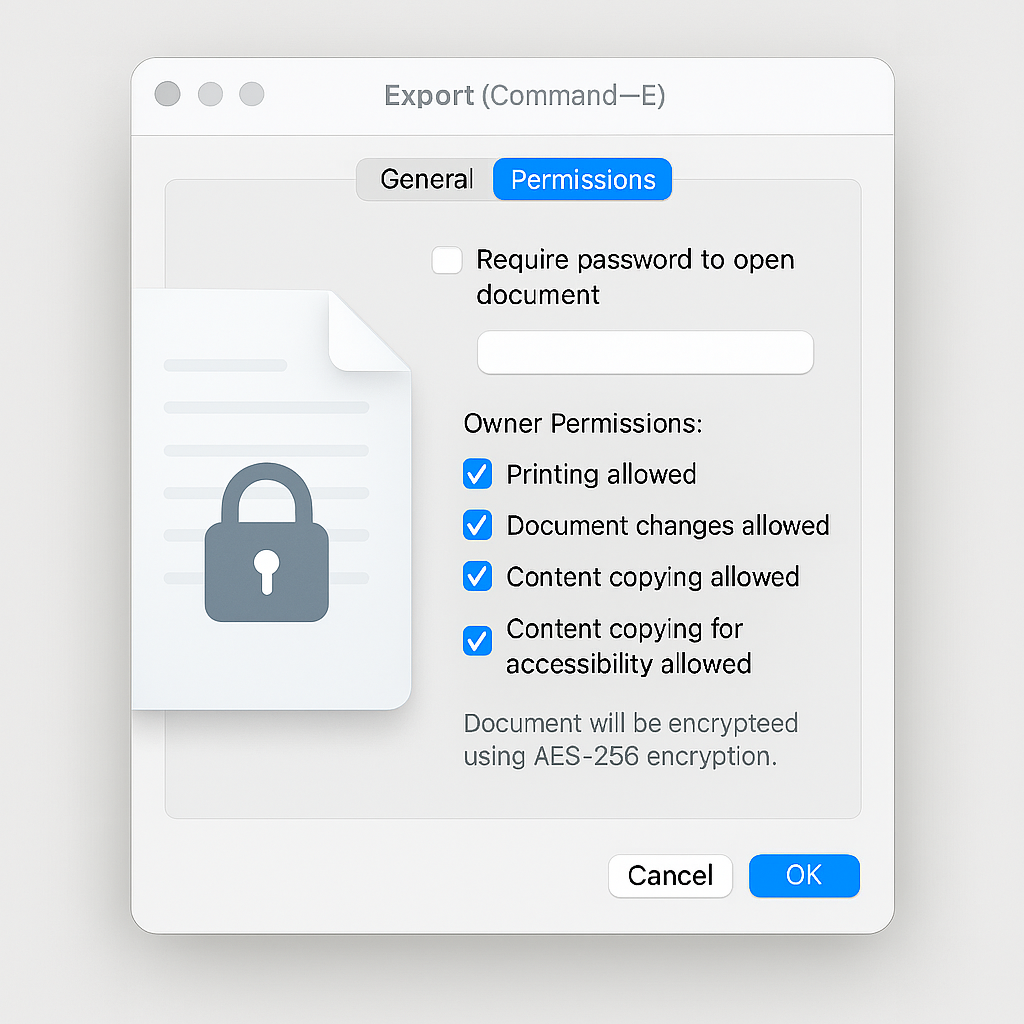
When the goal is to share a single, sensitive document with an outside party, full disk encryption or an encrypted container is impractical. File, level protection becomes necessary. macOS provides native PDF encryption capabilities through the Preview application, offering a fast, integrated way to enforce access control.
Method 1: Preview App Protection (Native macOS Method)
The Preview app allows setting two distinct passwords: one for opening the document and a separate “Owner Password” for managing permissions.
- Open the PDF:
Action: Use the native Preview app to open the PDF document.
- Export the File:
Action: Select File > Export. Crucial Step: Choosing Export over Save is essential to create a protected copy, leaving the original file unprotected if desired.
- Access Security Options:
Action: Click the Permissions button within the Export dialog box.
- Set Access Password:
Action: Select the checkbox labeled Require Password To Open Document. Enter and verify a strong password. This is the user password required by anyone attempting to view the file.
- Manage Owner Permissions:
Action: This section controls specific user actions. The user must select or deselect the checkboxes next to actions like printing, copying text, or adding annotations. Action: If a box is unchecked, that action requires the Owner Password (which the user must define in the field below).
- Finalize:
Action: Click Apply to lock the permissions, then click Save to create the new password, protected PDF copy.
Method 2: Command Line Control for Advanced Users (Using QPDF)
For users who require batch processing, complex security configurations, or a fix for corrupted files, the qpdf command line utility offers greater control.
Prerequisite:
Action: QPDF must be installed. This is typically done using a package manager like Homebrew.
- Encrypting a PDF:
Action: The
qpdfcommand requires defining the user password, owner password, and the encryption strength. Experts recommend using 256, bit AES encryption to ensure compliance with modern standards.qpdf --encrypt <user_pass> <owner_pass> 256 -- <input_file.pdf> <output_file.pdf>Example command for 256, bit encryption:
qpdf --encrypt securepass securepass 256 -- report_draft.pdf secured_report.pdf - Decrypting a PDF:
Action: To remove the password protection from a file using the user password:
qpdf --password=<user_password> --decrypt secured_report.pdf unsecured_report.pdf
Security Context: Avoiding Legacy Encryption
Security standards for PDF documents have evolved significantly. Older PDF versions (Acrobat 2 through 5) used the RC4 cipher, often with weak 40, bit or 128, bit key lengths. RC4 is now obsolete and deprecated in PDF 2.0 due to known vulnerabilities.
For sensitive documentation, it is essential to ensure that the document utilizes modern AES-256 encryption, which has been the standard since Acrobat X/XI/DC and PDF 1.7 Extension Level 8. When using third, party tools or command, line utilities, users must explicitly select AES-256 to guarantee the highest level of security.
Decision Matrix: Choosing the Right Tool
Selecting the appropriate encryption method hinges on defining the threat model: Is the concern system theft, data portability, or external sharing? The following table compares the macOS native tools with the leading open, source cross, platform alternative, VeraCrypt.
Encryption Method Use, Case Chooser
| Feature | FileVault 2 (FDE) | Encrypted DMG | VeraCrypt Containers |
| Primary Use | Full startup disk protection | Specific, portable archives/folders | Cross, platform, volume encryption |
| Encryption Standard | AES-XTS (256, bit key) | AES-128 or AES-256 (CFB mode) | AES, Serpent, Twofish (XTS mode) |
| Key Management | Secure Enclave controlled | PBKDF2 with header salt | PBKDF2/Key stretching |
| Portability | None (Mac installation only) | High (The .dmg file is portable) |
Very High (Windows, Linux, macOS) |
| Performance | Excellent (Hardware Accelerated) | Very Good (Native integration) | Good (Slightly slower, relies on osxfuse) |
| Recovery Path | iCloud or Personal Key available | Lost password results in data loss | Lost password results in data loss |
| Compliance/Audit | FIPS, validated cryptographic modules | Native Apple platform security | Independently audited (some vulnerabilities remain) |
Hands, on Notes and Trade, offs
FileVault is a mandatory baseline for securing a Mac against physical theft, protecting the system while it is at rest. However, FileVault cannot secure data once it is moved off the protected startup volume, such as when backing up files to an unencrypted external drive or storing them in a cloud service. For these scenarios, the Encrypted DMG is essential, as it creates a security layer that is entirely separate from the host system’s encryption status.
VeraCrypt is often considered when cross, platform volume compatibility is the primary requirement. VeraCrypt volumes can be opened on Windows, Linux, and macOS, provided the volume is formatted with a compatible filesystem like ExFAT. While VeraCrypt offers advanced features like plausible deniability, it relies on third, party kernel extensions (such as osxfuse on macOS). This dependency introduces system complexity, and updates to macOS have been known to break compatibility, potentially preventing the system from booting or accessing the encrypted container. Therefore, native DMGs are the preferred, most stable solution for Mac, only environments.
Troubleshooting Encrypted macOS Volumes
When encryption errors occur, the immediate priority is data recovery. Solutions must prioritize non, destructive methods before resorting to volume repair or erasure.
Common macOS Encryption Errors and Solutions
| Symptom/Error String | Root Cause | Non, Destructive Test/Fix | Last Resort (Data Loss Warning) |
| “An unexpected master password keychain was found.” | Remnant or conflicting legacy FileVaultMaster.keychain file. |
Action: Remove the file in Terminal: rm /Library/Keychains/FileVaultMaster.keychain. Then restart the device. |
N/A |
| Error -69842 or ‘Invalid thread record’ on mount | Corrupted FileVault volume structure (filesystem integrity failure). | Single, User Mode Data Extraction: Boot holding Command + S. Authenticate. The volume often mounts here. Copy data off using command line utilities (e.g., tar czpf /Volumes/usb/backup.tgz /Users). |
Wipe the corrupted volume and reinstall macOS using the FileVault key. |
| Encrypted DMG fails to mount (I/O Error, verification failure) | Corruption during transfer, incomplete download, or poor checksum. | Action: Verify file integrity using the shasum -a 256 command. If the checksum fails, redownload the file from the source. |
Use Disk Utility’s First Aid feature on the disk image (rarely successful). |
| PDF automatically requires password | Metadata error (/EncryptMetadata false) caused by a known bug in Preview/Safari saving changes. |
Terminal Metadata Fix: Use sed to rewrite the metadata flag in the Terminal (see detailed command below). |
Use a third, party application to open and save a clean copy of the PDF. |
| FileVault password rejected in Recovery Mode | Keyboard layout mismatch, system language corruption, or minor CoreStorage error. | Action: Verify the keyboard layout setting in the Recovery environment. Attempt unlocking using the alphanumeric Personal Recovery Key. | Proceed with Single, User Mode data extraction as detailed above. |
Detailed Fix: Preview PDF Corruption
A specific and recurring issue on macOS involves the Preview app automatically locking a PDF with a password that the user never set. This happens because the internal metadata flag is incorrectly set. The fix requires manipulating the file structure directly using a command line tool, proving that not all troubleshooting can be solved in the GUI.
The command uses sed (a stream editor) to change the broken metadata entry /EncryptMetadata false to /EncryptMetadata true, which forces the PDF to behave as expected.
Terminal Command for PDF Fix:
LC_ALL=C \
sed \
-i '' \
-e 's/\/EncryptMetadata false/\/EncryptMetadata true/g' \
path/to/affected/file.pdf
Users must replace path/to/affected/file.pdf with the full path of the corrupted file.
Frequently Asked Questions
Does FileVault slow down my Mac
No, not on modern hardware. Macs equipped with Apple Silicon or the T2 chip feature a dedicated hardware AES engine managed by the Secure Enclave. This hardware handles encryption and decryption operations in real, time, ensuring that the performance overhead is negligible and encryption is virtually transparent to the user.
Can I change my FileVault password without re, encrypting the whole drive
Yes. FileVault employs a hierarchy of keys where the user password protects a Key Encryption Key (KEK). The KEK then protects the Volume Encryption Key (VEK), which encrypts the data. Changing the login password only requires re, wrapping the KEK, eliminating the need to decrypt and re, encrypt the massive volume of data.
What is the security difference between AES-128 and AES-256 for encrypted DMGs
Both standards provide strong security, but AES-256 is stronger because it uses a 256, bit key length and requires more computation rounds, making it more resilient against theoretical future brute, force attempts. Given the minimal performance impact on modern Macs, AES-256 is the recommended choice for mission, critical or highly sensitive data.
How does macOS prevent brute, force attacks against my FileVault password
macOS uses the PBKDF2 Key Derivation Function, which is intentionally slow. This function is calibrated such that each password attempt requires approximately 80 milliseconds of processing time. This time constraint makes attempting millions of password combinations economically and practically infeasible for an attacker.
Are filenames protected inside an encrypted DMG
Yes. When an encrypted DMG is created, the entire underlying disk structure is encrypted. The filesystem metadata, which contains the names of the files and folders, is encrypted along with the file contents. Consequently, if the container’s encryption is not bypassed, the filenames remain fully secured.
If I use iCloud recovery for FileVault, does Apple hold my key
If the user chooses the iCloud recovery option, the recovery key is securely stored by Apple, linked to the user’s Apple ID. This allows recovery via an online path. Choosing the Personal Recovery Key option removes this cloud dependency, placing the sole responsibility, and the sole access risk, on the user’s secure, offline storage method.
What is the “owner password” used for in a protected PDF
The owner password manages specific document permissions. If a user sets the owner password, they can choose to restrict actions like printing, copying text, or adding annotations for other users. If a box is unchecked, that action requires the owner password to override those usage limitations.
Can I encrypt an entire external hard drive using Disk Utility
Yes. Disk Utility can encrypt an entire external drive. The process requires erasing the drive and formatting it using an encrypted file system format, such as APFS Encrypted, while selecting the GUID Partition Map scheme. Users must back up all existing data before performing this operation.
When should I use a Sparse Bundle Disk Image format
The Sparse Bundle Disk Image format (UDSB) should be used when an encrypted container needs to grow dynamically in size. Unlike fixed, size disk images, the sparse bundle only consumes the actual space used by the contained files. This format is highly efficient for ongoing archives, network backups, and folders where files are frequently added or modified.
Is FileVault required if I have a Mac with Apple Silicon
Yes. While Macs with Apple Silicon automatically encrypt data at a low hardware level (Data Protection Class C), FileVault is necessary to enforce a crucial access control layer. FileVault forces user authentication to unwrap the Volume Encryption Key via the Secure Enclave, protecting the data from decryption if the device is accessed via means other than the authorized boot process.
Conclusions and Recommendations
Effective data security on macOS requires a layered approach utilizing FileVault for system defense, Encrypted DMGs for portability, and PDF protection for sharing. Relying solely on FileVault leaves external backups and individual file transfers exposed.
The analysis confirms that modern macOS encryption is fast and robust due to hardware acceleration in Apple Silicon and T2 chips. This efficiency means that users should default to the highest security setting, 256, bit AES encryption, in all scenarios where available. Furthermore, understanding the architecture, particularly the reliance on the Secure Enclave and the time, delay function of PBKDF2, demonstrates the high, assurance compliance of these native tools.
For organizations or individuals managing significant volumes of sensitive or regulated data, it is strongly recommended to automate the security policy. Using a Mobile Device Management (MDM) solution is the most straightforward method to enforce mandatory FileVault activation across all user devices, securely escrow Personal Recovery Keys, and continuously audit compliance status, shifting encryption from a user task to a non, negotiable, centralized security requirement.