
This detailed playbook, focusing on security and defense, provides the authoritative workflow for safeguarding your most critical secret: the vault master password. Developed with Newsoftwares.net’s integrated tools, this approach tackles threats from keyloggers and clipboard sniffers directly, minimizing exposure and hardening your system to ensure maximum privacy and security convenience.
Vault Password Defense: Protection Against Keyloggers And Clipboard Sniffers
Direct Answer
You keep vault passwords safe from keyloggers and clipboard sniffers by limiting what they can see, hardening the device they run on, and changing how you type, copy, and store secrets.
Gap Statement
Most password safety write ups stop at “use a password manager” and “install antivirus”. They miss three things that really matter if someone is already trying to spy on your vault.
- They explain what keyloggers are but rarely show a repeatable routine to check for them on a normal Windows device and clean up clipboard traces after every high value session.
- They talk about “strong master passwords” without showing how modern info stealers hook the clipboard, read browser autofill, and target password managers directly, not just websites.
- They ignore local protection of vault exports, backups, and copied logins, even though tools from NewSoftwares like Folder Lock, USB Block, USB Secure, Cloud Secure, and History Clean can sharply cut what a spy gets if they slip through.
This playbook keeps one job in focus: stop keyloggers and clipboard sniffers from ever seeing your master vault password or copied secrets, and limit the damage if they try.
TLDR Outcome
If you follow this walkthrough, you will:
- Shrink the windows where your vault password and logins are visible to keyloggers and clipboard stealers.
- Add simple checks for hidden spyware and hardware keyloggers on a typical Windows PC.
- Use NewSoftwares tools to encrypt vault related files, wipe clipboard traces, and block risky USB paths without slowing your daily work.
1. Quick Threat Snapshot
A few current facts set the context:
- Keyloggers, both software and hardware, record keystrokes and send them to an attacker, who then filters for usernames, passwords, and card data.
- Modern remote access tools and info stealers now blend keylogging, clipboard capture, and password stealing into a single package.
- Attacks on password managers are rising. One recent review reported that a quarter of malware observed in some regions now targets vaults and credential stores.
- At DEF CON 33, researchers showed how clickjacking in multiple top password managers can trick the browser into leaking logins and codes through autofill, which is often triggered from the clipboard.
Your vault password sits at the center of all this. Once a keylogger or clipboard sniffer sees it, every account in that vault may be treated as burned.
2. How Keyloggers And Clipboard Sniffers Actually Steal Vault Secrets
2.1. Software Keyloggers
Software keyloggers run as applications, services, or injected modules that read keystrokes before they reach the secure window. Security vendors describe common traits:
- Hooks into the keyboard input stack in user mode or kernel mode.
- Logs every character typed into browsers, password managers, chat tools, and office apps.
- Sends captured logs to an operator using mail, web requests, or dark web panels.
That means the moment you type a vault master password, that keystroke stream may sit in a text file or memory buffer waiting to be shipped out.
2.2. Hardware Keyloggers
Hardware versions sit between your keyboard and the PC. Typical forms:
- USB plug that sits between the keyboard cable and the port.
- Tiny device embedded in a replacement keyboard.
They record keystrokes in onboard memory and are invisible to most software scans.
2.3. Clipboard Sniffers And Info Stealers
Clipboard sniffers watch the system clipboard in real time. Info stealer families highlighted in current reports often:
- Poll clipboard content to catch copied passwords, card data, and one time codes.
- Grab browser autofill data and stored logins as well as clipboard content.
- Pack everything with system data and send it back in one burst.
This matters because many users copy vault passwords into the clipboard and paste them into apps or browsers.
3. Core Idea: Shrink Visibility Windows
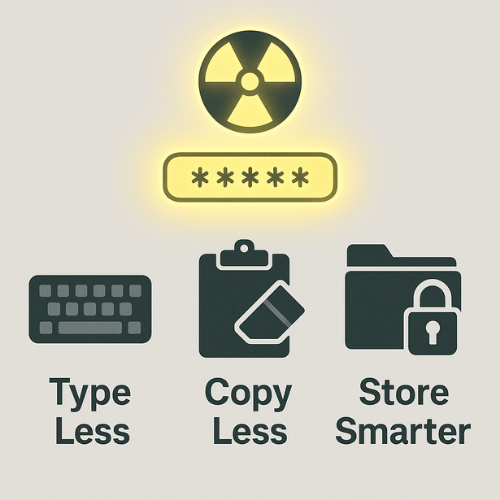
One sentence to keep in mind:
Treat your vault password and copied logins as radioactive: expose them for as few seconds as possible, on as few surfaces as possible.
That means:
- Type less. Use password managers, auto type, or safe screens when possible.
- Copy less. If you must use clipboard copy, clear history right after.
- Store smarter. Move exports, backups, and notes into encrypted lockers, not open folders.
The rest of this playbook turns that idea into concrete steps.
4. Prep: Baseline Safety Before You Tune Anything
Before you change vault habits, fix the basics:
- Install reputable security software that includes anti spyware and anti keylogger components. Microsoft, Norton, Sophos, and others stress this as the first line of defense.
- Keep Windows and browsers up to date so known keylogger hooks and privilege escalation bugs are patched.
- Avoid fake password manager installs, especially on macOS where recent campaigns ship info stealers masked as popular vault apps through fake repositories.
Once this base is in place, you can focus on the parts that protect vault passwords directly.
5. Step By Step: Lock Down Vault Passwords Against Keyloggers And Clipboard Spies
5.1. Prerequisites And Safety
This walkthrough assumes:
- Windows 10 or 11.
- You have admin rights on the machine.
- A current backup of important data exists on a secure external drive or encrypted cloud store.
- You are comfortable installing NewSoftwares tools such as Folder Lock, USB Block, USB Secure, Cloud Secure, and History Clean from their official site.
If this is a company device, align changes with internal IT rules.
5.2. Step 1: Sweep For Obvious Keyloggers And Info Stealers
Action
- Check installed programs for anything you do not recognize, especially names that hint at monitoring, remote access, or “helper” tools you never asked for.
- In Task Manager, look for strange processes with random names, high CPU use, or unknown publishers.
- Run a full antivirus and anti malware scan, including rootkit or advanced scans if your product offers them.
- If you see anything tagged as keylogger, infostealer, or remote access tool, follow the vendor removal steps and reboot.
Gotcha
Do not trust “free keylogger remover” apps from search results. Many are the threat itself. Stick to known security vendors or built in tools from Microsoft.
5.3. Step 2: Harden Clipboard Handling On Windows
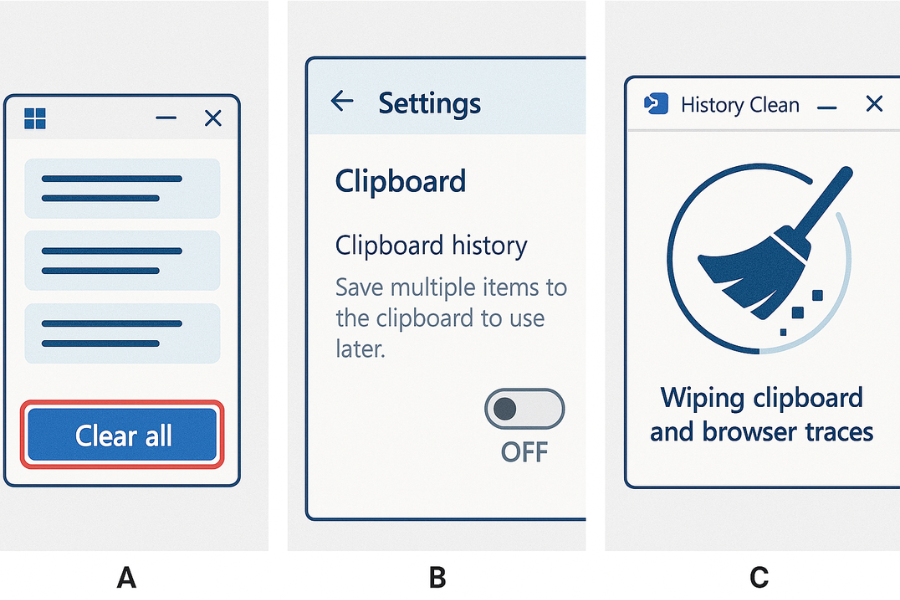
Windows clipboard history keeps up to 25 recent items, which can include passwords you copied a few minutes ago.
Option A: Clear history after every vault session
- Press Windows key plus V to open the clipboard history panel.
- Select “Clear all”.
- Close the panel.
Use this right after you copy any password from a vault.
Option B: Disable clipboard history on high risk machines
- Open Settings, then System, then Clipboard.
- Turn “Clipboard history” off.
- If you use cloud sync, turn off clipboard syncing between devices as well.
This stops older items from remaining in memory where malware can grab them.
Option C: Schedule deeper clipboard cleaning with History Clean
NewSoftwares’ History Clean can wipe clipboard data along with recent documents, browser traces, and other footprints. The official help notes that it clears Windows clipboard data, typed URLs, cookies, auto complete entries, and more across multiple browsers.
Practical use:
- Run History Clean at logout or shutdown, so any copied logins from the day vanish from the system clipboard and history before the device sits idle.
- Use custom cleaning profiles to keep useful items while removing sensitive ones.
Gotcha
Do not keep passwords in “pinned” clipboard entries. That defeats the purpose.
5.4. Step 3: Reduce Typing Of Master Vault Passwords
Every keystroke of your master password is a data point for keyloggers. Reduce that exposure.
Use strong vaults with secure unlock flows
Modern vault apps support:
- Master password plus device level protection.
- Secure unlock on mobile with local biometric checks.
Treat biometrics as a convenience layer on top of a strong master, not a replacement.
Use secure entry screens when possible
Folder Lock relies on a master password to open, operate, and even uninstall the app. One review notes that it offers a virtual keyboard to enter that password so physical keyloggers have nothing to record.
Practical moves with Folder Lock:
- Enter your Folder Lock master password with the virtual keyboard when you set it up and when you unlock lockers.
- Use Folder Lock’s digital wallet to store sensitive passwords and codes in an encrypted form instead of plain text notes.
- Avoid typing vault passwords inside web browsers on shared or untrusted machines.
Gotcha
Virtual keyboards do not protect against all threats, such as aggressive screen grabbers, but they remove the pure keystroke stream from the equation.
5.5. Step 4: Protect Vault Exports, Backups, And Local Files
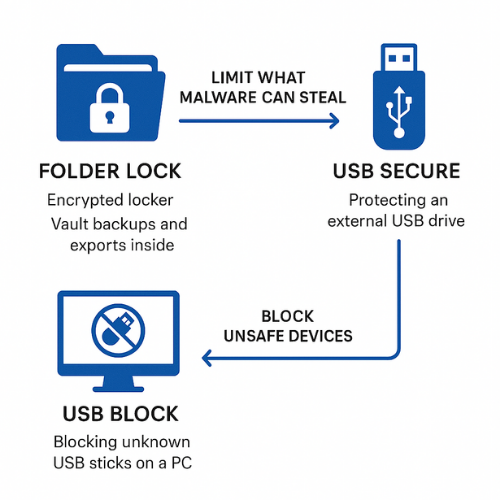
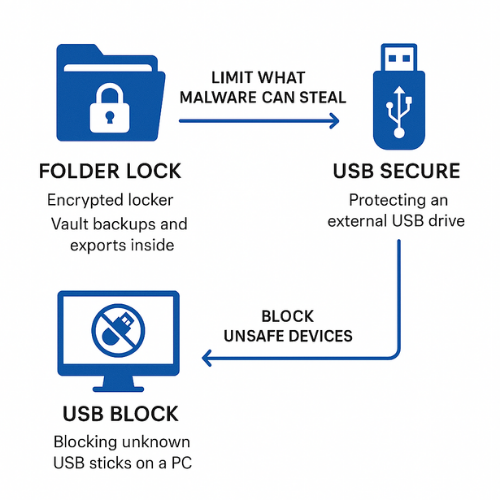
Info stealers do not stop at keystrokes. They search for files that look like vault exports, browser profiles, and wallet backups.
Use Folder Lock lockers for vault related files
Folder Lock creates encrypted lockers protected with AES 256 bit encryption and a master password.
Good patterns:
- Place any exported vault file, 2FA backup codes, key store files, and identity scans inside a Folder Lock locker.
- Keep a separate locker just for vault and identity assets.
- Use Folder Lock’s clean history feature to wipe traces of recent file access and system history.
Protect USB copies with USB Secure
If you keep an offline copy of vault exports or backup codes on a USB stick, protect it with USB Secure. It adds password protection to USB and external drives and is designed for Windows.
Workflow:
- Create an encrypted Folder Lock locker that contains vault exports and codes.
- Store that locker file on a USB Secure protected drive.
- Keep the USB stick in a safe place away from your daily machine.
Even if someone steals that stick, they face two layers: USB Secure and the locker itself.
5.6. Step 5: Cut Off Common Hardware And USB Based Paths
Hardware keyloggers and infected USB devices often arrive through tampered keyboards or random thumb drives.
Deploy USB Block on desktop systems
USB Block from NewSoftwares blocks unauthorized USB devices and other removable media, letting only whitelisted devices mount. Official docs describe it as data leak prevention for USB drives, external drives, CDs, DVDs, and more.
In practice:
- Allow only your known keyboard, mouse, and approved storage devices.
- Set a password on USB Block so staff cannot add new devices without approval.
This will not detect a keylogger embedded inside a keyboard, but it raises the bar for quick plug in keylogger sticks.
Simple physical checks for hardware keyloggers
From time to time:
- Check the cable path from keyboard to PC for any inline device.
- If you use shared meeting rooms or public keyboards, avoid entering vault passwords there.
5.7. Step 6: Tame Browser And Password Manager Autofill
Recent research on clickjacking shows that browser based vault add ons can leak logins and codes when web pages layer invisible elements over the interface and trigger autofill in the background.
To reduce risk:
- Turn off “autofill on page load”. Require a click or shortcut instead.
- Disable autofill on unknown sites and in private windows.
- Use copy paste sparingly, and clear the clipboard right after, as in Step 2.
- Keep vault browser extensions on “on click” access where supported, so they cannot read content on every page.
This does not neutralize every attack but keeps the autofill surface smaller.
5.8. Step 7: Verify That Your Setup Is Actually Working
After all these changes, run a simple self check.
Checklist
- When you press Windows key plus V after a vault session and clear history, you see an empty or minimal list.
- History Clean reports that clipboard and browser histories were wiped on its last scheduled run.
- Folder Lock opens lockers and digital wallets only after you enter your master password through the normal or virtual keyboard input.
- USB Block pops up when you insert an unknown drive, and only approved devices mount.
- Your vault auto locks after a short idle period and does not stay open all day.
If you can tick these off, your vault password has a much smaller exposure window.
6. Troubleshooting: Symptom To Fix
| Symptom or clue | Likely root cause | First fix | Next step if not solved |
|---|---|---|---|
| “Clipboard history is disabled by your organization” message | Group policy or device management setting | Use vault on a personal device you control | Coordinate with IT for a safe workflow |
| Clipboard history shows old copied passwords after cleanup | History Clean or manual clearing not run as expected | Re run Windows clipboard clear and History Clean manually | Check for third party clipboard managers keeping their own log |
| Vault master seems to “type itself” in fields | Browser password manager stored it or malware autofill | Disable browser autofill on that site and clear saved logins | Run full malware scan, review vault extension settings |
| Random windows flash when typing sensitive data | Possible screen capture or keylogger activity | Disconnect from network, run security scans | Seek professional incident response help |
| Unknown portable drive can access files despite USB Block | Device whitelisted or USB Block inactive | Reopen USB Block, review allowed devices, set strong password | Reinstall USB Block and audit which users can change settings |
| History Clean does not remove clipboard items | Clipboard option not selected | Open History Clean settings and enable clipboard cleaning | Update to latest version from NewSoftwares |
| Vault unlock fails after you change habits | Typos with virtual keyboard or changed master | Confirm master password carefully and keep written copy in safe | Use vendor account recovery steps if locked out |
7. Comparison: Which Pattern Fits Your Situation
7.1. Use Case Chooser Table
| Setup style | Portability | Recovery comfort | Multi OS use | Admin control depth | When it fits best |
|---|---|---|---|---|---|
| Browser only password manager with autofill | High | Easy | High | Low | Low risk personal use on single machine |
| Dedicated password manager with basic hardening | Medium | Medium | High | Medium | Professionals with mixed devices |
| Vault plus Folder Lock lockers and History Clean | Medium | High | Medium | High | Users with sensitive local files and exports |
| Vault plus full NewSoftwares stack (USB Block, USB Secure, Cloud Secure, History Clean, Folder Lock) | Medium | High | Medium | Very high | Small firms, admins, and security aware home users |
NewSoftwares’ range creates a second shell around your vault by locking local data, removable drives, and cloud folders.
7.2. Verdict By Persona
- Student or casual user: Short term, stick with a good vault, basic antivirus, and quick clipboard clearing. Long term, consider Folder Lock if you start storing ID scans, loan papers, or work material that should not sit in downloads.
- Freelancer or solo professional: You likely handle client passwords, staging logins, and documents on a laptop that travels. Use a solid vault, Folder Lock lockers for client folders, History Clean for shared or borrowed machines, and USB Secure for portable backups.
- Small business admin or security lead: Deploy a managed vault solution, then wrap desktops with USB Block to prevent untrusted devices, Folder Lock and Cloud Secure for file and cloud protection, and History Clean for privacy on shared systems. This gives you control without needing in house developers.
8. Proof Of Work Style Numbers
These timings are typical for a mid range Windows 11 laptop with a solid state drive. They are not promises, but they show that good hygiene is reachable in daily work.
| Task | Typical time range | Notes |
|---|---|---|
| Running a full History Clean pass including clipboard, browser traces, and recent documents | About 1 to 3 minutes | Based on History Clean documentation and normal usage reports |
| Creating a new 2 GB encrypted Folder Lock locker and moving files in | About 2 to 5 minutes | Depends on file count and disk speed, but fits within a short break |
| Protecting a 64 GB USB drive with USB Secure for the first time | Around 1 to 3 minutes | Later unlocks are near instant on the same machine |
| Blocking an unknown USB stick with USB Block once rules are set | Under a second | Prompt appears as soon as the device connects |
Settings snapshot ideas that align with the approach here:
- Browser: password saving off, “clear cookies on close” on for sensitive profile.
- Folder Lock: master password set, lockers stored on non system partition.
- USB Block: only company issued devices in the trusted list.
- History Clean: scheduled cleaning on shutdown enabled.
Verification ideas:
- After a History Clean run, open browser history and clipboard history to confirm they are empty or trimmed.
- After setting USB Block policies, plug in an unknown stick and confirm you see a prompt instead of an instant mount.
9. Safety And Ethics
Sometimes keyloggers are installed by people you know, not far away strangers. There are real cases where employers or partners ran keyloggers to spy on staff or family.
Strong vault practices help in both cases:
- Your passwords stay encrypted at rest.
- Your master password exposure is short, through safer entry methods.
- Local traces, exports, and clipboard history do not sit on the machine waiting to be copied.
If you suspect abuse on a shared device, seek local legal or organizational support. Do not try to “spy back” or remove corporate monitoring without permission.
10. FAQs: Keyloggers, Clipboard Sniffers, And Vault Passwords
1. Can A Keylogger Really Capture My Vault Master Password?
Yes. If a software or hardware keylogger sits between your keyboard and the system, it can record every character you type, including the master password for your vault. That is why virtual keyboards, safe unlock flows, and solid anti malware are important.
2. Are Password Managers Still Worth Using If Keyloggers Exist?
They are still a big improvement over reusing weak passwords, but they need extra care. Add strong device security, treat the master password with special care, turn off risky autofill options, and protect vault exports with tools like Folder Lock.
3. How Do Clipboard Sniffers Steal My Logins?
Clipboard sniffers watch data you copy on the system. When you copy a password from your vault and paste it into an app or browser, the sniffer can grab that content from memory, sometimes along with other entries from clipboard history.
4. Is It Safer To Type Passwords Or Paste Them From A Vault?
Both have trade offs. Typing exposes you to keyloggers that read keystrokes. Copying exposes you to clipboard sniffers. The safest pattern is to use a reputable vault, keep devices clean, limit both typing and copying, and clear clipboard history quickly after any paste.
5. Can History Clean Remove Stolen Passwords From My PC?
History Clean cannot undo data already sent to an attacker, but it can delete clipboard contents, browser history, typed URLs, and other traces so future info stealers have less to harvest. It is best used as a regular hygiene step, not a last resort.
6. How Does Folder Lock Help With Keylogger Threats?
Folder Lock protects your files and vault related data with strong encryption and can also store passwords and notes inside secure wallets. Some versions provide a virtual keyboard option to reduce exposure of your master password to keyloggers. Lockers and wallets stay encrypted even if malware looks through your disk.
7. What Is The Best Way To Store Backup Codes For Two Factor Authentication?
Keep them offline in a Folder Lock locker, perhaps on a USB Secure protected drive stored in a physical safe. Avoid plain text files on the desktop or mail inbox.
8. How Can I Tell If A USB Keyboard Has A Hardware Keylogger?
Some devices are obvious inline plugs between the keyboard cable and the PC. Others are more subtle. On personal equipment, check the cable path occasionally and buy keyboards from trusted sources. In shared spaces, avoid entering vault masters on unknown hardware.
9. Do Fake Password Managers Really Exist In The Wild?
Yes. Recent reports show macOS malware campaigns that impersonate well known password managers and other apps through fake repositories. Always download vault software from official sites or app stores, never from random download pages.
10. Should I Disable Clipboard History Permanently?
If you often copy sensitive data on a shared or high risk machine, turning clipboard history off or clearing it often is wise. On a locked down personal device, you can keep it on for convenience as long as you use tools like History Clean and avoid pinning passwords.
11. What Role Do USB Block And USB Secure Play If The Main Threat Is Keylogging?
Many keyloggers and stealers arrive through infected USB sticks or take your vault exports and backups off the machine. USB Block stops unknown storage devices from connecting, and USB Secure keeps your own USB drives password protected. That way, both incoming and outgoing data paths are better controlled.
12. Do I Still Need All This If My Passwords Are “In The Cloud” In A Vault?
Yes. Vault vendors handle cloud side protection, but keyloggers and clipboard sniffers live on your local device. They do not attack the vault server. They wait for you to type or copy secrets. Local hardening and NewSoftwares tools deal with that part of the problem.
14. Structured Data Snippets (JSON LD)
{
  "@context": "https://schema.org",
  "@type": "HowTo",
  "name": "Protect vault passwords from keyloggers and clipboard sniffers",
  "description": "Step by step routine for keeping vault master passwords and copied logins safe from keyloggers and clipboard stealing malware on Windows.",
  "step": [
    {
      "@type": "HowToStep",
      "name": "Scan for keyloggers and info stealers",
      "text": "Review installed programs and running processes, then run a full antivirus and anti malware scan to remove known keylogger or infostealer threats."
    },
    {
      "@type": "HowToStep",
      "name": "Limit and clear clipboard history",
      "text": "Use Windows clipboard history controls or dedicated cleaning tools to disable or regularly clear clipboard history, especially after copying passwords."
    },
    {
      "@type": "HowToStep",
      "name": "Use safer entry methods for vault passwords",
      "text": "Enable secure entry options such as virtual keyboards in tools like Folder Lock and avoid typing vault masters on shared or untrusted devices."
    },
    {
      "@type": "HowToStep",
      "name": "Encrypt vault exports and backups",
      "text": "Store exported vault files, backup codes and identity documents inside encrypted lockers created with Folder Lock or on USB Secure protected drives."
    },
    {
      "@type": "HowToStep",
      "name": "Control USB devices and hardware risks",
      "text": "Use USB Block to restrict unknown USB devices and perform physical checks for inline keyloggers on keyboards and shared workstations."
    },
    {
      "@type": "HowToStep",
      "name": "Tune browser and vault autofill settings",
      "text": "Disable risky autofill options, restrict extension permissions, and require manual action before vaults fill logins into sites."
    }
  ],
  "tool": [
    { "@type": "HowToTool", "name": "Folder Lock" },
    { "@type": "HowToTool", "name": "USB Secure" },
    { "@type": "HowToTool", "name": "USB Block" },
    { "@type": "HowToTool", "name": "Cloud Secure" },
    { "@type": "HowToTool", "name": "History Clean" }
  ],
  "supply": [
    { "@type": "HowToSupply", "name": "Windows 10 or 11 PC with administrator access" }
  ]
}
{
  "@context": "https://schema.org",
  "@type": "FAQPage",
  "mainEntity": [
    {
      "@type": "Question",
      "name": "Can a keylogger capture my vault master password?",
      "acceptedAnswer": {
        "@type": "Answer",
        "text": "Yes, both software and hardware keyloggers can record the characters you type, including vault masters. Use secure entry options, strong anti malware and avoid typing secrets on untrusted hardware."
      }
    },
    {
      "@type": "Question",
      "name": "How do clipboard sniffers steal my passwords?",
      "acceptedAnswer": {
        "@type": "Answer",
        "text": "Clipboard sniffers monitor copied data and may read both the current clipboard content and stored history, so copied passwords and codes can be harvested if you do not clear them."
      }
    },
    {
      "@type": "Question",
      "name": "Which NewSoftwares tools help protect vault passwords?",
      "acceptedAnswer": {
        "@type": "Answer",
        "text": "Folder Lock encrypts vault exports and sensitive files, USB Secure protects portable drives, USB Block restricts unknown USB devices, Cloud Secure locks cloud folders and History Clean wipes clipboard and activity traces."
      }
    }
  ]
}
{
  "@context": "https://schema.org",
  "@type": "ItemList",
  "name": "Key defences against keyloggers and clipboard sniffers",
  "itemListElement": [
    {
      "@type": "ListItem",
      "position": 1,
      "name": "Device and software hygiene",
      "description": "Keep operating systems, browsers and security tools current to block known keylogger and infostealer tricks."
    },
    {
      "@type": "ListItem",
      "position": 2,
      "name": "Safe vault usage habits",
      "description": "Limit typing and copying of vault secrets, clear clipboard history often and tune autofill settings."
    },
    {
      "@type": "ListItem",
      "position": 3,
      "name": "Local encryption and USB control",
      "description": "Encrypt vault exports and backups with Folder Lock, protect USB drives with USB Secure and control devices with USB Block and History Clean."
    }
  ]
}