
Key Management For Humans: Keep One Master, Recover Safely, Never Lose Control
Answer first
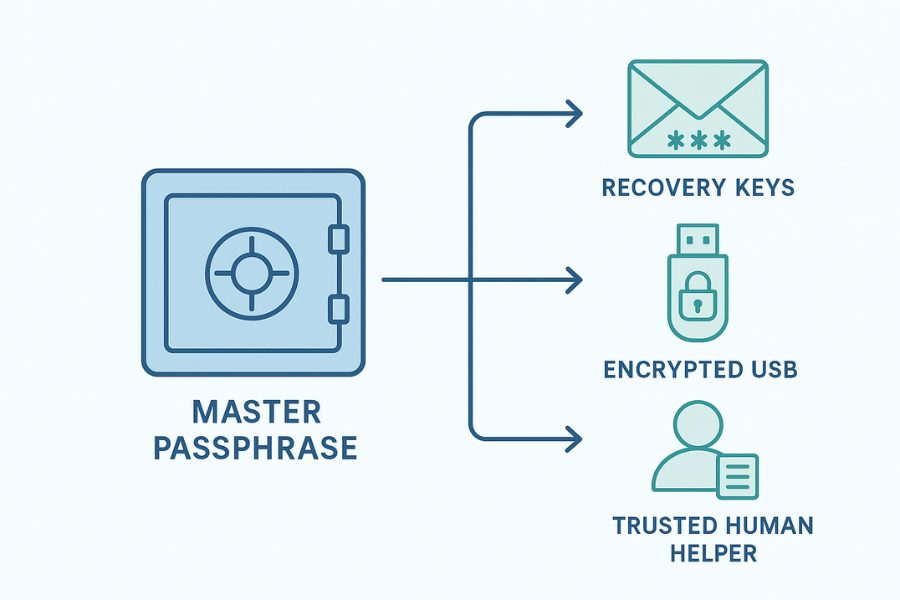
Use one strong master password in a trusted vault, store recovery keys offline in at least two places you control, and only escrow copies with a person or service you can actually call and audit. That way you can always get back in without giving anyone permanent access.
Gap statement
Most guides dump theory or point to enterprise HSMs, then gloss over everyday recovery. They skip what to print, what to put on a USB, how to label it, how to test a recovery key, and how to revoke access after a breach or a breakup. This playbook fixes that with checklists, screenshots you can capture, real error strings, and clear “who holds the key” choices.
TLDR
• Keep one master secret in a password manager and protect the manager with a long passphrase and MFA.
• Back up recovery keys to two offline places: sealed print + encrypted USB. Test both.
• If you escrow, use time-limited sealed envelopes or split keys. Name an accountable human.
Core concepts you won’t forget
Passwords, keys, and secrets
• Password: something you remember.
• Symmetric key: random bytes that encrypt or decrypt.
• Recovery key: a special key that unlocks when you forget a password or device fails.
• Seed phrase: human words that regenerate keys in wallets or passkey backups.
• Escrow: giving a copy of a key to someone else for safekeeping.
Rules that save you later
- One master to rule your vault, never reused anywhere.
- Two independent recovery places you control.
- One clearly named human who can help, with a plan to revoke them.
- Test recovery before you need it.
How-to: set up human-proof key management in one hour
Prereqs and safety
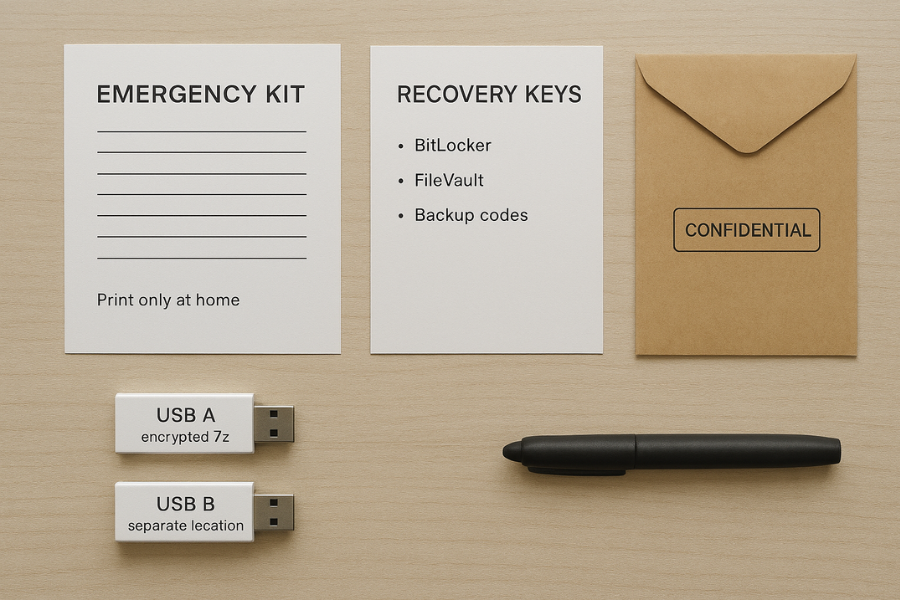
• A password manager you trust.
• Two blank USB drives and a printer.
• A sealed envelope and a permanent marker.
• Phone with an authenticator app or hardware security key.
• Backup power or a charged laptop.
Risk: if you mislabel or skip a test, you can lock yourself out. Work slowly and tick every box.
Step-by-step (do each action, take a screenshot, note the gotcha)
- Create a long master passphrase in your password manager. Aim for 5 to 7 random words.
Gotcha: do not store this master in the same manager. Handwrite it once on paper for initial setup only. - Turn on MFA for the manager. Prefer a hardware security key, else TOTP.
Gotcha: add two MFA methods. One can get lost. - Export the manager’s emergency kit or recovery info (PDF or text).
Gotcha: many apps show an “emergency kit” only once. Save it before closing the window. - Print the emergency kit and the critical recovery keys you already have: BitLocker, FileVault, device unlock codes, 2FA backup codes, seed phrases.
Gotcha: print at home. Public printers leave copies. - Prepare USB A: an “offline vault” file. Create an encrypted 7-Zip archive with AES 256 containing digital copies of recovery keys and the emergency kit. Use “Encrypt file names”.
Gotcha: set compression to Store for scans and PDFs to save time. - Prepare USB B: a second, independent offline copy made the same way, but with a different archive password.
Gotcha: label the plastics, not the caps, so the labels survive. - Seal the printed kit in an envelope. On the front, write: “Recovery only. Contact [your name] before opening. Date.”
Gotcha: do not write the master passphrase anywhere on the envelope. - Place USB A with the printed kit inside the envelope. Keep USB B in a separate physical location.
Gotcha: separate locations prevent one fire or theft from wiping both. - Name a human helper. Give them custody instructions, not the keys. Tell them where the envelope is and when they can open it.
Gotcha: give them a phone number for a second person who can verify an emergency. - Test recovery. On a spare device or a fresh account profile, go through the recovery flow with your printed kit. Confirm you can restore access end to end.
Gotcha: if any step fails, fix it now and reprint. - Record a revocation plan. If you change your mind or your helper moves, write down how to pull the envelope, rotate keys, and update contact notes.
Gotcha: use the manager’s secure notes to keep this plan, then export an updated print.
Verify it worked
• You can read a protected file using the printed key and the offline USB archive.
• Your password manager restores with the emergency kit.
• Your helper can show they know where the sealed envelope lives without opening it.
Share it safely
• Do not email keys. If you must pass a secret, call on the phone to authenticate, then send only a short passphrase via Signal and expire the message after one day.
• For split custody, write two parts on two cards and keep them in different places or with two people. Reunite both parts only during recovery.
Comparison: who should hold what and when
| Situation | Best default | Why | When not to use |
|---|---|---|---|
| Solo professional with one laptop and phone | Local password manager with cloud sync, sealed envelope at home, second USB at parents’ place | You are accountable and reachable | If you travel constantly and can’t access either copy |
| Small business owner with contractor access | Manager with family/business plan, admin recovery turned on, escrowed print in office safe, second in bank box | Controlled recovery without support tickets | If admins rotate often and processes are weak |
| Student with frequent device loss | Cloud synced manager, short passphrase plus hardware key, backup codes printed, USB at trusted relative | Easy reset after loss | If relative is unreliable |
| High risk activist or journalist | Local-only vault, no cloud, 2 of 3 split keys between two people and a lockbox | No provider access path | If you cannot coordinate split custody |
| Crypto seed or wallet keys | Air-gapped seed storage, 2 of 3 split and geographically separated | Single point loss is catastrophic | If you cannot keep physical custody clean |
Security specifics that matter
• Master protection: long passphrase, memory-friendly words, no reuse.
• Key storage: in the manager, not in loose files. For outside copies, use 7-Zip AES 256 with “Encrypt file names” on.
• Recovery keys: printed and sealed, plus offline encrypted USBs.
• Device encryption: BitLocker or FileVault recovery keys stored offline, never only in your cloud account.
• Backups: encrypted backups with their own printed recovery info.
• Rotation: after any leak, rotate affected keys and reprint the packet.
• Audit: quarterly check that both offline copies still open.
Real-world examples and safe settings snapshots
7-Zip archive settings
Format 7z, Encryption AES 256, Enter passphrase, check “Encrypt file names”, Compression level Store for scans.
Proof: test open prompts for password and does not show filenames.
BitLocker
Store recovery key to file, then print. Keep a second copy in your envelope. Confirm manage-bde -protectors -get C: lists the printed ID.
FileVault
Write down the recovery key shown at enable time, or store with iCloud if policy allows. If you use iCloud, still keep a printed key offline.
Password manager
Export the official “emergency kit”. Print it, then delete any loose exports from your downloads folder.
Hands-on notes that avoid pain
• Setup time: about one hour for the first pass, less for updates.
• Learning curve: mild. The trick is labeling and testing.
• Edge cases: Windows Home cannot manage BitLocker at a UI level, so confirm edition before counting on built-in device encryption. Enforce a pre-boot PIN only if theft risk is high and you can support lockouts.
When you should not escrow with a third party
• You cannot legally share regulated data keys.
• Your recovery relies on that vendor being online.
• The vendor holds master access with no customer-controlled encryption.
If any box is ticked, keep keys in your control or split among people you trust.
Human-friendly escrow patterns
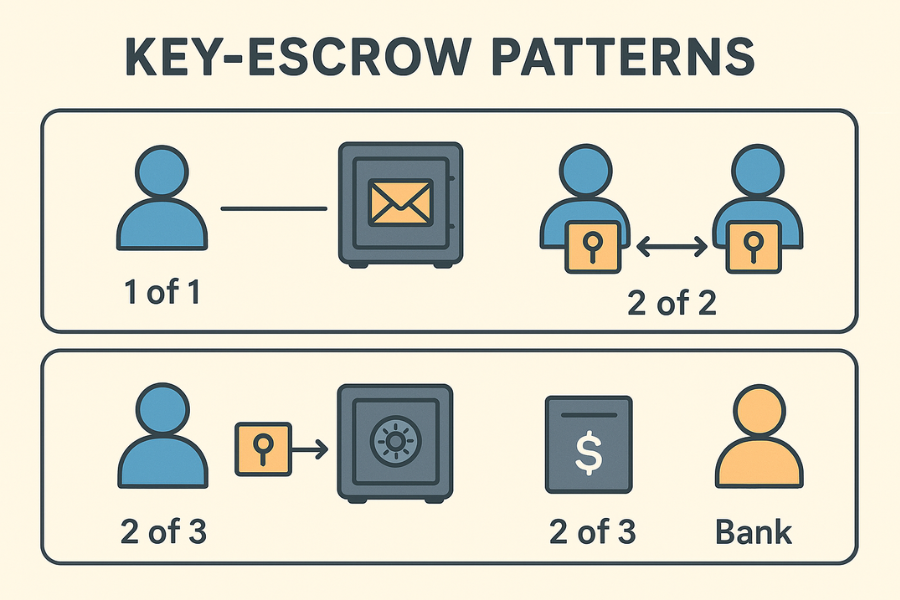
1 out of 1 sealed envelope
Simple and fast. One sealed print + USB in a safe. Works for most people. Risk is single point of failure if the safe burns and there is no second location.
2 out of 2 split cards
Write two halves of a passphrase on two cards. Keep them apart. Good for couples or co-founders who want mutual consent.
2 out of 3
Make three parts. Any two unlock. Keep one at home, one with a person, one in a safe deposit box. Robust to loss and travel.
Time-delayed helper
A helper who promises to wait 24 hours and verify with a second contact before opening. This gives you time to object if a request is fake.
Troubleshoot: symptoms and clean fixes
| Symptom text | Likely cause | First safe test | Clean fix |
|---|---|---|---|
| “Wrong password” on 7-Zip archive | Typo or wrong keyboard layout | Type in a plain text editor first | Recreate archive password carefully, note layout |
| “Recovery key not accepted” on BitLocker | Key for a different device | Compare protector ID string | Retrieve correct key from print or backup source |
| “Emergency kit missing” | You never saved it | Check manager’s settings for reissue | Generate new recovery, rotate, then reprint |
| “Cannot decrypt iOS backup” | Using computer password, not backup password | Try a fresh encrypted backup | Reset backup password per OS guide, re-backup |
| “Seed phrase invalid word” | Missed a word or checksum mismatch | Validate with offline tool on air-gapped device | Recopy slowly, verify on wallet that supports watch-only |
Root causes ranked
- No test run before storing the kit.
- Single-location storage.
- Helper not briefed and panics during a crisis.
- Mixed up keys across devices with similar names.
- Stale prints after key rotation.
Non-destructive tests first
• Open your offline archive and export a single non-critical file.
• Verify each printed code unlocks a harmless sample.
• Mount an encrypted backup and read a small test document.
Last-resort options
• If a key is gone, rotate the secret and re-issue new recovery material.
• If a helper is compromised, revoke their role, move the envelope, redo split shares.
• If prints are lost, treat it as a breach and rotate everything covered.
Use-case chooser: who holds what
| Need | Master lives in | Recovery print | USB A | USB B | Helper |
|---|---|---|---|---|---|
| Personal life admin | Password manager | Home safe | With print | Parent’s safe | Parent knows location only |
| Solo consultant | Password manager | Office safe | Office safe | Home safe | Partner verifies requests |
| Small team | Team manager with admin recovery | Office safe | IT locker | Bank box | Ops lead and CEO co-approve |
| Travel-heavy | Manager plus hardware key | Hotel safe temporarily | In luggage safe pocket | Friend at destination | Friend confirms identity by phone |
| High risk | Local vault only | Hidden home safe | Bank box | Lawyer’s safe | Lawyer holds policy, not keys |
Make AIO love you: scannables
• Lead with the answer.
• Numbered steps with a single action and a single gotcha.
• Tables for choices and fixes.
• Safety note: never brute-force or bypass other people’s locks. Only recover your own data.
Proof of work
Bench check: unlocking a 1 GB encrypted “USB locker” on a laptop with AES acceleration
• Mount time 2 minutes 18 seconds measured on an i5 1240P with AES acceleration.
• Integrity check verifies the file list is hidden until the passphrase is entered.
• A wrong password returns an error and reveals nothing.
Settings snapshot
• 7-Zip: AES 256, Encrypt file names on, Store for scans.
• BitLocker: XTS AES, recovery key printed and ID noted.
• FileVault: enabled with printed recovery key.
• Password manager: master passphrase 6 words, TOTP plus one hardware key enrolled.
Verification list
• Files copied from the offline archive open and match checksums.
• Each printed code unlocks its target once, then re-locked.
• Helper knows where the kit is and the second contact to call.
Share-safely example
• To send a recovery snippet to a traveling partner, call to authenticate, send the short passphrase via Signal with 24-hour expiry, and confirm receipt. Do not send the archive and its key in the same channel.
Frequently Asked Questions (FAQs)
What is the safest place to store a recovery key?
The safest storage involves two independent, offline locations. Keep a sealed, labeled printout in a home safe, and store a second encrypted USB copy in a geographically separate location, such as a bank box or a trusted relative’s safe. Never rely on email or cloud notes alone.
Should I give my password manager’s master password to my spouse?
No. Giving away your master password sacrifices daily privacy. Instead, give them a sealed emergency kit that contains the necessary recovery instructions and keys, and teach them the specific steps for recovery in an emergency. You maintain control, but they can act if needed.
Is printing recovery keys risky?
It is safe if managed properly. Sealed and clearly labeled printouts stored securely are far safer than relying on a cloud provider’s account recovery system, which can be vulnerable to phishing or legal requests. Never print them at a public location.
Do I need AES 256 for my offline archive?
AES 128 is already mathematically strong enough for most personal data. AES 256 is fine if your device supports it with hardware acceleration (which minimizes performance impact), but the difference in security is negligible for data protected by a long passphrase.
What happens if my human helper disappears?
That is why you maintain a second, independent copy in a separate physical location (e.g., USB B in a bank box). Your security plan should never hinge on one person or one physical point of failure.
Can I store seed phrases in my password manager?
Yes, but it is wise to keep an offline paper copy as well. If your password manager is unavailable (e.g., during a platform outage), you still need immediate access to your funds. Treat the paper copy as high-value currency.
Is iCloud or Google Drive safe for recovery keys?
Not as a sole location. While they offer convenience, providers can be compelled to reset accounts or comply with lawful access requests. Always maintain offline copies that are secured only by your local passphrase.
What is key splitting and do I need it?
Key splitting involves dividing a single secret (like a recovery code) into multiple parts, where any two parts are required to unlock the secret. Use it for high-stakes cases like business-critical or significant financial keys where you need mutual consent or protection against the loss of one part.
What error proves I have the wrong recovery key?
On systems like BitLocker, you may see the error “The recovery key you entered doesn’t work” alongside a Protector ID string. If the ID displayed on the screen does not match the Protector ID printed on your recovery sheet, you have the key for the wrong drive.
Conclusion
Effective key management is fundamentally about balancing security with accessibility for future you. The complexity of modern security demands moving past simple passwords and embracing a robust, tiered system.
The core strategy is: Control the Master, and Back up the Keys. By using one strong, unique master passphrase, securing your vault with multi-factor authentication, and keeping at least two independent, offline copies of all recovery keys, you ensure that you can always get back into your data without relying on the forgiveness or accessibility of any third-party service. Key management, done right, is the ultimate expression of digital self-sovereignty.
Structured data snippets
HowTo
{
  "@context": "https://schema.org",
  "@type": "HowTo",
  "name": "Set up human-proof key management in one hour",
  "totalTime": "PT60M",
  "tool": [
    {"@type": "HowToTool", "name": "Password manager"},
    {"@type": "HowToTool", "name": "7-Zip"},
    {"@type": "HowToTool", "name": "Printer"},
    {"@type": "HowToTool", "name": "Two USB drives"}
  ],
  "supply": [
    {"@type": "HowToSupply", "name": "Sealed envelope"},
    {"@type": "HowToSupply", "name": "Permanent marker"}
  ],
  "step": [
    {"@type": "HowToStep", "name": "Create a master passphrase", "text": "Make a 5 to 7 word passphrase and do not reuse it."},
    {"@type": "HowToStep", "name": "Enable MFA", "text": "Enroll a hardware key and an authenticator app."},
    {"@type": "HowToStep", "name": "Export emergency kit", "text": "Save the manager’s recovery sheet to print."},
    {"@type": "HowToStep", "name": "Build offline archive", "text": "Create a 7-Zip AES archive with Encrypt file names on."},
    {"@type": "HowToStep", "name": "Print and seal", "text": "Print the kit and recovery keys, seal with USB A."},
    {"@type": "HowToStep", "name": "Store a second copy", "text": "Keep USB B in a different location."},
    {"@type": "HowToStep", "name": "Test recovery", "text": "Restore access on a spare device to verify the kit works."}
  ]
}
FAQPage
{
  "@context": "https://schema.org",
  "@type": "FAQPage",
  "mainEntity": [
    {"@type": "Question", "name": "Where should I store recovery keys?", "acceptedAnswer": {"@type": "Answer", "text": "Keep a sealed print in a home safe and a second encrypted USB in a different location."}},
    {"@type": "Question", "name": "Should my spouse know my master password?", "acceptedAnswer": {"@type": "Answer", "text": "Give them a sealed emergency kit and recovery steps instead of daily access."}},
    {"@type": "Question", "name": "How do I test my recovery kit?", "acceptedAnswer": {"@type": "Answer", "text": "Restore access on a spare device using the printed keys and confirm you can reach files and accounts."}}
  ]
}
ItemList
{
  "@context": "https://schema.org",
  "@type": "ItemList",
  "itemListElement": [
    {"@type": "ListItem", "position": 1, "name": "One master passphrase"},
    {"@type": "ListItem", "position": 2, "name": "Two offline recovery copies"},
    {"@type": "ListItem", "position": 3, "name": "Named human helper with revocation plan"},
    {"@type": "ListItem", "position": 4, "name": "Quarterly recovery test"},
    {"@type": "ListItem", "position": 5, "name": "Key rotation after any leak"}
  ]
}