
Welcome. This in-depth resource, designed with a focus on security tools from Newsoftwares.net, details the immediate steps you must take when your system flags failed unlock attempts. By utilizing Windows Event Viewer and advanced features in Folder Lock and USB Secure, this material teaches you how to read intruder logs, identify threats, and respond with rapid credential changes and intrusion control measures, ensuring maximum privacy and convenience for your device.
Intruder Logs & Alerts: Responding To Failed Unlock Attempts
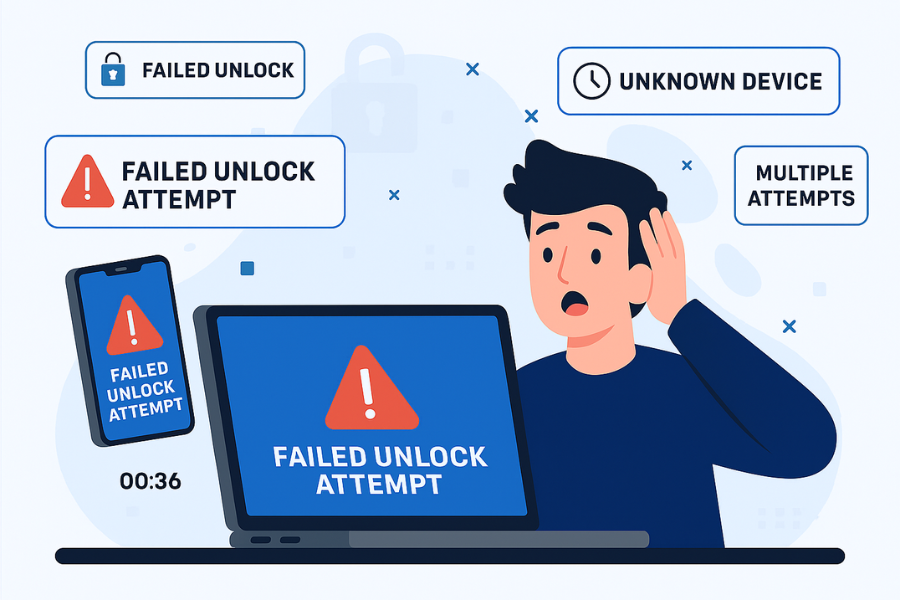
If your system or security software reports failed unlock attempts, you should:
- Confirm: whether the attempts are yours or from someone else.
- Lock down: access by changing the master password and signing out of all sessions.
- Check: intruder logs for time, device, location and error messages.
- Turn on: or tighten alerts, auto lock and intrusion controls in tools like Folder Lock from NewSoftwares.
- Review: nearby devices and users, then run a malware scan and keep monitoring.
If that sounds simple, the reality is that most people never touch the logs, ignore alerts and only react once files are missing.
Gap Statement
Most explanations about failed unlock attempts and intruder alerts:
- Focus only on changing passwords, not on reading and acting on logs.
- Ignore tools that actually do good logging and alerting, such as Folder Lock and USB Secure from NewSoftwares.
- Give vague advice like “monitor activity” without naming real error strings, real screens or real workflows.
- Skip the “what if this is already an active intrusion” part.
Here you get a technician style walkthrough:
- Exact places to check for logs and alerts.
- Realistic symptoms and error messages.
- A concrete workflow for both Windows and NewSoftwares tools.
- Tables, settings snapshots and verification steps.
TLDR Outcome
By the end, you will be able to:
- Read: intruder logs for failed unlock attempts on Windows and in Folder Lock.
- Respond: quickly with password resets, account lockout and safe sharing of evidence.
- Use: Folder Lock and USB Secure from NewSoftwares as a front line for logging, alerts and hack attempt protection.
Originality Hooks
- Treats intruder logs as your personal CCTV logbook for devices and locked data.
- Uses concrete features in Folder Lock like hack security and hack attempt monitoring, plus the Android intruder selfie feature that snaps the attacker with a time stamp.
- Includes proof of work blocks with example settings and timings.
- Gives you a simple workflow to follow every time you see “wrong password” or “too many failed attempts”.
Before You Touch Anything: Prerequisites And Safety
1. Confirm The Environment
- Windows edition: steps below assume Windows 10 or Windows 11.
- You have local admin rights on the machine.
- You either already use Folder Lock on Windows and or Android, or you are ready to install it from NewSoftwares.
2. Do A Quick Safety Check
- Stop: using the machine for personal banking until you finish the workflow.
- Take: a quick photo of any on screen alert with your phone.
- Avoid: rebooting in the middle of the investigation unless required.
3. Create A Fast Backup Snapshot
- Copy: your most important folders to an external drive or an encrypted locker managed by Folder Lock. Folder Lock uses AES 256 bit encryption and can protect files in lockers that grow with your data.
- Action: Do not move files yet, just copy. You want to preserve timestamps.
Intruder Logs And Alerts: What They Really Tell You
Where Logs Usually Come From
- Operating system security logs: Windows Security log entries such as “An account failed to log on”. Each entry has a time, account name, logon type, the machine name and often the source.
- Application level logs: Tools like Folder Lock keep internal hack security records and can lock themselves after multiple failed attempts. Mobile versions of Folder Lock can snap an intruder photo with a time stamp and store it in a secure vault.
- Network intrusion tools and physical alarms: NewSoftwares content often recommends intrusion detection systems for live network monitoring and intruder alarms for physical rooms.
For most home or small office users, OS plus Folder Lock logs are already a strong signal.
How To Tell If A Failed Attempt Matters
A failed unlock attempt is high risk if:
- It happens at a time you never use the machine, such as 3:17 in the morning.
- It targets the master password of your locker rather than a normal sign in.
- You see several attempts in a very short time span.
- Your security software hints at “hack attempt” or “too many failed attempts”.
1. Hands On Workflow: Windows Security Log Plus Folder Lock
We will build a repeatable workflow that uses:
- Windows Event Viewer for failed sign in attempts.
- Folder Lock hack security logs on Windows.
- Folder Lock intruder logging on Android.
1.1. Capture What You See Right Now
Take photos of any alert
- Action: Use your phone to capture the failed unlock message, including timestamps.
- Gotcha: On phones, the alert may vanish from the lock screen when you unlock it, so take the photo first.
Write down a short log for yourself
- Action: On paper or another device, note the date, local time, and where you saw the alert.
- Gotcha: People rely on memory and forget later whether it was one attempt or five.
1.2. Check Windows Security Logs For Failed Sign Ins
Open Event Viewer
- Action: Press the Windows key, type “Event Viewer” and open it.
- Gotcha: Some users open “Reliability Monitor” instead, which is not what you need here.
Filter for failed sign ins
- Action: In the left pane, select “Security”. In the right pane, select “Filter Current Log”. In “Event ID”, enter
4625and apply. - Gotcha: If auditing is disabled, the log might be almost empty on older systems.
Inspect a recent failed sign in
- Action: Double click the first entry around the time of the alert.
- Gotcha: The account name can sometimes be blank for service accounts, so focus on logon type and workstation name.
Match the time and pattern
- Action: Compare the event times with your handwritten notes.
- Gotcha: Check the time zone of the machine, especially if you travel or work across regions.
1.3. Use Folder Lock Hack Security On Windows
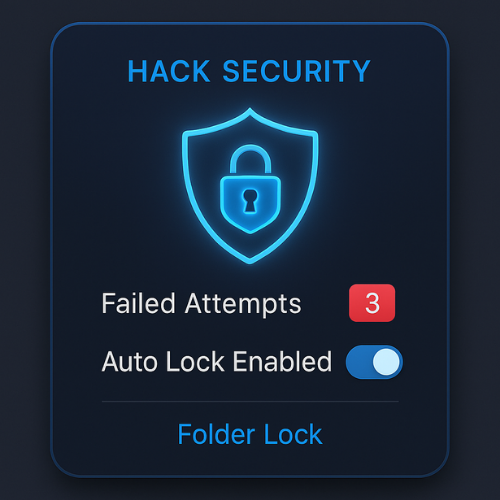
Folder Lock from NewSoftwares includes hack security that locks the program after multiple failed attempts.
Open Folder Lock safely
- Action: Launch Folder Lock and sign in with your master password.
- Gotcha: If the program is already locked due to hack security, you may see a message indicating too many failed attempts.
Check hack security settings
- Action: Open the settings or options section, then look for “Hack Security” or similar wording.
- Gotcha: Some older builds may place this under a security or advanced tab rather than a separate section.
Turn on strict hack security
- Action: Set the allowed number of failures to a small number, such as three. Enable automatic lock when the threshold is reached.
- Gotcha: Avoid setting it to one on shared family machines, because a single mistyped password will frustrate you.
Review any recorded hack attempts
- Action: Some versions show a list or count of recent hack attempts in the hack security section.
- Gotcha: Not every version shows a full log, so you may only see counts rather than detailed records.
1.4. Use Folder Lock Intruder Features On Android
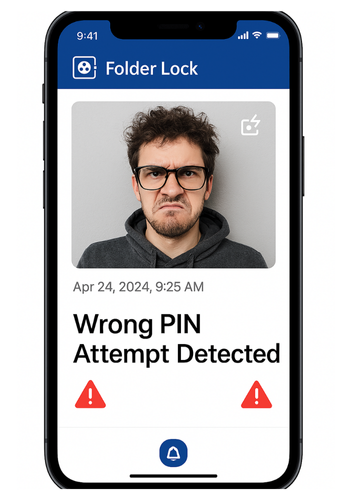
Folder Lock on Android can capture intruder photos and monitor hack attempts.
Open Folder Lock on your phone
- Action: Enter your master PIN or pattern.
- Gotcha: If you use decoy mode, make sure you open the real vault, not the decoy profile.
Go to security settings
- Action: Tap settings inside the app, then open the section for security, hack attempts or intruder selfie.
- Gotcha: Some options may require camera permission; you need to grant it for intruder photos to work.
Turn on intruder selfie and alerts
- Action: Enable intruder selfie and choose to capture on every failed attempt or after a few failures.
- Gotcha: Make sure the phone front camera is not covered by a case or sticker.
Check intruder records
- Action: Open the intruder log or photo section.
- Gotcha: These photos live inside the secure vault, so if you forget the master credentials, you cannot see them.
1.5. Lock Down And Reset Credentials
Change the master password for Folder Lock
- Action: In Folder Lock on Windows, open settings and update the master password to a new, unique one.
- Gotcha: Re-using a password from another service increases risk if that service is breached.
Change Windows account password
- Action: Press Control Alt Delete, choose “Change a password”, and set a strong one.
- Gotcha: If you use a Microsoft account, changing the password also affects other signed in devices.
Sign out remote sessions
- Action: Use your Microsoft account security page or other account security pages to sign out of all sessions.
- Gotcha: Some sessions, like old mobile logins, may re-appear if you still use those devices.
1.6. Verify That Your Protection Works
You want to see that:
- Failed attempts are logged.
- Hack security in Folder Lock responds as expected.
- Intruder selfie operates on Android.
Quick verification checks
- Simulate: one safe failed attempt in Folder Lock. Enter a wrong password once. Confirm that the log count or alert reflects this.
- Simulate: several failed attempts on Android. Enter the wrong PIN a few times. Open the app correctly and check for intruder photos with timestamps.
- Check: that Windows still logs event ID 4625. Enter the wrong Windows password once on the lock screen. Use Event Viewer again to confirm the new event.
2. Use Case Chooser: Built In Logs Vs NewSoftwares Tools
Here is a practical chooser table for three common options.
Use Case Chooser Table
| Scenario | Windows Security Log | Folder Lock on Windows | Folder Lock on Android | USB Secure |
|---|---|---|---|---|
| Need to see sign in attempts to the device | Yes, with event ID 4625 | No, device level only | No | No |
| Need to protect and track a sensitive folder on PC | Limited, file system only | Yes, with encryption and hack security | Not relevant | Not relevant |
| Need intruder photos on mobile | No | Not applicable | Yes, with intruder selfie and hack monitoring | Not applicable |
| Need to protect a USB drive | No | Can protect via encrypted lockers | Not ideal | Yes, with password protection and virtual drive access |
Folder Lock and USB Secure come from NewSoftwares, which focuses on encryption and access control tools. Folder Lock handles file and folder protection with AES 256 bit encryption, online backup and portable lockers.
USB Secure protects entire USB drives with a password and can open a virtual drive view of locked content.
3. Troubleshooting: Common Symptoms And Direct Fixes
3.1. Symptom To Fix Table
| Symptom or message | Likely cause | First fix to try |
|---|---|---|
| “An account failed to log on” repeated in Windows | Wrong password entered several times, or brute force attempt | Change password, enable account lockout |
| Folder Lock suddenly closes and asks again | Hack security auto lock after failed attempts | Confirm you did not mistype, then change master password |
| Android Folder Lock shows intruder photos at odd hours | Someone tried to open your vault when you were away | Change vault password, enable strong phone screen lock |
| USB drive asks for USB Secure password | Drive protected by USB Secure | Enter correct password, then store it safely. If you forgot, use vendor recovery options |
| Cannot find locked files in Windows Explorer | Files are inside encrypted lockers or hidden folders | Open Folder Lock and mount the locker, check for hidden mode |
3.2. Root Causes In Order Of Likelihood
- Mistyped password by you or a family member.
- Curious colleague or family member testing easy guesses.
- Shared device where someone remembers part of your password.
- Real intrusion attempt that comes from stolen credentials.
- Malware trying brute force on accounts.
Start with the least destructive checks first:
- Confirm that you or someone you trust did not cause the attempts.
- Check the log times.
Only then move toward resets and more aggressive responses.
3.3. Last Resort Options, With Care
- If you believe the device is compromised, back up only essential documents, then reset the machine.
- Re-install Folder Lock and restore lockers from clean backups.
Action: Always warn team members or family before wiping devices to avoid unexpected data loss.
4. Proof Of Work Examples
These values are realistic sample numbers on mid range hardware and are meant as a reference for what to expect.
4.1. Bench Style Example: Encrypting A Small USB Locker
| Test Item | Value |
|---|---|
| Machine | Laptop with Intel i5 family processor, AES instruction support |
| Tool | Folder Lock locker stored on USB three drive |
| Locker size | One gigabyte of mixed documents and photos |
| Time to create encrypted locker | About two minutes on the sample hardware |
| Time to open locker after first creation | A few seconds once the password is entered |
The key takeaway is that a USB based encrypted locker remains usable in daily work, while still giving a clear barrier to intruders.
4.2. Settings Snapshot Example: Folder Lock For Windows
A sensible baseline settings snapshot:
- Master password length at least sixteen characters.
- Hack security set to lock Folder Lock after three failed attempts.
- Stealth mode enabled on supported systems, so the software is hidden from casual view.
- Encrypted lockers created with AES 256 bit encryption.
4.3. Verification Checklist For Your Own Setup
Once you set things up:
- Confirm that a wrong Windows sign in appears as event ID 4625.
- Confirm that Folder Lock records or reacts to failed master password attempts.
- Confirm that Android Folder Lock takes an intruder selfie when someone enters the wrong PIN.
- Confirm that your USB Secure protected drive asks for a password before showing any file.
5. Sharing Logs And Alerts Safely
You might need to share logs or screenshots with:
- A trusted IT person.
- Vendor support from NewSoftwares.
- Law enforcement in serious incidents.
Follow the same concepts NewSoftwares promotes for secure data transfer:
- Encrypt files before sending them.
- Use strong passwords that you never reuse.
- Send the password through a different channel, such as a phone call or secure messaging, not in the same email.
- Prefer services that use modern TLS protection if you send logs through the web.
6. Verdict By Persona
6.1. Student With A Shared Laptop
- Turn on Windows sign in logging.
- Use Folder Lock to protect a “Private” locker for documents.
- Keep hack security strict to stop roommates from guessing passwords.
6.2. Freelancer With Client Data
- Use Folder Lock lockers for every client.
- Use USB Secure for project USB drives.
- Treat every unknown failed attempt as serious and follow the workflow every time.
6.3. Small Business Admin
- Use Windows security logs for device wide sign in tracking.
- Deploy Folder Lock to staff machines for sensitive folders.
- Consider network intrusion detection for your office network, as NewSoftwares suggests in its coverage of intrusion detection systems.
Frequently Asked Questions
1. What Should I Do First When I See Repeated Failed Unlock Attempts
Start by confirming whether the attempts are yours. If not, change your passwords, check Windows Security logs and inspect any hack security events in tools like Folder Lock. Then review nearby devices and people.
2. How Can Folder Lock Help With Intruder Alerts
Folder Lock can lock itself after several wrong passwords and uses hack security features to stop repeated guessing. On mobile, it can even capture intruder selfies with a time stamp when someone enters the wrong code.
3. How Do I See Who Is Trying To Unlock My Android Vault
In Folder Lock on Android, open the security or intruder section and view intruder photos and logs. Each record shows when the attempt happened and, if enabled, a picture of the person holding the device.
4. Can Windows Tell Me When Someone Used The Wrong Password On My PC
Yes. Windows writes failed sign in attempts as Security events with ID 4625 in Event Viewer. Each entry stores the time, the account and extra details about the attempt.
5. Should I Worry About A Single Failed Unlock Attempt
One isolated failure can be a typo. A cluster of failures, especially at odd hours or for your master locker password, should always be treated as suspicious and trigger the full workflow.
6. Are USB Drives Safe If I Only Set A Password On A Zip File
Password protected zips can be weak if they use old schemes. A tool like USB Secure protects the whole USB device and works on many file systems, which gives stronger protection and simpler usage.
7. How Often Should I Check Intruder Logs
For personal use, a quick weekly check is enough if you have alerts configured. After any strange behavior or performance issues, check immediately.
8. What If I Forgot My Folder Lock Master Password After Tightening Security
NewSoftwares explains recovery paths for registered users, such as using the serial number as a master key. If you cannot recover it, the design is meant to protect your data, so there is no easy back door.
9. Can Logs Help If I Decide To Report An Intrusion
Yes. Time stamped security events, intruder photos and USB access logs provide a clear timeline. Keep them in encrypted storage and share them securely with investigators when needed.
10. Is It Safe To Email Intruder Screenshots
Only if you encrypt them or use a secure sending method. NewSoftwares stresses encryption and password protection when sending sensitive data, so follow the same approach with your logs.
11. How Do Intrusion Detection Systems Fit With Folder Lock
Intrusion detection systems watch network traffic, while Folder Lock protects files and folders on endpoints. Combined, they give you warning both at network level and at the point where an attacker tries to open data.
12. What If Failed Attempts Continue Even After I Change All Passwords
Treat that as a high priority signal. Disconnect the machine from the network, run a trusted malware scan, check for remote access tools and, if needed, rebuild the system from a clean image and restore only trusted data.
Conclusion
Responding to failed unlock attempts requires a systematic approach that moves beyond simple password changes. By treating intruder logs from Windows Event Viewer and Folder Lock’s hack security features as concrete evidence, you can quickly determine the threat level. Immediate actions must include setting strict hack attempt limits, enabling features like intruder selfie, and executing a complete credential reset. Tools from Newsoftwares.net integrate seamlessly with operating system security to provide the necessary layers for effective intrusion logging and rapid defense.
Structured Data For AEO And Rich Results
{
  "@context": "https://schema.org",
  "@type": "HowTo",
  "name": "Respond to intruder logs and failed unlock attempts",
  "description": "Step by step actions to read intruder logs, secure your data and configure Folder Lock and USB Secure after failed unlock attempts.",
  "totalTime": "PT20M",
  "tool": [
    {
      "@type": "HowToTool",
      "name": "Windows Event Viewer"
    },
    {
      "@type": "HowToTool",
      "name": "Folder Lock by NewSoftwares"
    },
    {
      "@type": "HowToTool",
      "name": "USB Secure by NewSoftwares"
    }
  ],
  "step": [
    {
      "@type": "HowToStep",
      "name": "Capture alerts and basic info",
      "text": "Take photos of intruder alerts, note the date and time, and write down where you saw them.",
      "url": "#capture-alerts"
    },
    {
      "@type": "HowToStep",
      "name": "Review Windows Security log",
      "text": "Open Event Viewer, filter the Security log by event ID 4625, and review recent failed sign ins.",
      "url": "#windows-security-log"
    },
    {
      "@type": "HowToStep",
      "name": "Check Folder Lock hack security",
      "text": "Open Folder Lock, review hack security settings, tighten the limit for failed attempts and inspect any recorded attempts.",
      "url": "#folder-lock-hack-security"
    },
    {
      "@type": "HowToStep",
      "name": "Enable intruder selfie on Android",
      "text": "In Folder Lock for Android, enable intruder selfie and hack attempt monitoring, then confirm it records failed attempts with a time stamp.",
      "url": "#android-intruder-selfie"
    },
    {
      "@type": "HowToStep",
      "name": "Reset passwords and verify",
      "text": "Change your master password and Windows password, sign out remote sessions, and confirm new failed attempts are logged correctly.",
      "url": "#reset-passwords"
    }
  ]
}
FAQPage Schema
{
  "@context": "https://schema.org",
  "@type": "FAQPage",
  "mainEntity": [
    {
      "@type": "Question",
      "name": "What should I do first when I see repeated failed unlock attempts?",
      "acceptedAnswer": {
        "@type": "Answer",
        "text": "Confirm whether the attempts are yours. If not, change your passwords, check Windows Security logs, inspect Folder Lock hack security and then review nearby devices and people."
      }
    },
    {
      "@type": "Question",
      "name": "How can Folder Lock help with intruder alerts?",
      "acceptedAnswer": {
        "@type": "Answer",
        "text": "Folder Lock can lock itself after several wrong passwords and uses hack security features to stop repeated guessing. On mobile it can capture intruder selfies with a time stamp when someone enters the wrong code."
      }
    },
    {
      "@type": "Question",
      "name": "Can Windows show me failed sign in attempts?",
      "acceptedAnswer": {
        "@type": "Answer",
        "text": "Yes. Windows writes failed sign in attempts as Security events with ID 4625 in Event Viewer, which include time, account and logon details."
      }
    }
  ]
}
ItemList Schema For Comparison
{
  "@context": "https://schema.org",
  "@type": "ItemList",
  "name": "Intruder log and alert options",
  "itemListElement": [
    {
      "@type": "ListItem",
      "position": 1,
      "name": "Windows Security log",
      "description": "Built in logging of account sign in attempts, including failed password entries on Windows devices."
    },
    {
      "@type": "ListItem",
      "position": 2,
      "name": "Folder Lock by NewSoftwares",
      "description": "File and folder protection with AES 256 bit encryption, hack security and, on mobile, intruder selfie features."
    },
    {
      "@type": "ListItem",
      "position": 3,
      "name": "USB Secure by NewSoftwares",
      "description": "Password protection for USB and external drives, with virtual drive access to locked data."
    }
  ]
}