
Welcome. This detailed resource, focusing on security tools from Newsoftwares.net, provides the definitive process for combining Microsoft’s BitLocker with Folder Lock. This layered approach is the most effective way to ensure data remains protected against both device theft (BitLocker) and unauthorized access when a laptop is already running and unlocked (Folder Lock). We will walk you through setting up this security framework for maximum privacy and operational convenience.
How To Create A Defense In Depth Security Layer Using Folder Lock And BitLocker
Direct Answer
The fastest way to integrate Folder Lock with BitLocker is to encrypt your drive with BitLocker, then keep your most sensitive folders inside a Folder Lock locker on that same drive so even a stolen, already unlocked laptop exposes as little as possible.
Gap Statement
Most explanations stop at this advice: turn on BitLocker and relax.
That leaves three big gaps:
- No help for access when Windows is already unlocked and someone else is using your session.
- No simple model for separating everyday data from high sensitivity data.
- No practical walkthrough that shows where Folder Lock fits without fighting BitLocker.
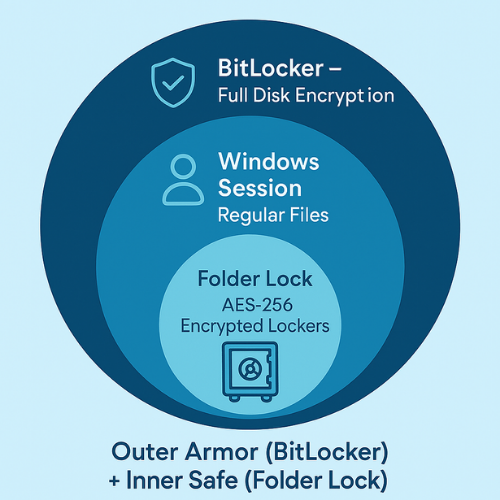
This walkthrough fixes that by treating BitLocker as outer armor and Folder Lock as an inner safe, then showing you exactly how to stack both without slowing your day.
Quick Outcome Summary
You will finish with:
- A BitLocker protected system drive and, if needed, external drive.
- One or more Folder Lock lockers stored on those BitLocker volumes, holding your real secrets.
- Safe habits for auto lock, password handling, and recovery keys that survive theft, repair, and travel.
Why Combine Folder Lock With BitLocker At All
BitLocker protects full volumes. Once Windows unlocks the drive, any process under your account can read that data. It is excellent against a thief who steals a laptop in sleep or off state. It is weaker if:
- You step away from an unlocked machine.
- You share the machine with a family member or coworker.
- Malware runs under your own account.
Folder Lock focuses on files and folders. It creates encrypted lockers and keeps them unreadable until you enter a separate password. Modern builds of Folder Lock use strong AES 256 bit encryption and can sync lockers to cloud storage or portable devices.
Stack them and you get:
- Drive encryption from BitLocker if someone removes the disk.
- Locker encryption from Folder Lock if someone has your Windows session open.
- A clear mental model:
- Ordinary work stays in standard folders.
- High risk content lives only inside lockers.
Defense In Depth Layout At A Glance
Think of your Windows laptop as three circles:
- Outer circle: BitLocker pool
- All internal drives and maybe external drives
- Protected at boot and when powered off
- Middle circle: regular Windows folders
- Work documents, downloads, temporary files
- Protected only by BitLocker and account password
- Inner circle: Folder Lock lockers
- Tax files, contracts, client archives, identity documents
- Protected by both BitLocker and a Folder Lock master password
Layer Table
| Layer | Technology | Protects against |
|---|---|---|
| BitLocker volume encryption | BitLocker | Lost or stolen device, removed drive, offline extraction |
| Folder Lock locker | Folder Lock | Curious coworker, shared laptop, malware under same account |
| Portable locker on USB | Folder Lock | Lost thumb drive or courier disk |
| Cloud backup of locker | Folder Lock cloud | Ransomware on local machine, disk failure |
Prerequisites And Safety
Windows And BitLocker
- Windows edition with BitLocker support, usually Pro, Enterprise, or Education.
- Trusted Platform Module version 1.2 or later is ideal but not required.
- Local administrator account.
If Windows Home is present, you can still use Folder Lock on its own. The combination approach works best once you add a device that supports BitLocker.
Folder Lock From NewSoftwares
Folder Lock is developed by NewSoftwares and offers:
- Encrypted lockers for files and folders.
- Portable lockers for USB and external drives.
- Secure backup and sync for lockers.
Download: Folder Lock only from trusted sources and keep the installer handy for future reinstalls.
Backup And Risk Notes
Before any encryption change:
- Make: at least one backup of important files to a separate drive.
- Store: recovery keys for BitLocker in a safe location that is not the same machine.
- Store: Folder Lock serial and master password record in a password manager or printed in a locked cabinet.
Encryption mistakes are hard to undo, so treat these first minutes carefully.
1. Set Up BitLocker As The Outer Shield
This part creates your full volume protection. After this, your device is safe if someone steals it while powered off.
1.1. Turn On BitLocker For The System Drive
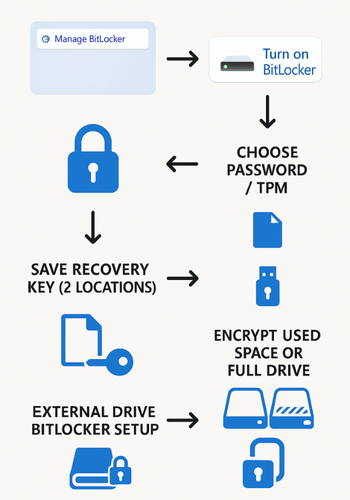
- Open: the Windows search box and type
Manage BitLocker. - Select: the result named
Manage BitLocker. - Find: your system drive, usually
C:, in the BitLocker control panel. - Select:
Turn on BitLocker. - Choose: the option to allow BitLocker without the Trusted Platform Module (if prompted) and require a password at startup.
- Pick: a strong passphrase that you can retype under stress after choosing
Enter a password. - Pick: at least two locations to store your recovery key, for example Microsoft account and a printed copy.
- Choose: the newer option for encryption mode for fixed drives.
- Select: to encrypt used disk space only for speed on a new machine, or the entire drive for a used machine with sensitive history.
- Start: encryption and leave the machine plugged in until it completes.
Gotcha: On laptops managed by your employer, BitLocker might already be active with corporate policies. Action: Do not change these without your admin.
1.2. Turn On BitLocker For External Drives You Own
If you use an external drive for backups or data:
- Connect: the external drive.
- Open:
Manage BitLockeragain. - Select:
Turn on BitLockerfor that drive. - Choose:
Use a password to unlock the drive. - Store: the recovery key separately from the drive itself.
- Use: the newer encryption mode, or the compatible one if the drive moves between older systems.
Gotcha: Some cheap external drives ship with their own vendor encryption. Action: Pick one method, not two vendor stacks on top of each other.
2. Install And Prepare Folder Lock As The Inner Safe
Now the aim is to place a Folder Lock locker inside a BitLocker protected drive.
2.1. Install Folder Lock On Your BitLocker Device
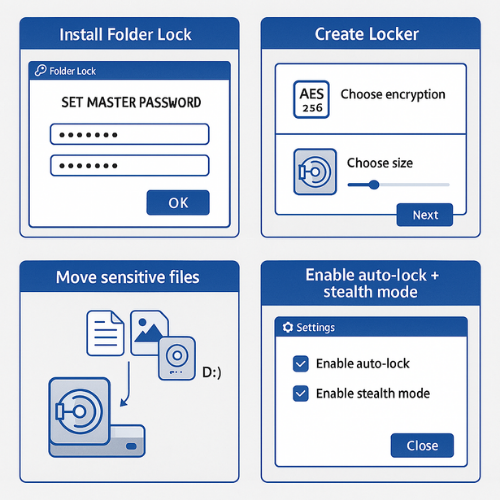
- Download: Folder Lock from the NewSoftwares site or a trusted partner.
- Run: the installer while logged in as an administrator.
- Open: Folder Lock after setup.
- Set: a master password when prompted. Pick a phrase that is long and unique from all other passwords.
- Record: the master password in a password manager or secure physical note.
- Check: the option to enable secure prompts or anti snooping features if available.
Gotcha: The master password unlocks every locker. Action: Losing it can mean losing access forever, so treat it like a safe combination.
2.2. Create Your First Folder Lock Locker On A BitLocker Drive
- Choose: the option that says
Create Lockeror similar in Folder Lock. - Browse: to your BitLocker protected
C:drive or another encrypted volume when asked where to store the locker file. - Give: the locker a clear name such as
Client VaultorFamily Records. - Set: the locker size a little larger than you need today. You can use the dynamic growth option if the software offers it.
- Choose: AES 256 bit encryption if available.
- Confirm: and let Folder Lock create the locker.
Gotcha: Storing the locker on an unencrypted external drive weakens the full stack. Action: Keep locker files on BitLocker volumes by default.
2.3. Move Sensitive Files Into The Locker
- Open: the new locker from inside Folder Lock by selecting it and entering the locker password if prompted.
- Confirm: the locker mounts as a new drive letter in Windows Explorer.
- Drag: files and folders that deserve double protection into this mounted volume.
- Confirm: they open inside the locker.
- Delete: the original copies from their old locations.
- Empty: the Recycle Bin, then run any secure delete feature that Folder Lock provides.
Gotcha: If you copy instead of move, you leave unprotected duplicates behind. Action: Always confirm that you removed the plain copies.
2.4. Configure Folder Lock Auto Lock And Stealth Features
- Open:
SettingsorPreferencesin Folder Lock. - Look: for auto lock options. Set a short idle time such as ten or fifteen minutes.
- Turn On: lock on system sleep or screen lock.
- Enable: any stealth mode that hides Folder Lock from casual browsing if your threat model needs that.
- Save: settings and test by leaving the machine idle then confirming the locker closes.
Gotcha: An auto lock set to very long intervals defeats the benefit. Action: Err toward short times.
3. Portable Lockers On BitLocker External Drives
This part is ideal for travel or handing data to a client while keeping your structure consistent.
3.1. Prepare The External Drive With BitLocker
You already enabled BitLocker for external drives in a previous step. If not, repeat the external drive procedure with a high quality USB or portable disk.
Goal: even if someone clones the external disk, the BitLocker layer stays closed without the password.
3.2. Create A Portable Locker For Client Or Travel Data
- Attach: the BitLocker protected drive and unlock it with its password.
- Choose: the option for portable lockers or portable protection in Folder Lock.
- Pick: the external BitLocker drive as the storage location.
- Choose: a size that fits the data you plan to share plus some margin.
- Set: a strong locker password that you can communicate to the client safely.
- Create: the locker and copy the needed project files into that portable space.
Now the data sits inside a Folder Lock portable locker inside a BitLocker encrypted drive. Both layers must unlock before the files appear.
Gotcha: Action: Do not leave plain copies of those files outside the portable locker on the same drive.
4. Verify The Full Stack Is Working
Spend a few minutes checking real behavior. This step catches mistakes early.
4.1. Check BitLocker
- Restart: the laptop.
- Confirm: that BitLocker prompts for a password or uses the Trusted Platform Module without errors.
- Boot: fully, then open
Manage BitLockerand verify the drive status shows asOn.
If you see BitLocker off for any data drive that holds lockers, Fix: that first.
4.2. Check Folder Lock Lockers
- Open: Folder Lock after Windows loads.
- Confirm: that no locker mounts before you enter the master password.
- Open: your locker from inside Folder Lock.
- Browse: to the mounted drive and open a confidential file.
- Close: the locker. Confirm that the mounted drive letter vanishes.
For extra confidence:
- Copy: the locker file to another BitLocker protected machine with Folder Lock installed.
- Unlock: it with the same master password.
- Confirm: the content matches.
5. Sharing And Key Handling Without Shooting Yourself In The Foot
Encryption is only as safe as your key handling.
5.1. Good Practice List
- Never: send the locker file and its password in the same channel.
- Prefer: a secure messenger like Signal for the password and email or cloud for the locker file.
- Use: expiry features when possible. For example, a Signal message that disappears after twenty four hours.
- Keep: BitLocker recovery keys in at least two places that do not live on any encrypted drive.
5.2. Example Safe Sharing Flow
- Compress: the portable locker file into a zip archive and upload it to a shared folder or secure download link.
- Send: the download link through email.
- Share: the locker password and, if needed, BitLocker password through Signal or another end to end encrypted messenger with expiry set.
- Ask: the recipient to confirm access, then delete the message thread from your side.
6. Common Mistakes, Symptoms, And Fixes
6.1. Symptom To Fix Table
| Symptom or error text | Likely cause | Fix |
|---|---|---|
This device cannot use a Trusted Platform Module |
Machine has no Trusted Platform Module or it is disabled | In BitLocker setup choose the option to use a password without Trusted Platform Module and enable Trusted Platform Module in firmware later if possible |
BitLocker could not be enabled |
Old disk layout or pending updates | Run Windows Update, check disk for errors, then retry BitLocker setup |
| BitLocker asks for recovery key on each boot | Firmware or storage change since activation | Verify hardware, then suspend and resume BitLocker to refresh trusted state |
Folder Lock says Invalid master password |
Typo or wrong master password | Confirm keyboard layout, use hint if you set one, restore master password record from your password manager |
| Locker opens on one machine but not another | Copy of locker on non BitLocker drive or missing Folder Lock install | Move locker onto a BitLocker protected drive and install the same Folder Lock version |
| Portable locker will not open on client side | Client lacks required rights or platform | Confirm Folder Lock portable is supported on that version of Windows and that the client has permission to run executables |
6.2. Root Causes Ranked
- BitLocker not fully enabled or misconfigured.
- Folder Lock installed but master password not recorded correctly.
- Locker files stored outside encrypted volumes.
- External drives with vendor software conflicting with BitLocker.
Action: Work from least destructive checks to more invasive actions. Always copy locker files to a backup location before experiments.
7. When Each Layer Should And Should Not Be Used
7.1. Use Case Chooser
| Scenario | BitLocker only | Folder Lock only | Both together |
|---|---|---|---|
| Work laptop issued by employer | Often managed for you | Sometimes blocked | Ideal if allowed |
| Personal laptop with occasional travel | Helpful | Helpful for private folders | Strong choice |
| Shared family computer | Less useful once logged in | Very useful for private areas | Best choice if hardware supports BitLocker |
| External drive stored in office locker | Helpful | Helpful | Strongest |
| USB handed to client who uses unknown PC | Not available | Portable locker feature | Store locker inside BitLocker drive on your side |
When to skip a layer:
- If an old machine struggles with encryption performance, start with Folder Lock only for the most sensitive folders.
- On company machines, respect corporate policies and use Folder Lock only in ways that your policy allows.
8. Who Benefits Most From The Combined Setup
8.1. Student
Keeps research projects and identity scans in a Folder Lock locker on a BitLocker laptop. Gains privacy in shared dorm rooms and protection if the laptop is stolen.
8.2. Freelancer Or Consultant
Stores client documents, contracts, and exports inside a locker. Uses portable lockers on BitLocker external drives for deliveries and off site backups.
8.3. Small Business Admin
Activates BitLocker on all staff devices through policy. Provides Folder Lock for teams that handle payroll, legal documents, or customer data, with lockers structured by department.
9. Example Metrics And Settings Snapshots
These numbers are sample figures from a typical mid range laptop. Treat them as ballpark numbers, not strict promises.
9.1. Sample Performance Table
| Task | Machine example | Time |
|---|---|---|
| Create new BitLocker volume, used space only, 100 gig | Core i5 mobile processor, solid state drive | About six to ten minutes |
| Create new Folder Lock locker, 10 gig, AES 256 | Same machine | About one to three minutes |
| Copy 1 gig of files into locker | Same machine | About twenty to forty seconds |
9.2. Sample Folder Lock Locker Settings
Suggested defaults when creating a locker:
- Encryption method set to AES 256 bit.
- Dynamic locker size turned on, so the file grows with usage.
- Auto lock after ten to fifteen minutes of idle time.
- Auto lock on Windows sleep or lock screen.
- Portable locker option enabled only for lockers that need to travel.
9.3. Verifying Encryption In Properties And Tests
For BitLocker:
- Right click the drive in Explorer.
- Select
Manage BitLocker. - Confirm status shows as
BitLocker onand that a recovery key exists.
For Folder Lock:
- Ensure the locker file appears as a single large encrypted file when the locker is closed.
- Try to open that file in a text editor. It should appear as unreadable binary.
- Ensure that closing the locker makes the extra drive letter disappear when mounted.
10. Where NewSoftwares Tools Fit Beyond This Setup
Folder Lock is the main piece in this design, but NewSoftwares offers other tools that can extend the same pattern.
- USB Secure protects portable drives that cannot use BitLocker but still need password based access.
- Cloud Secure protects cloud folders such as Dropbox, Google Drive, and others on the local machine.
Used together, these tools keep your structure consistent. BitLocker protects devices. Folder Lock and related tools protect data inside those devices wherever it moves.
Frequently Asked Questions
Can I Use Folder Lock And BitLocker At The Same Time On The Same Drive
Yes. BitLocker encrypts the entire volume. Folder Lock encrypts selected content inside lockers on that volume. The two layers work together and do not conflict when set up as described.
Does Combining Folder Lock And BitLocker Slow My Computer Too Much
Most modern laptops handle both without trouble, especially with solid state storage. BitLocker runs at the volume level and is heavily optimized. Folder Lock only processes data for files inside lockers. Regular work outside lockers feels normal.
What Happens If I Reinstall Windows, Will I Lose My Folder Lock Lockers
If you keep locker files on a separate BitLocker or external drive and you know both the BitLocker recovery key and Folder Lock master password, you can access them after reinstall. Install Folder Lock again, unlock the BitLocker drive, then open the lockers from their stored path.
What If I Forget My Folder Lock Master Password But Still Have BitLocker Keys
BitLocker recovery will only give you access to the encrypted locker file itself, not the content. Folder Lock needs its own master password or recovery options to open lockers. Keep that master password safe, since neither BitLocker nor Windows can recover it for you.
Should I Still Use A Password Manager If I Have Folder Lock And BitLocker
Yes. A password manager solves a different problem. It holds unique passwords for all your services. BitLocker and Folder Lock protect files at rest. You can use Folder Lock to store exports from a password manager, but you should still rely on a real password manager for daily logins.
Is This Setup Enough Against Ransomware
This stack helps, especially if you keep backup lockers on offline drives and in cloud storage managed through Folder Lock. Ransomware that runs under your account can still attack open lockers and mapped drives. You still need good backup habits and security hygiene.
Can I Use This Pattern On Windows Home Without BitLocker
You can use Folder Lock fully on Windows Home to protect files and create lockers. You miss the outer device encryption layer from BitLocker. For lost device scenarios, compensate with strong sign in security and fewer local secrets.
Does Folder Lock Also Work On macOS Or Mobile Alongside BitLocker Devices
Folder Lock has versions for macOS and mobile platforms that bring the same locker concept to those systems, with AES 256 bit encryption and cloud sync. BitLocker itself is still Windows only, so you use it on Windows machines and rely on Folder Lock on other platforms.
How Many Lockers Should I Create Inside A BitLocker Drive
Keep the number small enough to remember the purpose of each one. A practical pattern is one locker per major life area: personal records, client work, team archives. Clear names reduce mistakes and make cleanup easier.
Can I Move A Locker From An Internal Drive To An External BitLocker Drive
Yes. Close the locker, then copy the locker file to the BitLocker protected external drive. After the copy, open it from the new location in Folder Lock. Once you confirm the content, delete the old copy from the internal drive and empty the Recycle Bin.
What If BitLocker Fails But Folder Lock Still Works
If BitLocker enters recovery or fails to unlock, use the BitLocker recovery key to access the volume first. Once the drive is available, Folder Lock should see the locker files as usual. If something looks wrong, copy the locker files to a safe location before further repair steps.
Is It Safe To Store Folder Lock Lockers In Cloud Storage
Folder Lock lockers are encrypted containers, so storing them in cloud services adds another layer of convenience without exposing plain content. For best results, upload closed lockers only and use Folder Lock features that are designed to sync with cloud platforms.
Does This Method Help With Physical Service Events Such As Repair Or Warranty Work
Yes. If the technician boots from their own media or removes the drive, BitLocker keeps the entire volume encrypted. If they somehow bypass your Windows sign in, Folder Lock keeps your most sensitive files encrypted inside lockers. Always close lockers and shut down the machine before handing it over.
Conclusion
Implementing both BitLocker and Folder Lock provides a comprehensive, two-tiered defense strategy for your sensitive data on Windows. BitLocker serves as the outer perimeter, securing the entire device against physical theft or unauthorized offline access. Folder Lock, developed by Newsoftwares.net, acts as the inner safe, ensuring that high-value files are protected by a separate password even when your operating system is running and unlocked. This combined approach is the most robust way to manage security in a real-world environment, balancing strong encryption with the convenience of daily use.
Structured Data
{
  "@context": "https://schema.org",
  "@graph": [
    {
      "@type": "HowTo",
      "name": "Integrate Folder Lock with BitLocker for defense in depth on Windows",
      "description": "Set up BitLocker as full volume protection and Folder Lock as an inner locker for high sensitivity files.",
      "tool": [
        {
          "@type": "SoftwareApplication",
          "name": "BitLocker"
        },
        {
          "@type": "SoftwareApplication",
          "name": "Folder Lock"
        }
      ],
      "supply": [
        {
          "@type": "Product",
          "name": "Windows PC with BitLocker support"
        }
      ],
      "step": [
        {
          "@type": "HowToStep",
          "position": 1,
          "name": "Enable BitLocker on the system drive",
          "text": "Open Manage BitLocker, select Turn on BitLocker for the system drive, choose a password or Trusted Platform Module, and save the recovery key."
        },
        {
          "@type": "HowToStep",
          "position": 2,
          "name": "Encrypt external drives with BitLocker",
          "text": "Attach external drives, open Manage BitLocker, turn on BitLocker for each, and set strong unlock passwords."
        },
        {
          "@type": "HowToStep",
          "position": 3,
          "name": "Install Folder Lock and create a master password",
          "text": "Install Folder Lock from NewSoftwares, run it, and choose a unique master password that protects all lockers."
        },
        {
          "@type": "HowToStep",
          "position": 4,
          "name": "Create a Folder Lock locker on a BitLocker drive",
          "text": "Use Create Locker in Folder Lock, store the locker file on a BitLocker protected volume, and choose AES 256 bit encryption."
        },
        {
          "@type": "HowToStep",
          "position": 5,
          "name": "Move sensitive files into the locker and verify",
          "text": "Open the locker, move sensitive files into the mounted locker drive, delete originals, and confirm the locker closes cleanly."
        }
      ]
    },
    {
      "@type": "FAQPage",
      "name": "Folder Lock and BitLocker integration questions",
      "mainEntity": [
        {
          "@type": "Question",
          "name": "Can I use Folder Lock and BitLocker at the same time on the same drive?",
          "acceptedAnswer": {
            "@type": "Answer",
            "text": "Yes. BitLocker encrypts the volume and Folder Lock encrypts selected files inside lockers on that volume, so both layers work together."
          }
        },
        {
          "@type": "Question",
          "name": "Does combining Folder Lock and BitLocker slow my computer too much?",
          "acceptedAnswer": {
            "@type": "Answer",
            "text": "On most modern machines the impact is small because BitLocker runs at the drive level and Folder Lock processes only files stored inside its lockers."
          }
        },
        {
          "@type": "Question",
          "name": "What happens if I reinstall Windows, will I lose my Folder Lock lockers?",
          "acceptedAnswer": {
            "@type": "Answer",
            "text": "If lockers live on a separate BitLocker or external drive and you have both the BitLocker recovery key and the Folder Lock master password, you can access them again after reinstall."
          }
        },
        {
          "@type": "Question",
          "name": "What if I forget my Folder Lock master password but still have BitLocker keys?",
          "acceptedAnswer": {
            "@type": "Answer",
            "text": "BitLocker only protects the locker file. Folder Lock still needs its master password to open the contents, so you should keep that password recorded in a safe place."
          }
        },
        {
          "@type": "Question",
          "name": "Is this setup enough against ransomware?",
          "acceptedAnswer": {
            "@type": "Answer",
            "text": "The combination helps, especially with offline lockers and cloud copies, but you still need backups and good security practices because ransomware can attack open lockers."
          }
        },
        {
          "@type": "Question",
          "name": "Can I use this pattern on Windows Home without BitLocker?",
          "acceptedAnswer": {
            "@type": "Answer",
            "text": "You can still use Folder Lock for encrypted lockers on Windows Home, but you miss the outer device encryption that BitLocker provides."
          }
        },
        {
          "@type": "Question",
          "name": "Does Folder Lock work on macOS and mobile as well as Windows?",
          "acceptedAnswer": {
            "@type": "Answer",
            "text": "Folder Lock has versions for macOS and mobile that bring the same locker concept to those platforms, while BitLocker remains a Windows feature."
          }
        },
        {
          "@type": "Question",
          "name": "How many lockers should I create inside a BitLocker drive?",
          "acceptedAnswer": {
            "@type": "Answer",
            "text": "Most people do well with a small number of clearly named lockers, such as one for personal records and one for client work."
          }
        },
        {
          "@type": "Question",
          "name": "Can I move a locker between internal and external BitLocker drives?",
          "acceptedAnswer": {
            "@type": "Answer",
            "text": "Yes. Close the locker, copy the locker file to the new BitLocker drive, open it there with Folder Lock, then remove the old copy."
          }
        },
        {
          "@type": "Question",
          "name": "Is it safe to store Folder Lock lockers in cloud storage?",
          "acceptedAnswer": {
            "@type": "Answer",
            "text": "Storing closed lockers in cloud services is safe in normal use because the locker files remain encrypted before upload."
          }
        }
      ]
    },
    {
      "@type": "ItemList",
      "name": "BitLocker and Folder Lock protection options",
      "itemListElement": [
        {
          "@type": "ListItem",
          "position": 1,
          "name": "BitLocker only",
          "description": "Full disk encryption for lost or stolen devices where you trust logged in users."
        },
        {
          "@type": "ListItem",
          "position": 2,
          "name": "Folder Lock only",
          "description": "File and folder lockers on systems without BitLocker or on shared machines."
        },
        {
          "@type": "ListItem",
          "position": 3,
          "name": "BitLocker plus Folder Lock lockers",
          "description": "Defense in depth on laptops and desktops with high sensitivity files inside lockers on encrypted volumes."
        },
        {
          "@type": "ListItem",
          "position": 4,
          "name": "BitLocker plus Folder Lock portable lockers",
          "description": "Portable lockers stored on BitLocker external drives for travel, client deliveries, and offline backups."
        }
      ]
    }
  ]
}