
This resource explains how to set up Folder Lock from Newsoftwares.net on a Windows PC, transforming basic file storage into a secure, encrypted vault in under ten minutes. By establishing a strong master password, creating a secure Locker, and enabling auto protection, you guarantee the security and privacy of your sensitive folders. This ensures your files remain locked and unreadable even if your device is compromised, offering both robust protection and convenience.
Direct Answer
You can install Folder Lock on a Windows PC and put your first sensitive folder behind strong encryption in about ten minutes by downloading it from NewSoftwares, setting a master password, creating a Locker, moving files into it, and turning on auto protection so the vault locks itself whenever you step away.
TLDR Outcome For Busy Readers
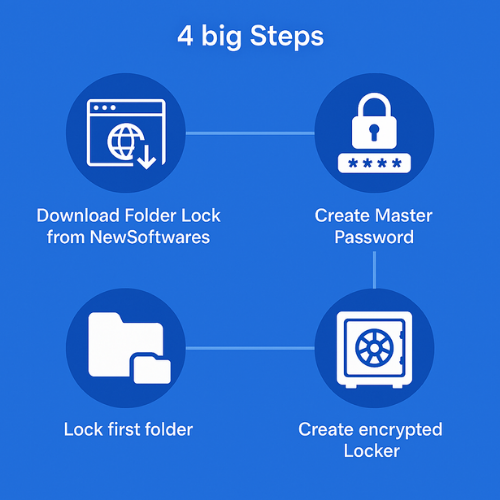
In your first ten minutes with Folder Lock you will:
- Install Folder Lock safely from the official NewSoftwares site
- Create a master password that controls everything inside the app
- Lock a folder and build your first encrypted Locker so your files stay protected even if the PC is lost or stolen
Gap Check: What Most Quick Starts Miss
Most short walkthroughs skip three things that actually matter:
- They stop at “lock the folder” and never show you how to confirm encryption is active
- They ignore Windows Home users and assume everyone runs Pro with BitLocker turned on
- They rarely explain safe defaults like auto lock timers or how to avoid losing data when you uninstall
This piece closes those gaps and adds a practical early setup for Folder Lock, plus a few places where other NewSoftwares tools make sense.
1. What Folder Lock Actually Does In Those First Minutes
Folder Lock from NewSoftwares is all in one file protection for Windows. It combines file locking, AES 256 encryption, secure backup, wallet storage for cards and passwords, file shredding, and privacy cleanup in one interface.
For your first ten minutes, you only need four modules:
- Lock Folders for instant hiding and protection from casual access
- Encrypt Files to create AES 256 encrypted Lockers on your drive
- Secure Backup if you want an online copy of your Locker later
- Shred Files so original unencrypted copies cannot be recovered from disk space
The good news: you do not need to learn everything at once. You just need a clean install, a solid master password, one protected folder, and one encrypted Locker.
2. Prerequisites And Safety Checklist
Before you click anything:
- Supported system
Recent versions of Folder Lock support modern Windows desktop editions. You want a fully updated Windows 10 or 11 machine with at least one internal drive and local admin rights. - Download only from NewSoftwares
Use the official product page at NewSoftwares to get the installer, not a random mirror or “optimizer” bundle. This avoids bundled junk and keeps the installer trusted. - Back up irreplaceable files once
If you are about to encrypt the only copy of family photos or client records, drop a temporary copy onto another drive or cloud account first. Encryption mistakes are usually unforgiving. - Know your master password plan
Folder Lock uses a master password model. If you forget it and did not set recovery options, your encrypted Lockers remain protected and practically unrecoverable. That is good for security but unforgiving for bad memory.
Simple plan that works:
- Use a long passphrase you already remember, then modify it
- Write it on paper once, lock the paper somewhere safe, then destroy it in a week when you are sure you remember it
3. Step By Step: First Ten Minutes With Folder Lock On Pc
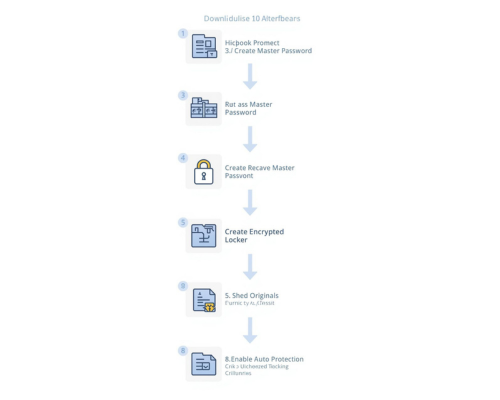
3.1 Step 1: Download Folder Lock From NewSoftwares
- Open the official Folder Lock page at NewSoftwares and click the download button for PC.
- Save the installer in your Downloads folder. The file name will usually contain “folder-lock” or similar plus a version number.
Gotcha to watch
If your browser shows a small security banner like “This type of file can harm your computer” it is just a generic warning for any executable. Confirm the publisher is NewSoftwares and the file name matches the site, then continue.
3.2 Step 2: Run The Installer As Administrator
- In File Explorer, right click the installer and choose “Run as administrator”.
- Accept the User Account Control prompt.
- Follow the setup wizard: accept the license, choose the default install path unless you have a special drive layout, and finish.
Gotcha to watch
If SmartScreen shows “Windows protected your PC”, click “More info” and check the publisher name. If it shows NewSoftwares and you just downloaded from their site, click “Run anyway”. If the publisher is unknown or different, discard the file and re download from NewSoftwares.
3.3 Step 3: Launch Folder Lock And Create Your Master Password
The first time you open Folder Lock, you will see a “Create Master Password” window.
- Enter a strong password or passphrase (aim for at least 12 characters, mix of words and symbols).
- Confirm it in the second box.
- Set a non obvious password hint. Avoid writing the full phrase or something your friends could guess.
- Click OK.
What this master password controls
- Access to the Folder Lock interface
- Opening encrypted Lockers
- Changing important settings
You will rarely type passwords for individual folders. Folder Lock wraps everything behind this one master key.
Gotcha to watch
Do not reuse your Windows login password here. You want a secret that stays strong even if someone shoulder surfs your PC login.
3.4 Step 4: Lock Your First Folder Instantly
This is the fastest way to see Folder Lock doing real work.
- Open Folder Lock.
- On the left pane, click “Lock Folders”.
- Click “Add Items” then “Add Folder”.
- Browse to a folder that you want to hide, for example a folder called “Private” in your Documents.
- Select it and click OK.
Once added, Folder Lock:
- Hides the folder from normal view in Explorer for regular users
- Blocks simple attempts to open it from most applications
Try opening that folder in a normal File Explorer window. Depending on the lock mode, it will either appear empty, not appear at all, or show an access denied message.
Gotcha to watch
Lock Folders uses access control and hiding techniques at the file system level. For deeper protection, you still want encryption via Lockers in the next step.
3.5 Step 5: Create Your First Encrypted Locker
Now you move from simple locking to serious encryption.
- In Folder Lock, click “Encrypt Files” in the left pane.
- Click “Create Locker”.
- Give your Locker a name, such as “ClientDocs” or “FamilyVault”.
- Choose a location on an internal drive with enough free space.
- Click “Next” and pick a size. For first tests, start with 2 GB or 5 GB. You can create more Lockers later.
- Set a password for this Locker. You can reuse the master password for simplicity, or pick a unique one if you are comfortable managing more secrets.
- Confirm and let Folder Lock create the Locker.
Under the hood, Folder Lock builds a container file and prepares AES 256 encryption for its contents.
Gotcha to watch
If you see an error about not enough disk space, reduce the Locker size or choose another drive. Remember that creating a 100 GB Locker on a nearly full drive will fail.
3.6 Step 6: Add Files To The Locker
Once created, Folder Lock mounts the Locker as a secure volume inside its own interface.
- With your Locker selected, click “Open Locker” or similar.
- A special window shows the contents of the Locker (empty at first).
- Drag and drop files or folders from Explorer into this window.
- Wait for the copy operation to finish. The time will depend on file size and disk speed.
Proof of work example
On a mid range laptop with an SSD similar to a common i5 notebook, moving 1 GB of mixed documents into a new Locker may take under 10 seconds. Larger media archives will take longer but still feel like normal file copy speeds.
Gotcha to watch
At this point, your original files still exist in their old location. They are not secure until you remove those copies and clean up traces. That is next.
3.7 Step 7: Delete Originals Securely
If you only delete original files to Recycle Bin, undelete tools can usually recover them. Folder Lock includes file shredding to overwrite deleted data and make recovery extremely difficult.
- Confirm that files inside the Locker open correctly.
- Go back to the original location and delete the old copies.
- In Folder Lock, open the “Shred Files” or “Delete Files Permanently” feature.
- Add the folders or drive free space you just used.
- Run shredding so disk sectors are overwritten.
Gotcha to watch
Shredding is destructive by design. Double check the folders you send to the shredder. Once shredded, those files are gone.
3.8 Step 8: Close The Locker And Set Auto Protection
You now have at least one folder protected inside an encrypted Locker. Time to make sure it does not stay open by accident.
- In the Encrypt Files section, close your Locker by clicking “Close Locker” or “Lock”.
- Confirm that the Locker disappears from the open list.
- In the main settings, look for options such as:
- Auto protection when app is idle
- Lock all Lockers when the app starts or closes
- Start Folder Lock with Windows
- Turn on auto lock after a short idle time such as 5 or 10 minutes.
These settings protect you from leaving a Locker open when you step away from your desk.
Verification check
- Try to access files from your Locker after you close it. They should not be reachable in normal Explorer windows.
- Open Folder Lock again and enter your master password. Confirm the Locker shows as locked and only opens after you enter its password.
4. How To Confirm Folder Lock Is Actually Protecting Your Files
Do these quick tests right after initial setup.
4.1 Test 1: Another Windows Account
If your PC has a second local account:
- Log out of your main account.
- Log in with the test account.
- Try to open the original folder path that you locked.
Expected outcome
- The locked folder is missing or inaccessible.
- The Locker file looks opaque. Double clicking it should not expose contents without Folder Lock and the right password.
4.2 Test 2: Power Cycle Test
- Restart the PC.
- Log back into your main account.
- Launch Folder Lock.
You should:
- See the master password prompt on launch
- See your Locker listed but locked
- Need to enter the Locker password again before viewing contents
4.3 Test 3: Copy Protection Sanity Check
Try copying the Locker file itself to a USB stick. Then move that USB to another PC that has Folder Lock installed.
- Without the correct password, the second machine cannot read the contents.
- With the correct password, it should open normally, which shows how portable Lockers can be when needed.
5. Safe Sharing And Backup With Folder Lock And Other NewSoftwares Tools
Folder Lock includes a Secure Backup feature so you can keep encrypted copies online as an extra safety net.
Typical pattern:
- Create or open a Locker
- Use the Secure Backup tab to create an online account and link your Locker
- Sync the encrypted contents so a copy lives on secure cloud storage managed by NewSoftwares
Because encryption happens before backup, your files stay scrambled in transit and at rest.
For broader scenarios, other NewSoftwares tools help:
- USB Secure
Protects data on portable USB drives with password based security, handy when you want to carry a secure Locker style container without installing software on every machine. - Folder Protect
Adds flexible access control: block modification, deletion, or viewing of important folders and drives, very useful on shared PCs. - Copy Protect
Targets media and courseware, making it easy to distribute content while controlling copying and unauthorized sharing. - Cloud Secure
Secures local access to your cloud folders for services like Dropbox or Google Drive so that even synced folders on your PC stay protected.
All of these tools are built around the same simple idea: keep sensitive data usable for you but unreadable for anyone else.
6. Recommended Safe Defaults Inside Folder Lock
Once the basics work, open the settings panel and look for options like:
- Auto lock when idle for a short time
- Lock all Lockers when the app minimizes or closes
- Clear recent file history and temp traces on exit
- Enable hack attempt monitoring and optional alerts
These are the kinds of safe defaults that stop real world mistakes:
- You step away to take a call and your vault locks itself
- Someone tries a wrong password too many times and their attempt is recorded
- Your PC goes to sleep with Lockers closed rather than open in the background
If you want more privacy on shared machines, explore Stealth type options that let you hide Folder Lock shortcuts and entries from casual users while keeping control through master shortcuts.
7. Symptom To Fix Troubleshooting Table
| Symptom Or Message | Likely Cause | Quick Fix |
|---|---|---|
| Installer will not start at all | SmartScreen or antivirus still blocking | Confirm publisher is NewSoftwares, then allow |
| “Not enough disk space” when creating Locker | Locker size larger than free space | Pick a smaller size or another drive |
| Locker closes as soon as you open files | Aggressive auto lock timer | Increase idle timeout in settings |
| Cannot add folder to Lock Folders | Folder on network share or unsupported path | Move data to a local NTFS drive first |
| Forgotten master password | No recovery set, encryption doing its job | Use hint if possible; otherwise create new Locker and treat old data as unrecoverable |
| Folder still visible in Explorer | View settings or old shortcut | Refresh Explorer, clear recent items, confirm status inside Folder Lock |
Root causes usually cluster around three things:
- Security software blocking the installer or drivers
- Disk layout issues, especially nearly full drives
- Password issues, especially when people test with throwaway passwords and forget them
Always start with the non destructive checks:
- Confirm app status inside Folder Lock
- Reboot the PC to reset handles and driver state
- Check disk health with built in Windows tools
Only then move toward last resort steps, for example uninstalling and reinstalling Folder Lock after unlocking everything and copying data elsewhere.
8. Quick Comparison Table: Folder Lock Vs Basic Options
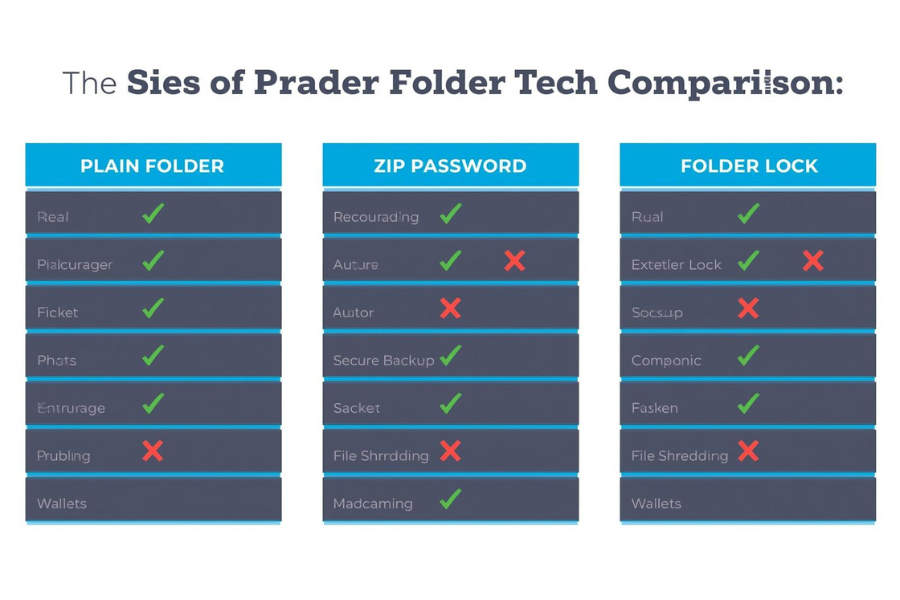
| Feature / Need | Plain Folder | Zip Password | Folder Lock |
|---|---|---|---|
| Real encryption | No | Often weak | AES 256 encryption for Lockers |
| Hides file names | No | Sometimes | Yes, inside Lockers |
| Auto lock when idle | No | No | Yes via settings |
| Secure backup built in | No | No | Yes through Secure Backup |
| File shredding | No | No | Yes, built in |
| Wallet for cards and passwords | No | No | Yes, Wallets feature |
Windows basics are fine for casual privacy. Folder Lock gives you a security focused workspace tuned for sensitive data and backed by NewSoftwares long running product line.
9. FAQ: Real Questions People Ask About Folder Lock Setup
1. How Long Does It Really Take To Protect My First Folder With Folder Lock?
If your internet is reasonable and the PC has a normal SSD, you can download, install, set your master password, and lock one folder in under ten minutes. Encrypting bigger collections takes longer because of file sizes, not because the app is slow.
2. Is Folder Lock Better Than Just Using A Password Protected Zip File?
Yes for most cases. Zip encryption in many tools still defaults to old methods that are easier to attack. Folder Lock uses strong algorithms such as AES 256 for Lockers and wraps them in an interface built for daily use, including auto lock and shredding.
3. Do I Need Windows Pro Or BitLocker To Use Folder Lock?
No. Folder Lock runs on regular Windows desktop editions and handles its own encryption. That is one reason people on Home editions like it. BitLocker protects full drives. Folder Lock focuses on containers and folders you choose.
4. What Happens If I Uninstall Folder Lock Without Unlocking My Files?
Your encrypted Lockers remain on disk as container files. Without the app and your password, they stay unreadable. Before uninstalling, always open each Locker, copy data to a safe place, and then close and remove Lockers cleanly.
5. Can Folder Lock Protect Files On External Drives Too?
Yes. You can create Lockers on external drives or copy Locker files to USB disks and open them on any PC that has Folder Lock and your password. For situations where you cannot install software on the target PC, USB Secure from NewSoftwares is a strong companion for portable drive protection.
6. Does Folder Lock Slow Down The Pc While It Runs?
Normal use drifts close to normal copy speeds, especially on machines with SSDs and modern CPUs. Encryption work happens mainly when files enter or leave a Locker. Everyday browsing or gaming stays similar to usual.
7. Is My Master Password Stored Online Anywhere?
Folder Lock is designed around local control. Your master password and Locker passwords are meant to stay with you, not on a shared cloud database. That is why the hint and your own backup habit matter.
8. Can I Use Folder Lock And Folder Protect Together?
Yes and they complement each other. Folder Lock focuses on encryption and Lockers. Folder Protect focuses on access rules such as block modification, deletion, or viewing of important folders. Using both on the same PC can give you encrypted containers plus strong access control on less sensitive areas.
9. How Do I Know My Locker Is Actually Encrypted And Not Just Hidden?
Two checks:
- Moving the Locker file to another PC shows it as a single opaque file that only opens inside Folder Lock with the right password
- Attempting to open the Locker with simple tools like archive managers fails
Those behaviours show that the content is encrypted, not just renamed.
10. Can I Back Up My Encrypted Locker To The Cloud Without Exposing My Data?
Yes. You can either use Folder Lock Secure Backup or copy the Locker file to your own cloud storage service. In both cases, the file that leaves your machine is already encrypted. Anyone who sees that cloud copy only sees ciphertext without your password.
Conclusion: The Only Safe Portable Drive Is An Encrypted One
Whether you choose native OS encryption like BitLocker and APFS for control, or portable solutions like USB Secure and Folder Lock for cross-platform convenience, the goal is the same: to render data unusable the moment the drive leaves your control. By following these steps and implementing strong password hygiene, you ensure that lost or stolen media becomes a minor inconvenience, not a major data breach, securing your sensitive information from end to end.
10. Structured Data Snippets
You can embed or adapt this JSON LD on your Folder Lock install page so search engines and AI overviews understand the process and the questions you answer.
HowTo Schema
{
  "@context": "https://schema.org",
  "@type": "HowTo",
  "name": "Install and set up Folder Lock on Windows in your first 10 minutes",
  "description": "Download Folder Lock from NewSoftwares, create a master password, build your first encrypted Locker and secure important folders on a Windows PC.",
  "totalTime": "PT10M",
  "tool": [
    {
      "@type": "SoftwareApplication",
      "name": "Folder Lock",
      "operatingSystem": "Windows"
    }
  ],
  "step": [
    {
      "@type": "HowToStep",
      "name": "Download Folder Lock from NewSoftwares",
      "text": "Visit the official NewSoftwares Folder Lock page and download the Windows installer to your PC."
    },
    {
      "@type": "HowToStep",
      "name": "Run the installer as administrator",
      "text": "Right click the installer, choose Run as administrator, accept UAC and follow the setup wizard."
    },
    {
      "@type": "HowToStep",
      "name": "Create your master password",
      "text": "On first launch, set a strong master password and a non obvious hint for Folder Lock."
    },
    {
      "@type": "HowToStep",
      "name": "Lock your first folder",
      "text": "Use the Lock Folders module to add and lock a sensitive folder so it is hidden from casual access."
    },
    {
      "@type": "HowToStep",
      "name": "Create an encrypted Locker",
      "text": "Open Encrypt Files, create a Locker with AES 256 encryption, choose a size and set its password."
    },
    {
      "@type": "HowToStep",
      "name": "Move files into the Locker and enable auto lock",
      "text": "Copy important files into the Locker, securely delete originals, close the Locker and turn on auto protection so it locks after idle time."
    }
  ]
}
FAQPage Schema
{
  "@context": "https://schema.org",
  "@type": "FAQPage",
  "mainEntity": [
    {
      "@type": "Question",
      "name": "How long does it take to set up Folder Lock on a PC?",
      "acceptedAnswer": {
        "@type": "Answer",
        "text": "Most users can download Folder Lock, set a master password and protect at least one folder within about ten minutes on a typical Windows machine."
      }
    },
    {
      "@type": "Question",
      "name": "Do I need Windows Pro or BitLocker to use Folder Lock?",
      "acceptedAnswer": {
        "@type": "Answer",
        "text": "No. Folder Lock runs on standard Windows desktop editions and provides its own encryption and locking features, independent of BitLocker."
      }
    },
    {
      "@type": "Question",
      "name": "What happens if I forget my Folder Lock master password?",
      "acceptedAnswer": {
        "@type": "Answer",
        "text": "Without the correct master password or configured recovery options, encrypted Lockers remain protected and cannot be opened. Always choose a memorable passphrase and keep a secure written copy while you get used to it."
      }
    },
    {
      "@type": "Question",
      "name": "Can Folder Lock protect files on USB drives?",
      "acceptedAnswer": {
        "@type": "Answer",
        "text": "Yes. You can place Lockers on external drives and open them on any PC with Folder Lock installed and your password. For pure portable USB protection, NewSoftwares USB Secure is a strong companion."
      }
    },
    {
      "@type": "Question",
      "name": "Is Folder Lock better than password protected zip files?",
      "acceptedAnswer": {
        "@type": "Answer",
        "text": "Folder Lock uses strong modern encryption and adds features such as auto locking, secure backup and file shredding, which make it a more complete security solution than simple password protected zip archives."
      }
    }
  ]
}
ItemList Schema For Comparison
{
  "@context": "https://schema.org",
  "@type": "ItemList",
  "name": "Ways to protect sensitive files on a Windows PC",
  "itemListElement": [
    {
      "@type": "ListItem",
      "position": 1,
      "name": "Plain folders",
      "description": "Unprotected storage. Easy but offers no real security or privacy."
    },
    {
      "@type": "ListItem",
      "position": 2,
      "name": "Password protected zip archives",
      "description": "Basic single file encryption with limited features and often weaker defaults."
    },
    {
      "@type": "ListItem",
      "position": 3,
      "name": "Folder Lock from NewSoftwares",
      "description": "Dedicated Windows software that combines file locking, AES encrypted Lockers, Secure Backup, file shredding and wallet storage under one master password."
    }
  ]
}