
Welcome. This practical playbook, focusing on the latest threats and recovery steps, provides a definitive strategy for securing your digital identity. By integrating advanced tools from Newsoftwares.net. Folder Lock, USB Secure, and History Clean with essential browser hygiene, you can dramatically limit the exposure to infostealer malware, ensuring maximum security, privacy, and fast convenience for recovery.
Infostealer Defense: Protecting Cookies, Tokens, And Passwords
Infostealers steal your cookies, tokens, and passwords by reading your browser data and app storage, so your best defense is to stop them landing on your device, shrink what they can see, and reset anything they might already have taken.
Gap Statement
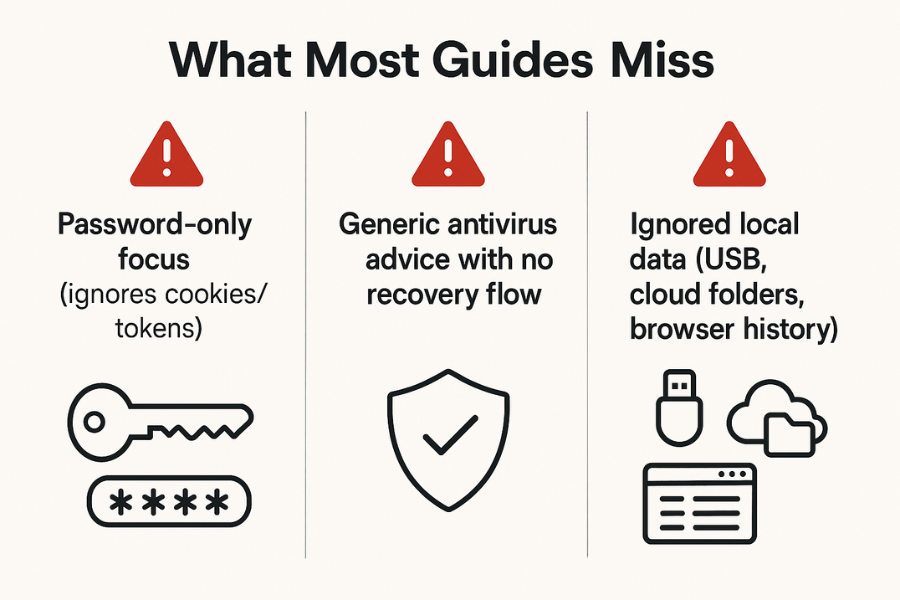
Most explainers do three weak things:
- They talk only about passwords and skip cookies and session tokens, even though those are now a primary target for bypassing multi factor sign in.
- They give generic tips like “use antivirus” without a practical recovery flow when you suspect an infostealer infection.
- They ignore local data at rest and portable devices, where tools like Folder Lock, USB Secure, USB Block, Cloud Secure, and History Clean can cut what malware can grab in one sweep.
This breakdown closes those gaps with a straight, repeatable playbook.
TLDR Outcome
If you follow the steps here, you will:
- Reduce what infostealers can grab from your browsers and apps to a minimum.
- Recover from a suspected infection by rotating tokens, cookies, and passwords in a controlled order.
- Add practical defenses using NewSoftwares tools (Folder Lock, USB Secure, USB Block, Cloud Secure, History Clean) to shield data at rest, removable media, and cloud sync.
1. What Infostealers Actually Steal Today
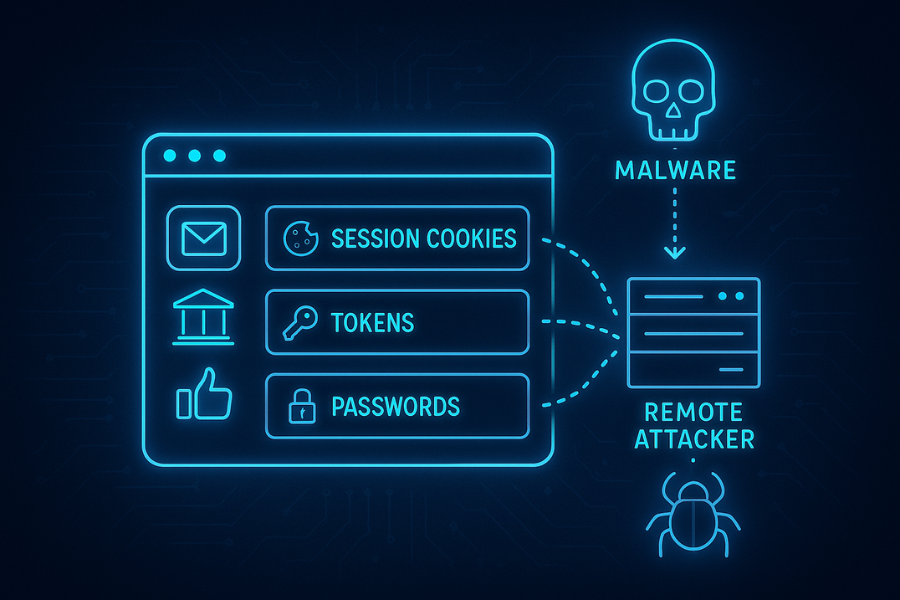
Infostealers are malware families that collect data in bulk, then send it to an attacker. They go after:
- Login credentials and backup codes
- Browser cookies and session tokens
- Autofill data, saved cards, and sometimes crypto wallets
Recent numbers show how serious this is:
- A leak of around 16 billion logins, 85 percent from infostealers, appeared in 2025.
- Investigators found about 94 billion stolen browser cookies on criminal markets.
- One report estimates one million new stealer logs every month and a 266 percent rise in infostealer activity in 2023.
1.1. What Each Stolen Item Gives An Attacker
| Data type | Where it lives | What an attacker can do |
|---|---|---|
| Passwords | Browser password vault, password DB | Sign in from new devices, reset other accounts |
| Session cookies | Browser cookie store | Jump straight into active sessions, even with MFA enabled |
| Tokens | Browser storage, app config | Call APIs as you, replay tokens, perform identity attacks |
| Autofill data | Browser profiles | Grab names, addresses, card details |
| Files | Desktop, Documents, Downloads | Steal contracts, ID scans, financial data |
Session cookies and tokens are now the big prize. They let attackers skip the login screen altogether and ride your already approved session.
2. How Infostealers Pull Off Modern Theft
Most infostealer runs follow the same pattern:
- Delivery
- Phishing mail with a fake invoice attachment
- Cracked software or “mod” downloads
- Malicious browser extensions
- Exploited vulnerabilities in apps or browsers
- Collection
The malware scans:
- Browser profiles for cookies, tokens, saved logins, and autofill
- Common paths for crypto wallets and FTP/VPN clients
- Desktop and Documents for files with interesting names
- Packaging and exfiltration
Data is bundled into a “stealer log” and uploaded to a server or sent through channels like Telegram.
- Resale and replay
The same logs then fuel:
- Account takeovers
- Session hijacking
- Ransomware entry points
- Crypto theft and business email compromise
The quiet part: many victims never see obvious signs. There is no ransom note, just a slow identity drain.
3. Core Defense Strategy In One Sentence
Treat your browser and devices as identity vaults: cut what they store, wrap sensitive storage in encrypted lockers, and be ready to burn and rebuild cookies, tokens, and passwords when anything looks off.
To do that in practice, you will:
- Shrink browser exposure
- Harden passwords and tokens
- Segment and encrypt local, portable, and cloud data
- Add monitoring and cleanup for traces and history
NewSoftwares tools especially help with the last two parts:
- Folder Lock for encrypted lockers and password/notes vaults on PC and mobile.
- USB Secure and USB Block for locked USB media and blocked untrusted drives.
- Cloud Secure to lock Dropbox, Google Drive, OneDrive, and Box on PC and mobile.
- History Clean to wipe browser history, cookies, and tracks, plus shred files so they cannot be recovered.
4. Quick Self Check: Are You Already Exposed?
Before changing settings, check whether you might already be in a stealer log.
4.1. Step 1: Look For Signs Of Infection
- Run a full scan with a trusted security product on your system.
- Check sign in alerts from Google, Microsoft, Apple, and other major accounts.
- Look for new browser extensions or programs you never installed.
If your antivirus reports an infostealer by name, treat all cookies, tokens, and passwords on that system as compromised.
4.2. Step 2: Check If Your Data Shows Up In Known Leaks
- Use reputable breach-checking sites that search public dumps. Many now include infostealer logs as a data source.
- If your main email appears, prepare for a full password reset and token purge.
4.3. Step 3: Decide Your Response Level
- Single personal account flagged: reset its password and sign out of sessions.
- Many accounts or confirmed infostealer: follow the full playbook below.
5. How To Harden Cookies, Tokens, And Passwords
5.1. Disable In Browser Password Storing And Move To A Dedicated Password Manager
Browsers are prime targets because they store passwords, cookies, and tokens in one place.
Do this on each browser you use:
- Open settings, go to the passwords section. Turn off “Offer to save passwords” and “Auto sign in”.
- Export passwords if your manager supports imports, then delete them from the browser store.
- Install a reputable password manager and import the exported file.
- Turn on multi factor sign in for the password manager itself.
Gotcha: some browsers sync passwords between devices. Action: After migration, go into your sync settings and clear “Saved passwords” across synced devices.
5.2. Shorten The Life Of Session Cookies And Tokens
The aim is simple: a stolen cookie should stop being useful as fast as possible.
Actions:
- Turn on “Clear cookies and site data when you close” where possible on personal browsers.
- Sign in using profiles that separate work and personal use.
- Use passkeys or security keys on major services so the password alone is not enough.
- In security settings for key accounts, regularly click “Sign out of all sessions” after travel or suspicious activity.
New developments like Google’s Device Bound Session Credentials tie session cookies to a device so stolen cookies cannot easily be replayed elsewhere.
5.3. Rotate Credentials In A Safe Order After A Suspected Infostealer
When you suspect infection, use this order:
- Get clean: run scans and, if possible, rebuild or reimage the machine.
- Reset your email account passwords first, then add multi factor sign in.
- Reset passwords for:
- Financial services
- Cloud storage
- Work SSO accounts
- Use “revoke sessions” or “sign out all sessions” where available.
- Regenerate API keys and tokens used for automation or developer work.
Verify it worked:
- Your login activity shows only expected devices and locations.
- New logins prompt for multi factor sign in again.
- Old API keys fail when tested.
6. Shrink What Infostealers Can See Using NewSoftwares Tools
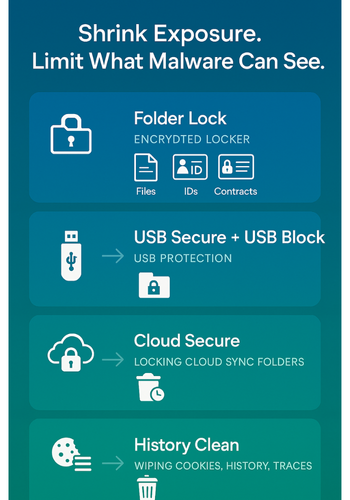
The less valuable data your browser and open file system carry, the less an infostealer can steal in one sweep. Here is where Folder Lock, USB Secure, USB Block, Cloud Secure, and History Clean shine.
6.1. Folder Lock: Keep Critical Data Inside Encrypted Lockers
Folder Lock creates encrypted “lockers” that act like virtual safes for your files and folders using AES 256 bit encryption. It also offers wallets, passwords, and notes that sync across devices, plus mobile apps and secure cloud backup.
Practical Setup
- Install Folder Lock on your Windows PC.
- Create a strong master password you do not reuse anywhere else.
- Click “Create Locker” and choose a location away from default folders like Desktop.
- Move files that would be high value to an attacker into the locker:
- ID scans and contracts
- Password exports and backup codes
- Client data and financial records
- Close and lock the locker when not in active use.
For mobile:
- Install Folder Lock on Android or iOS.
- Use the same master credentials to sync encrypted items you want on the go.
- Use its secure browser if you want sessions that do not leave cookies or history in your main mobile browser.
Gotcha: Action: if you keep lockers permanently unlocked, malware will see files like any other. Build the habit of locking them whenever you step away.
6.2. USB Secure And USB Block: Stop Easy Theft Through Removable Media
USB Secure encrypts data on USB and external drives with password protection. USB Block stops untrusted USB or external devices from ever mounting without a password.
USB Secure Setup For Personal And Field Use
- Download and run USB Secure on a flash drive that contains sensitive data.
- Set a strong password when prompted.
- Choose whether to open your secure area as a virtual drive or fully unlock it.
- Store exports, reports, or backups on this protected area only.
Benefits in this context:
- If malware later copies raw files from the USB, it still sees encrypted content.
- If you lose the USB, the data remains password protected.
USB Block Setup For Office Systems
- Install USB Block on PCs where data leakage risk is high.
- Set an admin password.
- Add only known good USB drives to the trusted list.
- Leave the default option, which prompts for a password whenever an untrusted device connects.
This limits one of the easiest routes for an infostealer operator or insider to smuggle data out: drag and drop to a random drive.
6.3. Cloud Secure: Protect Cloud Sync Folders On PC And Mobile
Cloud Secure lets you lock local folders that belong to Dropbox, Google Drive, OneDrive, and Box behind a password, while still allowing background syncing.
Cloud Secure Setup
- Install Cloud Secure on your Windows PC.
- Create a master password for all cloud accounts on that machine.
- In the Cloud Secure interface, you will see installed cloud clients.
- Toggle “Lock” so those folders can only be opened from inside Cloud Secure.
- Keep sync running in the background, even while they remain locked.
On mobile, Cloud Secure and related vault apps extend protection to cloud accounts on iOS and Android.
Impact against infostealers:
- The data that syncs from cloud drives does not sit open in plain folders.
- An attacker needs your Cloud Secure password just to browse the synced copy.
6.4. History Clean: Wipe Cookies, History, And Leftovers
History Clean removes browser and Windows usage history across all major browsers. It also includes a shredder that deletes files beyond recovery using secure deletion routines.
This is helpful both as a privacy boost and as a cleanup step after suspected exposure.
History Clean Setup
- Install and open History Clean.
- Use the “Browser Cleaning” section and select all browsers you use.
- Tick options for cookies, cache, typed URLs, and saved form data.
- Click “Clean” to wipe them.
- In “Secure Deletion”, add any sensitive files that you no longer need and click “Clean” to shred them.
- Optionally set “Scheduled Cleaning” to run on shutdown.
Gotcha: Action: if you keep your password manager open while running History Clean, nothing will be deleted from the manager, since it lives in its own vault, not browser history.
7. Full Step By Step Flow For Suspected Infostealer Exposure
Here is the practical flow you can follow end to end.
Prereqs And Safety
- Windows 10 or 11, updated.
- Another device you trust, to change passwords if your main machine looks compromised.
- Backups of important files, ideally on encrypted media or inside Folder Lock lockers.
7.1. Step 1: Freeze Activity On The Suspected Device
Action:
- Disconnect from untrusted networks.
- Avoid signing into financial or admin portals from that device.
Gotcha: Action: do not start uninstalling random programs yet. Deleting malware first can hide useful forensic clues from your IT team.
7.2. Step 2: Scan And Clean
- Run a full security scan with your main endpoint product.
- If it reports a known infostealer, note the name.
- If possible, back up needed data to an encrypted Folder Lock locker or USB Secure drive, then reimage the machine.
Verification:
- Clean scan after rebuild
- No strange tasks or startup items
- No unknown browser extensions
7.3. Step 3: Reset Identity From A Clean Device
Using your secondary device:
- Reset email account passwords first.
- Enable multi factor sign in on all critical accounts.
- Reset passwords for banking, cloud storage, and work systems.
- Review active sessions and revoke all old ones.
7.4. Step 4: Rebuild Browsers With Minimal Exposure
On your cleaned system:
- Install your browser.
- Install your password manager extension.
- Import passwords into the manager, not the browser.
- Turn off saving passwords and auto sign in in the browser.
- Set browser to clear cookies on close for more sensitive profiles.
Gotcha: Action: some sites may log out more often because cookies age faster now. This is the trade for stolen cookie risk reduction.
7.5. Step 5: Put Data Back In Safer Layouts
- Create and lock Folder Lock lockers for sensitive document collections.
- Move any portable copies to USB Secure protected drives.
- Configure Cloud Secure so synced cloud folders require an extra password on the PC.
- Use History Clean to wipe residual history and old cookies.
Verification:
- Sensitive files only exist inside encrypted lockers or protected drives.
- Cloud sync folders show as locked in Cloud Secure when not in use.
- Browsers show no large piles of saved passwords.
7.6. Step 6: Share Keys And Secrets Safely
When you must share passwords or keys after a reset:
- Use a password manager sharing feature or a secure messenger like Signal.
- Send shared secrets separately from context; for example, share a password in one channel and the username in another.
- Set expiry or revoke shared items when projects end.
8. Troubleshooting: Symptom To Fix
| Symptom or message | Likely cause | Fix |
|---|---|---|
| “Your account was accessed from a new device” notice | Old cookie or password reused | Reset password, revoke all sessions |
| Security tool flags “infostealer” but you see nothing | Stealthy stealer log already exfiltrated | Treat identities as exposed, follow full reset flow |
| Still logged in after password change | Active session token not revoked | Use “sign out everywhere” or equivalent in account settings |
| Cloud folder opens without Cloud Secure password | Folder not yet added to Cloud Secure | Add local cloud folders into Cloud Secure and lock them |
| USB shows files without USB Secure prompt | USB Secure not installed on that drive | Run USB Secure setup on the drive and set a password |
| Browser still autocompletes passwords | Built in password store still active | Clear saved passwords and disable saving in browser settings |
| History Clean report shows many items every shutdown | Lots of browsing and Windows traces | Keep scheduled cleaning enabled to reduce residual footprints |
9. Use Case Chooser: Which Combination Makes Sense For You?
| Scenario | Main risks | Suggested combo |
|---|---|---|
| Solo freelancer on Windows | Client leaks, stolen sessions | Folder Lock + History Clean + Cloud Secure |
| Small office with shared PCs | Staff copying data to USB, infostealers | USB Block + USB Secure + History Clean + Folder Lock |
| Remote worker on laptop and phone | Compromised WiFi, mixed personal use | Folder Lock desktop + Folder Lock mobile + History Clean + Cloud Secure mobile |
| IT admin in a small business | Privileged access abuse, malware spread | USB Block on admin PCs + Folder Lock for admin docs + History Clean everywhere |
| Privacy focused home user | Browser history and local snooping | History Clean + Folder Lock for personal docs |
10. Quick Personas And Verdicts
- Student with shared laptop: Use History Clean and Folder Lock to keep personal files and browsing private from roommates.
- Freelance designer or consultant: Keep project folders inside Folder Lock, deliver work on USB Secure drives, and wipe old cookies with History Clean at the end of each week.
- SMB owner: Deploy USB Block on office PCs to stop random drives, require Cloud Secure on machines with synced cloud storage, and train staff on infostealer phishing.
- IT admin: Combine enterprise endpoint protection with History Clean on shared machines and use Folder Lock for admin runbooks and sensitive exports.
11. Safety And Ethics
Infostealers are used for account theft, extortion, and fraud. The techniques here focus on defense and recovery only. Do not use stolen logs or tools built for intrusion, even in “testing”, unless you are performing authorized security work inside clear legal and contractual rules.
12. Proof Of Work Examples
These are realistic, ballpark expectations for a modest Windows 11 laptop with a mid range CPU and SSD, not performance guarantees:
| Task | Typical time range | Notes |
|---|---|---|
| History Clean wipe of 3 active browsers and Windows traces | 1 to 3 minutes | Depends on cache size and number of installed apps |
| Creating a new Folder Lock locker and moving 5 GB into it | 2 to 6 minutes | AES 256 encryption, time varies with hardware and file count |
| Protecting a 64 GB USB drive with USB Secure | 1 to 4 minutes | Initial protection, later opens are near instant |
Settings snapshot ideas that align with the approach here:
- Browser: password saving off, “clear cookies on close” on for sensitive profile.
- Folder Lock: master password set, lockers stored on non system partition.
- USB Block: only company issued devices in the trusted list.
- History Clean: scheduled cleaning on shutdown enabled.
Verification checklist:
- No passwords stored in browser password menus.
- History Clean runs at shutdown and shows small, predictable cleanup sets.
- Encrypted lockers and USB drives always ask for passwords when opened.
- Cloud folders appear locked in Cloud Secure until you unlock them.
13. FAQs On Infostealers, Cookies, Tokens, And Defenses
1. Can Infostealers Bypass Multi Factor Sign In?
Yes. If they grab active session cookies or tokens, attackers can replay those sessions without retyping your password or passing a new challenge. That is why revoking sessions and shortening cookie lifetime is so important.
2. Are Password Managers Safe Against Infostealers?
A password manager reduces the number of places credentials live. An infostealer running on your machine can still try to grab unlocked vault data, but you dramatically cut risk versus storing everything inside browsers and random files. Protect the manager with strong master credentials and multi factor sign in.
3. Does Clearing Browser History Stop Infostealers?
Cleaning history does not remove an active infostealer, but it does reduce what later logs can collect and wipes some sensitive traces. A tool like History Clean helps with this as part of a complete response that includes scanning and password resets.
4. How Do I Know If My Cookies Have Been Stolen?
You rarely see direct evidence. Signs include unexplained logins, new devices in account activity pages, and alerts about sign ins from unfamiliar locations. Sometimes security teams detect your credentials in stealer logs sold on criminal markets and notify you.
5. Should I Reimage My PC After A Known Infostealer?
For personal systems, a clean reinstall or factory reset is often the safest option once you have backups. It removes persistence tricks you might miss by hand. For business devices, follow your incident response playbook.
6. Do Infostealers Run Only On Windows?
Windows is the main target, but there are active families for macOS and Linux as well. A recent example is a Linux infostealer that hit thousands of machines by grabbing browser data and wallet access.
7. Does Folder Lock Help If Malware Is Already Running?
Folder Lock protects data at rest and organizes it into encrypted lockers. If malware runs while lockers are open, it can still read visible files. The big win is that sensitive collections are not sitting open all day and can be kept locked most of the time, which reduces the window of exposure.
8. Why Protect USB Drives If Infostealers Send Data Over The Internet?
Infostealers are one part of the story. People still copy data to USB drives, and those drives get lost or misused. USB Secure and USB Block protect that extra path an attacker or careless user might use to move data.
9. Are Cloud Accounts Safe If I Use Cloud Secure On My PC?
Cloud Secure protects the local view of cloud folders on your computer and adds a strong layer of access control there. This complements, not replaces, security of the cloud provider itself. You should still turn on multi factor sign in and good password hygiene for those accounts.
10. Do I Need History Clean If I Already Use Private Browsing?
Private or incognito windows reduce stored history, but they are not complete. System level traces, other browsers, and normal sessions remain. History Clean wipes broader evidence and adds secure file shredding, which helps when you want stronger cleanup.
11. Can Infostealers Steal From Encrypted Lockers Directly?
If lockers are locked, the data inside is not accessible in plain form. When unlocked, the system presents them like normal drives, so any process with your permissions can read files. This makes short unlock sessions and good habits essential.
12. How Often Should I Run History Clean?
A common pattern is scheduled cleaning on each shutdown, plus manual runs after sensitive work sessions or travel. The scheduled mode is built in and simple to enable.
13. Is A Hardware Security Key Still Useful If Infostealers Exist?
Yes. Keys stop many phishing and credential stealing attacks and raise the bar. Even if an infostealer grabs some cookies, keys still protect new sign in flows and recovery paths.
14. What Is The Single Most Important Habit To Start Today?
Stop storing passwords in browsers and move them into a dedicated manager. Then enable multi factor sign in on the accounts that matter most. That alone cuts the value of many stealer logs.
15. Where Do NewSoftwares Tools Fit In A Broader Security Stack?
Use them as practical layers around data:
- Folder Lock for encrypted storage and vaults
- USB Secure and USB Block for removable media
- Cloud Secure for local cloud folder access on PC and mobile
- History Clean for history wiping and secure deletion
Together they reduce the amount of readable data an infostealer can grab in one pass and help you keep long term control of your digital footprint.
Conclusion
Defending against infostealers is a multi-layered process that demands both proactive system hardening and a tested recovery plan. By moving credentials out of the vulnerable browser store and into a password manager, utilizing tools like Folder Lock to encrypt files at rest, and ensuring a swift reset of tokens and sessions, you significantly reduce the attack surface. This comprehensive approach, combined with regular cleanup using History Clean, transforms your defense from passive hope into active, repeatable security.
14. Structured Data Snippets (HowTo, FAQPage, ItemList)
{
  "@context": "https://schema.org",
  "@type": "HowTo",
  "name": "Recover safely after infostealer exposure",
  "description": "Step by step flow to clean a Windows PC after infostealer malware and secure cookies, tokens, and passwords.",
  "step": [
    {
      "@type": "HowToStep",
      "name": "Freeze activity on the suspected device",
      "text": "Disconnect from untrusted networks and stop high risk logins until you confirm security status."
    },
    {
      "@type": "HowToStep",
      "name": "Scan and clean the system",
      "text": "Run a full endpoint scan, note any infostealer names, and reimage where possible."
    },
    {
      "@type": "HowToStep",
      "name": "Reset identities from a clean device",
      "text": "Change email, banking, and work account passwords and enable multi factor sign in."
    },
    {
      "@type": "HowToStep",
      "name": "Rebuild browsers with minimal exposure",
      "text": "Disable saving passwords in browsers and move credentials into a password manager."
    },
    {
      "@type": "HowToStep",
      "name": "Place sensitive files inside encrypted storage",
      "text": "Create encrypted lockers with Folder Lock and move high value files into them."
    }
  ],
  "tool": [
    { "@type": "HowToTool", "name": "Endpoint security suite" },
    { "@type": "HowToTool", "name": "Folder Lock" },
    { "@type": "HowToTool", "name": "USB Secure" },
    { "@type": "HowToTool", "name": "Cloud Secure" },
    { "@type": "HowToTool", "name": "History Clean" }
  ]
}
{
  "@context": "https://schema.org",
  "@type": "FAQPage",
  "mainEntity": [
    {
      "@type": "Question",
      "name": "Can infostealers bypass multi factor sign in?",
      "acceptedAnswer": {
        "@type": "Answer",
        "text": "Yes. If malware steals active session cookies or tokens it can reuse them without a new MFA prompt, which is why revoking sessions and shortening cookie lifetime is crucial."
      }
    },
    {
      "@type": "Question",
      "name": "Is a password manager safer than storing passwords in the browser?",
      "acceptedAnswer": {
        "@type": "Answer",
        "text": "A password manager reduces the number of places credentials live and uses strong vault encryption, which lowers the impact of many infostealer logs when compared with browser stores."
      }
    },
    {
      "@type": "Question",
      "name": "How can Folder Lock help protect against infostealers?",
      "acceptedAnswer": {
        "@type": "Answer",
        "text": "Folder Lock keeps sensitive files inside encrypted lockers so they are not left in open folders for infostealers to sweep during normal activity."
      }
    }
  ]
}
{
  "@context": "https://schema.org",
  "@type": "ItemList",
  "name": "Defensive layers against infostealers",
  "itemListElement": [
    {
      "@type": "ListItem",
      "position": 1,
      "name": "Browser and token hygiene",
      "description": "Disable browser password storage, shorten cookie lifetime, and revoke sessions after suspicious activity."
    },
    {
      "@type": "ListItem",
      "position": 2,
      "name": "Encrypted lockers and protected USB drives",
      "description": "Store important files in Folder Lock lockers and protect removable media with USB Secure and USB Block."
    },
    {
      "@type": "ListItem",
      "position": 3,
      "name": "Cloud and history protection",
      "description": "Use Cloud Secure to lock local cloud folders and History Clean to erase browser history and traces."
    }
  ]
}