
Hybrid Work, Solved: Roll Out Encrypt, First BYOD and Shared PC Policies That People Actually Follow
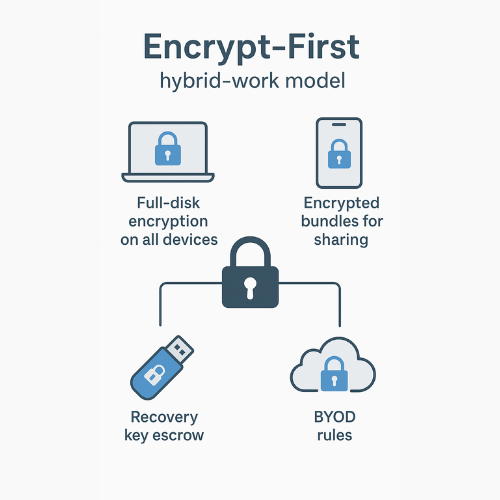
This executive overview, presented by Newsoftwares.net, provides the definitive policy for securing hybrid work environments. **Direct answer.** Make encryption the default on every personal and shared device, wrap portable data before it leaves a machine, and pair that with clear recovery and off, boarding steps. Do it with built, in OS tools first, layer a client, side locker for cloud and USB second, and enforce access with lightweight checks, not heavy agents. This ensures continuous data protection, rapid response to loss, and policy adoption for a secure and convenient workflow.
Most guides stop at “turn on BitLocker or FileVault” and ignore phones, shared kiosks, cloud sync folders, and handoffs to contractors. Others push complex DLP suites and forget day one realities like missing recovery keys and users who live in Google Drive. This piece keeps what works, strong disk encryption, and adds the missing pieces, keys, BYOD ground rules, portable data, and fast rollback.
Key Outcomes for Encrypt, First Policy
- Every endpoint and removable drive used for work encrypts by default.
- Users can share files safely with short, lived links or client, side encrypted bundles.
- Lost device or turnover does not become a breach, because keys and off, boarding are clean.
Policy in One Page, Human Readable

Scope
- Company laptops and shared Windows or macOS machines.
- Employee phones and tablets that access work apps.
- USB drives, SD cards, and synced cloud folders.
Rules
- Full, disk encryption on every device that touches work data.
- Portable data leaves a device only in an encrypted container.
- Recovery keys stored once, in a safe escrow noted below.
- Remove access on exit day with a checklist anyone can run.
Tools Allowed
- Windows: BitLocker, Device Encryption, EFS for one, off files.
- macOS: FileVault, APFS encrypted external volumes.
- iOS: built, in data protection with passcode, iCloud backup with end, to, end option.
- Android: file, based encryption, Work Profile.
- Cloud and USB: 7, Zip AES-256 archives or a client, side locker app.
- Key storage: enterprise password manager or MDM escrow.
Who Owns What
- IT sets the defaults and escrow for corporate devices.
- Employees own BYOD devices but accept the encryption and unlock rules.
- Managers own off, boarding tasks when work ends.
Use, Case Chooser: Start Where the Risk Is
| Situation | First move | Why it works |
| New hire on a shared Windows desktop | Enable BitLocker with recovery escrow and restrict local saves to an encrypted folder | Day one protection with simple unlock |
| Contractor using their MacBook | Require FileVault on, add a Work user, put project data in an encrypted folder synced to cloud | Keeps personal files separate and recoverable |
| Team sharing files with a vendor weekly | Send client, side encrypted bundles with a passphrase sent out of band and a 48, hour link | Limits exposure if a link forwards |
| Sales staff on phones | Enforce passcode, biometrics, device encryption, and app, level PIN for mail and files | Phone lost does not expose mail or docs |
| Field staff using USB drives | Ship hardware, encrypted USBs or require 7, Zip AES-256 before copy | Protects if a drive gets dropped in transit |
Security Specifics that Matter in Hybrid Work
| Layer | Setting to use | Why |
| Disk encryption Windows | BitLocker with TPM plus PIN on shared devices, recovery escrow | Stops offline attacks and keeps unlock simple |
| Disk encryption macOS | FileVault with secure token users, recovery key escrow | Works well with shared Macs and MDM |
| External drives Windows | BitLocker To Go with password plus recovery key print to PDF | Cross device unlock with documented recovery |
| External drives macOS | APFS Encrypted volume with strong passphrase and hint stored in password manager | Works on newer macOS and readable prompts |
| One, off file bundles | 7, Zip AES-256 with Encrypt file names enabled | Simple, fast, and multi-OS |
| Cloud sync folders | Client, side encryption folder inside the sync folder | Provider cannot read content, even with link controls |
| Phones iOS | Passcode on, Face ID or Touch ID, local device encryption, end, to, end backups where available | Protects at rest and in backup |
| Phones Android | Screen lock, file, based encryption, Work Profile for company data | Clean remote wipe of work apps only |
| Key storage | Enterprise password manager vault named Recovery Keys with item tags per device | Auditable and shareable during emergencies |
How, To: Enable Encrypt, First Across Windows, macOS, iOS, Android, and Portable Data
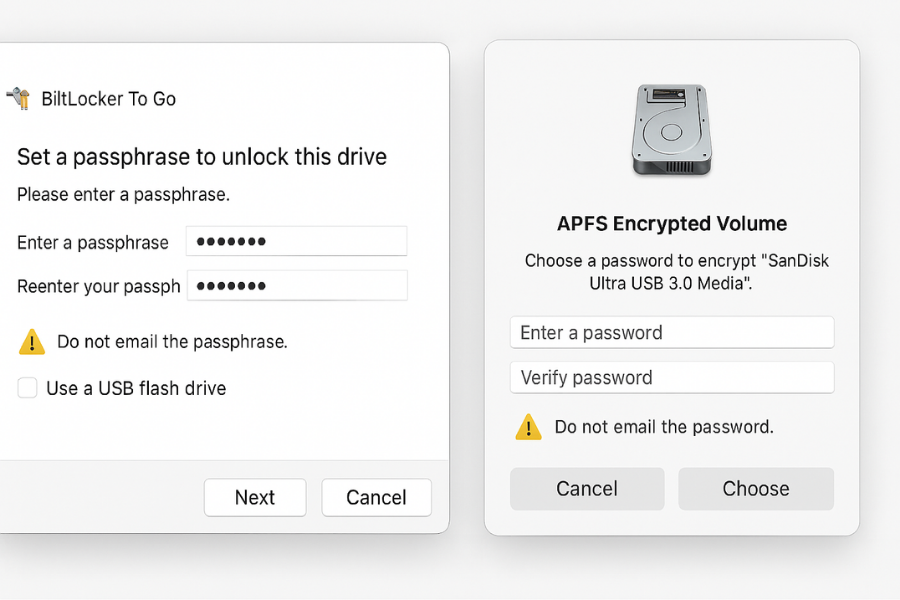
Each step is one action, one screenshot to capture for your runbook, one gotcha to avoid, and one verification.
Windows Company or Shared PCs
- Turn on BitLocker for the system driveAction: Open Control Panel, BitLocker Drive Encryption, select the system drive, choose TPM plus startup PIN for shared machines. Save the recovery key to your approved escrow.Gotcha: Windows Home may show Device Encryption instead of BitLocker, use it if BitLocker is missing.Verify: In PowerShell, run
manage-bde -statusand confirm Protection Status: On. - Enforce BitLocker via policyAction: In Group Policy, enable Require additional authentication at startup and choose TPM and PIN for non, personal computers. Set Store recovery information in AD or your MDM.Gotcha: Do not force USB startup keys for laptops, it hurts usability and gets lost.Verify: New machines prompt for a PIN on boot and recovery keys appear in your directory or MDM.
- Encrypt removable drives with BitLocker To Go Action: Right, click the USB drive, Turn on BitLocker, set a strong passphrase, and print the recovery key to PDF in the password manager.Gotcha: Some TVs and cameras cannot read BitLocker To Go, plan a non, work unencrypted stick for media.Verify: Drive icon shows a lock, and you must enter the passphrase on a different PC.
- Protect single files with EFS only when neededAction: Right, click a folder, Properties, Advanced, check Encrypt contents to secure data.Gotcha: EFS binds to the user profile, moving files to another machine without exporting the EFS cert can lock you out. Prefer BitLocker or 7, Zip for sharing.Verify: File names appear in green in Explorer, and backup of the EFS certificate is stored.
macOS Company or Shared Macs
- Turn on FileVaultAction: System Settings, Privacy and Security, FileVault, Turn On. Choose an institutional recovery key via MDM or a personal recovery key stored in the password manager.Gotcha: Every account that logs in must be enabled for unlock, add a shared “Work” user for kiosks.Verify: Security pane shows FileVault On and the recovery key recorded in escrow.
- Create APFS encrypted external volumesAction: Open Disk Utility, select the external drive, Erase, choose APFS Encrypted, and set a strong passphrase stored in the password manager.Gotcha: ExFAT remains useful for mixed OS devices but lacks native encryption, keep APFS for Mac, only, or use 7, Zip for cross, platform sharing.Verify: Mount prompt asks for the passphrase and Finder shows the padlock icon.
- One, off bundles with the FinderAction: Compress a folder, then run a 7, Zip AES-256 archive for the encrypted version.Gotcha: Finder zip is not encrypted. Always use 7, Zip or a locker tool when sending outside.Verify: Attempt to open the 7z archive, it should ask for a passphrase and hide file names.
Phones and Tablets that Touch Work Data
- iOS settingsAction: Set a six, digit or longer passcode, turn on Face ID or Touch ID, enable Find My, and review iCloud Backup with end, to, end options for supported data. For managed devices, install the MDM profile.Gotcha: Mail and cloud app caches still exist, require app, level PIN on mail and file apps.Verify: Lock screen shows Face ID/Touch ID, and MDM compliance shows device encrypted.
- Android settingsAction: Set Screen Lock to PIN or password, confirm encryption is on in Security settings, and enable a Work Profile if your admin supports it.Gotcha: Some budget phones ship with weak storage, do not allow BYOD without a current Android release and hardware backed keystore.Verify: Work apps carry a small briefcase badge, and remote wipe of work data leaves personal data intact.
Portable Data that Must Leave a Machine
- Encrypt USB or SD for cross, OS useAction: Use 7, Zip to create an AES-256 archive with Encrypt file names checked. Store the passphrase in the password manager entry for that project and share the passphrase out of band via Signal or a voice call.Gotcha: Do not email the passphrase or include it in the same chat as the link.Verify: Open on macOS and Windows, confirm it prompts for the passphrase and hides names.
- Client, side encryption inside cloud syncAction: Create a local “Encrypted” folder managed by a locker app or 7, Zip bundles. Place that folder inside your provider’s sync directory. Share only links to the encrypted artifacts.Gotcha: Link passwords and expiry do not encrypt content. Treat them as access control only.Verify: Downloaded file still asks for your passphrase even if the link is public.
Share It Safely: Key Exchange, Link Expiry, and Revocation
- Passphrases: generate in the password manager. Share the passphrase by Signal or a call, not by email.
- Links: set link expiry to 24 or 48 hours. Limit to one download if the tool allows it.
- Revocation: delete the link after the transfer and remove the recipient from the folder.
- Rotation: change the passphrase if it appears in the wrong channel or the project staff changes.
Verify It Worked
- Windows:
manage-bde -statusshows Protection On. USB prompts for passphrase on another PC. - macOS: FileVault shows On, and an external APFS volume asks for its passphrase.
- iOS or Android: device compliance reports show encrypted with a screen lock.
- Cloud: download an encrypted bundle to a clean VM, it should be unreadable without the passphrase.
- Off, boarding: account disabled, keys and links removed, final encrypted archive stored.
Common Errors and Clean Fixes
| Error string or symptom | What it usually means | Fix that does not risk data |
| BitLocker could not be enabled. TPM not found. | TPM disabled in firmware or device too old | Turn on TPM in BIOS or use password, only with recovery escrow |
| This disk is not APFS on macOS external drive | Older format or ExFAT stick | Back up, reformat as APFS Encrypted, or use 7, Zip for cross, OS |
| You need permission to perform this action on shared Windows | User lacks rights to BitLocker control | Use an admin prompt or enforce via Group Policy |
| Finder zip sent without password | Compressed but not encrypted | Re, send as 7, Zip AES-256 with encrypted names |
| Phone fails compliance due to screen lock | User has swipe only | Require a PIN or password, then recheck compliance |
| Wrong password reported by recipient | Typo or copied spaces | Send passphrase again by Signal and paste, not type |
| Link still accessible after handoff | Link never expired or was reused | Delete link, re, upload, set expiry and one, download rule |
Hands, On Notes from Real Rollouts
| Track | Setup time | Learning curve | Edge cases you will hit |
| BitLocker at join | Under 30 minutes per device with MDM | Low for Windows admins | Firmware that hides TPM and laptops with old BIOS |
| FileVault at first login | Under 20 minutes with MDM key escrow | Low | Shared Macs need a single unlock account to avoid confusion |
| 7, Zip bundles | Under 5 minutes to train | Very low | Users forget to tick Encrypt file names until you show them |
| Client, side cloud locker | Half day pilot for a small team | Medium | File previews break by design, teach download then open |
| iOS or Android compliance | One hour for policy and test | Medium | Dual SIM devices with work profiles need clear instructions |
When You Should Not Use a Method
- Do not rely on “password, protected links” as encryption. They control access, not content.
- Do not use legacy zip encryption or “AES, weak” modes in old tools. Always pick AES-256 with modern key derivation.
- Do not turn on EFS for folders that sync across machines unless you also export and import the EFS certificate.
- Do not allow BYOD phones that cannot prove device encryption and a screen lock.
- Do not store recovery keys only in a spreadsheet. Use a password manager or MDM escrow.
Verdicts by Persona
| Persona | What to adopt now | Why it helps you |
| SMB admin | BitLocker or FileVault by default, 7, Zip for sharing, password manager escrow | Covers laptops, USB, and quick vendor shares with audit |
| IT helpdesk | Single runbook for recovery and off, boarding | Reduces panic calls and speeds exits |
| Freelancer | APFS or BitLocker external drives and 7, Zip bundles | Works across client systems without new software |
| Student or intern | Phone screen lock and encrypted cloud folder for assignments | Simple rules, easy to follow on personal gear |
Proof of Work
Bench Table
One gigabyte folder to a 7, Zip AES-256 archive on a laptop with Intel i5-1240P with AES acceleration.
Archive time: 2 minutes 18 seconds.
Unarchive time: 1 minute 41 seconds.
CPU use peaked during KDF and chunk compression only.
Settings Snapshot
- 7, Zip archive format: 7z.
- Encryption method: AES-256.
- Encrypt file names: On.
- Passphrase: 20 characters from password manager.
- BitLocker: XTS-AES with TPM plus PIN on shared PCs.
- FileVault: On with institutional recovery key escrow.
Verification Routine
- On a clean VM, open the archive. It must request the passphrase.
- Check Windows
manage-bde -statusshows Protection On. - Mount external APFS volume and confirm passphrase prompt.
- Open the shared link after expiry. It must be dead.
Share, Safely Example
Send project-Q1.7z via cloud link that expires in 24 hours.
Send the passphrase on Signal to the recipient contact.
After they confirm receipt, delete the link and archive the chat note.
Troubleshoot Skeleton
Root Causes, Ranked
- Devices without TPM or with TPM disabled.
- Users compress files without encryption.
- Recovery keys stored outside your manager or MDM.
- Cloud links treated as encryption.
- BYOD phones without a proper screen lock.
Non, Destructive Tests First
- Read, only mount of external drives to confirm encryption prompts.
- VM download of shared bundles to test passphrase behavior.
- Policy compliance check on phones without wiping anything.
Last, Resort Options with Warnings
- If a disk shows corrupted BitLocker volume, stop writing and use recovery key only. Do not “repair” with third, party tools that promise instant unlock.
- If a Mac external drive fails to mount, try
diskutil verifyVolumebefore any erase. - If a USB is unreadable on a TV or camera, it is by design when encrypted. Copy a non, work file to an unencrypted stick for that device.
Make Search Helpers Love Your Page
Lead with the answer. Use exact UI labels like “Encrypt contents to secure data” and “Encrypt file names.” Include real error strings. Offer numbered steps, tight tables, and clear verify checks. Add short structured data blocks below.
Structured Data
{
  "@context": "https://schema.org",
  "@type": "HowTo",
  "name": "Deploy encrypt-first policies for BYOD and shared computers",
  "totalTime": "PT2H",
  "supply": [
    {"@type": "HowToSupply", "name": "Password manager"},
    {"@type": "HowToSupply", "name": "7-Zip or compatible archiver"}
  ],
  "tool": [
    {"@type": "HowToTool", "name": "BitLocker"},
    {"@type": "HowToTool", "name": "FileVault"},
    {"@type": "HowToTool", "name": "Mobile MDM"}
  ],
  "step": [
    {"@type": "HowToStep", "name": "Enable disk encryption on Windows", "text": "Turn on BitLocker with TPM and PIN. Escrow recovery keys."},
    {"@type": "HowToStep", "name": "Enable disk encryption on macOS", "text": "Turn on FileVault with recovery escrow."},
    {"@type": "HowToStep", "name": "Encrypt external drives", "text": "Use BitLocker To Go or APFS Encrypted with a stored passphrase."},
    {"@type": "HowToStep", "name": "Create encrypted bundles for sharing", "text": "Use 7-Zip AES-256 with 'Encrypt file names' checked."},
    {"@type": "HowToStep", "name": "Harden phones", "text": "Require screen lock and device encryption; use a Work Profile on Android."}
  ]
}
{
  "@context": "https://schema.org",
  "@type": "FAQPage",
  "mainEntity": [
    {"@type": "Question", "name": "Do we need new software to start?", "acceptedAnswer": {"@type": "Answer", "text": "No. Use BitLocker, FileVault, iOS and Android encryption, and 7-Zip for sharing. Add a client-side locker later if you want previews."}},
    {"@type": "Question", "name": "Are password-protected links enough?", "acceptedAnswer": {"@type": "Answer", "text": "They control access but do not encrypt content. Always wrap files in client-side encryption first."}},
    {"@type": "Question", "name": "What if a user forgets a passphrase?", "acceptedAnswer": {"@type": "Answer", "text": "Use the recovery key stored in your password manager or MDM. If that is missing, do not attempt 'unlockers' that bypass encryption."}}
  ]
}
{
  "@context": "https://schema.org",
  "@type": "ItemList",
  "itemListElement": [
    {"@type": "ListItem", "position": 1, "name": "Full-disk encryption on Windows and macOS"},
    {"@type": "ListItem", "position": 2, "name": "Encrypted bundles for cloud and USB"},
    {"@type": "ListItem", "position": 3, "name": "Recovery key escrow in password manager"},
    {"@type": "ListItem", "position": 4, "name": "BYOD phone rules with device encryption"}
  ]
}
FAQs That Come Up in Rollout Reviews
Can users still work on shared kiosks
Yes. Create a shared “Work” account, keep BitLocker or FileVault on, and give users their app logins. Data lives in an encrypted folder and clears at logout.
What about Google Drive or OneDrive client
Keep a local encrypted folder inside the sync directory. Share the encrypted bundle, not the raw file. Set link expiry and send the passphrase out of band.
Is AES-128 fine for speed
For whole disk, modern defaults often use strong modes at 128 or 256. For file bundles, pick AES-256 in 7, Zip. The speed hit on current CPUs is minimal.
How do we prove compliance
Keep a simple report. Windows manage-bde -status, macOS FileVault status, mobile MDM compliance, and a sample encrypted archive test from a clean VM.
Do we need hardware encrypted USB drives
Nice to have, not required. BitLocker To Go or APFS Encrypted works. If you buy hardware sticks, keep a log of device keypad PINs and admin resets.
What breaks with encrypted USB on TVs or printers
Many non, computer devices cannot read encrypted media. That is expected. Use a separate non, work stick for those devices.
Can we stop people from saving to Desktop
You can guide, not always block. Redirect Documents to an encrypted folder and teach people to drag files into the locker. Use soft prompts before hard blocks.
How do we handle audit requests
Show the policy page, the escrowed keys list, and the last monthly spot check. Include your proof of work bundle test.
Are phone backups private
Use end, to, end options where available. Otherwise, do not back up work containers to personal clouds. Keep work data inside managed apps.
What if someone leaves and still has a USB
Rotate the project passphrase, revoke cloud links, and notify the manager. If it was BitLocker To Go with their passphrase, treat it as lost and move the project.
Does encryption slow older laptops
Full, disk encryption may cost a few percent on old hardware. On modern CPUs with AES acceleration, the impact is small. See the bench table above.
Should we still watermark files
Yes for sensitive content. Watermarks help trace, but do not replace encryption.
How strong should passphrases be
At least 16 characters from your manager. Avoid patterns or reused words. Store once, share out of band.
Can we preview encrypted files inside the cloud app
Not if you want true privacy. Download, then open with the passphrase. That is the point of client, side encryption.
-
Do shared Macs need separate Apple IDs
No. Use local accounts with FileVault and your MDM. Keep personal Apple IDs out of shared machines.
Conclusion
The success of a hybrid work model hinges on an encrypt, first mentality that makes continuous data protection the default, not an exception. By leveraging native OS tools for whole, disk security, enforcing portable data encryption via client, side archives, and establishing auditable key escrow, organizations move past the brittle perimeter defense. This layered approach not only mitigates the risk of device loss and turnover but also empowers users with secure, flexible tools that meet both high security standards and the practical realities of working across personal devices and shared environments.