
The Standard for Confidentiality: How to Password Protect Archives with Mandatory AES-256 Encryption

The standard ZIP format and default operating system tools rely on dangerously outdated encryption. If confidentiality is mandatory, the archive must use AES-256 encryption combined with metadata protection. Achieving this requires specialized third party software and adherence to strict configuration protocols.
The only secure method to lock an archive is through the AES-256 standard, utilizing modern utilities like 7-Zip or WinRAR. Do not use default Windows ZIP tools or the legacy ZipCrypto method.
The Essential AES 256 Security Checklist
- Mandatory Step 1: Use AES-256 encryption method. This is the current, high strength cipher required for sensitive data protection.
-
Mandatory Step 2: Use an archive format that supports header encryption. This usually means 7z (7-Zip) or RAR5 (WinRAR), as the ZIP format has limitations.
- Mandatory Step 3: Explicitly select the option to Encrypt file names. Failure to do so leaks sensitive metadata, compromising confidentiality.
Prerequisites and Safety
-
Required Tools: Only 7-Zip, WinRAR 5.0+, or a modern version of WinZip guarantee the necessary security features. The native Windows ZIP utility is inadequate for confidential data.
- Risk Mitigation: Cryptography relies on the strength of the key. If the AES-256 password is lost or forgotten, the encrypted files cannot be recovered. Always back up the original files before deleting them after archiving.
-
Compatibility Warning: When using AES-256 encryption, standard Windows or macOS extractors are unable to open the resulting ZIP or 7z files. Recipients must install compatible third party software to access the contents.
Why Legacy Encryption Fails: The Security Reality Check
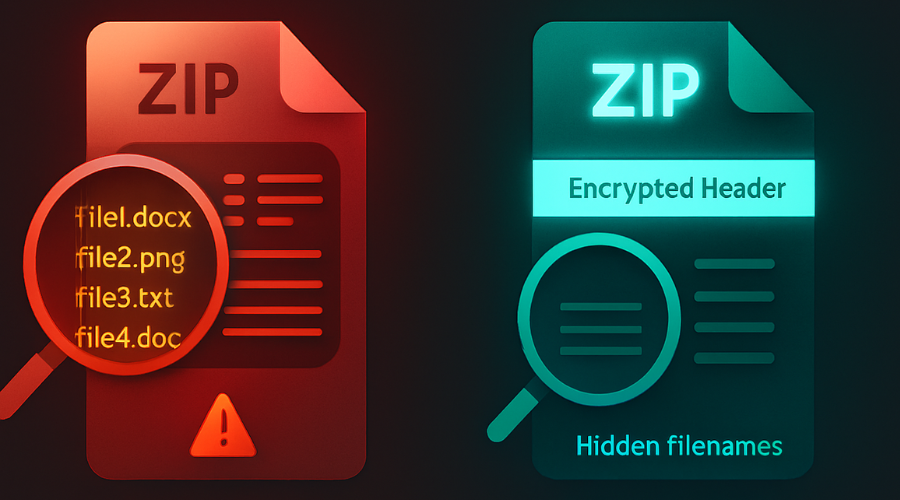
Confidentiality requires more than just a password. It requires a modern cryptographic algorithm and a complete understanding of how archive structures expose file data. Two major security deficiencies plague traditional archiving methods: the weakness of ZipCrypto and the leakage of metadata.
The Fatal Flaw in ZipCrypto
Legacy encryption, often implemented in the standard ZIP format, uses a method known as ZipCrypto. This method provides inadequate protection against modern cracking tools. ZipCrypto is an obsolete and vulnerable encryption technique that can be cracked with minimal effort, rendering the files effectively unprotected.
While ZipCrypto offers widespread compatibility, allowing recipients to open the archive instantly on nearly any machine, this convenience represents an unacceptable security trade off for any sensitive or confidential data. For security professionals, the mandate is clear: for any sensitive document, ZipCrypto must be avoided entirely.
The Metadata Vulnerability: File Name Leakage
A common misconception is that simply applying a password protects all aspects of the archive. In reality, the traditional ZIP format encrypts only the contents of the files. The file list, known as the Central Directory, is stored in the clear.
This oversight means that an attacker can trivially view crucial metadata without ever needing the password. This exposed information includes filenames, file creation dates, file lengths, and directory names. To counter this critical vulnerability, modern archivers, especially when utilizing formats like 7z or RAR5, offer an explicit option known as Encrypt file names or Header Encryption. This feature ensures that the file list and directory structure are themselves encrypted, which is the mandatory baseline for true confidentiality. If the recipient is immediately prompted for a password upon opening the archive, it indicates that the header was successfully protected.
Key Derivation Function (KDF) Deep Dive
The ultimate cryptographic strength of an archive depends not only on the AES-256 algorithm but also on the process that transforms the human readable password into the 256 bit binary encryption key. This transformation is performed by a Key Derivation Function (KDF).
KDFs perform a process called key stretching. This process introduces a high number of iterations using cryptographic hashes, such as SHA-256, specifically to increase the computational cost of a brute force or dictionary attack. Even if an attacker obtains the encrypted file, the large number of iterations dramatically slows down the attempt to guess the password.
KDF Implementation in Archivers
-
7-Zip’s Approach: The 7-Zip program, which uses the open source 7z format, implements a key derivation function based on the SHA-256 hash algorithm. It intentionally utilizes a large number of iterations to substantially increase the cost of exhausting the password search space.
-
WinRAR and WinZip’s Approach: These utilities, when using AES encryption, implement the Password Based Key Derivation Function 2 (PBKDF2). PBKDF2 typically uses HMAC-SHA1 with 1,000 iterations for key derivation. While PBKDF2 is an established standard, using HMAC-SHA1 produces a 160 bit output. This complexity reinforces the necessity of choosing passwords that are uniquely strong, compensating for any cryptographic ceiling.
Choosing the Right Tool
Selecting the correct archiving utility is the first operational decision that dictates security posture. While 7-Zip, WinRAR, and WinZip all support AES-256, they vary significantly in cost, format structure, and default security settings.
Utility Encryption Matrix
| Feature/Metric | 7-Zip | WinRAR (RAR5) | WinZip |
| AES-256 Support | Yes (7z/ZIP formats) | Yes (RAR5 format, v5.0+) | Yes (256-bit AES) |
| Cost/License | Free (Open Source, GNU LGPL) | Trialware/Paid License | Trialware/Paid License |
| Encrypt Filenames | Explicit Checkbox (Mandatory) | Explicit Option (Mandatory) | Option Varies by Version/Format |
| Primary Format | 7z (High Compression, Strong Encryption) | RAR5 (Proprietary, Robust) | ZIP/ZIPX (High Compatibility) |
| Key Derivation Function | SHA-256 based, High Iterations | PBKDF2 using HMAC-SHA1 (1000 iterations) | PBKDF2 using HMAC-SHA1 (1000 iterations) |
Security Specifics: Cipher Modes and Integrity Checks
For maximum security, the selection of the native format is highly recommended over forcing the utilities to output a standard ZIP file.
-
7-Zip (7z format): This format is open source and provides strong AES-256 encryption. Its emphasis on a SHA-256 based KDF with a high number of iterations prioritizes raw brute force resistance.
- WinRAR (RAR5 format): WinRAR versions 5.0 and higher use the required AES-256. It uses PBKDF2 for key derivation and incorporates proprietary password dependent modifications to file checksums, allowing the software to detect a wrong password without starting the decryption process.
-
WinZip (AES-256): WinZip often uses its proprietary AE-1 or AE-2 file formats for AES encryption. The AE-1 format includes a stored CRC (Cyclic Redundancy Check) value, which provides an extra integrity check against hardware or software errors. For files smaller than 20 bytes, WinZip reverts to AE-2 (no CRC) to prevent the CRC from potentially revealing content data.
When to Avoid Standard ZIP Encryption
A core security principle dictates that standard ZIP encryption should be avoided entirely if the goal is absolute confidentiality and metadata protection. The inherent limitation of the traditional ZIP format in protecting the Central Directory means that sensitive data remains exposed. For files marked confidential or high risk, the only acceptable formats are the native 7z format in 7-Zip or the RAR5 format in WinRAR, as these architectures reliably support header encryption.
Tutorial: Securing Files with 7-Zip (The Maximum Security Standard)

7-Zip is the preferred tool for many professionals due to its open source nature, high compression ratio, and robust key derivation implementation. This guide mandates the use of the 7z archive format, which guarantees the critical option to encrypt filenames.
Step by Step Guide for 7-Zip
-
Initiate Archive Creation: Navigate to the file(s) or folder intended for encryption. Right click the selection. Choose 7-Zip from the context menu and click Add to archive…
- Configure Format: In the “Add to archive” dialog box, under Archive format, select 7z. Using the native 7z format is necessary to ensure reliable header encryption.
- Select AES-256 Encryption: In the Encryption section, ensure the Encryption method dropdown is set to AES-256.
- Enter Password: In the designated fields, enter and re-enter a strong password. A minimum of 12 characters combining upper and lowercase letters, numbers, and symbols is the operational standard.
- Crucial: Enable Metadata Protection: Locate the checkbox labeled Encrypt file names and ensure it is selected. This non negotiable step encrypts the archive header, preventing attackers from viewing the file list without the password.
- Finalize and Create: Review the settings, confirm the output path, and click OK. The new .7z archive is created in the specified location.
Proof of Work: Verification and Performance
Verification of Settings
- Archive format: 7z
- Encryption method: AES-256
- Encrypt file names: ON
Confirmation Test
Attempt to open the newly created archive using the 7-Zip File Manager. If the settings are correct, the utility should immediately prompt for the password before displaying any contents or file names.
Benchmarking Performance
Modern processors include hardware acceleration features, such as AES-NI, which make AES-256 encryption extremely fast. Encrypting a 1 GB file takes roughly 6 seconds on a modern Intel i7 processor. This speed confirms that implementation is highly efficient.
Tutorial: Securing Files with WinRAR (RAR5 and PBKDF2)
WinRAR provides robust AES-256 encryption primarily through its proprietary RAR5 format, which has been standard since version 5.0.
Step by Step Guide for WinRAR
-
Initiate Archive Creation: Right click the file(s) or folder to encrypt. Select WinRAR from the context menu, then choose Add to archive…
- Select RAR5 Format: In the “General” tab of the archiving dialogue, ensure the Archive format is set to RAR5. This format guarantees the use of modern encryption standards.
- Set Password and Encryption Details: Click the Set password… button.
- Enter Password and Enable Protection: Enter a strong, unique password. Crucially, check the box labeled Encrypt file names. This ensures that the directory structure is obfuscated, protecting the archive’s metadata.
-
Confirm AES-256: In the Encryption section of the dialog, confirm that AES-256 is the selected method. This is the default for RAR5 archives.
- Finalize Archive: Click OK twice to start the archiving process. The new .rar archive will appear in the designated location.
Tutorial: Securing Files with WinZip (Compatibility and Integrity)
WinZip supports 256 bit AES encryption, often integrating features focused on data integrity within the ZIP format. It is critical to explicitly configure the application to use AES-256, as default settings may prioritize the weaker ZipCrypto for compatibility.
Step by Step Guide for WinZip
-
Configure Encryption Standard (Pre Archiving): Open WinZip. Navigate to the Settings or Options menu. Select Conversion Settings, and then choose Encryption. In the Encryption Options dialog, select 256-bit AES encryption if it is not already chosen.
- Initiate Archiving: Right click the file(s) or folder you wish to encrypt. Select WinZip, and then choose Add to Zip file (alternatively, use the Create tab within the WinZip application).
- Enable Encryption: In the Add to Archive dialog, navigate to the Options section and ensure the Encryption checkbox is actively selected.
- Enter Password: The application will prompt for an Encrypt dialog window. Enter a complex password for maximum security.
-
Verify Encryption Confirmation: For some versions of WinZip, the successful application of encryption can be visually confirmed by observing an asterisk (*) at the end of the file name within the utility’s interface.
Verification and Data Integrity
WinZip archives encrypted with AES often adhere to the AE-1 format specification. This format mandates the storage of a CRC (Cyclic Redundancy Check) value along with the encrypted data. This value serves as an effective integrity check, verifying the correctness of the decryption password before attempting full file extraction.
Key Exchange and Operational Security
No cryptographic cipher, regardless of its strength, can protect data if the operational security procedures are flawed. The biggest risk to an AES-256 archive is the method used to transmit the decryption password (the key).
Sharing the Key Safely
The fundamental rule of key exchange is maintaining an out of band communication channel. The password must never be sent in the same channel as the encrypted archive, especially via standard email, which can be easily intercepted during transmission.
Recommended, high security methods for key exchange include:
-
Secure Messaging: Sending the password via an end to end encrypted messaging service, such as Signal or WhatsApp, which themselves use robust encryption methods like AES-256.
- Verbal Confirmation: Conveying the password over a verified phone line or during a secured video conference.
-
Time Limited Link: Utilizing a link service that generates a strong, single use, expiring link for the password, ensuring immediate access and preventing long term exposure.
Why AES 256 is Non Negotiable (Real World Proof)
AES-256 is not merely a high end option, it is the cryptographic standard mandated by high stakes environments for handling sensitive data.
-
Government and Classified Data: AES-256 is utilized by US government entities, including the National Security Agency and the military, for securing classified information up to the TOP SECRET level. Its strength is considered sufficient for national defense.
- Digital Infrastructure: Major cloud providers, including Google Cloud, AWS, and IBM, use AES-256 by default to protect data at rest. Furthermore, modern Virtual Private Networks (VPNs) and HTTPS communications (TLS/SSL) rely on AES-256 to safeguard data in transit.
-
Device Security: All major modern operating systems use AES-256 to secure entire physical storage devices. Tools like Windows BitLocker and macOS FileVault leverage this standard for full disk encryption, demonstrating its suitability for long term, high volume protection.
Troubleshooting Common Errors
Even when using the correct tools, user friction and environmental incompatibilities can lead to extraction failures. Most AES-256 errors stem from incompatibility, not cryptographic failure.
Root Causes of Failure
-
Incompatibility: The most frequent error is the recipient attempting to use the default Windows or macOS file extractor, which cannot process AES-256 encryption or non standard formats like 7z or RAR5.
- Metadata Leakage: The second common operational failure occurs when a user chooses the standard ZIP format, resulting in the failure to encrypt file names. This leaves metadata exposed, leading to a critical security failure.
- Password Error: Simple typos or reliance on weak passwords remains a constant threat.
Non Destructive Tests
Before sending the archive, a security professional should perform immediate confirmation tests:
-
Extraction Test: Attempt to extract the archive in a secondary environment, e.g., a virtual machine or a new user profile. Successful extraction, including the password prompt, confirms the archive integrity.
-
Command Line Verification: Use the 7z command line tool to list the archive properties. The output should explicitly indicate the encryption method used. A successful AES-256 encryption should reflect the robust cipher setting.
Last Resort Options (Data Loss Warning)
If the password for an AES-256 encrypted archive is forgotten, the data is considered permanently inaccessible. Modern AES-256 implementation is designed to be cryptographically unbreakable when a strong password is used, meaning password recovery tools are ineffective against this standard. The only option is data restoration from an unencrypted backup.
Troubleshooting AES 256 Archiving Errors
| Symptom / Exact Error String | Root Cause | Immediate Fix |
| Windows Explorer won’t ask for a password | AES-256 encryption is incompatible with the default Windows extractor. | Install 7-Zip or WinRAR; ensure recipient does the same. |
| “Compression method not recognized” | 7-Zip created a ZIP archive using non-standard AES flags. | Retry the archive using the 7z format in 7-Zip instead of ZIP. |
| Recipient can list all file names without password | Archive was created in the standard ZIP format, bypassing header encryption. | Re-archive using 7z (7-Zip) or RAR5 (WinRAR), ensuring Encrypt file names is checked. |
| Cannot extract the file (wrong password) | Human error (typo) or incorrect key derivation due to software mismatch. | Carefully re-enter the password. Verify software versions are identical on both ends. |
Frequently Asked Questions
Can Windows Explorer open an AES 256 encrypted ZIP file?
No. Windows Explorer supports only the older, insecure ZipCrypto standard. To open an AES-256 archive, the recipient must install a compatible third party utility like 7-Zip, WinRAR, or WinZip.
What is the difference between AES 256 and ZipCrypto?
AES-256 is the current, high strength cryptographic standard required by governments and major corporations. ZipCrypto is an obsolete algorithm that provides a false sense of security and is easily cracked by modern tools.
What happens if I forget the AES 256 password?
AES-256 encryption is designed to be impervious to brute force attacks if the password is strong. If the password is lost, there are no reliable recovery tools or backdoors. The data is permanently lost.
Does encrypting a file protect its name?
Not by default in the standard ZIP format. Filenames and metadata are often stored unencrypted. Full protection requires using the 7z or RAR5 format and explicitly checking the “Encrypt file names” option.
Is 7-Zip’s SHA 256 based Key Derivation Function (KDF) weaker than WinRAR’s PBKDF2?
Both are considered cryptographically sound. 7-Zip uses a large number of SHA-256 iterations to strengthen the key, serving the same goal as PBKDF2: increasing the computational cost of a brute force attack against the human password.
Why is AES 256 faster than older encryption methods?
Modern CPUs include dedicated hardware instructions, such as AES-NI, which specifically accelerate AES encryption and decryption operations. This hardware support allows for gigabytes of data to be encrypted in seconds.
Can I use AES 256 on a .RAR file?
Yes, provided the user is working with WinRAR version 5.0 or later, which supports the modern RAR5 archive format. This format mandates AES-256 for encryption.
Why do some files encrypt using WinZip’s AE 1 format while others use AE 2?
The AE-1 format includes a CRC integrity check, enhancing reliability. However, WinZip switches to the AE-2 format (which omits the CRC) for very small files (less than 20 bytes) to ensure that the CRC itself cannot be used to deduce the exact contents of the small file.
How many iterations does WinRAR use for key derivation?
WinRAR and WinZip, when utilizing PBKDF2, typically employ 1,000 iterations for key derivation, as specified in the relevant cryptographic standards for the WinZip AE formats.
If I use AES 256, is my data 100% secure?
Cryptographically, AES-256 is the strongest symmetric cipher approved for classified data. However, security is conditional on two factors: the strength of the password chosen and the security of the key exchange method used. If the password is weak or sent insecurely via email, the protection fails.
Conclusion
The analysis confirms that AES-256 encryption is the required baseline for all confidential or sensitive archived data. The era of relying on legacy ZipCrypto and simple password protection is over. Organizations and professionals must shift their protocols to enforce the use of third party tools (7-Zip, WinRAR) and mandate the encryption of file names (header encryption).
The strongest approach involves utilizing 7-Zip’s native 7z format, explicitly selecting AES-256, and verifying that the “Encrypt file names” box is checked. This combination addresses both cryptographic robustness and metadata leakage. Furthermore, all users must be educated on the necessity of separating the key from the encrypted file, transmitting the password via a secure, out of band channel like Signal or a confirmed phone call. This process shifts the focus from simple file compression to certified data confidentiality.