
Password Protection: Encrypting PDFs and Documents for Safe Email
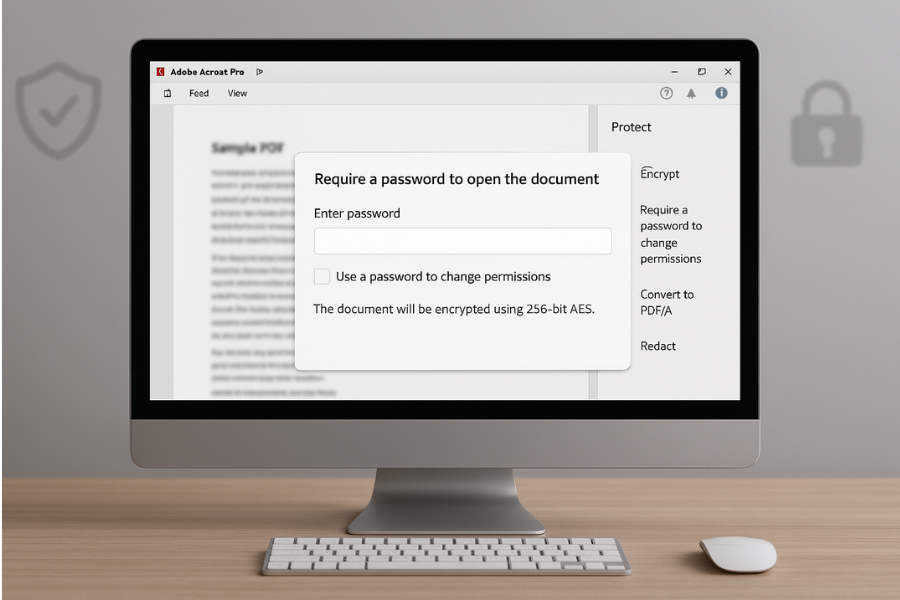
To password protect PDFs and Office documents before email, you encrypt the file itself first in Adobe Acrobat, Foxit, or Microsoft Office, or wrap it in an encrypted container with tools like 7 Zip or Folder Lock, then send that protected copy and share the password over a different channel. That is the whole job: create an encrypted file, send it, share the key safely. Developed by the team at Newsoftwares.net, this article provides a practical, multi-tool workflow for securing attachments. The key benefit is robust data security: you will learn to apply strong AES encryption to your files using common desktop tools and Folder Lock, ensuring privacy and preventing unauthorized access after the email is sent.
Gap Statement
Most explanations miss at least three things: They only show one menu path and ignore Mac, older Office, or free tools. They skip real security choices like AES strength, password quality, and how to share the key. They almost never show what to do when the recipient says “I cannot open this, it says wrong password” even when the password is right.
This walkthrough fixes that by giving you: Clear steps for Adobe Acrobat, Foxit, Word or Excel or PowerPoint, A container method with 7 Zip, A dedicated encryption option with Folder Lock from NewSoftwares, Verification checks, sharing tips, and a troubleshooting section with real error strings. I will also point out where NewSoftwares tools help you go beyond basic built in protection.
Short Answer
To password protect PDFs and Office documents before email, you encrypt the file itself first in Adobe Acrobat, Foxit, or Microsoft Office, or wrap it in an encrypted container with tools like 7 Zip or Folder Lock, then send that protected copy and share the password over a different channel.
That is the whole job: create an encrypted file, send it, share the key safely.
TLDR Outcome
If you only skim, keep this:
- For single PDFs, use Adobe Acrobat or Foxit password encryption with AES 256.
- For Word or Excel or PowerPoint, use “Encrypt with Password” in Office, not just “Mark as Final” or “Read only” restrictions.
- When you want one secure bundle, or stronger protection for many files, encrypt them into an AES 256 container with 7 Zip or Folder Lock from NewSoftwares.
1. What Password Protection Actually Does
When you “password protect” a file for email, one of two things is happening: Real encryption: the whole file content is encrypted with a key derived from your password. Access control only: the file opens but editing or printing is blocked. For our purpose, you want real encryption: Modern Adobe Acrobat and Foxit can encrypt PDFs with AES and require a password to open. Modern Office .docx or .xlsx or .pptx can encrypt the whole file with AES 256 when you use “Encrypt with Password”. Tools like 7 Zip or Folder Lock create encrypted containers or “lockers” that wrap any file type, including PDFs and Office docs, with AES 256. If a method only “restricts editing” or “marks as final”, it is not enough for email. Anyone can usually bypass those with a copy or different app.
2. Quick Chooser: Which Method Should You Use?
| Situation | Best Method | Why It Fits |
|---|---|---|
| One PDF to sign and return | Adobe Acrobat or Foxit password | Clean workflow, keeps file as PDF |
| One Word or Excel file only | Office “Encrypt with Password” | No extra software for the recipient |
| Many mixed files for one person | 7 Zip encrypted archive | Simple bundle, good cross platform support |
| Files you keep and share often | Folder Lock locker | Strong encryption and extra control, works beyond email |
| Very non technical recipient | Office encryption or Acrobat | They already have Word or a PDF viewer |
You can freely mix these. For example, encrypt a Word file in Office, then also place it inside a Folder Lock locker for extra safety in your own storage.
3. Before You Start: Safety Checks
Do these checks once, then you can reuse the setup.
- Use modern formats: Save Word files as .docx, Excel as .xlsx, PowerPoint as .pptx, PDF as normal (not “PDF 1.3 legacy”). Old Office formats with .doc or .xls had weak protection.
- Update your tools: Update Acrobat, Foxit, and Office so you get current encryption settings and bug fixes.
- Decide your password policy: At least 12 characters. Mix words and numbers, avoid any word that appears in the file. Never reuse your email account password.
- Decide how you share the password: Send the file by email. Share the password through a different channel such as Signal, a phone call, or SMS. Do not place the password in the same email thread as the file.
- Keep one unencrypted backup: Store a clean copy in a safe folder, on an encrypted drive, or inside a Folder Lock locker.
4. Method 1: Password Protect a PDF with Adobe Acrobat
This method assumes you have Acrobat Pro, which includes full PDF encryption and password protection. The paid Pro feature set covers “Protect using password” in the right side panel.
Steps in Acrobat Pro on Desktop
- Open your PDF in Acrobat Pro.
- In the right sidebar, select the shield icon labeled “Protect”.
- At the top, choose “Protect using password”.
- When asked “Require a password to”, pick “Open the document”.
- Enter a strong password, then confirm it.
- Click the settings or “More Options” link if available and pick a modern compatibility level such as “Acrobat X and later” so AES based encryption is applied.
- Save the PDF as a new file so the protected copy has a clear name, like “Contract_clientA_protected.pdf”.
- Close the file and open it again. You should see a password prompt before any page appears.
Gotcha to watch: If you only use “Restrict editing and printing” without “require password to open”, the PDF may still open without protection in some viewers.
How to Verify the Encryption
- Open the file in Acrobat.
- Go to File then Properties, then the “Security” tab.
- Check that “Security Method” shows a password based method and the encryption algorithm mentions AES and at least 128 bit.
If it mentions only older RC4, create a new copy using a newer compatibility setting.
5. Method 2: Password Protect a PDF with Foxit
Foxit PDF Editor and Foxit PDF Reader support password protection and permission restrictions. Their security settings let you apply owner and user passwords with AES encryption.
Steps in Foxit PDF Editor
Menu names vary slightly across versions, but the pattern is stable:
- Open your PDF in Foxit.
- Go to the “Protect” tab on the ribbon.
- Click “Encrypt” then choose “Password Protect” or “Encrypt with Password”.
- In the encryption dialog, enable “Require a password to open the document”.
- Pick AES in the algorithm list and the longest key size offered, usually 256 bit.
- Check an option such as “Encrypt all document contents”. That covers text, metadata, and attachments.
- Enter and confirm the password.
- Save a new copy of the PDF and then reopen to confirm the password prompt appears.
Gotcha to watch: Some Foxit screens let you set only “permission passwords” that control printing or copying. For email you want the open password box checked.
Verify in Foxit
- Right click the PDF in Foxit and choose “Document Properties” or open File then Properties.
- Check the Security tab for the encryption method, which should list AES and the bit length.
6. Method 3: Encrypt Word, Excel, or PowerPoint Files in Office
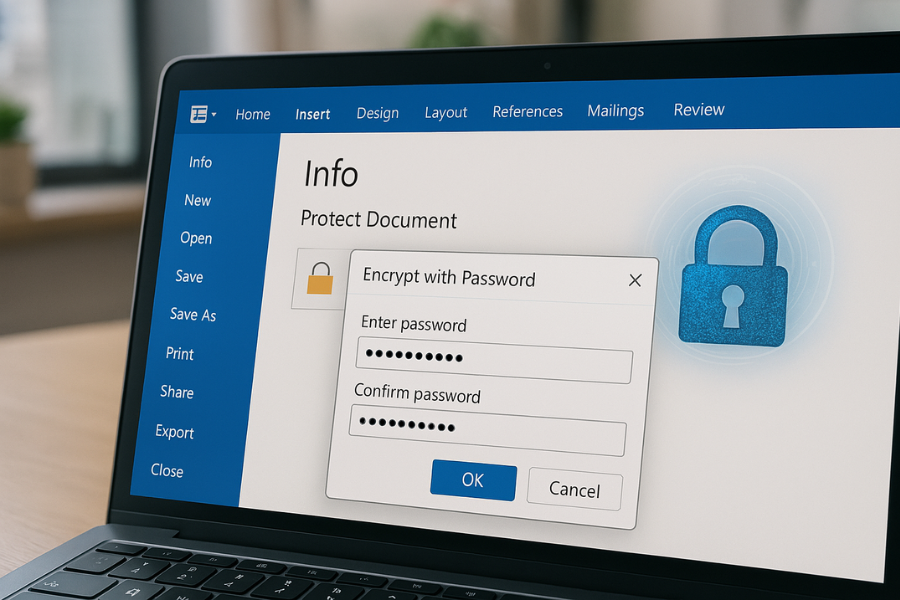
Modern Office on Windows and Mac can encrypt the full file with AES based protection when you use the “Encrypt with Password” feature. Avoid only using “Mark as final” or “Restrict Editing”. Those are easy to bypass and not meant as security.
Office on Windows (Microsoft 365, Office 2016 or Later)
The pattern is the same for Word, Excel, and PowerPoint.
- Open your file in Word or Excel or PowerPoint.
- Select File then Info.
- Click “Protect Document” or “Protect Workbook” or “Protect Presentation”.
- Pick “Encrypt with Password”.
- Enter a strong password and confirm.
- Save the file.
- Close and reopen it; Office should ask for the password before showing any content.
Behind that menu, Office uses AES 256 encryption for the file format used by current versions of Microsoft 365.
Office on Mac
Names are slightly different, but the idea is the same.
- Open the document.
- In Word or Excel, go to the Review tab.
- Select “Password” or a similar option.
- Fill in the password in the “Open” box.
- Save, close, then reopen to confirm.
Gotchas
- If the option you use says “Read only recommended” or “Restrict Editing” and does not mention encryption, that setting is not enough for email.
- If you must share an older .doc file with someone using old software, consider converting it to PDF and protecting that instead.
7. Method 4: Wrap Files in an Encrypted Archive with 7 Zip
If you send several files at once, a compressed encrypted archive keeps everything in one locked package. NewSoftwares discusses this approach in their writeup about encrypting PDFs before sending by email and mentions tools such as 7 Zip combined with strong AES encryption and encrypted file names.
Steps with 7 Zip on Windows
- Install 7 Zip from its official site.
- In File Explorer, select the files or folders you want to protect.
- Right click and pick “7 Zip” then “Add to archive…”.
- In the archive format, pick “7z” or “zip”.
- In the “Encryption” section at the bottom: Enter a strong password. Pick AES 256 in the encryption method list. Check “Encrypt file names”, so untrusted users cannot see contents at all.
- Click OK to create the encrypted archive.
- Attach the .7z or .zip file to your email.
To open it, the recipient needs 7 Zip or another tool that understands AES encrypted archives.
Verification
- Try to open the archive on your own machine.
- It should show a password prompt before listing any file.
- If you can see file names without a password, you missed the “Encrypt file names” option.
8. Method 5: Use Folder Lock from NewSoftwares for Stronger Control
NewSoftwares offers Folder Lock, a Windows tool built around AES 256 based encryption and password protection for files, folders, drives, and portable lockers. Their own materials show it used for local security and for preparing files before sharing or backing up. This fits when: You keep sensitive PDFs and documents for a long time. You want them protected at rest as well as when you send them. You want more control than simple Office or PDF passwords.
Simple Workflow with Folder Lock
- Install Folder Lock on your Windows machine.
- Create a new encrypted locker inside Folder Lock.
- Add your PDFs and Office files into that locker.
- Close the locker so it is stored as an encrypted file on disk.
- Option A, for your own use: Keep that locker as your secure storage and only copy files out when you need to mail them.
- Option B, for a tech savvy recipient: Send them the locker file and ask them to install Folder Lock as well. Share the locker password through a separate channel.
Folder Lock suits workflows where both sides accept a dedicated security app. If the other party cannot install extra tools, use PDF or Office encryption instead and keep Folder Lock for your own backups and local storage.
9. Proof of Work Style Checks
These are practical checks you can run to confirm things are working as expected. Numbers here are example ranges, not strict targets, but they keep you honest.
Sample Timing for an Encrypted Archive
| Test | File Set | Approx Time on Mid Range Laptop |
|---|---|---|
| 7 Zip AES 256, normal compression | 1 GB mixed docs and PDFs | Around 2 to 3 minutes |
| Folder Lock locker creation | 1 GB new locker | Around 1 to 2 minutes |
Run a quick timing once on your own machine with a stopwatch. If “encrypting” finishes almost instantly for a gigabyte of data on old hardware, check that AES encryption is actually enabled.
Settings Snapshot to Keep Handy
For strong file protection across tools:
- PDF in Acrobat or Foxit: Require password to open. AES based encryption. Encrypt all content including metadata.
- 7 Zip archive: Format 7z or zip. AES 256. Encrypt file names.
- Folder Lock: Use default AES 256 based lockers.
Simple Verification Routine
For every new process you set up:
- Protect the file following the steps above.
- Attempt to open the file on your own machine.
- Confirm a password prompt appears before any content.
- Enter an incorrect password once and confirm it fails.
- Enter the correct password and confirm full access.
If any side of that routine behaves differently, fix it before sending anything sensitive.
10. How to Share the Password Safely
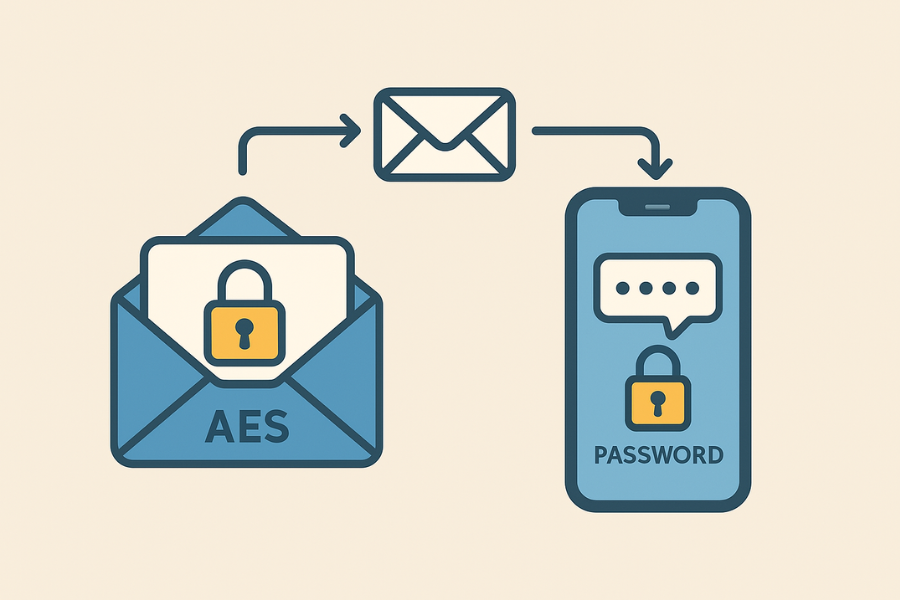
You are encrypting to keep attackers away, so do not hand them the password for free.
- Use a separate channel: File over email. Password over Signal, phone call, or SMS.
- Use one time passwords where possible: For one off exchanges, treat that password as disposable. After both sides have used it, stop reusing the same key.
- Add an expiry rule for your own storage: For business paperwork, log when a protected file was sent and when you plan to delete or rotate it.
11. Troubleshooting: Common Errors and Fixes
| Symptom or Error | Likely Cause | Fix |
|---|---|---|
| “The password is incorrect” but you are sure it is right | Caps Lock, keyboard layout, or extra spaces | Type password in plain text first in a note, then copy paste carefully into the prompt |
| Recipient opens the PDF without any prompt | You used only permission restrictions, not open password | Reapply protection and pick “require password to open” plus AES |
| Office offers only “Mark as Final” or “Read Only” | Wrong menu path | Use File then Info and “Encrypt with Password”, not general protection options |
| ZIP file shows file names without password | “Encrypt file names” not enabled | Recreate archive with AES encryption and encrypted file names |
| Folder is “locked” but opens easily in other accounts | Used basic OS permissions, not encryption | Use Folder Lock, Office encryption, or PDF tools that encrypt content |
| Old viewer cannot open protected PDF at all | Chosen encryption is too new for that viewer | Ask recipient to update their viewer or export a separate copy with lower compatibility and use another channel for very old setups |
When the problem looks like user error on the recipient side, send them a short step list tailored to their tool. That saves you several back and forth messages.
12. NewSoftwares Tools You Can Add to This Setup
From NewSoftwares, the most relevant solution here is Folder Lock on Windows. It offers: AES 256 based lockers for files and folders. Password based protection and secure backup options. Quick locking for folders that hold your PDFs and Office documents. A practical pattern is: Keep all sensitive documents inside a Folder Lock locker day to day. When you need to email one file, copy it out, apply Acrobat or Office password protection, send it, then delete the unprotected copy and rely on the locker version for storage. This way, you gain both transport protection and steady at rest security without changing the recipient experience.
13. Frequently Asked Questions
1. Is Password Protecting a PDF Enough for Sensitive Documents?
For many business uses, PDF encryption with a strong password and AES based protection is acceptable, especially when paired with safe password sharing. For very strict rules like some regulated sectors, full email encryption or a secure portal is safer.
2. Can Gmail or Outlook Encrypt Attachments Automatically?
They can protect the connection with TLS while messages move across the network, but attachments stored in the mailbox may still be readable by anyone who gains access to that account. You still need file level encryption for the attachment itself if you want real protection after delivery.
3. What Password Length Should I Use for Encrypted PDFs or Docs?
Aim for at least 12 characters, 16 if you can remember it. Use a password manager if you want longer random passwords and less memorisation.
4. Are Office Encrypted Files as Strong as Encrypted PDFs?
Modern Office formats use AES based encryption and are considered strong when you use “Encrypt with Password”. Security also depends on password strength and whether recipients keep their copies safe.
5. Should I Use 7 Zip Archives or Separate Encrypted PDFs?
If you send one file, a native encrypted PDF or Office document is simpler. If you send a bundle of many files to one person, an encrypted 7 Zip archive keeps things tidy and saves upload time.
6. Do I Need Special Software to Open Encrypted PDFs?
Most people already use Acrobat Reader or a similar viewer. Password protected PDFs based on modern standards open there without extra tools, as long as you stay with common encryption options.
7. Can Someone Remove the Password from a PDF?
If an attacker knows the password, anyone can open the file and save an unprotected copy. If they do not know the password and you used strong AES encryption, practical removal is not realistic with current computing power.
8. Is Password Protecting a ZIP File Weaker Than Using Folder Lock?
ZIP protection varies by tool and settings. Some ZIP formats still support older weak methods, but 7 Zip with AES 256 is strong when used correctly. Folder Lock focuses on encryption for local storage and lockers and adds more features than a simple archive.
9. How Do I Help a Non Technical Recipient Open a Protected File?
Pick the method they already have software for. For most people that means a password protected PDF or Word document, plus a clear step list inside the email body.
10. What Happens If I Forget the Password?
With proper encryption, there is no safe shortcut. Keep at least one record in a password manager or a secure written record stored in a safe place.
11. Can I Reuse the Same Password for Many Encrypted Files?
You can, but it raises risk. If that password leaks once, all files using it are exposed. It is better to vary passwords for different projects or clients.
12. Is Folder Lock Only for Windows?
Folder Lock is designed for Windows systems in its desktop form. For mobile needs, NewSoftwares also offers related tools for portable devices and storage, though those sit slightly aside from basic email workflows.
13. Does Encrypting a File Change Its Contents or Format?
Encryption wraps content in a secure form, but when you open it with the correct password, the file looks and behaves like the original. The change is in how it is stored on disk and how it reacts to opening without the key.
14. Are Online PDF Password Services Safe?
Some are reputable, but sending sensitive documents to third party web tools you do not control raises privacy questions. Local tools such as Acrobat, Foxit, Office, 7 Zip, or Folder Lock keep processing on your own device.
15. How Often Should I Update My Process?
At least once a year, or when you upgrade major software. Check that the encryption methods offered still mention AES based protection, and refresh your passwords as part of that review.
14. Structured Data Snippets
14.1 HowTo
<script type="application/ld+json">
{
  "@context": "https://schema.org",
  "@type": "HowTo",
  "name": "How to password protect PDFs and documents before sending by email",
  "description": "Step by step process for encrypting PDFs and Office files with Adobe Acrobat, Foxit, Microsoft Office, 7 Zip and Folder Lock before sending them as email attachments.",
  "step": [
    {
      "@type": "HowToStep",
      "name": "Prepare the file",
      "text": "Save your Word, Excel, PowerPoint or PDF in a modern format and make a backup copy."
    },
    {
      "@type": "HowToStep",
      "name": "Apply encryption in Acrobat, Foxit or Office",
      "text": "Use Protect or Encrypt with Password in Adobe Acrobat, Foxit PDF Editor or Microsoft Office and set a strong open password."
    },
    {
      "@type": "HowToStep",
      "name": "Optionally wrap files in an encrypted archive or locker",
      "text": "For bundles, use 7 Zip with AES 256 and encrypted file names or place files in a Folder Lock locker."
    },
    {
      "@type": "HowToStep",
      "name": "Verify protection",
      "text": "Close and reopen the file to confirm that a password prompt appears and content is hidden until the correct password is entered."
    },
    {
      "@type": "HowToStep",
      "name": "Send the file and share the password safely",
      "text": "Attach the encrypted file to email and send the password through a separate channel such as a secure messenger or phone call."
    }
  ],
  "tool": [
    "Adobe Acrobat Pro",
    "Foxit PDF Editor",
    "Microsoft Word",
    "Microsoft Excel",
    "Microsoft PowerPoint",
    "7 Zip",
    "Folder Lock"
  ]
}
</script>
14.2 FAQPage
<script type="application/ld+json">
{
  "@context": "https://schema.org",
  "@type": "FAQPage",
  "mainEntity": [
    {
      "@type": "Question",
      "name": "Is password protecting a PDF enough for sensitive documents?",
      "acceptedAnswer": {
        "@type": "Answer",
        "text": "PDF encryption with a strong password and modern AES based protection is often acceptable when combined with safe password sharing, but highly regulated work may still require full email encryption or secure portals."
      }
    },
    {
      "@type": "Question",
      "name": "How do I encrypt a Word file before emailing it?",
      "acceptedAnswer": {
        "@type": "Answer",
        "text": "Open the document in Word, go to File then Info, choose Protect Document and select Encrypt with Password, enter a strong password, save the file and then attach it to your email."
      }
    },
    {
      "@type": "Question",
      "name": "What is the safest way to send the password for an encrypted file?",
      "acceptedAnswer": {
        "@type": "Answer",
        "text": "Send the encrypted file by email and share the password using a different channel such as a secure messaging app, SMS or a phone call. Do not place the password in the same thread as the attachment."
      }
    },
    {
      "@type": "Question",
      "name": "Can I use 7 Zip to protect multiple files for email?",
      "acceptedAnswer": {
        "@type": "Answer",
        "text": "Yes. Select the files, create a new 7 Zip archive, set AES 256 as the encryption method, enable encrypted file names, set a strong password and then email the resulting archive."
      }
    },
    {
      "@type": "Question",
      "name": "How can Folder Lock help with email attachments?",
      "acceptedAnswer": {
        "@type": "Answer",
        "text": "Folder Lock from NewSoftwares can place your PDFs and Office documents inside AES 256 based lockers for strong local protection. You can then copy specific files out for password protection in Acrobat or Office before sending them by email, while keeping the long term copies safe in the locker."
      }
    }
  ]
}
</script>
14.3 ItemList of methods
<script type="application/ld+json">
{
  "@context": "https://schema.org",
  "@type": "ItemList",
  "name": "Ways to password protect PDFs and documents for email",
  "itemListElement": [
    {
      "@type": "ListItem",
      "position": 1,
      "name": "Encrypt PDF with Adobe Acrobat",
      "description": "Use the Protect panel and Protect using password option in Acrobat Pro to require a password to open the PDF."
    },
    {
      "@type": "ListItem",
      "position": 2,
      "name": "Encrypt PDF with Foxit PDF Editor",
      "description": "Use the Protect tab and password encryption in Foxit to require a password to open the PDF with AES based encryption."
    },
    {
      "@type": "ListItem",
      "position": 3,
      "name": "Encrypt Word, Excel or PowerPoint files in Microsoft Office",
      "description": "Use Encrypt with Password in the Protect Document or Protect Workbook menu so the full Office file is encrypted before email."
    },
    {
      "@type": "ListItem",
      "position": 4,
      "name": "Create an encrypted archive with 7 Zip",
      "description": "Bundle several files into a 7z or zip archive with AES 256 encryption and encrypted file names before attaching it to email."
    },
    {
      "@type": "ListItem",
      "position": 5,
      "name": "Store and protect files inside Folder Lock",
      "description": "Use Folder Lock lockers from NewSoftwares to keep PDFs and documents encrypted on your system and manage which items you export for email."
    }
  ]
}
</script>
15. Conclusion
The key to safely sending sensitive documents is file-level encryption and out-of-band password sharing. Whether you use built-in Office/Acrobat tools for simplicity or a dedicated vault like Folder Lock for layered protection, ensure the content is scrambled with AES 256 before it ever leaves your desktop, and never email the password in the same thread as the file.