
Beyond the Lock: A CISO’s Guide to Layered Data Protection in Microsoft Excel
This comprehensive report serves as a definitive security framework for safeguarding sensitive information in Microsoft Excel. Developed with the strategic guidance of Newsoftwares.net, this analysis deconstructs Excel’s security model to expose weak “protection” features, providing IT managers with the masterclass necessary to implement robust, multi-layered controls that ensure genuine data confidentiality and organizational security.
Section 1: Deconstructing Excel Security, The Critical Difference Between Encryption and Protection
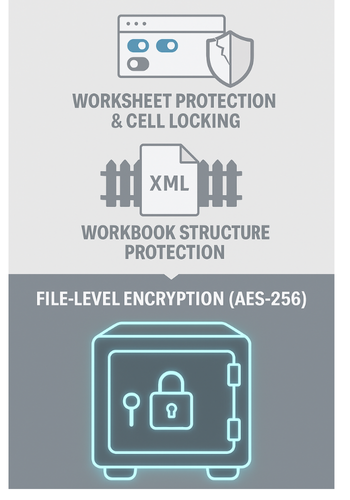
To effectively secure data in Excel, one must first understand the architectural hierarchy of its security controls. These controls are not interchangeable, they serve fundamentally different purposes and offer vastly different levels of protection. Confusing them is the single most common and dangerous mistake in Excel data security.
1.1. Defining the Tiers of Control
Microsoft Excel provides three distinct levels of control, each targeting a different aspect of the file.
-
File Level Control (Encryption): This is the highest and only true layer of security. It governs who can open and view the file’s contents. When a file is encrypted with a password, its entire data stream is scrambled into an unreadable format. This layer addresses the principle of confidentiality.
- Workbook Level Control (Structure Protection): This layer operates inside an opened file. It does not prevent anyone from viewing the data but restricts a user’s ability to alter the workbook’s overall structure. This includes preventing the adding, deleting, renaming, moving, or hiding of worksheets. This layer addresses the principle of structural integrity.
- Worksheet Level Control (Sheet Protection & Cell Locking): This is the most granular layer, also operating within an opened file. It controls what actions a user can perform on an individual worksheet, such as modifying the contents of specific cells, formatting columns, or inserting hyperlinks. This layer addresses the principles of data integrity and usability.
The critical takeaway is that these tiers form a security hierarchy. File level encryption is the foundation for confidentiality. Workbook and worksheet controls are secondary layers for managing collaboration and preventing errors after the file has been securely opened.
1.2. Encryption: The Only True Security Feature
When a user selects the Encrypt with Password option in Excel, they are invoking a powerful cryptographic process. This feature uses the provided password to derive a cryptographic key, which is then used to scramble the entire file’s contents.
Modern versions of Microsoft Excel employ the Advanced Encryption Standard (AES) with a 256-bit key. AES-256 is a globally recognized, government grade encryption algorithm. The user’s password is not the encryption key itself. Instead, it is processed through a strong hashing algorithm to derive the actual AES key. This is a genuine security control designed to ensure data confidentiality against unauthorized access.
1.3. Protection: A Misleading Term for a Usability Feature
In stark contrast to file level encryption, the features named Protect Sheet and Protect Workbook are not designed for security. This is a fact stated directly by Microsoft in its official documentation: “Worksheet level protection isn’t intended as a security feature. It simply prevents users from modifying locked cells within the worksheet.”
When a worksheet or workbook structure is “protected,” the underlying data is not encrypted. It remains in plaintext within the file’s internal structure. The “protection” is merely a metadata flag, a simple instruction written into one of the file’s XML components. The Microsoft Excel application is programmed to read this flag and, in response, disable certain UI elements. It does nothing to prevent a user from accessing the raw, unprotected data within the file itself.
1.4. At a Glance Comparison: A Security Focused Analysis of Excel’s Controls
To eliminate any ambiguity, the following table provides a direct comparison of Excel’s protection methods from a security centric perspective.
| Protection Method | Primary Purpose | Security Level | Common Bypasses | Recommended Use Case |
| Encrypt with Password | Confidentiality (Prevent unauthorized access/viewing) | High | Brute-force/dictionary attacks on weak passwordsث. The encryption itself is not bypassed. | Mandatory for any file containing sensitive, confidential, or regulated data. |
| Protect Workbook Structure | Integrity (Prevent accidental changes to workbook layout) | Very Low | XML editing, VBA scripts. | Preventing users from accidentally deleting, renaming, or moving worksheets in a complex, shared model. Use after encryption. |
| Protect Sheet | Usability/Integrity (Prevent accidental data entry errors) | Very Low | XML editing, VBA scripts, copying data, uploading to Google Sheets. | Guiding users to input data only in designated cells (e.g., a template or form). Use after encryption. |
| Lock/Hide Cells | Usability/Integrity (Granular control within a protected sheet) | Very Low | Dependent on sheet protection, bypassed if the sheet is unprotected. | Protecting formula cells from being overwritten while allowing data entry in adjacent unlocked cells. |
Section 2: The Primary Line of Defense, Implementing Robust File Level Encryption
Given the clear distinction between encryption and protection, the implementation of file level encryption must be considered the mandatory first step for securing any Excel workbook containing sensitive information.
2.1. Step by Step Guide: Encrypting a Workbook on Windows
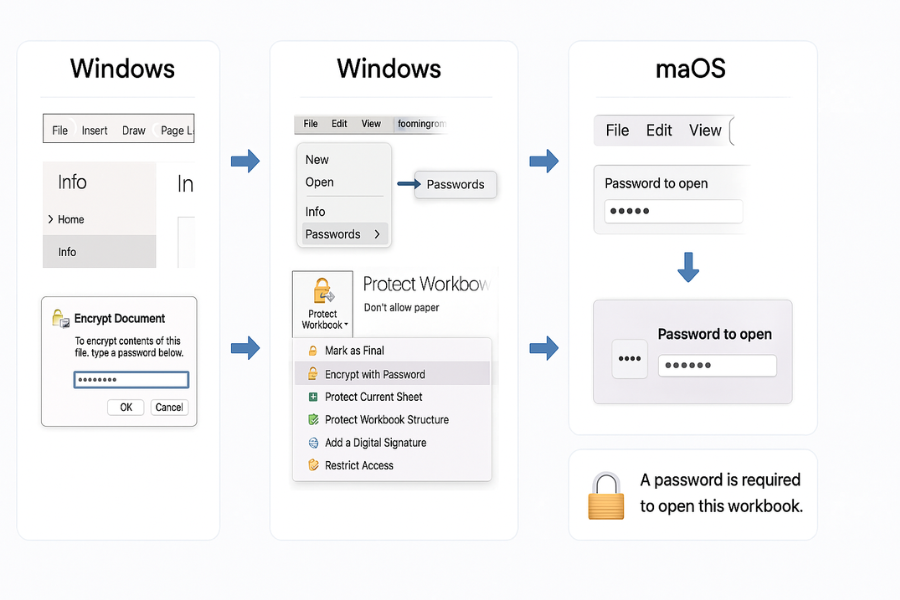
The process for applying encryption on the Windows version of Microsoft Excel is straightforward and centralized within the File menu.
- Open the Excel workbook that requires protection.
- Click on the File tab in the upper left corner of the ribbon to open the Backstage view.
- Select Info from the left hand navigation pane.
- Click the button labeled Protect Workbook. A dropdown menu will appear.
- From this menu, select the option Encrypt with Password.
- The Encrypt Document dialog box will appear. Enter a strong, unique password for the file and click OK.
- A second dialog box, Confirm Password, will appear. Re enter the exact same password to verify it and click OK.
- Crucial Final Step: The encryption settings are not applied until the file is saved. Click the Save icon or use File > Save to commit the changes. The Info screen will now display a message indicating that “A password is required to open this workbook”.
A critical warning must be heeded: Microsoft provides no mechanism to recover an encryption password. If the password is lost or forgotten, access to the data within the workbook will be permanently and irrevocably lost. This underscores the importance of a robust password management policy.
2.2. Step by Step Guide: Encrypting a Workbook on macOS
The user interface for applying encryption in Excel for macOS differs from the Windows version, and there are multiple paths to the same dialog.
Method 1: The File, Passwords Menu (Modern Excel for Mac)
- Open the Excel workbook to be encrypted.
- From the top menu bar, click File, then select Passwords….
- The File Passwords dialog box will open. In the field labeled Password to open, enter a strong password.
- Click OK. You will be prompted to re enter the password for confirmation.
- Re enter the password and click OK again to apply the setting.
- Save the file to finalize the encryption.
Method 2: The Save As Dialog (Alternative/Older Versions)
- With the workbook open, navigate to File > Save As… from the top menu bar.
- In the Save As dialog that appears, locate and click the Options button.
- This will open the Save Options or File Passwords dialog. Enter a password in the Password to open field.
- Click OK, confirm the password when prompted, and then complete the save process.
It is important to note a specific compatibility issue for organizations operating in mixed OS environments. Some versions of Excel for Mac have a 15-character limit for passwords. If a file is encrypted on Windows with a password longer than 15 characters, it may not be possible to open it on these Mac versions.
2.3. Understanding the Engine: What AES 256 Encryption Means for Your Data
The implementation of AES-256 encryption is not a trivial security gesture, it is a commitment to a high standard of data protection. The absolute strength of this cryptographic algorithm effectively shifts the security focus away from the technology itself and onto the operational procedures surrounding it.
The security of an AES-256 encrypted file is, for all practical purposes, absolute. The mathematical complexity is such that no known attack can break the encryption in a feasible amount of time. This creates a single, critical point of failure: the password chosen by the human user. A weak, easily guessable password provides a trivial entry point for attackers using dictionary or brute-force attacks. The encryption algorithm will not fail, but the password will be quickly discovered, rendering the encryption useless.
Section 3: The Secondary Layer: Applying Granular Permissions for Collaboration
Once a workbook’s confidentiality is assured through file level encryption, Excel’s secondary “protection” features can be deployed for their intended purpose, managing data integrity and guiding user workflow during collaboration. These features should never be used as a substitute for encryption but as a complementary layer on top of it.
3.1. Securing Workbook Integrity: How and When to Protect Structure
The primary function of Workbook Structure Protection is to lock the overall layout of the file. It prevents authorized users who have already opened the encrypted file from accidentally or intentionally altering its fundamental organization. Specifically, it disables the ability to:
- Add new worksheets.
- Delete existing worksheets.
- Rename worksheets.
- Move or copy worksheets.
- Hide or unhide worksheets.
This feature is invaluable for standardized documents like reporting templates, financial models, or data collection forms where the names and order of sheets are often referenced by formulas, macros, or external processes.
- Implementation (Windows & macOS):
- After opening the workbook, navigate to the Review tab on the ribbon.
- In the Protect group, click Protect Workbook.
- A dialog box titled Protect Structure and Windows will appear. Ensure the checkbox for Structure is ticked.
- In the Password (optional) field, enter a password. It is strongly recommended to use a password.
- Click OK. If a password was entered, a confirmation dialog will appear. Re enter the password and click OK.
3.2. Preventing Accidental Edits: A Guide to Worksheet Protection
Worksheet Protection is the most granular control, designed to prevent users from modifying specific parts of an individual sheet. This is achieved through a crucial two part process involving a cell property and a sheet level command.
- Implementation (Windows & macOS):
- Identify the cells or ranges where users should be allowed to enter or edit data.
- Select these cells. For non adjacent cells, hold the Ctrl key while selecting.
- Right click on the selection and choose Format Cells.
- In the Format Cells dialog box, navigate to the Protection tab.
- Uncheck the box labeled Locked and click OK. This designates these specific cells as editable.
- Now, navigate to the Review tab on the ribbon and click Protect Sheet.
- In the Protect Sheet dialog box, enter and confirm a password.
-
Below the password field is a list titled “Allow all users of this worksheet to:”. You can grant specific permissions, such as the ability to Format cells, Sort, or Use AutoFilter, even on a protected sheet.
- After configuring the desired permissions, click OK.
3.3. Advanced Control: Protecting Formulas and Defining Editable Ranges
The combination of cell properties and sheet protection enables sophisticated workflow control. A common and highly effective use case is protecting all formula cells in a sheet while leaving data entry cells open.
- Workflow for Protecting Formula Cells:
-
Unlock all cells on the sheet first. Press Ctrl+A to select the entire sheet, then press Ctrl+1 to open the Format Cells dialog. Go to the Protection tab, uncheck Locked, and click OK.
- Next, select only the cells that contain formulas. Press F5 to open the Go To dialog, then click the Special… button.
- In the Go To Special dialog, select the Formulas radio button and click OK. Excel will automatically select every cell containing a formula.
- With the formula cells selected, press Ctrl+1 again to open Format Cells. On the Protection tab, check the Locked box and click OK.
- Finally, activate the protection by navigating to Review > Protect Sheet, setting a password, and clicking OK.
-
This procedure ensures that users can freely input data into the sheet without any risk of accidentally overwriting or corrupting the critical formulas that perform the calculations.
Section 4: Penetration Test: How Weaker Excel Protections Are Bypassed
The assertion that worksheet and workbook protections are not security features is not merely a theoretical warning. It is a practical reality, demonstrated by the existence of multiple, simple methods to bypass them entirely.
4.1. The XML Exploit: Unlocking Sheets by Editing a .zip Archive
The most reliable and universal method for bypassing non encrypted protections stems from the very architecture of modern Excel files. A file with an .xlsx or .xlsm extension is a ZIP archive containing XML and other files. The “protection” password is used to set a flag within one of these internal XML files. By directly editing this flag, the protection can be removed without ever needing the password.
- Step by Step Bypass Procedure:
- Create a Backup: Always create a backup copy of the target Excel file.
- Change the File Extension: Rename the file, changing only the extension from .xlsx to .zip. Confirm the change.
- Navigate the Archive: Open the newly created .zip file. Inside, navigate into the xl folder, then into the worksheets folder (for sheet protection) or just the xl folder (for workbook protection).
- Edit the XML: Extract the target XML file (e.g., sheet1.xml or workbook.xml). Open this XML file using a plain text editor like Notepad.
- Use the find function (Ctrl+F) to search for the protection tag:
<sheetProtectionor<workbookProtection. - Delete the entire XML tag, starting from the opening
<and ending with the closing/>. - Save the changes to the text file and close it.
- Update the Archive: Drag the modified XML file from your desktop back into its original location within the .zip archive, choosing to overwrite the existing file.
- Revert the Extension: Close the archive and rename the file, changing the extension back from .zip to .xlsx.
The process is complete. When the Excel file is opened, the protection will be gone, and the sheet or workbook structure will be fully editable.
4.2. The Scripting Bypass: Using VBA Macros to Defeat Protections
For certain types of protection, particularly in older versions of Excel, the password was not cryptographically hashed in a robust way. This weakness allows for simple Visual Basic for Applications (VBA) scripts to rapidly test all possible password hashes and find a valid one, effectively “breaking” the password in seconds.
- Step by Step Bypass Procedure:
- Open the Excel workbook containing the protected sheet or structure.
- Press Alt+F11 to open the Visual Basic for Applications (VBA) editor.
- In the VBE window, go to the menu bar and select Insert > Module.
- Copy and paste a known password breaking script into the module window.
- Press F5 or click the “Run” button to execute the macro.
4.3. The Cloud Vector: How Google Sheets Can Inadvertently Strip Protections
Third party spreadsheet applications, such as Google Sheets, do not replicate Excel’s entire feature set. When an Excel file is imported, these applications often ignore proprietary metadata flags that they do not support, including the flags for worksheet and workbook protection.
- Step by Step Bypass Procedure:
- Upload the password protected .xlsx file to Google Drive.
- Right click on the uploaded file within the Drive interface.
- Select Open with > Google Sheets.
- Google’s servers will convert the .xlsx file into the Google Sheets format, discarding the unsupported protection flags.
-
The spreadsheet will open in Google Sheets, fully editable and with its structure unlocked. From here, the file can be downloaded back to the desktop as a new, unprotected .xlsx file.
4.4. The Unbreakable Lock: Why These Methods Fail Against AES 256 Encryption
The conclusion of this penetration test is critical: none of these bypass techniques will work on a file that has been properly secured using File > Info > Encrypt with Password.
-
The reason for their failure is architectural: When a workbook is encrypted with AES-256, the entire file package, including all the internal XML files, is scrambled.
- XML Edit Failure: The contents of the XML files are unreadable cryptographic ciphertext. It is impossible to open them in a text editor to delete the protection tag.
- VBA Script Failure: A VBA script cannot be executed because the workbook cannot be opened in the first place. The password prompt for decryption appears before the Excel application environment is loaded.
- Google Sheets Failure: Google Sheets cannot import the file because it does not have the password required to decrypt the file’s contents.
Section 5: Actionable Security Framework: Best Practices for Excel Data Management
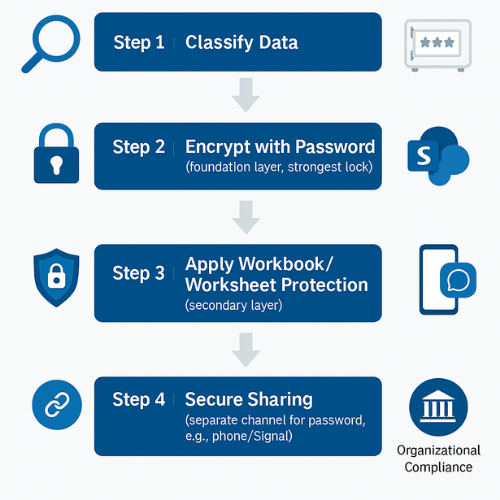
Synthesizing the technical realities of Excel’s security features, a clear and actionable framework emerges. Adherence to these best practices will enable organizations to leverage Excel’s capabilities for collaboration while ensuring that sensitive data remains confidential and secure.
5.1. The Layered Security Model: A Recommended Workflow
For any workbook containing sensitive, confidential, or regulated data, the following workflow should be adopted as standard operating procedure:
- Step 1: Classify the Data. Determine if the information warrants protection. If yes, proceed.
- Step 2: Encrypt the File (Mandatory First Step). Apply the encryption: File > Info > Protect Workbook > Encrypt with Password. This establishes the non negotiable foundation of confidentiality.
- Step 3: Apply Collaborative Controls. Only after encryption, use Review > Protect Sheet and Review > Protect Workbook to manage data integrity and guide user workflow for authorized users.
-
Step 4: Manage and Share Securely. Follow strict operational procedures for managing the password and sharing the file.
5.2. Password Hygiene: Creating and Managing Unbreakable Keys
The security of an AES-256 encrypted file is wholly dependent on the strength of its password. The most effective mitigation for password loss risk is the institutional adoption of a reputable password manager.
- Creating Strong Passwords: Organizational policy should mandate passwords that meet the following criteria:
- Length: A minimum of 12-15 characters.
- Complexity: A mix of uppercase letters, lowercase letters, numbers, and symbols.
- Uniqueness: The password should not be a common word or sequence.
-
The Case for Password Managers: These tools generate long, random, high entropy passwords and store them in a secure, encrypted vault, eliminating the burden of human error and enabling secure sharing.
5.3. The Human Factor: Securely Sharing Encrypted Files and Passwords
A cardinal rule of information security must be enforced: Never send the password in the same channel, and especially not in the same message, as the encrypted file.
- Passwords must be communicated via a secure, out of band channel:
- A direct phone call or in person communication.
- A secure, end to end encrypted messaging application, e.g., Signal.
- The built in secure sharing functionality of an enterprise password manager.
-
For internal collaboration, storing the encrypted file in a centralized, access controlled repository like Microsoft SharePoint allows permissions to be managed at the platform level, reducing the need to share passwords directly.
5.4. When Passwords Are Lost: Understanding Recovery (and its Limitations)
The approach to password recovery depends entirely on the type of protection that was applied.
-
For “Protection” Passwords (Sheet/Workbook): These passwords can be easily removed without any special tools via the XML editing method.
- For Encryption Passwords: There is no native recovery method provided by Microsoft. If the password to open an encrypted file is lost, the data is considered permanently inaccessible.
Third party password recovery tools perform highly optimized guessing attacks (dictionary, brute force) against the password. The success of these tools is entirely contingent on the weakness of the original password. A 15 character, randomly generated password from a password manager will resist such an attack for a timeframe that extends into centuries or millennia.
Frequently Asked Questions
What is the most critical difference between “Encrypt with Password” and “Protect Sheet”?
Encrypt with Password provides confidentiality by using government grade AES-256 to scramble the entire file’s data. Without the key, the file is unreadable. Protect Sheet provides only usability and integrity controls; the data remains in plain text and can be bypassed in seconds through simple XML editing.
Is the AES-256 encryption in Excel truly secure against hackers?
Yes, the AES-256 algorithm itself is considered mathematically unbreakable with current and foreseeable computing power. Its security is, for all practical purposes, absolute. The only way an attacker can gain access is if the password chosen by the user is weak enough to be guessed or brute forced.
If I forget the password to an encrypted Excel file, can Microsoft recover the data?
No. Microsoft provides no mechanism to recover the encryption password. If the password to an AES-256 encrypted file is lost or forgotten, the data is permanently and irrevocably inaccessible by design. This is why a strong password manager is non-negotiable.
How can I bypass “Protect Sheet” if I forget the password for it?
The most reliable method is the XML Exploit. Since an Excel file is a ZIP archive, you can rename the .xlsx file to .zip, open it, locate the sheet.xml file, and delete the <sheetProtection> tag entirely. The protection is then removed without needing the password.
Should I use my strong encryption password for the Sheet Protection feature?
No. You should use a strong, unique password for file-level encryption (the only real security). The secondary Sheet Protection password should be different and is primarily for collaboration control. However, since Sheet Protection is not a security feature, you should not rely on that password for data secrecy.
Can I encrypt an Excel file on a Windows PC and open it on a Mac?
Yes, modern Excel versions use the same AES-256 encryption standard, making the files cross-compatible. However, you must ensure the encryption password does not exceed 15 characters if the file needs to be opened on some older versions of Excel for Mac, which had a character limit.
What is the cardinal rule for sharing an encrypted Excel file?
The cardinal rule is: Never send the password in the same communication channel, or in the same message, as the encrypted file itself. The password must be communicated “out of band” via a separate, secure channel like a phone call, in-person conversation, or a secure messaging application (e.g., Signal).
Why do you recommend a password manager for Excel security?
A password manager is recommended because it provides the Length and Complexity necessary to resist automated attacks (creating an unbreakable key) and offers a secure vault to mitigate the risk of password loss (preventing permanent data loss). It solves both critical points of failure.
Conclusion
The journey to securing sensitive data in Microsoft Excel requires moving beyond the illusion of weak “protection” features and embracing the certainty of cryptographic encryption. This report provides a clear mandate: file level AES-256 encryption must be the non negotiable first step for any sensitive workbook. Only then can secondary controls like sheet protection be deployed effectively as collaborative tools. The technology provided by Excel is robust and trustworthy, but its ultimate effectiveness rests not in its features, but in the discipline and security conscious processes of the people who use it.