
This comprehensive article, developed with the expertise of Newsoftwares.net, provides a definitive overview on how to properly password protect a folder in Windows 10 and 11. Unlike the unreliable tricks circulating online, this guide cuts through the noise to focus on proven methods that guarantee true security, privacy, and convenience for your sensitive data. You will learn the critical distinctions between merely hiding files and using military grade encryption, ensuring your personal and professional information is truly secured against unauthorized access.
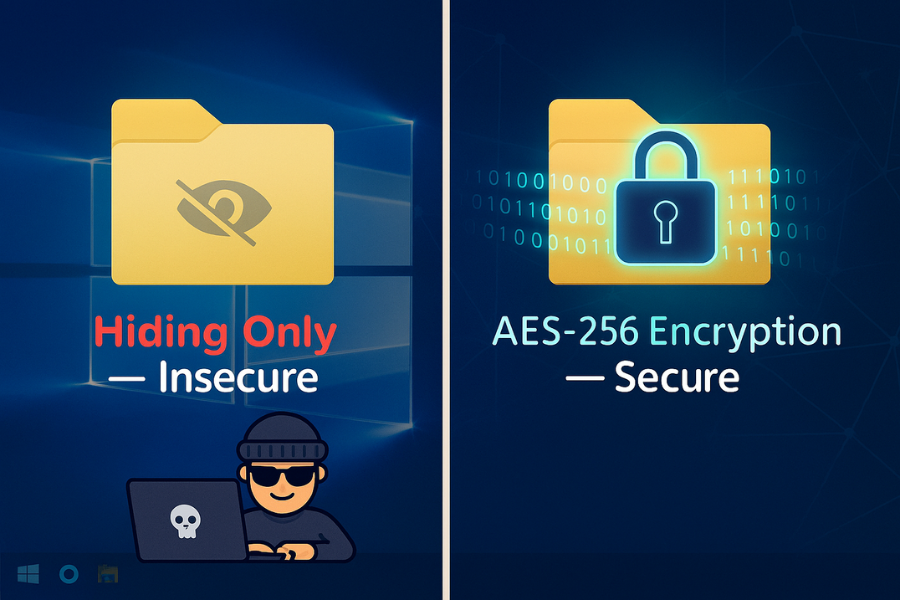
The Quick Answer: Your 3 Best Options to Secure a Folder
Windows lacks a simple, built-in “password protect folder” button for standard folders, so a different approach is necessary. The most effective solutions don’t “lock” your original folder, they create a separate, encrypted space to store your sensitive files.
- For Quick, Strong Protection (Best for Most People): Use a free tool like 7-Zip to create a password-protected archive. This method is fast, uses military grade AES-256 encryption, and is perfect for securing files for storage or for sending to someone else.
- For Maximum, Ongoing Security (The Digital Vault): Use VeraCrypt, a free and open-source tool, to create an encrypted digital vault. This is the gold standard for protecting folders you access frequently. It acts like a secure, virtual hard drive on your PC.
- For a User-Friendly Experience (With Caveats): Use a dedicated commercial tool like Folder Lock. It offers a simple interface and multiple features, but some of its methods prioritize hiding files over true encryption, which is a critical distinction to understand.
Method 1: The Built-in Windows Method (EFS) And Why It’s Not a Password
Windows does have a native feature called the Encrypting File System (EFS), but it’s crucial to understand what it does and, more importantly, what it doesn’t do regarding password protection.
What is EFS and Who Can Use It
EFS is a feature of the Windows NTFS file system that encrypts files at the system level. It is only available in Windows 10/11 Pro, Enterprise, and Education editions. It is not included in Windows Home editions.
How to Use EFS to Encrypt a Folder
The process involves accessing the advanced attributes of the folder you wish to secure.
- Navigate to the folder you want to secure, right-click it, and select Properties.
- On the General tab, click the Advanced Attributes button.
- In the “Advanced Attributes” window, check the box next to Encrypt contents to secure data and click OK.
- Back in the Properties window, click Apply. A new dialog will ask if you want to apply changes to “this folder only” or “this folder, subfolders and files.” For comprehensive security, always choose the second option.
- Your folder and files may now show a small padlock icon, and their names might appear in green text in File Explorer to indicate they are encrypted.
Critical Step: Backing Up Your EFS Key
This is the most important part of using EFS. The encryption is tied to a unique digital certificate stored in your user profile. If that certificate is lost, your data is gone forever. Think of your EFS key not as a password you can reset, but as a physical key to a vault. If you lose the key and its only copy, the contents are permanently inaccessible.
- The first time you encrypt a file, a notification should appear in the corner of your screen prompting you to back up your key. Click it and select Back up now (recommended).
- The Certificate Export Wizard will launch. Follow the prompts, ensuring you select the Personal Information Exchange (.PFX) format.
- You will be required to create a strong password to protect this backup file. Do not lose this password.
- Save the resulting .pfx file to a secure, separate location, like an external USB drive or secure cloud storage. Do not save it on the same computer.
- If the backup prompt doesn’t appear, you can do it manually. Press Win + R, type certmgr.msc, and press Enter. In the Certificate Manager, navigate to Personal > Certificates. Find the certificate that lists “Encrypting File System” under “Intended Purposes.” Right-click it and choose All Tasks > Export… to launch the wizard.
The Big “Gotcha”: Why EFS Isn’t a Password Lock
EFS was designed for corporate environments where an IT department manages data recovery, and its behavior on a personal computer can be misleading and risky.
- It’s Tied to Your User Account, Not a Password: EFS does not create a separate password for your folder. Anyone who successfully logs into your Windows account can open the encrypted files seamlessly, with no password prompt. It only protects the data if someone logs in with a different user account or physically steals the hard drive and tries to access it on another machine.
- Extreme Risk of Permanent Data Loss: If your user profile becomes corrupted, you reinstall Windows, or you reset your account password improperly, you will lose access to the encryption key. Without the .pfx backup file you created, your data will be irretrievably lost.
- Not Portable or Sharable: You can’t just give a password to a friend to open the folder. Sharing requires a complex process of exchanging encryption certificates. Furthermore, EFS only works on drives formatted with NTFS. If you copy an encrypted file to a standard FAT32 or exFAT USB drive, the encryption is silently removed.
Method 2: The Compression Method (7-Zip). Secure, Free, and Practical
For most people, the best way to password protect a folder is to compress it into an encrypted archive. 7-Zip is a free, open-source tool that uses AES-256, the same encryption standard trusted by governments and security agencies worldwide.
How to Create a Secure Archive with 7-Zip
This method is fast and allows you to completely secure a folder for safe storage or sharing.
- Download and Install: Get 7-Zip from its official website, 7-zip.org, and install it.
- Start the Archive Process: Right-click the folder you want to protect, hover over the 7-Zip menu option, and select Add to archive….
- Configure Security Settings (Crucial Step): The “Add to Archive” window is where you set up the protection. Pay close attention to these settings:
- Archive format: Change this to 7z. This format is necessary for the strongest security options.
- Encryption Method: Ensure this is set to AES-256.
- Enter password: Type a strong, unique password in both password fields.
- Encrypt file names: Check this box. This is a critical step many people miss. It not only encrypts the contents of your files but also hides the folder structure and all file names within the archive. Without this, someone could see names like 2024_Tax_Returns.pdf or Company_Acquisition_Plan.xlsx even without the password, revealing sensitive information.
- Create the Archive: Click OK. A new file with a .7z extension will be created in the same location.
-
Verify and Clean Up: Double-click the new .7z file to test it. It should prompt you for the password before showing you the contents. Once you have confirmed the archive is working correctly, you can securely delete the original, unencrypted folder.
Proof of Work: 7-Zip Performance and Sharing
Strong encryption doesn’t have to be slow. On a modern computer with hardware-accelerated AES (known as AES-NI), the process is surprisingly fast.
| Folder Size / Contents | Approx. Time on Modern CPU (e.g., i5-1240P) |
| 100 MB (Documents & PDFs) | ~5 seconds |
| 1 GB (Mixed Files, Photos) | ~2 minutes |
| 10 GB (Videos, Large Files) | ~15-20 minutes |
How to Share Your Encrypted Archive Safely
You can now attach the .7z file to an email or upload it to a cloud service. However, how you share the password is just as important as the encryption itself.
Warning: Never send the password in the same email as the file. Doing so is like mailing a safe and taping the key to the outside. If that email is intercepted, the attacker has everything they need.
Instead, use an “out-of-band” method to communicate the password:
- Best: A phone call or telling the person face-to-face.
- Good: A text message or a secure, end-to-end encrypted messaging app like Signal.
Method 3: The Vault Method (VeraCrypt) – The Gold Standard for Security
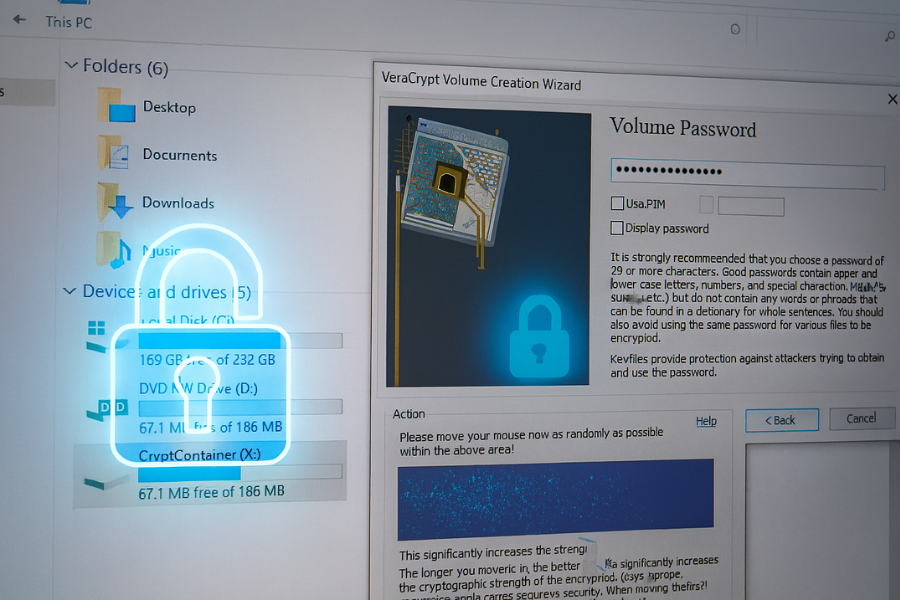
If you need to secure a folder that you work with regularly, creating an encrypted “digital vault” is the most robust solution. VeraCrypt is the leading free, open-source tool for this. It creates a virtual encrypted disk that mounts on your system with a drive letter (like X:), and any data saved to it is encrypted automatically and on-the-fly.
How to Create a VeraCrypt Container
The container is a single file that acts as your encrypted digital vault.
- Download and Install: Get VeraCrypt from its official website, veracrypt.fr.
- Launch the Wizard: Open VeraCrypt and click Create Volume.
- Select Container Type: Choose Create an encrypted file container and click Next.
- Volume Type: Select Standard VeraCrypt volume and click Next.
- Choose Location: Click Select File…, navigate to where you want to store your vault file (e.g., your Documents folder), type a name for it like MyVault.hc, and click Save. Warning: Do not select an existing file, as VeraCrypt will overwrite it.
- Encryption Options: Leave the defaults (AES and SHA-512) and click Next.
- Set Volume Size: Enter the maximum size you want your vault to be (e.g., 5 GB) and click Next.
- Create a Strong Password: This is the master key to your vault. VeraCrypt recommends a password of at least 20 characters for optimal security.
- Generate Randomness: On the next screen, move your mouse randomly inside the window for 30-60 seconds. This movement provides true random data (entropy) that significantly strengthens the encryption keys. Continue until the progress bar is full and green.
- Format: Click the Format button. Once the process is complete, your vault is created. Click Exit.
How to Use Your VeraCrypt Vault
The extra steps of mounting and dismounting your vault are what make it so secure. You are consciously opening and closing the door to your sensitive data, rather than leaving it accessible whenever you’re at your desk.
- Mount the Vault: Open VeraCrypt, select an available drive letter from the list (e.g., X:), click Select File…, and choose your MyVault.hc container file. Click the Mount button and enter your password when prompted.
- Access Your Files: A new drive (e.g., X:) will now appear in “This PC.” You can drag files into it, create new documents, and edit existing ones just like a normal drive. Everything is encrypted and decrypted in real-time.
- Dismount and Secure: When you are finished working, return to the VeraCrypt window, make sure the X: drive is highlighted, and click Dismount. The drive will vanish, and your data is once again locked and secure.
Method 4: The Commercial Option (Folder Lock)
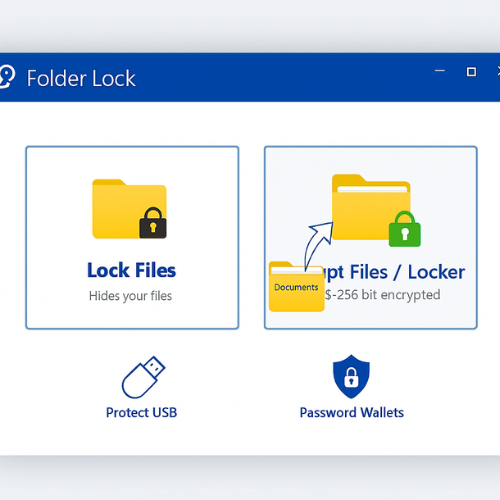
Folder Lock is a popular paid software that markets itself as an all-in-one security solution. It’s built on convenience, but it’s important to understand the trade-offs regarding its level of security.
How Folder Lock Works: Two Different Modes
Folder Lock offers several features, but its core folder protection works in two distinct ways:
- Lock Files: This feature often works by using a kernel-level driver to simply hide your files and folders from Windows Explorer. While this can stop a casual snooper, security reviews point out that the files are not actually encrypted in this mode, providing a weaker level of protection.
- Encrypt Files (“Lockers”): This is the more secure method. It creates an encrypted container, much like VeraCrypt, that uses strong AES-256 encryption to protect the files you place inside it. For sensitive data, this is the feature to use.
A Balanced Verdict: Is Folder Lock Worth It
Folder Lock is designed to fill the usability gap left by more technical tools, but this focus on simplicity comes with compromises.
Pros:
- Very Easy to Use: Its drag-and-drop interface is intuitive for beginners.
- All-in-One Suite: It bundles many tools like file shredding, password wallets, and history cleaning into one application.
- Portable Protection: It can create self-executing “portable lockers” on USB drives, which is convenient for moving secure data between computers.
Cons (Based on Security Reviews):
- Misleading “Locking”: The distinction between “locking” (hiding) and “encrypting” can create a false sense of security. Hidden files are not truly secure.
- Potential Security Weaknesses: Critics have pointed out that the software may allow weak passwords and, by default, the product’s serial number can function as a master password recovery key, a practice frowned upon by security experts.
- Cost: The software requires a one-time purchase (around $39.95 per computer), and its secure cloud backup feature is a separate, often expensive, subscription.
Verdict: Folder Lock is a reasonable choice if your primary goal is to keep files hidden from non-technical, casual snoops on a shared family computer. For protection against a more determined adversary, the robust, transparent, and free solutions offered by 7-Zip and VeraCrypt are superior.
Comparison: Choosing the Right Method for You
Use this table to match your specific need with the best tool for the job.
| Goal / Use Case | Windows EFS (Pro Only) | 7-Zip Archive | VeraCrypt Vault | Folder Lock (Paid) |
| Quickly secure a folder for storage | Not Ideal | Excellent | Good | Very Good |
| Send sensitive files to someone else | No | Excellent | Good (share container) | Good (portable locker) |
| Create a secure “work area” for daily use | Good | Clumsy | Excellent | Good (Locker feature) |
| Protect files on a USB drive | Risky (loses encryption on non-NTFS) | Excellent | Excellent | Good |
| Hide files from family on a shared PC |
Good (if they have own account) |
Good | Good | Excellent (its main strength) |
| Security against a skilled attacker | Fair | Good | Excellent | Fair-Good (use Encrypt, not Lock) |
| Ease of Use for Beginners | Fair | Good | Fair | Excellent |
| Cost | Free (with Pro OS) | Free | Free | Paid |
What to Avoid: The Insecure “Batch File Locker” Myth
A search for how to lock a folder will inevitabfly lead you to a popular “trick” involving a batch (.bat) file script. This method is widely shared but is dangerously insecure and should never be used for sensitive data.
The script typically looks something like this:
cls
@ECHO OFF
title Folder Locker
if EXIST "Control Panel.{21EC2020-3AEA-1069-A2DD-08002B30309D}" goto UNLOCK
if NOT EXIST Locker goto MDLOCKER
:CONFIRM
...
if NOT %pass%==YOUR PASSWORD HERE goto FAIL
...
How It Really Works
This script is a piece of security theater. It does not encrypt anything.
- It creates a folder named “Locker.”
- When you “lock” it, the script simply renames the folder to a confusing system name and sets the “Hidden” and “System” attributes. This makes it invisible in the default File Explorer view.
- The “password” you enter is stored in plain text inside the script and is only used to reverse the renaming and hiding process.
Why It’s Dangerously Insecure
- Password in Plain Text: Anyone can right-click the .bat file, select “Edit,” and see your password written directly in the code.
- Easily Bypassed: Anyone can open File Explorer, go to View > Options, and check the boxes for “Show hidden files, folders, and drives” and uncheck “Hide protected operating system files” to instantly reveal the “locked” folder.
- Zero Encryption: The files are completely unprotected. Once the folder is found, its contents can be opened by anyone.
Troubleshooting Common Problems
| Symptom / Error Message | Likely Cause & Solution |
| I forgot my 7-Zip or VeraCrypt password. | Cause: There is no password recovery for strongly encrypted files. This is a security feature, not a bug. Solution: The data is unrecoverable. This is a harsh lesson in the importance of using a password manager to securely store critical passwords. |
| My EFS-encrypted files are inaccessible after reinstalling Windows. | Cause: The unique encryption certificate tied to your old Windows installation has been lost. Solution: The only way to regain access is to import the .pfx key backup you created when you first encrypted the files. Without that backup, the data is permanently lost. |
| I can’t open my encrypted folder on another computer. | EFS: EFS is tied to a specific user account on the original PC and won’t work on another machine without a complex certificate export/import process. 7-Zip/VeraCrypt: The new computer must have the corresponding software (7-Zip or VeraCrypt) installed to open the archive or container file. |
| Folder Lock says my password is wrong. | Cause: You may be confusing the application’s Master Password with a password for a specific “Locker.” Solution: First, try the Master Password. If that fails, Folder Lock offers a recovery option using your product serial number, but only if you enabled the “Master Key” setting beforehand. If not, you must contact their support. |
| My antivirus flagged the batch file locker as a threat. | Cause: Antivirus programs often recognize the hiding techniques used in these scripts as suspicious behavior, as they are commonly employed by malware. Solution: This is another strong reason to avoid this method. Heed the warning and use a proper encryption tool. |
Frequently Asked Questions (FAQs)
1. Can you actually password protect a folder in Windows 10/11?
No, not directly. Windows lacks a built-in feature for this. You must use methods like encryption with EFS (Pro versions only), creating a password-protected 7-Zip file, or using third-party software like VeraCrypt.
2. How can I lock a folder in Windows without any software?
The closest native option is using the Encrypting File System (EFS) on Windows Pro, which links access to your user account, not a separate password. The popular batch file “locker” trick is software-free but highly insecure and should be avoided.
3. What is the difference between locking and encrypting a folder?
“Locking” can sometimes just mean hiding a folder, which is insecure. “Encrypting” scrambles the data into unreadable code using a key derived from your password. True security comes from strong encryption.
4. What happens if I forget the password to my encrypted folder?
If you used strong encryption like 7-Zip or VeraCrypt, the data is unrecoverable by design. There are no backdoors. This underscores the importance of using a password manager.
5. Is Windows EFS encryption secure?
It is secure against someone stealing your physical hard drive or logging in with a different user account. However, it offers no protection if someone accesses your active Windows session, as files are decrypted automatically for the logged-in user.
6. Why do my encrypted files have a padlock icon?
This is the visual indicator Windows uses to show that a file or folder has been encrypted with the native Encrypting File System (EFS).
7. Can I use BitLocker to protect a single folder?
Not directly, as BitLocker encrypts entire drives. The advanced workaround involves creating a Virtual Hard Disk (VHD) file, mounting it as a new drive letter, and then enabling BitLocker on that virtual drive.
8. Which encryption is stronger AES-256 or ZipCrypto?
AES-256 is exponentially stronger. ZipCrypto is an older, weaker algorithm that is vulnerable to modern attacks. Always choose AES-256 when available.
9. Does encrypting files slow down my computer?
On modern computers with hardware acceleration for encryption (AES-NI), the performance impact is minimal for most tasks. You will only notice a slowdown when encrypting very large files (over 10 GB).
10. How do I share an encrypted folder and the password securely?
Send the encrypted file (e.g., the .7z archive) via email or cloud storage. Then, share the password through a completely different channel, like a phone call or a secure messaging app. Never send the password in the same email as the file.
11. What’s the best free software to password protect a folder?
VeraCrypt is the best free option for creating a secure, reusable vault for daily work. 7-Zip is the best free tool for quickly securing files for storage or sharing.
12. Can I password protect a folder on a USB drive?
Yes. The best methods are using 7-Zip to create an encrypted archive or VeraCrypt to create an encrypted container directly on the USB drive. EFS is not recommended as the encryption is lost if the drive isn’t formatted as NTFS.
13. Is Folder Lock safe to use?
Its “Encrypt Files” feature, which creates AES-256 encrypted “Lockers,” is secure. However, its “Lock Files” feature primarily hides files, which is not a secure method for protecting sensitive data. Ensure you are using the encryption feature.
14. If my folder is encrypted, is it safe from viruses?
No. Encryption protects data from unauthorized access, not from malware. If a virus infects your PC while your encrypted volume is mounted or your files are decrypted, it can damage them. Encryption is not a substitute for good antivirus software.
Conclusion
Navigating the complexities of Windows folder security can be a daunting task, but the core takeaway is simple: true security requires real encryption. The popular folder-hiding tricks offer a false sense of security and are entirely useless against a determined attacker.
For the vast majority of users, the free and robust AES-256 encryption offered by 7-Zip is the perfect solution for quickly securing files for storage or transfer. For those who require a permanent, high-security workspace, VeraCrypt remains the undeniable gold standard, providing an open-source digital vault with military grade protection. By choosing one of these proven, encryption-based methods, you move beyond the inherent limitations of Windows and take definitive control over the privacy and security of your sensitive digital life.