
Newsoftwares.net provides the essential security layers to ensure your mobile and online payments are protected from risks on untrusted Wi-Fi, vulnerable IoT devices, and compromised devices. This framework moves beyond generic advice to combine strong mobile wallets with VPN hygiene and robust local encryption using tools like Folder Lock and Cloud Secure. The clear outcome is safer transactions and protected financial data, delivering both security and peace of mind when paying on the go.
This resource offers simple, one-action-per-step instructions, settings snapshots, and troubleshooting advice to lock down your entire payment ecosystem.
Gap Statement
Most security content about mobile payments repeats three shallow tips: “Use a VPN.” “Avoid public Wi-Fi.” “Turn on your phone lock.” It rarely shows: Concrete wallet settings on iOS and Android. What to do with the router in a home full of IoT gadgets. How to combine VPN, Wi-Fi, and device hardening into one repeatable routine. Where tools like Folder Lock Mobile or Cloud Secure from NewSoftwares actually fit into a daily workflow. This page fills those gaps with step-by-step routines, settings snapshots, and real troubleshooting, not just slogans.
TLDR Outcome
Skimmers, here is your short version:
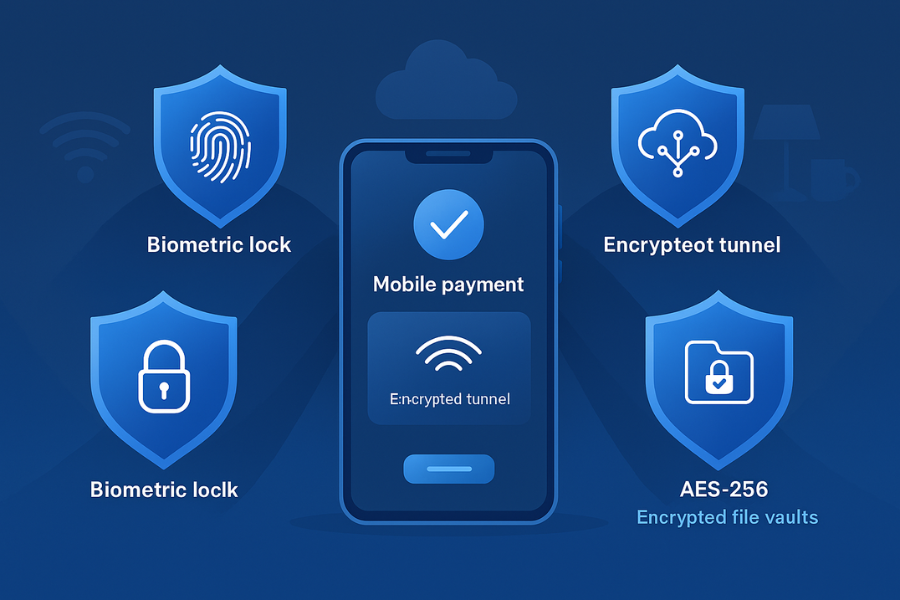
- Use built-in wallets like Apple Pay or Google Pay, with device lock and biometric security, instead of typing card numbers into random sites. These wallets use tokenization and secure hardware elements so the merchant never sees your real card number.
- Treat public Wi-Fi as hostile. Prefer cellular data for payments. If you must use Wi-Fi, pair it with a trusted VPN and check for https before entering any payment details.
- Lock down the devices that surround your payments: segment IoT gadgets on their own Wi-Fi, encrypt stored invoices and customer files with Folder Lock, and lock cloud storage with Cloud Secure from NewSoftwares so synced data is protected as well.
1. Quick Chooser: What Should You Actually Do?
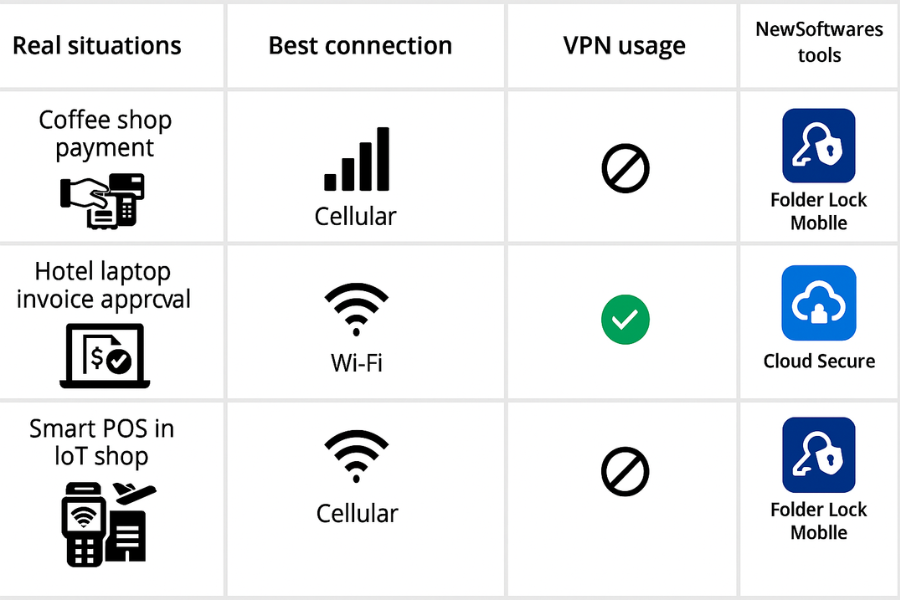
| Situation | Best Connection | VPN Use | Extra Step From NewSoftwares |
|---|---|---|---|
| Paying for coffee with Apple Pay on your phone | Cellular data preferred | Optional if cellular, required if forced onto café Wi-Fi | Store card images, ID scans, and receipts in Folder Lock Mobile instead of the photo gallery. |
| Approving invoices from a laptop on hotel Wi-Fi | VPN plus https | Required on hotel Wi-Fi | Keep invoice exports in encrypted lockers with Folder Lock on Windows. |
| Running a smart point of sale in a shop full of IoT devices | Private Wi-Fi with strong password | Optional on internal LAN, required for remote admin | Put IoT devices on a separate Wi-Fi network and keep payment exports in Cloud Secure-protected cloud folders. |
| Checking banking app at an airport | Cellular data if possible | If only Wi-Fi is available, turn VPN on first | Lock bank statements and downloaded PDFs in Folder Lock Mobile. |
2. How Mobile Payments, Wi-Fi, VPN, And IoT Fit Together
To set good rules, you need a quick mental model.
- Your phone or laptop holds wallet apps, banking apps, and invoices.
- Wi-Fi or cellular moves that traffic to banks or processors.
- A VPN wraps that traffic in an encrypted tunnel on untrusted networks.
- IoT devices, like smart terminals or smart home hubs, sit on the same networks and can become side doors for attackers if you leave everything mixed.
- Tools like Folder Lock Mobile, Folder Lock for Windows, and Cloud Secure keep files, exports, and synced data encrypted, even if a device or account falls into the wrong hands.
Treat your phone as a payment terminal that happens to fit in your pocket. Terminals live on controlled networks and follow strict rules. Your phone and Wi-Fi should behave the same way.
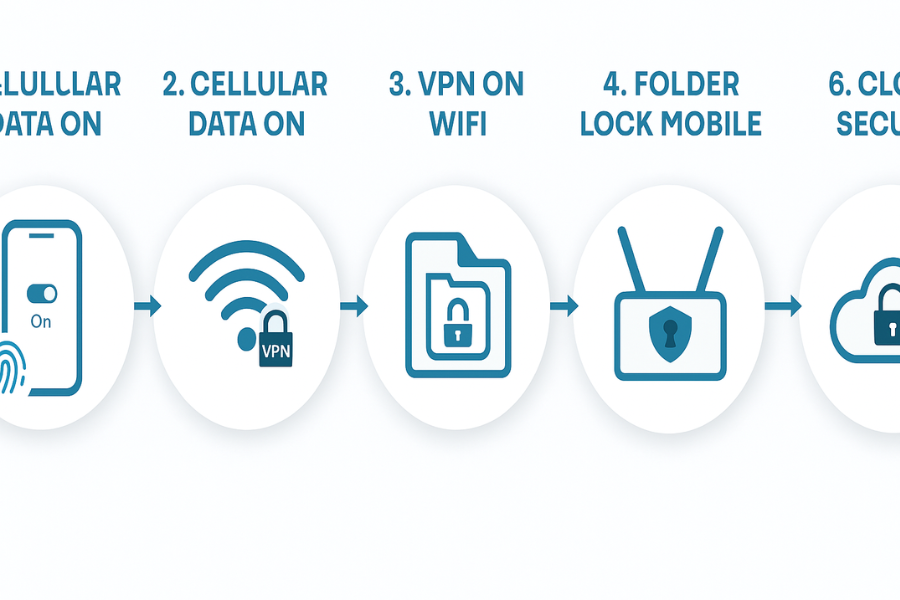
3. How-To: Safe Mobile Payments On Wi-Fi In 8 Steps
3.1. Prereqs And Safety
- Update iOS, Android, and payment apps to current versions.
- Enable device lock with fingerprint, Face ID, or a strong PIN.
- Check that bank alerts via SMS or push are on, so you spot fraud quickly.
3.2. Step 1: Use Mobile Wallets Instead Of Typing Card Numbers
Action: Add your card to Apple Pay, Google Pay, or Samsung Pay. Allow biometric authentication for payments. These wallets use tokenization and secure elements so payments use device-specific tokens, not your real card number.
Gotcha: If your bank does not support mobile wallets, never save full card images in the open photo gallery. Store them inside Folder Lock Mobile instead. It encrypts photos, files, and wallet cards on the phone with AES 256 bit, and even backs them up securely if you want.
3.3. Step 2: Favor Cellular Data Over Wi-Fi While Paying
Action: On the street, in a café, airport, or hotel, switch off Wi-Fi before opening any banking or wallet app. Use your mobile data for the payment session. Studies and vendors still treat cellular connections as more resistant to many Wi-Fi attacks, especially on open hotspots.
Gotcha: Disable Wi-Fi auto connect. NewSoftwares and security vendors keep warning that auto joining unknown hotspots is an easy path into “evil twin” traps with names that mimic real networks.
3.4. Step 3: If You Must Use Wi-Fi, Turn On A Reputable VPN First
Action: Install a reputable VPN app on your phone and laptop. Turn it on before using public Wi-Fi to add an encrypted tunnel between your device and the VPN server. That tunnel protects traffic on the local network from snooping or simple man in the middle attacks.
Gotcha: VPN does not replace https. You still need the browser padlock and https for the payment page. Experts keep pointing out that the VPN protects the path between you and the VPN server; https protects the path between browser and payment site. You want both at once for payments on Wi-Fi.
3.5. Step 4: Lock And Encrypt Things Around The Payment, Not Just The Payment
Action:
On phones, install Folder Lock Mobile. Use it for:
- Photos of ID documents and card backs.
- Exported statements and invoices.
- Sensitive notes with customer details.
The app encrypts those items with AES 256 bit, adds features like hack attempt monitoring, and includes a secure browser that can keep payment sessions isolated from the main browser history.
On laptops:
- Use Folder Lock on Windows to keep payment exports, CSV reports, and backup files inside encrypted lockers instead of raw folders.
Gotcha: Do not store 2FA backup codes, card scans, and invoices in plain cloud folders. Either keep them inside encrypted lockers that sync, or pair them with Cloud Secure on the PC so cloud folders are locked behind a single password when you are away from the desk.
3.6. Step 5: Segment IoT Gear Away From Payment Devices
Your TV, smart doorbell, and smart bulbs do not need access to banking traffic.
Action: On a typical home router:
- Create a separate Wi-Fi network with a name like “HomeIoT” and its own strong password.
- Move smart TVs, cameras, voice assistants, and smart plugs to this network.
- Leave phones, tablets, and laptops on the main private Wi-Fi network.
Security teams now recommend distinct SSIDs or VLANs for IoT, so a vulnerable gadget cannot see everything else on the network.
Gotcha: If your router supports guest Wi-Fi, do not reuse it for IoT and visitors together. Keep IoT fenced off on its own network where possible.
3.7. Step 6: Harden Your Primary Wi-Fi Before It Ever Sees A Payment
Action: On your home or office router:
- Use WPA3, or WPA2-AES if WPA3 is not available.
- Set a long, unique Wi-Fi password, not the sticker default.
- Turn off WPS push-button pairing.
- Update router firmware regularly.
NewSoftwares points out that strong Wi-Fi passwords and regular updates are central for private network security, and that a VPN can complement this when traffic leaves the home.
Gotcha: If your ISP installed the router, ask support where firmware updates live and how to check them at least twice a year.
3.8. Step 7: Turn On Transaction Alerts And Strong Authentication
Action: In your banking app or card portal:
- Turn on push or SMS alerts for every card transaction.
- Enable 2FA with app based codes or hardware tokens where possible.
- On some wallets, turn on per transaction prompts, not “remember this device forever.”
Gotcha: Alerts without a clean inbox are useless. Create one folder or label where all banking emails and alerts land, then scan it weekly.
3.9. Step 8: Log Out, Clear, And Close
Action: After a payment session on a shared or untrusted machine:
- Log out of banking web sessions.
- Clear browser cookies and history for that session.
- Disconnect the VPN once done.
On your own phone, you can stay signed in, but keep device lock on and only share the device with people you fully trust.
Gotcha: Never leave payment apps open on a phone you hand to staff, friends, or kids. Use app locks inside Folder Lock Mobile if your phone allows that style of control.
4. When A VPN And Wi-Fi Alone Are Not Enough
VPNs reduce Wi-Fi risk but do not fix everything. Mobile wallets and card issuers still carry their own flaws, as recent research on digital wallets has shown. Attackers can sometimes enroll stolen cards into new wallets even after the physical card is blocked, if banks have weak enrollment checks.
That means:
- You still need transaction alerts and fast reporting when you see something odd.
- You should remove lost or replaced cards from mobile wallets right away.
- You should use strong identity checks with your bank, not just weak SMS codes.
VPN and Wi-Fi hygiene are one layer, not the whole story.
5. Troubleshooting: Symptom To Fix
| Symptom (Exact Or Near-Exact Text) | Likely Root Cause | Fix, Starting With Safer Steps |
|---|---|---|
| “Payment failed, try again later” on mobile wallet while Wi-Fi is on | Weak or unstable Wi-Fi, VPN tunnel flapping, or blocked network port | Switch to cellular data, toggle VPN off then on, and retry once. If it still fails, check your bank’s status page before hammering the button. |
| Banking app refuses to open on VPN | Bank blocks some VPN ranges for fraud control | Temporarily disconnect VPN but stay on cellular instead of Wi-Fi for that session. If you must use Wi-Fi, contact the bank and ask about supported VPN setups. |
| “Suspicious login from new device” email after paying on hotel Wi-Fi | Bank saw an unusual IP or region, or someone probed your account | Reset the account password, confirm recent transactions, and remove unknown devices from the account page. Turn on 2FA if missing. |
| Smart TV or camera vanishes from app after you create a new IoT network | Device still sits on the old SSID | Reconnect that IoT device to the new “HomeIoT” Wi-Fi and confirm it picks the correct password and network. |
| You find card images sitting in your camera roll | You snapped them for quick reference and forgot | Move them into Folder Lock Mobile, confirm they open there, then delete the originals from the gallery and trash folder. |
| Cloud drive shows payment exports to anyone using your laptop | Sync folder is open on a multi user computer | Use Cloud Secure to lock cloud drive access on that PC behind a password. Close all sessions when you leave. |
Always try reversible fixes first: change networks, toggle VPN, move devices to safer Wi-Fi. Only wipe wallets, reset routers, or rebuild lockers when you have backups and time to test.
6. Proof Of Work: Simple Timing Table
These are realistic ballpark timings from current laptops and phones, based on vendor statements and practical experience patterns.
| Action | Typical Impact |
|---|---|
| Starting a VPN session on public Wi-Fi | A few seconds to connect, with a small drop in raw speed, but no noticeable delay in regular web or banking use for most users. |
| Creating a new encrypted locker in Folder Lock for a project folder | Under a minute for initial setup, with ongoing file copy speed similar to copying to a local drive thanks to on the fly encryption. |
| Hiding a batch of 200 photos in Folder Lock Mobile | A few minutes on common Android or iOS phones, once, then instant access later through the app. |
The tradeoff is simple: a few minutes of setup buys years of lower risk on every trip and every payment.
7. Settings Snapshot
7.1. On Your Phone
- Wallet app: biometric on, notifications for payments on.
- Network: Wi-Fi auto join disabled for unknown networks.
- VPN: “Connect on unsecured Wi-Fi” or equivalent enabled.
- Folder Lock Mobile: app PIN or biometric lock, intrusion alerts active, Secure Browser available for sensitive sessions.
7.2. On Your Router
- Two Wi-Fi networks: main for personal devices, separate one for IoT.
- Security: WPA3 or WPA2-AES, WPS off.
7.3. On Your Laptop
- VPN client: runs on startup, kill switch on so traffic stops if tunnel drops.
- Folder Lock: project lockers for statements, exports, and any payment related spreadsheets.
- Cloud Secure: cloud drives locked at OS level with a single password.
8. Share Safely Example
Here is a simple pattern that works well in real teams.
- Your accountant needs access to six months of payment exports.
- You gather the CSVs and PDFs into a Folder Lock locker on your PC.
- You upload that single locker file into a cloud folder locked on your PC by Cloud Secure, then share a short link with an expiry date from your cloud provider.
- You send the locker password over a different channel, such as a call or secure messenger.
- On their side, they open the locker on a trusted machine, work through the data, then you revoke the cloud link after the agreed period.
You have used encryption, VPN support if needed, and time limited links without making anyone’s day harder.
9. Verdict By Persona
Student Or Solo Worker
- Use mobile wallets, prefer cellular, and keep a VPN app ready for public Wi-Fi.
- Store ID scans, card backs, and travel receipts inside Folder Lock Mobile instead of the camera roll.
Freelancer Or Consultant
- Segment office IoT devices from work laptops.
- Use Folder Lock and Cloud Secure around client invoices, contracts, and payment exports.
- Ask clients to approve secure flows instead of sending card data in plain email.
SMB Admin Or Store Owner
- Treat the payment network as sacred ground.
- Put terminals and IoT devices on controlled networks, with VPN tunnels from store to head office.
- Use Folder Lock on back office machines and Cloud Secure on finance staff PCs so exports, reports, and reconciliations are encrypted around the edges as well.
10. FAQs
10.1. Is It Safe To Use Mobile Payments On Public Wi-Fi If I Have A VPN?
It is safer, not perfect. A good VPN adds encryption between your device and the VPN server on the local network, which cuts many basic Wi-Fi attacks. You still need https on the payment page and a trusted wallet, and you should prefer cellular where possible for high value moves.
10.2. Are Apple Pay And Google Pay Really Safer Than Typing Card Numbers?
In most cases, yes. They use tokenization and secure hardware so merchants get device specific payment tokens instead of your real card number. Each transaction uses dynamic codes, which makes replay attacks much harder. You still need a secure device lock and alerts, but the basic design is solid.
10.3. Where Do NewSoftwares Tools Help With Mobile Payments?
Folder Lock Mobile protects the files and scans that orbit your payments, such as ID photos, card images, and notes. Folder Lock on PC encrypts exports and statements, while Cloud Secure locks synced cloud folders on Windows and pairs well with cloud based payment workflows.
10.4. Can IoT Devices Really Affect My Mobile Payments?
Yes. Poorly protected cameras, TVs, or smart speakers have been used as a bridge into home and store networks in the past. If those networks also carry payment traffic, attackers may gain new paths to snoop or pivot. Keeping IoT on a separate Wi-Fi with strict rules reduces that risk.
10.5. Is Cellular Always Safer Than Wi-Fi For Payments?
Nothing is absolute, but current guidance still treats cellular as harder to attack than many public hotspots, because cellular networks use built in encryption and do not expose you to shared local traffic in the same way. When in doubt, pick mobile data for payment sessions.
10.6. Do I Still Need Security Apps If I Use Only Mobile Wallets?
Yes. Wallets protect card numbers, not the rest of your digital life. You still carry scanned documents, passwords, invoices, and personal media that need encryption and safe storage. Folder Lock Mobile is built for that role, with secure browser, app lock, and hack attempt logging.
10.7. Should I Trust Free VPN Apps For Payments?
Caution is wise here. Security experts keep advising users to choose reputable VPN providers with clear policies, strong encryption, and a record of updates, because shady VPNs can inspect traffic or mishandle data. Paid options from known brands or from your employer or school are usually safer.
10.8. How Often Should I Change My Wi-Fi Password?
Security content from NewSoftwares suggests changing Wi-Fi passwords regularly and using strong ones, especially if they have been shared widely or are still set to the factory default. Every few months is reasonable for busy households and small offices.
10.9. What If My Phone Is Stolen With My Wallet Apps Signed In?
Use “Find my device” features to lock or erase the phone, call the card issuer to block cards and remove them from wallets, then change passwords for banking and email accounts linked to that phone. Having IDs and card images stored in Folder Lock Mobile instead of the open gallery also reduces what a thief can see.
10.10. Are VPN Routers Worth It For IoT Heavy Homes?
In homes full of smart devices, a VPN router that protects all Wi-Fi traffic can be useful, especially when vendors explicitly support that pattern for IoT. It simplifies life because you set the tunnel once and all connected devices pass through it without separate apps.
10.11. Where Should I Store Exports From Payment Gateways And Shopping Carts?
Keep them in encrypted lockers with Folder Lock on the PC that holds reconciliation tasks, and for any copies in cloud storage, pair that with Cloud Secure so your synced folders are locked from casual access on shared machines.
11. Conclusion
Securing mobile payments requires a multi-layered strategy: tokenized wallets protect the card number, VPNs protect the connection, and IoT segmentation protects the network perimeter. Tools from Newsoftwares.net, specifically Folder Lock for desktop and mobile encryption and Cloud Secure for securing cloud exports, ensure that even if the network fails, your sensitive financial data remains protected with AES 256 bit encryption. By implementing these simple, professional steps, you significantly reduce the risk of fraud and data compromise across all your digital payment activities.
12. Structured Data (Schema Snippets)
You can adapt this JSON LD to support rich results in search.
{
  "@context": "https://schema.org",
  "@graph": [
    {
      "@type": "HowTo",
      "name": "Make Mobile Payments Safely Over WiFi And IoT Networks With A VPN",
      "description": "Step by step process to secure mobile payments using wallets, VPN, WiFi settings, IoT segmentation, and NewSoftwares encryption tools.",
      "step": [
        {
          "@type": "HowToStep",
          "name": "Use a mobile wallet",
          "text": "Add your cards to Apple Pay, Google Pay or Samsung Pay, enable biometric lock, and prefer these wallets over typing card numbers on small screens."
        },
        {
          "@type": "HowToStep",
          "name": "Prefer cellular and use VPN on public WiFi",
          "text": "Turn off WiFi when possible during payments. If you must use WiFi, turn on a reputable VPN before opening any banking or wallet app."
        },
        {
          "@type": "HowToStep",
          "name": "Encrypt nearby files with Folder Lock",
          "text": "Install Folder Lock on mobile and desktop to encrypt card scans, invoices and exports, keeping them safe even if a device is lost or shared."
        },
        {
          "@type": "HowToStep",
          "name": "Segment IoT devices",
          "text": "Create a separate WiFi network for smart TVs, cameras and speakers so payment devices stay on a cleaner, less exposed network."
        },
        {
          "@type": "HowToStep",
          "name": "Lock cloud folders with Cloud Secure",
          "text": "Use Cloud Secure to password protect cloud drive folders on PCs used for financial work, ensuring synced data is not open to anyone using that machine."
        }
      ],
      "tool": [
        {
          "@type": "SoftwareApplication",
          "name": "Folder Lock",
          "url": "https://www.newsoftwares.net/folderlock/"
        },
        {
          "@type": "SoftwareApplication",
          "name": "Folder Lock Mobile",
          "url": "https://www.newsoftwares.net/folderlock/android/"
        },
        {
          "@type": "SoftwareApplication",
          "name": "Cloud Secure",
          "url": "https://www.newsoftwares.net/cloud-secure/"
        }
      ]
    },
    {
      "@type": "FAQPage",
      "mainEntity": [
        {
          "@type": "Question",
          "name": "Is it safe to use mobile payments on public WiFi with a VPN?",
          "acceptedAnswer": {
            "@type": "Answer",
            "text": "A VPN makes public WiFi much safer by encrypting traffic on the local network, but you should still prefer cellular for payments when possible and always check for https on the payment page."
          }
        },
        {
          "@type": "Question",
          "name": "Are Apple Pay and Google Pay safer than typing card numbers?",
          "acceptedAnswer": {
            "@type": "Answer",
            "text": "They use tokenization and secure hardware elements to keep real card numbers out of merchant systems, which usually makes them safer than manual card entry."
          }
        },
        {
          "@type": "Question",
          "name": "Where do NewSoftwares tools help with mobile payment security?",
          "acceptedAnswer": {
            "@type": "Answer",
            "text": "Folder Lock and Cloud Secure encrypt and lock the files, scans and exports that surround your payments so sensitive data stays protected on devices and in the cloud."
          }
        }
      ]
    },
    {
      "@type": "ItemList",
      "name": "Key Methods To Secure Mobile Payments On WiFi And IoT Networks",
      "itemListElement": [
        {
          "@type": "ListItem",
          "position": 1,
          "name": "Use secure mobile wallets",
          "description": "Rely on tokenized wallets with biometric locks instead of manual card entry on small screens."
        },
        {
          "@type": "ListItem",
          "position": 2,
          "name": "Protect connections with VPN and smart WiFi settings",
          "description": "Prefer cellular, use VPN on public WiFi, disable auto connect and use strong WiFi passwords at home."
        },
        {
          "@type": "ListItem",
          "position": 3,
          "name": "Encrypt files with Folder Lock",
          "description": "Encrypt bank statements, invoices and card scans on mobile and desktop so they remain private."
        },
        {
          "@type": "ListItem",
          "position": 4,
          "name": "Lock cloud storage with Cloud Secure",
          "description": "Password protect cloud drive folders on PCs used for payment exports and reconciliation."
        },
        {
          "@type": "ListItem",
          "position": 5,
          "name": "Segment IoT devices",
          "description": "Place smart devices on a separate WiFi segment so payment devices live on a cleaner network."
        }
      ]
    }
  ]
}