
The Answer Upfront
Locking your sensitive photos and notes on both iPhone and Android is essential for keeping your private data safe. While both devices offer built-in methods to protect your files, they often fall short when it comes to advanced security features like encryption, multi-factor authentication (MFA), or cross-platform compatibility. In this guide, we’ll explore how to lock your notes and photos securely on both iOS and Android, and compare the built-in options vs Folder Lock Mobile, an advanced app that provides extra layers of security.
Gap Statement
While iOS and Android offer ways to hide or lock notes and photos, their built-in options may leave your data vulnerable to unauthorized access, especially in cases of phone theft or when using weak passwords. Folder Lock Mobile offers more robust features for securing sensitive data, like AES-256 encryption and cloud backup, which the default built-in features lack. This article will walk you through both methods, with step-by-step instructions and troubleshooting tips.
Outcomes
- iOS built-in protection: Use Notes app and Hidden albums for basic security.
- Android built-in protection: Leverage FBE (File-Based Encryption) or App Lock for extra security.
- Folder Lock Mobile: Offers AES-256 encryption, password protection, multi-device support, and cloud backup for cross-platform security.
- Recommendation: For maximum security on both iPhone and Android, Folder Lock Mobile is the best choice.
Prereqs & Safety
Before diving into securing your notes and photos, here are some important things to keep in mind:
- Backup your files before encrypting or locking them. You might accidentally lock yourself out.
- For Folder Lock Mobile, ensure you have an active account and a strong password.
- Ensure your phone’s OS version is up-to-date to support the latest security features.
- Never share your passwords through unsecure means (e.g., in plain text or via email).
How to Lock Notes/Photos on iPhone (iOS)
Built-in Method: iOS Notes App and Hidden Albums

Apple provides some built-in security features for notes and photos, but they aren’t as robust as third-party apps.
Step 1: Lock Notes Using the iOS Notes App
- Open the Notes app and create a new note or select an existing one.
- Tap the Share icon (square with arrow) in the upper right corner.
- Scroll down and tap Lock Note.
- Set up a password (Face ID/Touch ID can also be enabled).
- Tap Lock once your password is set.
Step 2: Lock Photos Using Hidden Albums
- Open the Photos app.
- Select the photos you want to lock and tap Share.
- Scroll down and tap Hide.
- These photos will now be moved to the Hidden album, which can only be accessed using Face ID or Touch ID.
Important: Hidden photos are still visible in the Hidden album under the Albums tab. They are just more difficult to find, but not encrypted.
Limitations:
- Hidden photos aren’t encrypted and could be vulnerable if someone gains access to your unlocked iPhone.
- The Notes app lock works well, but it only secures one note at a time, limiting convenience.
How to Lock Notes/Photos on Android (Built-in Methods)
Built-in Method: File-Based Encryption (FBE) and App Lock
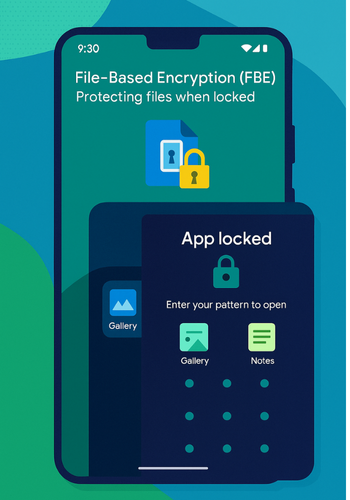
Android provides a few methods for securing sensitive data, with FBE being one of the most advanced for file protection.
Step 1: File-Based Encryption (FBE)
Most modern Android devices use File-Based Encryption (FBE), which encrypts individual files on the device. This ensures that your files remain encrypted and secure when your phone is locked.
- FBE works automatically when you lock your Android phone with a PIN, password, or pattern lock.
- No need to activate anything manually – as long as your phone is locked, FBE will encrypt files such as photos and notes.
Step 2: Use App Lock for Extra Security
- Open your Settings and go to Security & Location.
- Enable App Lock (in some phones, this might be called App Locker or Screen Lock).
- Choose apps like Gallery or Notes to lock with a password or PIN.
Limitations:
- App Lock may not be available on all Android devices, and the FBE encryption is only active when the phone is locked. If your phone is unlocked, the files remain unprotected.
- App Lock can be bypassed easily if someone gains access to your device and knows your PIN.
Advanced Protection: Folder Lock Mobile
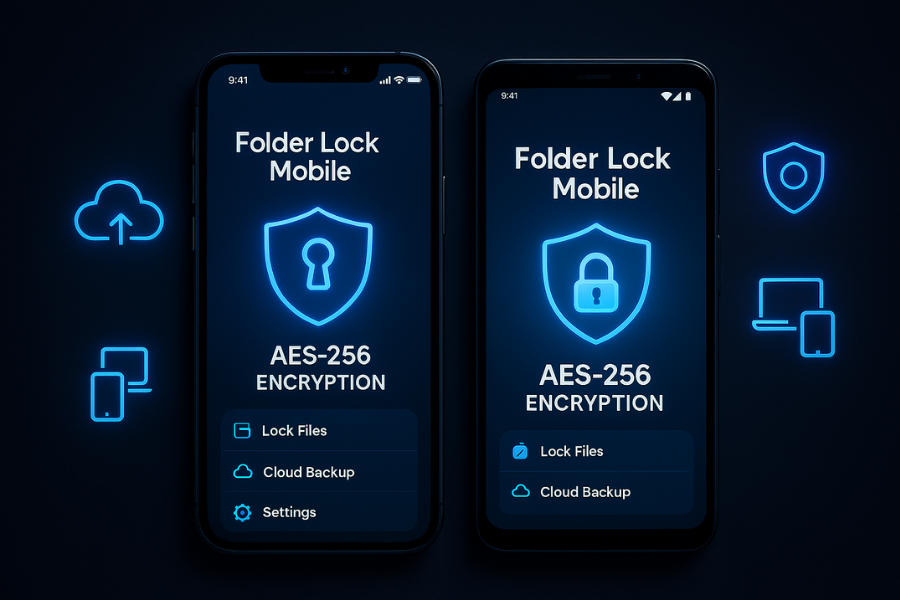
While built-in security options are helpful, they are often lacking when it comes to advanced encryption and cross-platform security. Folder Lock Mobile solves these issues by offering features like AES-256 encryption, cloud backup, and multi-device syncing.
Step-by-Step Guide:
- Download Folder Lock Mobile from the App Store (iOS) or Google Play Store (Android).
- Open the app and create an account if you haven’t already.
- Set up a strong password for the app.
- To lock photos:
- Open the app and tap Photos.
- Select the photos you want to lock.
- Tap the lock icon to encrypt the files with AES-256 encryption.
- To lock notes:
- Go to Notes in the app and tap Create Note.
- Write your note and tap lock to apply encryption.
- To enable cloud backup:
- Go to Settings > Cloud Backup and choose your preferred cloud storage service.
Key Features of Folder Lock Mobile
- AES-256 encryption: Ensures your data is protected by military-grade encryption.
- Cloud Backup: Securely back up your files, photos, and notes to cloud storage.
- Multi-Device Sync: Access your locked files from multiple devices.
- Stealth Mode: The app can be disguised to prevent unauthorized access.
Common Errors and Exact Fixes
Here are some issues you may encounter and how to resolve them:
| Error | Cause | Fix | Risk |
|---|---|---|---|
| “Folder Lock app crashes on launch” | App is not updated | Update to the latest version from the App Store or Google Play | Low |
| “Forgot password for locked note/photo” | Password mismatch or loss | Use cloud backup to recover files or reset the password via email | Medium |
| “Can’t access hidden photos” | Hidden album not encrypted | Use Folder Lock Mobile to fully encrypt photos with AES-256 | High |
| “App Lock not working on Android” | Device doesn’t support App Lock | Use an alternative like Folder Lock Mobile | High |
Hands-On Notes
- Folder Lock Mobile: This app provides much better security than the built-in options on both iOS and Android, especially with AES-256 encryption.
- Built-in iOS & Android Options: While useful, these solutions lack strong encryption and are less secure if your phone is stolen or compromised.
Sample Troubleshoot Scenario
Symptom: “I can’t access my encrypted photos on Folder Lock Mobile.”
Root cause: Password mismatch or forgotten password.
Fix: Try resetting the password using the email recovery option. If that doesn’t work, check if the app is synced with the cloud and try restoring from there.
Comparison Table: Built-in Security vs Folder Lock Mobile
| Feature | iOS Built-in | Android Built-in | Folder Lock Mobile |
|---|---|---|---|
| Encryption | None (Only Hidden albums) | File-Based Encryption (FBE) | AES-256 |
| Cloud Backup | No | No | Yes |
| Cross-Platform Access | No | No | Yes |
| App Lock | No | Yes (App Lock) | Yes |
| Password Protection | Yes | Yes | Yes (Multi-layer) |
Verdict by Persona
- Students: iOS and Android built-in features should suffice if you need simple protection.
- Freelancers: Folder Lock Mobile is the best option for keeping your notes and photos secure, especially if you work across multiple devices.
- SMB Admins: Folder Lock Mobile is ideal for securing confidential work data, offering robust protection, cloud backups, and multi-device syncing.
FAQs
How can I secure my iPhone photos and notes beyond the built-in options?
Use Folder Lock Mobile for AES-256 encryption and cloud backup, providing top-tier protection.
What’s the difference between File-Based Encryption (FBE) and App Lock on Android?
FBE encrypts the entire file system, while App Lock locks individual apps. For better security, use both together.
Can Folder Lock Mobile protect my photos across multiple devices?
Yes, Folder Lock Mobile offers multi-device syncing, allowing you to access your locked files securely from different platforms.
Can I recover locked files if I forget the password?
Yes, if you have cloud backup enabled, you can recover your files.
What is the best method to secure my Android photos and notes?
Use FBE for built-in encryption, and Folder Lock Mobile for enhanced AES-256 encryption and cross-platform access.
By following this comprehensive overview, you’ll have all the information you need to lock and secure your notes and photos on iPhone and Android. Whether you use the built-in tools or opt for the more advanced Folder Lock Mobile, you can now confidently protect your sensitive data.