
How to Encrypt PDFs Before Emailing (Adobe, Foxit, 7-Zip), Safe Sharing
This definitive overview, prepared by Newsoftwares.net, provides a secure method for sharing sensitive PDF files via email. It clarifies the critical distinction between user and owner passwords, guides you through implementing military-grade AES-256 encryption, and establishes the essential etiquette for key sharing, ensuring your documents remain private and secure.
The Answer Up Front
Use a modern PDF password with AES-256. Set a user password to open the file and an owner password to control printing, copying, and editing. If your recipient cannot open encrypted PDFs, wrap the PDF inside a 7-Zip archive with AES-256 and encrypt file names. Share the password out of band. This report shows exact steps for Adobe Acrobat, Foxit, and 7-Zip, plus checks, fixes, and safe sharing.
Addressing the Gaps in Common Guides
Most guides say “add a password in Acrobat” and stop there. They skip owner vs user passwords, how to verify AES-256 is active, what to do on free tools, and how to share the key safely. This tutorial fixes that with step by step paths for Adobe, Foxit, and 7-Zip, a share-safely checklist, and a troubleshoot map using real error text.
Outcomes
- Encrypt any PDF for email with AES-256 and confirm it worked.
- Pick the right method for your tools and your recipient’s device.
- Share passwords safely without leaking the key in the same channel.
Prerequisites and Safety
- Back up the original PDF before you start.
- Confirm your tool supports AES-256. Legacy RC4 or “Standard 40-bit” is not safe.
- Decide if the recipient needs to only read the PDF or also print or copy text.
- Use a long passphrase stored in a password manager.
- Plan your key exchange. Use a second channel like Signal or a phone call.
Owner Versus User Passwords in Plain Terms
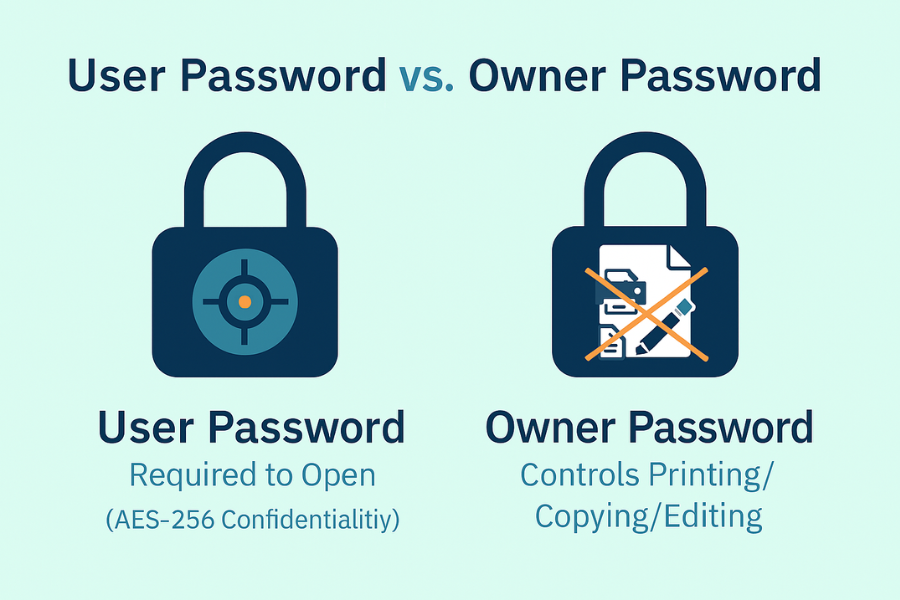
- User Password: Required to open the PDF. Without it the document stays encrypted. This is for confidentiality.
-
Owner Password: Controls permissions after opening. You can block printing, copying, and editing. Good readers respect these flags. Some tools can ignore permissions if they can fully decrypt the file, so do not rely on permissions alone for secrecy. Use a user password for real protection.
Use Case Chooser
| Goal | Best Method | Why | Recipient Needs |
| You have Adobe Acrobat Pro | Acrobat Encrypt with Password | Clean UI, fine-grained permissions, strong AES-256 | Any modern PDF reader |
| You have Foxit PDF Editor | Foxit Protect | Strong AES-256, clear controls, good defaults | Any modern PDF reader |
| You only have free tools | 7-Zip archive | AES-256 without paying, hides file names | 7-Zip on Windows, Keka or The Unarchiver on Mac |
| Recipient is on an older reader | 7-Zip archive | Avoids old PDF engines | Any unzip app that supports AES-256 |
| You must stop edits but allow print | Acrobat or Foxit with owner permissions | Permissions model is respected by major readers | Modern reader that honors permissions |
Method 1: Adobe Acrobat Pro, Password Protect a PDF with AES 256
Steps
- Open the PDF in Adobe Acrobat Pro.
- Gotcha: Reader cannot set encryption. You need Acrobat Standard or Pro.
- File > Protect Using Password. Choose Viewing to require a password to open.
- Gotcha: “Editing” here creates an owner only permission. For secrecy, choose Viewing.
- Enter a strong password. Use at least 14 characters or a four word passphrase with digits.
- Click More Options. Confirm Encryption is AES-256.
- Gotcha: If you see AES-128, update Acrobat.
-
Set restrictions if needed. Tools > Protect > Advanced Options > Security Properties. Under Permissions set Printing and Content Copying to Not allowed. Enter an owner password.
- Save As. Give the file a new name with “encrypted” so you can tell versions apart.
Verify It Worked
- Close and reopen the file. Acrobat should prompt for a password before showing content.
- File > Properties > Security. Security Method shows Password Security and Encryption Level shows AES-256.
- Try to copy text. It should fail if you disabled copying.
Share It Safely
- Email the encrypted PDF as an attachment. Send the password by a second channel.
- Use different secrets for different recipients. Rotate after use.
Method 2: Foxit PDF Editor, Password Protect with Permissions
Steps
- Open the PDF in Foxit PDF Editor.
- Protect > Protect Using Password.
- Check Require a password to open the document. Enter a strong user password.
- Expand Advanced Settings. Pick AES-256.
- Under Permissions set changes you allow. Add an owner password.
- Save As with a new file name.
Verify It Worked
- Reopen the file. You should get a password prompt.
- File > Properties > Security tab shows Password Security and AES-256.
- Try printing. It should be blocked if you set no printing.
Share It Safely
- Same rules as Acrobat. Keep user and owner passwords separate and stored.
Method 3: 7 Zip, Encrypt the PDF Inside an AES 256 Archive
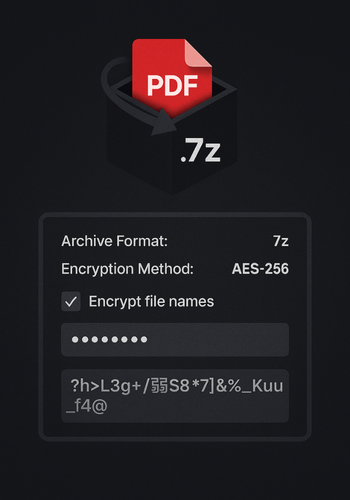
Use this when you only have free tools or when a recipient runs very old software.
Steps on Windows
- Install 7-Zip.
- Right click the PDF. 7-Zip > Add to archive.
- Set Archive format to 7z.
- In the Encryption section set Encryption method to AES-256.
- Enter a strong password. Check Encrypt file names.
- Click OK. A .7z file appears. Delete the original PDF if you no longer need the unencrypted copy. Empty Recycle Bin.
Steps on macOS
- Use Keka or The Unarchiver. Create a 7z archive with password. Confirm AES-256 and encrypted names.
Verify It Worked
- Open the archive. You should see a password prompt before any file names are shown.
- Without the password, the tool should not reveal the PDF name or size.
Share It Safely
- Email the 7z file. Share the password by a second channel.
- For multiple recipients, create separate archives with unique passwords.
Security Specifics by Method
| Method | Cipher | KDF and Header Privacy | Hides File Names | Notes |
| Acrobat Pro | AES-256 | Adobe KDF with permissions flags | Yes inside PDF object structure | Strong when set to AES-256. Permissions rely on reader compliance. |
| Foxit Editor | AES-256 | Similar to Acrobat’s model | Yes | Good defaults. Confirm AES-256 in Properties. |
| 7-Zip | AES-256 | PBKDF2 with high iteration count | Yes when Encrypt file names is checked | Great for free and cross platform. |
Quick Checklist
- Pick a tool that supports AES-256.
- Set a user password to open the file.
- Add permissions with an owner password only if you need them.
- Save a new copy and confirm the password prompt.
- Share the password via a different channel.
Common Errors and Exact Fixes
| Error Text or Symptom | Root Cause | Fix | Data Risk |
| “This method uses weak security” | Old RC4 or 40-bit selected | Switch to AES-256 and resave | Medium |
| Recipient cannot open the PDF | Old reader or mobile preview app | Ask them to install a modern reader or send a 7z archive instead | Low |
| PDF opens without password | Saved the wrong copy or set owner-only restrictions | Re-encrypt with a user password, confirm prompt on reopen | High |
| File names visible in 7z | Forgot “Encrypt file names” | Recreate the archive with the option checked | Medium |
| Printing still allowed | Reader ignores permissions | Use user password protection or send an image-flattened copy | Medium |
Frequently Asked Questions
Are password protected PDFs secure?
Yes when you use AES-256 with a user password. Owner only permissions do not hide content. Always require a password to open.
What is the difference between owner and user passwords?
User protects the file at open. Owner controls actions like print and copy. Use both when needed.
Can Gmail or Outlook preview an encrypted PDF?
No. They show an attachment but cannot preview the content without the password. That is the point.
What if the recipient uses Preview on mac and it ignores a permission?
Permissions are advisory. If you must block edits or copy, rely on the user password and share a view only version.
Is a 7z encrypted archive as safe as an encrypted PDF?
Yes for confidentiality when using AES-256 and encrypted names. It is not a PDF permission system, it is a secure container.
How do I share the password safely?
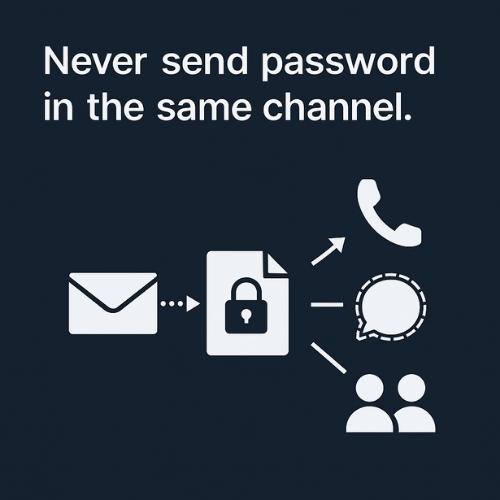
Send the PDF by email and the password by a different channel, such as Signal or a phone call.
What is the safest default for most cases?
User password with AES-256 and encrypted file names in 7-Zip when you need maximum portability.
Conclusion
Encrypting a PDF for safe email sharing is a simple, non-negotiable step in modern data protection. The choice between native applications like Adobe Acrobat and Foxit or the versatile 7-Zip archive method depends entirely on your workflow and your recipient’s technical setup. Regardless of the tool, the foundation of security is always a strong AES-256 user password combined with strict key-sharing etiquette. By following these steps, you ensure that your sensitive documents remain confidential and that only the intended recipient, holding the out-of-band key, can ever access your information.