
Answer Upfront
Encrypting your files is one of the best ways to secure sensitive data from unauthorized access. Both Windows and macOS provide built-in tools for encryption, but they fall short in offering the level of control and security needed by more advanced users. Folder Lock, a third-party app, offers a more comprehensive solution that includes file, full-disk, and container encryption options. In this article, we will walk you through how to encrypt files on both Windows and macOS, compare built-in encryption methods to Folder Lock, and help you choose the best solution for your security needs.
Gap Statement
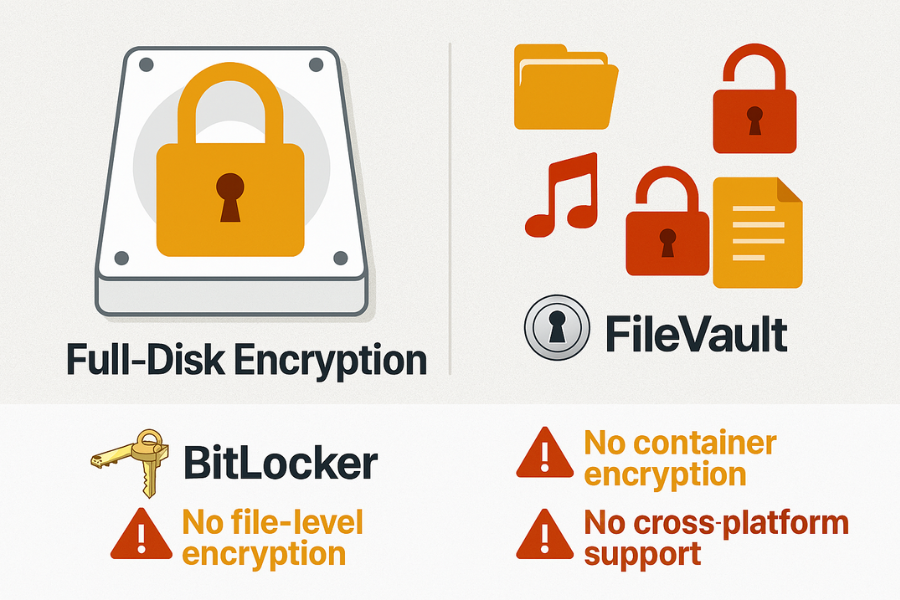
While Windows and macOS come with encryption tools such as BitLocker (Windows) and FileVault (macOS), these built-in methods are limited to full-disk encryption, which means they don’t offer the flexibility to encrypt specific files or folders without encrypting the entire system. Folder Lock bridges that gap by providing the option to encrypt individual files, full disks, or even creating encrypted containers for better security and easier management.
Outcomes
- Windows & macOS built-in encryption: Limited to full-disk encryption (BitLocker & FileVault).
- Folder Lock: Allows file, full-disk, and container encryption with AES-256, password protection, and secure cloud backups.
- Recommendation: Use Folder Lock for granular encryption control, stronger security features, and cross-platform compatibility.
Prereqs & Safety
Before starting, here are some things you need to ensure:
- Backup your data before starting any encryption process to prevent accidental loss.
- Update your operating system to the latest version to support the most secure encryption standards.
- Use a strong password for encrypting your files or containers. It’s recommended to use a mix of upper and lowercase letters, numbers, and symbols.
- Use Folder Lock if you need cloud backup and cross-platform support (Windows to macOS or vice versa)
How to Encrypt Files on Windows (Using Built-in Methods)
Full-Disk Encryption with BitLocker
Windows 10 Professional and Enterprise users can use BitLocker for full-disk encryption, which encrypts the entire drive.
Steps to Encrypt the Entire Disk:
- Open Control Panel > System and Security > BitLocker Drive Encryption.
- Select the Drive you want to encrypt and click Turn On BitLocker.
- Choose how you want to unlock the drive (password or smart card).
- Select Encrypt entire drive and click Next.
- Save or print the recovery key in case you forget the password.
- Click Start Encrypting.
Limitations:
- BitLocker is only available on Windows Pro, Enterprise, and Education editions.
- It’s a full-disk encryption method, so you can’t select individual files or folders to encrypt.
File Encryption with BitLocker (Specific Files)
If you want to encrypt specific files instead of the whole drive, you can use BitLocker To Go.
Steps to Encrypt a USB or External Drive:
- Insert the USB or external drive into your PC.
- Right-click the drive in File Explorer and select Turn on BitLocker.
- Choose a password to protect the drive and click Next.
- Select Encrypt entire drive or Encrypt used space only for faster encryption.
- Click Start Encrypting.
Limitation: BitLocker doesn’t encrypt individual files on your primary disk, so you’re limited to encrypting external drives.
How to Encrypt Files on macOS (Using Built-in Methods)
Full-Disk Encryption with FileVault
macOS has FileVault for full-disk encryption, which protects your entire disk, including files, from unauthorized access.
Steps to Enable FileVault:
- Open System Preferences > Security & Privacy > FileVault.
- Click the lock icon to make changes and enter your administrator password.
- Select Turn On FileVault.
- Choose Apple ID or Recovery Key as your recovery option.
- Click Restart to begin encryption.
Limitations:
- FileVault works only on the entire disk, making it unsuitable for individual file encryption needs.
- No option for file containers or partial disk encryption.
File Encryption Using Disk Utility (macOS)
To encrypt individual files or folders, Disk Utility on macOS lets you create encrypted disk images.
Steps to Create an Encrypted Disk Image:
- Open Disk Utility from Applications > Utilities.
- Select File > New Image > Image from Folder.
- Select the folder or files you want to encrypt.
- Choose 128-bit AES encryption or 256-bit AES encryption for stronger security.
- Set a strong password and save the disk image.
- You can now mount the encrypted image as a virtual disk whenever you need access.
Limitations:
- This method works for individual files but can be cumbersome for large sets of files.
- If the password is lost, there’s no recovery option without a backup.
Advanced Protection with Folder Lock: File, Full-Disk, and Container Encryption
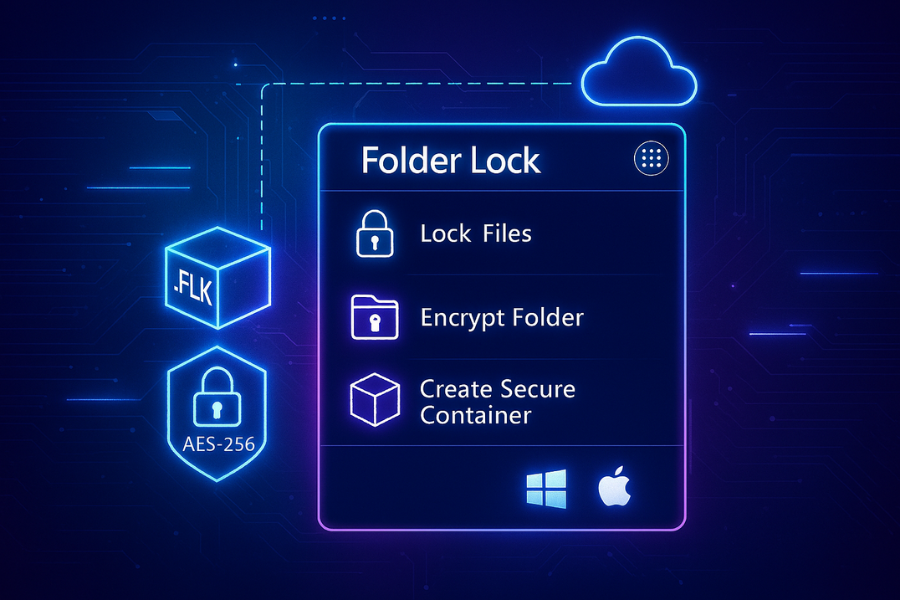
Folder Lock provides an advanced solution for encrypting individual files, folders, and even entire disks. Its features go beyond the built-in methods in both Windows and macOS, offering superior security, backup options, and cross-platform compatibility.
Step-by-Step Guide: Encrypt Files, Folders, and Full-Disk
- Download Folder Lock from the official website and install it.
- Set up an account and create a strong password for app protection.
- Encrypt Files and Folders:
- Open Folder Lock and choose Lock Folders.
- Select the folder or files you want to encrypt.
- Choose the level of encryption: AES-256 encryption ensures maximum protection.
- Enter a password and start the encryption process.
- Create an Encrypted Container:
- Go to Container Lock and click Create New Container.
- Select the files you want to store in the encrypted container.
- The container can be saved as a .flk file, which can be opened only with the password you set.
- Encrypt Full Disk:
- Folder Lock offers a feature to encrypt USB drives or external hard drives using AES-256.
- After encrypting the drive, you can securely store it with the ability to transfer it across devices while keeping the data secure.
Key Benefits of Folder Lock
- AES-256 Encryption: Provides military-grade protection for your files and data.
- Portable & Cross-Platform Support: You can transfer the encrypted files to both Windows and macOS without compromising security.
- Cloud Backup: Folder Lock allows you to store your encrypted data on the cloud, ensuring it is safe even if your device is compromised.
- Secure Sharing: Share encrypted files with password protection and expiry dates to ensure data is only accessible for a limited time.
Comparison Table: Built-in Encryption vs Folder Lock
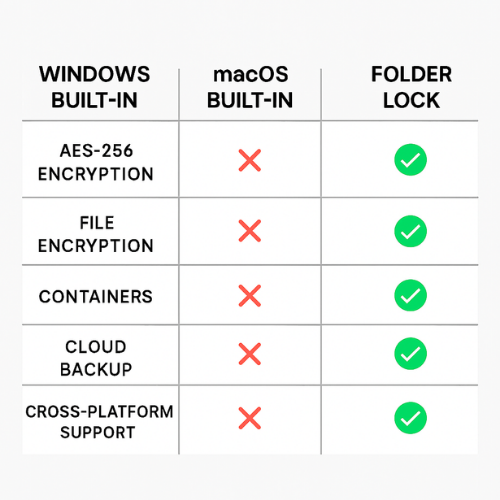
| Feature | Windows Built-In | macOS Built-In | Folder Lock |
|---|---|---|---|
| AES-256 Encryption | No | No | Yes |
| Full-Disk Encryption | Yes (BitLocker) | Yes (FileVault) | Yes |
| File Encryption | No | No | Yes |
| Encrypted Containers | No | No | Yes |
| Cloud Backup | No | No | Yes |
| Cross-Platform Support | No | No | Yes |
Common Errors and Troubleshooting
Error 1: “Forgot Password for Encrypted Files”
Cause: Password mismatch or loss.
Fix: Use Folder Lock’s cloud backup or recovery options. For macOS, Disk Utility has no recovery option if the password is forgotten.
Error 2: “Unable to Open Encrypted File”
Cause: Encryption key mismatch.
Fix: Ensure you’re using the correct password or key. If using Folder Lock, try re-syncing the encrypted file with your cloud backup.
Verdict by Persona
- Students: Use macOS FileVault or Windows BitLocker for full-disk encryption if you need basic protection for your homework and files.
- Freelancers: For added control over your files, Folder Lock offers better flexibility and strong encryption.
- SMB Admins: Folder Lock is best for securing sensitive business files, providing cross-platform compatibility and cloud backup options.
FAQs
How can I encrypt individual files on macOS?
Use Disk Utility to create an encrypted disk image for your files.
Is Folder Lock better than BitLocker or FileVault?
Yes, Folder Lock provides more granular encryption, including file-based and container encryption, plus cloud backup options.
How do I securely share encrypted files?
Folder Lock allows you to set expiry dates and password protection to securely share encrypted files.
Can I recover files if I forget my password?
For Folder Lock, you can use cloud backup to restore your encrypted files. Unfortunately, macOS and Windows have limited recovery options.
Can I encrypt my external hard drive with Folder Lock?
Yes, Folder Lock supports full-disk encryption for external drives, making it easy to secure sensitive data on USB drives.
By following the methods outlined in this guide, you can now secure your important files with robust encryption on both Windows and macOS. Whether using built-in tools or opting for the advanced Folder Lock application, protecting your data is a critical step in safeguarding your digital life.