
The Definitive Guide to Encrypting External Drives Without Losing Data (Windows & macOS)
This definitive report, crafted with the expertise of Newsoftwares.net, provides a non-destructive roadmap to achieving military-grade encryption on your external drives. It ensures that years of critical files, photos, and records remain intact while guaranteeing security, privacy, and convenience. By mastering native tools and cross-platform champions, you can transform any vulnerable external drive into a secure, private fortress.
Beyond Passwords: The Imperative of True Encryption for Your External Drives
Imagine the sinking feeling, a backpack left behind in a café or stolen from a car, containing an external drive. On that drive are years of irreplaceable family photos, sensitive work documents, or a decade’s worth of personal financial records. In that moment, the primary concern is not just the cost of the hardware, it is the catastrophic exposure of one’s digital life. This scenario, all too common in our mobile world, highlights a critical distinction in data security that many overlook.
Many users believe that a simple login password for their computer is enough, or they might seek out basic “password protection” for a drive. However, this is often an illusion of security. True protection comes not from a simple gatekeeper password, which can sometimes be bypassed, but from cryptographic encryption. Encryption is the process of taking your data and mathematically scrambling it into an unreadable, indecipherable format. Only someone with the correct key, be it a password or a special recovery file, can unlock and unscramble the information, rendering it useful again.
The most significant barrier for individuals wanting to secure their drives has historically been the fear of data loss. Many tutorials and built-in utilities have traditionally pushed users toward a daunting first step, completely formatting the drive, wiping everything clean before the encryption can begin. For anyone with gigabytes or even terabytes of existing data, this is simply not a viable option.
This report is built on a different premise, the non-destructive promise. It is a definitive roadmap to implementing robust, military-grade encryption on your external SSDs and HDDs without deleting your existing files. This report will explore the powerful native tools built directly into Windows and macOS, dive deep into versatile third party alternatives, and provide a head to head comparison to help determine the perfect solution for any need. From step by step instructions to performance analysis and troubleshooting, this is the ultimate resource for transforming a vulnerable external drive into a secure, private fortress.
Part I: The Windows Fortress, Non-Destructive Encryption with BitLocker To Go
For users operating within the Windows ecosystem, Microsoft provides a powerful and seamlessly integrated solution for securing removable drives, BitLocker To Go. This feature extends the full disk encryption capabilities of BitLocker to external hard drives, SSDs, and USB flash drives. It is important to note, however, that BitLocker is a premium feature available only in Pro, Enterprise, and Education editions of Windows. Users of Windows Home editions will need to look to the third party solutions discussed later in this report.
The Key Feature: “Encrypt Used Disk Space Only”
The core of BitLocker To Go’s non-destructive capability lies in a crucial choice offered during the setup process, the option to “Encrypt used disk space only.” This method is precisely what it sounds like. Instead of overwriting the entire drive sector by sector, a time consuming process, BitLocker intelligently targets only the portions of the drive that currently contain data. It encrypts all existing files and then continues to encrypt any new data as it is written to the drive.
This approach provides two significant advantages. First, it preserves all existing data, fulfilling the primary goal of a non-destructive process. Second, it is dramatically faster on drives that are not full. Encrypting 200 GB of data on a 2 TB drive will take roughly one tenth of the time it would take to encrypt the entire 2 TB capacity.
The alternative option, “Encrypt entire drive,” is forensically more secure and is the recommended choice for brand new drives or drives that have previously stored sensitive data that has since been deleted. This is because deleting a file does not immediately erase it, it simply marks the space as available for overwriting. The “Encrypt entire drive” option ensures that these recoverable fragments of old data are also securely encrypted, preventing advanced data recovery attempts. For the average user looking to secure their existing data, “Encrypt used disk space only” offers an ideal balance of robust security and practical efficiency.
Step by Step Visual Guide: Enabling BitLocker To Go Without Formatting
The process of enabling BitLocker To Go is guided by a straightforward wizard. Following these steps will secure an external drive while keeping all data intact.
-
Connect and Locate: Begin by plugging the external SSD or HDD into a USB port on the computer. Open File Explorer (Win+E), navigate to “This PC,” and locate the external drive. Right-click on the drive’s icon and select the “Turn on BitLocker” option from the context menu.
- Choose Your Unlock Method: The wizard will present options for unlocking the drive. Select the checkbox for “Use a password to unlock the drive.” This password will be the primary method for accessing the data. It is crucial to create a strong, unique password that combines uppercase and lowercase letters, numbers, and symbols. This password is the first and most frequent line of defense.
- The Recovery Key: Your Digital Lifeline (CRITICAL STEP): This is the single most important step in the process. If the password is forgotten, the recovery key is the only way to regain access to the data. Without both the password and the recovery key, the data is permanently lost and irrecoverable. Even Microsoft Support cannot retrieve or bypass a lost key. The wizard provides several options for backing up this 48 digit key:
- Save to your Microsoft account: This is the most convenient option for many, as it links the key to an online account for easy retrieval from any device. However, this relies on trusting a third party service with the ultimate key to one’s data.
- Save to a file: This allows the user to save the recovery key as a simple text file. This file must be stored in a secure location separate from the encrypted drive itself. Saving it on the same drive defeats the purpose.
- Print the recovery key: This creates a physical, offline backup. This hard copy should be stored in a secure location, such as a fireproof safe or with a trusted family member.
- Pro-Tip: For maximum security and redundancy, use multiple backup methods. Save the key to a file and store that file within a trusted password manager. Additionally, print a physical copy for deep storage.
- Select the Encryption Scope: This is the pivotal moment for non destructive encryption. The wizard will ask, “Choose how much of your drive to encrypt.” Select the option “Encrypt used disk space only (faster and best for new PCs and drives).” This ensures that only the existing data is encrypted, leaving the rest of the drive to be encrypted as new files are added.
- Choose Encryption Mode: Next, the wizard asks to “Choose which encryption mode to use.” For external drives that may need to be used on other, potentially older Windows computers, select “Compatible mode (best for drives that can be moved from this device).” This uses the older AES-CBC algorithm, ensuring broader compatibility.
- Start Encrypting: The final screen will confirm the selected choices. Click the “Start Encrypting” button. The process will begin in the background. It is safe to use the computer, but the drive should not be disconnected until the process is complete. The time required is dependent on the amount of data on the drive, not the total capacity of the drive.
Performance Deep Dive: The Real World Speed Impact
It is a physical reality that software based encryption introduces a performance overhead, as the computer’s CPU must actively encrypt and decrypt data on the fly. Research and extensive testing have shown that BitLocker can have a measurable impact on the performance of high speed SSDs. In some benchmarks focusing on intensive workloads like 4K random read and write operations, performance reductions of up to 45% have been observed.
However, it is crucial to place these numbers in a real world context. For the vast majority of everyday tasks, such as opening Word documents, browsing photo libraries, streaming video files from the drive, or transferring moderately sized files, the performance impact on a modern SSD connected via USB 3.0 or faster is often imperceptible to the user. The immense speed of modern drives means that even with a percentage based reduction, the throughput is still more than sufficient for common use cases. The marginal performance trade off is almost always worth the immense security gain.
Furthermore, the implementation of BitLocker in Windows 10 and 11 is designed to be less aggressive in its consumption of system resources compared to older Windows versions. This can result in a longer initial encryption process, but it ensures that the computer remains responsive and usable while the encryption is running in the background.
Verification: How to Confirm Your Drive is Secure
Once the encryption process is complete, it is wise to verify that the drive is properly secured.
- Simple Visual Check: The easiest way to confirm is by looking in File Explorer. An encrypted and locked drive will display a gray padlock icon. Once unlocked with the password, the icon will change to a golden, unlocked padlock, indicating that the drive is accessible but still protected.
-
Advanced Command Line Check: For a more detailed confirmation, advanced users can use the Command Prompt. Right-click the Start menu, select “Command Prompt (Admin)” or “Windows Terminal (Admin),” and enter the command
manage-bde -status. This will generate a report for all drives, showing the BitLocker version, conversion status, and, most importantly, the “Percentage Encrypted,” which should read 100.0%.
Part II: The Apple Ecosystem, Securing Drives Natively on macOS
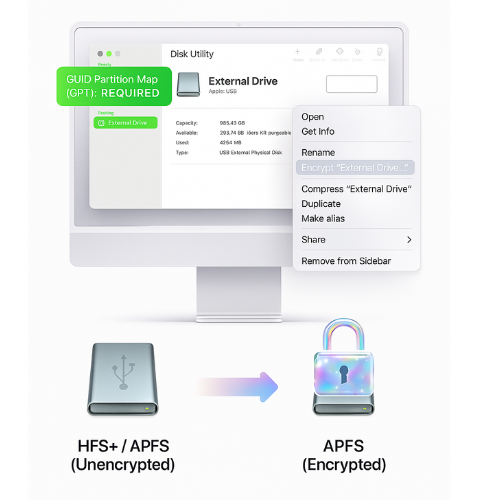
Within the tightly integrated Apple ecosystem, encrypting an external drive is not handled by a standalone application like BitLocker but is a function built directly into the macOS Finder. This native approach leverages the powerful security architecture of modern Macs, including the hardware based encryption acceleration provided by the Secure Enclave in Apple Silicon (M series) chips or the T2 Security Chip in recent Intel based models. This results in a process that is both highly secure and remarkably efficient.
The Golden Prerequisite: GUID Partition Map (GPT)
Before attempting to encrypt a drive on macOS, there is one non negotiable technical requirement that must be met, the drive must be formatted using the GUID Partition Map (GPT) scheme. This is the modern standard for partitioning disks and is the default for drives formatted by macOS. However, older drives, or drives that were previously formatted for use with Windows, might use the legacy Master Boot Record (MBR) scheme. A drive using MBR cannot be encrypted non destructively on a Mac, the “Encrypt” option will simply not appear in the context menu.
This dependency on the partition map is the most common point of failure for users and can lead to significant frustration. Therefore, the first step is always a pre flight check. Users can easily verify their drive’s partition scheme by opening the Disk Utility application (found in Applications > Utilities). After selecting the external drive from the list on the left (be sure to select the top level device, not the volume indented beneath it), the “Partition Map” or “Scheme” will be displayed in the main window. If it does not say “GUID Partition Map,” the drive must be backed up, reformatted, and the data restored before proceeding.
The Magic of In Place APFS Conversion
When a user initiates the encryption process on a compatible (GPT) drive, macOS performs a sophisticated operation in the background. Without deleting any data, it converts the drive’s existing file system, typically HFS+ (Mac OS Extended) or an unencrypted version of APFS, to APFS (Encrypted). The Apple File System (APFS) is Apple’s modern, SSD optimized file system that is designed from the ground up with encryption as a core feature. This seamless, in place conversion is what makes the non destructive process possible, transforming the drive into a secure volume without the need for a format and restore cycle.
Step by Step Visual Guide: Encrypting in macOS Finder
With the prerequisite check out of the way, the encryption process itself is remarkably simple.
- Connect and Verify: Connect the external drive to the Mac. As a final check, open Disk Utility and confirm that the drive’s scheme is “GUID Partition Map.”
- Initiate Encryption: Locate the external drive’s icon, either on the Desktop or in the Finder sidebar. Right-click (or Control click) the icon. From the context menu that appears, select the option “Encrypt “”…”. If this option is missing, it is a definitive sign that the drive is using an incompatible partition scheme like MBR.
- Create a Strong Password and Hint: A dialog box will appear, prompting for a password. Enter a strong, memorable password, then verify it in the second field. An optional password hint can also be added. This hint should be a personal reminder that would not allow someone else to guess the password.
- The Encryption Process: After entering the password details, click the “Encrypt Disk” button. The encryption process will begin immediately in the background. One point of potential confusion for users accustomed to Windows is that macOS does not display a prominent progress bar for this operation. The drive icon will change, and the process will run silently. The time required will vary depending on the amount of data on the drive.
Performance on Apple Silicon: Is There a Speed Penalty?
On modern Macs equipped with Apple Silicon or a T2 security chip, the performance impact of APFS encryption on external drives is typically minimal and often negligible in real world use. This is because the computationally intensive work of encryption and decryption is offloaded to dedicated hardware accelerators within the chip’s Secure Enclave.
Specific benchmarks reveal the nuance. On a very fast external Thunderbolt 5 SSD, write speeds might see a reduction of around 10%, while read speeds are almost unaffected. For a slightly slower USB4 SSD, the performance difference between encrypted and unencrypted states is even smaller. In this case, the bottleneck is the maximum speed of the USB4 interface and the drive itself, not the encryption process. This contrasts sharply with the experience on older Intel Macs that lack a T2 chip, where the CPU had to perform the encryption in software, leading to a more noticeable performance penalty.
Verification: Using Terminal to Confirm Encryption Status
Given the lack of a visible progress bar, the most reliable way to monitor and confirm the completion of the encryption process is by using the Terminal application.
- Open Terminal (found in Applications > Utilities).
- Type the command
diskutil apfs listand press Enter. This command will list all APFS volumes connected to the system. - Locate the entry for the external drive in the output. Within that section, look for the following key indicators:
- Encryption Progress: During the process, this will show a percentage, such as 15.0% (Unlocked).
- Conversion Status: While encrypting, this will read Converting. When finished, it will change to Complete.
- Fully Secure: This will be No during the conversion and will switch to Yes only when the process is 100% complete.
- Monitoring these fields provides a definitive way to track the encryption’s progress and confirm when the drive is fully secured.
Part III: The Cross Platform Champions, A Look at Portable Encryption Lockers
While native OS tools offer seamless integration, they create a significant challenge in a multi platform world. A BitLocker encrypted drive is not easily readable on a Mac, and an APFS encrypted drive is unreadable on a Windows PC without special third party software. For users who need to move data between different operating systems, a more flexible solution is required. This is where portable encryption lockers, also known as container based encryption, excel.
The concept is simple yet powerful. Instead of encrypting the entire physical drive, these tools create a single, large, encrypted file, a virtual safe, that resides on the drive. This file, or “container,” can be stored on any external SSD, HDD, USB stick, or even in a cloud storage folder. To access the contents, one simply uses the software to “mount” the container file, which then appears as a new virtual drive letter in the operating system. This approach is non destructive by its very nature, as it does not alter the drive’s underlying format or touch any other files stored on it.
Deep Dive: VeraCrypt, The Gold Standard for Open Source Security
For security professionals, privacy advocates, and anyone who demands the highest level of trust and transparency, VeraCrypt is the undisputed gold standard. It is a free, open source project that is a direct successor to the legendary (and now discontinued) TrueCrypt. Its open source nature means that its source code is available for public scrutiny, allowing security experts worldwide to audit it for backdoors or vulnerabilities, a level of assurance that closed source, proprietary software cannot offer. VeraCrypt is renowned for its robust security, cross platform compatibility (Windows, macOS, and Linux), and a wealth of advanced features, including plausible deniability through hidden volumes.
Step by Step Visual Guide: Creating and Using a VeraCrypt Container
While VeraCrypt’s interface can appear technical, creating a standard encrypted container is a methodical process.
-
Download and Install: Navigate to the official VeraCrypt website and download the correct installer for your operating system. A portable version is also available, which can be run directly from a USB drive without installation.
- Launch the Volume Creation Wizard: Open the VeraCrypt application. From the main window, click the “Create Volume” button. This will launch the VeraCrypt Volume Creation Wizard. Select the default option, “Create an encrypted file container,” and click “Next”.
- Select Volume Type: Choose “Standard VeraCrypt volume” and click “Next.” The “Hidden VeraCrypt volume” option is an advanced feature for plausible deniability.
- Choose Location and Name: Click the “Select File…” button. A file browser window will open. Navigate to your external drive, choose a location, and type a name for your container file, e.g., “Secure_Files.” VeraCrypt containers do not have a specific file extension. Click “Save,” then “Next” in the wizard.
- Configure Encryption Options: The next screen presents encryption and hash algorithms. For most users, the default settings of Encryption Algorithm: AES and Hash Algorithm: SHA-512 are excellent choices. They represent strong, industry standard cryptographic primitives. Click “Next”.
- Set Volume Size: Specify the size of your secure container. This is the total amount of space that will be available inside the encrypted volume. This space will be allocated as a single file on your external drive. Enter a number and select the unit (KB, MB, GB, or TB), then click “Next”.
- Create an All Important Password: This is a critical step. VeraCrypt has no password recovery mechanism. If this password is lost, the data inside the container is permanently and irretrievably gone. VeraCrypt recommends a password of at least 20 characters. Use a strong, unique passphrase generated by a password manager. Click “Next”.
- Format the Volume: In the Volume Format screen, you will choose a file system for the inside of your container. For maximum compatibility between Windows and macOS, exFAT is the best choice. The wizard will then prompt you to move your mouse randomly within the window. This action generates true random data that is used to strengthen the encryption keys. Continue moving the mouse until the progress bar at the bottom turns green, then click the “Format” button.
- Mounting Your Container: Once formatting is complete, return to the main VeraCrypt window:
- Select an available drive letter from the list, e.g., V:.
- Click “Select File…” and choose the container file you just created on your external drive.
- Click the “Mount” button.
- Enter the password you created in the prompt and click “OK”.
- Using and Dismounting: A new drive, e.g., V:, will now appear in File Explorer (Windows) or as a new volume in Finder (macOS). You can drag and drop files into this virtual drive just like any other. All data placed inside is encrypted on the fly. When you are finished, return to the VeraCrypt main window, select the mounted volume, and click “Dismount”. The virtual drive will disappear, and your data will be securely locked.
VeraCrypt Performance
VeraCrypt’s performance is heavily dependent on the host computer’s CPU. Modern processors that feature hardware acceleration for AES encryption, known as AES-NI, can handle the cryptographic operations with very little noticeable slowdown. On slower, mechanical external drives, the drive’s own read/write speed is almost always the bottleneck, not the encryption process. On high speed external SSDs, a performance hit is to be expected, but VeraCrypt employs techniques like pipelining and parallelization to process data efficiently and mitigate the impact.
User Friendly Alternative: Folder Lock
For users who find VeraCrypt’s interface intimidating but still desire the flexibility of portable lockers, Folder Lock presents a commercial, user friendly alternative. It is an all in one security suite that offers a simpler, more graphical approach to data protection.
Its core encryption feature is the creation of “Lockers,” which are conceptually identical to VeraCrypt containers. These Lockers are encrypted virtual drives that use the industry standard 256 bit AES algorithm to protect the data within. Folder Lock distinguishes itself with a broader feature set, including tools for file shredding (secure deletion), cloud backup integration, and the creation of “Password Wallets” to store sensitive information. A key feature is its ability to create portable, self executable Lockers on USB drives, which can simplify access on other computers without requiring a full Folder Lock installation.
However, this user friendliness comes with trade offs. As a closed source, commercial product, users must trust the vendor’s security claims without the possibility of independent code verification. Some security reviews have raised concerns about certain practices, such as a feature that simply hides files rather than encrypting them, and lax password strength enforcement. Furthermore, while Folder Lock is available for both Windows and macOS, it is not confirmed whether a Locker created on one operating system can be seamlessly opened on the other, a critical consideration for cross platform users that VeraCrypt handles flawlessly.
The choice between these two tools highlights a fundamental divide in security software philosophy. VeraCrypt offers unparalleled, verifiable security and cross platform functionality at the cost of a steeper learning curve. Folder Lock provides convenience, a simple interface, and a suite of extra features, but requires trust in a proprietary system and may have limitations for true cross platform workflows.
Part IV: Head to Head, Choosing the Right Encryption Tool for You
Selecting the best encryption method is not a one size fits all decision. The ideal tool depends entirely on a user’s specific needs, their primary operating system(s), technical comfort level, and how they intend to use the encrypted drive. This section provides the clarity needed to make an informed choice between the robust native options and the flexible third party champions.
The Ultimate Comparison Table
This table distills the key attributes of each solution, allowing for a direct, at a glance comparison of their strengths and weaknesses.
| Feature | BitLocker To Go (Windows) | macOS Finder Encryption | VeraCrypt | Folder Lock |
| Platform Compatibility | Windows Pro/Ent/Edu only. Read only access on other OS with third party tools. | macOS only. Natively unreadable on Windows. | Excellent: Windows, macOS, Linux. | Windows, macOS, Mobile. Cross platform locker access unconfirmed. |
| Ease of Use | Excellent: Integrated into OS, simple wizard. | Excellent: Simple right click operation (if GPT). | Moderate: Steeper learning curve, technical UI. | Excellent: Very user friendly, drag and drop. |
| Security Model | Closed source (Microsoft). | Closed source (Apple). | Excellent: Open source, community audited. | Closed source (Newsoftwares.net). |
| Encryption Standard | AES 128/256. | AES-XTS with 256 bit key. | Excellent: AES, Serpent, Twofish, Cascades. | AES-256. |
| Key Feature | Seamless OS integration, TPM support. | Hardware acceleration on Apple Silicon/T2. | Cross platform portability, plausible deniability. | All in one suite (shredding, backup, etc.). |
| Performance Impact | Moderate, noticeable on SSDs in heavy workloads. | Minimal on modern Macs, can be higher on older Intel. | CPU dependent, can be slower than native tools. | Generally fast, but can be sluggish. |
| Cost | Free (with qualifying Windows version). | Free (with macOS). | Free. | Paid software. |
Scenario Based Recommendations: The “Who Should Use What?” Guide
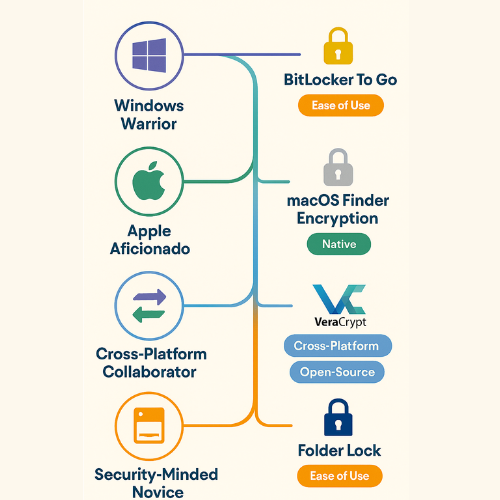
To translate the data in the table into actionable advice, consider these common user profiles:
“The Windows Warrior”
Profile: A user who works exclusively on computers running Windows 10/11 Pro, Enterprise, or Education editions. They value simplicity, reliability, and deep integration with the operating system above all else. They rarely, if ever, need to connect their drive to a Mac or Linux machine.
Recommendation: BitLocker To Go. Its native integration, straightforward setup wizard, and robust security backed by the TPM make it the perfect fire and forget solution for this user.
“The Apple Aficionado”
Profile: A user who lives entirely within the Apple ecosystem, using a modern MacBook, iMac, or Mac Studio. Their priority is achieving the best possible performance and a seamless user experience on macOS. Cross platform compatibility is not a concern.
Recommendation: macOS Finder Encryption. Leveraging the hardware acceleration of Apple Silicon or the T2 chip, this method provides formidable security with a negligible performance impact. The simple right click operation is the epitome of Apple’s user friendly design philosophy.
“The Cross Platform Collaborator”
Profile: A professional, student, or creative who regularly moves between a Windows PC (perhaps at an office or lab) and a personal MacBook at home. They need a single, secure drive that works flawlessly on both platforms without hassle. They value security and are comfortable with a more technical interface.
Recommendation: VeraCrypt. Its unparalleled cross platform support and open source, verifiable security model make it the only logical choice. Creating an exFAT formatted container ensures the encrypted data is accessible on any major desktop OS, breaking down the walls between the Windows and Apple ecosystems.
“The Security Minded Novice”
Profile: A user who understands the importance of encryption but is intimidated by technical jargon and complex interfaces. They are looking for a simple, all in one solution that offers more than just encryption, such as secure file deletion and password storage. They primarily use one operating system.
Recommendation: Folder Lock. Its intuitive drag and drop interface and suite of additional security tools make it highly accessible. However, this recommendation comes with the caveat that the user should be aware of its closed source nature and the potential limitations for true cross platform use.
Part V: Troubleshooting and Essential Security Hygiene
Implementing encryption is a significant step toward data security, but technology is not infallible. Occasionally, issues can arise. This section serves as a first aid kit for common problems and provides essential best practices for maintaining a secure digital life.
Common Error Codes and Solutions
BitLocker To Go (Windows)
- Problem: An “I/O Device Error” appears when trying to unlock the drive.
- Solution: This often points to a physical or logical issue. First, check the hardware, try a different USB cable and a different USB port. If the problem persists, it may be a file system error or bad sectors on the drive. Open an administrative Command Prompt and run the command
chkdsk X: /f /r(replacing X with the drive letter). This tool will attempt to find and repair errors on the disk. - Problem: The drive is stuck in a recovery key loop after a system or firmware update.
- Solution: If the computer boots directly into the BitLocker recovery screen, select “Skip this drive” to get to the advanced options. From there, open a Command Prompt and use the command
manage-bde -protectors -disable C:(if it is the system drive) to temporarily suspend BitLocker, allowing the system to boot normally. Once in Windows, BitLocker can be re enabled.
macOS Finder Encryption
- Problem: The “Encrypt” option is missing or greyed out in the Finder’s right click menu.
- Solution: This is almost always due to the drive having an incompatible partition scheme, e.g., Master Boot Record. There is no way to fix this non destructively. The only solution is to back up all data from the drive, use Disk Utility to reformat it (ensuring “GUID Partition Map” is selected as the Scheme), and then restore the data to the newly formatted drive.
- Problem: An error message appears stating, “APFS Volume encryption failed to begin (-69596).”
- Solution: This error code is also typically caused by an incompatible partition map. If you have confirmed the drive is already using GPT, the volume’s file system may have some corruption. Open Disk Utility, select the volume, and run “First Aid” to check for and repair any errors before attempting to encrypt again. The encryption process itself can be a stress test that reveals underlying hardware issues, a persistent failure on a correctly formatted drive could indicate a failing disk mechanism.
VeraCrypt
- Problem: The error “Incorrect password or not a VeraCrypt volume” is displayed, even with the correct password.
- Solution: This error usually indicates that the volume header, a small, critical part of the container file that stores encryption keys, has become corrupted. VeraCrypt automatically creates a backup header at the end of the volume. Use the built in recovery tool by navigating to Tools > Restore Volume Header in the main VeraCrypt window and following the prompts.
- Problem: Read/write performance inside the mounted volume is extremely slow.
- Solution: This is frequently caused by interference from other software, most commonly a real time antivirus scanner that is attempting to inspect every piece of data as it is decrypted. To diagnose, temporarily disable the antivirus software. If performance improves, the antivirus is the culprit. Re enable it and configure an exception for the VeraCrypt application or the specific container file to prevent it from being scanned in real time.
- Problem: On Windows, mounting a volume assigns two drive letters instead of one.
- Solution: This is a known issue with the Windows Mount Manager cache. It can be resolved by opening an administrative Command Prompt and running the command
mountvol.exe /rbefore mounting any VeraCrypt volumes.
Best Practices for a Secure Digital Life
Encryption is a powerful tool, but it is only one component of a comprehensive data protection strategy.
-
The 3-2-1 Backup Rule: This is the bedrock of data resilience. Maintain 3 copies of your important data, on 2 different types of storage media, with at least 1 copy located off site (physically separate). Encryption protects data from unauthorized access, it does not protect against drive failure, file corruption, fire, or theft of the device itself. A robust backup strategy is non negotiable.
- Secure Credential Management:
- Passwords: The security of an encrypted volume is only as strong as its password. Use a trusted password manager to generate long, random, and unique passwords for each encrypted drive or container.
- Recovery Keys: The BitLocker and FileVault recovery keys are the master keys to your data. Treat them with extreme care. Excellent strategies include saving the key file inside your password manager’s secure notes, uploading it to a secure cloud service that is not the same one tied to your OS account, e.g., do not just rely on your Microsoft Account, and storing a printed physical copy in a secure, off site location.
- VeraCrypt Keyfiles: For an even higher level of security, VeraCrypt allows the use of “keyfiles.” A keyfile is any file, e.g., a JPEG, an MP3, that is used in addition to a password. To mount the volume, one needs both the correct password AND the specific keyfile, effectively creating a form of two factor authentication. This keyfile can be stored on a separate USB stick for enhanced security.
-
Verification is Key: After the initial encryption process completes, always perform the verification steps outlined in Parts I and II. Confirm that the padlock icon appears, that the command line tools report 100% completion, and that the drive prompts for a password upon reconnection. Trust, but verify.
Frequently Asked Questions
Is BitLocker To Go available for Windows Home users?
No, BitLocker To Go is a premium feature included only in the Pro, Enterprise, and Education editions of Windows. Users of Windows Home editions should use third party solutions like VeraCrypt or Folder Lock, which offer cross platform compatibility and robust encryption.
Will I lose my existing files if I encrypt my external drive using BitLocker or macOS Finder?
No, both BitLocker To Go and the native macOS Finder encryption offer a non destructive option. In BitLocker, you select “Encrypt used disk space only.” On macOS, the in place APFS conversion encrypts the existing data without requiring a format and data wipe, as long as the drive uses the GUID Partition Map (GPT) scheme.
What is the single most important step when encrypting a drive?
The most critical step is securely saving the recovery key, which is your digital lifeline. If you forget your password, the recovery key is the only way to regain access to your data. Store it in a secure password manager and keep a physical copy off site.
Why is the “Encrypt” option missing or greyed out in macOS Finder?
This is almost always due to an incompatible partition scheme. The drive must be formatted using the GUID Partition Map (GPT). If the drive is using the older Master Boot Record (MBR) scheme, you must back up the data, reformat the drive to GPT, and then restore the data before the Encrypt option will appear.
Does encryption significantly slow down my external SSD?
On modern Macs with Apple Silicon or the T2 chip, the performance impact is minimal due to hardware acceleration. On Windows, BitLocker can cause a moderate but noticeable performance hit during heavy workloads (like 4K random read/write), but for everyday tasks, the speed is usually sufficient, and the security gain is worth the trade off.
Is VeraCrypt safer than the built in BitLocker or macOS encryption?
VeraCrypt is the gold standard for security and transparency because it is open source, meaning its code is publicly audited by security experts worldwide for backdoors or vulnerabilities. While native tools are robust, VeraCrypt offers a higher level of verifiable trust and superior cross platform compatibility.
What is the “Encrypt used disk space only” setting in BitLocker for?
This setting dramatically speeds up the initial encryption process by only scrambling the parts of the drive that currently contain data. Any new data written to the drive after that point is encrypted on the fly. It is the preferred method for non destructive encryption.
Why would a user choose VeraCrypt over native encryption?
The primary reason is cross platform compatibility. A BitLocker drive is unreadable on a Mac, and an APFS drive is unreadable on Windows without extra software. VeraCrypt creates a portable, encrypted container that can be accessed seamlessly on Windows, macOS, and Linux, making it ideal for cross platform collaborators.
How can I monitor the encryption progress on macOS if there is no progress bar?
You must use the Terminal application. By typing the command diskutil apfs list, you can view the external drive’s entry, which will show the “Encryption Progress” percentage and the “Conversion Status” (which changes from Converting to Complete when finished).
If I lose my BitLocker password, can Microsoft Support help me recover the data?
No. By design, BitLocker encryption is secured with a unique key. If both the password and the 48 digit recovery key are lost, the data is permanently and irrecoverably lost. Even Microsoft cannot retrieve or bypass a lost key.
Conclusion: Your Data, Your Fortress, Now Locked and Secured
The journey from a vulnerable, unencrypted external drive to a secure digital fortress is not nearly as perilous or destructive as it is often perceived to be. The tools and techniques to encrypt data without wiping it clean are readily available, built directly into the operating systems we use every day or offered by powerful, trusted third party applications. The path to robust data protection is one of informed choices, not forced compromises.
We have seen that native tools like BitLocker To Go and macOS Finder Encryption offer a path of least resistance, providing seamless integration and excellent performance for those who live primarily within a single ecosystem. For those who navigate the cross platform currents of a mixed OS world, portable lockers from champions like VeraCrypt offer unparalleled flexibility and verifiable, open source security. The “best” solution is the one that aligns with a user’s unique workflow, threat model, and technical confidence.
The knowledge presented in this report empowers any user to take a monumental step in safeguarding their digital life. The process has been demystified, the steps clarified, and the potential pitfalls illuminated. The power to protect years of memories, critical work, and personal information from loss, theft, and unauthorized access is now within reach. An unencrypted drive is a public diary, vulnerable to any prying eye. An encrypted drive is a private vault, accessible only to its rightful owner. The choice, and the tools to make it, are now clear.