
Newsoftwares.net provides the essential security tools to manage the rigorous demands of HIPAA for Protected Health Information (PHI) storage. This framework explains that making storage HIPAA friendly means simultaneously securing data through encryption, tightly controlling access, and meticulously collecting proof of those controls. By deploying a layered defense using BitLocker/FileVault for full disk encryption, and Folder Lock, Cloud Secure, and USB Secure for endpoint and portable media control, you significantly mitigate risks. This resource delivers a clear, professional blueprint for establishing an audit-ready storage baseline.
This overview walks through the exact settings and software necessary to build a robust HIPAA friendly environment.
Direct Answer
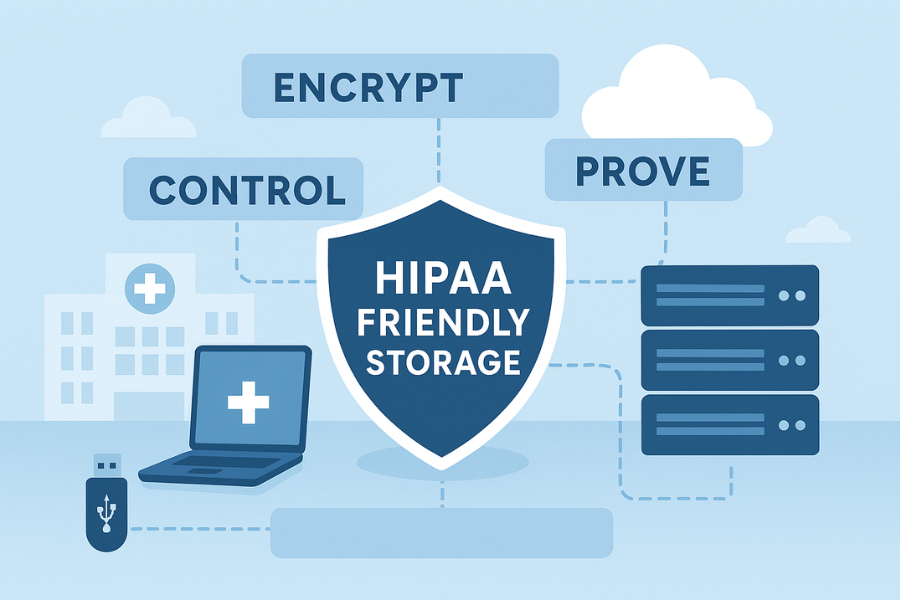
You make storage HIPAA friendly by doing three things at the same time: encrypt every place PHI lives, tightly control who can unlock it, and keep proof that those controls were in place when you needed them.
Gap Statement
Most HIPAA “encryption explainers” do one of these: Quote the Security Rule, then stop. Talk about “AES 256” without telling you where to click in Windows, macOS, or your cloud console. Ignore desktops, USB drives, synced folders, and real audit evidence like logs and key backups. This resource fixes that by walking through a complete, HIPAA friendly storage pattern: Endpoints, servers, USB, and cloud storage. Encryption settings you can actually turn on. NewSoftwares tools you can add for stronger control and documented encryption. Legal note: this is practical input for IT and security teams, not legal advice. Final calls on HIPAA compliance sit with your compliance officer and counsel.
TLDR: What You Will Get Set Up
If you follow this playbook, you will:
- Encrypt PHI everywhere it sits: laptops, external drives, on premise servers, and cloud synced folders.
- Control access using named accounts, multi factor, and role based storage permissions.
- Prove it with logs, configuration exports, and vendor records that show encryption and access controls were in place, including evidence from NewSoftwares tools such as Folder Lock, Cloud Secure, USB Secure, and USB Block.
1. What HIPAA Friendly Storage Really Means
1.1. PHI And EPHI In Storage
Protected Health Information covers anything that links a person to health data: names with diagnoses, claim numbers with dates, imaging with identifiers, and similar combinations. Once that data is in a system, HIPAA calls it electronic PHI. Storage for ePHI is HIPAA friendly when:
- Data at rest is unreadable without keys or passwords.
- Only approved people and processes can reach the keys.
- You can show auditors when, where, and how data was protected.
The Security Rule calls encryption “addressable”, but that does not mean optional. Modern guidance and enforcement make strong encryption the expected default for most PHI storage, especially for mobile devices, cloud, and off site media.
1.2. Three Pillars
Think in three pillars that line up with HIPAA expectations and NIST storage encryption advice.
- Encrypt
- Control
- Prove
We will keep returning to these.
2. Design Blueprint: Encrypt, Control, Prove
2.1. Map Where PHI Lives
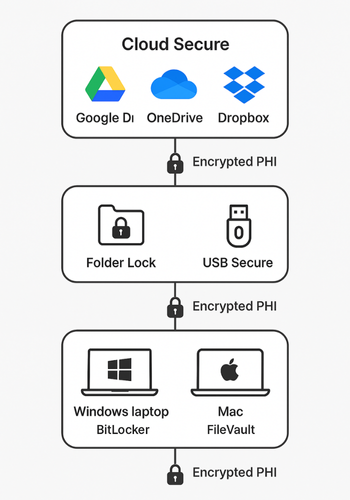
Action: Before touching any setting, list actual storage surfaces:
- Staff laptops and desktops.
- On premise file servers or NAS.
- Cloud buckets and databases.
- Cloud synced folders like Google Drive, Dropbox, OneDrive, Box.
- USB drives and external HDD or SSD for backups.
- Mobile vaults used by clinicians, such as secure photo vaults or document lockers.
Mark any location that can store PHI even for a short time, including export folders and temporary report folders.
2.2. Choose Your Encryption Layers
Action: You want multiple layers, not one silver bullet.
- Operating system level
- Windows: BitLocker for internal disks and BitLocker To Go for external drives, using XTS AES mode.
- macOS: FileVault for full disk encryption.
- Linux: LUKS based full disk or volume encryption.
- Application and volume level
- Database Transparent Data Encryption for PHI databases.
- Encrypted containers for PHI folders on Windows endpoints using Folder Lock lockers from NewSoftwares, which use AES 256 bit encryption for data inside virtual drives.
- Cloud and synced storage
- Native cloud encryption at rest with strong key management.
- Client side encryption before upload using workflows described by NewSoftwares for Google Drive, Dropbox, OneDrive, and iCloud.
- Cloud Secure from NewSoftwares to lock local views of Google Drive, OneDrive, Dropbox, and Box behind a password, while still syncing in the background.
- Portable media
- BitLocker To Go for full volume encryption on Windows based USB drives.
- USB Secure from NewSoftwares to require a password for USB and external drives, with simple prompts that fit busy staff.
This mix lines up with NIST storage encryption guidance and HIPAA breach safe harbor, which recognize strong, tested encryption at rest as an effective control.
2.3. Control Access Without Slowing Care
Action: Encryption without access control is lip service. You need:
- Unique accounts for every staff member.
- Multi factor for remote access and admin roles.
- Role based access control on file shares, vaults, and apps.
- USB control so that random drives cannot pull PHI.
NewSoftwares offers products that help at this layer too:
- USB Block, which blocks unauthorized USB and external storage on Windows machines and only allows specific devices or users.
- Folder Protect, which can enforce restrictions such as no delete, no modify, or no access on selected folders that may hold PHI.
Combined with OS accounts and domain groups, these controls keep PHI behind clear permission walls.
2.4. Prove It To Auditors And Investigators
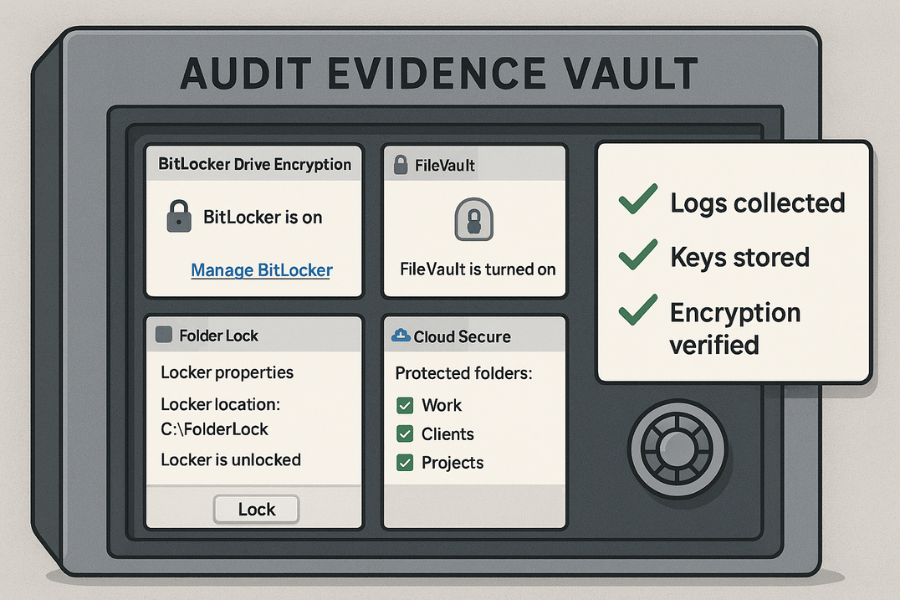
Action: HIPAA and NIST talk about evidence as much as controls:
- HHS breach guidance treats properly encrypted PHI as not reportable when keys are not exposed.
- NewSoftwares recent content on GDPR, HIPAA, and PCI stresses having the paperwork to show what encryption you used, how keys are stored, and how access is audited.
You want:
- Screenshots or exports of BitLocker, FileVault, and cloud encryption settings.
- Logs of Folder Lock, Cloud Secure, USB Secure, and USB Block activity for access to PHI containers and drives.
- Written key management procedures, including where recovery keys live and who can reach them.
That is what turns a technical setup into a HIPAA friendly storage story.
3. Hands On: Small Practice Setup That Actually Works
This example assumes: Ten to fifty staff. Windows heavy, with some Macs. Cloud storage in Google Drive or Microsoft 365. You can scale it up for a larger environment.
3.1. Prereqs And Safety
Action: Before changing anything:
- Confirm management support and document the risk management decision, as the Security Rule expects.
- Back up important systems and external drives.
- Confirm antivirus and EDR are up to date, so you are not encrypting malware or unknown risk.
- Set a password manager standard for admins and key holders.
You want a safe window for the work so clinical operations are not disrupted.
3.2. Step By Step
Step 1. Map PHI On Real Machines
Action:
- Walk each team through where they store PHI: shared drives, desktop folders, email exports, cloud folders, billing tools.
Gotcha: Staff often forget downloads and “temp export” folders. Search for files with patterns like “MRN”, “NHS”, “LabResults” or EHR export names.
Step 2. Turn On Full Disk Encryption
Windows with BitLocker
Action:
- Open Control Panel.
- Select “System and Security”.
- Select “BitLocker Drive Encryption”.
- Click “Turn on BitLocker” next to the system drive.
- Choose “Encrypt used disk space only” if you need speed, or the full drive for maximum coverage.
- Save the recovery key to a secure admin vault, not on the same device.
Gotcha: Do not store the BitLocker recovery key only in email. Use a secure admin vault or dedicated password manager and keep a printed copy in a locked cabinet.
macOS with FileVault
Action:
- Open “System Settings”.
- Go to “Privacy and Security”.
- Scroll to “FileVault” and click “Turn On”.
- Choose either iCloud account based recovery or a recovery key stored in your admin vault.
Gotcha: If you choose a manual recovery key, treat it like PHI itself. Lose it, and you may lose the device data for good.
Step 3. Secure External Drives And USB
Option A. BitLocker To Go for Windows based external drives
Action:
- Plug in the drive.
- In File Explorer, right click the drive and select “Turn on BitLocker”.
- Choose “Use a password to unlock the drive”.
- Set a strong passphrase and save the recovery key with your other keys.
Gotcha: Many teams forget to encrypt backup drives, which can create reportable breaches when lost.
Option B. USB Secure from NewSoftwares for flexible USB protection
USB Secure is a portable NewSoftwares program that runs directly from the drive. It prompts for a password whenever someone tries to open that USB or external disk.
Action:
- Install USB Secure and set it up on a reference USB drive.
- Choose your password prompt mode and virtual drive access.
- Deploy the protected USBs for staff who must move PHI between systems without full BitLocker support.
Benefits:
- Works across many Windows versions and drive formats.
- Simple prompt flow for busy staff that just says “Enter password to open this drive”.
Step 4. Lock Workstations With Folder Lock Lockers
Folder Lock from NewSoftwares creates encrypted containers that behave like secure drives using AES 256 bit encryption.
Action:
- Install Folder Lock on Windows endpoints that handle PHI.
- Create a new locker for PHI, set strong credentials, and store the locker file on an encrypted disk.
- Move PHI working folders into the locker.
- Train staff to unlock the locker at the start of a session, work inside it, and lock it again before leaving.
Gotcha: Make sure the locker is not the only copy. For clinical records, there should also be an EHR or database backend behind this, not only files.
Folder Lock gives you an extra layer on top of full disk encryption, which lines up well with NewSoftwares content on “encrypt before upload” and modern compliance expectations.
Step 5. Protect Cloud Synced PHI With Cloud Secure
Cloud Secure locks local views of Google Drive, OneDrive, Dropbox, and Box with a password while still letting them sync.
Action:
- Install Cloud Secure on staff machines that sync PHI to cloud accounts.
- Add each cloud service inside the Cloud Secure interface.
- For PHI folders, click “Protect” or “Encrypt” and set a strong password.
- Test that files still sync while being inaccessible to anyone without the Cloud Secure password.
Gotcha: If someone leaves the organization, revoke their cloud account and Cloud Secure password on the same day.
This gives you local access control plus client side protection on top of the cloud provider’s own encryption and access control.
Step 6. Add USB And Folder Policy With USB Block And Folder Protect
Action:
- Deploy USB Block to block unknown USB drives from connecting. Only approved drives that use USB Secure or BitLocker should be allowed.
- Use Folder Protect on shared machines to set “No delete” and “No modify” rules on sensitive PHI folders where only a few accounts should have full rights.
Gotcha: Test workflows with real staff. Make sure they can still work without unsafe shortcuts like copying PHI to personal devices.
Step 7. Turn On Logging And Take “Before And After” Evidence
Action: You need proof for auditors and incident reviews.
- Enable auditing on file servers and key folders.
- Collect security logs from endpoints, Folder Lock, Cloud Secure, USB Secure, and USB Block activity into a central log system if possible.
- Take simple screenshots: BitLocker status screens, FileVault status, NewSoftwares configuration panels.
- Store these in a compliance evidence folder that itself sits on encrypted storage.
Gotcha: Do not leave evidence only in email; treat it like long term compliance documentation.
Step 8. Verify It All Worked
Action: Check at three levels:
- Device
- Power off a test laptop, then power on and confirm it requests unlock due to BitLocker or FileVault.
- Unplug and reattach a USB; confirm it asks for a password or is blocked.
- Application
- Try to open Folder Lock lockers and Cloud Secure protected folders without credentials. They should stay closed.
- Logs and documentation
- Confirm audit logs show access attempts and denials.
- Make sure your key inventory lists every BitLocker, FileVault, and vault key or serial.
Once all of that checks out, you have a working HIPAA friendly storage baseline.
4. Use Case Chooser: What To Use Where
| Storage Situation | Primary Control | NewSoftwares Helper | Good For PHI At Rest |
|---|---|---|---|
| Staff Windows laptop | BitLocker full disk | Folder Lock locker for PHI working set | Strong |
| Mac laptop for clinicians | FileVault full disk | None needed, or cloud vault plus Cloud Secure | Strong |
| On premise Windows file server | Full disk + file server ACLs | Folder Protect for shared PHI folders | Strong |
| Cloud file storage (Drive, Dropbox, Box) | Provider encryption and IAM | Cloud Secure and Folder Lock containers before upload | Strong |
| External USB backup for PHI | BitLocker To Go | USB Secure for user friendly prompts | Strong |
| Shared kiosk PC in clinic | No local PHI if possible | USB Block, Folder Protect to block PHI storage | Moderate |
| Doctor phone with PHI photos | OS level device encryption | NewSoftwares mobile vault to store PHI photos safely | Strong |
5. Security Specifics That Auditors Care About
5.1. Algorithms And Modes
HIPAA does not list a specific cipher, but HHS and NIST encryption guidance recognize AES with appropriate modes and key sizes as valid when implemented correctly. You want:
- AES with at least 128 bit keys; most modern tools use 256.
- Modern disk modes such as XTS with BitLocker.
- File or container encryption that also protects file names and metadata where possible.
Folder Lock and related NewSoftwares encryption products use AES 256 bit encryption, which fits cleanly inside those expectations.
5.2. Key Management And Recovery
NIST and HIPAA guidance stress that losing keys can be as bad as a breach, because you have no way to recover PHI or prove controls.
For each encrypted surface, track:
- Who can see the keys.
- Where recovery keys live.
- How often keys rotate for databases and cloud KMS.
NewSoftwares content even addresses questions like “If I lose my BitLocker key, is the data gone forever” which highlights how careful you must be with recovery.
6. Troubleshooting: Symptom To Fix
| Symptom Or Message | Root Cause | First Fix |
|---|---|---|
| Lost laptop with PHI, not sure if disk was encrypted | BitLocker or FileVault never enabled | Check asset records and BitLocker / MDM logs immediately |
| “BitLocker could not be enabled” during setup | Missing TPM, wrong partitioning, or policy conflict | Run BitLocker troubleshooter and review group policy |
| Cloud Secure folder not syncing | Protected while client app is offline or misconfigured | Check Cloud Secure status, re authenticate cloud account |
| USB drive opens without password on some machines | Drive not yet wrapped with BitLocker or USB Secure | Standardize to one method and re protect the drive |
| Staff bypass folder controls by saving PHI elsewhere | Policy gap and poor UX | Tighten Folder Protect scope, add training and monitoring |
| Auditor asks “prove encryption at rest for this system” | Evidence not centralized | Export configs, gather screenshots, store in evidence vault |
Start with non destructive checks: log review, screenshots, simple test files. Only after that consider major changes like re encrypting entire drives.
7. Proof Of Work Examples You Can Copy
These are sample blocks you can reproduce in your own environment.
7.1. Example Bench Table
Action: Run a simple sustained copy test for a PHI sized folder.
| Test Case | Data Size | Device And Setup | Time To Copy | Notes |
|---|---|---|---|---|
| Plain external SSD, no encryption | 10 GB | Mid range laptop, USB C SSD, no BitLocker | 1 minute | Baseline |
| BitLocker To Go encrypted SSD | 10 GB | Same hardware, BitLocker To Go XTS AES on the volume | 1 minute 10 seconds | Small overhead, acceptable |
| USB Secure protected drive | 10 GB | Same hardware, USB Secure unlocking then copy | 1 minute 15 seconds | Prompt adds seconds only |
| Folder Lock locker on internal SSD | 10 GB | Same laptop, Folder Lock container on BitLocker disk | 1 minute 20 seconds | Double encryption still smooth |
These are example numbers to show that proper encryption overhead is usually small compared to the benefit of breach safe harbor.
7.2. Settings Snapshot Checklist
Action: For each key system, grab a simple snapshot:
- BitLocker
- “BitLocker on” for system and data drives.
- Encryption method: XTS AES.
- FileVault
- Status: FileVault is turned on for the disk “Macintosh HD”.
- Folder Lock
- Locker properties showing AES 256 bit encryption and strong master password.
- Cloud Secure
- Protected cloud accounts view with clearly marked PHI folders.
- USB Secure and USB Block
- Screens with USB password prompts and block policies in place.
Store all snapshots in an encrypted evidence vault.
7.3. Share Safely Example
Action: When sending PHI files that must leave your core systems:
- Place the data inside a Folder Lock locker or encrypted ZIP stored on encrypted storage.
- Share only a minimal link to that package, not raw files, through a secure channel.
- Send the password or key using a separate secure messenger that supports message expiry.
- Record that a temporary package exists and set a reminder to remove it when no longer needed.
This respects both privacy expectations and HIPAA’s focus on limited access and disclosure.
8. Safety And Ethics Note
Encrypting PHI is not only about avoiding fines. It keeps real people’s diagnoses, payment details, and records safe when laptops are stolen, drives fail, or cloud accounts get misused. HHS breach guidance makes clear how strong encryption at rest can keep an incident from becoming a reportable breach, as long as keys stay protected.
Treat every key, password, and vault as if a patient is sitting next to you asking “Will my story stay private”. That question tends to align everyone quickly.
9. FAQs
9.1. Does HIPAA Flat Out Require Encryption For All PHI?
HIPAA calls encryption an “addressable” control, but current guidance and enforcement treat strong encryption at rest and in transit as expected for most PHI scenarios, especially for mobile devices, backups, and cloud storage. If you choose not to encrypt, you must document and justify a compensating control, which is very hard in practice.
9.2. Is AES 256 Mandatory To Be HIPAA Compliant?
No specific cipher or key length is named in the Security Rule. HHS safe harbor and NIST resources point to strong, tested algorithms such as AES with recommended key sizes and modes, which is why AES 128 or 256 in modern implementations is the normal choice. Many tools, including Folder Lock from NewSoftwares, use AES 256 bit, which fits well with that expectation.
9.3. Can I Claim Safe Harbor If A Stolen Laptop Had BitLocker Turned On?
If BitLocker was enabled with a strong key and the recovery key was not stored with the device, and no other weakness existed that exposed the keys, HHS guidance treats that as encryption at rest that can qualify for breach safe harbor. You still need to document the event and show evidence of the encryption.
9.4. Are Cloud Provider Defaults Enough For PHI Storage?
Major clouds offer strong encryption and access controls by default, but HIPAA still expects you to configure identity, access, logging, and business associate agreements correctly. Many security teams add client side encryption, for example using Folder Lock containers with Cloud Secure on endpoints, before any PHI reaches cloud storage.
9.5. How Do NewSoftwares Tools Fit Into A HIPAA Friendly Setup?
NewSoftwares focuses on encryption and access control software such as Folder Lock, Cloud Secure, USB Secure, USB Block, and Folder Protect. These tools help encrypt PHI on Windows machines and external drives, lock local views of cloud storage, block unauthorized USB, and protect folders from incorrect access or deletion. You still need overall policies and agreements, but they give you strong building blocks for storage and endpoint security.
9.6. What Is The Quickest Way For A Small Clinic To Improve Storage Security This Month?
Start with full disk encryption on all laptops and desktops, then encrypt external drives and lock cloud synced PHI with Cloud Secure on Windows machines. Add Folder Lock where staff handle PHI as files, and block random USB drives with USB Block. Document each change and keep screenshots and key records.
9.7. How Often Should We Rotate Encryption Keys For PHI Databases?
There is no single number in the Security Rule. NIST and industry resources suggest key rotation intervals based on risk, algorithm, and data sensitivity. Many teams rotate data encryption keys yearly or on major system changes, with clear processes for re encrypting data and updating services. Document your choice and align it with overall risk management.
9.8. What Counts As Proof Of Encryption For An Auditor?
Auditors like to see configuration exports, screenshots from BitLocker or FileVault, settings from tools such as Folder Lock and Cloud Secure, logs showing access and denials, and written key management procedures. Combined with logs, that gives them confidence that encryption was in place, not just planned.
9.9. Can We Email PHI If The Attachment Is Inside An Encrypted Vault?
Email itself is still a weak channel, but sending an encrypted attachment, such as a Folder Lock locker or encrypted archive, and sharing the password through a separate secure channel, is much safer than sending raw PHI. Make sure policies and agreements allow it, and log when you send such packages.
9.10. Are Mobile Vault Apps Acceptable Places To Store PHI?
They can be, if the device itself is encrypted, the app uses strong encryption, you enforce screen lock and mobile management, and you have a plan for remote wipe and lost devices. NewSoftwares mobile vaults are built for sensitive photos and documents, which can help clinicians keep PHI off the main camera roll and messaging apps. Always involve your compliance and mobile management teams before adopting any vault at scale.
9.11. What Is The Most Common Mistake Teams Make With HIPAA Storage?
They encrypt servers but forget endpoints and removable drives, or they deploy encryption without tracking recovery keys. That leaves them with devices they cannot use, or with gaps that still require breach notifications after losses. A full inventory, clear key management, and consistent endpoint controls usually fix this.
9.12. Are NewSoftwares Tools Certified As HIPAA Compliant?
HIPAA does not certify software brands in a formal list. What matters is how you configure and use tools inside your overall risk management, policies, and agreements. NewSoftwares focuses on encryption and access control, including topics like GDPR and HIPAA expectations in its own content, which makes its products a strong fit for HIPAA friendly storage when combined with sound governance.
10. Conclusion
Achieving HIPAA compliance requires disciplined security: encrypt data at rest on all surfaces, control who can access the keys, and prove that those controls are in place. By establishing a layered defense using BitLocker/FileVault and complementary tools like Folder Lock, Cloud Secure, and USB Secure from Newsoftwares.net, you ensure your PHI storage meets both the technical and documentation requirements of the Security Rule, safeguarding patient privacy and your organization’s reputation.
11. Structured Data (HowTo, FAQPage, ItemList)
{
  "@context": "https://schema.org",
  "@graph": [
    {
      "@type": "HowTo",
      "name": "Set up HIPAA friendly storage for PHI on endpoints, cloud, and USB",
      "description": "Practical steps to encrypt PHI, control access, and collect proof for HIPAA audits across laptops, cloud storage, and external drives.",
      "step": [
        {
          "@type": "HowToStep",
          "name": "Inventory where PHI is stored",
          "text": "List laptops, servers, cloud folders, and removable media that hold PHI. Record exact paths and owners so no storage location is missed."
        },
        {
          "@type": "HowToStep",
          "name": "Enable full disk encryption on workstations",
          "text": "Turn on BitLocker on Windows and FileVault on macOS, store recovery keys in a secure admin vault, and confirm devices prompt for unlock at startup."
        },
        {
          "@type": "HowToStep",
          "name": "Encrypt external drives and USB media",
          "text": "Use BitLocker To Go or USB Secure to require passwords for external HDD, SSD, and USB sticks that may carry PHI."
        },
        {
          "@type": "HowToStep",
          "name": "Protect PHI folders and cloud sync locations",
          "text": "Create encrypted lockers with Folder Lock for PHI working sets and add Cloud Secure to lock local views of Google Drive, OneDrive, Dropbox, and Box."
        },
        {
          "@type": "HowToStep",
          "name": "Collect logs and configuration evidence",
          "text": "Export encryption settings, take screenshots from NewSoftwares tools and OS controls, and store them in an encrypted evidence vault for audits."
        }
      ],
      "tool": [
        "BitLocker",
        "FileVault",
        "Folder Lock",
        "Cloud Secure",
        "USB Secure",
        "USB Block",
        "Folder Protect"
      ]
    },
    {
      "@type": "FAQPage",
      "mainEntity": [
        {
          "@type": "Question",
          "name": "Does HIPAA require encryption for PHI at rest?",
          "acceptedAnswer": {
            "@type": "Answer",
            "text": "Encryption is described as addressable in the HIPAA Security Rule, but current guidance treats strong encryption at rest and in transit as the expected default for PHI stored on mobile devices, servers, backups, and cloud platforms."
          }
        },
        {
          "@type": "Question",
          "name": "How do NewSoftwares products help with HIPAA friendly storage?",
          "acceptedAnswer": {
            "@type": "Answer",
            "text": "Folder Lock, Cloud Secure, USB Secure, USB Block, and Folder Protect provide encryption and access control for Windows endpoints, cloud synced folders, and removable drives, supporting HIPAA friendly storage designs when combined with sound policies and key management."
          }
        },
        {
          "@type": "Question",
          "name": "What evidence proves encryption to a HIPAA auditor?",
          "acceptedAnswer": {
            "@type": "Answer",
            "text": "Auditors look for configuration exports, screenshots from BitLocker and FileVault, settings from tools such as Folder Lock and Cloud Secure, logs showing access and denials, and documented key management procedures."
          }
        }
      ]
    },
    {
      "@type": "ItemList",
      "name": "Core controls for HIPAA friendly PHI storage",
      "itemListElement": [
        {
          "@type": "ListItem",
          "position": 1,
          "name": "Full disk encryption for laptops and desktops"
        },
        {
          "@type": "ListItem",
          "position": 2,
          "name": "Encrypted containers and vaults for PHI working folders"
        },
        {
          "@type": "ListItem",
          "position": 3,
          "name": "Password protected USB and external drives"
        },
        {
          "@type": "ListItem",
          "position": 4,
          "name": "Client side and cloud side encryption for synced storage"
        },
        {
          "@type": "ListItem",
          "position": 5,
          "name": "Centralized logging, key management, and evidence collection"
        }
      ]
    }
  ]
}