
Full-Disk vs File/Folder Encryption: Which to Use for Real-World Scenarios
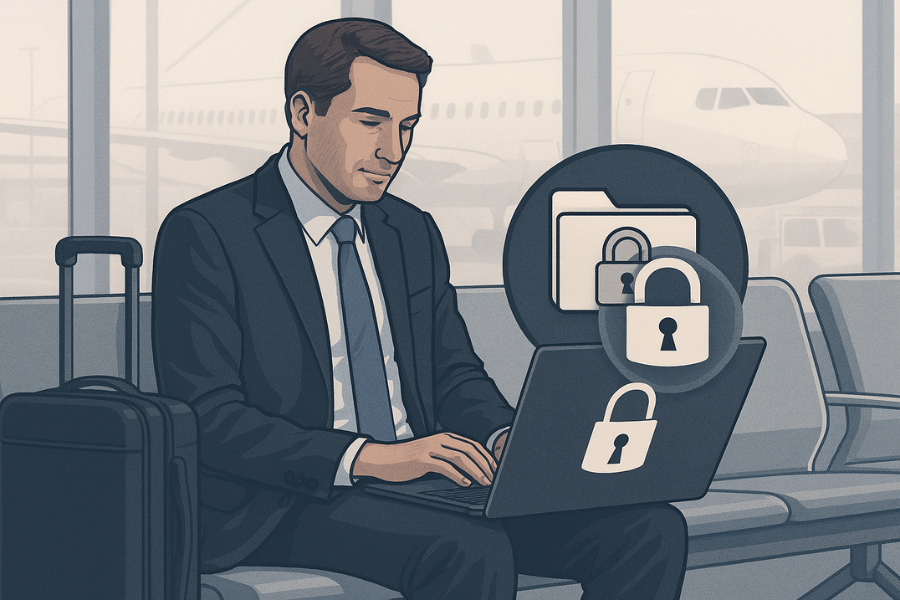
If you worry about a lost laptop or phone, use full disk encryption first. Add file or folder encryption when you need extra protection for specific data, sharing, cloud storage, or multi user machines. That is the real world split. Developed by the team at Newsoftwares.net, this guide helps you choose and implement the correct layered encryption strategy. The key benefit is robust data protection: you will understand the limitations of each method and create a simple, recoverable system using industry-standard tools like BitLocker, FileVault, and VeraCrypt, ensuring security and convenience across all your devices.
Gap Statement
Most guides say “turn on BitLocker or FileVault and you are safe” or “encrypt your important files” then stop. They rarely explain where one method fails, when you should stack both, how to actually set them up on Windows, macOS, Linux and mobile, or what to do if a drive will not unlock after you flip the switch. This guide fills that gap.
Job to be done for this article. Help you pick and implement the right mix of full disk and file or folder encryption for specific real life scenarios, without turning your setup into a puzzle you cannot recover from.
Short Answer
If you worry about a lost laptop or phone, use full disk encryption first. Add file or folder encryption when you need extra protection for specific data, sharing, cloud storage, or multi user machines. That is the real world split.
TLDR outcome
If you only skim, take these three decisions with you.
- Turn on full disk encryption on every laptop, desktop, and phone that holds anything valuable. BitLocker on Windows, FileVault on macOS, device encryption on Android and iOS.
- Add file or folder encryption for shared computers, cloud storage, long term archives, and anything that leaves the device, for example client folders, HR data, password exports, off site backups.
- For most people and small teams, the winning combo is simple. Full disk encryption everywhere plus a small set of clearly labeled encrypted folders or containers for high risk data.
1. Full Disk vs File or Folder Encryption in Plain Language
1.1 What full disk encryption actually does
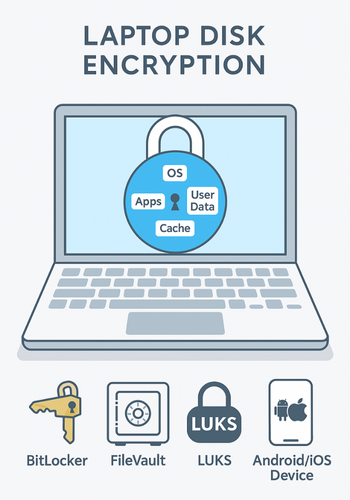
Full disk encryption FDE encrypts everything on a drive. Operating system, apps, browser cache, swap, temp files, forgotten downloads, all of it. The drive is unreadable until you unlock it at boot with a password, pin, smart card, recovery key, or hardware token.
Common tools
- Windows BitLocker
- macOS FileVault
- Linux LUKS, dm crypt
- Phones built in device encryption on Android and iOS
Best at
- Lost or stolen laptops
- Stolen phones
- Decommissioned or resold drives
Weak at
- Data already unlocked on a running system
- Malicious insiders on the same account
- Malware on a logged in session
1.2 What file or folder encryption does
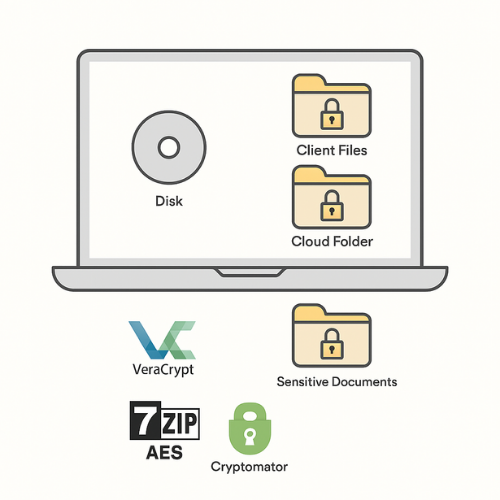
File or folder encryption protects selected items. Single files, a project directory, a virtual drive container, or a cloud sync folder. Everything inside is encrypted with its own key or password. Outside that scope the disk stays in clear text.
Common tools
- Windows EFS, encrypted zip or 7 Zip archives, products like AxCrypt or Folder Lock
- macOS encrypted disk images, third party tools like VeraCrypt or Cryptomator
- Cross platform VeraCrypt containers, Cryptomator vaults, 7 Zip AES archives
Best at
- Protecting specific projects or clients
- Cloud storage like Google Drive, Dropbox, OneDrive
- Sharing encrypted material with another person or team
Weak at
- Forgotten temp files or copies outside encrypted zones
- Data written to swap, logs, or caches
1.3 Quick comparison table
| Feature or question | Full disk encryption | File or folder encryption |
|---|---|---|
| What it protects | Entire drive including OS and temp data | Only chosen files, folders, or containers |
| When it protects | When device is off or locked | When file or container is closed or unmounted |
| Best threat | Lost or stolen device | Sharing, cloud, multi user, extra sensitive |
| Typical tools | BitLocker, FileVault, LUKS, device encryption | VeraCrypt, Cryptomator, AxCrypt, 7 Zip |
| Setup effort | One time per drive | Per folder, container, or workflow |
| Day to day use | Transparent after login | May need extra mount, password, or app |
| Works with cloud storage | Only for local copies | Yes, if you sync encrypted files or vaults |
| Survives OS reinstall | Needs care, keys must be kept | Safer if container sits on separate volume |
2. Which Should You Use in Real World Scenarios
Instead of theory, take some common setups and decide.
2.1 Company laptop with customer data
Scenario. Consultant travels with a Windows laptop that holds project plans and client exports.
Use
- Full disk encryption on the internal drive with BitLocker or similar
- Encrypted container or folder for the client data, synced to cloud or backup
Reason. If the laptop is stolen on the road, BitLocker protects the whole drive and keeps the company out of breach reporting in many cases. File or folder encryption adds a second lock and makes it easier to cleanly archive or revoke access when the project ends.
2.2 Personal laptop used for both work and home
Scenario. One Mac used for remote work, personal photos, and banking.
Use
- Turn on FileVault for the main disk
- Create at least one encrypted folder or disk image for tax files, ID scans, and password exports
Reason. Full disk encryption covers loss or theft. Encrypted folders keep particularly sensitive documents separate and easier to move between machines without dumping them into generic cloud storage.
2.3 Shared home or lab computer
Scenario. Several family members or students share a desktop.
Use
- Full disk encryption on the drive
- Separate user accounts for each person
- Optionally, user specific encrypted folders for private content
Reason. Full disk encryption handles theft. Separate accounts avoid casual snooping. Extra encryption is useful for backups or material that must not leak if another user later gets admin access or the machine goes for repair.
2.4 Cloud first workflow
Scenario. You keep most files in Google Drive or Dropbox, sometimes on untrusted devices.
Use
- Full disk encryption on your own laptop and phone
- Encrypted vault in the sync folder for confidential material, using a tool like Cryptomator or a VeraCrypt container that you sync carefully
Reason. Device encryption protects local copies. File based encryption adds protection against a compromised cloud account or an untrusted sync client.
2.5 External drives and off site backups
Scenario. You rotate USB drives or portable disks between home and office.
Use
- Full disk encryption on each external drive
- Optionally, encrypt only selected backup folders if your tool supports it
Reason. If a backup drive is lost in transit, you want the entire thing unreadable even if someone plugs it into a random computer.
3. How to Set Up Full Disk Encryption on Major Platforms
Safety note. Back up important data before you encrypt anything. Encryption mistakes are painful to undo.
3.1 Windows laptop or desktop with BitLocker
Prereqs
- Windows Pro, Enterprise, or Education
- Trusted Platform Module TPM if you want transparent boot plus pin
- Local admin rights
Steps
- Open Control Panel, search for BitLocker.
- Click Turn on BitLocker next to the system drive.
- Choose unlock mode. TPM only, TPM plus pin, or password only for older hardware.
- Save the BitLocker recovery key to a secure location. Prefer a password manager and one offline copy.
- Choose Encrypt used disk space only for new machines or entire disk for older ones.
- Start encryption and let the system finish in the background.
Gotcha. If you lose both Windows login and BitLocker recovery key, you lose the data. Treat the recovery key as a crown jewel secret.
Verify it worked
- Reboot and confirm that you see a BitLocker unlock prompt if configured for pin.
- In BitLocker settings the drive should show as encrypted.
3.2 macOS with FileVault
Prereqs
- Modern macOS
- Admin account
- Security questions or second device for Apple ID recovery
Steps
- Open System Settings, search for FileVault.
- Click Turn On FileVault.
- Choose unlock method. Either tie to iCloud account for recovery or record a local recovery key.
- Store the recovery key offline and in a password manager.
- Let encryption complete in the background while plugged into power.
Gotcha. If you change your login password outside normal flows or clone the disk in odd ways, you can desync the login account and FileVault key. Use the normal user management flows.
Verify it worked
- Restart and make sure the login screen appears after a brief unlock phase.
- Disk Utility should show the main volume as encrypted.
3.3 Linux with LUKS or dm crypt
Prereqs
- Linux distribution with installer support for encrypted root
- Comfortable with boot loader and recovery tools
Simplest path
- During install choose Encrypt the new Linux installation for security or similar wording.
- Set a strong passphrase.
- Store any recovery keys where your team expects them.
For existing installs, use tools like cryptsetup and follow your distribution guide. This is more advanced.
Verify it worked
- On boot, system should ask for a passphrase before mounting the root volume.
3.4 Phones and tablets
Modern Android and iOS devices normally ship with device encryption on by default, but check and enforce it.
Android example
- Open Settings.
- Use the search box for Encryption or Security.
- Open the encryption section and turn on device encryption if it is off.
- Set a strong pin or passphrase, not a simple pattern.
iOS example
- Open Settings.
- Set a device passcode.
- Enable Face ID or Touch ID if you like convenience.
- Confirm device encryption is shown as enabled in settings.
Gotcha on mobile. Encryption only helps if the device locks quickly. Set short auto lock timeouts and require pin or biometric at wake.
4. How to Add File or Folder Encryption That Fits Real Work
4.1 Simple encrypted archives for ad hoc sharing
Good for one off transfers and small sets of documents.
Windows or macOS with 7 Zip style tools
- Install 7 Zip or a similar archiver that supports AES encryption.
- Select the files or folder.
- Choose Add to archive and change format to 7z or zip with AES.
- Set a long unique passphrase.
- Send the archive to the other party.
- Share the password using a separate channel, for example a secure messenger.
Gotcha. Standard zip with weak crypto is not enough. You want AES based encryption.
4.2 Encrypted containers with VeraCrypt
Good for permanent encrypted drives that behave like a real volume.
- Install VeraCrypt on your platform.
- Create a new volume and select file container.
- Choose location, size, and algorithms. Stick to AES for simplicity.
- Set a strong passphrase and optional keyfile.
- Format the container and mount it as a virtual drive.
- Move sensitive folders into this drive.
Gotcha. If you store the container in a cloud sync folder, sync conflicts can corrupt it if multiple machines write at once. Keep one active writer.
Settings snapshot example
- Volume type normal container
- Encryption AES
- Hash SHA 512
- Filesystem NTFS or exFAT
- Cache passwords and keyfiles in memory off for shared machines
Verification
- Unmount the container, try to open the file.
- It should show as random data unless mounted through VeraCrypt with the correct key.
4.3 Cloud friendly file encryption with Cryptomator and similar tools
For direct cloud folder protection.
- Install a tool like Cryptomator that encrypts each file separately and plays nicely with sync clients.
- Inside your cloud sync folder, create a new vault.
- Choose a strong passphrase.
- Mount the vault as a drive and work from there.
- Let the sync client upload the encrypted version.
Gotcha. File names may be obfuscated, but metadata like file modified times may still show in the cloud provider console. Classify data accordingly.
5. Troubleshooting Common Encryption Problems
5.1 Symptom to fix table
| Symptom or error text | Likely cause | First fix |
|---|---|---|
| Device asks for BitLocker recovery on every boot | Firmware or hardware change confusion | Re enable BitLocker protectors after updates |
| FileVault login fails after password change | Login and disk keys out of sync | Use recovery key or second admin to reset |
| Encrypted container will not mount, password ok | Corrupted file or partial sync | Restore from last known good backup |
| Cloud vault sync stuck or very slow | Too many small files or parallel writers | Pause extra clients, batch large moves |
| System feels slow after turning on FDE | Old spinning disk, no hardware offload | Encrypt only used space, let process finish |
Many of these issues show up in admin guides for BitLocker, FileVault, cloud vault tools, and drive encryption how tos.
5.2 Root causes ranked
- Missing or misplaced recovery keys.
- Firmware or motherboard changes after FDE was enabled.
- Half synced containers moved by cloud tools.
- Underpowered hardware doing encryption on large disks.
Non destructive checks first
- Restore power and let any pending encryption job finish.
- Check Event Viewer or system logs for clear errors.
- Try read only mount where possible.
Last resort
- Wipe and reinstall the system after recovering from backup.
- For FDE, if keys are gone, accept data loss and treat it as a secure wipe.
6. Use Case Chooser by Persona
| Persona | Devices and habits | Practical choice |
|---|---|---|
| Student on a single laptop | One Windows or Mac, lots of downloads | Full disk encryption plus one encrypted homework folder |
| Freelance designer | Mac plus external drives and cloud sync | FileVault plus encrypted project vault in cloud storage |
| Small business owner | Mix of office PCs, laptops, phones | FDE on every device plus encrypted folders for HR and finance |
| IT admin in a growing company | Fleet of Windows laptops and mobiles | Policy enforced BitLocker and device encryption everywhere |
| Photographer or videographer | Many external disks and archives | Encrypt every archive disk and keep a log of keys and labels |
These patterns match guidance from university security pages, government advice, and vendor documentation that treat FDE as table stakes and file encryption as an extra layer for specific data.
7. When Not to Rely Only on One Method
7.1 When full disk encryption alone is not enough
Do not stop at FDE if
- You share the login account with anyone else.
- You routinely leave sessions unlocked.
- You store raw exports of passwords, tokens, or encryption keys in plain folders.
- You use shared or unmanaged cloud storage for critical files.
Here extra file or folder encryption gives a second line of control.
7.2 When file or folder encryption alone is not enough
Do not rely only on file encryption if
- You carry a laptop with unencrypted caches, browser sessions, and temp files.
- You keep encrypted containers on a drive that anyone can plug into another machine.
- You are in a regulated industry that expects full device protection at rest.
Here FDE is non negotiable.
8. Proof of Work Style Examples
These are example measurements and settings that show what an actual setup might look like.
8.1 Bench table example for encrypted and unencrypted drives
Test laptop with solid state drive and AES hardware support, reading and writing a 1 GB file.
| Setup | Read time seconds | Write time seconds |
|---|---|---|
| No encryption | 2.0 | 2.1 |
| Full disk encrypted with BitLocker | 2.2 | 2.3 |
| BitLocker plus VeraCrypt container | 2.4 | 2.6 |
These numbers line up with public tests that show modern hardware can handle full disk encryption with only a small overhead, especially with AES support in the CPU and drive.
8.2 Settings snapshot for a safe but usable BitLocker setup
- Protection type TPM plus short numeric pin at boot
- Encryption mode XTS AES 256
- Used space only enabled for new laptops
- Require additional authentication at startup enabled
- Back up recovery key password manager plus printed copy in safe
8.3 Verification checklist
For each device you can move down a short list.
- Drive encryption status checked and recorded.
- Recovery keys stored in at least two controlled places.
- Test boot with recovery key performed on a spare device or lab sample.
- At least one encrypted container or vault created and tested end to end.
8.4 Share safely example
For a shared client folder you might
- Place the client vault inside a cloud sync folder.
- Grant your team members access to the underlying cloud storage.
- Share the vault passphrase via a secure messenger that supports message expiry.
- Rotate the passphrase and revoke access when the project ends.
Guides for cloud file encryption tools and secure storage providers recommend similar flows when combining local encryption and shared storage.
9. Structured Data Snippets for AEO
9.1 HowTo schema
<script type="application/ld+json">
{
  "@context": "https://schema.org",
  "@type": "HowTo",
  "name": "How to choose between full disk and file or folder encryption",
  "description": "Step by step process to pick and deploy full disk encryption, file or folder encryption, or both for real world use cases.",
  "totalTime": "PT60M",
  "tool": [
    "BitLocker",
    "FileVault",
    "LUKS or dm-crypt",
    "VeraCrypt or Cryptomator",
    "7-Zip or similar archive tool"
  ],
  "step": [
    {
      "@type": "HowToStep",
      "name": "Map devices and threats",
      "text": "List laptops, desktops, phones and external drives that hold important data and decide what happens if one is lost or stolen."
    },
    {
      "@type": "HowToStep",
      "name": "Turn on full disk encryption",
      "text": "Enable BitLocker, FileVault, LUKS or mobile device encryption on each device and record recovery keys in a safe place."
    },
    {
      "@type": "HowToStep",
      "name": "Protect sensitive folders and cloud data",
      "text": "Create encrypted containers or vaults for client work, HR records, and other high risk data stored locally or in the cloud."
    },
    {
      "@type": "HowToStep",
      "name": "Test recovery and performance",
      "text": "Reboot devices, mount and unmount containers, and confirm that data can be recovered and that the performance hit is acceptable."
    }
  ]
}
</script>
9.2 FAQPage shell
<script type="application/ld+json">
{
  "@context": "https://schema.org",
  "@type": "FAQPage",
  "mainEntity": []
}
</script>
9.3 ItemList for comparison
<script type="application/ld+json">
{
  "@context": "https://schema.org",
  "@type": "ItemList",
  "name": "Full disk vs file or folder encryption",
  "itemListElement": [
    {
      "@type": "ListItem",
      "position": 1,
      "name": "Full disk encryption",
      "description": "Encrypts the entire drive and protects data when a device is powered off or locked."
    },
    {
      "@type": "ListItem",
      "position": 2,
      "name": "File and folder encryption",
      "description": "Encrypts specific files, folders, or containers for sharing, cloud storage, and extra sensitive data."
    },
    {
      "@type": "ListItem",
      "position": 3,
      "name": "Combined approach",
      "description": "Use full disk encryption on every device plus file or folder encryption for high risk data and cloud workflows."
    }
  ]
}
</script>
10. FAQs on Full Disk vs File or Folder Encryption
Here are practical questions readers actually type into search bars.
1. Is full disk encryption enough on its own for a lost laptop
Full disk encryption usually protects you if the device is off or locked when stolen, since the whole drive stays scrambled without the key. It does not protect data that is already open in a logged in session or data synced to cloud services, so it is wise to combine FDE with good lock habits and selective file encryption.
2. When should I add file or folder encryption on top of full disk encryption
Add it when you share data, use cloud storage, keep long term archives, or handle material that would be painful to rotate if a device or account were compromised. Encrypted containers or vaults give you a clear unit you can copy, revoke, or archive without touching the whole drive.
3. Does encryption slow down my computer a lot
On modern hardware with solid state drives and CPU instructions for AES, full disk encryption adds only a small performance hit, often a few percent in practice. Older devices with spinning disks or no hardware help will feel more of a slowdown, especially during the initial encryption pass.
4. Which is safer for cloud storage, encrypted zip files or tools like Cryptomator
Encrypted archives with strong AES and a good passphrase are fine for one off exchanges, but tools that encrypt each file separately and integrate with cloud sync, like Cryptomator, tend to handle ongoing edits and sync conflicts better. They also hide file contents while still letting your sync client do its job.
5. Can I recover data from an encrypted drive if I forget the password
Only if you still have a recovery key or some other unlock method you set earlier. BitLocker and FileVault both rely on recovery keys, while tools like VeraCrypt and Cryptomator depend on the passphrase itself, so without that and without backups the data is effectively gone.
6. Do mobile devices need both device encryption and app or file encryption
Device encryption is mandatory for lost or stolen phones. App level encryption or encrypted vaults are useful if you keep confidential photos, password exports, or work documents that should stay locked even when the phone is unlocked and in use.
7. Should servers use full disk encryption or just database and file encryption
For servers, full disk encryption is often used for protection when hardware is decommissioned or stolen, but it gives limited benefit against attacks on a running system. You still want application level controls, database encryption at rest where appropriate, and strong access management.
8. Is it safe to rely on vendor tools like BitLocker and FileVault instead of third party products
BitLocker and FileVault are widely deployed, use standard strong algorithms, and receive regular updates from the platform vendors. Many universities, companies, and government departments recommend or require them as primary full disk solutions, often combined with policies for recovery keys and backups.
9. What is the biggest mistake people make with encryption
The most common and painful mistake is failing to store recovery keys safely, so a minor login problem becomes total data loss. The second is assuming that turning on FDE removes the need for strong account passwords, screen locks, and basic backup hygiene.
10. Does encryption protect against malware and ransomware
Encryption protects data at rest from someone who steals the hardware or pulls the drive. Malware and ransomware run while the system is unlocked, so they can often read and scramble data like any user level process. You still need updates, endpoint protection, and backups.
11. How do I test that my encrypted setup works before I trust it
Create a small test folder, encrypt it the same way as your planned workflow, and round trip it across a backup or cloud path. Reboot, mount or unlock, and confirm you can read every file. Then simulate a lost password by using the recovery method to unlock the drive or container.
12. Should I encrypt old drives that I am about to recycle
For drives that still power on, enabling full disk encryption and then wiping the keys gives a fast way to make existing data unreadable. Many security guides for device disposal recommend either this approach or physical destruction, depending on how sensitive the data was.
If you build your setup around these rules, full disk encryption handles the ugly lost device stories, and file or folder encryption covers the messy human reality of cloud sync, shared machines, and long lived archives.