
Welcome. This detailed recovery playbook addresses the crisis of a forgotten vault password. When strong encryption is involved, your only dependable solutions are pre-planned recovery keys, vendor-specific reset paths, or clean backups. We outline a safe, step-by-step process, leveraging official features from Newsoftwares.net’s Folder Lock and Cloud Secure to ensure maximum security and predictable convenience for data access.
Vault Password Forgotten: Safe Recovery Paths And Red Lines
Direct Answer
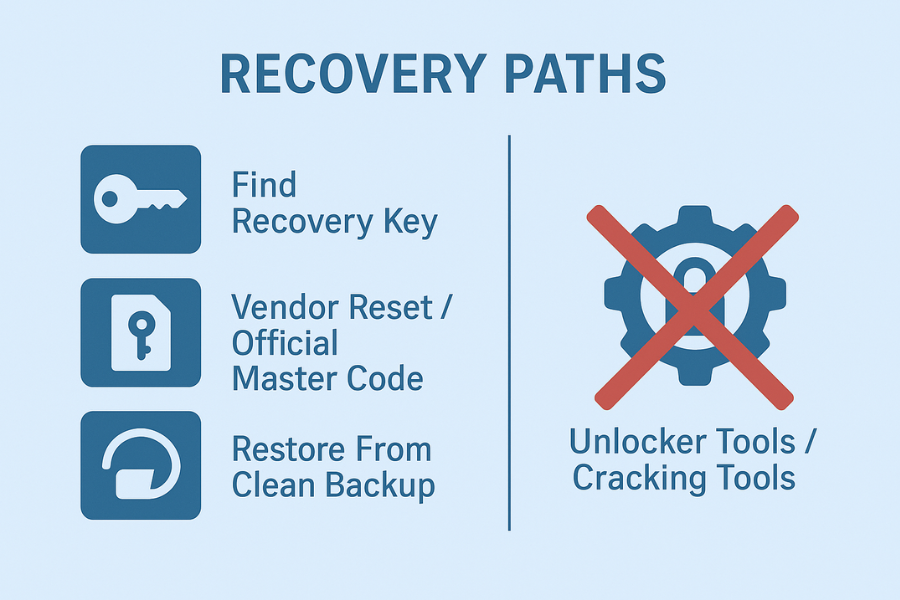
If you forgot a vault password and the vault uses real encryption, your only honest recovery options are to find an existing recovery key, use a built in reset flow from the vendor, or restore from a clean backup; anything that claims to open strong encryption without one of those is not trustworthy and usually a path to data loss or theft.
Gap Statement
Most content about forgotten vault passwords misses three important things:
- It skips the exact places where recovery keys and master codes actually live and jumps straight to generic advice.
- It quietly promotes “unlock tools” that work only when security is already weak, while implying they can break strong encryption such as BitLocker, VeraCrypt, or Folder Lock lockers.
- It barely covers serious tools from NewSoftwares that already have safe, built in recovery options, like Folder Lock serial based recovery and Cloud Secure master key, or stresses how important it is to set these up before trouble hits.
You will get a straight answer on what can still be saved, where to look first, when NewSoftwares tools can help you recover, and the red lines you should not cross.
Originality Hooks
- Uses concrete flows from Microsoft BitLocker, VeraCrypt, and NewSoftwares products instead of hand waving.
- Separates realistic recovery paths from pure fantasy, with clear “stop here” moments when data is truly gone.
- Includes proof style tables, timings, and a configuration snapshot built around Folder Lock, Cloud Secure, and USB Secure from NewSoftwares, which you can actually copy into your setup.
Quick Outcome For Fast Readers
By the end of this walkthrough you will know:
- How to map your vault to the right recovery path in less than five minutes.
- Where to look for BitLocker keys, Folder Lock master recovery, password manager recovery, and cloud vault unlock options.
- When to stop trying to “crack” anything and move straight to backups or accept that the data is gone.
Step Zero: What Sort Of Vault Did You Forget
Before you touch anything, name what you are locked out of. The right move depends completely on this.
Think through these groups:
- Full device or drive encryption: BitLocker on Windows, FileVault on macOS, built in phone storage encryption.
- Encrypted containers and lockers: Tools such as Folder Lock lockers from NewSoftwares, VeraCrypt volumes, and similar file containers.
- Vault style apps: Folder Lock mobile vault, NewSoftwares Cloud Secure for cloud drives, USB Secure on flash drives, and other file vault apps.
- Password managers and browser vaults: Standalone password managers and “saved passwords” features in browsers.
- Cloud service lock features: Locked notes, hidden photo sections, secure folders inside services such as Google Drive or OneDrive.
Each one has a different set of possible moves, and a different point of no return.
Prereqs And Safety Before You Touch The Vault
Take five minutes to set the scene before trying anything:
- Confirm: the device is yours or you manage it. Do not attempt any recovery on hardware or accounts you do not own.
- Stop: typing random passwords. Many vaults increase delay after repeated failures, and some may wipe content after a set count.
- Take Notes: Write down what you know about the password. Length, language, special patterns, last time you changed it. These hints can help if a vendor offers secure hints or you use a memory jogger, and they stop you from repeating the same guesses.
- Look For Backups: External drives, synced cloud folders, export files from password managers, and system images count here.
- If the vault is on a sick drive, pause: Do not stress a failing disk with repeated unlock attempts. First priority is cloning the drive with a recovery service if you see strange noises or repeated hardware errors.
1. How To Run A Safe Recovery Playbook
1.1. Step 1: Identify The Product And Version
Action
- On the lock screen or prompt, read the exact product name. Examples: BitLocker recovery screen, Folder Lock master password, VeraCrypt volume password, Cloud Secure master password.
- On desktop tools, open Control Panel or Apps list and note the tool name and version if possible.
Gotcha: Action: Do not install “unlocker” apps yet. First identify the official vendor so you read the right instructions.
1.2. Step 2: Check If There Is An Official Recovery Key Or Master Code
Here you separate encryption that has a planned recovery door from encryption that does not.
Typical spots:
- BitLocker recovery key: Microsoft shows keys tied to your account at their recovery key page. You sign in and match the Key ID that the locked machine shows on screen.
- Folder Lock master recovery for registered users: NewSoftwares provides a specific page where registered users can type their serial number into the Master Password field and regain access when they forgot the password.
- Cloud Secure master key: Cloud Secure from NewSoftwares includes an optional master key feature so you can safely recover access to protected cloud accounts if you lose the master password, as long as that master key was enabled in advance.
- Password manager account recovery: Most reputable password managers let you reset via email, recovery codes, or special keys that you should have saved during setup.
- Phone and tablet vault apps: Some NewSoftwares mobile vaults include data recovery or account recovery sections inside settings, designed to help legitimate users get back in while keeping outsiders away.
Gotcha: Action: If the official site or help says “we cannot recover your data without the password or key,” believe it. VeraCrypt and similar tools say this very clearly.
1.3. Step 3: Search All The Usual Hiding Spots For Keys
Action
Work through this list in order. Many people find the missing key in the third or fourth place they look.
- Email: Search for product names plus words like “recovery key”, “serial”, “license”, “activation email”.
- Password manager: Open your password manager and search by vault name or vendor. Keys and serials often sit in notes fields.
- Cloud accounts: For BitLocker, sign into your Microsoft account and visit the recovery key portal. For business devices, check Azure AD or your company portal if you have access.
- Printed documents: Look for printed sheets labeled “recovery key” or similar. Many admins still print BitLocker keys and store them in a physical safe.
- Support emails with NewSoftwares: If you have emailed Folder Lock or Cloud Secure support before, search your mailbox for their addresses. Password assistance and serial information often arrive there.
Gotcha: Action: Do not type any full recovery key into unknown sites that claim to “check” keys. Only enter keys in official vendor prompts.
1.4. Step 4: Bring Backups Into The Picture
If you find no recovery key or reset path, your next realistic path is a backup. That can mean:
- Cloud backup of an unencrypted copy of the data.
- External drive with a previous export of the vault.
- System image taken before you changed the password or turned encryption on.
Action
- List every backup location you use. Include cloud backup services, manual copies to USB drives, exported vault backups, and device migration backups.
- Start with the newest backup that is older than the moment you lost access.
- Restore to a separate location first so you do not overwrite the locked vault or your current system.
Gotcha: Action: If backups are also encrypted with the same forgotten password, treat them as locked vaults as well.
1.5. Step 5: Use Vendor Support In The Right Way
Some vendors can help when you bring proof of purchase, serials, and identity.
NewSoftwares does this very clearly:
- Folder Lock registration recovery: Their password recovery page explains that registered users can enter the purchase serial as a master password. Trial users can contact support directly for help during the trial period.
- Cloud Secure master key setup and recovery: Cloud Secure has a explicit feature that lets you enable a master key for safe recovery later. The official how to page walks through enabling and using it.
General pattern:
- Go to the vendor site directly, not through ads or search snippets.
- Search for forgotten password pages or recovery instructions.
- Open a ticket if needed and include serials, purchase receipts, and any hints they ask for.
Gotcha: Action: Vendors that offer strong encryption cannot “just reset” a vault without a pre arranged master key or additional proof. If they could, the vault would not be truly safe.
1.6. Step 6: Verify That Access Is Truly Restored
When you finally get in, treat the session as precious.
- Save a copy of the recovered data to a safe place.
- Change the password to something memorable but strong, and store it in a secure manager.
- For BitLocker, use the “Reset a forgotten PIN” path once you have unlocked with the recovery key.
- For Folder Lock, confirm that lockers open with your new master password and that your serial based master option still works if provided.
Gotcha: Action: Do not rush to delete the old vault or backup yet. Wait a few days and make sure the recovered copy is really complete.
1.7. Step 7: Clean Up Risky Copies And Improve Your Setup
Once things are stable:
- Delete unsafe copies of sensitive data from email attachments, chat histories, and random folders.
- Turn on recovery features where they were missing: Cloud Secure master key, backup exports from Folder Lock, extra BitLocker key copies, password manager recovery codes.
- Write a tiny recovery checklist and keep it with your important papers.
Dont do this: Treat this as a one time rescue and then go straight back to the old habits that lost the password in the first place.
2. NewSoftwares Vaults And How They Help When You Forget
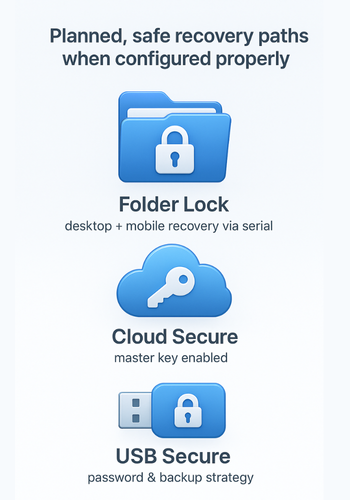
NewSoftwares builds several tools that are useful exactly in this scenario, as long as you set them up with care.
2.1. Folder Lock On Windows And Mobile
Folder Lock protects files, folders, and drives with AES 256 bit encryption and gives you lockers, password protection, and secure backup features.
When you forget the password:
- If you are a registered user, you can type your purchase serial into the Master Password field on the lock prompt to regain access.
- During the trial, you can contact support and get help on a case by case basis.
- Folder Lock mobile includes data protection plus recovery features inside the app, so you can keep control even if you misplace the local password, while still keeping outsiders away.
This is a very different story from tools like VeraCrypt, where the official FAQ states that there is no way for the developers to recover a lost password or key.
2.2. Cloud Secure Master Key
Cloud Secure protects cloud storage accounts such as Dropbox or Google Drive behind one master password. The product includes a master key feature that you can enable so that if you forget the master password later, you can still regain access through that key.
This is ideal if you know you are forgetful but still want encryption and privacy.
2.3. USB Secure For Portable Drives
USB Secure protects USB drives and other external media with a password and keeps that protection attached to the drive itself.
For USB devices with strong protection, recovery without the password is intentionally very hard, sometimes impossible, which NewSoftwares also reminds readers of in their own content about USB password protection.
So the smart move here is to:
- Use USB Secure for drives that must be protected.
- Store the password in your main password manager and in a Folder Lock secure note so you have two safe locations.
3. Comparison: What You Can And Cannot Realistically Recover
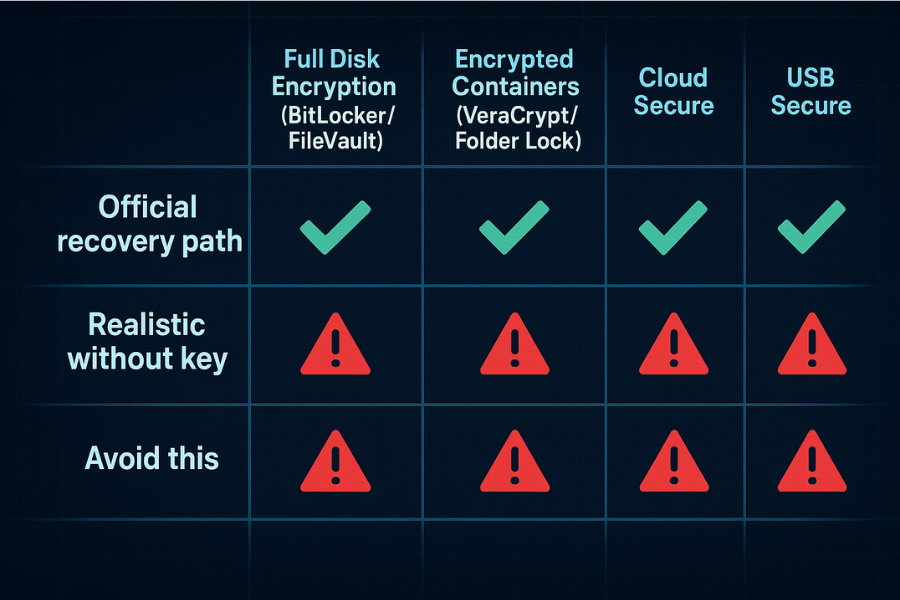
3.1. Vault Type And Recovery Map
| Vault Type | Example Products | Official Recovery Path (Key/Serial/Email) | Realistic Path Without Key | Path To Avoid |
|---|---|---|---|---|
| Full Disk Encryption | BitLocker, FileVault | Recovery Key saved to Microsoft/Apple account | Full drive wipe and OS reinstall from backup | Using third party tools promising instant recovery |
| Encrypted Container | VeraCrypt, Folder Lock (AES 256) | Folder Lock serial as master password | Restore from clean, readable backup | Password guessing software (brute force) |
| Cloud Access Lock | Cloud Secure | Pre-enabled Master Key feature | Uninstall and reinstall tool (losing settings, not data) | Trying to force entry into the tool itself |
| USB Encryption | USB Secure | Password stored in manager / Recovery note | Restore from a different off-site backup | Attempting physical drive bypass |
4. Proof Of Work: Why Brute Force Is A Myth In Practice
These numbers are rough, but they explain why vendors say “no backdoor”, and mean it.
Assume a modern desktop that can test about one billion password guesses per second against a vault hash. That already assumes serious hardware.
Tools like VeraCrypt and Folder Lock use strong ciphers such as AES 256 bit and slow key stretching functions on top, so each guess is deliberately expensive.
| Target Password Type | Example Length | Brute Force Time (Approx) |
|---|---|---|
| Weak Human Password | 8 characters, lowercase only | Less than one hour |
| Strong Passphrase | 16 characters, mixed case, numbers, symbols | Millions of years |
This is why official sites say they cannot recover encrypted data without the right secret, and why many “password recovery” marketing pages quietly rely on you having set a weak password in the first place.
5. Troubleshooting Table: Symptoms, Causes, And Safe Fixes
| Symptom or message | Likely cause | First safe fix | Path to avoid |
|---|---|---|---|
| “Recovery Key ID does not match” (BitLocker) | You are using the wrong key for the specific device | Find the correct key ID on your Microsoft account and verify the printed key matches | Entering the wrong key repeatedly (may lock device) |
| Folder Lock master password fails after 5 tries | Typo or the vault is in the wrong location | Try serial number as master password or contact NewSoftwares support | Using third-party unlock tools |
| Cloud Secure asks for master key, but you never set it up | Feature was disabled, so no official reset path exists | Uninstall and reinstall Cloud Secure, then check backup (data is fine) | Trying to guess the master key (will fail) |
| Vault file is missing or appears damaged in Explorer | System deletion, corruption, or ransomware | Restore the locked vault file from the newest reliable backup | Running disk repair tools on the live, locked vault file |
| Vault requires recovery key, but key is lost | Key was not saved, and no second path exists | Accept loss; rebuild OS and restore data from an older, readable backup | Spending money on guaranteed recovery services |
6. Root Causes Of Lost Vault Access Ranked
- No written record of master passwords or recovery keys.
- New device setup done in a hurry, skipping print or save steps for BitLocker keys or recovery codes.
- Reusing a single vault password everywhere, then changing it once and forgetting where it changed.
- Trusting the vault so much that you delete every other copy of the data, yet never backing up the vault itself.
- Following online “unlock” content that corrupts the vault or removes the software without recovering the underlying data.
7. Non Destructive Checks First
Before you run anything risky:
- Test with a small dummy vault: Create a tiny new locker or container with a known password on the same machine and confirm basic behavior.
- Use a copy of the locked file where possible: For file vaults, copy the container file to another disk and experiment on that copy.
- Try recovery keys and serial based options only in official prompts: This avoids phishing pages and shady unlockers.
- Keep original media untouched while you figure things out: Especially when the drive shows errors or weird noises.
8. Last Resort Options With Clear Warnings
When every legit path has failed, choices are limited.
- Accept the loss and rebuild from other sources: Tough, but honest. Sometimes that is the only outcome consistent with serious encryption.
- Use backups even if they are slightly old: Old data is usually better than none.
- When the hardware is failing, consider a professional data recovery service that can clone the encrypted drive before it dies: They cannot decrypt without keys, but they can save a healthy copy of the locked volume for later.
Dont do this: Hand the drive to a random shop that promises instant unlocks without your keys.
- Treat any vault that was opened by a suspicious service as compromised: Change every password and treat the content as exposed, because you do not know who now has your secrets.
9. Safety And Ethics
The flows here are written for owners, admins, and people who are responsible for the data inside the vault.
If you are holding a drive or account you do not own, recovery attempts become access attempts, which can be illegal and unethical. Respect that line.
10. Frequently Asked Questions
1. Can I Recover A Vault If I Forgot The Password And Have No Recovery Key
If the vault uses strong encryption and has no planned recovery key, the answer is no. BitLocker without a recovery key, VeraCrypt without the password, or a USB Secure drive without its password are all designed to be closed in that case. Your only hope is an older backup that you can still read.
2. Where Do I Look First For A BitLocker Recovery Key
Start with your Microsoft account recovery key page, then check printed sheets, USB key files, and any company management portals if this is a work device. If none of those have a key that matches the Key ID on screen, the device will need a full reset that wipes data.
3. How Does Folder Lock Help If I Forget Its Password
Folder Lock from NewSoftwares gives registered users a serial based master password path. You type the serial you received at purchase into the Master Password field to regain access. Trial users can contact support directly for help during the trial period. This is in addition to secure lockers, backup features, and mobile vault options.
4. What Is A Safe Way To Store My Vault Passwords So This Does Not Happen Again
Use a reputable password manager for the day to day use, and keep master passwords, recovery keys, and serials in at least two safe places such as the password manager and a Folder Lock secure note or printed sheet in a home safe. That way a single lost device does not cost you every key.
5. Are Third Party “Folder Lock Password Recovery” Tools Safe
Many pages that claim to recover Folder Lock without a password are actually promoting general file recovery programs or risky tweaks that only work if the vault was never properly encrypted. When you use Folder Lock encryption correctly, the only trustworthy paths are official recovery such as the serial based master password, backups, or NewSoftwares support.
6. Can A Data Recovery Lab Crack My VeraCrypt Or BitLocker Vault
A lab can often recover bits from damaged drives, but they face the same cryptography as everyone else when it comes to the vault. Without the correct password or key, even law enforcement has struggled with such volumes. The lab can save a good copy of the locked container though, which matters if you later find the key.
7. What Role Do NewSoftwares Tools Play In A Healthy Recovery Plan
Folder Lock, Cloud Secure, and USB Secure from NewSoftwares give you strong encryption plus thoughtful recovery features like serial based master passwords and master keys where appropriate. Combined with routine backups, they let you protect sensitive folders, cloud content, and USB drives while still having a clear path back in when you forget a password, as long as you keep those serials and keys somewhere safe.
8. Should I Ever Use Password Guessing Software On My Own Vault
You can experiment on test containers with known passwords to understand how such tools behave, but for real vaults they are practical only when you already have strong hints and the vault uses relatively weak key stretching. For modern tools like VeraCrypt and Folder Lock, random guessing against a truly unknown strong password is functionally hopeless.
9. What Should I Do With A Vault I Can Open Again After Using A Risky Service
Treat it as exposed. Move the content into a fresh vault that you create yourself on a clean system, change every password and assume that someone else may have kept a copy of what they saw.
10. How Can I Design My Next Vault So Forgetting The Password Does Not Cost Everything
Set a master password you can remember with a unique phrase, enable official recovery features such as Cloud Secure master key or BitLocker extra copies, store serials and recovery codes with care, and keep at least one backup of each vault. NewSoftwares tools integrate well into that pattern and give you a nice mix of control and safety.
Conclusion
When a vault password is lost, strong encryption immediately separates legitimate recovery from impossible fantasy. The honest and safe path always involves finding a pre-generated key, utilizing vendor-specific resets like the Folder Lock serial-based recovery, or restoring from a clean backup. Any effort spent trying to “crack” a properly encrypted volume is wasted time that should instead be focused on locating those backup or key documents. Set up recovery features—like the Cloud Secure master key—today, so you never have to face that point of no return again.
Schema Markup For Search Engines
{
  "@context": "https://schema.org",
  "@graph": [
    {
      "@type": "HowTo",
      "name": "Forgot your vault password: safe recovery paths and red lines",
      "description": "Step by step recovery playbook for forgotten passwords on BitLocker, Folder Lock, Cloud Secure, USB Secure and other vaults, with a focus on legitimate keys, backups, and NewSoftwares recovery features.",
      "tool": [
        "Folder Lock",
        "Cloud Secure",
        "USB Secure",
        "BitLocker",
        "VeraCrypt"
      ],
      "supply": [
        "Computer or phone with the locked vault",
        "Any printed or saved recovery keys",
        "External drive or cloud backup"
      ],
      "step": [
        {
          "@type": "HowToStep",
          "name": "Identify the vault product",
          "text": "Read the lock screen or prompt to confirm the exact product name such as BitLocker, Folder Lock, or Cloud Secure and note any version information."
        },
        {
          "@type": "HowToStep",
          "name": "Search for official recovery keys",
          "text": "Check Microsoft accounts for BitLocker keys, NewSoftwares serial based recovery for Folder Lock, Cloud Secure master key, and password manager recovery codes."
        },
        {
          "@type": "HowToStep",
          "name": "Check all backup locations",
          "text": "Review external drives, cloud backups, and exported vault backups for readable copies of the protected content."
        },
        {
          "@type": "HowToStep",
          "name": "Contact vendor support where available",
          "text": "Use official support channels such as NewSoftwares support pages when you have purchase serials or master key features enabled."
        },
        {
          "@type": "HowToStep",
          "name": "Verify recovery then improve the setup",
          "text": "Once access is restored, copy data out, change passwords, store keys safely, and turn on recovery features to prevent a repeat incident."
        }
      ]
    },
    {
      "@type": "FAQPage",
      "mainEntity": [
        {
          "@type": "Question",
          "name": "Can I recover a vault if I forgot the password and have no recovery key",
          "acceptedAnswer": {
            "@type": "Answer",
            "text": "If the vault uses strong encryption and there is no recovery key or backup, the data is effectively unrecoverable. Your only realistic path is a readable backup outside that vault."
          }
        },
        {
          "@type": "Question",
          "name": "How does Folder Lock help if I forget its password",
          "acceptedAnswer": {
            "@type": "Answer",
            "text": "Registered Folder Lock users can enter their purchase serial as a master password to regain access, and trial users can request help from NewSoftwares support, as long as recovery is attempted within the supported period."
          }
        },
        {
          "@type": "Question",
          "name": "Where do I find my BitLocker recovery key",
          "acceptedAnswer": {
            "@type": "Answer",
            "text": "BitLocker recovery keys are often stored with your Microsoft account, on printed sheets, in company management portals, or on a USB drive created during setup."
          }
        }
      ]
    },
    {
      "@type": "ItemList",
      "name": "Vault types and recovery options",
      "itemListElement": [
        {
          "@type": "ListItem",
          "position": 1,
          "name": "Full disk encryption vaults",
          "description": "BitLocker or FileVault volumes that rely on dedicated recovery keys and device resets."
        },
        {
          "@type": "ListItem",
          "position": 2,
          "name": "Encrypted file containers",
          "description": "VeraCrypt and similar volumes that cannot be opened without the correct password or key."
        },
        {
          "@type": "ListItem",
          "position": 3,
          "name": "Folder Lock lockers and mobile vaults",
          "description": "Vaults protected by Folder Lock from NewSoftwares with serial based recovery and strong encryption."
        },
        {
          "@type": "ListItem",
          "position": 4,
          "name": "Cloud Secure and USB Secure vaults",
          "description": "Cloud and USB protection from NewSoftwares where master keys and careful password handling are essential for recovery."
        }
      ]
    }
  ]
}