
Folder Protect vs Folder Lock: Access-Control vs Encryption Use Cases
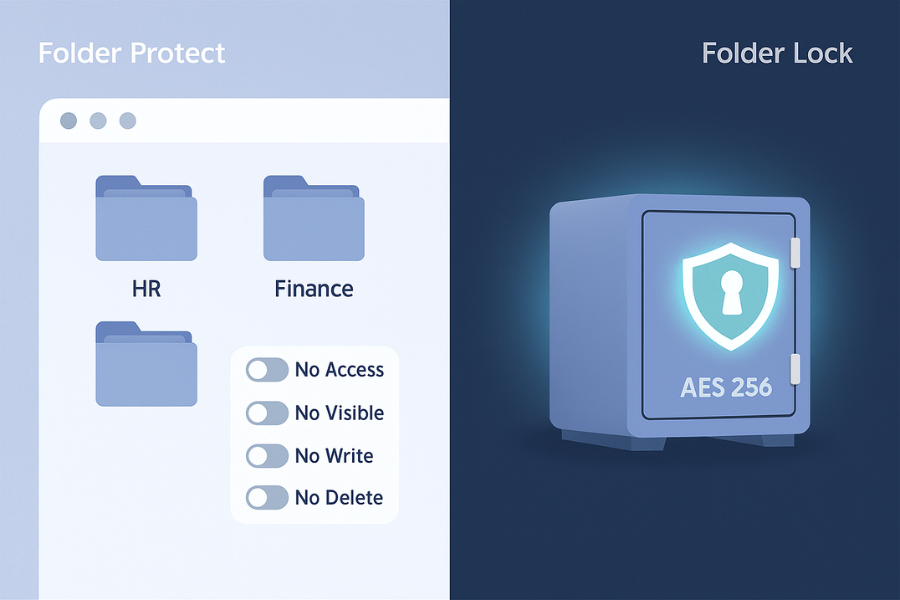
Short answer: use Folder Lock when you need real encryption, use Folder Protect when you mainly want access control on a shared Windows machine. Developed by the team at Newsoftwares.net, this guide provides a clear decision-making framework for choosing between their data protection tools. The key benefit is targeted security: you will learn how to align the tools’ core functions—strong AES 256 encryption versus flexible local access rules—with specific threats like theft, shared access, and cloud sync, ensuring optimal privacy and data security.
Gap Statement
Most “Folder Protect vs Folder Lock” posts miss three key points: They mix up hiding with encryption and never explain what happens if the drive is stolen. They ignore real office setups with shared PCs, USB drives, cloud sync, and remote staff. They almost never show practical recipes or symptom → fix tables you can hand to support.
This article stays on one job: choosing and deploying Folder Protect and Folder Lock as part of a sane Windows data protection setup.
Short Answer
Use Folder Lock when you need real encryption, use Folder Protect when you mainly want access control on a shared Windows machine.
TLDR Outcome
If you only skim, keep these three bullets in mind:
- Use Folder Protect when you need fast, flexible access rules on a Windows PC. For example: “no delete” on finance folders, “no access” to HR documents, “hidden” project files.
- Use Folder Lock when you need encryption that still holds if a laptop, drive, or cloud account is stolen. It creates AES 256 encrypted lockers, locks, and hides files, and supports cloud backup.
- Add USB Secure for USB drives and Cloud Secure for cloud accounts if your staff carry data on sticks or sync to Dropbox, Google Drive or OneDrive.
1. Access Control vs Encryption in Plain English
1.1 What “Access Control” Really Does
Access control tools change what Windows lets a user do with files: Make a folder invisible in Explorer. Block opening a file even if you can see it. Block edits or deletes. Folder Protect is built around this idea. It lets you set four rights per item: no access, no visible, no write, no delete. You can apply this to folders, entire drives, installed programs, and even file masks such as only jpg files in a folder. It is perfect when the threat is local misuse: Colleagues on a shared PC. Kids on a home computer. Guests or junior staff with too much curiosity. If somebody steals the disk and reads it with another operating system, access control alone can be bypassed.
1.2 What Real Encryption Does
Encryption scrambles data using a key. Without the correct password or key material, the content is unreadable even if someone copies the raw bytes. Folder Lock uses AES 256 bit encryption for files, folders, and lockers. It can lock and hide files too, but its core strength is full encryption with optional cloud backup and secure syncing. This protects against: Lost or stolen laptops. USB drives left in taxis. Cloud account compromise where an attacker downloads encrypted data. The tradeoff is that you manage encrypted containers and keys, not just check boxes for access rules.
1.3 Quick Comparison Table
| Feature / Question | Folder Protect | Folder Lock |
|---|---|---|
| Main Job | Access control and visibility on Windows | Strong encryption and secure lockers |
| Protection Types | No access, no visible, no write, no delete | AES 256 encryption, lock, hide, shred |
| Good Against | Curious users on same PC | Thieves with physical access or disk images |
| Works On | Files, folders, drives, programs, extensions | Files, folders, lockers, cloud backups, USB, mobile |
| Cloud Aware | Indirect, via local folders | Built in cloud sync and backup options |
| Extra Tools from Same Vendor | Pairs well with USB Secure and Cloud Secure | Same suite, works with USB Secure and Cloud Secure |
2. How to Decide: A Technician Style Checklist
Use this brief flow before you install anything:
- List what you must protect. Example: HR folder on a shared PC, client archives on a laptop, USB drive carried to court, project folder synced to cloud.
- For each item, answer: “If someone copies the raw disk, must this still stay secret?”
- If the answer is yes, you need encryption.
- If the risk is only other users on the same Windows install, access control can be fine.
- Map the item to product:
| Data Type or Location | Recommended Newsoftwares Tool |
|---|---|
| Shared PC folders with HR or payroll | Folder Protect |
| Laptop with client folders | Folder Lock |
| USB drive with project data | USB Secure, optionally Folder Lock locker inside USB |
| Dropbox or Google Drive sync folder | Folder Lock locker + Cloud Secure to lock the account |
- Only then worry about user interface and comfort.
3. Folder Protect: Access Control Use Cases and Tutorial
3.1 What Folder Protect Actually Offers
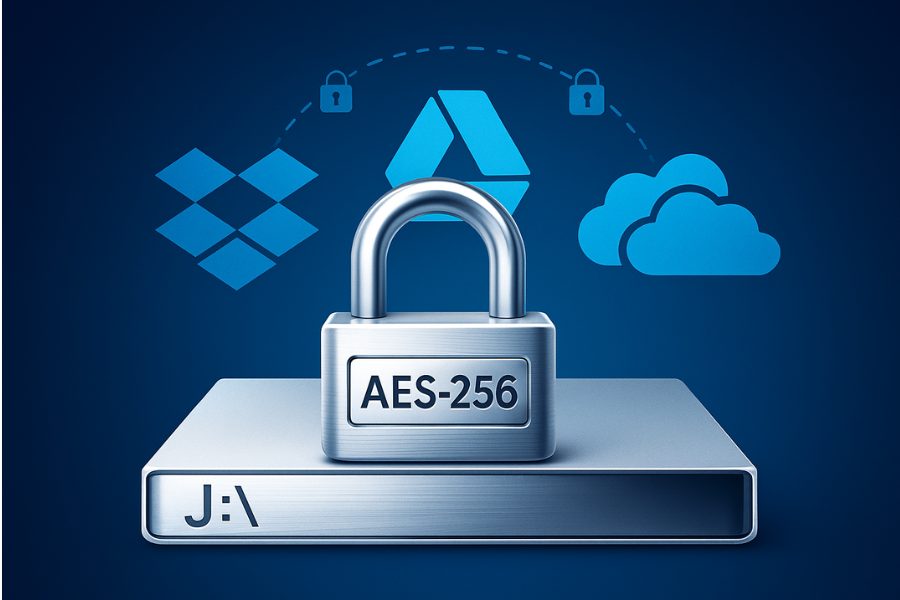
Folder Protect lets you: Password protect items on Windows. Set rights type: no access, no visible, no write, no delete. Apply rules to folders, drives, installed programs, and file types. This is powerful when you want staff to use a PC but not touch specific content. Concrete examples: Accounting program runs, but staff cannot see the raw backup folder. Design team can open image assets but cannot delete or overwrite them. A manager’s profile hides certain folders when they log out.
3.2 How to Protect a Sensitive Folder with Folder Protect
Prereqs and safety: Supported Windows version with admin rights for install. A master password you can store safely offline; the blog is clear that it cannot be recovered if lost. A quick backup of the folder before you begin, in case you misconfigure rights too strictly.
Steps
- Install Folder Protect from the official site
- Run the installer and choose a secure master password.
- Gotcha: do not reuse an email password or cloud password.
- Add the folder you want to protect
- Open the main interface and choose Add.
- Browse to the HR, finance, or project folder you want to control.
- Choose the protection type
- Tick “No Access” if nobody except you should open it.
- Tick “No Visible” if you want it hidden in Explorer.
- Tick “No Write” to stop edits; “No Delete” to stop removal.
- Gotcha: avoid combining “No visible” with “No access” at first. Test “No access” alone to keep troubleshooting simple.
- Apply protection and test with another user
- Log out and use a standard account.
- Try to open, edit, or delete files in the folder.
- Confirm you see the expected denial or invisibility.
- Document your rules
- Write down which folders have which rights and who owns the master password.
Verify it worked
- The folder either disappears in Explorer for normal users or throws an access error when opened.
- Attempts to delete, rename, or edit fail according to your selected rights.
3.3 Troubleshooting Folder Protect
| Symptom or Error | Likely Cause | Quick Fix |
|---|---|---|
| Protected folder still visible to staff | “No visible” not set for that entry | Edit item and add “No visible” |
| Staff can open but cannot edit a file | “No write” set | Switch to “No access” if editing must never happen |
| You cannot access your own folder | Wrong Windows account or rights too strict | Log in with master account, adjust rights, or temporarily disable protection |
| Folder Protect forgot the master password | Password lost | Vendor docs say it cannot be recovered, so plan a new structure and restore from backups |
4. Folder Lock: Encryption Lockers and Secure Sharing
4.1 What Folder Lock Gives You Beyond Hiding
Folder Lock is a full data security product: AES 256 bit encryption for files and folders. Encrypted lockers that grow as you add data. File locking and hiding for quick local access protection. Cloud backup and sync of encrypted lockers to services like Dropbox, Google Drive, and OneDrive. The lockers work like secure containers: you mount them when needed, work inside, then close them again.
4.2 How to Create a Secure Project Locker with Folder Lock
Prereqs and safety: Folder Lock installed on a Windows PC. Enough disk space for your project data. A strong locker password stored in a password manager or written in a safe place.
Steps
- Launch Folder Lock and choose to create a new locker
- Pick a clear locker name such as “Client_X_Project”.
- Gotcha: avoid generic names like “New Folder” that nobody recognizes later.
- Choose encryption and size mode
- Use AES 256 bit encryption (the default).
- Select dynamic size if offered so the locker grows as needed.
- Set a strong password
- Use at least 12 to 16 characters with words and numbers.
- Do not share this password by email or chat screenshots.
- Mount the locker and move files inside
- Folder Lock will mount it as a virtual drive or folder.
- Copy or move your project documents, exports, and archives into that space.
- Gotcha: do not keep extra copies of sensitive files outside the locker “for convenience”.
- Close the locker after work
- Dismount when you finish.
- Once closed, the content is encrypted at rest on disk.
- Optional: set up cloud backup
- In Folder Lock, enable its cloud backup feature for that locker.
- It integrates with providers like Dropbox, Google Drive, and OneDrive.
- Now the encrypted version syncs, not plain files.
Verify it worked
- With the locker closed, you should only see an encrypted container file on disk.
- If you copy that file to another machine without Folder Lock and the password, you cannot open it.
- Cloud drives should show the locker file, not raw project documents.
4.3 Secure Sharing Pattern with Folder Lock
For handing data to a partner:
- Create a fresh locker just for that partner.
- Add only the files you want to share.
- Protect with a strong password.
- Send the locker via SFTP, HTTPS link, or even on a USB stick.
- Share the password separately using a secure channel such as Signal or a voice call, not in the same email.
This mirrors the “envelope inside a tracked parcel” idea: transport encryption protects the channel, Folder Lock protects the content.
5. Other Newsoftwares Products That Matter Here
5.1 USB Secure for Portable Media
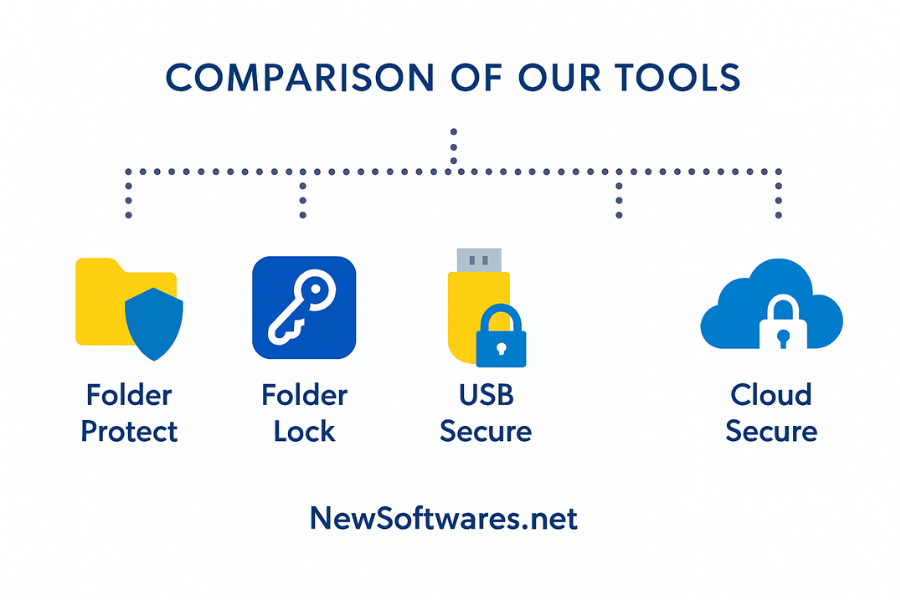
USB Secure protects USB flash drives, memory cards, and external drives with password based access and encryption. It runs in a portable way and prompts for a password when a protected drive is inserted. Use USB Secure when: Staff carry data on sticks between office and court or clients. You want protection even on machines where Folder Lock is not installed. You can also store a Folder Lock locker inside a USB drive that is protected with USB Secure for a layered approach.
5.2 Cloud Secure for Cloud Account Access
Cloud Secure locks local access to cloud services like Dropbox, Google Drive, OneDrive, and Box on your PC and mobile devices. It uses password protection and “protected view” so other users cannot casually open synced cloud folders. Pattern that works well: Use Folder Lock lockers for sensitive data. Store the lockers inside cloud sync folders. Use Cloud Secure to lock those cloud accounts on shared PCs. This way you get encryption, access control, and cloud convenience together.
6. Use Case Chooser: Which Tool Wins Where
6.1 Scenario Based Table
| Scenario | Best Main Tool | Helpful Extra Tools |
|---|---|---|
| Family PC where kids should not open salary sheets | Folder Protect | Folder Lock only if machine may be stolen |
| Accountant’s laptop with client archives | Folder Lock | USB Secure for backups on sticks |
| Office desktop with shared design assets | Folder Protect (no delete, no write) | Folder Lock for archives |
| USB drive with sensitive case files | USB Secure | Folder Lock locker inside the drive |
| Freelance work synced to Dropbox and Google Drive | Folder Lock lockers | Cloud Secure for local access lock |
| Small business owner with both desktop and laptop | Folder Lock on both | Folder Protect on office desktop for shared use |
7. Security Specifics and When Not to Use Each One Alone
7.1 Security Features at a Glance
| Product | Security Core |
|---|---|
| Folder Lock | AES 256 encryption for files, folders, lockers, plus lock, hide, shred and cloud backup. |
| Folder Protect | Password gate, access rules (no access, no visible, no write, no delete), optional encryption mode. |
| USB Secure | Password protection and encryption for USB and external drives with plug and play prompts. |
| Cloud Secure | Local password gate and access control for multiple cloud storage services. |
7.2 When You Should Not Rely on Folder Protect Alone
Skip Folder Protect as the only line of defense when: You must prove compliance where encryption at rest is expected. Staff carry laptops out of the building. You share disks or VM images with third parties. In those cases, pair it with Folder Lock and, if needed, USB Secure or Cloud Secure.
7.3 When You Should Not Rely on Folder Lock Alone
Folder Lock is strong on encryption but not a magic shield for: Shared admin desktops where you also need per user access rules. Multi user kiosk style machines where some apps must run but folders stay hidden. Here, Folder Protect adds fine grained control at the Windows layer.
8. Troubleshooting: Symptoms, Root Causes, Safe Tests
8.1 Symptom → Fix Table
| Symptom | Likely Product and Root Cause | Safe Fix First |
|---|---|---|
| Protected folder still visible and editable | Folder Protect rule incomplete | Edit rule, set “No access” and test with non admin user |
| Folder locked but still visible in cloud preview | Folder Lock locker not used, only simple lock | Move files into an encrypted locker instead of plain folder |
| USB prompt does not appear | USB Secure not installed on that machine | Install USB Secure or keep protected exe on drive and run it directly |
| Cloud account opens without asking password | Cloud Secure not configured for that service | Add service inside Cloud Secure and enable lock |
| After reinstall, protected items look broken | Program not reactivated or wrong path | Reinstall product, use proper unlock procedure; avoid manual delete of protected folders |
8.2 Root Causes Ranked
In most real cases, problems come from: Misunderstanding which features encrypt and which only hide. Overlapping rules from Windows permissions, Newsoftwares tools, and cloud sync clients. Lost or shared passwords without any written access policy.
Non destructive checks first: Try with a test folder before moving critical data. Use a non admin account for validation. Confirm that cloud sync finished before you lock or unplug anything. Last resort moves only when you are sure: Restore from backup rather than trying to “crack” a forgotten master password. Rebuild protections cleanly instead of editing system level files in strange ways.
9. Proof of Work Style Checks
You can show stakeholders that these tools are configured sensibly without turning the article into a benchmark fest.
9.1 Example Bench Style Table You Can Reproduce
Run simple measurements on your own machine:
| Task | What to Time or Observe | What You Should See |
|---|---|---|
| Open 500 MB Folder Lock locker | Time to mount and list files | Only small delay after first mount, then normal browsing speed |
| Copy 1 GB folder into a new locker | Time to copy | Slight overhead vs plain copy, still workable on a modern SSD |
| Apply Folder Protect “No delete” on a folder | Attempt delete under staff account | Deletes fail, clear error or silent refusal |
| Access USB drive protected by USB Secure | Time from plug in to open | Prompt for password, then near normal read speed |
The exact numbers depend on your hardware, but the pattern should show protection with acceptable delays.
9.2 Settings Snapshots Worth Copying
- Folder Lock: Use AES 256 lockers. Dynamic size where available. Cloud backup only for lockers you actually need off site.
- Folder Protect: Group folders by function and set clear rules. Avoid chaining too many rule types until you test.
- USB Secure: Protect entire drives, not just single folders on them.
- Cloud Secure: Enable lock for every cloud service used on that PC or device.
9.3 Quick Verification Routine
Once a month, pick one machine and: Confirm you can still unlock your most important lockers. Confirm protected folders behave as expected under a standard user. Confirm USB drives and cloud accounts require passwords where they should. This takes less than half an hour and catches configuration drift early.
10. Structured Data Snippets
10.1 HowTo Schema for Choosing Between Folder Protect and Folder Lock
<script type="application/ld+json">
{
  "@context": "https://schema.org",
  "@type": "HowTo",
  "name": "Choose between Folder Protect and Folder Lock",
  "description": "Step-by-step guide for deciding when to use access-control or encryption in Newsoftwares tools.",
  "tool": [
    "Folder Protect",
    "Folder Lock",
    "USB Secure",
    "Cloud Secure"
  ],
  "step": [
    {
      "@type": "HowToStep",
      "name": "List sensitive locations",
      "text": "Write down which folders, drives, USB devices and cloud accounts contain sensitive data."
    },
    {
      "@type": "HowToStep",
      "name": "Decide whether you need encryption",
      "text": "For each item, ask if the data must stay safe even if the disk or device is stolen. If yes, plan to use Folder Lock or USB Secure."
    },
    {
      "@type": "HowToStep",
      "name": "Map to tools",
      "text": "Use Folder Protect for shared PCs where local users must be blocked. Use Folder Lock for encrypted lockers, USB Secure for portable drives and Cloud Secure for cloud accounts."
    },
    {
      "@type": "HowToStep",
      "name": "Test under a non-admin account",
      "text": "Confirm that protected items behave as expected for normal users before rolling out broadly."
    }
  ]
}
</script>
10.2 FAQPage Schema Stub
<script type="application/ld+json">
{
  "@context": "https://schema.org",
  "@type": "FAQPage",
  "mainEntity": []
}
</script>
10.3 ItemList Schema for Product Comparison
<script type="application/ld+json">
{
  "@context": "https://schema.org",
  "@type": "ItemList",
  "name": "Newsoftwares security tools",
  "itemListElement": [
    {
      "@type": "ListItem",
      "position": 1,
      "name": "Folder Lock",
      "description": "AES 256 encryption, secure lockers, cloud backup and file locking."
    },
    {
      "@type": "ListItem",
      "position": 2,
      "name": "Folder Protect",
      "description": "Password-based access control for files, folders, drives, programs and file types."
    },
    {
      "@type": "ListItem",
      "position": 3,
      "name": "USB Secure",
      "description": "Password protection and encryption for USB drives and external storage."
    },
    {
      "@type": "ListItem",
      "position": 4,
      "name": "Cloud Secure",
      "description": "Password lock for multiple cloud storage accounts on one device."
    }
  ]
}
</script>
11. FAQs: Folder Protect vs Folder Lock and Related Tools
1. Is Folder Protect the Same as Encryption?
No. Folder Protect focuses on access rules on a running Windows system, like hiding or blocking actions. It can offer encryption related features, but its main strength is access control. For stolen drives and offline attacks, you should rely on encryption tools like Folder Lock or USB Secure.
2. When Is Folder Lock a Better Option Than Folder Protect?
Folder Lock is better when your main risk is loss or theft of laptops, drives, or synced cloud data. Its AES 256 encrypted lockers stay protected even if someone copies the whole container file. Access control alone cannot do that.
3. Can I Use Folder Protect and Folder Lock on the Same Machine?
Yes, and many setups benefit from this. A common pattern is Folder Protect on shared folders that must be visible but not editable for most users, and Folder Lock for encrypted lockers that only a small group can open. Just keep documentation of which product protects which path.
4. Do I Still Need USB Secure If I Use Folder Lock?
If you always carry data only inside Folder Lock lockers and only connect to machines where Folder Lock is installed, you might skip USB Secure. In practice, USB Secure is useful because it protects drives on guest machines that do not have Folder Lock installed and adds a password gate at plug in time.
5. How Do Cloud Secure and Folder Lock Work Together?
Cloud Secure locks local access to cloud accounts, while Folder Lock encrypts the content you sync. You can keep sensitive files inside lockers that live inside your Dropbox or Google Drive folders, then let Cloud Secure add a password gate to the cloud client on your devices.
6. What Happens If I Forget My Folder Protect Master Password?
The vendor states in its documentation that the master password cannot be recovered. That is good for security, but it means you must treat it with the same care as an encryption passphrase. Store it in a password manager or secure offline record.
7. Does Folder Lock Slow My System Down?
Encryption has a cost, but on a normal modern machine it is usually small. You might notice a brief delay when mounting a large locker or copying many files into it, but day to day browsing inside an open locker should feel close to working with normal folders.
8. Can I Protect Installed Programs with Folder Protect?
Yes. One of Folder Protect’s strengths is that it can set rules not only for folders and drives but also for installed programs and file extensions. That lets you control who can run specific apps or open certain file types.
9. What Should I Use for a Shared Windows Terminal in a Small Office?
Use Folder Protect to control which folders and programs are visible or editable for staff logins. Use Folder Lock lockers for the most sensitive archives that only the owner or an admin should open. If staff also use USB drives, add USB Secure for those devices.
10. Is There Any Mobile Support for These Tools?
Folder Lock is available on Android and iOS, where it also uses AES 256 encryption for files and folders on mobile devices. That can be handy if staff carry sensitive files on phones or tablets.
11. How Do These Tools Fit into a Bigger Security Plan?
They handle local and portable data protection. You should still use disk level encryption where available, good identity and access management, secure backups, and safe sharing practices. Newsoftwares tools sit on top of that to harden specific folders, devices, and accounts.
12. What Is the Safest Order to Roll Them Out?
Start with Folder Lock on laptops that leave the building. Next, deploy Folder Protect on shared PCs. Then add USB Secure and Cloud Secure wherever you see USB sticks or synced cloud folders with sensitive content. Test each step under a normal user before rolling to everyone.