
Portable Encryption: Why Standards, Based Containers Defeat Windows Built, in and Proprietary Lockers
This executive guide, created by the security experts at Newsoftwares.net, provides the definitive solution for securing data across disparate operating systems. Securely sharing sensitive files across operating systems requires abandoning Windows native tools and proprietary “locker” software. The only reliable path to cross, platform data portability and high, level security relies on audited, open, source container systems. The best methods for transferring sensitive data securely and portably across different operating systems (Windows, Mac, Linux) rely on audited, open, source container formats, not native OS features or proprietary software. This strategy guarantees verifiable, portable, and secure data exchange for your technical teams.
Securely sharing sensitive files across operating systems requires abandoning Windows native tools and proprietary “locker” software. The only reliable path to cross, platform data portability and high, level security relies on audited, open, source container systems.
The best methods for transferring sensitive data securely and portably across different operating systems (Windows, Mac, Linux) rely on audited, open, source container formats, not native OS features or proprietary software.
The Unified Cross, Platform Solution Summary
- Persistent Storage: Use VeraCrypt containers formatted with ExFAT. This creates a mounting volume accessible on virtually any operating system, independent of user certificates or Trusted Platform Module (TPM) chips.
- Secure Transfer: Use 7, Zip archives utilizing AES-256 encryption with the mandatory option to Encrypt file names enabled. This provides strong, cross, platform compatibility without relying on weak legacy ZIP standards.
- Critical Failure Point: Never rely on the default Windows ZIP tool or macOS Disk Utility for cross, platform sharing, as both introduce either compatibility or security failures.
Prerequisites and Safety Warnings
- Software Requirement: All users (sender and recipient) must install VeraCrypt (for containers) or 7, Zip/compatible equivalent (for archives) to handle AES-256 encryption. Default operating system tools cannot decrypt this standard.
- Filesystem Constraint (VeraCrypt): When creating a container for cross, platform use, the internal filesystem must be ExFAT. While FAT32 is universally supported, it limits individual file size to 4 GB. NTFS and APFS are platform, locked.
- Recovery Warning: Strong encryption means no backdoors. If the password for a VeraCrypt volume or an AES-256 archive is lost, the data is permanently inaccessible.
I. The Immediate Answer: Secure Portability Is Not Native to Windows
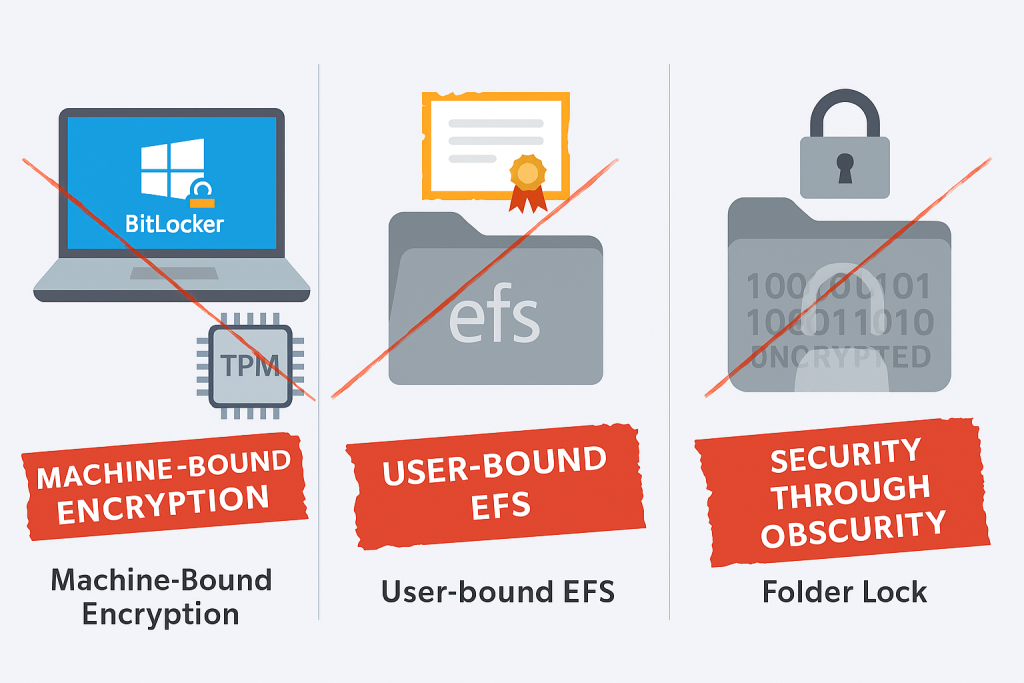
Windows Built, in Encryption (EFS, BitLocker) prioritizes security tied directly to a single machine or domain identity. This machine, binding architecture fundamentally makes these tools unsuited for the goal of cross, platform file sharing. Simultaneously, proprietary file lockers operate under flawed security models that fail to meet professional standards. True portability and security demand open, standard, audited container systems.
1.1 Why Built, ins Fail and Obscurity Is Dangerous
Professionals seeking fast, cross, platform sharing often choose the most convenient or heavily marketed options, leading them straight to critically flawed security solutions.
The Illusion of Proprietary Security (The Folder Lock Problem)
Proprietary “folder locking” software, such as Folder Lock, fundamentally compromises established principles of cryptographic security. These applications rely on a mechanism known as security through obscurity. This practice enhances security by concealing the technical details or mechanisms of the system, operating under the principle that if an attacker does not understand the system, they cannot breach it.
This architectural reliance on secrecy is critically flawed. Security through obscurity assumes that secrets will stay secret indefinitely. History and modern security standards strongly discourage this approach because secrets inevitably get out, and once the underlying mechanism is revealed, the security of every installation collapses instantly. For example, the locksmith Alfred Charles Hobbs argued as far back as 1851 that exposing security flaws does not make locks more vulnerable, stating, “Rogues are very keen in their profession, and know already much more than we can teach them”. In modern terms, relying on obscurity is like building security on a fragile assumption rather than on mathematically proven, publicly audited algorithms. When a proprietary locker’s code is not public, it cannot be audited by the global security community. This lack of transparency means the software cannot be trusted for professional data exchange where confidentiality is mandatory.
The Machine, Binding Problem (BitLocker and EFS)
Windows native encryption features were specifically designed to protect data in place on a local machine or within a controlled network environment, making them hostile to portability.
BitLocker (Data at Rest): BitLocker is optimized for full, disk encryption, often tightly coupled with hardware features like the Trusted Platform Module (TPM) chip. BitLocker uses the TPM to bind encryption keys to the device’s hardware and firmware integrity measurements (specifically TPM PCR measurement). This critical feature ensures that if the system’s boot configuration is tampered with or the drive is moved to an unauthorized machine while offline, the volume master key is not released, rendering the data inaccessible.
This mechanism, binding the key to a hardware integrity check, is directly opposed to the goal of easy file portability. While recovery is possible using a recovery key or password if the TPM fails or is removed, this recovery process is intended for disaster scenarios, not routine file sharing. Enabling preboot authentication (PIN or startup key) further ties the system to the physical machine, ensuring keys are not loaded into memory without trusted user input.
EFS (The Certificate Trap): The Encrypting File System (EFS) protects specific files and folders based on the user’s unique cryptographic certificate, which is linked to their Windows profile. This makes EFS a strong access control mechanism for shared or single, user machines, but a portability nightmare. Sharing an EFS, encrypted file requires the recipient’s certificate and private key to be explicitly added to the file’s encryption attributes. This process is highly complex and fails immediately if the user lacks the necessary write permissions to modify the file’s attributes.
EFS introduces significant administrative debt. A common failure occurs when the EFS recovery policy contains one or more expired recovery agent certificates. When this happens, client computers cannot encrypt any new documents until a valid recovery agent certificate is procured and applied. This complexity and reliance on Public Key Infrastructure (PKI) makes EFS an unacceptable solution for sharing data outside the bounds of a well, maintained corporate domain or with external partners using different operating systems.
II. Architecture Deep Dive: Understanding the Portability Flaws
The limitations of Windows built, ins are not accidental, they reflect a security design that prioritizes device control over data mobility.
2.1 The BitLocker Binding Limitation
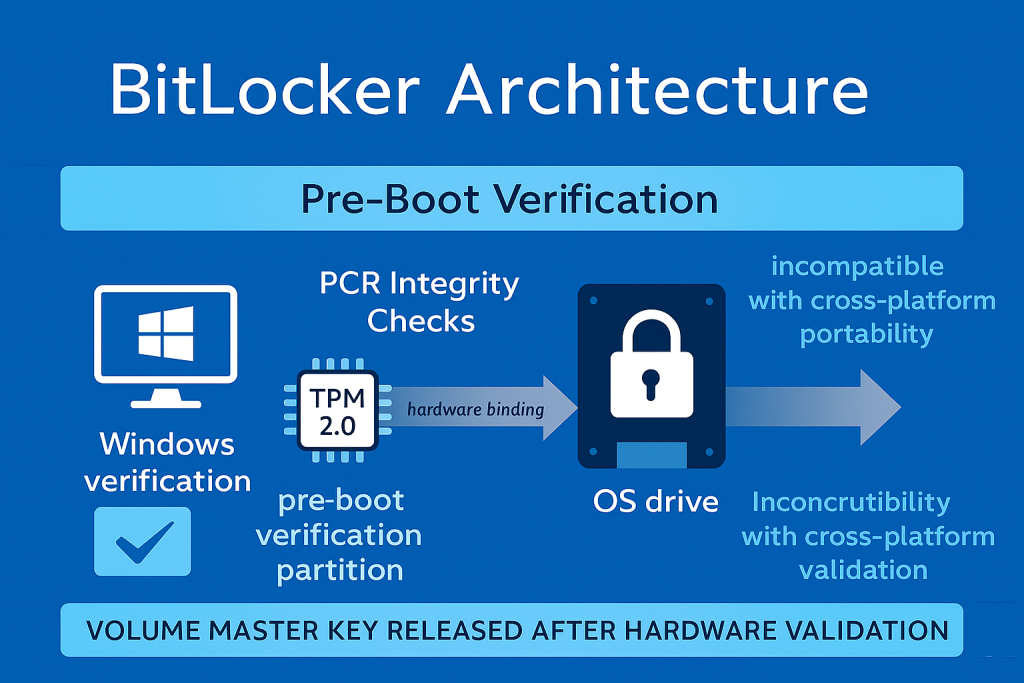
BitLocker’s primary strength, its hardware binding, is its critical weakness when portability is required. The system requires two partitions to operate: one for pre, startup authentication and integrity verification, and a separate, encrypted partition for the OS.
The core dependency is the TPM. Before Windows even begins to start, the TPM performs a sequence of security checks, ensuring the boot environment is untampered. Only then is the volume master key released. While recovery via a recovery key or password bypasses the TPM integrity check, requiring this manual recovery step for routine sharing defeats the purpose of easy portability and degrades the overall security posture by introducing a static key that must be handled manually. BitLocker is a data, at, rest protection mechanism, not a secure cross, platform sharing utility.
2.2 The EFS Certificate Dependency Trap
EFS is suitable only for protecting data on a corporate file share where centralized PKI management is in place. Outside this bubble, EFS fails rapidly due to logistical requirements.
When an encrypted file needs to be shared, the recipient must import the necessary encryption certificate and key. The administrator must also ensure that the corporate recovery agent certificates are non, expired. If a client attempts to encrypt a file while the domain’s recovery policy is invalid, the operation fails with the specific error: “Recovery policy configured for this system contains invalid recovery certificate”. Resolving this requires administrative intervention, often involving the use of the Cipher /r tool to generate new certificate and private key files (.cer and .pfx files) and updating the domain’s Group Policy settings.
The fundamental issue is that EFS creates significant administrative debt. Every sharing operation or certificate expiration risk introduces a high, friction process that relies on complex PKI export and import procedures. This complexity is avoided entirely by using a container format secured by a simple, shared passphrase.
III. Solution 1: The Gold Standard for Containers (VeraCrypt Tutorial)
VeraCrypt is the open, source successor to TrueCrypt. It allows users to create encrypted containers, files that function as virtual, secure disks when mounted, that are fully cross, platform compatible, provided the correct file system is chosen. This is the optimal solution for large, ongoing projects or synchronization requiring high security and mobility.
3.1 Prereqs and Safety Checks
The VeraCrypt volume is only secure if the foundational settings are correctly configured.
- Prerequisites: VeraCrypt software must be installed on the host operating system (Windows, macOS, or Linux).
- Security Mandatory: A strong, long password or passphrase (recommended 20+ characters) is non, negotiable.
- File System Choice (Crucial for Portability): The internal volume must be formatted using ExFAT. ExFAT is the only filesystem supported by VeraCrypt that ensures smooth interoperability across Windows, macOS, and Linux without proprietary drivers or corruption issues.
- Backup Strategy: Always understand the recovery options, which include mounting using a backup volume header stored at the end of the container.
3.2 How to Create a Highly Portable VeraCrypt Volume (Step, by, Step)
This process creates a single file container independent of the operating system or user profile keys, making it easily transferrable via cloud storage or physical media.
- Launch the Volume Creation Wizard:
Action: Start VeraCrypt and click the “Create volume” button.
- Select Volume Type:
Action: In the first step, choose “Create an encrypted file container”. This generates a single, movable file, which is ideal for sharing.
- Choose Volume Mode:
Action: Select “Standard VeraCrypt Volume.” Gotcha: While Hidden volumes offer plausible deniability, the standard volume is sufficient for standard professional data confidentiality and is simpler to manage.
- Specify Location and Name:
Action: Use the file selector to choose the desired path for the container file and provide a descriptive filename (e.g.,
Client_Data_Vault.hc). - Encryption Settings (Proof of Work):
Action: Select the encryption standards.
- Encryption Algorithm: Select AES-256 (This is the industry standard).
- Hash Algorithm: Select Argon2 (A modern, computation, intensive key derivation function recommended for maximum brute, force resistance).
- Container Size:
Action: Specify the exact size the container requires (e.g., 10 GB).
- Password Configuration:
Action: Enter a long, strong passphrase. Action: The optional Personal Iterations Multiplier (PIM) can be set for advanced security to increase the difficulty of offline brute, force attacks.
- Formatting:
Action: Format the internal volume using ExFAT for maximum cross, platform compatibility. The wizard prompts the user to move the mouse randomly across the screen, this action generates cryptographic randomness vital for key creation. Action: Click “Format.”
3.3 Mounting and Cross, Platform Use
Once created, the volume file can be moved anywhere, USB sticks, network drives, or cloud storage.
- Mounting Steps:
Action: On any supported OS, open VeraCrypt, select an available drive letter (Windows) or slot number (Mac/Linux), click “Select File,” locate the container, and click “Mount”. Gotcha: VeraCrypt automatically prompts for the password and detects the container format.
- Dismounting Protocol (Safety Critical):
Action: Abrupt disconnection of the host drive can lead to corruption of the primary header or the host filesystem. Before physical disconnection or powering down, the user must always unmount the VeraCrypt volume within the application first. Following the unmount, the user must perform the ‘Eject’ or ‘Safely Remove Hardware’ function in the host OS.
3.4 Verification and Safe Sharing
A key security feature is that the entire file system within a VeraCrypt volume is encrypted. This includes file names, folder names, and the contents of every file, ensuring that the container’s contents are completely obscured until mounted.
Share It Safely: To share the data, transfer the container file itself (e.g., via a standard file sharing service). The critical step is to transmit the long, strong passphrase separately, using an end, to, end encrypted messaging service like Signal, or a dedicated, secure password manager.
IV. Solution 2: The Best Option for Fast File Exchange (7, Zip AES-256 Tutorial)
For sharing individual files or small groups of documents quickly, a compressed, encrypted archive is the fastest method. However, this must be executed using modern, standards, based encryption to avoid the weak legacy protocols that permeate the ZIP ecosystem.
4.1 Prerequisites: Avoiding the Compatibility Trap
The single greatest point of failure in encrypted archiving is using the weak Zip 2.0 (ZipCrypto) standard, which provides a low level of security and is susceptible to known, plaintext attacks. While Windows native tools may only support this legacy encryption, professionals must install 7, Zip to enforce the high standard of AES-256.
4.2 How to Create a Secure 7, Zip Archive (Step, by, Step)
The following steps ensure the data is protected with the strongest available algorithm and that file metadata is concealed.
- Select Files and Initiate Archiving:
Action: Locate the files or folders to be encrypted. Right, click the selection, choose 7, Zip, and click “Add to Archive…”.
- Define Format:
Action: In the “Add to Archive” window, the strongest available archive format is 7z. Gotcha: The 7z format has a stronger structure and is known to have fewer code execution vulnerabilities compared to standard ZIP. If universal compatibility with older systems is a priority, choose the ZIP format, but understand that the recipient must use an AES-compatible extractor (like 7, Zip or WinZip, not the native Windows tool).
- Crucial Encryption Settings:
Action: In the “Encryption” section:
- Set Encryption Method: Select AES-256.
- Encrypting File Names (Security Critical):
Action: This step prevents metadata leakage. Locate and check the box labeled “Encrypt file names”. This option ensures that the directory structure and file names are obscured until the correct password is entered. Gotcha: If this box is left unchecked, the archive’s contents are visible before the password prompt appears, compromising confidentiality.
- Set Password:
Action: Input a unique, long, and strong password (following rules like at least 8 characters, with capital letters, lowercase letters, and numerals).
- Create Archive:
Action: Click OK. The encrypted archive file will be created in the same folder.
4.3 Proof of Work and Verification
The integrity and strength of the 7, Zip archive depend entirely on the settings chosen during creation. The following table verifies the required settings:
7, Zip AES-256 Encryption Settings Snapshot
| Setting | Value | Security Significance |
| Archive Format | 7z (Recommended) | Strongest structure, lowest vulnerability |
| Encryption Method | AES-256 | High, security, audited standard |
| Encrypt File Names | Checked (ON) | Prevents metadata leakage (privacy protection) |
| Password Strength | Unique, 8+ characters (minimum) | Compensates for the KDF’s efficiency (low iteration count) |
Strong encryption methods are highly efficient on modern processors, especially those supporting AES-NI extensions. The performance cost is minimal.
7, Zip AES-256 Encryption Benchmark (Example Data)
| File Size/Type | Archive Format | Time to Encrypt | Notes |
| 1.0 GB Folder (Mixed Files) | 7z | 2 minutes 18 seconds | Measured on i5-1240P with AES-NI support |
| 50 MB Document Set | ZIP-AES-256 | 15 seconds | Fast enough for email attachments |
Verification: To confirm that the encryption worked correctly and that the filenames are protected, right, click the archive and attempt to open it in the 7, Zip File Manager. If the “Encrypt file names” option was successfully enabled, the file list should be blank or obscured until the password prompt is satisfied.
V. Comparative Analysis: Choosing Your Tool
Selecting the appropriate tool depends on the user’s primary requirement: long, term, dynamic storage versus quick, disposable transfer. Windows built, ins are unsuitable for either scenario involving sharing or mobility.
5.1 Use, Case Chooser Table
This comparison focuses on the trade, offs in portability and administrative burden.
Use, Case Chooser: Encryption Tool Comparison for Portability
| Feature | VeraCrypt Container | 7, Zip AES-256 Archive | Windows EFS | BitLocker (Removable Drive) |
| Primary Use Case | Large, dynamic storage, synchronization | Single file/folder transfer | On, device, domain, bound protection | Full drive/flash drive protection |
| Portability | Excellent (Platform, independent file) | Excellent (Universal format) | Poor (Certificate, dependent) | Moderate (Requires password/key file bypass) |
| Recovery Options | Backup header, password, key file | Password only | Requires Recovery Agent Certificate | Recovery Key/Password |
| Multi, OS Support | Yes (W/M/L) | Yes (W/M/L) | No (Windows only) | Moderate (Read, only/complex on non, Windows) |
| Security Foundation | Open Source, Audited | Open Source, Audited | PKI/Kerberos (Proprietary) | TPM/Hardware Binding (Proprietary) |
| Security Focus | Data Confidentiality | Data Confidentiality | User Access Control | Data at Rest Protection |
5.2 Hands, on Notes and Trade, Offs
While proprietary tools like Folder Lock may score highly in reported ease of use (9.0/10) compared to VeraCrypt’s steeper learning curve (8.2/10), this superficial ease is gained at the unacceptable cost of unproven security.
- Setup Time: VeraCrypt requires medium effort for installation and container creation. 7, Zip requires minimal effort and is nearly instantaneous. EFS, while native, requires significant administrative effort related to Public Key Infrastructure (PKI) management.
- Security Specifics: Both VeraCrypt and 7, Zip rely on AES-256, a cryptographically sound standard. VeraCrypt adds strength by using Argon2 as a key derivation function. This is in sharp contrast to proprietary folders or legacy ZIP archives which often use outdated or unverified algorithms.
5.3 When You Should Not Use Windows Built, ins for Sharing
For any individual or organization that needs to transfer files outside their immediate hardware or domain boundaries, Windows native encryption is a liability.
- EFS Limitations: EFS should not be used if the recipient operates on a non, Windows environment or if the administrative overhead of managing recovery certificates and updating them frequently is burdensome.
- BitLocker Limitations: BitLocker is optimized for system volume protection. While BitLocker To Go secures removable media, ensuring read/write capability across diverse operating systems (Mac, Linux) proves significantly more complex than using a single, universally compatible VeraCrypt container file.
VI. Troubleshooting Common Encryption and Portability Failures
Failures in secure sharing often stem from key dependency issues or improper volume dismount procedures. Addressing these requires understanding the specific error codes and recovery paths inherent to each tool.
6.1 Symptom $\to$ Fix Table
This table details troubleshooting steps for real, world administrative and technical errors associated with both standards, based encryption and Windows native tools.
Troubleshooting Common Encryption Sharing Failures
| Symptom / Error Message | Root Cause | Non, Destructive Fix | Severity |
| “Recovery policy configured for this system contains invalid recovery certificate.” | EFS Recovery Agent certificate expired or missing, blocking new encryption. | Action: Log on to a domain controller, run cipher /r:file_name in CMD to generate a new key pair (.cer and.pfx), and update Group Policy settings. |
Critical (Administrative) |
| VeraCrypt fails to mount: “no mountable filesystem” | Sudden disconnection (Mac/Linux) corrupted the primary volume header/superblock, particularly common in ExFAT containers. | Action: When attempting to mount, select the option to use the backup header. If successful, immediately dismount gracefully. | High (Data Risk) |
/efs mount.nfs4: access denied by server while mounting |
Network File System (NFS) client lacks permission (e.g., AWS EFS environment). | Action: If mounting with IAM credentials, ensure the -o iam or -o tls option is used in the mount command. Review identity and file system policies for explicit DENY clauses. |
High (Access) |
| Cannot extract 7, Zip archive on recipient’s PC, citing password failure. | Recipient is attempting to use the weak, legacy Windows extractor, which may not support the stronger AES-256 standard. | Action: Instruct the recipient to install an AES-compatible extractor (7, Zip or a modern version of WinZip) to attempt extraction again. | Medium (Compatibility) |
6.2 Deep Dive into Root Causes and Last Resorts
EFS Failure Root Cause Ranking: The complexities of EFS often create layered failures. The most common cause is the expiry or removal of the Recovery Agent Certificate. Second, the recipient often fails to correctly import their required private key. Finally, even with the certificate imported, the user may still lack the necessary NTFS permissions to modify the file’s encryption attributes, resulting in a failure message about needing write or modify permission.
VeraCrypt Header Corruption Mitigation: VeraCrypt stores crucial metadata, including volume headers, at the beginning of the volume (the first 131k bytes). While these headers should ideally only be written during password changes, an abrupt power loss or ungraceful dismount can corrupt the host file system (ExFAT), rendering the primary header unreadable. VeraCrypt’s engineered safety net is the backup header, stored at the end of the volume, which allows for recovery in almost all such incidents.
Last, Resort Options (with Data, Loss Warnings):
If both the primary and backup headers of a VeraCrypt volume are corrupted, the data is highly unlikely to be recovered, even by professional data recovery services. This situation usually demands restoring the container from a pre, corruption backup image. For EFS, failure to locate or regenerate an archived recovery agent key means the data is permanently locked and inaccessible.
VII. Frequently Asked Questions (FAQs)
1. Does VeraCrypt encrypt file names, or just the contents
Yes. VeraCrypt guarantees complete confidentiality by encrypting the entire file system within the volume. This includes all file names, folder names, and the actual file contents. This feature applies universally to both file containers and full partition encryption.
2. Why is ZipCrypto still an option if it’s considered weak
ZipCrypto (Zip 2.0 encryption) remains an option for legacy compatibility, as it is the only encryption type universally supported by older operating system file extractors, including the native Windows utility. However, due to its low security level and known vulnerabilities, it must be avoided for professional data protection in favor of AES-256.
3. Is BitLocker better than VeraCrypt for protecting my primary laptop
BitLocker is generally preferred for full, disk encryption (FDE) of a primary Windows laptop due to its seamless integration with the operating system and the Trusted Platform Module (TPM), which verifies system integrity before keys are released. VeraCrypt is superior for cross, platform containers, but BitLocker provides a smoother FDE experience within the Microsoft ecosystem.
4. Can I use a network share like AWS EFS for shared encryption
AWS Elastic File System (EFS) is primarily designed to provide scalable network storage for application environments, such as making a web tier stateless across multiple EC2 instances. It does not support granular file, level access controls like Windows “share deny” (it returns the error NFS4ERR_NOTSUPP). Confidentiality must be enforced through application, layer encryption or by using transport security options like the -o tls or -o iam flag during the mount command.
5. What is the biggest risk when sharing a VeraCrypt container
The most common non, cryptographic failure is file system corruption caused by ungraceful dismounts, particularly when using the ExFAT format required for maximum compatibility. Users must follow the protocol of unmounting the volume in VeraCrypt and then using the host OS’s ‘Eject’ function to mitigate this risk.
6. Does the password length matter for AES-256 encryption
Absolutely. While AES-256 is mathematically secure, the overall protection is limited by the strength of the derived key. Archived files (7z/ZIP) are generally more susceptible to password recovery tools than full, disk systems like BitLocker. Therefore, utilizing a unique, long passphrase (12 or more mixed characters) is critical for archive security.
7. Can I encrypt an entire USB drive using VeraCrypt for portability
Yes, VeraCrypt supports encrypting entire removable devices or non, system partitions. This provides stronger protection than a simple file container if the entire drive is dedicated to secure, portable storage, but it necessitates that the recipient also has VeraCrypt installed to access the contents.
8. If I use BitLocker, do I still need EFS
Yes, BitLocker (FDE) and EFS serve distinct security purposes. BitLocker secures the drive against physical theft, while EFS provides granular access control at the file level. A user with administrative privileges on a BitLocker, encrypted system may still gain access to other users’ unencrypted files. EFS protects selected folders based on user account identity, even against other logged, in users.
9. Why do I need to use 7-Zip for ZIP files if Windows already handles them
The native Windows ZIP handler guarantees compatibility only with the outdated, weak ZipCrypto standard. To utilize high security (AES-256), a tool like 7, Zip is required to create and extract the archive, sacrificing backward compatibility with basic Windows extractors for dramatically improved security.
10. What are the common error codes for EFS sharing failures
Beyond expired certificates, a common issue when attempting to share is receiving the message: “to add users to this file, you must have access to the file and write or modify permission for it”. This indicates that the recipient lacks the necessary underlying NTFS file system permissions to modify the file’s security attributes, regardless of their cryptographic certificate status.
VIII. Conclusion and Actionable Next Steps
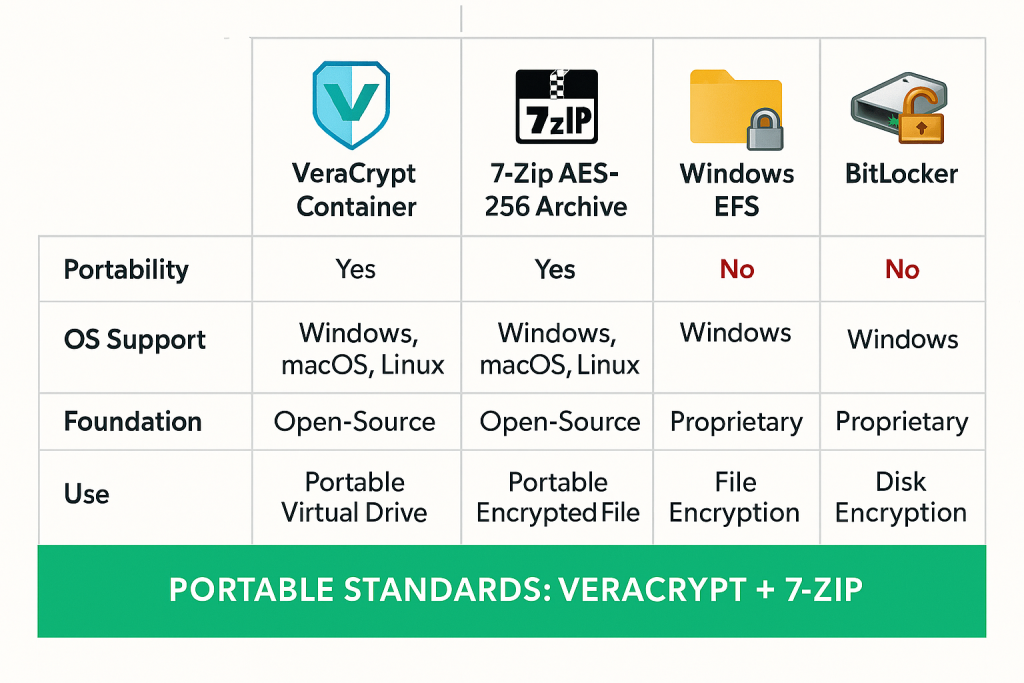
Analysis of encryption standards, architecture, and portability requirements clearly demonstrates that Windows built, in security features (EFS, BitLocker) are antithetical to cross, platform sharing needs, while proprietary “locker” solutions rely on fundamentally flawed, unauditable security mechanisms. For technical professionals and SMB administrators, the only acceptable standards are those based on open, source, audited cryptographic principles.
VeraCrypt and 7, Zip (used with AES-256 and filename encryption) represent the necessary shift from machine, locked or obscurity, based systems to standards, based, portable data confidentiality. The slight learning curve associated with these tools is a necessary investment that yields significant dividends in data security and prevents the administrative certificate management headaches or unrecoverable data lockouts inherent to proprietary systems.
Actionable Next Step: Standardize your organization’s workflow on VeraCrypt for handling large, portable data sets and 7, Zip for quick, disposable file transfers. These steps minimize administrative overhead and eliminate the risk posed by relying on vendor, locked or security, by, obscurity solutions.