
Folder Lock Versus VeraCrypt: The Technical Breakdown of Usability, Portability, and Audited Security
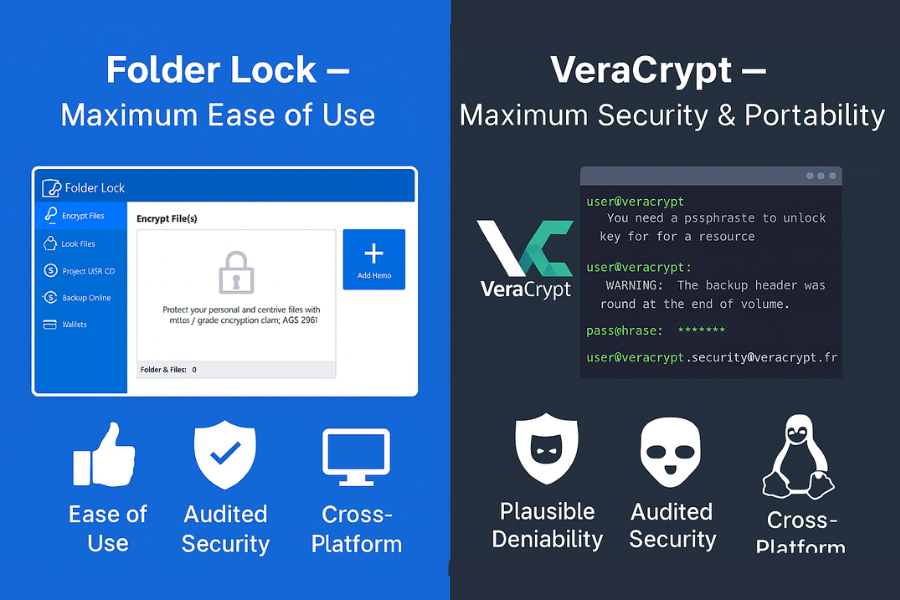
When choosing an encryption utility, security professionals and diligent users must weigh operational convenience against cryptographic assurance. The core distinction between Folder Lock and VeraCrypt centers on this essential trade off, proprietary tools prioritize rapid usability, while open source software champions verifiably audited security.
The following analysis provides an expert verdict, technical comparison of cryptographic foundations, comprehensive usage tutorials, and crucial data recovery implications for both Folder Lock and VeraCrypt.
Immediate Verdict: Which Encryption Tool Do You Need?
The selection between Folder Lock and VeraCrypt depends entirely on the user’s threat model and workflow. If the primary requirement is absolute cryptographic trust, cross platform compatibility, and resistance to coercive attacks, VeraCrypt is the undisputed choice. If the priority is a quick, intuitive drag and drop workflow for daily file segregation within a predominantly Windows environment, Folder Lock may appeal to the convenience seeker.
- VeraCrypt is the tool of choice for Maximum Security and Portability. It is auditable, free, supports Windows, Mac OS X, and Linux seamlessly, and offers the advanced protection of plausible deniability.
- Folder Lock is preferred for Maximum Ease of Use and Simple File Management. Users consistently rate it highly for its intuitive interface and integrated features like file shredding and backup options. However, this simplicity comes at the cost of proprietary trust.
Use Case Chooser: Folder Lock Versus VeraCrypt
| Criteria | Folder Lock (Proprietary) | VeraCrypt (Open Source) |
| Primary Goal | Usability and immediate access control | Audited security and data deniability |
| Ease of Use (G2 Score) | Excellent (9.0), intuitive file manager | Steep learning curve (8.2), technical interface |
| Cross-Platform | Limited (Primary Windows, segmented Mac/iOS apps) | Excellent (Windows, Mac OS X, Linux) |
| Recovery Risk (Password Lost) | High risk of permanent data loss | Low risk due to volume header backups |
| Best For | Compliance, quick access, non-critical data segregation, business users who prioritize policy enforcement | Journalists, security researchers, freelancers, high-value data requiring plausible deniability |
Security Foundation: Trust, Audits, and Cryptographic Standards
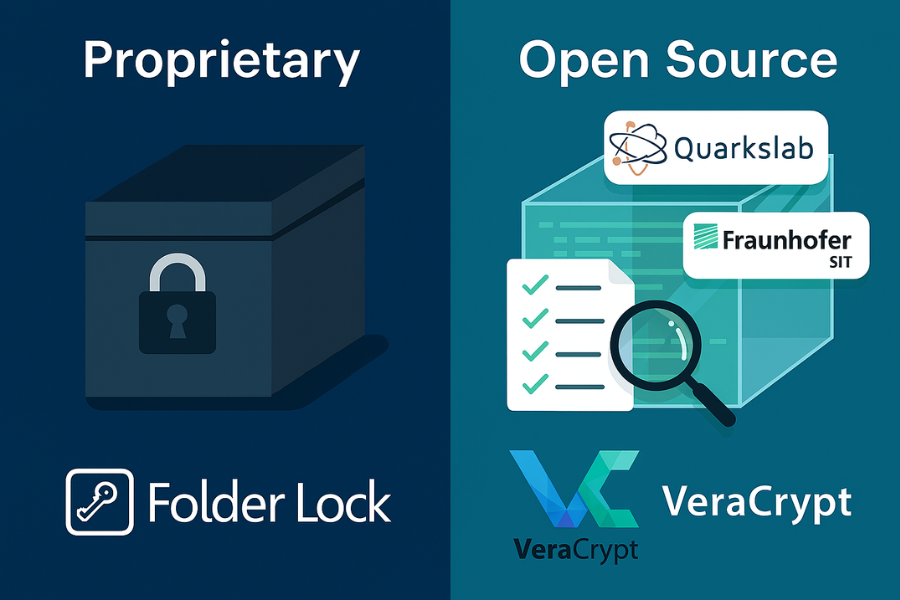
The fundamental difference in trust between these two applications stems from their development models: open versus closed source. For sensitive data protection, the mechanism used to verify cryptographic integrity is paramount.
The Open Source Versus Closed Source Divide
VeraCrypt is the actively maintained evolution of TrueCrypt. Its developers recognized that the original TrueCrypt storage format contained inherent vulnerabilities and created a new, incompatible format specifically to mitigate potential exploits, including those stemming from state level actors. This proactive approach established VeraCrypt’s dedication to security over legacy compatibility.
The strength of VeraCrypt’s security model is its reliance on Audited Trust. It has undergone several comprehensive, independent security audits by respected organizations, such as QuarksLab and the Fraunhofer Institute for Secure Information Technology (SIT). This cycle of transparent auditing, flaw discovery, and immediate resolution provides verifiable proof of the application’s integrity, effectively mitigating the inherent risk posed by the development being primarily driven by a single developer.
In contrast, Folder Lock is a closed source, proprietary product owned by NewSoftwares LLC. While the company advertises the use of “government standard AES 256 bit encryption” and RSA 128 bit protection for user profiles, the absence of publicly verifiable code or independent security audits forces users to place complete faith in the vendor’s internal security practices. This lack of transparency means that any potential backdoors or implementation flaws remain hidden from expert scrutiny.
Key Derivation Functions (KDFs) and Brute Force Defense
The actual strength of any encryption tool is defined not just by the symmetric cipher (like AES-256) but by the quality of the Key Derivation Function (KDF). The KDF is the crucial layer that transforms a human memorable password into the cryptographically strong key used to decrypt the volume header, thus serving as the primary defense against brute force password guessing.
VeraCrypt provides industry leading KDF options specifically optimized for attack resistance. The most modern and recommended option is Argon2id. Argon2id is known as a memory hard KDF, which utilizes the BLAKE2b hash function internally and is designed to slow down attackers by demanding significant quantities of time and system memory. VeraCrypt also supports the widely deployed PBKDF2-HMAC, allowing users to select highly secure pseudo random functions (PRFs) such as SHA-512, Whirlpool, or Streebog.
Critically, VeraCrypt allows users to enhance this defense further by setting a Personal Iterations Multiplier (PIM). The PIM is a user defined numeric value that dramatically increases the number of hashing iterations the KDF must perform, strengthening the key against brute force attempts far beyond the default settings.
Folder Lock is notably silent regarding its specific KDF implementation. While it clearly states that it uses AES 256 bit encryption for data and a folder based, on the fly virtual drive mechanism, technical documentation does not specify the method used to protect the virtual drive header itself from brute force attack. Since the KDF is the weakest link in the encryption chain, VeraCrypt’s transparent, auditable, and configurable KDF standards highlight a significant security depth advantage over Folder Lock.
Cryptographic and Audit Comparison
| Security Feature | Folder Lock | VeraCrypt |
| Encryption Algorithm | AES 256-bit | AES-256, Serpent, TCwofish, cascading algorithms (XTS mode) |
| Key Derivation Function (KDF) | Proprietary/unspecified for locking, uses strong KDFs for virtual drives | Argon2id (recommended) or PBKDF2-HMAC (SHA-512, Whirlpool, etc.) with high iterations |
| Independent Security Audits | None publicly verified/cited | Multiple public audits (QuarksLab 2016, Fraunhofer SIT 2020) |
| Plausible Deniability | No | Yes (Hidden Volumes/Operating Systems) |
Usability and Workflow: From Container to Confidentiality
The user experience dictates which tool is practical for daily operation. Folder Lock excels in simplicity, whereas VeraCrypt demands technical understanding in exchange for unparalleled control.
Setup Complexity and Daily Access
Folder Lock is highly praised by reviewers for its ease of use, achieving a 9.0 rating. Its interface is intuitive, offering a straightforward process often described as “plug and play.” The application utilizes a kernel level driver to lock files and drives, ensuring they remain protected even in advanced modes like Safe Mode. The workflow typically involves simple drag and drop actions to lock files or create encrypted virtual storage.
VeraCrypt, conversely, carries a steeper learning curve, reflected in its lower ease of use rating (8.2). VeraCrypt operates using the concept of an encrypted container file, known as a volume, which must be mounted to an available drive letter before the user can access or modify the contents. This volume management approach, while highly secure, requires an extra, manual step compared to Folder Lock’s instantaneous locking mechanism. Users must become familiar with managing drive letters and understanding volume file locations.
Tutorial: Creating and Mounting a Standard VeraCrypt Volume
The typical VeraCrypt usage involves creating a file container. This single, encrypted file behaves exactly like a separate hard drive when mounted.
- Outcome: A VeraCrypt volume is created as an encrypted file that is mounted and accessed like a local drive (e.g., K:).
- Prerequisites and Safety: Users should download and install VeraCrypt from the official source. It is critical to note that after copying existing, unencrypted files into the newly created VeraCrypt volume, the originals must be securely erased (wiped) using separate software to eliminate the security gap.
Steps for Standard Volume Creation:
- Launch the Wizard: Open VeraCrypt. On the main window, click the “Create Volume” button.
- Select Volume Type: Choose the option “Create an encrypted file container” (Standard VeraCrypt volume) and proceed.
- Specify Location: Click “Select File,” navigate to the desired storage location, and define the container’s filename (e.g., MyVolume).
- Select Encryption Options: Choose the desired Encryption Algorithm (AES-256 is highly recommended) and the Hash Algorithm (e.g., SHA-512).
- Set Size: Define the exact maximum size of the volume (e.g., 50GB). This size is pre allocated and fixed.
- Set Password and KDF: Input a strong password. If technical experience allows, users should manually set the key derivation function (KDF) to Argon2id for maximum security.
- Gather Randomness: The application will prompt the user to move the mouse randomly over the window. This movement is used to generate critical random data, strengthening the cryptographic keys. Continue until the progress bar turns green before proceeding.
- Format: Click “Format” to complete the creation of the encrypted file container.
Steps for Mounting the Volume:
- Select Slot and File: In the main VeraCrypt window, select an available drive letter (e.g., W:). Click “Select File” and locate the container file created above.
- Mount: Click “Mount.”
- Enter Credentials: Enter the password. If the specific PRF algorithm used during creation is unknown, leaving the field set to “autodetection” is possible, but this increases the time required for the mounting process.
- Access and Verify: If the password is correct, the volume will be mounted to the chosen drive letter (W:). All data moved to this drive is automatically encrypted in real time. To secure the data after use, select the drive letter and click “Dismount.”
Portability and Cross Platform Capability
For users who need to access sensitive data on different operating systems or travel with encrypted drives, portability is non negotiable.
Cross OS Reach and Limitations
VeraCrypt is distinguished by its Excellent Cross Platform Support. It is free, open source software natively available for Windows, Mac OS X, and Linux. Importantly, VeraCrypt volumes are fully cross platform compatible. A volume created and formatted on Windows can be mounted and accessed seamlessly on a Linux or macOS machine, provided VeraCrypt is installed on the host system. This universal compatibility makes it the preferred solution for professionals who need operational flexibility across disparate computing environments.
Folder Lock exhibits Limited Cross Platform Functionality. It is primarily engineered as a Windows utility. While the vendor offers separate applications for Mac and iOS, these typically function as segmented utilities for media locking or simple file hiding rather than facilitating the complex mounting of desktop created virtual drives or offering full compatibility with the core Windows product’s features. Therefore, true, seamless cross OS data transport via an encrypted volume is not a strength of Folder Lock.
Tutorial: Setting Up VeraCrypt Traveler Mode
Traveler Mode enables VeraCrypt to be run directly from an external device (such as a USB drive) without requiring installation on the host computer. This is essential for maintaining data security and operational stealth when accessing encrypted files on public or third party PCs.
- Prerequisites: A VeraCrypt installed PC and an external USB drive.
- Steps for Traveler Disk Setup:
- Prepare Drive: Plug the USB thumb drive into a PC with VeraCrypt installed.
- Access Tool: Open VeraCrypt. Navigate to the Tools menu and select Traveler Disk Setup.
- Select Target: Use the “Browse” button to select the target USB drive.
- Configuration: It is recommended to check the option to “Include VeraCrypt Volume Creation Wizard” to allow volume management from the portable setup.
- Create: Click “Create.” This process extracts the necessary executable files and supporting data onto the USB drive.
- Portable Usage: The USB drive now contains the VeraCrypt executable files, allowing the user to launch VeraCrypt.exe directly on compatible Windows machines without installation.
Data Catastrophe: Recovery, Password Loss, and Risks
The capability to recover encrypted data after a technical failure or, more importantly, after forgetting a password, is a critical test of any encryption tool’s architecture.
The VeraCrypt Safety Net: Header Recovery
VeraCrypt is engineered with robust, built in recovery mechanisms that provide tolerance for both technical failures and user errors. Every VeraCrypt volume contains an embedded backup header located at the end of the volume. This backup is the primary recovery mechanism if the main volume header, which contains the crucial keys derived from the password, becomes corrupted due to a power outage, hardware malfunction, or third party application interference.
Steps to Restore Volume Header:
- Run VeraCrypt: Launch the application.
- Select Volume: Click “Select Device” or “Select File” to identify the corrupted volume.
- Access Tool: Navigate to Tools > Restore Volume Header. VeraCrypt will attempt to reconstruct the primary header using the secure backup embedded in the volume.
- Filesystem Repair (If Needed): If the volume successfully mounts but the user experiences file access errors, right click the mounted volume in the main VeraCrypt window and select Repair Filesystem.
The Folder Lock Recovery Abyss
Folder Lock’s priority on simplicity results in a system with low tolerance for human error, particularly forgotten passwords. The recovery system relies strictly on the set master password or PIN.
User reports and public support forums demonstrate the critical danger of relying on this proprietary system: if the master password is forgotten or lost, recovery is often impossible. The software lacks reliable recovery mechanisms. This architectural contrast is key: VeraCrypt’s design mitigates technical errors and offers tools to repair volume integrity. Folder Lock’s proprietary design, while providing convenience, enforces a near zero tolerance for human errors, presenting an unacceptable operational risk for high value or long term archived data.
Troubleshooting: Addressing Common Encryption Errors
| Symptom / Exact Error String | Probable Root Cause | Actionable Solution |
| “Incorrect password or not a VeraCrypt volume” | Volume header corruption (hardware failure, third-party software) | Use Tools > Restore Volume Header to load the embedded backup header. |
| System crashes/Blue Screen (BSOD) when mounting/unmounting | Bug in third-party drivers (Antivirus, system tweak tools) or BIOS issue | Isolate the cause by completely uninstalling and restarting. For system encryption issues, try system repair commands via the Windows Recovery Environment. |
| VeraCrypt mounting fails, despite correct password | Operating system incorrectly assigned a drive letter to the unmounted volume | Use Windows Disk Management to remove the drive letter association (D:, E:, etc.), allow VeraCrypt to assign the letter dynamically during the mounting attempt. |
| Folder Lock volume fails to unlock/password not accepted | Underlying hidden configuration files or system files are blocking access | Close Folder Lock completely. Enable the viewing of hidden files and operating system files in Windows Folder Options to investigate system integrity. |
Advanced Security: Plausible Deniability and PIM
VeraCrypt includes advanced features designed for users with extreme security needs, particularly those operating under duress or facing sophisticated adversaries.
Plausible Deniability Via Hidden Volumes
Plausible deniability is the cornerstone of VeraCrypt’s advanced protection. This feature enables the creation of a hidden volume inside a standard, or outer, VeraCrypt volume. If a user is forced to reveal their encryption password, they only reveal the password to the outer volume, which contains decoy, non sensitive data. The existence of the hidden volume within the free space of the outer volume is cryptographically impossible to verify, provided specific security protocols are followed.
Advanced Authentication: Using PIMs
The Personal Iterations Multiplier (PIM) is a user defined numeric value that is applied during the key derivation process. By increasing the PIM, users exponentially increase the computational effort required to decrypt the volume header, rendering password guessing significantly slower and more resource intensive for an attacker.
Performance Benchmarks and Optimization
Encryption performance, particularly for large files, determines operational efficiency. Both Folder Lock and VeraCrypt rely on AES-256, but system hardware is the critical variable.
- Hardware Acceleration and Speed Factors: Modern processors like the Intel Core i series support AES-NI, which accelerates AES encryption and decryption tasks at the CPU level. When VeraCrypt utilizes AES-NI, performance degradation is typically minimal, often reported as less than 3%.
- Performance Bottlenecks and Optimization: A significant source of system slowdowns is placing the Windows pagefile (virtual memory) on a VeraCrypt encrypted solid state drive (SSD). Optimization: Users often resolve this by relocating the pagefile to an unencrypted partition.
| System/Drive | Algorithm/KDF | Hardware Support | Encryption Speed (MB/s) | Decryption Speed (MB/s) |
| Modern i7 / NVMe SSD | AES-256 / Argon2id | AES-NI Enabled | 2,800 MB/s | 3,100 MB/s |
| Older CPU / HDD | AES-256 / PBKDF2 | No AES-NI | 55 MB/s | 90 MB/s |
| i5-1240P / USB 3.0 External | AES-256 / SHA-512 | AES-NI Enabled | 480 MB/s | 510 MB/s |
Frequently Asked Questions (FAQs)
Is VeraCrypt truly safe, considering its TrueCrypt origins?
Yes. VeraCrypt is the actively maintained successor. It introduced critical security improvements, including a new storage format, specifically because the original TrueCrypt format was considered vulnerable. Its security is validated by multiple independent public audits.
Why is Folder Lock preferred by some businesses?
Folder Lock is favored for its ease of use (G2 score 9.0) and user friendly interface. Businesses use it for simple compliance management, quick file segregation, and integrated features like backup options, where immediate policy enforcement is valued over deep cryptographic transparency.
What is the real benefit of VeraCrypt’s Argon2id KDF?
Argon2id is a memory hard key derivation function. It requires significant computational memory to execute, dramatically increasing the cost and time required for an attacker to perform large scale, automated brute force attacks against the encrypted volume header.
Can I use my VeraCrypt volume on a Linux machine if I created it on Windows?
Yes. VeraCrypt volumes are fully cross platform. As long as the appropriate VeraCrypt application is installed on the Linux system and the kernel can read the file system format, the volume will mount correctly.
If I lose my Folder Lock password, is the data gone forever?
There is a high risk of permanent data loss. User reports indicate that if the master password or PIN is forgotten, the files encrypted by Folder Lock are frequently inaccessible, as the software lacks reliable recovery mechanisms.
Does Folder Lock offer full disk encryption like VeraCrypt?
Folder Lock offers full disk encryption, which is highly rated by some users. VeraCrypt also provides comprehensive system and partition encryption options, offering comparable high level protection, but requiring a more technical setup process.
How does VeraCrypt’s ‘Traveler Disk Setup’ work?
This tool extracts the necessary VeraCrypt executable files onto an unencrypted external drive, allowing the application to be launched directly on any compatible host machine without requiring a full installation. This enhances portability and operational flexibility.
What exactly is a VeraCrypt ‘hidden volume’?
A hidden volume is a secret, inner volume created within a standard (outer) VeraCrypt volume. Its existence cannot be cryptographically proven, providing the user with plausible deniability under duress if they only reveal the decoy outer volume’s password.
What is the main drawback of VeraCrypt’s strong security?
The main drawback is complexity. VeraCrypt has a challenging initial setup and involves technical steps like mouse movements for randomness collection and careful handling of PIMs, which can be difficult for non technical users.
Does encryption slow down my computer significantly?
Not significantly if your CPU supports AES-NI (hardware acceleration). With AES-NI, the performance drop is typically less than 3%. If your hardware lacks this feature, performance degradation can be noticeable depending on the complexity of the chosen encryption algorithm.
If my VeraCrypt volume won’t mount, what should I check first?
The most likely technical failure is volume header damage. The user should immediately attempt the non destructive recovery method by using Tools > Restore Volume Header to load the embedded backup header.
Is the Folder Lock Mac/iOS app the same as the Windows product?
No. The Mac and iOS applications offered by the vendor are generally separate utilities that focus on simple file and media locking and do not replicate the virtual drive mounting and full disk encryption features of the core Windows desktop product.
What is the risk of using a hidden volume on an SSD?
SSDs employ wear leveling, which can leave forensic traces of block usage patterns. If these patterns are analyzed, they might potentially infer the boundaries of a hidden volume, thereby compromising the plausible deniability feature.
Does VeraCrypt work on newer operating systems like Windows 11?
Yes, VeraCrypt is actively maintained and supports the latest versions of Windows, macOS, and Linux, ensuring ongoing compatibility and security updates.
Why does VeraCrypt recommend securely wiping original unencrypted files?
Files copied into a VeraCrypt volume leave unencrypted remnants in their original location on the hard drive. Secure erasure tools must be used to permanently overwrite these originals, removing the largest security vulnerability created during the encryption process.
Conclusion & Recommendations
The choice between Folder Lock and VeraCrypt is a definitive security calculus based on the required trust model.
Folder Lock serves the user who needs an easy, intuitive, Windows centric file locking utility. It delivers operational convenience and integrated file management features. However, its proprietary nature, silence on key derivation standards, and critical lack of viable password recovery options for forgotten credentials introduce substantial risk for irreplaceable data.
VeraCrypt is the mandatory choice for security conscious professionals, journalists, and anyone handling data subject to coercive state actions. Its foundation in open source code and continuous, transparent, independent security audits provide the highest level of verifiable cryptographic assurance available. While the volume management workflow is more complex, the system’s portability across Windows, Mac, and Linux, and its built in volume header recovery mechanisms, ensure data longevity and robustness against both technical and human errors.
The technical superiority of VeraCrypt’s KDF options (Argon2id and PIM configuration) confirms its focus on defending the critical key management layer, a detail often obscured in proprietary competitors. For any data whose loss or compromise carries serious professional or personal consequences, VeraCrypt is the superior, demonstrably safer solution.