
Folder Lock vs BitLocker vs VeraCrypt: Choosing File vs Full, Disk Encryption
This executive guide, prepared by the security experts at Newsoftwares.net, provides the definitive security framework for file protection. You have data that needs locking down. But using the wrong tool, a weak software “folder lock”, is often worse than using nothing at all. Data security is not about obscurity, it’s about choosing the right cryptographic layer for the job. You must decide whether you need Full Disk Encryption (FDE) for system defense or Encrypted Containers for file mobility and auditability. The strong, verifiable standards presented here ensure your data is protected against theft and unauthorized access for maximum security.
You have data that needs locking down. But using the wrong tool, a weak software “folder lock”, is often worse than using nothing at all. Data security is not about obscurity, it’s about choosing the right cryptographic layer for the job. You must decide whether you need Full Disk Encryption (FDE) for system defense or Encrypted Containers for file mobility and auditability.
Full Disk Encryption (FDE) like BitLocker locks the entire operating system to prevent physical theft. Container Encryption like VeraCrypt creates a secure, portable, virtual drive inside a single file, perfect for specific folders and cross, platform sharing. Folder Lock programs, unless they use audited AES-256 encryption, should be avoided entirely.
The Encryption Verdict Summary
- System Security: Use BitLocker (XTS-AES 256, bit) for seamless, native protection of your entire Windows startup drive. It requires Windows Pro or Enterprise and a TPM chip for maximum security.
- Portable/Compartmentalized Security: Use VeraCrypt containers for cross, platform file storage, maximum resistance to password guessing (500,000 PBKDF2 iterations), and strong deniability features.
- Transfer Security: Use 7, Zip archives with AES-256 and Encrypt file names checked for transferring files securely via email or cloud storage, instantly protecting both contents and metadata.
I. The Critical Difference: Full Disk vs. File Encryption
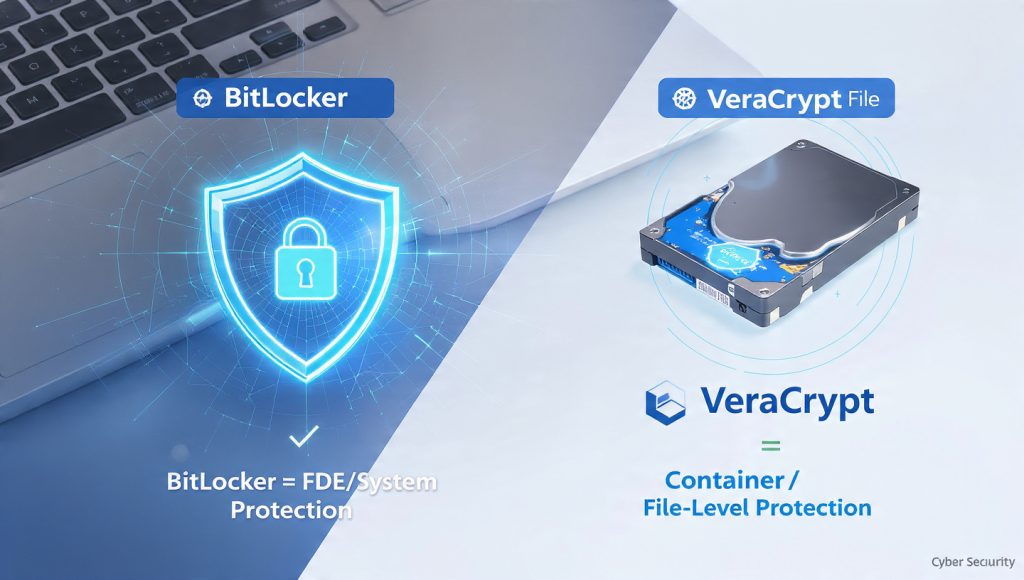
Encryption tools are categorized by their scope. This distinction dictates what they protect and when they fail.
Full Disk Encryption (FDE)
FDE, exemplified by BitLocker, encrypts the entire storage volume, including the operating system, applications, temporary files, and user data.
- Primary Goal: Protect data at rest against the physical theft of the entire computer or hard drive. If an attacker removes the hard drive and installs it in another machine, they cannot access the data without the key.
- Ease of Use: Once enabled, FDE is automatic and transparent, running silently in the background with minimal performance impact on modern machines (due to AES-NI hardware acceleration).
- Limitation: It is generally operating system, locked. A BitLocker drive is difficult to access on macOS or Linux without unreliable third, party tools.
File/Folder Encryption (FFE) and Containerization
FFE is a method that encrypts individual files or specific directories. This category includes proprietary “folder lock” software, basic archival tools (7, Zip), and sophisticated virtual containers (VeraCrypt).
- Primary Goal: Provide granular security for specific sensitive files, allowing them to be shared securely or stored separately, even if the main drive is unencrypted.
- Trade, off: FFE requires manual, user, initiated action (e.g., mounting a container, entering a password for an archive). It does not protect system files or temporary data created by the OS.
- Best Use Case: Compartmentalizing data, achieving cross, platform compatibility, and protecting specific assets against unauthorized access while the device is running.
II. The False Security of “Folder Lock” Software
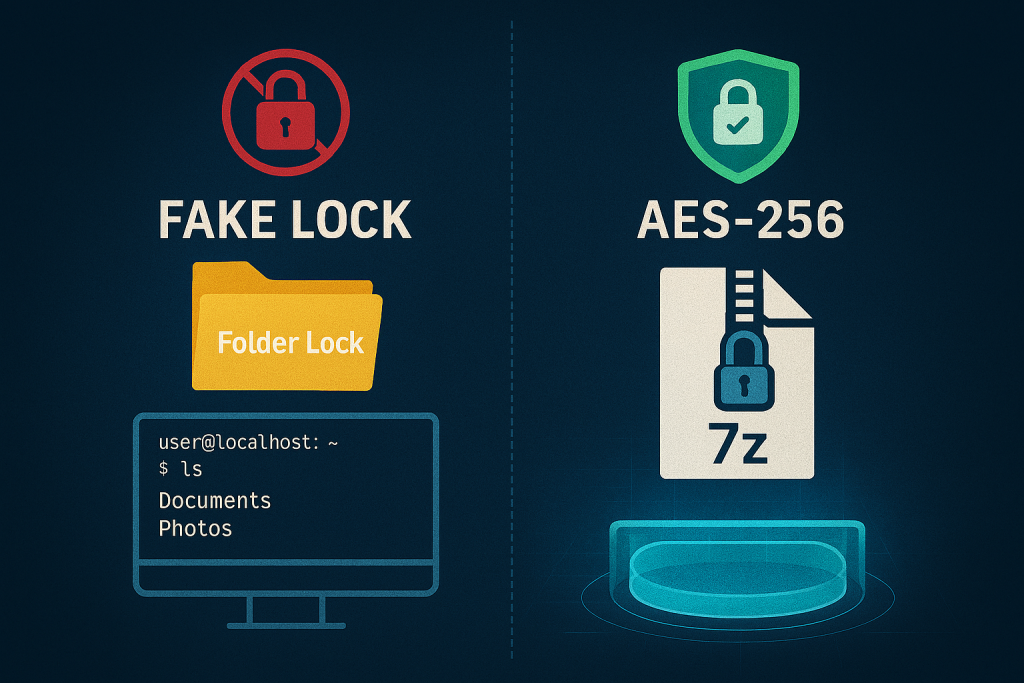
Many users turn to consumer, grade “Folder Lock” or file, hiding utilities to protect individual directories. This is a severe security mistake.
The Myth of Security Through Obscurity
Most proprietary folder lock programs (often promoted on app stores) rely on deceptive tactics that offer zero cryptographic protection. These tools typically:
- Hide the Folder: They simply modify Windows registry keys or file attributes to make the folder invisible in File Explorer.
- Rely on Obscurity: The files themselves remain unencrypted on the disk.
An attacker with basic command, line knowledge, or who boots the system into Safe Mode or from a Linux Live USB, can bypass these password locks instantly and access all files in the clear. Trying to recover files from a non, cryptographic “locked” folder is often trivial with standard file recovery software, as documented by multiple security forums. For security professionals, any folder protection tool that does not utilize an audited, high, strength cipher like AES-256 should be discarded.
The Secure Replacement: Encrypted Archiving (7, Zip)
For securing files for transfer or static backup, the gold standard is archive encryption. The free, open, source 7, Zip utility provides the necessary level of cryptographic rigor that simple folder lockers lack.
The Mandatory Security Check: When using 7, Zip, two configuration steps are non, negotiable for confidentiality:
- Select AES-256: This mandates the use of the Advanced Encryption Standard with a 256, bit key, replacing the easily cracked ZipCrypto often found in older archive formats.
- Encrypt File Names: You must explicitly check the Encrypt file names option. Failure to do so exposes the file names, directory structure, and file sizes to anyone, compromising metadata confidentiality, even if the contents are encrypted.
How, To: Creating a Secure AES-256 Archive (7, Zip)
- Right, Click and Archive:
Action: Right, click the file or folder to be protected. Select 7, Zip then Add to archive…
- Format:
Action: In the “Add to Archive” window, set the Archive format to 7z.
- Cipher:
Action: Under Encryption, select AES-256 from the dropdown menu.
- Metadata Protection:
Action: Ensure the Encrypt file names checkbox is selected. This is critical for hiding metadata.
- Password:
Action: Enter a strong password and click OK.
III. BitLocker: The Seamless Corporate Standard (FDE)
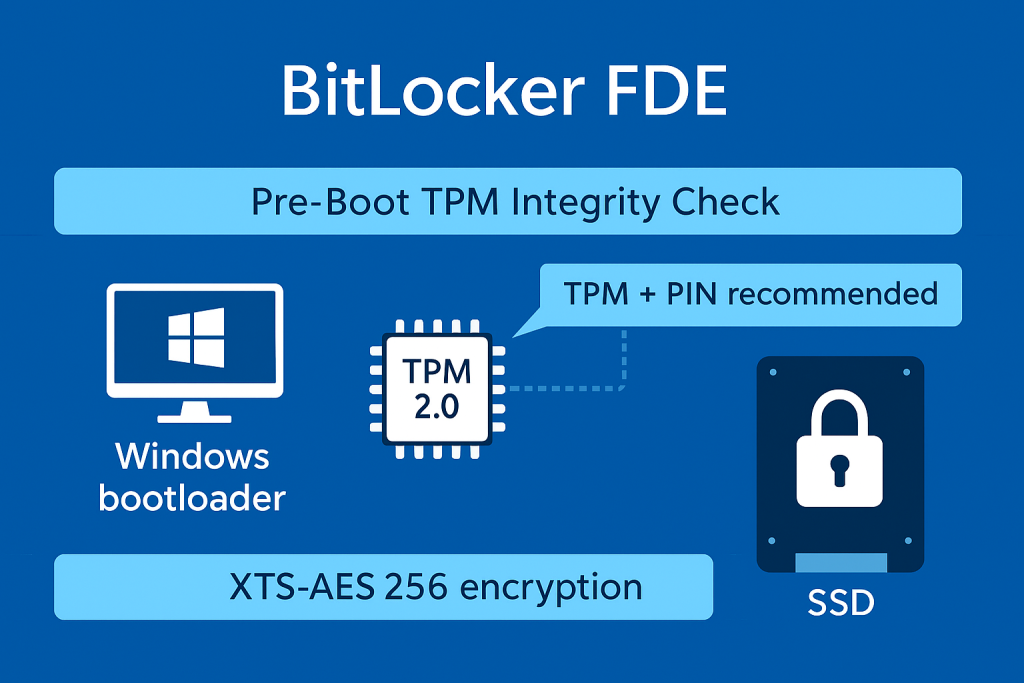
BitLocker is Microsoft’s built, in FDE solution, integrated deeply into the Windows operating system and firmware architecture. It is the best choice for protecting the primary storage drive against external access and theft.
TPM Dependency and Key Protection
BitLocker achieves its seamless, transparent operation by relying on the Trusted Platform Module (TPM) chip.
- Function: The TPM securely stores and seals the main volume encryption key. The key is released only after the TPM verifies that the pre, boot environment (BIOS, bootloader) has not been tampered with.
- Security Trade, Off: While convenient, the standard transparent mode (TPM only) is vulnerable to advanced attacks, like cold boot attacks, that attempt to extract the key from memory. For maximum security, IT administrators must enforce a pre, boot PIN alongside the TPM check.
Encryption Method and Performance
By default, BitLocker uses XTS-AES 128, bit encryption. However, for regulatory compliance and high assurance, the stronger XTS-AES 256, bit standard should be enforced.
- Cipher Choice: XTS-AES is a mode specifically designed for encrypting storage devices (block devices) and is considered superior to the older CBC mode used for removable media.
- Performance: On modern CPUs with AES-NI (Advanced Encryption Standard New Instructions), the performance overhead of using XTS-AES 256, bit is negligible, as the cryptographic work is handled by specialized hardware circuits, not the general CPU. The security benefit of 256, bit is essentially free in terms of speed.
How, To: Mandating XTS-AES 256, bit (Group Policy)
This is necessary to override the default 128, bit setting and must be done before activating BitLocker on a drive.
- Open Group Policy Editor:
Action: Press Win + R, type
gpedit.msc, and press Enter. - Navigate:
Action: Go to Computer Configuration > Administrative Templates > Windows Components > BitLocker Drive Encryption.
- Choose Cipher Strength:
Action: Double, click Choose drive encryption method and cipher strength (Windows 10 [Version 1511] and later).
- Configure:
Action: Set the policy status to Enabled.
- Action: Under “Select the encryption type,” change the method for “Operating system drives” and “Fixed data drives” to XTS-AES 256, bit.
- Apply:
Action: Click OK and activate BitLocker via the Control Panel or
manage-bdeto apply the new standard.
IV. VeraCrypt: The Audited, Cross, Platform Vault
VeraCrypt is the most versatile encryption tool, offering the security of FDE through an open, source, audited codebase. It is the only true option for cross, platform container security.
Open Source and Auditability
Unlike BitLocker, which is proprietary, VeraCrypt is open source. This allows security experts worldwide to audit its source code, verifying the absence of backdoors or flaws. This auditability is a major security benefit for privacy, focused users and those operating in high, risk environments.
Superior Key Derivation Function (KDF)
VeraCrypt gains a significant security edge over other solutions through its implementation of the Key Derivation Function (KDF). The KDF stretches a user, provided password into the binary encryption key.
- VeraCrypt’s Default: For non, system file containers, VeraCrypt defaults to performing 500,000 iterations of PBKDF2 (using SHA-512 or Whirlpool).
- Security: This exceptionally high number of iterations makes automated brute, force attacks against the user’s password computationally expensive and highly impractical, far exceeding the strength of many simpler implementations.
- Plausible Deniability: VeraCrypt offers the unique Hidden Volume feature. This allows a user to create a secret, second encrypted volume within the unused space of an already encrypted “outer” volume. If coerced, the user can reveal the password to the outer volume, which contains only decoy files, while the sensitive files in the hidden volume remain protected and cryptographically indistinguishable from random noise.
How, To: Creating a VeraCrypt Container (The Cross, Platform Vault)
- Create Volume:
Action: Launch VeraCrypt and click Create Volume. Select Create an encrypted file container.
- Select Volume Type:
Action: Choose Standard VeraCrypt volume.
- Location:
Action: Select the desired path and name for the container file (e.g.,
Archive.hc). - Encryption:
Verify: The Encryption Algorithm is set to AES and the Hash Algorithm is set to SHA-512 (or Argon2id, if available).
- Set Password:
Action: Enter a strong password. Click Next.
- Format:
Action: Move the mouse randomly across the window for about 30 seconds to generate high, quality random data (entropy) for the keys.
- Finalize:
Action: Click Format. The resulting
.hcfile can be mounted on Windows, macOS, and Linux, providing a shared, secure vault.
V. Decision Matrix: FDE vs. Containers
The right tool depends on the threat model, whether you’re worried about a stolen laptop or a file accidentally sent to the wrong recipient.
| Feature | BitLocker (FDE) | VeraCrypt (Container/FDE) | 7, Zip (Archive/FFE) |
| Encryption Scope | Entire Drive (System, Apps, User Data) | Specific File Container or Entire Drive | Single or Multiple Files (Static Archive) |
| Cross, Platform | Poor (Windows, locked) | Excellent (Windows, macOS, Linux) | Good (Requires AES-256 compatibility) |
| Ease of Setup | High (Score 9.1, seamless integration) | Low (Score 5.7, more technical process) | High (Quick archiving utility) |
| Key Derivation | Standard PBKDF2, TPM, protected | Superior PBKDF2 (500k+ iterations) | SHA-256 based (High iterations) |
| Key Recovery | Microsoft Account, Recovery Key | Requires Rescue Disk (FDE) or Header Backup (Container) | None (Lost password = Lost data) |
| Vulnerability | Closed, Source (Lower auditability) | Requires dedicated app to mount | Fails if Encrypt file names is unchecked |
VI. Troubleshooting and Security Failure Scenarios
All strong encryption systems share a single, unforgiving vulnerability: the human key.
BitLocker: Policy and TPM Conflicts
BitLocker failures typically occur at activation due to conflicts between the TPM security module and Windows configuration policies.
| Symptom / Error String | Root Cause | Non, Destructive Fix |
Protection Status: Protection Off or Failed to start. |
TPM is disabled in the BIOS/UEFI firmware. | Action: Access the BIOS/UEFI Security settings and ensure the TPM is Activated and Enabled. |
There are conflicting group policy settings... |
Policy requires silent encryption but mandates a TPM PIN or Startup key, which are incompatible with silent mode. | Action: Administrator must set TPM startup PIN and Startup Key to Blocked in GPO if silent encryption is required. |
| BitLocker repeatedly asks for the recovery key. | Minor firmware changes, BIOS updates, or internal TPM configuration changes triggered the security check failure. | Action: Suspend BitLocker protection, reboot, ensure BIOS is current, and then Resume protection. |
VeraCrypt: Header Corruption and Slow Performance
VeraCrypt’s main operational risks involve volume integrity and performance conflicts with other software.
- Header Corruption: If VeraCrypt reports “Incorrect password or not a VeraCrypt volume” when the password is known, the volume header is corrupted. The header is the 512 bytes that contain the encrypted key material.
- Fix: Use Tools > Restore Volume Header within the VeraCrypt application to try restoring the embedded backup. Without a backup, the data is permanently lost.
- Performance Drag: Slow file access, despite AES-NI hardware acceleration, is often caused by antivirus software or automatic disk defragmentation tools interfering with VeraCrypt’s low, level disk operations.
- Fix: Temporarily disable the antivirus’s real, time (on, access) scanning feature for the volume location.
VII. Frequently Asked Questions
1. Can a forgotten password be recovered in VeraCrypt or 7, Zip
No. Forgetting the password for an AES-256 archive (7, Zip) or a VeraCrypt volume results in permanent data loss. The strength of modern encryption ensures no one, not even the developers, can recover the data without the key.
2. Is BitLocker available on Windows Home edition
BitLocker Drive Encryption (FDE) is typically restricted to Windows Pro, Enterprise, or Education editions. However, many Windows Home systems include Device Encryption, which automatically encrypts the drive, but lacks the advanced features and is automatically linked to your Microsoft Account.
3. What is the security risk of Folder Lock software
Folder lock or file, hiding software that does not use strong cryptography (like AES-256) provides a false sense of security. These locks are often bypassed easily using basic system commands or by booting into an alternative environment, as the files are usually left unencrypted on the disk.
4. What is the difference between AES-128 and AES-256 encryption key strength
AES-256 uses a 256, bit key length, while AES-128 uses a 128, bit key. Both are extremely strong, but 256, bit is the standard mandated for classified data by the US government and is preferred for maximal cryptographic assurance. Since AES-NI makes the speed difference negligible, 256, bit is recommended.
5. Why should I care about VeraCrypt’s Key Derivation (KDF) iterations
A high number of KDF iterations (VeraCrypt uses 500,000 for containers) makes the process of converting your short human password into the strong encryption key intentionally slow. This significantly increases the time and computational power required for an attacker to perform a brute, force password guess.
6. Does BitLocker slow down my modern SSD
No, not noticeably. On modern hardware, the CPU uses AES-NI instructions to offload the encryption/decryption workload to specialized hardware. This results in minimal CPU usage and battery drain, with performance impact typically only measurable in synthetic benchmarks.
7. What is VeraCrypt’s biggest advantage for cross, platform users
VeraCrypt’s major advantage is its cross, platform compatibility. The same container file can be mounted and read/written on Windows, macOS, and Linux, making it the ideal choice for secure data sharing and storage across different operating systems.
8. What does “Encrypt file names” do in 7, Zip
When enabled, this crucial option encrypts the archive’s Central Directory, which contains the filenames, timestamps, and sizes of the files inside. Without it, an attacker can view the contents list without knowing the password, compromising metadata confidentiality.
9. Why is BitLocker often preferred in business environments
BitLocker’s strength lies in its seamless integration with the Microsoft ecosystem. It works automatically with TPM, and its recovery keys can be centrally and securely stored (escrowed) in Active Directory (AD DS) by IT administrators, simplifying large, scale deployment and recovery.
10. Can I use BitLocker without a TPM chip
Yes. If the PC lacks a TPM, BitLocker can be enabled using a USB startup key or a simple password. However, this compromises the security of the pre, boot integrity check normally provided by the TPM.
11. Is VeraCrypt FDE vulnerable to Windows updates
VeraCrypt system encryption (FDE) requires custom boot components. While highly secure, system updates (especially major Windows versions) have historically been known to sometimes cause conflicts that require using the VeraCrypt Rescue Disk to resolve, making it less seamless than BitLocker.
12. Does BitLocker protect my data if I simply lose my Windows login password
Yes. If the drive is protected by BitLocker (even if using only the TPM protector), the user can enter the BitLocker Recovery Key (the 48, digit code usually backed up to the Microsoft Account) to regain access to the data.
13. What is “plausible deniability” in VeraCrypt
Plausible deniability is achieved through VeraCrypt’s Hidden Volume feature. It allows the user to create a secret volume inside an outer volume containing decoy data. If coerced, the user reveals the password to the outer volume, which contains only decoy files, while the sensitive files in the hidden volume remain protected and cryptographically indistinguishable from random noise.
14. What is the security concern with BitLocker being closed source
Being closed source means the internal code cannot be publicly audited by security researchers for flaws, backdoors, or implementation errors. Privacy advocates often prefer open, source tools like VeraCrypt because their code is verifiable and transparent.
15. If I encrypt a folder using 7, Zip, can the recipient open it on a Mac
Yes, provided the Mac user installs a compatible utility like Keka, Ez7Z, or similar archive tools that support AES-256 encryption. The native Mac Archive Utility may not be able to handle non, ZipCrypto formats.
VIII. Verdict by Persona
| Persona | Primary Tool | Reasoning |
| Corporate Employee / Managed PC | BitLocker FDE | Required for seamless integration with corporate security (TPM + AD DS key escrow). Provides mandatory system, level defense against theft. |
| Windows Home User / Freelancer | VeraCrypt Container | BitLocker FDE is unavailable, and VeraCrypt offers verifiable, audited AES-256 security. Ideal for creating secure, local project vaults and portable media. |
| High, Risk/Privacy Advocate | VeraCrypt FDE + Hidden Volumes | Offers the strongest key derivation (500k PBKDF2 iterations) and the unique feature of plausible deniability against sophisticated coercion or state, level adversaries. |
| File Transmitter / Collaborator | 7, Zip AES-256 Archive | Fastest method for securing individual, static files for transfer. Crucially protects the file structure by encrypting the metadata/filenames. |
In the realm of digital defense, the experts at Newsoftwares.net advocate for a fundamental truth: security must be verifiable, not obscure. The choice between BitLocker FDE and VeraCrypt Containers is a strategic one, dictated entirely by your threat model and need for either system defense or file portability. BitLocker provides a corporate-grade, seamless barrier for the entire Windows drive, leveraging the TPM for convenience and security. Conversely, VeraCrypt delivers an audited, cross-platform solution with superior resistance to brute-force attacks and unique deniability features. By discarding weak, proprietary folder locks in favor of these audited, high-strength AES-256 standards, you ensure your data is locked down with maximum security, privacy, and convenience, guaranteeing protection against unauthorized access and physical theft.