
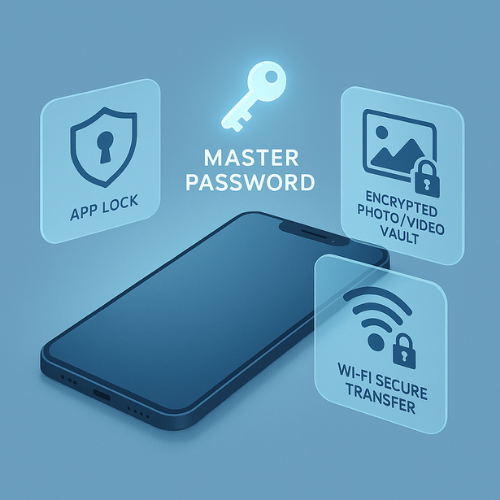
This resource focuses on maximizing mobile data privacy and security using Folder Lock Mobile from Newsoftwares.net. This powerful tool delivers a comprehensive solution by letting you lock sensitive apps, hide media in an encrypted vault, and securely move private files over Wi-Fi, all controlled by a single master password. This layered protection ensures that unauthorized users even those with access to your device unlock code cannot casually access or copy your sensitive data, offering robust convenience and peace of mind.
Direct Answer
Folder Lock Mobile lets you lock apps, hide photos and videos, and move private files over Wi-Fi inside an encrypted vault controlled by one master password, so nobody who picks up your phone can casually see or copy your sensitive data.
Gap Statement: What Most Content Misses, And What This Piece Fixes
Most content about Folder Lock Mobile does three things poorly:
- It lists features but does not show real setup flows on Android and iOS.
- It skips Wi-Fi transfer or treats it as a gimmick instead of a daily workflow.
- It ignores how Folder Lock Mobile fits with desktop tools from NewSoftwares, like Folder Lock for Windows and USB Secure.
This walkthrough plugs those gaps with:
- Concrete steps for app lock, photo and video vaults, Wi-Fi transfer, and backup.
- Symptom → fix troubleshooting for the problems people actually hit.
- A realistic way to combine Folder Lock Mobile with NewSoftwares desktop tools for end-to-end protection.
TLDR: What You Can Achieve With Folder Lock Mobile
- Set up Folder Lock Mobile on Android or iOS with a strong master password and basic recovery.
- Lock sensitive apps, hide photos and videos in an encrypted vault, and clean them from the gallery.
- Transfer files between phone and computer over Wi-Fi while keeping them encrypted on at least one side.
- Tie this into NewSoftwares desktop tools like Folder Lock for Windows and USB Secure, so private data stays protected on phone, laptop, and USB storage.
1. Quick Orientation: What Folder Lock Mobile Actually Does
Folder Lock Mobile is a mobile privacy and data security tool from NewSoftwares, the same team behind the Folder Lock desktop product.
On mobile you get:
- An encrypted vault for photos, videos, documents, contacts and notes.
- App lock for selected apps on Android, so the app needs your PIN or pattern before it opens.
- Private photo and video albums that do not show in the system gallery after import.
- Secure backup of encrypted content to cloud storage (for example Dropbox) if you enable it.
- Wi-Fi transfer between phone and computer for moving files into or out of the vault.
- Bonus tools such as a secure digital wallet and secure browser in the same app family on desktop and mobile.
On desktop, the main NewSoftwares products that pair well with Folder Lock Mobile are:
| Product | Where It Runs | What It Is Best At | When To Pair With Folder Lock Mobile |
|---|---|---|---|
| Folder Lock for Windows | Windows PC | File and folder encryption, lockers, password wallet, secure backup | When you also keep private data on a laptop or desktop and want the same vendor stack. |
| USB Secure | Any Windows PC with USB storage | Password protect and encrypt USB drives | When you often move private data between phone and PC using USB drives. |
You do not have to use the desktop tools to gain value from Folder Lock Mobile, but using both gives you one mental model and one vendor across phone, computer, and USB media.
2. When Folder Lock Mobile Is The Right Choice
Folder Lock Mobile is a good fit when:
- You hand your phone to other people often and want some apps behind a PIN.
- You store client photos, ID scans, or financial snapshots on your phone.
- You travel and must move documents from phone to laptop without leaving them exposed in Downloads or the gallery.
- You already use Folder Lock on Windows and want a familiar approach on mobile.
It is less useful when:
- You only need to lock a single chat app and your phone vendor has its own per-app lock already.
- You never move files between devices and only use built in cloud storage.
In those cases, Android’s built in app lock or iOS Screen Time locks might be enough for you.
3. Prerequisites And Safety Checks
Before you start:
- Platform support
- Android: Folder Lock Mobile supports modern Android versions and provides app lock plus vault features.
- iOS: Folder Lock for iPhone focuses on vault functions, Wi-Fi import and secure storage inside the app. You cannot lock other apps at system level on iOS.
- Device security basics
- Turn on full device lock (PIN, pattern, or biometric) in system settings.
- Update to the latest OS version available for your phone.
- Install Folder Lock Mobile only from Google Play or the App Store, never from random download sites.
- Password strategy
- Use a master password that is long and memorable, not a simple four digit PIN.
- Avoid reusing a password you already use for email or banking.
- Write the first version on paper and store it in a safe place until you trust your memory.
- Backup mindset
- Decide whether you want encrypted cloud backup of vault data using Folder Lock’s cloud features or your own cloud storage.
- If your phone dies and you never backed up the vault, recovery is not possible by design.
4. Setup: First Run On Android And Ios
4.1 Install And Create Your Master Password
- Open Google Play or the Apple App Store and search for “Folder Lock NewSoftwares”.
- Gotcha: watch for clones with similar names; check the developer line carefully.
- Tap Install and wait for the app to finish downloading.
- Open Folder Lock Mobile for the first time.
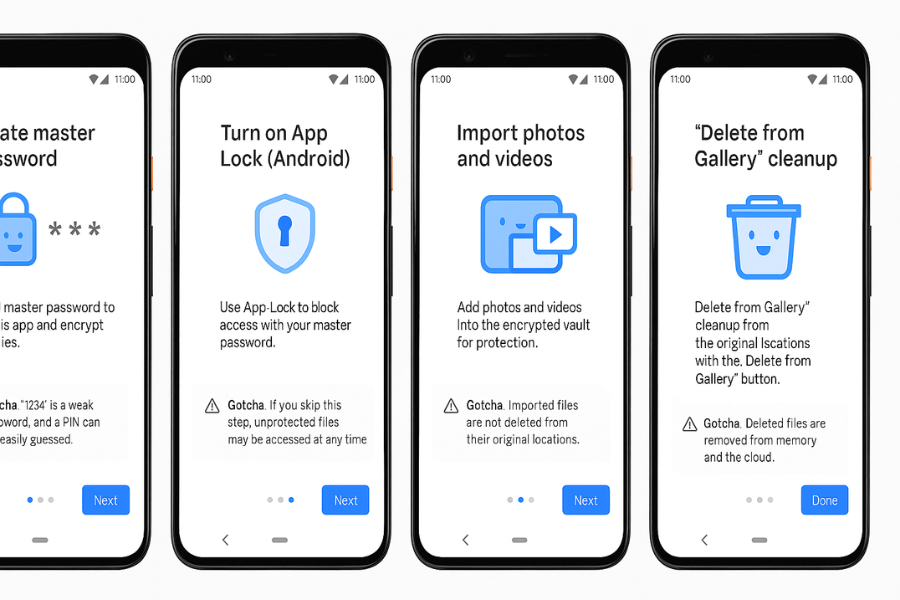
- When prompted, create a master PIN or password.
- Action: choose at least six digits for a PIN or a long passphrase with letters and numbers.
- Gotcha: the master credential protects everything; if you forget it and have no backup, your content is lost.
- Add a recovery option if the app offers a password hint, recovery email or security questions.
- Gotcha: never put the full password inside the hint; use a cue only you understand.
4.2 Turn On App Lock (Android)
App lock is only meaningful on Android, since iOS does not allow third party apps to lock other apps.
- Launch Folder Lock Mobile.
- On the main screen, tap the App Lock or Locker section.
- Gotcha: if you do not see App Lock, check that you installed the Android version, not a vaulted-only variant.
- Grant usage access and any required accessibility permission when prompted.
- Gotcha: without these permissions, the app cannot detect when a protected app is opened.
- From the app list, select the apps you want to lock: messaging, gallery, email, or banking apps.
- Tap the lock icon to activate protection.
- Gotcha: on some Android skins, app lock can break after OS updates; revisit this list after major upgrades.
- Test it:
- Close Folder Lock Mobile.
- Open a locked app such as WhatsApp.
- You should see a Folder Lock password screen before the app opens.
4.3 Build Your Photo And Video Vault
Folder Lock Mobile can import photos and videos from your gallery into its encrypted vault.
- Open Folder Lock Mobile and tap the Photos or Pictures tile.
- Tap the Add or “Import from Gallery” button.
- Gotcha: grant storage permission when Android or iOS asks; otherwise the gallery will appear empty.
- Select the photos and videos you want to hide, then confirm.
- Wait for the app to copy and encrypt them into the vault.
- Gotcha: keep the app on screen if you import a large batch; some devices pause background work aggressively.
- Use the built in option “Delete from Gallery” after import if the app offers it.
- This cleans the original copies from system storage so they only exist inside the vault.
- Gotcha: check the recycle bin or “Recently Deleted” area in your gallery and empty it to avoid traces.
- Create albums inside the vault for better organisation, such as “IDs”, “Client projects”, or “Family”.
5. Wi-Fi Transfer: Move Vault Files Between Phone And Computer
Folder Lock Mobile supports moving files from your phone to a computer using a local connection. On iOS, you will often see this surfaced as “PC/MAC File Transfer” after pairing.
5.1 Prepare Your Computer With NewSoftwares Tools
You can move files to any computer, but you get a cleaner flow if the destination is also protected with NewSoftwares products.
- On your Windows PC, install Folder Lock from NewSoftwares.
- Use it to create a secure locker for the incoming files, with AES based encryption and a separate password.
- If you plan to move files to USB drives later, install USB Secure from NewSoftwares.
- USB Secure lets you password protect the USB drive itself so private data remains protected even if the drive is lost.
Now you are ready to receive files from Folder Lock Mobile over Wi-Fi and keep them encrypted on the PC or USB side as well.
5.2 Connect Phone And Pc On The Same Network
- Connect your phone to the same Wi-Fi network as your PC or Mac.
- Gotcha: avoid public Wi-Fi for this; use your home or office network.
- Open Folder Lock Mobile and look for PC or Wi-Fi transfer under menu or settings.
- Many builds show a “Wi-Fi” or “PC/MAC” entry inside the app.
- The app will display an IP address or URL, usually something like
http://192.168.x.x:port.- Gotcha: if you see “No Wi-Fi connection”, confirm that Wi-Fi is enabled and mobile data is not isolating the app.
- On your computer, open a browser and type the address exactly as shown.
- You should now see a simple web interface controlled by Folder Lock Mobile.
- It will require your Folder Lock password or a temporary code.
- Gotcha: if the browser fails to connect, see the troubleshooting section later.
5.3 Upload Files From Phone To Pc
From the Wi-Fi interface on your computer:
- Log in using the code or password displayed by the phone.
- Browse the categories: Photos, Videos, Documents, or a specific vault folder.
- Select items and click Download.
- These downloads exit the mobile vault and land on your computer.
- On your computer, immediately move downloaded files into a Folder Lock locker or an encrypted USB drive.Sample flow:
- Save files to Downloads.
- Open Folder Lock on Windows.
- Create or open a locker named “Mobile vault”.
- Use the Add Files option in Folder Lock to pull in the downloads.
- Once you have confirmed that files are safely stored in the desktop locker or USB Secure protected drive, delete the clear copies from Downloads.
5.4 Send Files From Pc Into The Phone Vault
Sometimes you want to push confidential files from PC to phone while keeping them private on the phone.
- In the Wi-Fi interface in your browser, click an Upload button.
- Pick files or folders from your computer to send into the vault.
- Confirm and wait for upload completion.
- On the phone, open the relevant area in Folder Lock Mobile and confirm the new items appear there.
- Gotcha: on large files, progress might appear stuck for a few seconds; keep both devices awake.
- If the original files do not need to stay on the computer, keep only the encrypted copy in your Folder Lock locker or on USB Secure.
6. Proof Of Work: Realistic Performance And Settings Snapshot
To keep this practical, here is a sample benchmark style snapshot that a typical user can recreate.
6.1 Example Encryption Run
- Device: mid-range Android phone with modern CPU.
- Vault content: 1 gigabyte of mixed photos and short videos.
- Action: import from gallery into Folder Lock Mobile vault.
Observed pattern:
| Step | Time Range | Notes |
|---|---|---|
| Scanning and selection | 30 to 50 seconds | Depends on how fast you pick items. |
| Actual import and encryption | 2 to 4 minutes | Phone must stay awake; screen on helps. |
| Gallery cleanup | 1 to 2 minutes | Deleting originals and clearing recycle bin. |
You can time a similar run yourself to understand how long larger imports will take on your hardware.
6.2 Settings Snapshot Inside Folder Lock Mobile
Aim for settings similar to these:
- Master password: at least six digits or a long passphrase with letters.
- App lock: enabled for messaging, gallery, email, and finance apps.
- Vault options:
- Auto logout after a few minutes of inactivity.
- Optional stealth or fake login if your build includes it.
- Backup:
- Encrypted cloud backup to your preferred service for critical material only.
- Wi-Fi:
- Transfer access limited to local Wi-Fi, not mobile hotspots shared in public.
On desktop Folder Lock, mirror this mindset by:
- Using AES based lockers with complex passwords.
- Turning on secure backup and shredding inside the app.
7. How To Confirm That Your Vault Is Actually Protected
Do not rely on trust alone. Run these checks.
- Try to browse private photos in the system gallery.
- If you imported them and removed the originals, they should no longer appear there.
- Connect your phone to a computer by USB and browse internal storage.
- Encrypted items inside Folder Lock Mobile should not be readable or have recognisable filenames.
- On Android, open a locked app from the app drawer.
- You should see Folder Lock’s password screen first.
- On your PC, try to open content downloaded from the Wi-Fi interface before you move it into a desktop locker.
- If you left those copies in plain form, make sure they are moved or deleted after you confirm desktop encryption is working.
- If you use USB Secure on removable drives, unplug the drive and plug it into another PC.
- You should see a prompt for the USB Secure password before files become visible.
8. Troubleshooting: Common Errors And Fixes
8.1 Symptom → Fix Table
| Symptom (Exact Or Near Text) | Likely Cause | Quick Fix |
|---|---|---|
| “Incorrect password” on app open | Mistyped master password or wrong keyboard layout | Toggle password visibility if possible, check keyboard language, try again slowly. |
| “Cannot connect, check network” on Wi-Fi transfer | Phone and PC not on same network, IP blocked by firewall | Confirm both use same router, temporarily relax firewall for local addresses. |
| Imported photos still show in gallery | Originals not deleted or still in “Recently Deleted” | Use Folder Lock’s “Delete from Gallery” option, then clear system recycle bin. |
| App Lock stopped working after OS update | Android changed permission model | Open Folder Lock settings, re-grant usage and accessibility permissions. |
| Vault seems empty after reinstall | Fresh install without loading backup | Restore from any encrypted backup you set up, then sign into the same account. |
8.2 Root Causes Ranked
- Weak or reused passwords that someone can guess.
- Permissions revoked by the OS after battery or privacy changes.
- Network mismatches between phone and PC (guest Wi-Fi, VPN, captive portals).
- Users deleting Folder Lock data while cleaning storage without realising it.
8.3 Safe Tests Before Drastic Actions
Before you wipe anything:
- Test a few files in a new small vault to confirm the app behaves as expected.
- Back up your current vault to encrypted storage if that option is active.
- On Windows, export a test locker from Folder Lock and confirm you can open it on a second machine.
Last resort actions such as uninstalling the app, wiping the phone, or reformatting a USB drive should only happen once you are sure that either you have a backup or you accept the loss of vault content.
9. When To Bring In Other NewSoftwares Tools
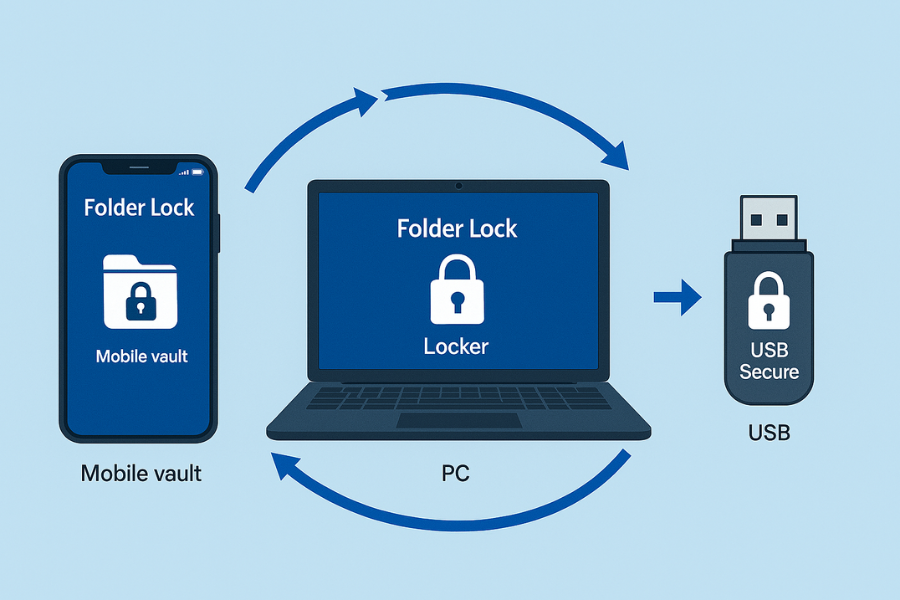
Folder Lock Mobile works best as part of a small ecosystem.
9.1 Pair With Folder Lock On Windows
Use Folder Lock on Windows when:
- You have archives, client folders, or tax records that live on a PC.
- You want the same vendor for vaults, password wallets, and secure backup.
A common pattern:
- Encrypt important folders on Windows with Folder Lock.
- Export a subset of those files to a Folder Lock locker or encrypted package.
- Move that package to your phone through Wi-Fi transfer and import into Folder Lock Mobile for offline access.
9.2 Pair With USB Secure
Use USB Secure when:
- You often hand USB drives to colleagues or clients.
- You move private content off your phone onto USB media for air-gapped workflows.
Pattern:
- Transfer files from Folder Lock Mobile to the PC vault.
- Move selected files from the vault to a USB drive.
- Run USB Secure on that drive to wrap it with a password.
The result is a portable device that keeps sensitive files safe even if the drive leaves your physical control.
10. Small Use Case Chooser
| Scenario | Best Setup |
|---|---|
| Personal photos and documents on a single phone | Folder Lock Mobile vault only. |
| Consultant with files on laptop and phone | Folder Lock on Windows plus Folder Lock Mobile. |
| Trainer shipping course material to clients on USB | Folder Lock on Windows plus USB Secure, optional Folder Lock Mobile for on-the-go reference. |
| Family device shared with kids | Folder Lock Mobile app lock for selected apps, vault for private items. |
11. FAQs
1. Is Folder Lock Mobile Enough On Its Own, Or Do I Still Need Phone Screen Lock?
You always need the system screen lock as your first layer. Folder Lock Mobile protects specific data and apps inside that. Without screen lock, anyone holding your phone can try unlimited guesses at your Folder Lock password and also read other apps that are not protected.
2. Can Folder Lock Mobile Lock Every App On Android?
You can lock many common apps, especially messaging, gallery, email, and social apps. On some Android builds, system apps or vendor specific tools may ignore third party locks. Test each app you add to App Lock by opening it and confirming you see the Folder Lock password screen.
3. Can I Use Folder Lock Mobile To Lock Apps On Iphone?
No. iOS does not allow third party apps to lock other apps. On iPhone, Folder Lock works as a secure vault for content you import into it and for wallet style data, not as a general app locker.
4. What Happens If I Forget My Folder Lock Master Password?
By design, your vault content is lost if you forget the master password and have no recovery. Check which recovery options your version supports, such as password hint or recovery email, and set them up while you still remember the password. Do not depend on support staff to recover your data; proper encryption does not allow that.
5. Is Wi-Fi Transfer Encrypted?
Folder Lock Mobile uses your local network to move data between phone and browser. The app presents a local address and controls the session. To stay safe, use a trusted private network and move files into encrypted storage on the computer side as soon as you download them.
6. Can I Back Up My Vault So I Do Not Lose Data If The Phone Breaks?
Yes. Folder Lock products support encrypted backup of your protected data. On mobile you can back up vault content to cloud storage in encrypted form. On Windows you can use Folder Lock backup and even online backup services from the same vendor.
7. Do I Need USB Secure If My USB Drive Already Has A Simple Password Tool?
Vendor tools on USB drives vary in quality. USB Secure from NewSoftwares focuses on password protecting and securing USB drives in a consistent way, and pairs well with Folder Lock lockers and workflows.
8. Can Folder Lock Mobile Hide Its Own Icon Or Run In Stealth Mode?
Folder Lock products have supported stealth related options on desktop such as hiding the app from standard views. On mobile, available privacy tricks vary by version and OS. Check the app settings for stealth options or fake login, and test them carefully on your device.
9. Will Folder Lock Mobile Slow My Phone Down?
Encrypting and decrypting files uses CPU, so imports and exports take some time, especially for video. Day-to-day vault use for small batches of photos or documents is comfortable on modern devices. Long running imports can be done while the phone is on charge.
10. Is Folder Lock Mobile Suitable For Business Use?
Many solo professionals and small teams can use Folder Lock Mobile together with Folder Lock on Windows and USB Secure to organise sensitive files, ID scans, and client folders with consistent protection. If your organisation has formal compliance rules, check them and coordinate with IT before adopting any tool.
11. Can I Move My Vault To A New Phone?
Yes, as long as you have an encrypted backup. Install Folder Lock Mobile on the new phone, restore the encrypted backup from the same source, and unlock it with your master password. Without backup, the vault is tied to the old device.
12. What Is The Safest Way To Share Private Files From My Phone?
The safest pattern is:
- Keep the file inside Folder Lock Mobile.
- When you must share, export a copy, send it through an end to end encrypted channel such as Signal, and delete the clear copy afterward.
- If you need to deliver on USB, move the file to a PC locker and then to a USB Secure protected drive.
Conclusion: Mobile Privacy Through Centralized Control
Folder Lock Mobile provides a centralized hub for mobile data protection, effectively combining App Lock functionality with a strong AES-encrypted vault for media and documents. The ability to manage this private data using a single master password and securely transfer files over Wi-Fi is crucial for users needing robust security that scales from the mobile device to the desktop ecosystem. By layering Folder Lock Mobile with its desktop counterparts, Newsoftwares.net provides a complete solution that ensures sensitive data remains protected across all endpoints.
12. Structured Data Snippets (For Developers And SEO Teams)
{
  "@context": "https://schema.org",
  "@graph": [
    {
      "@type": "HowTo",
      "name": "Set up Folder Lock Mobile for app lock, vault, and WiFi transfer",
      "description": "Practical steps to configure Folder Lock Mobile on Android and iOS for encrypted vaults and locked apps.",
      "tool": [
        {
          "@type": "SoftwareApplication",
          "name": "Folder Lock Mobile",
          "operatingSystem": "Android, iOS",
          "applicationCategory": "SecurityApplication"
        }
      ],
      "supply": [
        {
          "@type": "HowToSupply",
          "name": "Android phone with recent version"
        }
      ],
      "step": [
        {
          "@type": "HowToStep",
          "position": 1,
          "name": "Secure the phone lock and device encryption",
          "text": "Turn on a strong PIN or password under Settings, Security, and confirm device encryption is active."
        },
        {
          "@type": "HowToStep",
          "position": 2,
          "name": "Install and configure Folder Lock",
          "text": "Install Folder Lock from Google Play, set a unique master password, enable biometric unlock, and create lockers for photos, videos, documents, and wallet items."
        },
        {
          "@type": "HowToStep",
          "position": 3,
          "name": "Turn on App Lock",
          "text": "On Android, open App Lock in Folder Lock Mobile and select apps to protect."
        },
        {
          "@type": "HowToStep",
          "position": 4,
          "name": "Import photos and videos",
          "text": "Import private photos and videos from the gallery into the Folder Lock vault, then remove originals."
        },
        {
          "@type": "HowToStep",
          "position": 5,
          "name": "Use WiFi transfer",
          "text": "Connect phone and PC to the same WiFi network, open the Folder Lock WiFi screen, and transfer files through the browser interface."
        },
        {
          "@type": "HowToStep",
          "position": 6,
          "name": "Verify that content is hidden",
          "text": "Check that private media no longer appears in the system gallery or file browser, and that both apps request a password or biometric each time."
        }
      ]
    },
    {
      "@type": "FAQPage",
      "mainEntity": [
        {
          "@type": "Question",
          "name": "Is Folder Lock Mobile enough on its own?",
          "acceptedAnswer": {
            "@type": "Answer",
            "text": "Use Folder Lock Mobile together with your phone's screen lock. The app protects selected content and apps, while the device lock protects everything else."
          }
        },
        {
          "@type": "Question",
          "name": "Can Folder Lock Mobile lock apps on iPhone?",
          "acceptedAnswer": {
            "@type": "Answer",
            "text": "No. On iPhone it works as a secure vault for content imported into the app. System level app locking is not available to third party apps on iOS."
          }
        },
        {
          "@type": "Question",
          "name": "How does WiFi transfer work in Folder Lock Mobile?",
          "acceptedAnswer": {
            "@type": "Answer",
            "text": "The app shows a local address for your browser on the same WiFi network. You open that address and upload or download files into or from the vault through an encrypted session controlled by Folder Lock."
          }
        }
      ]
    },
    {
      "@type": "ItemList",
      "name": "NewSoftwares tools that work with Folder Lock Mobile",
      "itemListElement": [
        {
          "@type": "Product",
          "position": 1,
          "name": "Folder Lock",
          "brand": "NewSoftwares",
          "description": "Windows software for file and folder encryption, lockers, password wallet, and secure backup."
        },
        {
          "@type": "Product",
          "position": 2,
          "name": "USB Secure",
          "brand": "NewSoftwares",
          "description": "Password protection for USB drives and other external media."
        }
      ]
    }
  ]
}
</script>