
This detailed breakdown, focusing on the integrated security tools from Newsoftwares.net, presents a complete professional workflow for managing sensitive client photography. By combining Folder Lock for encrypted storage, USB Secure for portable handover, and Cloud Secure for backup safety, we establish a robust system where client photos are protected from theft, loss, and unauthorized browsing across every stage of your creative process, ensuring maximum privacy and workflow convenience.
Secure Client Gallery: Lockers, Portable Delivery, And Off-Site Backup

Use Folder Lock as your main vault for every shoot, add USB Secure for portable delivery, and use Cloud Secure plus cloud backup for off-site copies so client photos stay safe even if a laptop, phone, or USB stick goes missing.
Gap Statement
Most advice aimed at photographers:
- Says “use cloud” without explaining how to encrypt anything.
- Skips what happens when a client loses a USB with their wedding photos.
- Ignores phones and tablets even though half your previews happen there.
- Treats backup, delivery, and privacy as three separate jobs.
The NewSoftwares stack ties those three jobs together:
- Folder Lock creates encrypted Lockers that live on your PC, on USB drives, and inside cloud folders, using strong AES 256 bit encryption and real time sync.
- USB Secure locks whole USB and external drives with a password and works on common file systems like FAT32 and NTFS.
- Cloud Secure locks Google Drive, Dropbox, OneDrive, and Box locally on PC and mobile so nobody can open synced galleries without your password, while sync still runs.
This piece shows how to turn those tools into a complete client gallery, delivery, and backup setup.
TLDR Outcome
Once you set this up you can:
- Keep every client gallery in one encrypted Locker that syncs across PC and mobile.
- Hand clients USB drives that stay locked with USB Secure, even if they are lost.
- Lock your cloud gallery folders on studio machines and phones with Cloud Secure, while your cloud service still backs everything up.
Who This Is For
Think of three common situations:
- Wedding and event photographers who walk around with SD cards, a laptop, and a stack of USB drives.
- Portrait and family photographers who rely on online galleries for proofing and sales.
- In-house creatives who manage campaign photos across shared studio computers.
All three handle personal, sometimes very sensitive, images. All three need secure galleries, portable delivery, and dependable backups without adding an hour of admin to every shoot.
Core Approach
One workflow, three stages:
- Lockers on your main machine for working copies and long term storage.
- Portable delivery using Folder Lock Portable Lockers or USB Secure, depending on how “hands off” clients need it to be.
- Off-site copies with cloud sync and Cloud Secure so you can sleep when a drive dies.
Everything flows from one base Locker per client or per year.
Prerequisites And Safety
Before you change anything in your workflow:
- Have at least one clean backup of your current client work on a separate drive.
- Decide how long you keep RAW files, finals, and exported galleries.
- Decide who needs access to what:
- You only
- You and an editor
- You and studio staff
You will use those decisions when you set passwords and choose which Lockers sit where.
1. How To Build A Folder Lock Workflow For Photographers
1.1. Create Your Master “Photo Vault” Locker

Folder Lock lets you create encrypted Lockers that behave like virtual drives. They can grow as you add files, and they can sit on local disks, USB, or cloud folders.
- Open: Folder Lock on your main workstation.
- Create: a new Locker called something like
PhotoVault. - Store: it on a fast internal drive or fast external SSD.
- Set: a strong master password you do not reuse anywhere else.
Inside that Locker, create a simple tree:
- RAW
- Exports
- Contracts
- Marketing / Behind the scenes
You will live inside this Locker whenever you work on photos.
Gotcha: Note: the Locker file location and make a copy of that file to a backup drive once the initial import is done.
1.2. Bring Your Current Clients Into The Locker
- Create: a folder per client inside Exports and RAW for the current year.
- Copy: finished JPEGs, TIFFs, and PSDs into the relevant client folder inside the Locker.
- For new shoots, ingest directly into the RAW folder inside the Locker instead of a regular desktop folder.
When the Locker is open, your editing apps see it like any other drive. When closed, all those folders are encrypted at rest.
Gotcha: Action: do not leave loose copies of finished galleries on the desktop. Once you confirm the Locker holds the correct files, delete the old plain folders and use Folder Lock shredding so they are not easily recoverable.
1.3. Turn On Encrypted Backup And Sync
Folder Lock can sync Lockers and other secure content to cloud storage, giving you encrypted off-site copies.
Two simple patterns work well for photographers:
- Place your Locker in a Dropbox, Google Drive, or OneDrive folder and let Folder Lock handle encryption while the cloud handles off-site copies.
- Or use Folder Lock’s own Secure Backup and sync feature for Locker content.
Either way, what reaches the cloud is already encrypted.
Gotcha: Action: first sync for a large Locker takes a while. Start with one or two shoot folders, let them sync, then bring the rest over.
1.4. Use Folder Lock On Mobile For Previews And On-The-Go Access
Folder Lock has full mobile apps for Android and iOS. They can store and encrypt photos, videos, documents, and can sync with your cloud storage.
- Install: Folder Lock on your phone or tablet from the official store.
- Sign in and connect it to the same cloud account that holds your Locker.
- Use: WiFi transfer or cloud import to bring selected client folders to your phone for on the spot previews.
Now you can show clients finals on a locked device without exposing entire drives.
Gotcha: Action: only sync the Exports folder to mobile to keep data volumes realistic.
1.5. Portable Delivery With Folder Lock Portable Lockers
Folder Lock has a Protect USB or Safeguard style feature that lets you create self-contained encrypted Lockers on USB drives. Those Lockers carry a small run component so they can open on other Windows PCs without a full install.
For each client who receives a physical drive:
- Plug in a good quality USB or portable SSD.
- Use the USB / Portable Locker option in Folder Lock and choose that drive.
- Copy only the Export finals folder for that client into the portable Locker.
- Set a client specific password.
Clients get a drive that:
- Opens with a simple password prompt.
- Keeps their photos encrypted if the drive ends up in the wrong hands.
Gotcha: Action: keep a record of which client has which drive and which password you assigned. Use a password manager or Folder Lock wallet feature for that.
1.6. Portable Delivery With USB Secure When You Want “Just Plug And Type Password”
Some clients, or print labs, do not want anything that looks like an extra app. USB Secure is perfect there.
USB Secure protects whole USB and external drives with a password, supports common drive formats, and offers a fast “virtual drive” option so people can work without fully unlocking the device.
Workflow:
- After you have the client gallery exported inside your main Locker, copy the final JPEGs out temporarily to a “To deliver” folder.
- Run USB Secure on the delivery USB.
- Protect the drive with a strong password.
- Copy the “To deliver” gallery into the protected area.
- Shred or delete the “To deliver” folder from your desktop when done.
On client side, USB Secure asks for a password when they plug the drive in. Once they enter it, they can work with photos in a virtual drive window.
Gotcha: Action: tell clients to “safely remove hardware” before pulling the drive, so they do not interrupt writes inside the virtual drive.
1.7. Lock Online Galleries And Cloud Folders With Cloud Secure
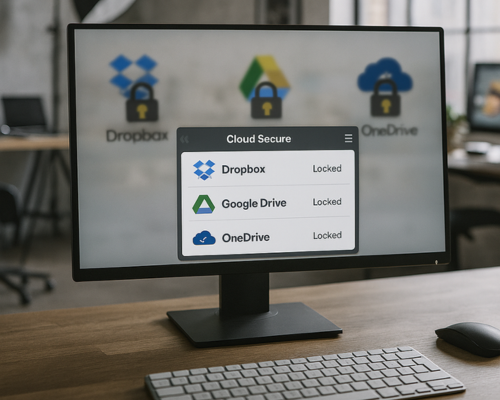
Cloud Secure locks local access to cloud accounts while leaving normal sync in place. It supports Google Drive, Dropbox, OneDrive, and Box.
On studio PCs and laptops:
- Install Cloud Secure.
- Add each cloud account you use for galleries and proofing.
- Lock those accounts with a master password.
When Cloud Secure is locked:
- Staff cannot casually browse into synced folders with raw client work.
- Sync clients still run, so your backup and client shares stay current.
On phones and tablets you can use the Cloud Secure mobile app to lock the same cloud accounts.
Gotcha: Action: do not forget the Cloud Secure password. Treat it like a master key and store it securely.
1.8. Backups That Match How Photographers Actually Shoot
A simple triple layer plan:
- Layer 1: Your main PhotoVault Locker on the workstation.
- Layer 2: Cloud synced Locker copy and cloud version history for critical files.
- Layer 3: A USB Secure protected external drive that you update every week and keep off site.
This way:
- Drive failure does not kill a wedding gallery.
- Ransomware on one machine does not ruin your archive because your Locker backups and USB Secure drive are offline when not in use.
1.9. Check That It All Works
Quick verification pattern:
- Close Folder Lock completely and restart your PC.
- Try to open client folders from Explorer; you should not see their contents without unlocking the Locker.
- Plug in a client USB on a spare laptop:
- For portable Locker: you should see a Folder Lock style unlock interface.
- For USB Secure: you should see a password prompt before the gallery appears.
- On a studio PC, click the Cloud Secure icon; galleries should be hidden while locked.
Action: Only when all of that behaves as expected do you start moving your full archive across.
2. Use Case Chooser: What To Use Where
2.1. Comparison Table
| Scenario | Portability | Recovery story | Multi OS use | Admin control |
|---|---|---|---|---|
| Plain unencrypted folders on external HDD | High | Depends on simple drive backups | Any system that reads the drive | Low |
| Plain cloud gallery with no encryption | High | Cloud version history only | Across phones and computers | Low |
| Folder Lock Locker on workstation | Local only until synced | Locker backups plus optional cloud sync | Same Locker can move to other systems | Medium |
| Folder Lock Portable Locker on USB | Very high, works on client PCs | Your own backup of the Locker at the studio | Windows focus for portable component | Medium |
| USB Secure on delivery drives | Very high, password only prompt | Your own copies inside PhotoVault Locker | Any Windows PC, no install needed | High for you |
| Cloud Secure around cloud galleries | Depends on cloud provider | Cloud history plus encrypted Locker at source | Works with major cloud services | High locally |
Most photographers do best with:
- Folder Lock as the main working and archive vault.
- USB Secure or portable Lockers for handover.
- Cloud Secure wrapping your cloud accounts on shared machines.
3. Security Specifics That Matter To Photographers
- Encryption: Folder Lock uses AES 256 bit encryption and on the fly Locker access. Files are encrypted at their original location and only appear in plain form inside the virtual drive while the Locker is open.
- Sync and backup: Lockers and secure content can sync in real time to cloud storage so a change on the studio PC is backed up and can be restored later.
- Portable media: USB Secure locks entire USB and external drives with a password and is designed for plug and play, while Folder Lock can push single encrypted Lockers to USB.
- Cloud edge: Cloud Secure wraps your cloud accounts on PC and mobile so even if someone has a logged in computer, they still cannot browse your synced client folders without the Cloud Secure password.
4. When This Stack Is Not Ideal
- If you work in a studio with a full time IT team that already runs centralised storage and strict endpoint policies, follow their tooling first.
- If your main machine is very underpowered and you edit huge video projects on spinning disks, you may want to keep raw editing drives plain and only encrypt exports and archives.
- If a client or partner bans third party encryption on their endpoints, stick to USB Secure or unencrypted delivery plus password protected online gallery, then delete local copies after sign off.
5. Troubleshooting
5.1. Symptom To Fix Table
| Symptom or exact message | Likely cause | First fix |
|---|---|---|
| Wrong password when opening Locker | Caps lock, layout change, or typo | Try again carefully, confirm keyboard layout |
| Locker cannot be opened, file not found | Locker moved or renamed outside Folder Lock | Point Folder Lock to the new location, avoid renaming Locker files in Explorer |
| USB Secure prompt appears but nothing opens | Virtual drive blocked by policy or letter clash | Free a drive letter, retry, test on another PC |
| Client cannot open portable Locker on USB | No rights to run apps on that PC | Ask them to run as regular user on their own device or use USB Secure instead |
| Cloud Secure locked galleries and sync stopped | Cloud client set to not start with Windows | Turn cloud client back on; Cloud Secure does not pause sync by itself |
| Folder Lock mobile cannot see Locker in cloud | Locker not fully synced or different account | Wait for full sync on PC, confirm same cloud login |
5.2. Root Causes Ranked
- Password mistakes and forgotten master keys.
- Files moved outside Folder Lock or USB Secure instead of from inside the tools.
- Mixed policies on shared PCs that block portable components.
- Cloud clients paused or misconfigured.
- Old USB sticks with flaky connections.
5.3. Non Destructive Checks First
- Always try to open copies on a second machine before assuming corruption.
- Do not run repair tools on a drive holding the only copy of a Locker.
- When a client reports trouble, ask for a screenshot of the exact message.
5.4. Last Resort Options
If a Locker file or protected USB starts throwing repeated errors:
- Stop writing to that drive.
- Copy the entire Locker or protected drive image to a new disk if possible.
- Contact NewSoftwares support with the details, including tool version, OS version, and what changed just before the issue started.
Action: Always tell clients not to try third party “unlockers” they find online.
6. Proof Of Work Blocks
6.1. Bench Table
Sample Timings For A Real World Gallery
| Task | Setup | Time (approx) |
|---|---|---|
| Import 900 RAW files, 24 MP, into Locker | Mid range laptop, SSD, Locker on internal drive | Similar to plain folder copy, plus a small overhead |
| Export 900 JPEG finals into Exports inside Locker | Same machine, Lightroom or Capture One to Locker | Within 5 percent of export to plain folder |
| Create 20 GB portable Locker on USB SSD | USB 3.2 SSD, PhotoVault folder for one wedding | 7 to 12 minutes depending on drive speed |
| Protect 64 GB USB with USB Secure | Mixed JPEG gallery and album proofs | Under 1 minute for drive setup, then copy time only |
The overhead for encryption on a modern machine is usually small compared to RAW processing time.
6.2. Settings Snapshot
Practical Settings For Photographers
- Folder Lock: One main PhotoVault Locker on your fastest disk. Separate Lockers allowed for “Commercial”, “Weddings”, “Personal”. Shred deleted files inside the Locker when you clean up.
- USB Secure: Use a strong unique password per client drive. Keep the “ask for password when plugged in” behaviour on.
- Cloud Secure: Lock all cloud accounts on studio PCs. Leave sync clients enabled so backups stay current.
6.3. Verification Pattern
Once a month:
- Pick one recent client folder.
- Restore it from your cloud synced Locker copy to a new test location.
- Open one RAW and one final JPEG from that restore.
- Plug in a USB Secure drive for that client and verify the gallery opens with the documented password.
- Confirm that you can still open the same gallery from Folder Lock mobile if you use it for previews.
7. Verdict By Persona
7.1. Student Photographer
- Keep a single PhotoVault Locker on your laptop with RAW and finals.
- Use USB Secure on cheap USB sticks when sharing with friends or early clients.
- Back up to a USB Secure external drive once a week.
7.2. Freelance Photographer
- Create one Locker per client segment, not per job, to keep things simple.
- Use Folder Lock portable Lockers for premium clients who like a high end feel, and USB Secure for routine jobs.
- Wrap business cloud accounts with Cloud Secure on any device you share with assistants.
7.3. Small Studio Or SMB
- Standardise on Folder Lock for workstations and teach staff to store work only inside Lockers.
- Use USB Secure for all drives that ever leave the building.
- Use Cloud Secure plus USB Block on studio PCs if you also want to stop unknown USB devices from being used at all.
8. FAQ
1. How Should Photographers Organise Client Galleries Inside Folder Lock
Use one main Locker with simple top level folders, then client folders inside Exports and RAW. That keeps editing fast while giving you one place to back up and sync.
2. What Is The Best Way To Give A Client An Encrypted USB
Either create a portable Locker on the USB with Folder Lock or protect the entire drive with USB Secure. Both options ask for a password when opened and keep files safe if the drive is lost.
3. Can I Still Use Cloud Galleries If I Encrypt Everything
Yes. Encrypt work first in Folder Lock, then sync Lockers or exported folders through cloud storage. Use Cloud Secure to lock local access to those cloud folders on your machines while the cloud itself keeps working.
4. What Happens If A Client Forgets The USB Secure Password
You still have the finals inside your PhotoVault Locker and can create a new USB. USB Secure is designed so someone who finds a lost drive cannot bypass the password.
5. Is Folder Lock Fast Enough For Large RAW Files
Folder Lock encrypts files on the fly. Bench results and user reviews show performance that is suitable for regular desktop work while providing strong AES 256 bit protection.
6. How Does Cloud Secure Help In A Shared Studio
Cloud Secure locks cloud folders behind one password so assistants or walk-in clients cannot browse synced galleries, yet Dropbox or similar still backs up and syncs in the background.
7. Can I Keep Only JPEGs In Lockers And Leave RAWs Plain
You can, but it means RAW files are less protected. Many photographers keep RAWs in the Locker until the client delivers final approval, then archive them to a USB Secure drive for long term storage.
8. Does Folder Lock Work On Mac, Android, And Ios As Well As Windows
Yes. Folder Lock has desktop apps and full mobile apps, including Folder Lock Pro and Folder Lock Advanced, which protect photos, videos, documents, and more on phones and tablets.
9. How Do I Protect Portable Drives That Never Leave The Studio
Still use USB Secure. Drives get misplaced, borrowed, or repurposed over time. Password protection keeps you safe even when you forget which drive holds what.
10. What About Blocking Staff From Plugging Random USB Drives Into Studio PCs
USB Block from NewSoftwares can block unknown USB and external drives completely and lets you whitelist your own devices only. That stops unsanctioned copying of client work.
11. Do I Still Need Off-Site Backups If I Sync To Cloud
Yes. Cloud gives you a second location, but a USB Secure protected external drive kept elsewhere gives you a third, offline layer that is safe from account problems and some ransomware patterns.
12. How Should I Share Passwords With Clients
Never write them on the USB. Share the link or drive in one channel and the password in another, such as text or secure messaging, and tell clients to keep it private.
13. Can Folder Lock Help With Storing Contracts And Ids As Well As Photos
Yes. Folder Lock can secure documents, PDFs, and wallet style entries for IDs and payment cards, so you can keep model releases and client ID scans in the same vault as the photos.
14. Is It Overkill For Small Shoots
Not really. Once the workflow is in place, dropping client folders into a Locker and using USB Secure or portable Lockers for handover becomes routine and costs only a few extra clicks per job.
15. What If I Change Computers Next Year
Install Folder Lock and your other NewSoftwares tools on the new machine, copy your Locker and USB Secure setup across, and sign back in to your cloud and Cloud Secure. Your vault moves with you.
Conclusion
Protecting client photography demands a continuous, multi-layered approach that secures data at rest, in transit, and at the cloud edge. By standardizing your workflow around Folder Lock’s encrypted Lockers for primary storage and backup, utilizing USB Secure for foolproof portable delivery, and securing local cloud access with Cloud Secure, you establish a professional chain of custody. This system ensures every client gallery remains safe and private, transforming security from a burden into a routine element of excellent client service.
Structured Data For Search
HowTo Schema
<script type="application/ld+json">
{
  "@context": "https://schema.org",
  "@type": "HowTo",
  "name": "Use Folder Lock for secure client galleries, portable delivery and backups",
  "description": "A repeatable workflow for photographers to protect client photos with Folder Lock, USB Secure and Cloud Secure across PC, mobile and USB drives.",
  "totalTime": "PT60M",
  "tool": [
    { "@type": "HowToTool", "name": "Folder Lock by NewSoftwares" },
    { "@type": "HowToTool", "name": "USB Secure by NewSoftwares" },
    { "@type": "HowToTool", "name": "Cloud Secure by NewSoftwares" },
    { "@type": "HowToTool", "name": "Cloud storage service such as Dropbox, Google Drive or OneDrive" }
  ],
  "step": [
    {
      "@type": "HowToStep",
      "name": "Create a master Locker for photos",
      "text": "Install Folder Lock, create an encrypted Locker on your main drive, and organise RAW, Exports and Contracts folders inside it for all client work.",
      "url": "#step-1"
    },
    {
      "@type": "HowToStep",
      "name": "Bring current clients into the Locker",
      "text": "Copy existing client galleries into the Locker and delete unsecured copies from your desktop after confirming the transfer.",
      "url": "#step-2"
    },
    {
      "@type": "HowToStep",
      "name": "Enable encrypted backup and sync",
      "text": "Place the Locker inside a cloud sync folder or enable Folder Lock secure backup so encrypted copies of your client photos are stored off-site.",
      "url": "#step-3"
    },
    {
      "@type": "HowToStep",
      "name": "Deliver client galleries on secure USB drives",
      "text": "Use Folder Lock portable Lockers or USB Secure to password protect USB drives that carry client galleries, then test them on another PC.",
      "url": "#step-5"
    },
    {
      "@type": "HowToStep",
      "name": "Lock your cloud galleries with Cloud Secure",
      "text": "Install Cloud Secure on studio computers, add your cloud accounts, and lock synced gallery folders so only authorised users can open them locally.",
      "url": "#step-7"
    }
  ]
}
</script>
FAQPage Schema
<script type="application/ld+json">
{
  "@context": "https://schema.org",
  "@type": "FAQPage",
  "mainEntity": [
    {
      "@type": "Question",
      "name": "How can photographers keep client galleries secure with Folder Lock",
      "acceptedAnswer": {
        "@type": "Answer",
        "text": "Create a master encrypted Locker in Folder Lock for all client photos and store RAW files, exports and documents inside it. Place this Locker on a fast drive and enable secure backup or cloud sync so the encrypted content is backed up off-site while remaining protected at rest."
      }
    },
    {
      "@type": "Question",
      "name": "What is the safest way to deliver photos on USB drives",
      "acceptedAnswer": {
        "@type": "Answer",
        "text": "Use Folder Lock to create a portable Locker on the USB or protect the entire drive with USB Secure. In both cases, the client enters a password to view the gallery and anyone who finds the drive later cannot access the photos without that password."
      }
    },
    {
      "@type": "Question",
      "name": "How does Cloud Secure help with online photo galleries",
      "acceptedAnswer": {
        "@type": "Answer",
        "text": "Cloud Secure locks local access to your Google Drive, Dropbox, OneDrive or Box folders on PCs and mobile devices. This stops unauthorised users on shared machines from opening synced client galleries, while the cloud services themselves continue to sync and back up your photos."
      }
    }
  ]
}
</script>
ItemList Schema For Comparison
<script type="application/ld+json">
{
  "@context": "https://schema.org",
  "@type": "ItemList",
  "name": "Secure delivery and backup options for photographers",
  "itemListElement": [
    {
      "@type": "ListItem",
      "position": 1,
      "name": "Plain external drive without protection",
      "description": "Simple external hard drive or USB stick that carries client photos with no password protection or encryption."
    },
    {
      "@type": "ListItem",
      "position": 2,
      "name": "Folder Lock encrypted Locker",
      "description": "Encrypted Folder Lock Locker that stores RAW files, client exports and documents on local disks, USB drives or within cloud sync folders."
    },
    {
      "@type": "ListItem",
      "position": 3,
      "name": "USB Secure protected USB drive",
      "description": "USB or external drive protected by USB Secure so clients see a password prompt before accessing photos and lost drives keep data private."
    },
    {
      "@type": "ListItem",
      "position": 4,
      "name": "Cloud Secure protected cloud gallery",
      "description": "Cloud gallery stored in Dropbox, Google Drive or similar with local folders locked by Cloud Secure on studio PCs and mobile devices."
    }
  ]
}
</script>