
Newsoftwares.net provides Folder Lock as a robust technical control to support your GDPR compliance program, focusing specifically on data encryption, access control, and secure erasure. This framework moves beyond generic advice to give you a precise routine for mapping personal data into AES 256 bit encrypted lockers named by role, enforcing strict key handling, and using the Shred Files feature to prove secure deletion. By creating audit-ready documentation, you ensure security, privacy, and full accountability for all sensitive data.
This resource delivers a technician-style setup you can implement and document immediately.
Direct Answer
Encrypt your GDPR data in Folder Lock with named lockers for each role, enforce strict password and key handling, turn on hack attempt monitoring, and use Shred Files plus history cleaning to prove secure erasure instead of just deleting files in Windows.
Gap Statement
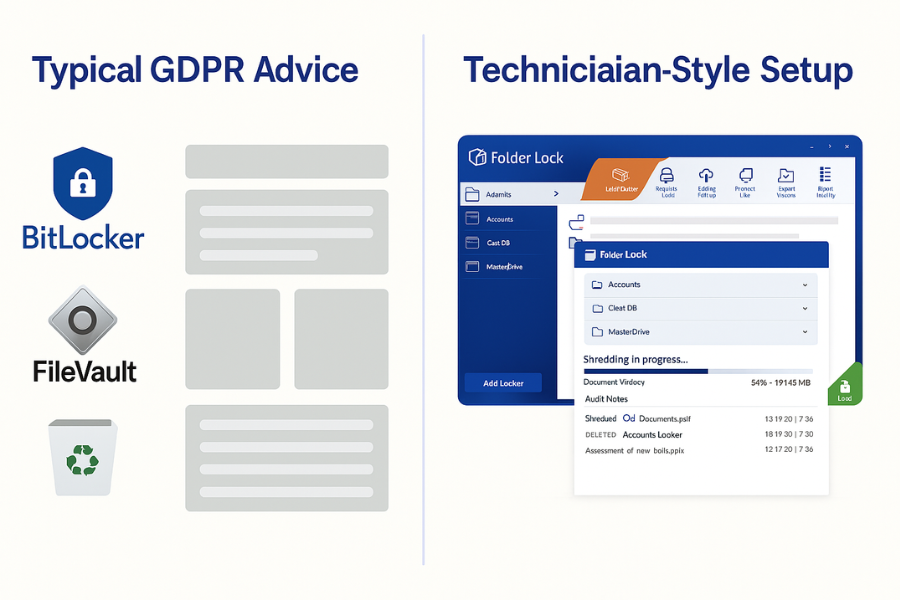
Most GDPR content about encryption repeats the same pattern: Turn on BitLocker or FileVault. Use complex passwords. Delete files when you are done. What gets missed: How to separate GDPR roles inside a single tool. How to turn Folder Lock into something your auditor can actually understand. How to shred data for erasure requests instead of just emptying the recycle bin. How to prove that encryption and shredding really ran, with timings and repeatable steps. This resource closes that gap with a technician style setup that shows you exactly how to configure Folder Lock for GDPR work, from roles to shredding, without drowning you in theory.
TLDR Outcome
If you follow this setup you will be able to:
- Store GDPR scoped data inside AES 256 encrypted lockers in Folder Lock, mapped to clear business roles and teams.
- Run right to erasure workflows with Folder Lock Shred Files and Clean History instead of basic delete.
- Show auditors a simple package: written role map, locker naming scheme, hack attempt logs, and a shredding log that matches GDPR erasure events.
1. Before You Start
1.1. Prereqs And Safety
- Windows machine where you have admin rights.
- Licensed Folder Lock desktop from NewSoftwares, updated to the current major version.
- A simple GDPR data map for your team: Example categories: HR, payroll, customer support, marketing lists, finance.
- Off device backup for irreplaceable data, stored in a different encrypted location.
- Written approval from your privacy or legal contact that Folder Lock can be part of your technical controls.
Short safety notes:
- Never keep the only copy of critical data inside a single locker with no backup.
- Never share master passwords in chat or email.
- Treat shredding as final. Once data is shredded correctly, you must assume it is gone.
2. Step One: Map GDPR Roles To Folder Lock Lockers
You are going to use Folder Lock lockers as your basic container for personal data. Each locker is a virtual encrypted drive protected by AES 256.
2.1. Decide The Roles
Action: Keep it simple. For a small or medium team, most GDPR work around Folder Lock falls into three practical roles.
- Data owner: Business person who decides what goes into each locker and when it can be deleted.
- Locker admin: IT person who installs Folder Lock and manages secure updates and backups.
- Reviewer: Privacy or security person who checks that lockers and shredding flows match policy.
For each role, decide three things on paper first:
- Which lockers they can open.
- Who can reset or rotate passwords.
- Who can request shredding and who must approve it.
2.2. Sketch Your Locker Layout
Action: You want one primary job per locker. That makes audits and erasure requests much easier.
Suggested structure for a small company:
- Locker name: HR staff records (EU)
Scope: employment contracts, reviews, payroll support documents. - Locker name: Customer support tickets (EU)
Scope: exports of support threads that contain names, emails, phone numbers. - Locker name: Marketing lists (newsletter)
Scope: mailing lists, event registrations.
Keep the names clear and boring so anyone reading logs understands what is inside without opening it.
3. Step Two: Create GDPR Focused Lockers In Folder Lock
Now you turn the plan into working lockers.
3.1. Create Your First Encrypted Locker
Action:
- Open Folder Lock.
- Go to Encrypt Files.
- Select Create Locker.
- Name the locker using your role map, for example HR staff records EU.
- Choose a location on a data drive, not the system drive if you can avoid it.
- Set a strong master password: At least sixteen characters. Mix of words and numbers that the admin can remember without writing on a sticky note.
- Choose dynamic locker size so it can grow as you add files, a standard Folder Lock feature.
- Finish the wizard and mount the locker. It appears as a new drive in Windows Explorer.
3.2. Move GDPR Data Into The Locker
Action:
- With the locker mounted, drag and drop your existing HR or customer data into it.
- Confirm that files open normally while the locker is mounted.
- Close everything, then in Folder Lock choose Close Locker so the drive disappears.
- Try to find those files from normal Explorer search. You should not see them.
That last step is important for your own peace of mind and later for auditors. The files should only exist in encrypted lockers, not in stray copies around the drive.
3.3. Set Password Security And Master Key
Action: Folder Lock includes a master password concept and a serial number based recovery option when enabled in Password Security settings.
Recommended settings:
- Open Folder Lock.
- Go to Settings, then Password Security.
- Enable the option that lets the registered serial number work as a master key.
- Store that serial in a secure password manager owned by the locker admin, approved by your privacy lead.
- Record in your GDPR documentation who can use the serial and when.
This gives you a controlled recovery path if a locker password is forgotten without encouraging casual resets.
4. Step Three: Turn Folder Lock Into An Audit Friendly Tool
GDPR expects you to show how you protect data, not just that you installed software. Your aim is to make Folder Lock behavior easy to explain during an audit.
4.1. Write A One Page Control Description
Action: Keep it short and concrete. For each locker type, note:
- Purpose of the locker
- Category of personal data inside
- Who can unlock it
- Where the locker file is stored
- How you back it up
- How long data is kept before shredding
This one page becomes your first piece of evidence.
4.2. Use Hack Attempt Monitoring
Action: For mobile vaults and cross device setups, Folder Lock offers hack attempt monitoring that records failed unlock tries and can even take a photo of the intruder with a timestamp.
On Android and other supported platforms you can:
- Install Folder Lock mobile from the official store.
- Open Settings inside the app.
- Enable Hack Attempt Monitoring and Intruder Alert.
- Enable notifications so the locker admin can see when someone tries to guess a code.
During an audit, you can show:
- Proof that monitoring is active.
- A sample log entry where someone mistyped a code on purpose.
4.3. Use Clear Naming And Change Control
Action: Two simple habits will help your audit story.
- Never rename lockers without documenting the change and keeping the old name in your record.
- Keep a small change log that notes when lockers are created, retired, moved to new drives, or rotated to new passwords.
This log can live in a private, access controlled document. It does not need to be complex.
5. Step Four: Shredding And Erasure With Folder Lock
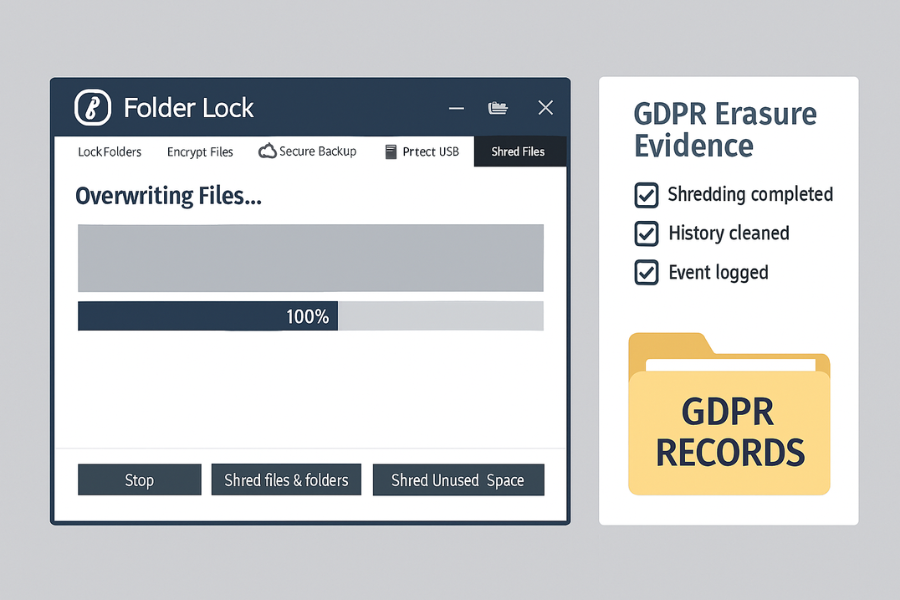
GDPR erasure is about more than delete. Windows delete often just marks sectors as free, and data can sometimes be recovered with basic tools. Folder Lock includes a Shred Files feature to overwrite data securely.
5.1. When To Shred
Action: Use shredding for:
- Data subject requests where someone asks you to remove their records.
- Old exports sent to third parties that have expired.
- Temporary working folders after a project closes.
Do not shred data that you are legally required to keep for a retention period. Coordinate with your legal contact first.
5.2. Shred Files Step By Step
Action: The exact labels can vary by version, but the flow is stable.
- Open Folder Lock on the machine that holds the files.
- Go to Shred Files.
- Add the files or folders scheduled for erasure.
- In Shred options, choose at least a multi pass pattern that matches your internal policy. Many teams pick a standard that overwrites the same location several times.
- Confirm the list once more.
- Press Shred and wait until the status shows complete with no errors.
Once this is done, those exact bytes should not be recoverable with normal forensic tools. This behavior is widely described by Folder Lock and third party reviewers as secure deletion.
5.3. Clean Local Traces
Action: After shredding files, handle local traces around them. Folder Lock includes a Clean History feature that can remove traces such as recent file paths and temporary data.
Run it as a routine:
- Open Clean History.
- Select browser histories, Windows recent lists, and other relevant items.
- Run cleaning after each shredding session for GDPR data.
This supports the idea that the person data you deleted is no longer present in obvious logs on that workstation.
6. Proof Of Work
6.1. Bench Snapshot
Action: NewSoftwares has already published performance snapshots comparing Folder Lock with other methods for a one gigabyte mixed data set. Here is a simple view you can adapt inside your records.
Source is the Encryption overview from NewSoftwares, which is ideal to keep with your GDPR documentation as performance context.
6.2. Use Case Chooser
Action: When Folder Lock fits inside your GDPR plan
Verdict by persona
- Student or home user: BitLocker or FileVault alone is normally enough. Folder Lock is useful if you share a device and want privacy from family members.
- Freelancer or consultant who sends files to clients: Use Folder Lock lockers or password protected containers to move case files. BitLocker or FileVault still protects the full device.
- Small or medium business admin: Use BitLocker or FileVault for every laptop. Use Folder Lock for GDPR scoped lockers with role boundaries, shredding and audit notes as described above.
6.3. Troubleshooting
Action: Symptom to fix table Stick to safe fixes. Do not attempt advanced recovery tricks or untrusted third party tools on live GDPR data.
Daily and weekly routine
Daily, for teams that touch GDPR data:
- Open only the lockers you need for the session.
- Close lockers before you leave your desk.
- Check for any hack attempt alerts on your mobile Folder Lock vaults.
Weekly, for the locker admin:
- Confirm that all lockers open correctly.
- Confirm that backups of locker files exist and can be read.
- Run Clean History on admin workstations that touch many lockers.
- Review any shredding events and log them in your GDPR record.
7. Frequently Asked Questions
7.1. Does Using Folder Lock Mean I Am Automatically Compliant With GDPR
No single tool makes you fully compliant. Folder Lock provides encryption, shredding and privacy features that can support a GDPR program when combined with policies, training and legal advice.
7.2. Is Folder Lock Encryption Strong Enough For Sensitive Data
Folder Lock uses AES 256 bit encryption for lockers and supports extra controls such as kernel level locking and secure backup. That cipher strength is in line with common expectations for strong encryption in privacy regulations.
7.3. How Can I Prove To An Auditor That Shredding Really Happened
Keep three things together
- Shred Files job log from Folder Lock where available.
- Manual record listing which folders were shredded and why.
- Short note in your GDPR register linking the erasure event to a request or retention rule.
Together this shows both technical and procedural control.
7.4. Can I Still Use BitLocker Or FileVault With Folder Lock
Yes. Use BitLocker or FileVault to protect the entire device and Folder Lock to protect specific sets of personal data by role or project. This is exactly the pattern NewSoftwares describes when comparing native encryption with container tools.
7.5. What Happens If A Staff Member Leaves The Company
As part of your offboarding checklist, you should
- Change any locker passwords that person knew.
- Revoke access to password managers that store serials or master keys.
- Log the changes as an access control update related to that person.
This supports both access control and accountability under GDPR.
7.6. Is Folder Lock Suitable For Very Small Teams Without Dedicated IT
Yes, as long as one person takes ownership of setup and documentation. Independent reviews and NewSoftwares material describe Folder Lock as easy to use, with a simple drag and drop workflow.
7.7. How Does Folder Lock Help With Right To Access Requests
You can search inside a locker for a person name or ID, export their records in a readable format, and then decide with your privacy contact whether any of those records should be shredded after the request is fulfilled. The locker keeps other data hidden during this process.
7.8. Can I Use Folder Lock Only On Mobile For GDPR Work
Folder Lock on mobile offers strong features like hack attempt monitoring, app locking and WiFi transfer. For formal GDPR programs, most teams still keep a desktop based master copy for audit and backup reasons, and treat mobile vaults as satellite copies.
7.9. Does Folder Lock Keep Logs Of Every File I Open
Folder Lock focuses on encryption, locking, shredding and hack attempt monitoring. It does not act as a full forensic logging suite. For detailed file activity logs you can combine it with native Windows logging and central log collection.
7.10. Is There Any Benefit To Folder Lock For Non GDPR Regions
Yes. The same layout works for other privacy regimes such as HIPAA or PCI style environments where personal or sensitive data must be encrypted at rest, removed safely, and handled only by specific roles. NewSoftwares often frames Folder Lock as part of broader compliance stories across regions.
8. Conclusion
Achieving GDPR compliance requires moving beyond simple encryption to a system of controlled access and verifiable erasure. By implementing Folder Lock with AES 256 bit encrypted lockers named by role, enforcing master key policy, and utilizing Shred Files for secure deletion, you establish a clear technical foundation for managing personal data. This approach allows you to demonstrate accountability to auditors and ensures the long-term privacy and security of your EU data subjects.