
The Ghost Lock Buster: How to Fix Excel File is Locked for Editing Safely
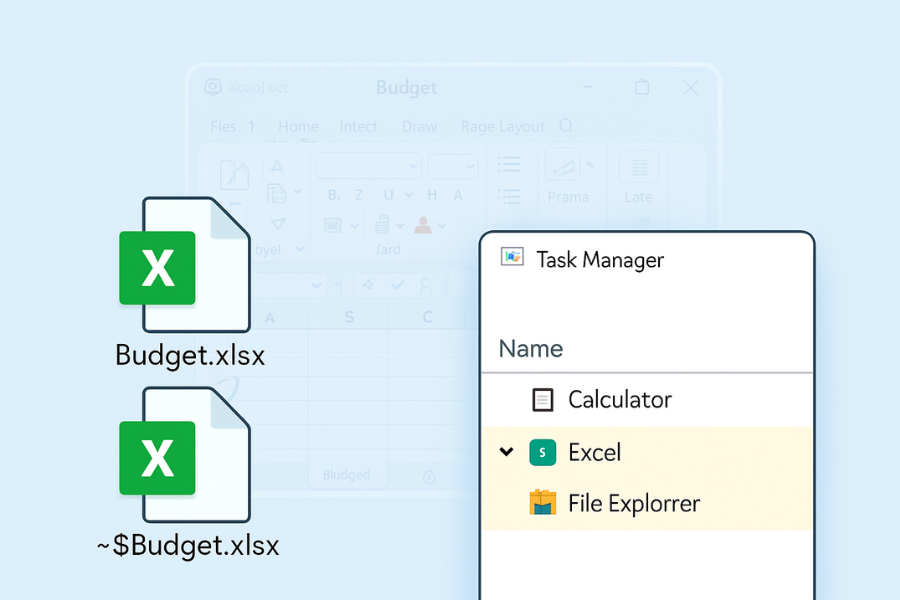
Your Excel file is locked because the application or a cloud sync service still thinks a session is active. The key to resolving this without losing data is to first clear the temporary lock, end any ghost Excel sessions, and resolve cloud conflicts, then reopen the file in a clean session. Do not force save over the file and do not delete the main workbook. Use the safe sequence below to remove the lock with zero data loss.
The Problem in Focus
Most common fixes skip where the real lock lives. They miss the hidden ~$ temporary file, ghost sessions left by a crashed PC, and the cloud conflict copies generated by services like OneDrive or SharePoint. This overview provides you with the precise locations, exact menu labels, and a non-destructive order of actions to clear the lock permanently.
Key Outcomes
Upon completion of these steps, you will achieve the following:
- You remove the temporary lock and close any orphaned Excel processes.
- You safely resolve conflicts originating from OneDrive, SharePoint, Dropbox, or network shares.
- You reopen the workbook cleanly, with your version history intact and all data secure.
Prerequisites and Safety Checklist
Before attempting any fix, ensure you adhere to these safety measures:
- Work from a second copy of the file if possible to avoid corruption.
- Do not attempt to edit the workbook while you are performing these lock-clearing steps.
- If the file is on a shared drive, communicate with teammates and ask them to close the file.
- Have sign-in access for the relevant cloud service (OneDrive, SharePoint, etc.).
- On Windows, know the exact file path and drive letter. On macOS, know the folder path.
How to Fix File is Locked for Editing in the Safest Possible Order
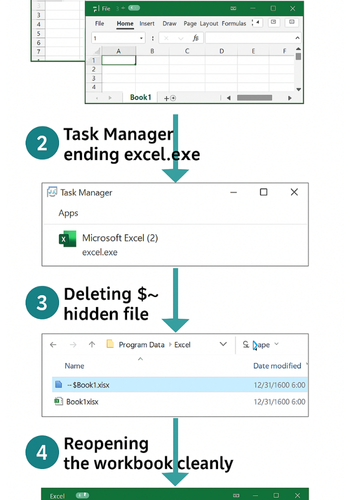
Follow each step, then immediately try to open the file. Stop and proceed with your work as soon as the file opens. Each step is designed to be one action with a single focus.
1. Close Every Excel Window on Your Computer
Action: Close all open Excel windows. Wait ten seconds, then confirm the process is terminated in Task Manager.
Gotcha: Add-ins or hidden previews (like those in Outlook) can keep a background Excel session alive.
- Windows: Press Ctrl + Shift + Esc to open Task Manager , go to the Processes tab, then right-click and End task on any entry for Microsoft Excel.
- macOS: Press Command + Option + Esc, select Microsoft Excel, then click Force Quit.
2. Delete the Temporary Lock File in the Same Folder
Action: Navigate to the folder containing your workbook. Delete the small, hidden file that begins with ~$ and matches your workbook name (e.g., ~$Budget.xlsx beside Budget.xlsx).
Gotcha: The lock file is often hidden by default.
- Windows: In File Explorer, select View, then check the box next to Hidden items.
- macOS: In Finder, press Command + Shift + Period to show hidden files.
3. Clear Your Own Ghost Session on the Network Share
Action: If the file is stored on a Windows file server, ask the server owner or IT administrator to close your stale connection handle.
Gotcha: Never close a handle while a user is actively saving. Always ask first.
- The administrator can perform this action via Computer Management > Shared Folders > Open Files.
4. Resolve OneDrive or SharePoint Locks
Action: Check the sync client’s status and move to the web view to manage the lock.
- Windows and macOS: Click the OneDrive cloud icon, then select View online.
- In the web browser view, open the document. If it opens in Excel for the web, choose File, then Info, then Manage access. If your own stale session is visible, remove it.
Gotcha: If the OneDrive menu shows “Files needing attention,” finish the pending upload before attempting to open the file.
5. Resolve Dropbox or Google Drive Conflict Copies
Action: Open the sync client’s menu and look for a “conflicted copy.” If one is present, compare the timestamps. Keep the most recent version containing full edits and move the conflicted copy to a safe subfolder for later reference.
Gotcha: Do not attempt to merge data by hand inside the main file. Use temporary copies for comparison.
6. Take Ownership of an Orphaned Checkout in SharePoint
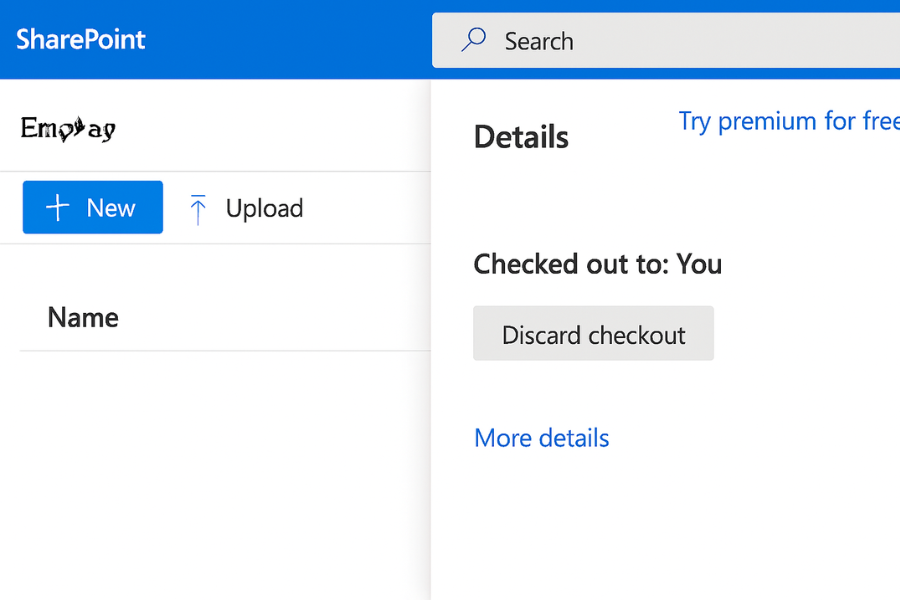
Action: In the SharePoint library, select the file, then open the Details pane. If Checked out to shows your account and you still cannot open the file, choose More then Discard checkout.
Gotcha: Discarding a checkout will permanently drop any unsaved changes that were made specifically during that checkout. Your last officially committed version remains safe.
7. Save a New Copy to Break a Stale Lock
Action: If all else fails, open the file from the web app and choose File, then Save a copy. Work in the newly created copy going forward.
Gotcha: Before committing to the new copy, capture the version history link of the original file for future reference.
8. Kill the Stubborn Excel Background Task that Reappears
Action: On Windows, open Task Manager, select the Details tab, right-click on excel.exe, then select End task.
Gotcha: Ensure you also close other applications like Outlook, as it can embed Excel previews and silently re-launch the process.
9. Clear Office Cache for Stuck Uploads
Action: In Excel, go to File, then Account. Under Connected Services, click Sign out and then Sign in again. This forces a refresh of authentication tokens and upload cues.
Gotcha: You must close Excel after signing out. Reopen it before attempting to test the file again.
10. Reboot the Computer that Last Had the File Open
Action: If the error message specifically names a teammate, ask them to restart their computer.
Gotcha: Many network and server-side locks clear when the associated computer releases its handle after a clean reboot.
11. Copy the Workbook to a Local Desktop, Then Open Locally
Action: Right-click the file in the shared location, select Copy, and then paste it onto your Desktop. Open the file from this local copy.
Gotcha: If the file opens locally but not from its original network path, the lock is confirmed to be upstream in the file share or cloud sync layer.
12. Restore from Clean Version History When the Header is Broken
Action: Use the OneDrive or SharePoint Version history. Restore the last version that you know was clean, saving it to a new filename.
Gotcha: Never overwrite the current, potentially corrupted file until you have fully confirmed that the restored copy opens and contains the expected data.
Verifying the Fix
You know the lock is fully cleared and the file is safe when:
- You can open the workbook and see the expected sheet and cell count.
- The file shows your name in the title bar, rather than Read Only.
- On OneDrive or SharePoint, the presence bubble shows only your active session.
- You can save the file, and the sync client reports Up to date.
Common Error Strings and Clean Fixes
| Exact Message You See | What it Means | Safe Fix You Try First |
| File in use. File is locked for editing by another user. | A lock file (~$) or a ghost session exists. |
Delete the ~$ lock file, end all Excel processes, then reopen. |
| Upload blocked. You are not signed in | The sign-in token has expired in the Office client. | Go to File, Account, Sign out, then Sign in. Retry save. |
| We cannot save because the file is in use | The sync service or server still holds the file. | Save As to a new name in the same folder, then compare and replace the original later. |
| Checked out to you | A SharePoint checkout was not formally completed. | Discard checkout or Check in from the SharePoint web interface. |
| Conflicts detected | Two users or processes created diverging copies simultaneously. | Keep both, then reconcile by comparing timestamps and using sheet diffs. |
| Read-only. To save a copy, click Save As | Permissions or a lock state prevents writing. | Request edit permission or remove the temporary lock, then use Save (not Save As) to update the original. |
Quick Chooser Table: Where the Lock Lives and What You Do
| Where the File Lives | Lock Type | What You Do |
| Local disk | ~$ temp lock or ghost excel.exe |
Delete the ~$ file, end excel.exe, reopen. |
| OneDrive personal or work | Pending upload or conflict | Use the client menu, then View online, then resolve in version history. |
| SharePoint library | Checkout or stale session | Discard checkout or Manage access, then reopen. |
| Windows file server | Open handle on server | Administrator closes the handle in Computer Management. |
| Dropbox or Google Drive | Conflicted copy | Keep the latest good copy and archive the conflict copy. |
FAQ
Why does Excel create a ~$ file?
It is a temporary hidden file that marks that someone has the workbook open. If Excel crashes, the ~$ file can remain and incorrectly block others from editing until it is manually removed.
Excel says locked by me but I closed it. How do I fix this?
A background instance of Excel is still running. End the excel.exe process in Task Manager, then delete the ~$ file in the workbook’s folder.
Can I just save over the file with Save As?
Using Save As creates a completely new file and can erase someone else’s work. Use Save As only as a temporary copy while you clear the lock. Always try to clear the lock and save to the original file path.
Why does the web open work when the desktop does not?
Your desktop Excel client or its sign-in token is stuck. Sign out then sign in again in the Excel client (File > Account), clear any pending uploads, and then reopen the file.
Can I delete the main workbook to clear the lock?
No. Delete only the ~$ temporary lock file. Deleting the main workbook destroys your content and data.
Conclusion
The vast majority of Excel lock problems are solved in under one minute by deleting the hidden ~$ temporary file and ensuring no ghost excel.exe process is running. For shared files, leverage the web interface of your sync service to clear checkouts and conflicts safely. By adopting these steps and maintaining a habit of communication with your team, the “file is locked for editing” message will become a minor, easily resolved inconvenience.