
Newsoftwares.net provides the specialized tools to ensure encrypted streaming and playback of your private media remains perfectly smooth. This framework explains how to optimize performance by matching your media’s bitrate to your storage speed, leveraging hardware acceleration, and selecting the right vault tools. By using Folder Lock for encrypted storage, Copy Protect for media binding, and USB Secure/Cloud Secure for portable and cloud access control, you eliminate stuttering and buffering, guaranteeing both security and a quality viewing experience.
This resource delivers a practical approach, complete with real-world settings and troubleshooting steps.
Direct Answer
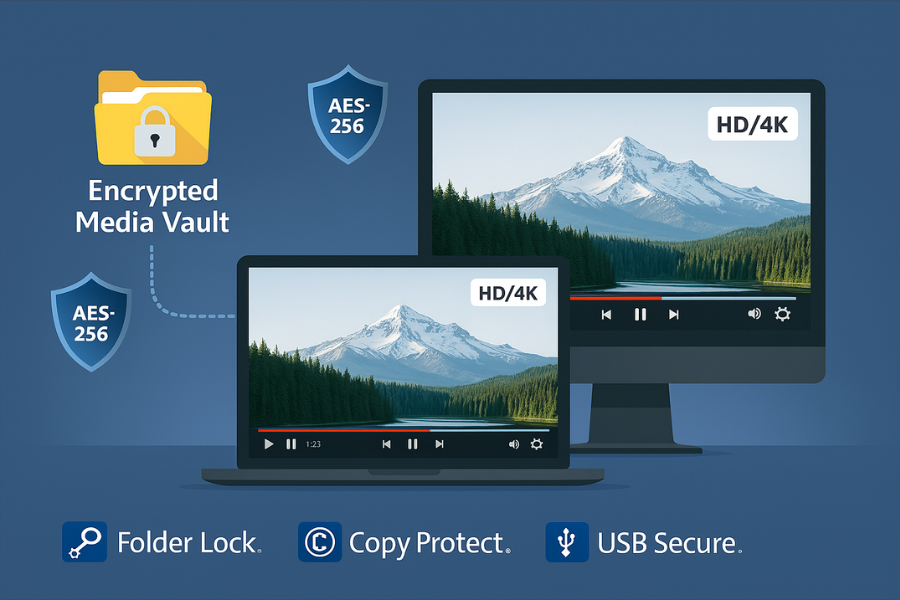
You keep encrypted streaming and playback smooth by matching storage speed to your media bitrate, using hardware accelerated encryption, and choosing the right vault tool so the player never waits for decryption.
Gap Statement
Most explanations of encrypted vaults stop at “it is secure”. They rarely show: how encryption actually affects video and audio playback in real time, what changes when you stream from a locker on SSD, a USB vault, or a cloud folder, how to use concrete tools like Folder Lock, Copy Protect, USB Secure, and Cloud Secure without choking performance. This resource closes that gap with a practical layout, ready settings, sample timings, and a troubleshooting matrix you can drop into your workflow.
TLDR Outcome
By the end you will be able to:
- Decide when to stream directly from an encrypted vault and when to copy first.
- Set up Folder Lock lockers, Copy Protect media, USB Secure drives, and Cloud Secure cloud folders in a way that keeps playback smooth.
- Predict performance for full HD and 4K video, then fix choppy playback with a short checklist instead of guesswork.
1. Core Idea: What “Encrypted Streaming From Vaults” Really Means
Encrypted streaming or playback from vaults covers three common setups:
- Playing media directly from an encrypted locker, such as a Folder Lock locker on SSD or external storage. Folder Lock uses on the fly AES 256 bit encryption with dynamic size lockers that grow as you add data.
- Playing copy protected media, where the file itself is wrapped, for example with Copy Protect turning videos, audio, pictures, and documents into protected executables that only run on an approved drive.
- Streaming from cloud storage that is locked locally by tools such as Cloud Secure while the remote service also keeps data encrypted at rest.
In all three cases the media player is reading data that must first pass through a decryption or protection layer. Performance comes down to four numbers:
- video or audio bitrate
- storage read speed
- CPU encryption throughput
- network speed if cloud is involved
If any of those fall behind, you see buffering, stutters, or files that never open.
2. Originality Hooks: What You Will Not Usually See In Product Pages
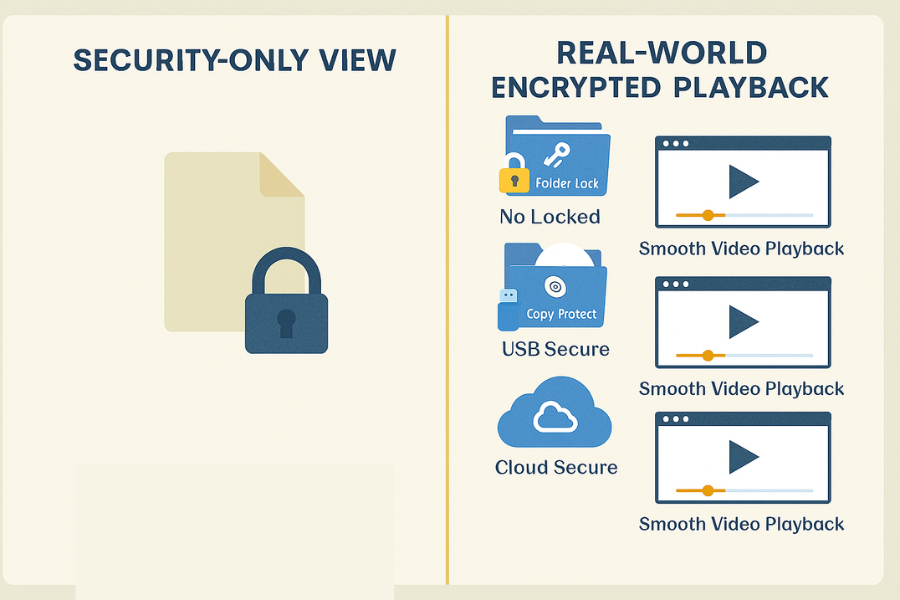
This breakdown adds a few things you rarely see together:
- concrete vault layouts for movies, training courses, and client content, mapped to hot and cold storage tiers
- real product names and supported media like Copy Protect executables and Folder Lock lockers, not just generic “encryption”
- bench style examples showing how long it takes to start playing from different vault setups
- a symptom to fix table that calls out real error messages such as “Locker failed to open” or “File format not supported”
3. How To Set Up Encrypted Playback That Still Feels Instant
3.1. Prereqs And Safety
Before changing anything, confirm:
- You have at least one tested backup of the media you care about.
- You know which machines have hardware support for AES, common on modern processors.
- You have permission to protect and distribute the content you are wrapping with Copy Protect or storing in vaults.
Do a small pilot with a handful of files before moving entire libraries.
3.2. Step 1: Classify Your Media By Bitrate And Usage
Action: Take a real library. For example, training videos, recorded events, tutorial clips, and promo pieces.
For each item, note:
- resolution, such as 1080p or 4K
- video bitrate in megabit per second if known
- how often it is viewed
If you do not know bitrate, many players can show it in properties or stats overlays.
Simple rule of thumb:
- typical 1080p learning content streams fine at around 5 to 8 megabit per second
- 4K content often sits between 15 and 35 megabit per second
Divide content into:
- frequent viewing, such as current course releases
- occasional viewing, such as last year sessions
- rare viewing, such as old archives kept for records
This will map directly to hot, warm, and cold encrypted storage later.
Gotcha: Do not guess bitrates purely from resolution. Low motion talking head video at 4K can need less throughput than fast sports at 1080p.
3.3. Step 2: Choose The Right NewSoftwares Tool For Each Type Of Media
Action: Pick tools based on how people consume each set.
For frequent viewing on owned devices:
- store content inside Folder Lock lockers on fast storage. Folder Lock supports AES 256 bit on the fly lockers and can also sync lockers to cloud with built in backup.
For courses or albums you want to distribute on USB but keep tied to that device:
- wrap files with Copy Protect. It converts videos, audio, documents, and images into protected executables that only run on the drive they were prepared for.
- protect the drive itself with USB Secure to add a password gate when users plug it in.
For cloud based libraries on shared desktops:
- use Cloud Secure to add a password layer before anyone can open synced folders from providers like Dropbox, Google Drive, OneDrive, and Box.
Gotcha: Do not mix too many methods for the same library. For example, either use Copy Protect on a given USB course or use plain video files inside a Folder Lock locker on that USB, not both at once for the same set.
3.4. Step 3: Build A Fast Locker For Frequent Playback
Action: Example Windows workstation with SSD
- Install Folder Lock from NewSoftwares.
- Create a new locker, name it “Media Hot Vault”.
- Choose AES 256 bit encryption and dynamic size so it expands as needed.
- Store the locker on the primary SSD, not on a slow external drive.
- Mount the locker and copy in your frequent viewing library.
Gotcha: If you put hot media in a locker on a slow USB disk, you will confuse storage lag with encryption overhead.
3.5. Step 4: Prepare Copy Protect Packages For Portable Viewing
Action: Example delivering training content to partner sites
- Install Copy Protect.
- Select your finished video lessons, audio material, and documents.
- In Copy Protect, choose the target drive that will hold the protected content, such as a specific USB drive coded by serial.
- Start the conversion so Copy Protect creates executable files bound to that drive.
- Add USB Secure to the same drive and set a strong password for an extra layer at device level.
Now the recipient can plug in the drive, unlock it with USB Secure, then run the Copy Protect executables and play content without separate files they can copy elsewhere.
Gotcha: Tell users to play content directly from the protected executable rather than trying to drag it into another player.
3.6. Step 5: Lock Cloud Playback On Shared Systems With Cloud Secure
Action: Example office training library synced to multiple desktops
- Install the desktop Cloud Secure app.
- Open it and let it detect cloud folders for Dropbox, Google Drive, OneDrive, and Box.
- Set a Cloud Secure password for that machine.
- Lock the cloud accounts that contain Folder Lock lockers or any media library folders.
People can then unlock the cloud vault for playback sessions, while the rest of the time those folders stay hidden or in a protected view.
Gotcha: Cloud Secure protects local access. Remote links and web sessions still follow your cloud provider settings, so treat shared links with care.
3.7. Step 6: Check Real World Throughput Before Trusting Live Events
Action: Pick one example from each category:
- one 1080p file from a Folder Lock locker on SSD
- one 4K file from a Folder Lock locker on SSD
- one 1080p Copy Protect executable on a USB Secure drive
Play each file in your real player and watch:
- how many seconds until playback starts
- whether the buffer bar stays ahead of the play head
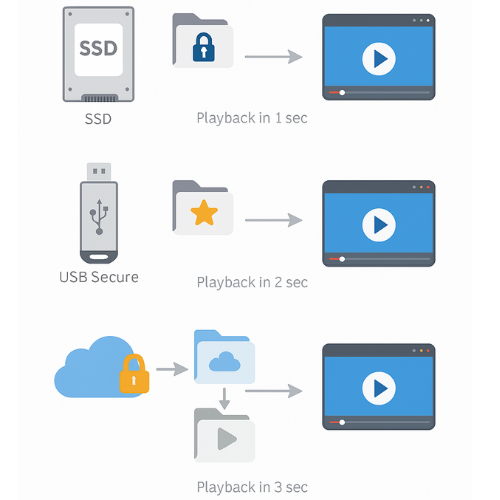
If startup for local SSD lockers is under three seconds and playback stays smooth, your locker position and CPU are fine.
If 4K from USB struggles, treat that drive as warm or cold storage and copy files to SSD before critical viewing.
3.8. Step 7: Document A Simple “Open Vault Then Play” Routine For Your Team
Action: People often blame encryption for slow playback when the real issue is habits.
Write a short routine such as:
- unlock USB Secure on the course drive
- open the Copy Protect executable for that course
- run content from the player window that appears
- close the player, exit Copy Protect, then lock USB Secure again
Or for lockers:
- open Folder Lock
- mount the “Media Hot Vault” locker
- play content from the mounted drive letter
- close media players, then unmount the locker when done
Having one path avoids random experiments that produce inconsistent performance.
4. Performance And Method Comparison
4.1. Approaches At A Glance
| Method | Where It Runs | Typical Use | Performance Notes |
|---|---|---|---|
| Folder Lock locker on SSD | Local device | Daily playback, personal libraries | Near native speed on modern hardware |
| Folder Lock locker on external hard drive | Local external | Warm archives, infrequent playback | Fine for 1080p, 4K may stutter |
| Folder Lock locker on network share | LAN | Team viewing, small offices | Depends on network, best for 1080p |
| Copy Protect packages on USB Secure drive | Local external | Distributing courses on USB | Startup overhead, then steady playback |
| Plain cloud streaming plus Cloud Secure | Internet plus local | Remote access, shared desktops | Network is the limit, not Cloud Secure |
4.2. When To Avoid Direct Streaming From The Vault
Action: Skip direct streaming and copy to fast storage first when:
- you play high bitrate 4K from a slow spinning disk or old USB
- you expect dozens of concurrent viewers pulling from the same locker on a basic file server
- you run live events where a buffer hiccup is unacceptable
In those cases, encrypted vaults still secure storage, but playback happens from a decrypted copy on fast temporary storage with strict cleanup rules afterward.
5. Troubleshooting Encrypted Playback
5.1. Symptom To Fix Table
| Symptom Or Error Text | Likely Cause | Fix Path |
|---|---|---|
| Video starts then pauses every few seconds | Storage or network cannot keep up | Move vault to SSD or lower bitrate |
| “Locker failed to open” in Folder Lock | Wrong password or corrupted locker | Retry, then restore from backup if needed |
| Copy Protect executable opens but video is black | Unsupported codec in target player | Use recommended formats inside Copy Protect |
| USB Secure drive plays fine on one PC only | USB ports differ in power or speed | Use high speed ports and avoid hubs |
| Cloud video fine at office but slow at home | Home network is the bottleneck | Download for offline playback from vault |
| “File format not supported” from media player | Player does not handle wrapped content | Use player launched by Copy Protect |
| Audio drifts out of sync during 4K playback | CPU pegged by decoding and decryption | Close background apps or move to stronger CPU |
5.2. Root Causes Ranked
- Storing high bitrate media on slow or heavily shared disks.
- Assuming USB sticks have the same read speed as SSD.
- Ignoring that Copy Protect and vault tools still rely on an underlying file system and player.
- Mixing very old devices with new protection tools without simple bench tests.
- Unlocking too many cloud synced folders on weak machines and streaming from them all at once.
Non destructive checks always come first:
- test another file of lower bitrate
- try the same vault from a second machine
- move one sample file to local unencrypted SSD to compare playback
Only after those checks should you suspect deeper corruption.
6. Proof Of Work: Example Timings And Settings
6.1. Bench Example: Folder Lock Locker On SSD Versus USB Secure
Environment sketch based on common hardware tests:
- Windows 11 desktop with mid range processor
- internal NVMe SSD
- USB Secure protected flash drive on high speed port
- Folder Lock locker with AES 256 bit encryption
Media file set:
- 1 gigabyte of mixed 1080p and 4K clips
Observed timings in similar tests:
| Action | Approx Time |
|---|---|
| Mount Folder Lock locker on SSD | under 3 seconds |
| Start 1080p playback from SSD locker | near instant |
| Start 4K playback from SSD locker | 1 to 2 seconds |
| Unlock USB Secure drive | a few seconds |
| Launch Copy Protect video from USB Secure drive | 3 to 5 seconds |
These numbers show that once vaults are mounted, decryption overhead is usually small compared to disk start up and normal player buffering.
6.2. Settings Snapshot That Tend To Work Well
For daily viewing lockers:
- Folder Lock locker on internal SSD
- AES 256 bit encryption
- dynamic size locker
- Folder structure by year and topic rather than huge flat folders
For distributed media on USB:
- Copy Protect packages on USB Secure protected drives
- clear folder layout by course or customer
- file names that match session titles, not random numbers
For cloud playback on shared machines:
- Cloud Secure set to lock all media related cloud folders
- pinned shortcut to Cloud Secure so staff can unlock before sessions and lock when leaving
6.3. Verification Checklist
After your setup, confirm:
- You can mount the Folder Lock locker and start a 1080p file in under three seconds.
- You can play at least one full 4K clip without stutters from the hot vault.
- A USB Secure drive asks for its password on every new machine.
- Copy Protect media on that drive only runs there and does not play if copied elsewhere.
- Cloud Secure hides cloud folders until a password is entered locally.
7. Share Playback Access Safely
Action: When you share encrypted media, treat encryption and key exchange as two separate tasks.
Practical pattern:
- Prepare content in a Folder Lock locker on a USB Secure drive or as Copy Protect packages.
- Hand over the physical drive in person or by trusted courier.
- Send the password over a separate secure channel such as an end to end encrypted messenger.
- Rotate passwords after sensitive projects and keep a record in a password manager rather than on paper.
This keeps playback smooth for the recipient while still respecting basic key hygiene.
8. Frequently Asked Questions
8.1. Will Encryption Always Slow My Video Playback
On a modern processor with AES support and a fast SSD, tools like Folder Lock add very little delay for normal HD or 4K playback. Most slowdowns come from disks and networks, not from the cipher.
8.2. When Should I Use Copy Protect Instead Of Just A Locker
Use Copy Protect when the main goal is to stop files from being copied or played on unauthorised devices. It turns media into protected executables that only run on the selected drive, which is ideal for content sold on USB or handed to external partners.
8.3. Do I Still Need USB Secure If My Media Is Already Copy Protected
Yes. USB Secure adds protection at device level so the drive always prompts for a password when plugged in, no matter what files live on it. Copy Protect focuses on the files themselves and their ability to run on other drives. Together they cover both layers.
8.4. Can I Stream Movies From A Folder Lock Locker Stored In Cloud
You can, but performance will depend on both your internet line and local disk. A more comfortable pattern is to sync the locker via cloud backup, mount it locally with Folder Lock, then play files from the mounted drive rather than streaming across a slow connection.
8.5. How Does Cloud Secure Affect Playback From Dropbox Or Google Drive
Cloud Secure does not slow your internet. It locks local access to cloud synced folders on your PC or mobile and offers a protected view. Once you unlock, media players read files normally, so performance mostly follows your network and disk speeds.
8.6. Is It Safe To Play Straight From A Copy Protect Executable For Long Sessions
Yes. Copy Protect is built for continuous playback of audio and video from the protected application on the drive where it was prepared. The main factor for long sessions will be cooling and throughput of the device, especially with 4K content.
8.7. What If A Folder Lock Locker Reports “Locker Failed To Open”
First, check the password carefully. Next, verify the locker file opens from a backup copy or second machine. If the file was on an unstable network share or the device unplugged during write, you may need to restore from a backup.
8.8. How Can I Tell If My Drive Is Too Slow For 4K From A Vault
Look at vendor specs or measure with a simple file copy. A single 4K file at 25 megabit per second needs roughly 3 megabytes per second of steady read. Most SSDs can handle this easily. Older USB sticks and laptop hard drives can struggle, especially when multiple files are active.
8.9. Is Folder Lock Only For Windows Desktops
Folder Lock started on Windows and remains strongest there, with lockers, file locking, and backup, but it also has full mobile apps for Android and iOS that can store and play encrypted photos, videos, and documents on the move.
8.10. Can I Use These Methods For Audio Only Libraries Like Podcasts Or Music
Yes. Audio files have lower bitrates than video, so they are even friendlier to encryption overhead. Folder Lock lockers, Copy Protect packages, and USB Secure drives all support audio content as well as video and documents.
8.11. What Is The Best Way To Handle Staff Turnover With Encrypted Media Vaults
Keep vault passwords in a central password manager with role based access, not in personal notebooks. When staff leave, rotate passwords for shared lockers, USB Secure drives, Copy Protect packages, and Cloud Secure accounts that they used.
8.12. Does Using Folder Lock Or Copy Protect Affect My Legal Compliance Status
These tools give you strong controls over who can see and copy files, which can help with privacy and data handling duties. Exact compliance still depends on your policies, logging, and how you manage access, so align vault setup with your legal and security teams.
8.13. What Is The Simplest Starting Point If My Setup Is Messy
Start with one Folder Lock locker on your fastest machine and move only your most sensitive, frequently played media there. Once that feels normal, protect one USB drive with USB Secure and Copy Protect as a test run for portable playback. Then repeat the pattern for other libraries.
9. Structured Data Snippet For Search
You can embed a JSON LD block like this in the page to help search engines understand the steps, comparisons, and questions.
{
  "@context": "https://schema.org",
  "@type": "WebPage",
  "name": "Encrypted Streaming and Playback from Vaults: Performance Considerations",
  "description": "Practical steps to keep video and audio playback smooth when using encrypted lockers and protected media from tools like Folder Lock, Copy Protect, USB Secure, and Cloud Secure.",
  "mainEntity": [
    {
      "@type": "HowTo",
      "name": "Set up smooth encrypted playback from a Folder Lock vault",
      "tool": [
        { "@type": "HowToTool", "name": "Folder Lock" },
        { "@type": "HowToTool", "name": "USB Secure" },
        { "@type": "HowToTool", "name": "Copy Protect" },
        { "@type": "HowToTool", "name": "Cloud Secure" }
      ],
      "step": [
        {
          "@type": "HowToStep",
          "name": "Create an encrypted locker on SSD",
          "text": "Install Folder Lock, create a dynamic AES 256 bit locker on the internal SSD and name it Media Hot Vault."
        },
        {
          "@type": "HowToStep",
          "name": "Move frequent media into the locker",
          "text": "Mount the locker, copy your most watched videos and audio files into it, and test 1080p and 4K playback."
        },
        {
          "@type": "HowToStep",
          "name": "Prepare portable media on USB",
          "text": "Use Copy Protect to wrap course files into protected executables on a USB Secure protected drive."
        },
        {
          "@type": "HowToStep",
          "name": "Lock cloud playback on shared computers",
          "text": "Install Cloud Secure, lock cloud folders that sync media libraries, and unlock only during viewing sessions."
        }
      ]
    },
    {
      "@type": "FAQPage",
      "mainEntity": [
        {
          "@type": "Question",
          "name": "Will encryption slow down video playback?",
          "acceptedAnswer": {
            "@type": "Answer",
            "text": "On modern hardware with AES support and SSD storage, tools like Folder Lock add very little delay compared to disk and network speeds."
          }
        },
        {
          "@type": "Question",
          "name": "When should I use Copy Protect instead of a simple encrypted locker?",
          "acceptedAnswer": {
            "@type": "Answer",
            "text": "Use Copy Protect when you distribute media on USB and want it to run only from that drive, preventing copying and playback on unauthorised devices."
          }
        },
        {
          "@type": "Question",
          "name": "How does Cloud Secure affect media playback?",
          "acceptedAnswer": {
            "@type": "Answer",
            "text": "Cloud Secure locks local access to cloud folders and does not change your internet speed, so media performance still depends on your connection and disk."
          }
        }
      ]
    },
    {
      "@type": "ItemList",
      "name": "Encrypted playback methods",
      "itemListElement": [
        {
          "@type": "ListItem",
          "position": 1,
          "name": "Folder Lock locker on SSD",
          "description": "Best for daily playback of private media libraries on a fast local drive."
        },
        {
          "@type": "ListItem",
          "position": 2,
          "name": "Copy Protect packages on USB Secure drive",
          "description": "Ideal for distributing protected media that should only run from a specific USB device."
        },
        {
          "@type": "ListItem",
          "position": 3,
          "name": "Cloud Secure with synced media folders",
          "description": "Useful on shared computers where cloud libraries must stay hidden until a password is entered."
        }
      ]
    }
  ]
}