
Access Denied: Encrypted SD Card Recovery Without Formatting
Try to unlock or decrypt the card on the same device that encrypted it. Many phones bind SD card encryption to the device hardware and your screen lock. A computer will only see unreadable noise until you decrypt on that original phone. If the card was encrypted with BitLocker on Windows, unlock it with your password or recovery key, not by formatting. Work through the steps below in order to keep your data completely intact.
Why Typical Fixes Fail
Typical guides jump straight to destructive format advice. They skip same-device decryption on Android, the BitLocker header check on Windows, the physical card adapter write-protect switch, and common driver-level mount failures. This overview provides exact menu labels, non-destructive tests, and plain language outcomes for successful recovery.
Key Outcomes
Upon completion of this recovery process, you will achieve the following:
- You identify how the card was encrypted and unlock it in the correct place.
- You fix adapter, driver, and mount issues without touching user data.
- You verify the file system and successfully copy your data before any repair or reformat is attempted.
Safety and Preparation Checklist
Your data’s safety is the priority. Follow these preparation steps:
- Stop writing to the card immediately. Do not click the Format button.
- Note the original device: Identify the exact phone model, camera body, or Windows PC that performed the encryption.
- Gather necessary credentials: Collect your screen lock PIN, BitLocker password, BitLocker recovery key, and the USB reader that came with the card (if applicable).
- Prepare a clean computer: Have one clean computer with administrator rights ready for read-only checks.
- Avoid live writes: If you must run command-line tests, test on a sector image copy of the card first.
Route A: Card Was Encrypted by an Android Phone
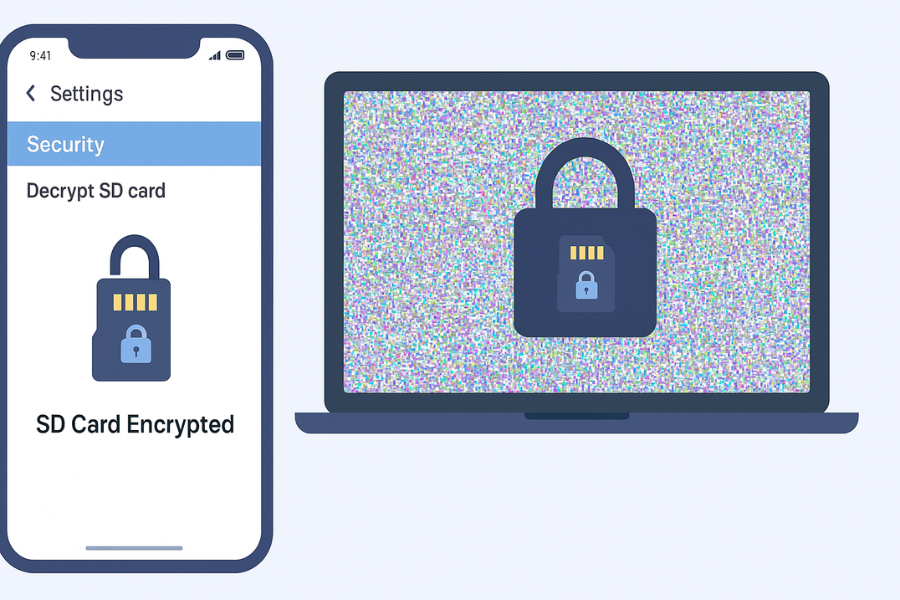
Many Android models encrypt SD cards with a key tied to that phone’s hardware and your current screen lock. You must decrypt on the original device.
| What You See | Likely Origin | Where to Unlock |
| Android phone says SD card is encrypted | Android device bound encryption | The same phone, Settings, Security, Decrypt SD card |
| Windows shows a padlock icon or BitLocker prompt | BitLocker removable drive encryption | Windows, Control Panel, BitLocker, Unlock drive |
| macOS asks for a password and shows a locked volume in Disk Utility | macOS FileVault style volume on removable media | macOS, Disk Utility, Mount then Enter password |
| Nintendo Switch or similar console card shows random files | Console specific per device encryption | The console that created it, copy with the console tools only |
| Camera that never offered encryption, but PC asks to format | Not encrypted, file system damaged or driver missing | Fix mount, drivers, or file system, do not format |
Steps on Samsung, Pixel, and Similar Devices
- Insert the SD card into the exact same phone that encrypted it. Unlock the phone first.
-
Navigate to Decryption Settings: Open Settings then Security and privacy , then Advanced or More security, then look for SD card encryption or Decrypt SD card.
- Tap Decrypt: Begin the process. Keep the screen awake and leave the phone on the charger.
- Wait for Completion: Do not pull power or reboot, as any interruption will pause the process.
- Eject Safely: When complete, navigate to Settings then Storage then SD card then Unmount before physically removing the card.
Verification: A PC should now show your files and folders with normal names.
If the Phone Is Lost or Dead
-
Check any full device backup you may have, such as Google Photos or an OEM cloud gallery, as the media may have been backed up before encryption.
- Repair shops cannot decrypt a device-bound card from a different phone. There is no universal key.
Common Android Errors and Clean Fixes
| Message | Meaning | Safe Action |
| Decryption unsuccessful | Wrong device keys or wrong lock state. | Use the exact phone that enabled encryption and the same screen lock. |
| SD card is encrypted. Insert it into the device that encrypted it | The device-bound key is enforced. | Return to the original phone, then use Settings to decrypt. |
| Unsupported SD card | Reader or file system problem, not encryption. | Try a better USB reader. Try another computer for mounting only. |
Route B: Card Was Encrypted with BitLocker on Windows
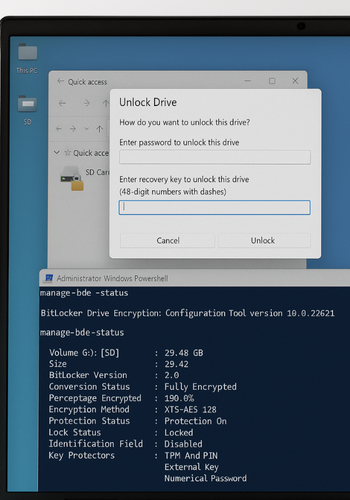
BitLocker To Go is used to protect removable media. Windows marks such volumes with a lock icon.
Quick Checks on Windows
- Connect the card through a known good USB reader.
-
Confirm BitLocker status: Open an Administrator PowerShell and run
manage-bde -status X:(replaceX:with the drive letter). A result showing Conversion Status: fully encrypted and Protection On confirms BitLocker. - Assign a Letter: If no drive letter was assigned, open Disk Management and assign one first.
Unlock the Card
- Unlock with Password: In File Explorer, right-click the drive icon and choose Unlock Drive. Enter the password.
-
Unlock with Key: If you have the 48-digit key, you can use the command:
manage-bde -unlock X: -recoverypassword 1234 5678 90AB CDEF 1234 5678 90AB CDEF. -
Decrypt: Copy critical data off first. Then, if you want permanent access, go to Control Panel > BitLocker Drive Encryption > Turn off BitLocker for the removable drive. Wait until the decryption reaches one hundred percent.
If You Forgot the Password
-
You must use the recovery key that Windows provided when you first turned on BitLocker. Check your Microsoft account, Azure AD, or your company helpdesk.
- No key means no entry. Do not use third-party recovery tools that claim BitLocker unlock without the key.
Common BitLocker Errors and Clean Fixes
| Message | Meaning | Safe Action |
| This drive is protected by BitLocker Drive Encryption | The volume is encrypted removable media. | Unlock with the password or 48-digit recovery key. |
| The parameter is incorrect (when assigning a letter) | Partition table issue. | Use Disk Management, right-click the healthy primary partition, then Add drive letter. |
| BitLocker Drive Encryption cannot be used | The card reader reports the device incorrectly. | Try another USB reader that correctly supports removable media. |
Route C: The Card Was Created or Encrypted on macOS
Volumes formatted with APFS can be encrypted on removable media. macOS will show a small lock icon in Disk Utility.
Steps on macOS
- Open Disk Utility . Go to the View menu then select Show All Devices.
- Select the Volume: Select the external volume that displays a lock icon.
- Click Mount: Click the Mount button then enter the volume password.
-
Copy Data: Once mounted, immediately copy data off the card. If you want permanent cross-platform access, reformat to exFAT and re-copy the files after you have a complete backup.
Route D: The Card Is Not Encrypted, the Mount Path Is Broken
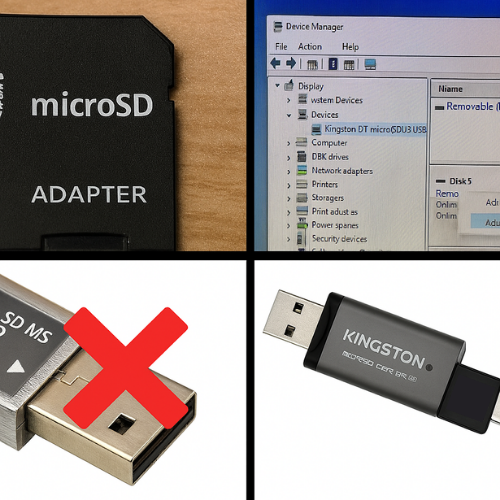
Sometimes the computer shows random errors because of a bad reader, a stale driver, or a write-protect switch. This is not encryption, but a mounting failure.
Non-Destructive Checks on Windows
- Check Adapter Switch: Inspect the microSD to SD adapter. The tiny write-protect switch must be in the up (unlocked) position.
- Change Reader/Port: Try a second USB reader that supports the card’s standard (UHS-I or UHS-II).
- Update Driver: Open Device Manager > Disk drives. Right-click the reader, then Update driver > Search automatically.
- Assign Letter: In Disk Management, right-click the card partition and select Add drive letter.
- Run Check: In an admin Command Prompt, run a read-only file system check:
chkdsk X: /r(do not add the/fflag yet).
Non-Destructive Checks on macOS
- Change Port: Try a different USB-C or USB-A port.
-
Mount/First Aid: Open Disk Utility. If the volume appears grayed out, select it and click Mount. Run First Aid, which reports metadata errors without writing changes until you select Repair.
If the Card Mounts Read-Only
-
On Windows: Open an admin Command Prompt, run
diskpart, thenlist disk, thenselect disk N. Useattributes diskto check the read-only status. Clear it usingattributes disk clear readonly.
Verification Routine
You know the card is successfully recovered and accessible when:
- The device mounts and shows the expected folder tree.
- You can read and fully open several large files end-to-end.
- On encrypted origins, the lock icon changes to open, or the unlock option becomes a Manage option.
- You copied at least one third of the data to a second device without errors.
Frequently Asked Questions (FAQs)
How do I tell if BitLocker protected this card?
Windows will typically show a lock icon on the drive letter. You can confirm by running the command manage-bde -status X: in an admin PowerShell, which will show FVE FS and Protection On.
Can I decrypt an Android encrypted card on a PC?
No. You must use the same Android phone that performed the encryption, then enter your screen lock to decrypt the card in Settings. Once decrypted, you must safely unmount the card before moving it to a PC.
My phone died. Can a lab decrypt the card?
For standard Android device-bound SD encryption, generally no. The key is tied to the unique hardware and software state of the original phone. Without a working original phone and the correct lock, decryption is not possible, even for most labs.
Windows keeps asking to format, but the camera used the card yesterday. What do I do?
Do not format. This message usually means the file system is unknown to Windows (like a damaged or non-standard format), not that the card is physically empty. Try a better USB reader first, as cheap readers often fail to mount the card correctly.
I forgot my BitLocker password and do not have the recovery key. Am I out of luck?
Yes, unfortunately. Modern encryption offers no backdoor. You must possess either the password or the 48-digit recovery key. Check every possible key escrow location: your Microsoft account, Azure AD, or any dedicated password vault you used.
Why does the copy fail halfway through?
This is usually a hardware problem, either a bad card reader that overheats or a faulty cable/port. Try a different reader, a different computer, and copy the data in smaller batches to find the point of failure.
Is it safe to run chkdsk?
Run it as read-only first (chkdsk X: /r) to inspect the file system metadata. Only run it with the repair flag (/f) after you have a full backup or a sector image of the card. The repair process can sometimes cause further data loss if the media is failing.
Conclusion
The first and most critical step in recovering access to a locked SD card is accurately identifying the encryption method and using the original device to decrypt it. Never format the card if you still need the data. By applying the specific unlock routine for Android, BitLocker, or macOS, and eliminating hardware and driver issues first, you can restore full access to your files without permanent data loss.