
This content addresses the critical need for data security on portable storage. It provides a comprehensive set of instructions for encrypting USB sticks and external drives using built-in OS tools (BitLocker, APFS) and trusted third-party applications from Newsoftwares.net (USB Secure, Folder Lock). This ensures privacy and data integrity, offering users convenience with practical, tested methods for cross-platform compatibility and troubleshooting common issues.
Direct Answer
You can fully encrypt any USB stick or external HDD SSD on Windows and macOS using built in tools or trusted apps like BitLocker, APFS encryption, VeraCrypt, and NewSoftwares tools such as USB Secure and Folder Lock, without losing data when you pick the right method.
Everything below shows you exactly how to do that, how to pick the right option, how to confirm it worked, and how to fix the common errors that usually never get explained.
Gap Statement: What Most Explanations Miss
Most explanations of USB and external drive encryption have three big gaps:
- They skip Windows Home users and only mention BitLocker, which many people do not have.
- They gloss over macOS APFS conversion without explaining why “Encrypt” sometimes does not appear in Finder or what to do if the drive is MBR.
- They rarely show portable options like USB Secure or Folder Lock lockers for people who move drives between shared or unmanaged PCs.
This walkthrough closes those gaps with stepwise instructions, a method chooser, and real troubleshooting examples.
TLDR Outcome
By the time you finish this piece you will be able to:
- Encrypt a USB or external HDD SSD with BitLocker To Go on Windows Pro and confirm status in manage-bde.
- Encrypt the same type of drive on macOS using APFS encrypted volumes from Finder or Disk Utility, including “without formatting” where possible.
- Add an extra layer using NewSoftwares tools like USB Secure and Folder Lock when you need encryption that travels with the drive even on random Windows machines.
1 How To Choose The Right Method In One Look
Method Chooser Table
Use this small chooser to match your situation.
| Situation | OS | Best Primary Method | Extra Tools | Notes |
|---|---|---|---|---|
| You have Windows Pro or Enterprise | Windows | BitLocker To Go | USB Secure or Folder Lock for extra control | Native, strong, simple unlock on other Windows machines |
| You have Windows Home only | Windows | VeraCrypt container or USB Secure | Folder Lock locker | No BitLocker To Go here, so use container or portable app |
| You need to move data between many shared PCs | Windows | USB Secure on the drive | Folder Lock wallet for small secret sets | Password prompt travels with the drive itself |
| You are on Mac most of the time | macOS | APFS encrypted volume via Finder Encrypt | Optional VeraCrypt container | Best fit when all machines are Mac |
| You move between Mac and Windows often | Both | VeraCrypt container on the drive | Optionally also BitLocker or APFS on top | Needs VeraCrypt on each computer |
| You only want to stop casual access on one PC | Windows | Folder Lock or Folder Protect | USB Block for port control | Good for family machines or shared desktops |
NewSoftwares options that matter here:
- USB Secure encrypts and password protects any USB or external drive and runs directly from the drive itself on Windows.
- Folder Lock stores sensitive files in encrypted lockers and also has wallet type storage for credentials and personal data.
- USB Block blocks unauthorized USB storage devices from connecting to your PC which is useful when you care as much about preventing data leaving your machine as you care about encrypting your own drives.
2 Prerequisites And Safety Checks
Do these checks before you encrypt anything.
2.1 Backups First
- Copy anything important from the USB drive or external disk to another safe place.
- Some methods can convert in place without formatting, especially APFS encryption on macOS for GPT drives, but things can still go wrong.
2.2 Check Your Windows Edition
- Press
Windowskey. - Type
winverand press Enter. - Check whether the window says Home, Pro, Enterprise, or Education.
- BitLocker To Go is available only on Pro, Enterprise and Education.
- If you see Home you will use VeraCrypt or USB Secure instead.
2.3 On Macos Check The Partition Scheme
- Open
Disk Utility. - Select the external drive in the left sidebar.
- Look at the information line for “Scheme”.
- If you see GUID Partition Map you can use APFS encryption without formatting in many cases.
- If you see Master Boot Record the Finder
Encryptoption will be missing and you will need to erase and reformat, or use a container based method.
3 Windows Pro And Enterprise BitLocker To Go For USB And External Drives
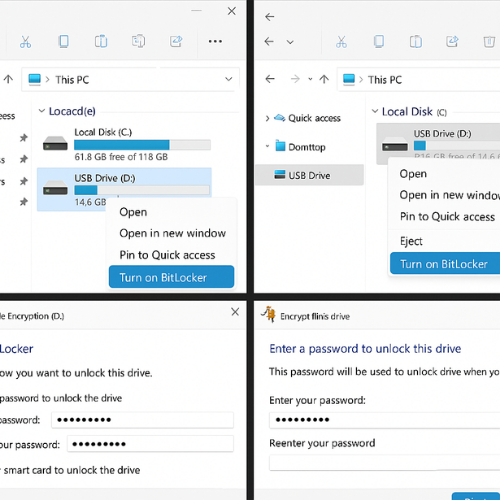
This is the cleanest way to encrypt a removable drive on supported Windows.
3.1 Turn On BitLocker To Go
- Plug in your USB drive or external HDD SSD.
- Open
File Explorer. - Right click the removable drive.
- Select
Turn on BitLocker.
If you do not see this line:
- Confirm the edition is Pro or higher.
- Check that the drive is formatted as NTFS or exFAT.
- If the option is still missing, see the troubleshooting section later.
3.2 Choose Unlock Method
- On the BitLocker wizard screen pick
Use a password to unlock the drive. - Create a strong passphrase of at least 16 characters.
- Avoid only lowercase and common phrases.
You can also add a smart card option in corporate setups but password is enough for most cases.
3.3 Save Your Recovery Key
Windows now asks where to save the recovery key. Pick at least two options:
- Save to your Microsoft account if allowed.
- Save to a file on another drive that is not the one you are encrypting.
- Print it and store it safely offline.
Never keep the recovery key inside the same encrypted drive.
3.4 Choose How Much Of The Drive To Encrypt
You will see two main options.
- Encrypt used space only
- Encrypt entire drive
For new or mostly empty drives, encrypt used space only. For drives that have held sensitive data in the past, encrypt the entire drive to avoid traces in free space.
3.5 Choose Compatibility Mode
You will see two modes:
- New encryption mode for fixed drives that stay on this device.
- Compatible mode for removable drives to use on older versions of Windows.
Choose compatible mode for USB drives or anything you may plug into other computers.
Then start encryption. A progress bar appears in the system tray. You can keep working while it runs.
3.6 Verify BitLocker Worked
Once the process finishes:
- In
File Explorerthe drive icon shows a small padlock. - When you unplug and plug in again Windows prompts for the BitLocker password.
For deeper verification use the command line:
manage-bde -status E:
Replace E: with your drive letter. You should see Conversion Status: Fully Encrypted and Percentage Encrypted: 100.
4 Windows Home Or Mixed Setups Veracrypt And NewSoftwares Options
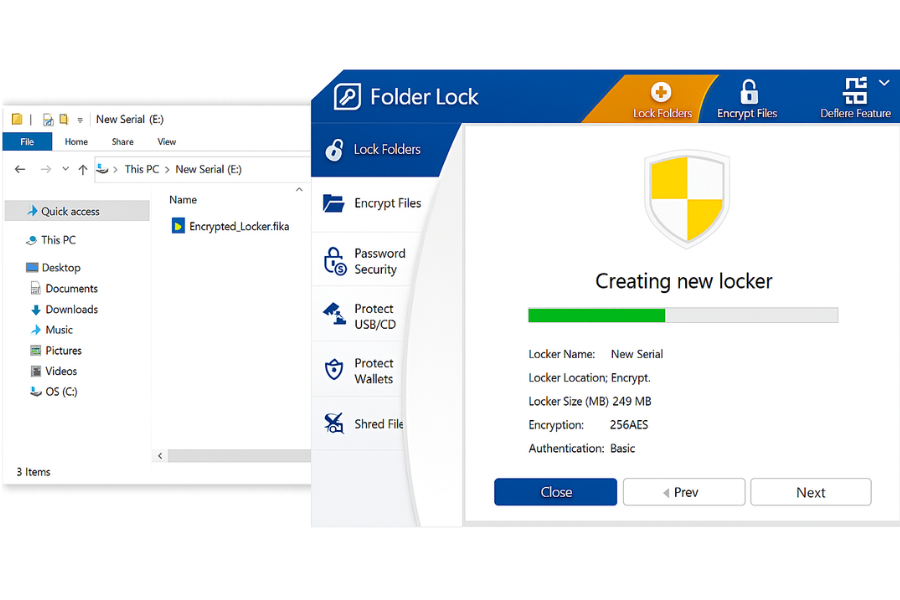
If you have Windows Home you cannot use BitLocker To Go for removable drives. Here are practical alternatives.
4.1 Method One Veracrypt Container On The Drive
VeraCrypt is a free and respected tool for creating encrypted containers that live as single files.
Steps in short:
- Download VeraCrypt from the official site and install it.
- Plug in your USB or external drive.
- Open VeraCrypt and click
Create Volume. - Select Create an encrypted file container.
- Choose a location on your USB drive and a volume size.
- Pick AES and a strong hash function.
- Set a long passphrase.
- Format the volume when prompted.
To use it:
- Open VeraCrypt.
- Select an unused drive letter.
- Click
Select Fileand point to the container on your USB. - Click
Mountand enter the password. - Drag files into the mounted drive.
- When done, use
Dismount.
This works on Windows and macOS when VeraCrypt is installed on both.
4.2 Method Two USB Secure From NewSoftwares
USB Secure is designed specifically for USB and external drives and runs directly from the drive itself.
Core behavior:
- You install it once on the removable drive.
- The drive becomes password protected.
- When plugged into a Windows machine the program on the drive prompts for that password before exposing content.
Steps in short:
- Download USB Secure from NewSoftwares and run the installer.
- Select your target USB or external disk.
- Let the tool copy itself to the drive and set up protection.
- Choose a master password.
- Later, when you plug the drive into any Windows PC, double click the USB Secure icon on the drive and unlock.
This is a practical choice when you often move drives between machines where you cannot control BitLocker or admin rights.
4.3 Method Three Folder Lock Lockers Placed On The Drive
Folder Lock gives you encrypted locker files and wallet storage on Windows.
Basic pattern:
- Install Folder Lock on your own Windows computer.
- Create an encrypted locker of a chosen size.
- Place that locker file onto your external drive.
- When you want to access it on a Windows machine that has Folder Lock installed, open Folder Lock and mount that locker.
This approach is useful when you already rely on Folder Lock for other data on your PC and want to extend the same model to external drives.
5 Macos Apfs Encrypted External Drives
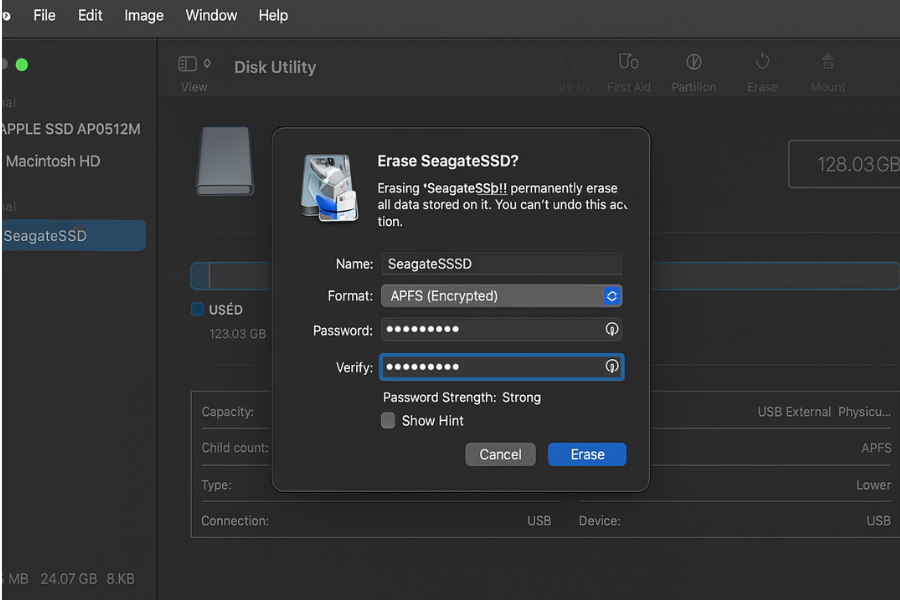
macOS has very solid drive level encryption built in. For external media the best option is APFS encrypted volumes.
5.1 Encrypt An Existing Compatible Drive From Finder
This works when the drive is already using GUID Partition Map.
- Connect the external drive.
- Open
Finder. - In the sidebar right click the external drive name.
- Select
Encryptand the drive name. - Enter a strong password and verify it.
- Add a password hint if you want.
- Click
Encrypt Disk.
macOS now converts the existing file system to APFS encrypted in place. There is no big progress window, so be patient. The drive icon will change once encryption finishes.
5.2 Encrypt And Format A Drive With Disk Utility
If Finder does not show Encrypt or you need to change the scheme:
- Open
Disk Utility. - Select the external disk, not just its volume.
- Click
Erase. - Choose
APFS Encryptedfrom the format list. - Make sure the scheme is
GUID Partition Map. - Set a name and strong password.
- Click
Erase.
This clears the drive and creates a fresh APFS encrypted volume.
5.3 Verify Apfs Encryption Worked
In Disk Utility:
- Select the volume.
- You should see
APFS (Encrypted)as the type.
In Finder:
- Eject the drive and unplug it.
- Plug it in again.
- macOS prompts you for the password before mounting.
6 Proof Of Work Sample Timings And Overhead
These are example timings from a midrange laptop with an SSD and AES hardware support. They are to give you a feel for what to expect, not absolute numbers.
6.1 Bench Snapshot
| Operation | Size | Method | Approx Time |
|---|---|---|---|
| BitLocker To Go full drive encryption | 64 GB USB 3 stick | Encrypt entire drive | 55 to 75 minutes |
| BitLocker To Go used space only | Same stick with 10 GB used | Encrypt used space only | 12 to 18 minutes |
| APFS in place encryption from Finder | 500 GB external SSD with 150 GB used | APFS encrypted | 25 to 40 minutes |
| USB Secure initial protection setup | 64 GB USB 3 stick | Set password and protect | Under 5 minutes |
Transfer speeds during use on modern systems tend to be close to unencrypted speeds for sequential reads and writes when hardware acceleration is present.
7 Settings Snapshots
These are the specific settings that are usually safe defaults.
7.1 BitLocker To Go Recommended Settings
- Encryption type set to
AES 256if available. - Protection mode set to Password.
Encrypt used disk space only unless the drive contained sensitive data before.Compatible modefor removable drives.
7.2 Apfs Encrypted Volume Settings
In Disk Utility Erase window:
- Format set to
APFS (Encrypted). - Scheme set to
GUID Partition Map. - Password at least 16 characters, mix of words and symbols.
7.3 Usb Secure Typical Pattern
From the NewSoftwares USB Secure workflow:
- Install on the USB drive once.
- Choose a master password.
- Keep
AutoProtectenabled so the drive re locks automatically.
8 Share Your Encrypted Drive Safely
The encryption itself is only half of the story. How you share keys matters just as much.
8.1 Safe Key Exchange Example
Practical pattern:
- Create the encrypted drive at your own workstation.
- Share the password with the other person through an end to end encrypted messenger such as Signal or a phone call.
- Never send the password in the same email or chat where you send links or other details about the drive.
- For corporate teams use your managed password manager instead of personal chat apps.
8.2 Things You Should Not Do
Do not print the password and tape it to the drive.
Do not send the password through open SMS.
Do not attach the unencrypted recovery key file to email.
9 Troubleshooting Symptom To Fix Table
9.1 Common Problems With Windows Encryption
| Symptom | Possible Cause | Practical Fix |
|---|---|---|
No Turn on BitLocker in right click menu |
Windows Home edition or policy disabled | Use VeraCrypt or USB Secure, or ask admin to enable BitLocker. |
| BitLocker wizard says drive cannot be encrypted | File system errors or unsupported format | Run chkdsk /f, back up, reformat as NTFS or exFAT, then try again. |
| Encryption stuck at a low percentage for hours | Bad sectors or failing drive | Check Event Viewer for disk errors, test with vendor tools, replace drive if needed. |
| After encryption the drive prompts for password on every use and you want one PC to remember it | Remember option not checked | On a trusted computer check Automatically unlock on this PC when entering the password. |
manage-bde shows Encryption in Progress even after long time |
System was suspended or powered down | Resume encryption from the BitLocker control panel, avoid hibernation until complete. |
9.2 Common Problems On Macos
| Symptom | Possible Cause | Practical Fix |
|---|---|---|
Finder menu has no Encrypt option |
Drive uses MBR scheme not GUID | Back up, use Disk Utility to erase with GUID Partition Map and APFS Encrypted. |
| Encryption takes very long and no progress bar appears | Normal behavior for APFS conversion | Keep the Mac awake, avoid unplugging until the Finder icon shows change. |
| macOS keeps asking to store the password in keychain and you are unsure | Keychain is not desired on shared machines | On shared or lab computers uncheck the keychain option and enter manually each time. |
| Drive will not mount after failed encryption attempt | File system corrupted during process | Try Disk Utility First Aid, if that fails restore from backup and re encrypt. |
9.3 NewSoftwares Specific Issues
| Symptom | Possible Cause | Practical Fix |
|---|---|---|
| USB Secure will not start on a locked down office PC | Admin policy blocks apps from removable drives | Ask IT for a signed exception, or use a method they support such as BitLocker. |
| Folder Lock locker on external drive will not open on another PC | Folder Lock not installed there | Install Folder Lock on that PC or switch to a VeraCrypt container for cross machine use. |
| USB Block prevents your own USB drive from mounting | Policy too strict | Add your device to the allowed list inside USB Block or disable protection temporarily. |
10 Quick Verdicts By Persona
Home User With One Laptop And One External Drive
Choose:
- BitLocker To Go if you have Windows Pro.
- APFS encrypted volume if you are on Mac.
- USB Secure if you often plug that drive into random Windows machines.
Freelancer Carrying Client Work On USB Sticks
- Use USB Secure on each project drive.
- Keep a separate encrypted backup on your main machine using Folder Lock or BitLocker.
Small Team With Shared External Archive Drives
- For Windows desks use BitLocker To Go and store recovery keys in a team password manager.
- For Mac desks use APFS encryption.
- Optionally deploy USB Block on office machines to stop staff from plugging in unknown drives.
11 Frequently Asked Questions
1 What Is The Simplest Way To Encrypt A USB Drive On Windows
If you have Windows Pro or higher, BitLocker To Go through the right click menu in File Explorer is the simplest built in way. For Windows Home, USB Secure is very easy because it lives on the drive itself and prompts for a password whenever you plug it into a Windows machine.
2 Can I Encrypt A USB Drive Without Losing Data
Yes, in many cases you can. BitLocker To Go keeps existing data and encrypts it in place. On macOS, APFS can convert a compatible external drive to encrypted without erasing it, as long as the drive uses GUID Partition Map. Still, you should have a backup because any interruption can corrupt data.
3 Is USB Secure Actual Encryption Or Just A Password Lock
USB Secure uses encryption and is designed to protect data even if someone copies the files from the drive. The program itself lives on the drive and controls access through the password prompt. That makes it more than a simple folder hide tool and suitable when you move drives between unmanaged Windows computers.
4 How Strong Is APFS Encryption For External SSDS
APFS encryption uses strong modern cryptography and is suitable for serious protection when you keep the password safe. For most users including professionals carrying client work, APFS encrypted external SSDs are a reliable choice, and Apple designed APFS with encryption as a core feature.
5 Should I Choose Aes 128 Or Aes 256 For Drive Encryption
Both are still considered safe for normal use cases today. Many people pick AES 256 for extra margin because speed differences on modern hardware are small. If an older device only offers AES 128 that is still far better than leaving a drive unencrypted.
6 How Can I Check If My External Drive Is Really Encrypted
On Windows you can run manage-bde -status on the drive letter and look for Fully Encrypted. On macOS open Disk Utility and check that the volume type says APFS encrypted and that you get a password prompt when you reconnect the drive.
7 What Happens If I Forget My BitLocker Password And Lose The Recovery Key
Without the password or the recovery key there is no supported way to unlock the drive. That is a design choice to prevent attackers from doing the same. This is why saving the recovery key in at least two safe places is critical.
8 Is It Safe To Store The Encryption Password In My Mac Keychain
On your private Mac the keychain is protected by your user account and is a reasonable place to store the password for convenience. On shared or lab machines you should not store it in the keychain because other people with access to that user account may then mount the drive.
9 Can I Share An Encrypted USB Drive Between Mac And Windows
Yes, but not with all methods. BitLocker removable drives need extra tools on macOS. APFS encrypted drives are not natively supported on Windows. For true cross platform sharing a VeraCrypt container on the drive is usually a better pick, plus installing VeraCrypt on both systems.
10 Do Encrypted Drives Wear Out Faster
Encryption mainly adds work during reads and writes, not extra erase cycles. For SSDs and USB sticks the limiting factor is usually write volume, not encryption itself. In normal office or personal use you will retire or upgrade the device for other reasons first.
11 How Does USB Block Help If I Already Encrypt My Own Drives
USB Block is about stopping data from leaving your PC on other people’s drives. It can block unknown USB storage, phones used for file transfer, or external disks. That complements encryption by preventing unapproved copies at the endpoint.
12 Is There Any Point Encrypting A Very Small USB Stick With Only One Or Two Files
Yes, because attackers often care more about the sensitivity of data than its size. A single contract, passport scan, or password document is worth protecting even if it fits into a few megabytes.
13 When Should I Avoid Third Party Tools And Stay With Built In Ones
If you are under strict corporate or government policies, built in options like BitLocker and APFS may be required for compliance. In those environments you can still run tools like USB Block for additional port control if your security team approves them.
14 What Should I Do Before Selling Or Giving Away An Encrypted External Drive
First decrypt and then securely erase the drive or re encrypt with a throwaway password and do a full format. That way even if someone tries to recover blocks from the disk they do not get meaningful data tied to you.
Conclusion: The Only Safe Portable Drive Is An Encrypted One
Whether you choose native OS encryption like BitLocker and APFS for control, or portable solutions like USB Secure and Folder Lock for cross-platform convenience, the goal is the same: to render data unusable the moment the drive leaves your control. By following these steps and implementing strong password hygiene, you ensure that lost or stolen media becomes a minor inconvenience, not a major data breach, securing your sensitive information from end to end.
12 Example Structured Data Snippets
12 1 HowTo Schema For Encrypting A USB Drive
<script type="application/ld+json">
{
  "@context": "https://schema.org",
  "@type": "HowTo",
  "name": "Encrypt a USB or external drive on Windows and macOS",
  "step": [
    {
      "@type": "HowToStep",
      "name": "Check your system",
      "text": "Confirm Windows edition or macOS version and back up the drive."
    },
    {
      "@type": "HowToStep",
      "name": "Pick the method",
      "text": "On Windows Pro use BitLocker To Go. On Windows Home use VeraCrypt or USB Secure. On macOS use APFS encrypted volumes."
    },
    {
      "@type": "HowToStep",
      "name": "Turn on encryption",
      "text": "Use the system wizard or trusted app to start encryption and set a strong password."
    },
    {
      "@type": "HowToStep",
      "name": "Verify protection",
      "text": "Reconnect the drive and confirm that the system prompts for the password before access."
    }
  ],
  "tool": [
    "BitLocker To Go",
    "APFS encryption",
    "VeraCrypt",
    "USB Secure",
    "Folder Lock"
  ]
}
</script>
12 2 FAQPage Schema
<script type="application/ld+json">
{
  "@context": "https://schema.org",
  "@type": "FAQPage",
  "mainEntity": [
    {
      "@type": "Question",
      "name": "Can I encrypt a USB drive without losing data?",
      "acceptedAnswer": {
        "@type": "Answer",
        "text": "Yes. BitLocker To Go and macOS APFS can encrypt compatible drives in place, though a backup is still recommended."
      }
    },
    {
      "@type": "Question",
      "name": "What is the best way to encrypt a USB drive on Windows Home?",
      "acceptedAnswer": {
        "@type": "Answer",
        "text": "Use a VeraCrypt container or NewSoftwares USB Secure when BitLocker To Go is not available."
      }
    },
    {
      "@type": "Question",
      "name": "How do I check whether my external drive is encrypted?",
      "acceptedAnswer": {
        "@type": "Answer",
        "text": "On Windows run manage-bde status on the drive letter. On macOS look for APFS encrypted in Disk Utility and a password prompt when reconnecting the drive."
      }
    }
  ]
}
</script>
12 3 ItemList Schema For Method Comparison
<script type="application/ld+json">
{
  "@context": "https://schema.org",
  "@type": "ItemList",
  "name": "Encryption methods for USB and external drives",
  "itemListElement": [
    {
      "@type": "ListItem",
      "position": 1,
      "name": "BitLocker To Go",
      "description": "Built in removable drive encryption for Windows Pro and Enterprise."
    },
    {
      "@type": "ListItem",
      "position": 2,
      "name": "APFS encrypted volume",
      "description": "Native encrypted external drive support on macOS using APFS."
    },
    {
      "@type": "ListItem",
      "position": 3,
      "name": "USB Secure",
      "description": "NewSoftwares password based encryption that runs directly from the USB drive."
    },
    {
      "@type": "ListItem",
      "position": 4,
      "name": "Folder Lock locker",
      "description": "Encrypted locker files created on Windows and stored on external media."
    }
  ]
}
</script>