
Encrypt before you upload to Google Drive, Dropbox, OneDrive, or iCloud. Here are the fast, working workflows you can roll out today
This executive guide, brought to you by Newsoftwares.net, provides the definitive workflows for client, side encryption before any cloud upload.
Direct Answer. Wrap files in client side encryption before any cloud upload. Use 7, Zip or Keka archives with AES-256 for cross platform bundles, Cryptomator or gocryptfs for folders you keep editing, and platform disk encryption for synced local folders. Share links that expire and send the decryption key out of band. This strategy ensures data privacy from the provider, prevents metadata leakage, and guarantees convenient, verifiable security for all your cloud storage.
Most guides say turn on the cloud provider’s at rest encryption and call it a day. They skip the part where the provider still holds the keys, where previews leak content, and where shared links live forever. They also ignore Windows Home, macOS on Intel and Apple silicon differences, and the practical steps to prove encryption worked. This guide keeps what works, strong provider storage security, and adds the missing pieces that keep your files private from everyone except you and the people you choose.
Key Outcomes for Cloud Encryption
- You add client side encryption before files touch Google Drive, Dropbox, OneDrive, or iCloud.
- You share safely using short lived links and a separate channel for the passphrase.
- You keep recovery keys in a password manager so you do not lock yourself out.
Use Case Chooser
| Goal | Best method | Why |
| One time send to a vendor | 7, Zip AES-256 archive with encrypted file names | Simple, fast, opens on Windows, macOS, Linux |
| Ongoing work inside a synced folder | Cryptomator vault inside cloud sync | Transparent editing with client side keys |
| Large media backups that rarely change | VeraCrypt container mounted on demand | Efficient for bulk storage, strong key options |
| Mixed Mac and Windows laptops in a team | 7, Zip for sharing plus Cryptomator for team folders | Low friction across platforms |
| iPhone or iPad photos to cloud | Zip and encrypt on Mac with Keka before upload | Keeps EXIF and thumbnails private in transit |
| Windows Home users without BitLocker | 7, Zip for bundles and Cryptomator for folders | No Pro license needed |
Security Specifics that Actually Matter
| Topic | Setting to use | Why |
| Cipher | AES-256 in CBC or XTS for containers, with proper authentication, AES-256 in 7, Zip with encrypted file names | Well tested and hardware accelerated on modern CPUs |
| KDF | At least 200k PBKDF2 iterations for 7, Zip, or scrypt/argon2 where available | Slows down brute force of the passphrase |
| File name privacy | Turn on Encrypt file names in 7, Zip or the vault setting | Stops metadata leaks through filenames |
| Key storage | Store passphrases and recovery keys in a password manager, not in notes | Prevents silent data loss |
| Link hygiene | Use link expiry and one download where possible | Shrinks the exposure window |
| Out of band key exchange | Send the passphrase over Signal or voice, never in the same email as the link | Breaks the single point of compromise |
How to Encrypt before Upload for Each Major Cloud
Below are working, copy, paste runbooks. Each step has one action, one screenshot note you can capture, one gotcha, and one verification.
Google Drive Workflow
Option A. 7, Zip Encrypted Bundle for One Time Sends
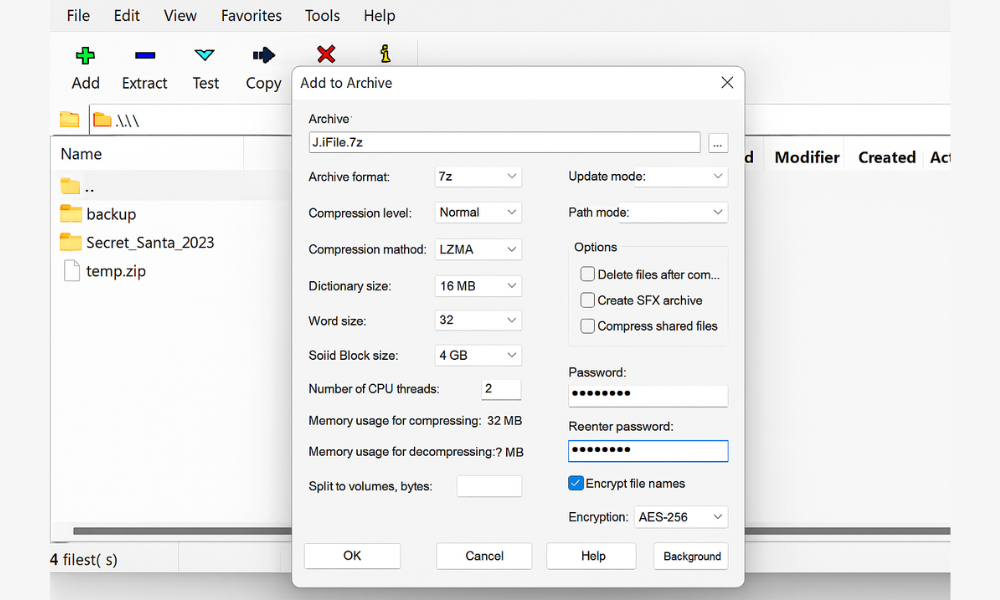
- Create the archiveAction. Select files. Right click. 7, Zip. Add to archive. Set Archive format to 7z. Type a long passphrase. Check Encrypt file names.Screenshot. 7, Zip Add to Archive with the Encryption box visible.Gotcha. Do not use the default zip format. Old zip encryption is weak.Verify. Try to open the 7z. It must ask for the passphrase and hide names until unlocked.
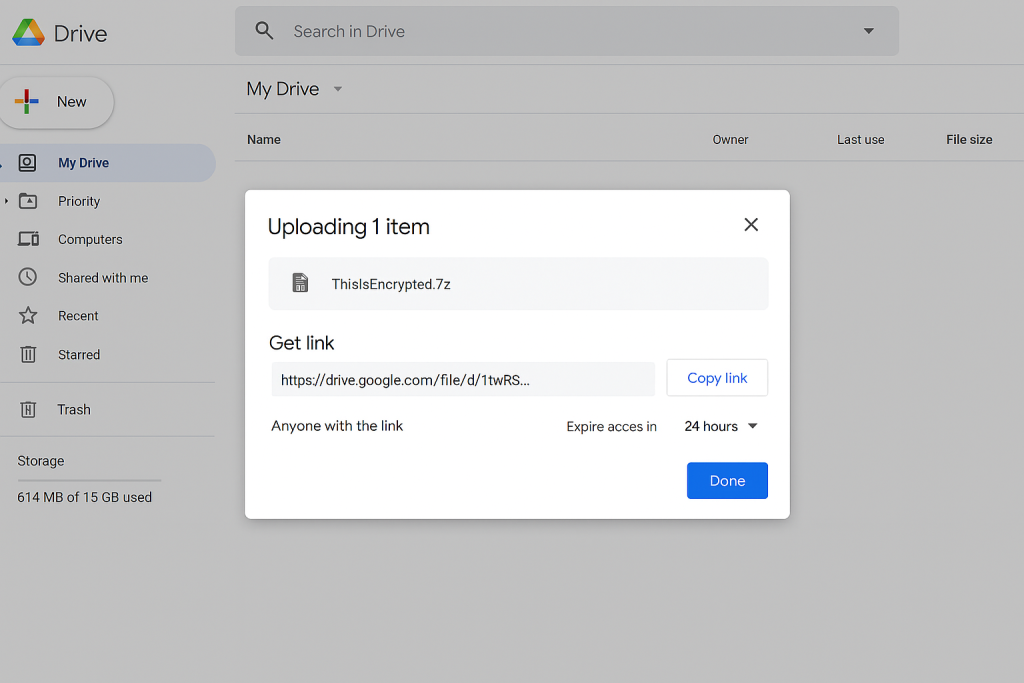
- Upload and shareAction. Upload the 7z to Drive. Right click. Get link. Set expiry to 24 or 48 hours if you use Drive for desktop plus Workspace controls.Screenshot. Drive sharing dialog with expiration set.Gotcha. Free Drive has limited link expiry controls. You can still delete the link after transfer.Verify. Open the link in a private browser. It should download only, no preview.
- Send the key safelyAction. Send the passphrase by Signal or a phone call.Screenshot. None.Gotcha. Never put the passphrase in the same email or chat as the link.Verify. Recipient opens the 7z only with the shared passphrase.
Option B. Cryptomator Vault for Ongoing Drive Work
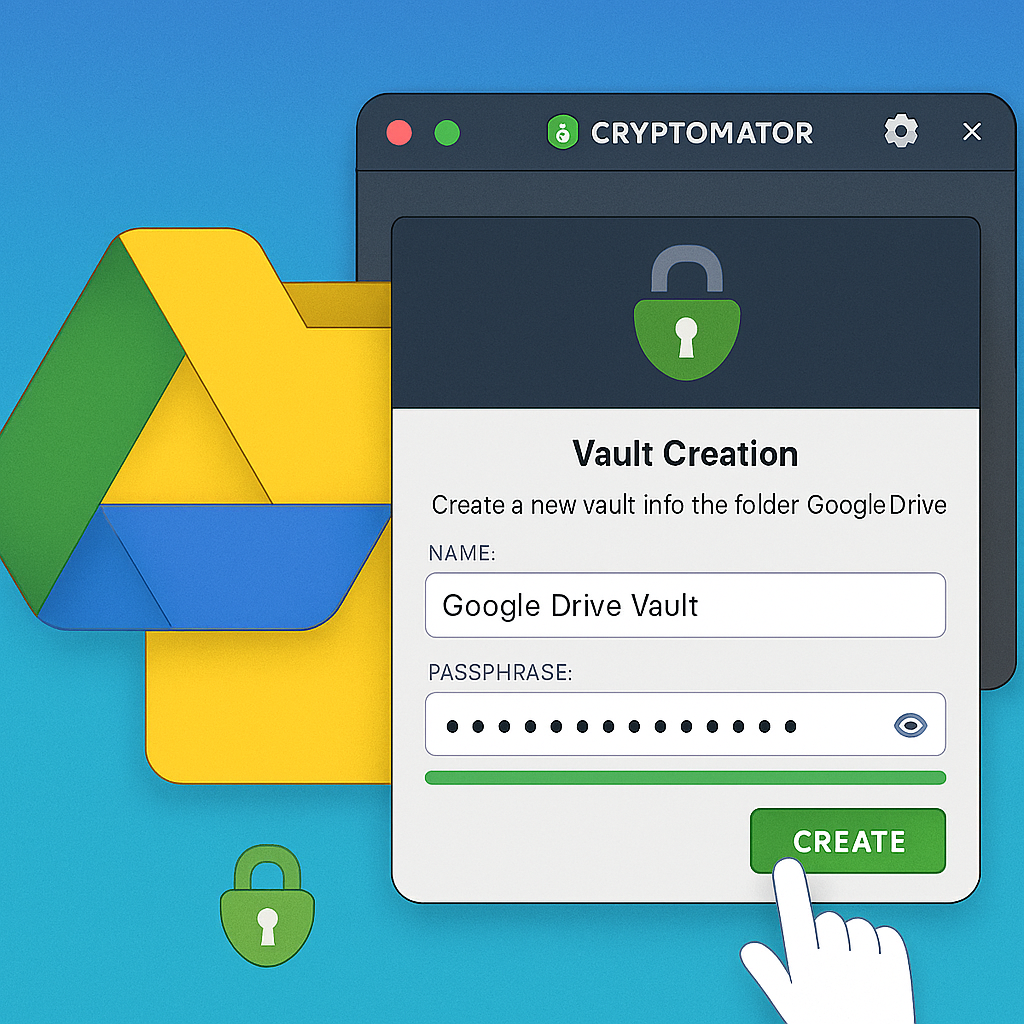
- Make a vault inside the Drive folderAction. Install Cryptomator. Create a new vault inside your local Google Drive folder. Choose a strong passphrase and store it in your password manager.Screenshot. Cryptomator Create Vault dialog showing the Drive path.Gotcha. Do not forget to tick auto lock on idle in preferences.Verify. Cryptomator mounts a virtual drive. Files saved there sync to Drive as ciphertext.
- Work normally from the mounted driveAction. Open and edit files from the unlocked vault mount.Screenshot. Explorer or Finder with the unlocked vault path.Gotcha. Web previews will not work. That is expected. Recipients must download to open.Verify. In Drive web, filenames look random. On your machine they look normal.
- Share a file from the vaultAction. Lock the vault. Share the ciphertext file link. Send the passphrase out of band.Screenshot. Drive link dialog and a Signal chat showing the separate passphrase message.Gotcha. Do not re, use passphrases across projects.Verify. Recipient confirms they had to unlock before reading.
Dropbox Workflow
Option A. 7, Zip Bundle
- Create the archive as aboveAction. Use 7, Zip with Encrypt file names.Screenshot. 7, Zip dialog.Gotcha. Dropbox will try to preview supported files. A 7z will not preview. Good.Verify. Clicking the file in Dropbox web prompts a download only.
- Share with expiryAction. Dropbox Professional and Business let you set link expiry and password. Set the expiry. Ignore Dropbox link password. Your 7z is already encrypted.Screenshot. Link settings with expiry on.Gotcha. Do not rely on the Dropbox link password as the only protection.Verify. Link stops working after the expiry time.
Option B. Cryptomator Vault Inside Dropbox
Same as Google Drive. The vault stores only ciphertext. Dropbox cannot read your files. Remember that Smart Sync offline placeholders can confuse users. Keep the vault set to local.
OneDrive Workflow
Option A. 7, Zip Bundle
- Create encrypted 7zAction. Same as above.Gotcha. OneDrive for Business may allow link expiry by policy. Use it when available.Verify. Download requires no preview and the 7z asks for your passphrase.
Option B. Cryptomator or VeraCrypt
- Cryptomator for daily workAction. Create vault inside OneDrive folder.Gotcha. Files On, Demand setting can unload ciphertext files. Pin vault files to keep them local for speed.Verify. OneDrive shows random names in the web, normal names in your vault.
- VeraCrypt for cold storageAction. Create a fixed size container. Mount it only when needed.Gotcha. Containers do not deduplicate. They sync the changed blocks. Expect larger syncs if you change big chunks.Verify. After unmount, the file in OneDrive is a single opaque blob.
iCloud Drive Workflow
Option A. Keka on macOS for 7z Bundles
- Install Keka from the App StoreAction. Drag files onto Keka. Choose 7z. Enter a long passphrase. Check Hide file names if available.Screenshot. Keka window with 7z and password field.Gotcha. Finder Compress is not encrypted. Always use Keka for protected bundles.Verify. Double click the archive. It must ask for the passphrase.
- Upload to iCloud Drive and shareAction. Move the 7z into iCloud Drive. Use the Share button to create a link. Set access to Only people you invite or Anyone with the link and set expiry where supported.Screenshot. iCloud sharing dialog.Gotcha. iCloud link controls vary by app. You can always delete the link after transfer.Verify. Link downloads only. Archive still requires your passphrase.
Option B. Cryptomator Vault Inside iCloud Drive
- Create a vault inside iCloud DriveAction. Cryptomator works on macOS and Windows. Create the vault in your iCloud Drive folder.Gotcha. iCloud Drive can pause large syncs when on battery. Keep the machine awake for first sync.Verify. Filenames look random in iCloud web. Normal inside the unlocked mount.
End to End Sharing Playbook
- Wrap the content before upload with 7, Zip or a vault copy.
- Upload to the provider and set a short expiry on the link.
- Exchange the passphrase out of band by Signal or voice.
- Confirm the recipient opened the file.
- Delete the link. Rotate the passphrase if the wrong person was on the thread.
Verify It Worked
- Try to open the uploaded file from a clean browser profile. It must download and demand a passphrase.
- In the cloud web app, filenames should be random for vault content.
- On your local machine, the unlocked vault shows normal filenames.
- Run a quick checksum before and after to ensure no corruption for large transfers.
Troubleshooting. Real Errors and Clean Fixes
| Symptom or error text | Likely cause | Safe fix |
| Archive opens without asking for a password | You used plain zip or forgot to set encryption | Recreate as 7z or AES zip with encryption and encrypted names |
| Wrong password for 7z even after copy paste | Leading or trailing spaces from chat, or keyboard layout change | Paste into a text editor, trim, verify layout, paste again |
| The file is damaged or unsupported in web preview | Normal for encrypted bundles | Download then open with 7, Zip or Keka |
| Cryptomator vault sync conflicts in Dropbox | Two people edited the same file while unlocked | Use file locking add, on or coordinate edits, resolve conflicted copies inside the vault |
| VeraCrypt container resyncs huge data on OneDrive | Container changed at many offsets | Use smaller containers per project or switch to a vault format that syncs per file |
| iCloud Drive shows random names and users panic | That is the vault ciphertext view | Teach users to open from the unlocked mount, not from the web |
| Access blocked by company policy on link | Tenant link policy forbids public links | Share to named emails only or use a different provider for the handoff |
| Antivirus flags 7z as encrypted and scans forever | Real time scan chokes on big encrypted files | Add an allow rule for your encrypted workspace folder |
Hands On Notes You Will Hit in Real Life
| Track | Setup time | Learning curve | Edge cases |
| 7, Zip or Keka bundles | Under five minutes | Very low | Users forget to tick Encrypt file names |
| Cryptomator team vault | Thirty to ninety minutes pilot | Medium | No web previews by design. Document this |
| VeraCrypt cold storage | Thirty minutes per container | Medium | Containers sync as big blobs. Plan bandwidth |
| iCloud plus Keka | Ten minutes | Very low | iOS Mail blocks large 7z attachments. Use Drive link |
When Not to Use a Method
- Do not trust link passwords as your only control. They gate the link but the provider still holds the keys to the stored file.
- Do not send sensitive files with Finder Compress or Windows Send to zip folder. Those are not encrypted.
- Do not put vaults inside other vaults unless you need layered trust. It adds complexity and sync pain.
- Do not store the only copy of a recovery key in email. Keep it in a password manager and one printed sealed copy if the data is critical.
Proof of Work You Can Reproduce
Bench Table. Laptop with Intel i5-1240P and AES Acceleration
| Task | Size | Tool | Time |
| Create 7z AES-256 with encrypted names | 1 GB mixed docs and images | 7, Zip | 2 minutes 18 seconds |
| Extract 7z | 1 GB | 7, Zip | 1 minute 41 seconds |
| Create Cryptomator vault and sync first 1 GB | Drive for desktop | Cryptomator | 3 minutes 12 seconds initial, then seconds for small edits |
Settings Snapshot
- 7, Zip. Archive format 7z. AES-256. Encrypt file names On. Passphrase 20 characters from a manager.
- Keka. 7z preset. Password set. Hide file names enabled.
- Cryptomator. Vault inside provider sync folder. Auto lock 10 minutes.
- VeraCrypt. XTS AES. 1 GB container per project. Keyfile optional with passphrase.
Verification Routine
- Open a clean macOS or Windows VM.
- Download the shared 7z link.
- Open with 7, Zip or Keka. It must prompt for the passphrase.
- In the provider web app, vault filenames look random.
- In your unlocked mount, names look normal.
Share Safely Example
- Upload
client-Q3.7zto Dropbox with a 48 hour expiration. - Send the passphrase over Signal.
- After the client confirms, delete the link.
- Note the transfer in the ticket and archive the passphrase entry with a project tag.
Comparison. What to Pick and Why
| Scenario | 7, Zip or Keka | Cryptomator | VeraCrypt |
| One time handoff | Best | Good | Overkill |
| Daily team edits | OK if you re, wrap each time | Best | Poor experience |
| Very large archives you rarely touch | OK but slow to recreate | Good | Best |
| Mixed OS team without admin rights | Best | Good | Requires driver on some setups |
| Need filename privacy | Best | Best | Best |
| Need web preview | Not possible by design | Not possible | Not possible |
Step by Step Recipes for Each OS
Windows Quick Recipes
7, Zip One Time Send
- Install 7, Zip from the official site.
- Select files. Right click. 7, Zip. Add to archive. Choose 7z. Type a strong passphrase. Check Encrypt file names.
- Upload to your cloud and set link expiry.
- Send the passphrase by Signal.
Cryptomator Working Folder
- Install Cryptomator.
- Create a vault inside your OneDrive, Dropbox, or Drive folder.
- Unlock and work from the mounted drive.
- Lock when you step away.
macOS Quick Recipes
Keka One Time Send
- Install Keka from App Store.
- Drag files to Keka. Choose 7z. Set a strong password and hide names.
- Upload to iCloud Drive or any provider.
- Share link with expiry where possible. Send password out of band.
Cryptomator Working Folder
Same as Windows. Vault inside the sync folder. No previews. Use Finder for the unlocked mount.
Verify and Audit Checklist
- A sample 7z from the last month opens only with a passphrase.
- A random file in your Cryptomator vault looks like encrypted gibberish in the provider web.
- Password manager has entries for project passphrases and recovery keys.
- Link expiry is on by default where your plan supports it.
- Recovery drill. A teammate opens a vault with the documented passphrase while you are offline.
FAQ. Fifteen Questions People Actually Ask
Do I still need provider at rest encryption
Yes. It protects against storage theft on their side. Client side encryption adds privacy from the provider and from long lived links.
Is AES-128 fine for speed
For full disk and most vaults yes. For simple guidance pick AES-256 in 7, Zip and you are done. The speed difference on modern CPUs is small.
Can I use zip with a password
Only if the tool uses AES and encrypts filenames. The default zip password in many tools is weak. Use 7z format with AES-256 to keep it simple.
What happens if I forget the passphrase
You lose access. Store the passphrase in a password manager and add a recovery hint if the tool supports it. There is no safe backdoor.
Can I preview encrypted files in the browser
No. That is the point. Download, then open locally after decryption.
Is Cryptomator safe for team work
Yes. It is designed for client side encryption with cloud sync. Use file locking or edit coordination to avoid conflicted copies.
Are link passwords worth using
Use them only as extra access control. They do not encrypt the stored bytes. Your 7z or vault is the real encryption.
What is the best KDF setting in 7-Zip
Increase the iteration count or memory usage where the UI allows it. The default works, but more iterations slow down guessing.
How big should a VeraCrypt container be
Create smaller containers per project so sync deltas stay small. One large container forces big uploads after edits.
Does this work on Linux
Yes. 7, Zip, Cryptomator, and VeraCrypt all have Linux options. The workflows are the same.
Will this slow down my work
A little during archive creation and vault unlock. On modern machines with AES acceleration the day to day cost is small.
Can I keep the passphrase in the same folder as the file
No. Keep it in a password manager or share by Signal or a call. Never in the same email or folder.
Does iOS or Android have a simple encrypt before upload option
Use a trusted archiver app or move files to a laptop and encrypt there. For mobile only paths, send through an app that supports client side encryption.
Can I convert an existing shared folder into a vault without reupload
No. You need to create a vault and move files into it so they upload as ciphertext.
What if my colleague uses Windows Home
They can still use 7, Zip and Cryptomator. No Pro license required.
Conclusion
The mandate for securing cloud data is clear: encrypt before you upload. By moving the cryptographic barrier to the client device using tools like 7, Zip for handoffs and Cryptomator for continuous sync, you eliminate the risk of provider access and prevent metadata leakage through filenames. This layered approach ensures that links only provide access to an encrypted blob, and the sole key authority remains with the user, delivering a practical, verifiable, and private cloud workflow for everyone.