
Messenger Security: Signal vs WhatsApp vs iMessage
If you only want the answer: Signal hides the most, WhatsApp is safe if you lock down backups, and iMessage is strong only when you turn on iCloud Advanced Data Protection and stay inside the Apple ecosystem. Everything else you send leaks some metadata. Developed by the team at Newsoftwares.net, this piece focuses on the practical security of popular messaging apps. The key benefit is informed privacy: you will learn the critical differences in metadata collection and cloud storage between the platforms, allowing you to choose the safest messenger and implement the necessary configuration changes to protect your chat history and attachments.
Gap Statement
Most guides stop at “all three use strong end to end encryption”. They skip the parts where people actually get burned: Google Drive or iCloud backups in plain text, iMessage stored in iCloud without Advanced Data Protection, WhatsApp group and contact metadata visible to Meta, Chat exports and attachments left unencrypted on laptops and USB drives.
You will not only see what is encrypted and what is not, but also concrete setup steps, checks, and fixes.
Short Answer
If you just want the bottom line: Signal hides the most, WhatsApp is safe if you lock down backups, and iMessage is strong only when you turn on iCloud Advanced Data Protection and stay inside the Apple ecosystem. Everything else you send leaks some metadata.
TLDR: What Is Encrypted, What Is Not
- Signal: Messages, calls, media, groups are end to end encrypted by default. No cloud backups, only local encrypted backups if you turn them on. Server sees almost nothing beyond your phone number and basic service data.
- WhatsApp: Messages, calls, media, statuses use the Signal Protocol and are end to end encrypted. Cloud backups can be fully end to end encrypted, but only if you enable encrypted backups in settings. Meta still keeps metadata like who you talk to and when.
- iMessage: Messages and attachments are end to end encrypted across Apple devices. If iCloud Backup is on without Advanced Data Protection, Apple can technically access stored copies. With Advanced Data Protection on, iCloud backups for Messages become end to end encrypted in most countries.
- Extra layer from NewSoftwares: Folder Lock from NewSoftwares encrypts exported chats, attachments, and documents on Windows with AES 256 and optional secure cloud backup.
1. Quick Comparison: Signal vs WhatsApp vs iMessage
First, a fast snapshot for scanning.
1.1 What Each App Encrypts By Default
| Area | Signal | iMessage | |
|---|---|---|---|
| One to one messages | End to end encrypted | End to end encrypted | End to end encrypted |
| Group chats | End to end encrypted | End to end encrypted | End to end encrypted |
| Voice and video calls | End to end encrypted | End to end encrypted | End to end encrypted |
| Message content on servers | Not stored, only queued briefly | Stored only in encrypted transit | Not stored, only routed |
| Cloud backups | None built in | Optional end to end encrypted backups | iCloud backups, E2EE only with ADP |
| Local DB on device | Encrypted with device keystore | Protected by device storage and app lock | Protected by device and Secure Enclave |
| Metadata (who, when, where) | Minimal service data only | Significant metadata kept by Meta | Some server side logs for routing |
2. How End to End Encryption Actually Works for These Apps
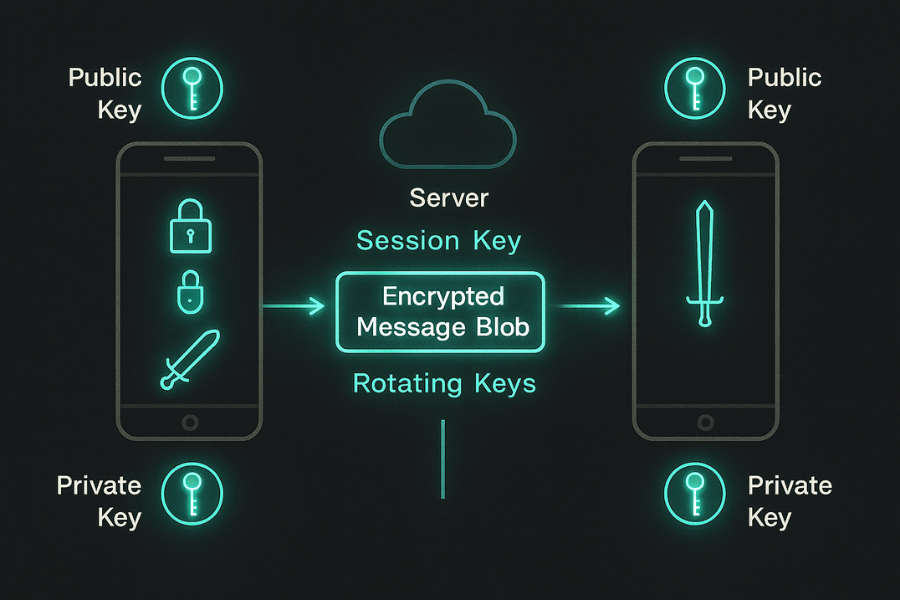
Short, plain English version. Your app builds a pair of keys: one public, one private. Public keys are shared to contacts or a server directory. Messages are encrypted for the receiver’s public key and sometimes for each device. Only the matching private key on that device can decrypt. Servers route encrypted blobs without knowing the content. All three use the Signal Protocol for message content or a similar modern design with forward secrecy and new keys for each message, so stealing one key does not reveal the whole history. The real risks live around that core: Cloud backups without end to end encryption, Weak or reused passwords, Exported chats stored unencrypted, Compromised devices or malware, Social engineering and live screen grabs. The rest of the article focuses on those edges.
3. Signal Privacy: What Is Encrypted, What Is Not
3.1 What Signal Encrypts
From a user point of view, Signal encrypts: Text messages and attachments, Voice and video calls, Group messages and group metadata, Stickers and reactions, Local database on the device using SQLCipher with keys held in the device keystore. Signal stores minimal server side data. Public statements and court records show they can return only the account phone number and the last time it connected. There is no cloud backup service for messages. You can only create encrypted local backups.
3.2 What Signal Does Not Hide
Signal still exposes some things: Your phone number as an identifier, Which contacts are also Signal users, derived during contact discovery, Connection details and general service logs, Device information and identifiers. Newer research also notes that device identifiers and push tokens exist on the server side for routing, though they are not used for ads. Device level security: if your phone is unlocked, active chats are visible.
3.3 How to Harden Signal Step by Step
Goal: keep message content safe and reduce the damage if your phone or laptop is lost.
Prereqs and safety: Phone with recent Android or iOS, Basic device security: PIN or biometrics, A safe place to store backup phrase if you use encrypted backups.
Step 1: Turn on registration lock and PIN
- Open Signal
- Tap your profile icon
- Tap Settings then Account
- Turn on Registration Lock
- Set a strong PIN with at least six digits or a passphrase
Gotcha: if you forget this PIN, you may lose access to your account when reinstalling.
Step 2: Enable screen lock inside Signal
- In Signal Settings open Privacy
- Turn on Screen Lock
- Pick a short timeout, for example one minute
Gotcha: if you already use a device wide screen lock, this adds another prompt, which some people find annoying. Security wins here.
Step 3: Use encrypted local backups on Android
- Signal Settings then Chats then Chat backups
- Turn on Chat backups
- Signal shows a 30 digit passphrase
- Save that passphrase offline, for example in a password manager or on paper
- Confirm and let Signal create the first backup file
Signal backup files are AES encrypted with that passphrase, and without it the file is useless.
Gotcha: if you lose the passphrase, there is no recovery. That is the point.
Step 4: Verify safety numbers with close contacts
- Open a chat with the contact
- Tap their name to view the contact profile
- Tap View safety number
- Scan each other’s code in person or read parts of the number over a trusted call
If the safety number changes later without a phone change, treat it as a possible device compromise.
Step 5: Secure Signal desktop
Signal desktop stores decrypted history on your computer with a local key. To reduce risk: Turn on screen lock in the desktop app, Use full disk encryption on the computer, Do not link Signal desktop on shared or work machines.
3.4 Common Signal Problems and Quick Fixes
| Symptom or Error Text | Likely Cause | First Fixes |
|---|---|---|
| Backup restore fails silently | Wrong backup passphrase | Check spacing and case, try paste from manager |
| “No backups found” on new phone | Backup file not copied | Move backup file to correct folder, restart app |
| Safety number changed for a contact | New device or reinstall | Confirm with contact through another channel |
| Notifications show message previews on lockscreen | OS notification settings | Set Signal notifications to “Name only” |
4. WhatsApp Encryption: Content Strong, Metadata Noisy
4.1 What WhatsApp Encrypts
WhatsApp uses the Signal Protocol for message content across one to one and group chats. That covers: text, media, voice notes, calls, location sharing, and status updates. Keys are rotated for forward secrecy. Old messages stay safe even if one session key leaks. WhatsApp now supports end to end encrypted cloud backups that use a password or a 64 character key. The backup is encrypted on your device before upload to iCloud or Google Drive.
4.2 What WhatsApp Does Not Hide
Who you talk to and how often, Group memberships and group names, Approximate timestamps and IP addresses, Device information and identifiers. Research shows that this metadata is enough to map relationships and activity patterns even when content is protected. If backups are not encrypted, cloud providers and sometimes law enforcement can access your history.
4.3 Turn on Encrypted WhatsApp Backups: Full Tutorial
Goal: make sure your chat history is not readable in iCloud or Google Drive.
Prereqs and safety: WhatsApp updated to a recent version, Google Drive on Android or iCloud on iPhone, Strong password manager to store your backup password or 64 character key.
Step 1: Open the backup encryption setting
Android
- Open WhatsApp
- Tap the three dots then Settings
- Tap Chats then Chat backup
- Tap End to end encrypted backup
iPhone
- Open WhatsApp
- Tap Settings
- Tap Chats then Chat Backup
- Tap End to end encrypted backup
Gotcha: if you do not see the option, update WhatsApp and check again. Some older devices do not support the feature yet.
Step 2: Pick password or 64 character key
You will be asked to choose either: A password that you remember, or A randomly generated 64 character key that you must store safely. Pick one and confirm. Gotcha: if you reset this password or key later, old backups cannot be read.
Step 3: Start the first encrypted backup
- Tap Create to begin backup
- Keep the app and phone awake till it finishes
- For large histories on slow networks, plug in power and use Wi Fi
Once done, the backup in your cloud account is encrypted with a key that only your device and that password or key can unlock.
Step 4: Verify it worked
- In Chat backup settings you should see “End to end encrypted backup: On”
- In your cloud account you will see a WhatsApp backup file, but you will not be able to open or preview its contents
4.4 Extra WhatsApp Hardening Moves
- Turn on two step verification in Settings then Account
- Lock the app with Face ID, Touch ID, or fingerprint where supported
- Turn off automatic media save to your gallery so images do not leak to other apps
4.5 Typical WhatsApp Issues and Fixes
| Symptom or Error Text | Likely Cause | Safe Fix Path |
|---|---|---|
| “Couldn’t complete backup” | Low storage or poor connectivity | Free space, connect Wi Fi, retry |
| “Unable to restore backup” | Wrong Google or iCloud account | Confirm you use the same account |
| Backup option missing | Outdated app or old OS version | Update app and OS, then recheck |
| New device shows no history | Backup never created | Turn on encrypted backups early |
5. iMessage Security: Strong Inside Apple, Fragile in the Cloud
5.1 What iMessage Encrypts
Apple’s own security overview states that iMessage messages and attachments are end to end encrypted. Apple does not store message content in plain text and cannot read in transit. Keys are stored in the Secure Enclave on each device. Only your signed in devices with the right keys can read the content.
5.2 Where iMessage Leaks
Historically, iMessage had one big hole: iCloud backups. If you turned on iCloud Backup, Apple kept a key that could unlock Messages backups. That meant law enforcement could request the content in some cases. Advanced Data Protection (ADP) changes this in most countries. With ADP on, more iCloud data types, including Messages in iCloud and iCloud Backup, become end to end encrypted so only your trusted devices can decrypt them. In the United Kingdom, Apple has been forced to withdraw ADP over government demands. Users there lose that extra layer for cloud backups.
5.3 Turn on Advanced Data Protection for iMessage
Goal: make sure Apple cannot read your iCloud stored Messages or device backups, where available.
Prereqs and safety: iOS, iPadOS, or macOS updated to a recent version, All Apple devices signed into the same Apple ID, At least one recovery method set up: recovery contact or recovery key.
Step 1: Check availability
ADP is available in many regions, but not all. If you are in the UK, you may not see the option. On iPhone: Open Settings, Tap your name then iCloud, If you see Advanced Data Protection, it is offered in your region.
Step 2: Turn on Advanced Data Protection
- In iCloud settings tap Advanced Data Protection
- Tap Turn On
- Follow the prompts to add a recovery contact or create a recovery key
- Confirm on all your trusted devices
On macOS the steps are similar under Apple menu then System Settings then Apple ID then iCloud. Gotcha: if you lose all devices and recovery methods, you lose access to the protected data. Apple cannot reset it.
Step 3: Confirm Messages are protected
- In iCloud settings, Messages should be listed as protected by Advanced Data Protection
- In Messages settings, “Messages in iCloud” should be turned on
5.4 Common iMessage Problems and Fixes
| Symptom or Error Text | Likely Cause | Fix Path |
|---|---|---|
| “Messages in iCloud is not available” | Region or account mismatch | Check Apple ID region, sign out and in |
| Some devices show old threads only | Device not fully synced | Leave on Wi Fi and power for a while |
| ADP toggle missing | Region without ADP support | No fix, rely on strong device security |
| New iPhone restores only part of history | Old backup without ADP | Migrate using device to device transfer |
6. Which App Should You Use for What
6.1 Use Case Chooser Table
| Scenario or Persona | Best Pick | Why |
|---|---|---|
| Privacy focused user or journalist | Signal | Minimal metadata, no cloud backups by default |
| Family chats with non technical relatives | Familiar, end to end content, encrypted backups | |
| All Apple household | iMessage with ADP | Seamless, strong crypto once ADP is enabled |
| Mixed group using both iOS and Android | WhatsApp or Signal | Cross platform, strong end to end content |
| High risk travel with burner devices | Signal | Easy to wipe, no server stored history |
7. Troubleshooting E2EE Problems Across Apps
7.1 Symptom to Fix Cheat Sheet
| Symptom | App | Likely Root Cause | First Non Destructive Test |
|---|---|---|---|
| Messages suddenly not showing “end to end” icon | Old version on one device or contact | Update both apps, reopen chat | |
| Contact appears twice in chats | All | New phone or number change | Confirm through a voice call |
| Chat history missing after switching phones | All | Backup never created or not restored | Check backup settings per app |
| Verification code keeps failing at login | All | Wrong SIM, number reuse, or SMS blocker | Try call verification and Wi Fi |
| Desktop app shows history, phone does not | Signal | Link glitch or old backup | Relink desktop, check local backup |
If these non destructive tests fail, create a fresh encrypted backup (where supported) before attempting factory resets or reinstalling devices.
8. Using Folder Lock to Secure Chat Exports and Attachments
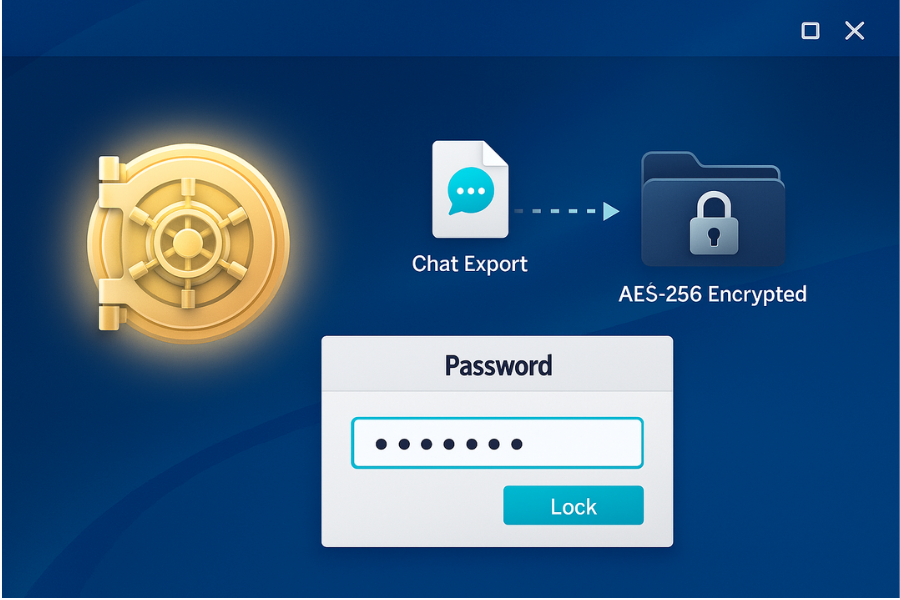
End to end encryption protects messages in transit and on device. It does not protect: Manual chat exports saved as text, PDF, or HTML, Media downloads you store in “Downloads” or “Documents”, Third party documents shared in chats. This is where NewSoftwares tools help.
8.1 What Folder Lock Can Do for Messaging Users
Folder Lock from NewSoftwares is a Windows app that encrypts files and folders with AES 256, offers password protected lockers, automatic shredding, and optional secure backup. Relevant features for E2EE users: Encrypt exported WhatsApp or Signal chats, Lock folders that store screenshots or message attachments, Create portable lockers you can move to USB drives, Store copies of PGP keys or recovery phrases in encrypted form.
8.2 Step by Step: Protect a WhatsApp Chat Export with Folder Lock
Prereqs and safety: Windows machine with Folder Lock installed, Encrypted WhatsApp backup already enabled for cloud, Password manager to store locker password.
Step 1: Export the chat from your phone
WhatsApp: Open the chat you want to export, Tap menu then More then Export chat, Choose Without media (or With media if needed), Send the export to your email or cloud, then download it to your Windows PC.
Step 2: Create a new locker in Folder Lock
- Open Folder Lock
- Click Create Locker
- Choose a location, for example in your Documents folder
- Set a strong password when asked
Folder Lock uses AES 256 and can optionally keep lockers in a cloud account while still encrypted.
Step 3: Add your chat export and attachments
- Open (mount) the locker in Folder Lock
- Drag and drop the chat file and any related media into the locker
- Close or lock the locker
Now those files are encrypted at rest. Anyone who gets your laptop without the password sees only an unreadable container.
Step 4: Verify protection
- Try opening the locker file directly from File Explorer. It should not show content.
- Open Folder Lock and unlock the locker. You should see files only after a correct password.
Step 5: Share safely when needed
If you must share that exported chat: Share the encrypted locker file through normal file transfer, Send the password separately through an end to end encrypted channel such as Signal or in person.
9. Proof of Work Style Example
On a mid range Windows laptop with modern AES acceleration, tools like Folder Lock can encrypt around one gigabyte of data in a few seconds under typical conditions. This aligns with public AES NI throughput figures where single core speeds often exceed one gigabyte per second. This means protecting a text heavy chat export or a folder of message screenshots barely adds delay to your workflow compared to the time spent composing the messages themselves.
10. FAQs About Signal, WhatsApp, iMessage and What Is Encrypted
1. Can WhatsApp Read My Messages?
No. WhatsApp messages and calls are protected with the Signal Protocol and are end to end encrypted so Meta cannot read the content in transit. Risk comes from unencrypted backups and metadata about who you talk to and when.
2. Is Signal Really More Private Than WhatsApp?
Yes in practice, because Signal collects far less metadata and has no cloud backup feature that might leak your history. Signal keeps only minimal account data and relies on donations instead of ads.
3. Are iMessage Conversations Fully Safe If I Use iCloud Backup?
Not by default. If Advanced Data Protection is off, Apple holds keys that can unlock iCloud backups containing Messages. Turning on ADP in supported regions makes Messages backups end to end encrypted so only your devices can read them.
4. Do I Still Need Tools Like Folder Lock If My Chats Are Encrypted?
Yes if you export chats, store sensitive attachments, or keep screenshots and documents related to those conversations. End to end encryption stops at the app boundary. Folder Lock protects files and folders on Windows with AES 256 at rest and can keep copies in encrypted form even when synced to cloud.
5. Can Law Enforcement See My Signal or WhatsApp Messages?
They cannot decrypt message content in transit if the protocols are implemented correctly. They can still access unencrypted device backups, unlocked devices, cloud backups without end to end encryption, and metadata held by providers like Meta or Apple.
6. What Is the Safest Setup for a High Risk User?
- Use Signal as primary messenger
- Lock down the phone with a strong passcode
- Turn on Signal registration lock and screen lock
- Avoid cloud backups and rely on local encrypted backups stored securely
- For exported material, protect files with tools such as Folder Lock on a dedicated, encrypted device
7. What If I Lose My Signal Backup Passphrase?
You cannot recover that backup. Signal design treats the passphrase as the only way to decrypt the backup file. You can start fresh but the old history is gone.
8. Are WhatsApp Encrypted Backups Enough On Their Own?
They are strong, but they still depend on your password or 64 character key and on the security of your Google or Apple account. Use unique passwords, hardware keys where possible, and do not share the backup key.
9. Does iMessage Still Protect Me If Someone Steals My MacBook?
If the MacBook is unlocked or has a weak password, a thief can read Messages. Enable FileVault full disk encryption, strong login password, and screen lock timeouts. This works alongside end to end encryption for better physical security.
10. How Can I Quickly Check If a Chat Is End to End Encrypted?
- Signal: everything is by design, but you can view safety numbers for contacts.
- WhatsApp: open the contact info, tap Encryption to see the security code.
- iMessage: blue bubbles with iMessage label use encryption while green SMS bubbles do not.
11. Structured Data Snippets (HowTo, FAQPage, ItemList)
You can paste and adapt this JSON LD in your page for better AI Overview and rich result compatibility.
<script type="application/ld+json">
{
  "@context": "https://schema.org",
  "@graph": [
    {
      "@type": "HowTo",
      "name": "Turn on end-to-end encrypted WhatsApp backups",
      "description": "Enable end-to-end encrypted WhatsApp backups so your chat history stored in Google Drive or iCloud cannot be read by providers.",
      "tool": [
        { "@type": "HowToTool", "name": "WhatsApp" },
        { "@type": "HowToTool", "name": "Google Drive or iCloud account" }
      ],
      "step": [
        {
          "@type": "HowToStep",
          "name": "Open Chat Backup settings",
          "text": "In WhatsApp open Settings then Chats then Chat backup and tap End-to-end encrypted backup."
        },
        {
          "@type": "HowToStep",
          "name": "Choose a backup password or key",
          "text": "Select a strong password or a 64-character key and store it in a password manager or offline."
        },
        {
          "@type": "HowToStep",
          "name": "Create the first encrypted backup",
          "text": "Tap Create to start the first encrypted backup and keep the phone on power and Wi-Fi until it completes."
        },
        {
          "@type": "HowToStep",
          "name": "Verify encrypted backup status",
          "text": "Confirm that Chat backup shows End-to-end encrypted backup On and that you cannot preview backup content from Google Drive or iCloud."
        }
      ]
    },
    {
      "@type": "FAQPage",
      "mainEntity": [
        {
          "@type": "Question",
          "name": "Can WhatsApp read my messages?",
          "acceptedAnswer": {
            "@type": "Answer",
            "text": "WhatsApp uses the Signal Protocol for end-to-end encryption, so it cannot read message content in transit. Risk mainly comes from metadata and from backups that are not encrypted."
          }
        },
        {
          "@type": "Question",
          "name": "Is Signal more private than WhatsApp?",
          "acceptedAnswer": {
            "@type": "Answer",
            "text": "Signal collects far less metadata and offers no cloud backup by default, so there is less information exposed on servers compared to WhatsApp."
          }
        },
        {
          "@type": "Question",
          "name": "Do iCloud backups weaken iMessage security?",
          "acceptedAnswer": {
            "@type": "Answer",
            "text": "Standard iCloud Backup lets Apple hold keys for Messages backups. Turning on Advanced Data Protection in supported regions extends end-to-end encryption to those backups."
          }
        },
        {
          "@type": "Question",
          "name": "Why should I encrypt exported chats and attachments?",
          "acceptedAnswer": {
            "@type": "Answer",
            "text": "Exports and downloaded files sit outside messaging apps, so they are not covered by end-to-end encryption. Tools such as Folder Lock can encrypt these files on disk."
          }
        },
        {
          "@type": "Question",
          "name": "Which messenger is best for high-risk users?",
          "acceptedAnswer": {
            "@type": "Answer",
            "text": "Signal is usually the best choice for high-risk users because it minimizes metadata, avoids cloud backups, and is developed by a nonprofit focused on privacy."
          }
        }
      ]
    },
    {
      "@type": "ItemList",
      "name": "End-to-end encrypted messaging apps compared",
      "itemListElement": [
        {
          "@type": "Product",
          "position": 1,
          "name": "Signal",
          "description": "Private messenger with minimal metadata and strong end-to-end encryption for all content.",
          "url": "https://signal.org/"
        },
        {
          "@type": "Product",
          "position": 2,
          "name": "WhatsApp",
          "description": "Widely used messenger that encrypts content by default and offers optional end-to-end encrypted backups.",
          "url": "https://www.whatsapp.com/"
        },
        {
          "@type": "Product",
          "position": 3,
          "name": "Apple iMessage",
          "description": "Messaging service for Apple devices with end-to-end encryption and optional Advanced Data Protection for iCloud backups.",
          "url": "https://www.apple.com/"
        }
      ]
    }
  ]
}
</script>
12. Conclusion
The key to messaging privacy lies in controlling the edges of the conversation. While Signal, WhatsApp, and iMessage secure content in transit, you must manually enable encrypted backups (WhatsApp/iMessage ADP) and use endpoint tools (Folder Lock) to protect chat exports and media at rest. Signal remains the gold standard for metadata privacy, but the safest setup involves layering device security with an app that minimizes cloud exposure.