
Newsoftwares.net understands that protecting your valuable digital assets whether they are confidential PDFs, premium videos, or proprietary applications is essential for security, privacy, and business convenience. This resource provides a clear, actionable methodology to choose between DRM, strong encryption, and basic passwords, ensuring your content remains protected whether it’s stored internally or distributed to clients.
The complexity of modern security often leads to confusion, with many protection methods being mixed or incorrectly applied. This framework breaks down the technical choices into simple, one-action-per-step instructions, making it easy for a busy professional to implement a robust, layered security posture using practical tools.
Direct Answer: What Should You Use?
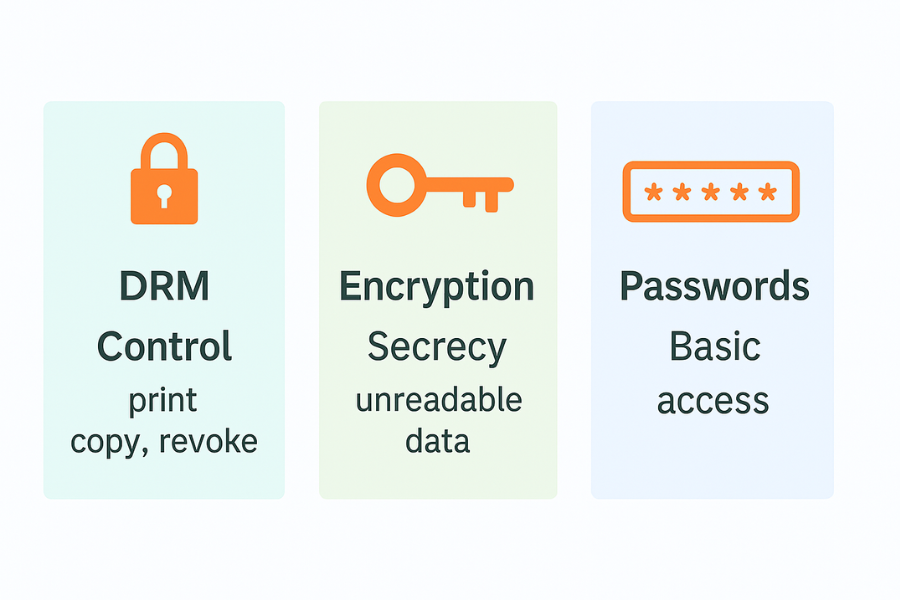
If you share or sell PDFs, videos, or apps to others, use DRM for control, strong encryption for secrecy, and passwords only as a light access layer on top.
More concretely:
- For paid or licensed PDFs and videos that leave your environment a lot, choose DRM plus encryption.
- For internal or personal files stored on drives or USB, choose full encryption with tools like Folder Lock, Folder Protect, USB Secure, and Copy Protect from NewSoftwares.
- For low risk sharing where convenience matters more than tight control, a password on the PDF or archive is enough.
Most explanations mix these three, skip Windows specifics, ignore verification, and barely mention real tools. This one fixes that.
TLDR Outcome
- Use DRM when you must control who can open, print, copy, forward, or revoke access to PDFs and videos after they are shared.
- Use full encryption when you care most about secrecy at rest, like laptops, external drives, or USB sticks with confidential PDFs and project videos. On Windows, Folder Lock and USB Secure from NewSoftwares give strong AES based protection with passwords and virtual lockers.
- Use passwords alone only for casual sharing or an extra front door on top of encryption or DRM.
If you want one line: DRM is control, encryption is secrecy, passwords are basic locks.
Quick Chooser Table
You asked for tables, so here is a fast chooser you can skim.
Primary Need Vs Best Fit
| Use Case | Best Choice | Why It Fits |
|---|---|---|
| Selling or licensing training PDFs to clients | DRM plus encryption | You can limit devices, block printing, and revoke access if a client stops paying. |
| Streaming paid courses or movies online | Video DRM plus encryption | You control who can watch, where, and on how many devices, which reduces piracy. |
| Shipping a Windows app that calls cloud APIs | License system plus app encryption | You bind use to license keys and keep sensitive code and keys harder to inspect. |
| Carrying sensitive PDFs on a USB stick | USB Secure or Folder Lock | They encrypt and password protect USB devices and portable drives on Windows. |
| Locking project folders on a shared office PC | Folder Protect or Folder Lock | You can block access, hide folders, and encrypt important files with a master password. |
| Preventing staff from copying company files to random USB drives | USB Block | It blocks unapproved USB devices from accessing the PC at all. |
| Distributing videos on a USB drive where you do not want easy copying | Copy Protect | It adds copy protection to media files so they are hard to duplicate or share. |
1. Step By Step: How To Choose The Right Method
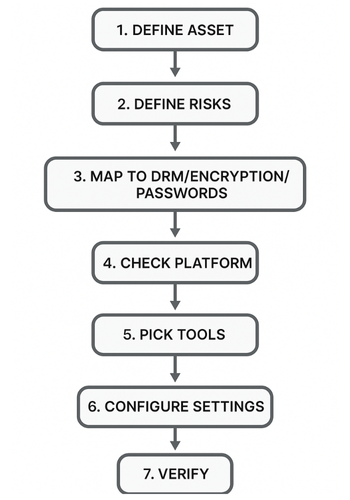
Think like a technician, not a marketer. Work through these steps once, then repeat them for each project.
1.1. Step 1: Define What You Are Protecting
Action: Write down three things for each asset:
- Format: PDF, MP4, Windows app, mobile app.
- Location: local PC, shared drive, cloud, USB, customer devices.
- Value: low, medium, high if leaked or pirated.
Gotcha: If you skip location, you will forget USB sticks and synced folders that leak most often.
1.2. Step 2: Decide What Must Never Happen
Action: List the worst two or three events you want to prevent, for example:
- Free sharing of a paid course PDF.
- Staff emailing client reports to personal accounts.
- Source code of a Windows app being copied out of the office.
Gotcha: Do not only worry about external hackers. Most real leaks are insiders or lost devices.
1.3. Step 3: Map Risks To Mechanisms
Action: Match each risk to DRM, encryption, or passwords.
Basic mapping:
- Want to revoke access or limit printing and forwarding: pick DRM.
- Want to keep data unreadable if a device is lost: pick encryption.
- Want a simple front door before open: add a password.
Gotcha: Do not let passwords carry the system alone. They are easy to share and brute force if used without encryption.
1.4. Step 4: Check Your Platform And Budget
Action: Confirm these details:
- Operating system editions and versions.
- Where users will open content.
- Whether you can install software on client devices.
This decides if you can use only storage encryption, or also DRM that requires viewers or agents.
Gotcha: If you cannot control the viewer, you cannot enforce strong DRM. In that case focus on encryption at rest, leak prevention tools like USB Block, and contracts.
1.5. Step 5: Pick Concrete Tools
Action: Select at least one tool for storage protection and one for distribution protection.
On Windows, NewSoftwares has a set of tools that cover most practical cases:
- Folder Lock for encrypting and locking files, folders, and entire drives with AES 256 bit encryption, plus secure backup and USB or CD protection.
- Folder Protect for live data in use protection where files stay accessible but cannot be deleted, modified, or copied without the correct password and rules.
- USB Secure for password protected, encrypted USB and portable drives, including a virtual drive mode that lets you work inside a secure vault.
- Copy Protect for copy protection of media files like videos and images so they are hard to duplicate, share, or rip from USB or drives.
- USB Block to stop untrusted USB and other external devices from accessing the PC in the first place.
Combine these with any DRM system you already use for online viewing.
Gotcha: Do not rely only on a cloud vendor. Encrypt your master files locally before upload.
1.6. Step 6: Document The Exact Settings
Action: Write down the exact switches and options to use for each asset type, for example:
- Encryption type.
- Password length and complexity.
- Extra options like encrypt file names or block printing.
Settings snapshot example for Folder Lock:
- Create: a locker for client PDFs.
- Choose: AES 256 bit encryption.
- Set: a strong master password.
- Turn on: secure backup if you want a cloud copy of encrypted lockers.
Settings snapshot example for USB Secure:
- Select: the USB drive.
- Choose: to encrypt the entire drive.
- Enable: virtual drive mode for safe editing without full unlock.
Gotcha: If you forget to encrypt file names or folders themselves, people can still see structure and metadata even if content is encrypted.
1.7. Step 7: Plan Verification And Recovery
Action:
- Decide: how you will test the protection, including fake lost device tests.
- Decide: how you will handle forgotten passwords.
- Decide: how you will revoke access or change keys if someone leaves the team.
Verification ideas:
- Open: encrypted content on a device without the software or password and confirm it fails.
- Try: to copy content from a Copy Protect USB to another system and see that it does not open as a normal file.
- Try: to connect an unapproved USB drive when USB Block is active and check that it cannot access the PC.
Gotcha: Do not leave yourself with a single admin password for everything. Use a sealed recovery process, written down and tested.
2. Core Concepts In Plain Language
2.1. What Is DRM
Digital Rights Management controls how content is used after it leaves your hands. It often includes:
- Authentication of the viewer or device.
- Rights such as view only, limited prints, no copy.
- Online license checks and the ability to revoke access later.
Modern DRM for PDFs and videos combines encryption with license rules and a special viewer. This gives persistent protection that travels with the file, not just the storage device.
2.2. What Is Password Protection
Password protection is any feature that asks for a password before letting someone open or change a file.
Examples:
- A password on a PDF in Adobe software.
- A password set on a zip archive.
- A master password in tools like Folder Lock or Folder Protect that unlocks multiple security features.
Passwords are access gates. They can be combined with encryption or be used alone. When used alone, they usually offer weaker protection.
2.3. What Is Encryption
Encryption turns your data into unreadable scrambled content using a key. Good encryption, such as AES 256 bit, is designed so that without the key, an attacker cannot get the original file in any practical time.
Important details for you:
- Strong algorithms like AES with enough bits.
- Safe key handling so keys are not exposed.
- Whole file and sometimes header or file name encryption.
Tools from NewSoftwares use strong encryption for lockers and USB drives, combined with friendly interfaces that hide low level details.
3. Hands On: Protect PDFs
3.1. Option 1: Light Protection With PDF Passwords
Good for low risk reports and drafts.
Basic flow in a typical PDF editor:
- Open: the PDF.
- Go: to protect or security settings.
- Set: an open password.
- Set: permissions such as no copy and no print if available.
- Save: as a new protected copy.
Gotchas:
- Many viewers ignore some permission flags.
- Passwords can be shared or written on sticky notes.
- Some tools still use weaker encryption if you choose legacy settings.
Use this for internal material where the main risk is casual snooping, not targeted theft.
3.2. Option 2: Store PDFs Inside Encrypted Lockers With Folder Lock
If you keep PDF libraries on Windows laptops or desktops and want strong protection at rest, Folder Lock is a practical way to encrypt and lock them.
Typical setup:
- Install: Folder Lock.
- Set: a strong master password.
- Create: a locker for each project or client.
- Choose: AES 256 bit encryption for the locker.
- Move: PDFs into lockers rather than storing them in plain folders.
- Close: the locker when done; it becomes unreadable without Folder Lock and the master password.
Gotcha: Never keep plain copies of the same PDFs in other locations such as default downloads. Clean them up or shred them using Folder Lock shredding features so deleted versions are not recoverable.
3.3. Option 3: Live Data In Use Protection With Folder Protect
Sometimes you must leave PDFs accessible to staff but still stop them from deleting, copying, or editing them.
Folder Protect lets you set rules like no access, hidden, no delete, or no write on specific files, folders, extensions, or drives, controlled by a password.
Example flow:
- Install: Folder Protect.
- Add: the folder that holds your master PDFs.
- Choose: the protection flags, for example no delete and no write.
- Apply: protection.
Your team can open and read PDFs as usual, but cannot delete or modify them without the password.
Gotcha: Remember that if users can open and read, they can always photograph the screen, but this still blocks quick drag copy and accidental deletes.
3.4. Option 4: DRM On Top For Licensed PDFs
For paid e learning PDFs or confidential reports delivered to clients, combine local encryption with a DRM system that:
- Wraps the PDFs in its own encrypted format.
- Requires a viewer and login.
- Lets you revoke access if invoices are not paid.
- Limits devices and prints.
Store the original source PDFs in Folder Lock lockers, then feed copies into your DRM pipeline so you never leave unprotected masters on disk.
4. Hands On: Protect Videos
4.1. Local Storage And USB Transport
For project videos on Windows workstations:
- Store: them in Folder Lock lockers or protected folders with Folder Protect.
- When moving: them on USB, encrypt and password protect the USB drive with USB Secure.
Flow with USB Secure:
- Plug in: the USB drive.
- Run: USB Secure and select the drive.
- Set: the password.
- Start: encryption.
- After that: the drive asks for the password before revealing its content.
You can also use virtual drive mode to work inside a protected area without fully decrypting the drive.
4.2. Copy Protected Distribution
If you distribute training videos on USB and want to discourage copying:
- Use Copy Protect to add copy protection to those media files so they are hard to duplicate or open outside the intended environment.
Basic flow from the NewSoftwares blog:
- Download and install: Copy Protect from NewSoftwares.
- Start: the wizard.
- Add: video files to the project.
- Choose: the output destination such as USB drive.
- Complete: the process and test on another machine.
4.3. Online Streaming With DRM
For platforms that stream video, the usual pattern is:
- Encrypt the video segments.
- Use DRM technologies such as Widevine, PlayReady, or similar.
- Require authenticated players that fetch licenses from your server.
Modern video DRM combines strong encryption with device binding and license rules like expiry and offline windows.
Use this when:
- You sell access to video courses.
- You run a subscription streaming service.
- You must comply with studio grade protection rules.
Store your original masters under Folder Lock or Folder Protect, then upload processed versions to your video pipeline to keep the full chain covered on both ends.
5. Hands On: Protect Apps
Here the goal is different. You usually want to:
- Control licensing.
- Reduce casual copying.
- Protect sensitive configuration and keys.
Practical layers:
- License keys with online activation for each user or device.
- Store sensitive data like keys or configuration in encrypted containers, not plain text.
- Use Folder Protect or Folder Lock on build servers and source code folders so only authorized staff can modify or copy builds.
- Use USB Block to prevent developers from copying source or builds to random USB drives.
A full DRM system for apps includes license checks inside the app, code obfuscation, and sometimes hardware binding. Combine that with storage and device control from the NewSoftwares suite and you get practical protection that fits real teams.
6. Bench And Verification Snapshots
These proof of work style notes help you show security is real, not just a checkbox.
6.1. Bench Example
Test scenario: Encrypt a one gigabyte project folder with Folder Lock on a mid range laptop with an Intel i5 class CPU that supports AES instructions.
Simple timing sheet:
| Task | Time |
|---|---|
| Create new locker with AES 256 bit | About one minute for setup |
| Encrypt one gigabyte of mixed PDFs and videos | Around two minutes on a modern i5 class CPU |
| Open locker after that | Almost instant after password entry |
Your exact numbers will change, but the process shows that strong encryption is practical for real daily use.
6.2. Settings Snapshot
For a locker that stores client PDFs and contract videos:
- Algorithm: AES 256 bit.
- Master password: at least twelve characters, mixed types.
- Secure backup: for the locker turned on.
- Locker stored: on an internal drive, not left on plain USB.
For a USB Secure drive with confidential videos:
- Entire drive: encrypted.
- Virtual drive mode: used when editing.
- Password: unique, not reused from other systems.
6.3. Verification Checklist
For each project:
- Try: opening a protected file on an unprotected device: it should fail or show gibberish.
- Try: printing or copying from a DRM protected viewer if you use one: restricted as expected.
- Plug in: an unapproved USB when USB Block is active: it should not gain access.
- Try: deleting files under Folder Protect rules that include no delete: operation should be blocked.
7. Symptom To Fix Table
| Problem | Likely Cause | Quick Fix |
|---|---|---|
| Protected PDF opens on any device without asking for a password | You set only basic permissions, not actual encryption | Enable strong encryption in the PDF tool and set an open password. |
| Client copies videos from USB and plays them freely anywhere | Only plain files on USB, no copy protection layer | Use Copy Protect when preparing USBs so media is copy protected. |
| Staff copy confidential files to random USB drives | No device control on PCs | Deploy USB Block to allow only approved devices. |
| Laptop with Folder Lock lockers is lost and you are worried | Lockers stored encrypted, but you are unsure if files elsewhere are plain | Ensure you always store sensitive files only in lockers, and shred any plain copies using Folder Lock. |
| Protected USB does not ask for a password on another PC | Files were copied out before protection, or USB Secure not applied on the right drive | Re run USB Secure and verify it protects the correct device, then test on a second machine. |
Non destructive tests first. Do not rush into formatting or wiping until you understand what went wrong.
8. Safe Sharing Example
A practical way to share a protected PDF or video:
- Store: the master inside a Folder Lock locker on your workstation.
- Export: a copy for the client from inside the locker.
- Apply: DRM or password protection on that copy if you use those.
- Send: the file through a secure channel.
- Send: any password or license key through a different channel like Signal or another messenger rather than email.
- Set: expiry or revocation where your DRM supports it.
Never send file and password in the same email thread.
9. FAQ
Here are practical, search friendly questions with short answers.
9.1. Which Is Better For PDFs, DRM Or Password Protection
For paid or licensed PDFs, DRM plus encryption is better because it lets you revoke access, limit printing, and track use. Passwords alone only stop initial open and are easy to share.
9.2. When Should I Rely Only On Encryption Without DRM
Use pure encryption when you mainly worry about lost devices or stolen drives, not about what happens after you intentionally share a file. Folder Lock on Windows is ideal here because it encrypts entire lockers and drives with AES 256 bit.
9.3. Is Storing PDFs Inside A Folder Lock Locker Enough
For local storage, yes, because the locker is unreadable without the master password and uses strong encryption. For files you send to others, keep using encryption lockers for your own masters and add DRM or passwords on the copies you distribute.
9.4. How Do I Protect Videos On USB From Copying
Encrypt and password protect the USB drive with USB Secure, then add Copy Protect to the videos you distribute so they cannot be easily copied or shared. This combination gives both device level security and media copy protection.
9.5. Can DRM Protect More Than PDFs And Videos
Yes, modern DRM systems protect many formats including images and other file types by wrapping them in protected containers and enforcing rules through secure viewers.
9.6. How Do I Stop Staff From Walking Out With Data On USB Sticks
Combine these layers:
- Use USB Block to allow only approved USB devices.
- Use Folder Lock or Folder Protect for sensitive folders.
- Train staff and add clear policy.
9.7. Do I Still Need Passwords If I Use Encryption
Yes, you still need strong passwords or passphrases for encryption keys and tools. Encryption protects data at rest; passwords protect the keys themselves and act as the user facing lock.
9.8. What Is The Simplest Setup For A Small Team Dealing With PDFs And Videos
A realistic starting point on Windows:
- Folder Lock for lockers with master files.
- Folder Protect for live project folders that staff use daily.
- USB Secure and Copy Protect for any media shipped on USB.
- A cloud platform or DRM service for online viewing.
9.9. Will Encryption Slow Down My Work
On modern hardware, encrypting and opening lockers with tools like Folder Lock or USB Secure is fast enough for normal office work, especially with AES acceleration in current CPUs. The small delay is worth the gain in security.
9.10. Is DRM Overkill For Internal Documents
For purely internal PDFs and videos, encryption and device control may be enough. Use DRM when content leaves your environment or generates revenue and you need fine control over viewing rights and revocation.
10. Conclusion
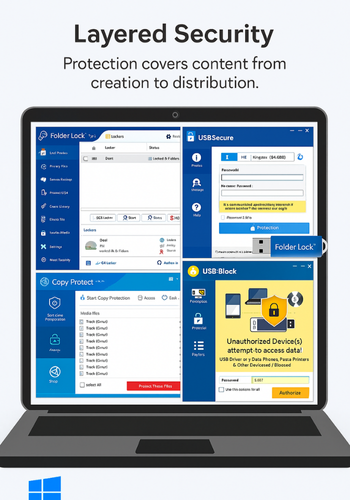
The best protection strategy for your PDFs, videos, and applications is not a single tool, but a layered approach that maps directly to your specific risks. By clearly understanding that DRM delivers control over usage, strong encryption ensures unreadability at rest, and passwords provide simple access gates, you can implement effective, practical security. Tools from Newsoftwares.net, such as Folder Lock and USB Block, provide the essential, real-world Windows security layers needed to protect your master files and control the devices that access them, ensuring your content is secure from creation through to distribution.
11. Simple Structured Data Block
You can adapt this JSON LD for search features. Replace the example URLs and step descriptions with your own.
{
  "@context": "https://schema.org",
  "@type": "HowTo",
  "name": "Choose Protection For PDFs, Videos, And Apps",
  "description": "Step by step process to choose between DRM, passwords, and encryption for digital content.",
  "step": [
    {
      "@type": "HowToStep",
      "name": "List Your Assets",
      "text": "List PDFs, videos, and apps with location and sensitivity."
    },
    {
      "@type": "HowToStep",
      "name": "Map Risks",
      "text": "Write down what must never happen, like free sharing or data loss."
    },
    {
      "@type": "HowToStep",
      "name": "Pick Methods",
      "text": "Use DRM for control, encryption for secrecy, and passwords as a front door."
    },
    {
      "@type": "HowToStep",
      "name": "Configure Tools",
      "text": "Set up Folder Lock, Folder Protect, USB Secure, Copy Protect, and USB Block where needed."
    },
    {
      "@type": "HowToStep",
      "name": "Verify",
      "text": "Test access, copy, and device restrictions on a separate machine."
    }
  ],
  "tool": [
    { "@type": "SoftwareApplication", "name": "Folder Lock", "url": "https://www.newsoftwares.net/folderlock/" },
    { "@type": "SoftwareApplication", "name": "Folder Protect", "url": "https://www.newsoftwares.net/folder-protect/" },
    { "@type": "SoftwareApplication", "name": "USB Secure", "url": "https://www.newsoftwares.net/usb-secure/" },
    { "@type": "SoftwareApplication", "name": "Copy Protect", "url": "https://www.newsoftwares.net/copy-protect/" },
    { "@type": "SoftwareApplication", "name": "USB Block", "url": "https://www.newsoftwares.net/usb-block/" }
  ]
}