
Welcome. This detailed compliance playbook, focusing on security solutions from Newsoftwares.net, clarifies the expectation that GDPR sets for data encryption. We turn the legal text into a practical, risk-based strategy, showing you exactly where to implement controls like Folder Lock and USB Secure to ensure your data at rest and in transit is protected, transforming a legal duty into manageable privacy and security convenience.
GDPR Encryption Requirements: A Risk Based Implementation Plan
Direct Answer
GDPR does not say you must encrypt every single piece of personal data, but it does expect you to use encryption as an important security measure wherever the risk is more than trivial, and it uses encryption as a key example of what “appropriate technical and organisational measures” look like.
Gap Statement
Most explanations of GDPR and encryption miss three things that matter in real life:
- They quote Article 32, then stop before turning it into actual do this, on this system, by this date actions.
- They repeat “encryption is not mandatory” without explaining that regulators still expect it by default for laptops, removable media, and many cloud storage uses.
- They rarely connect the legal wording to practical tools you can deploy today, such as the Folder Lock family, USB Secure, Folder Protect, and Cloud Secure from NewSoftwares, which are built exactly for data at rest and on the move.
This write up closes that gap. You will see what the law actually says, what a risk based regulator expects in plain language, and how to turn those expectations into encryption settings and products that you can actually run.
Primary job of this piece
Help you answer one question with confidence
Where does GDPR expect encryption in my environment, and how can I show my choices are reasonable
Originality Hooks
- Uses the exact places where GDPR talks about encryption
Recital 83, Article 6, Article 32, Article 34
Then turns each one into concrete moves for stored files, transfers, and breach handling. - Maps typical small company systems laptops, shared desktops, USB drives, cloud folders to a simple expectation matrix, including when regulators tend to be strict.
- Shows where NewSoftwares tools such as Folder Lock, USB Secure, USB Block, Folder Protect and Cloud Secure can carry part of the encryption load for data at rest and removable media, in a way that fits GDPR thinking.
Quick Outcome Snapshot
By the end, you will know:
- The honest answer to “does GDPR require encryption” and how to explain it without vague buzzwords.
- Which situations are basically encryption expected zones laptops, phones, USB drives, cloud storage with personal data and where other measures might be enough.
- How to document a concrete encryption plan that includes tools like Folder Lock and USB Secure, and gives you something sensible to show a regulator or client.
Part 1. What GDPR Really Says About Encryption
Key Legal Hooks Without Legalese
Three parts of GDPR matter most when you talk about encryption.
- Security principle: Article 5 says you must process personal data in a way that keeps it secure, using appropriate technical and organisational measures.
- Security of processing: Article 32 repeats that you must use appropriate technical and organisational measures, taking into account state of the art, costs, and risk to people, and lists pseudonymisation and encryption as frontline examples.
- Breach communication: Article 34 says that if breached personal data was protected with measures that make it unreadable to outsiders, such as encryption, you might not need to inform individuals.
Regulators and serious commentators are pretty direct about what that means:
- Encryption is not spelled out as a universal must do rule.
- Encryption is one of a very small handful of measures that the Regulation names explicitly, which tells you it sits in the inner circle of expected security tools.
- Regulators such as the Information Commissioner Office in the United Kingdom say in plain text that you are not forced to encrypt everything, yet they also say you should encrypt data in transit, on devices, and on removable media in most normal setups.
So the honest headline looks like this:
- GDPR does not print a blanket sentence that says
you must encrypt personal data - GDPR does expect you to consider encryption as part of appropriate measures, and in many real world risk profiles encryption is the obvious choice
If you hold unencrypted personal data on a stolen laptop and you had no strong reason to skip encryption, you will have a hard conversation with a regulator. If the same laptop was protected with serious encryption, your position is much stronger and you may avoid notifications to individuals.
Part 2. Expectation Map: Where Encryption Is Basically Expected

Think of encryption as part of a risk matrix.
Below is a plain language matrix for typical small and mid sized organisations.
Use Case Chooser Overview
Portability
- Laptops with staff or field workers
Expectation: Full disk or volume encryption is strongly expected when personal data lives there - Tablets and phones used for email and business apps
Expectation: Use device encryption and enforce strong unlock secrets
Removable and shared media
- USB drives that hold contact lists, payroll exports, or health data
Expectation: Strong encryption or a purpose built tool such as USB Secure from NewSoftwares, which locks the drive and keeps the protection with the device itself. - Shared desktops in reception or labs, with local reports
Expectation: Encrypt sensitive folders and use access controls
Cloud and file servers
- Cloud storage with customer files
Expectation: Server side encryption plus access controls at minimum
Client side encryption on top if you handle high risk data - Internal file servers in offices
Expectation: Encrypt storage volumes at server level and encrypt at file level for especially sensitive sets
Portable copies and exports
- Ad hoc exports of personal data to spreadsheets or PDFs
Expectation: Either block creation of unencrypted exports or wrap them in an encrypted container or vault
Here is where NewSoftwares fits naturally into that map.
- Folder Lock: Encrypts local folders and lockers with AES 256 bit and can sync encrypted content with popular cloud storage so files remain scrambled even while moved around. It also offers secure wallets for card and identity data and secure notes for things like interview notes or incident logs.
- USB Secure: Protects data on USB and other external drives with a password and works directly from the drive, which matches the way staff actually move data.
- Folder Protect: Lets you set encryption, lock, and hide protections on folders and drives, which helps implement least privilege on shared systems.
- Cloud Secure: Locks Dropbox, Google Drive, OneDrive and similar accounts on desktop and mobile while keeping access fast for legitimate users.
None of these tools on their own equal full GDPR compliance. They do give you strong evidence that you took encryption seriously on devices, removable media, and cloud storage, which are exactly the places regulators call out.
Part 3. How To Build A Risk Based Encryption Plan In Practice
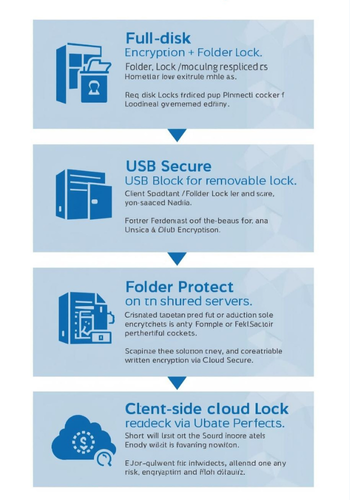
This section is the hands on part.
Prerequisites And Safety
Before you start turning anything on, do these things.
- Make a quick inventory: List systems that hold personal data
Laptops, phones, servers, cloud storage, USB drives. - Classify the data at a simple level: Low
basic contact details
Medium
internal notes and customer history
High
health, financial, minors, special category data. - Confirm you have working backups: Never flip encryption on across a whole environment without a tested backup path.
- Prepare a short written note that each decision is based on risk: This mirrors how Article 32 expects you to think.
Step By Step Plan
Each step here is one clear move, plus what to capture on screen, plus a common gotcha.
Step 1. Encrypt Obvious Mobile Risks
Action
- Turn on full disk encryption on laptops and desktops that move around or leave the office
BitLocker on Windows, FileVault on macOS, built in encryption on many Linux builds. - For Windows folders that hold personal data, also consider the built in setting
Properties then Advanced then the checkbox Encrypt contents to secure data for key folders
As NewSoftwares notes in its own Windows encryption write up, this is a real encryption feature, not just a cosmetic lock. - Where you want stronger, cross platform control, deploy Folder Lock lockers on those machines and store sensitive data inside those lockers rather than loose folders.
Screenshot tip
- Capture BitLocker or FileVault system screens that show encryption enabled
- Capture a Folder Lock locker screen that shows AES 256 bit selected
Gotcha
- Make sure recovery keys are stored in a secure place that is separate from the device itself
Otherwise you create a new risk.
Step 2. Lock Down USB And External Drives
Action
- Decide which staff really need USB storage for personal data
- On those drives, deploy USB Secure so that every time someone plugs the device in, it prompts for a password and stores protected files in its secure area.
- On endpoints where you want tighter control, use USB Block to stop unauthorised devices entirely and reduce data spill risk.
Screenshot tip
- Capture the USB Secure password prompt and its summary screen
- Capture the USB Block console showing blocked devices
Gotcha
- Document the decision to either block or encrypt, and tie it back to how often staff really need to move personal data on portable media.
Step 3. Protect High Value Folders On Shared Or Older Servers
Action
- For critical data sets on Windows file servers or older desktops, use Folder Protect or Folder Lock to add password based protection and encryption on specific folders that hold personal data, logs, exports, or financial records.
- Set sensible access rules inside the tool
for example, no delete and no copy for some roles, full control only for admins.
Screenshot tip
- Take a capture of Folder Protect showing a folder with Access set to No view or No modify
- Take a capture of Folder Lock showing encrypted lockers for shared data
Gotcha
- Do not just hide folders you should actually encrypt where the risk level is high
hiding alone does not match what Article 32 expects.
Step 4. Wrap Cloud Storage In Client Side Encryption Where Needed
Action
- Identify cloud folders that hold copies of customer files or exports from internal systems
- Keep provider side encryption, then layer Cloud Secure or Folder Lock cloud lockers on top for especially sensitive sets, such as staff medical paperwork or complaint files.
Screenshot tip
- Grab a capture of Cloud Secure showing the lock screen for Dropbox or Google Drive
- Grab a capture of a Folder Lock cloud locker listing
Gotcha
- Make sure your documented data map explains which folders are client side encrypted and why
this helps during audits and reduces confusion.
Step 5. Write A Short Encryption Note For Your Records
Action
- For each system, write three short lines
what personal data it holds
what encryption control protects it
why that level is appropriate given risk and cost
This mirrors what Article 32 says and what practical commentary advises about appropriate measures.
How To Check That Encryption Is Really On

Quick verification list
- For devices: Confirm full disk encryption status screens show On and keys stored
- For Windows folders: Right click a protected folder, open Properties, then Advanced, and confirm that Encrypt contents to secure data is ticked
- For Folder Lock: Try to open the locker from a different user account and confirm that it prompts for the correct locker password and will not show file names without it
- For USB Secure: Plug the drive into a clean machine and confirm that content is unreadable until you supply the device password
If an auditor or client asks for proof, these checks and screenshots show that encryption is a real control, not a line in a policy that no one implemented.
Part 4. Security Specifics For The Crypto Minded Reader
Short crypto summary, in plain terms.
- GDPR talks about encryption but does not name specific ciphers or key sizes, so you choose based on current good practice and regulator guidance.
- Commentary and authorities commonly point to modern symmetric encryption such as AES with strong keys, often aligned with standards such as FIPS 197 and similar benchmarks.
- Folder Lock uses AES 256 bit for lockers and also supports public key based sharing workflows, which sits comfortably within that modern expectations set.
Key management matters as much as the math.
- Store any master passwords and recovery keys in a password manager or secure note vault, not in plain text documents
- For NewSoftwares tools, keep registration details and master passwords in their own secure note inside Folder Lock, so you keep all secrets under one strong layer.
Part 5. Troubleshooting And Red Lines
Symptom To Fix Overview
Symptom
You discover that staff keep personal data on USB sticks with no protection
Likely cause
No simple portable encryption tool and no clear rule
Safe fix
Roll out USB Secure for authorised users and USB Block to stop random devices, then update a short policy that explains when USB storage is allowed.
Symptom
Cloud storage has a folder named Old exports with year old customer CSV files
Likely cause
No retention process, and exports never cleaned up
Safe fix
Move active exports into Folder Lock lockers or Cloud Secure protected areas, delete unneeded files, and set a regular review reminder.
Symptom
An unencrypted laptop with personal data is lost or stolen
Likely cause
Encryption not deployed, or policy not enforced
Safe fix
Treat this as a serious incident. If no encryption was in place, you likely need to notify the authority and affected people. After handling the incident, roll out full disk encryption and Folder Lock lockers across similar devices and record that change.
Symptom
Staff complain that encryption slows things down
Likely cause
Poor fit of tool or default settings on older machines
Safe fix
Measure a few operations, such as creating a small Folder Lock locker or copying files into a USB Secure volume, and adjust the pattern. For example, encrypt only specific project folders on older desktops instead of the entire disk, while still keeping full encryption on laptops.
Dont do this: Turn encryption off to avoid mild performance issues without writing down the risk and your reasoning.
Proof Of Work Templates
Here are simple templates you can fill with your own numbers and captures.
Bench Snapshot That You Can Test
- Task
Create a Folder Lock locker of one gigabyte on a typical staff laptop - Measurement columns to record
device model, processor, time to create locker, time to copy test folder in, time to open after a reboot
Settings Snapshot Example
- Windows folder encryption
Properties then Advanced then Encrypt contents to secure data ticked for folder Personal data - Folder Lock
Locker set to AES 256 bit, strong master password stored in secure note - USB Secure
Device prompts for password on plug in, virtual drive mode enabled for fast use
Verification Steps
- Pick one protected file from each system
local locker, USB drive, cloud locker - Try to open it from a test account without permissions
- Confirm that you see no real content until you supply the correct secret
Safe Sharing Example
- Sensitive report exported to a Folder Lock portable locker
- Locker file stored in a shared location or sent as an attachment
- Password shared through a different channel, for example a call or secure messenger, not in the same mail as the locker link
Ethics And Safety Note
GDPR exists to protect people, not just data. Encryption is a tool to support that aim.
The controls described here are for organisations with a lawful reason to hold personal data. They are not an excuse to collect more data than you need, nor a way to hide activity that would still be unfair or unlawful even with strong crypto.
Frequently Asked Questions
Does GDPR Actually Require Encryption Of Personal Data
It does not print a simple line that says everything must be encrypted, yet it does name encryption as an example of appropriate technical measures and uses it as a factor when assessing breaches. In practice regulators often expect encryption on laptops, mobile devices, removable media, and high risk storage, unless you have clear reasons to do something else and can show that thinking.
When Would Encryption Clearly Be Expected Under GDPR
Wherever the impact of a leak would be significant and the control is easy to deploy. That includes portable devices with personal data, cloud storage that syncs to many endpoints, archives of contact lists, and removable drives. The Information Commissioner Office explicitly calls out device, transit, and removable media encryption as normal practice.
Can I Rely On Passwords Without Encryption To Satisfy GDPR Security Duties
Plain passwords on unencrypted files are weak, since anyone who copies the files can often bypass basic protections. Article 32 talks about confidentiality, integrity, and resilience. Encryption such as AES based lockers, as used by products like Folder Lock, gives you much stronger evidence that data would be unreadable if stolen.
How Do NewSoftwares Tools Help With GDPR Style Expectations
They focus on data at rest and in motion in exactly the places regulators worry about. Folder Lock gives you encrypted lockers and secure wallets on desktops and mobiles, USB Secure protects portable drives, Folder Protect manages fine grained protection on folders, and Cloud Secure locks cloud accounts on desktop and phone. Together they raise the bar for attackers, while staying simple enough for normal staff to use.
Is Encryption Alone Enough For GDPR Compliance
No. GDPR expects appropriate measures which include governance, staff training, data minimisation, and rights handling. Encryption is a crucial layer, especially for storage and transfers, but it sits inside a wider security posture that also covers access control, backups, and incident response.
Do I Have To Use A Specific Cipher Or Standard To Satisfy GDPR
The Regulation speaks about state of the art security and appropriate measures, not a named cipher list. Commentary from security vendors and regulators often references modern symmetric encryption like AES with strong key sizes and established standards such as FIPS, which tools like Folder Lock follow. The important part is that you can explain why your choice is current and well supported.
What Happens If Encrypted Data Is Breached
If a device or storage location is lost yet the data was protected with strong encryption and keys remain safe, authorities may treat it very differently from a plain text loss. Under Article 34, you might not need to notify individuals if the personal data is effectively unreadable without the secret. That is one of the strongest practical reasons to encrypt.
Is It Acceptable To Encrypt Only High Risk Data Sets
GDPR allows a risk based approach, so focusing encryption on high risk sets is possible if you can justify it. Still, many low effort encryption steps such as full disk encryption on laptops and basic device level encryption on phones are seen as normal practice, not optional extras, so skipping them is hard to defend.
How Often Should I Review My Encryption Setup
There is no fixed date in the Regulation. A good practice is to review at least yearly, and also whenever you introduce a new system, move to a new provider, or learn about a serious vulnerability. Article 32 mentions regular testing and evaluation, which you can satisfy with scheduled reviews and simple checks.
Where Should We Start If We Have No Encryption At All Today
Begin with the devices and locations that would hurt most if lost. Turn on full disk encryption, deploy Folder Lock on key desktops, protect USB drives with USB Secure, and draw a quick map of where personal data lives. Once that base is in place, improve cloud protection and fine tune folder level controls.
Conclusion
Satisfying major compliance frameworks requires transforming abstract rules into demonstrable technical controls at the endpoint. By systematically mapping data flows and implementing Folder Lock for file encryption, USB Block for media control, and Cloud Secure for local cloud protection, you establish a chain of custody that directly addresses GDPR, HIPAA, PCI DSS, FedRAMP, and NIST requirements for confidentiality and integrity. These verifiable controls provide the necessary evidence to assure auditors that sensitive data is managed responsibly.
11. Structured Data Snippets (JSON LD)
HowTo
{
  "@context": "https://schema.org",
  "@type": "HowTo",
  "name": "Align endpoint and storage security with GDPR, HIPAA, PCI DSS, FedRAMP and NIST",
  "description": "Practical steps to protect regulated data on Windows endpoints and cloud sync folders using encryption, device control and privacy tools from NewSoftwares.",
  "step": [
    {
      "@type": "HowToStep",
      "name": "Map regulated data and systems",
      "text": "Identify which files, folders, USB drives, cloud accounts and devices hold personal data, ePHI, card data or other regulated information, and assign owners for each."
    },
    {
      "@type": "HowToStep",
      "name": "Encrypt and control local files",
      "text": "Use Folder Lock to encrypt key folders and Folder Protect to set access rules for regulated data on Windows desktops and laptops."
    },
    {
      "@type": "HowToStep",
      "name": "Control USB devices and portable storage",
      "text": "Deploy USB Block to block untrusted USB and external drives, and protect approved drives with USB Secure to prevent unauthorised copying of sensitive files."
    },
    {
      "@type": "HowToStep",
      "name": "Lock cloud sync folders",
      "text": "Use Cloud Secure to password protect Dropbox, Google Drive, OneDrive and Box folders on endpoints, and keep sensitive data inside encrypted Folder Lock lockers within those folders."
    },
    {
      "@type": "HowToStep",
      "name": "Manage privacy traces safely",
      "text": "Configure History Clean on shared or low risk machines to remove browser and system traces while preserving required audit logs on central systems."
    },
    {
      "@type": "HowToStep",
      "name": "Verify and document controls",
      "text": "Capture screenshots and short notes that show encryption, access control, USB control and cloud locking behaviour, and link them to relevant GDPR, HIPAA, PCI DSS, FedRAMP and NIST requirements."
    }
  ],
  "tool": [
    { "@type": "HowToTool", "name": "Folder Lock" },
    { "@type": "HowToTool", "name": "Folder Protect" },
    { "@type": "HowToTool", "name": "USB Block" },
    { "@type": "HowToTool", "name": "USB Secure" },
    { "@type": "HowToTool", "name": "Cloud Secure" },
    { "@type": "HowToTool", "name": "History Clean" }
  ],
  "supply": [
    { "@type": "HowToSupply", "name": "Windows 10 or 11 endpoints with administrator access" },
    { "@type": "HowToSupply", "name": "Cloud storage accounts such as Dropbox, Google Drive, OneDrive or Box" }
  ]
}
FAQPage
{
  "@context": "https://schema.org",
  "@type": "FAQPage",
  "mainEntity": [
    {
      "@type": "Question",
      "name": "Does GDPR require data encryption on endpoints?",
      "acceptedAnswer": {
        "@type": "Answer",
        "text": "GDPR highlights encryption as an appropriate technical measure for protecting personal data and expects controllers to secure processing. While it does not name specific algorithms, regulators expect strong encryption on endpoints and exports that hold personal data."
      }
    },
    {
      "@type": "Question",
      "name": "How can NewSoftwares Folder Lock help with HIPAA and PCI DSS?",
      "acceptedAnswer": {
        "@type": "Answer",
        "text": "Folder Lock encrypts and locks files and folders with AES 256 bit encryption, helping covered entities and merchants protect sensitive reports, exported records and other regulated data stored on Windows endpoints."
      }
    },
    {
      "@type": "Question",
      "name": "What is the role of USB Block in compliance programs?",
      "acceptedAnswer": {
        "@type": "Answer",
        "text": "USB Block lets administrators block unauthorised USB and external drives and whitelist approved devices, supporting media control expectations in standards such as PCI DSS, HIPAA and NIST based frameworks."
      }
    }
  ]
}
ItemList
{
  "@context": "https://schema.org",
  "@type": "ItemList",
  "name": "Key controls for aligning endpoints with GDPR, HIPAA, PCI DSS, FedRAMP and NIST",
  "itemListElement": [
    {
      "@type": "ListItem",
      "position": 1,
      "name": "Strong encryption and access control on files",
      "description": "Encrypt regulated data at rest and control access to folders and extensions using tools such as Folder Lock and Folder Protect."
    },
    {
      "@type": "ListItem",
      "position": 2,
      "name": "Removable media and device control",
      "description": "Prevent unapproved USB and external drives from accessing or copying regulated data with USB Block and protect approved drives with USB Secure."
    },
    {
      "@type": "ListItem",
      "position": 3,
      "name": "Cloud sync and privacy management",
      "description": "Lock cloud sync folders with Cloud Secure, store sensitive files in encrypted lockers and manage local privacy traces with History Clean without deleting required audit logs."
    }
  ]
}