
Welcome. This detailed resource provides a practical framework for designing Perceived Performance in encryption flows. We focus on techniques like staged progress, optimistic UI, and skeleton screens to make security tasks feel instant. Crucially, we integrate Folder Lock, USB Secure, and Cloud Secure from Newsoftwares.net to secure the test data and logs used during tuning, ensuring maximum security, improved user privacy, and predictable convenience.
Perceived Performance: Making Encryption Feel Instant
Direct Answer
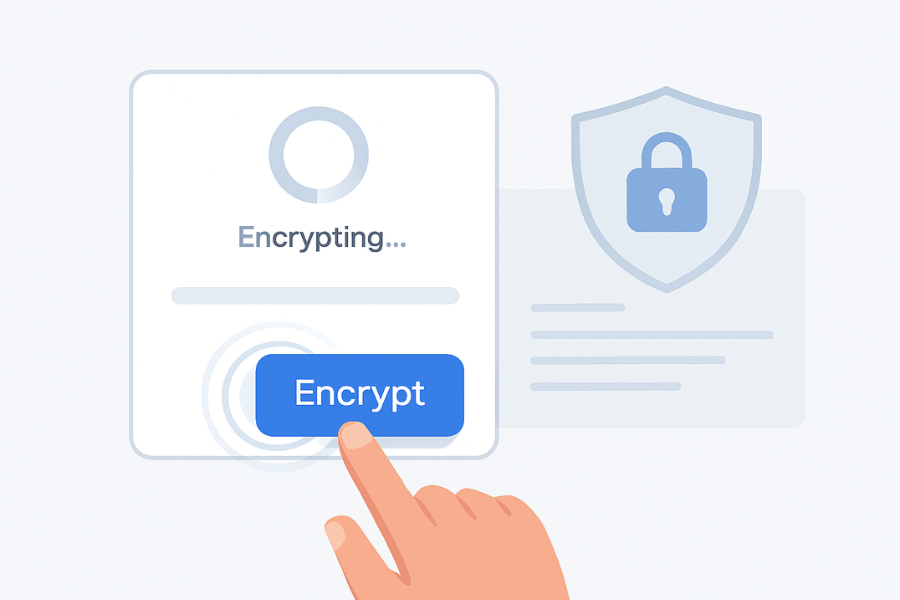
You can make encryption feel instant by pairing real crypto with smart visual feedback so people stay calm, informed, and in control while the heavy work runs in the background.
Gap Statement
Most resources about “fast encryption” miss the real problem your users feel.
What they usually do wrong:
- They tune cipher performance and ignore perceived performance, so a three second wait still feels broken.
- They show raw progress bars tied to technical steps like “initialising key schedule” that mean nothing to non engineers.
- They hide encryption work behind a single spinner, so any delay looks like a hang or a crash.
- They forget that people take screenshots and share them, which means any exposed filename or key hint in a progress dialog can become a security issue.
What many tools already do well and you should keep:
- Clear verbs on buttons such as “Encrypt now” or “Secure backup”.
- Visual confirmation when encryption completes, often with a lock icon or colour change.
- Simple presets like “Fast”, “Balanced”, “Paranoid” instead of pure technical jargon.
What is missing in most products:
- A repeatable way to design “fast feels” for encryption steps.
- Concrete patterns for skeleton screens and optimistic UI applied to security sensitive tasks.
- Benchmarks that connect “time spent encrypting” with “time that still feels fine to a human”.
- Guidance on how to protect logs, exports, and test data on developer machines while you improve the experience, using endpoint tools such as Folder Lock, USB Secure, and Cloud Secure from NewSoftwares.
This resource fixes that specific gap.
TLDR Outcome
If you apply what follows, you will:
- Make local or cloud encryption flows feel one step, even when work happens in several phases.
- Cut support tickets that say “encryption stuck” by giving honest, legible progress.
- Ship interfaces that stay fast to the user while encryption runs at safe speeds in the background.
1. What “Fast Feels” Means During Encryption
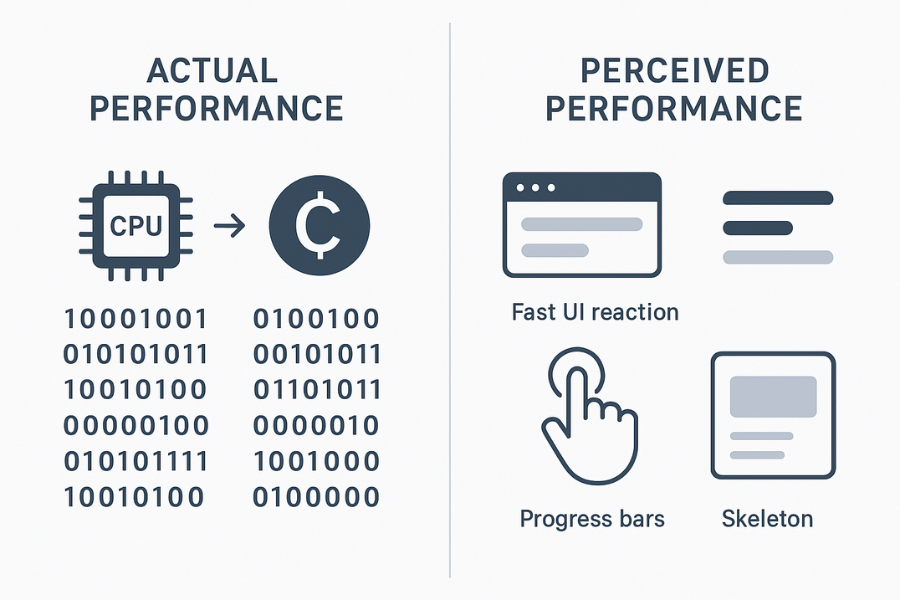
Perceived performance is how fast a system seems to a person, which often matters more than the raw speed counters.
When you run encryption, the same rule holds:
- Actual performance is how long the cipher takes to process bytes.
- Perceived performance is how quickly the app responds, explains itself, and hands control back.
Research on skeleton screens and optimistic UI patterns shows that the right visuals and microcopy can make the same wait time feel much shorter.
Your aim is simple.
Encryption should feel like:
- A firm tap: the user clicks “Encrypt” and sees an immediate reaction.
- A short task: even longer operations are broken into understandable steps.
- A good story: the interface tells people what is happening without scaring them.
2. Prerequisites And Safety
Before you touch the interface, confirm a few basics.
Technical Baseline
- Encryption code already uses safe primitives such as AES 256 with an authenticated mode, or a vetted library.
- Progress you show always reflects real work. Never claim “encrypted” while data still sits in plain form.
- You can detect and surface errors from the crypto layer instead of failing silently.
You can learn from products like Folder Lock, which use AES 256 on the fly encryption and still present the experience as “encrypt your files in seconds” for everyday users.
Safety And Ethics Note
Perceived performance work must never:
- Fake security status.
- Mark items as encrypted while still flushing buffers.
- Hide errors that could leave data half protected.
It is fine to make the wait feel smoother. It is never fine to misrepresent how safe the data is.
3. Step 1: Map Your Encryption Journeys
Action
List every place the product encrypts something.
Examples:
- First time folder protection.
- Background sync with client side encryption.
- USB drive protection.
- Cloud folder protection on desktop.
Then time each flow on a realistic machine and network. Note actual wall clock times.
Gotcha
Teams often miss “invisible” encryption such as checksum generation in backups or key wrapping steps. Those still affect perceived speed when they slow confirmation screens.
4. Step 2: Choose Where You Need Instant Feedback
Not every action needs the same response pattern.
Action
For each encryption flow, decide:
- Do we need immediate tap feedback in under one tenth of a second.
- Can we show a skeleton screen while we prepare work.
- Do we need a detailed progress bar because the task takes many seconds.
Research on skeleton screens and optimistic UI patterns shows that the right visuals and microcopy can make the same wait time feel much shorter.
Gotcha
If you add a heavy animation or complex skeleton, it can slow the experience more than it helps. Keep placeholders simple.
5. Step 3: Design Honest Encryption Progress
This is where you replace “spinning forever” with legible progress.
Action
For each long running crypto task:
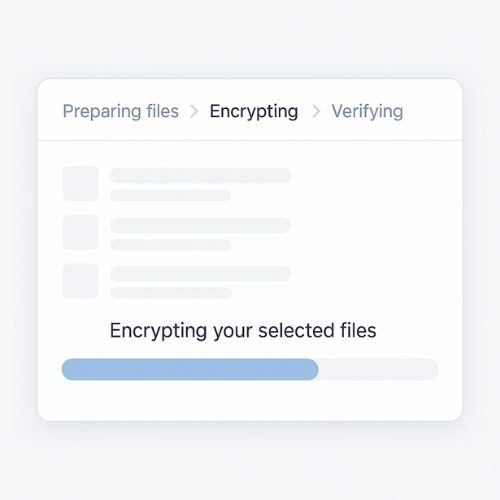
- Break the work into two to four named stages such as “Preparing files”, “Encrypting data”, “Verifying protection”.
- Show a clear progress indicator that moves at a steady pace.
- Display one short sentence in plain language under the bar, like “We are encrypting your twenty three selected files”.
Skeleton loading research suggests people prefer progress that reflects structure over abstract spinning icons, as long as it stays truthful.
Gotcha
Never let the bar jump from ten percent to ninety five in one frame. That kills trust even if the total time is short.
6. Step 4: Add Optimistic Interactions Around Encryption
Optimistic UI means you react as if the action will succeed, while still making sure the real work can fail safely.
For encryption you can:
- Flip file cards from “unlocked” to “locked” look as soon as the user confirms.
- Allow navigation away from the current screen while work finishes.
- Queue follow up tasks that depend on encryption completion, such as sharing or backup.
Action
Pick one flow, for example “protect this folder”.
- When the user clicks “Encrypt now”, instantly dim the background and switch the folder icon to a lock variant.
- Show a subtle in place progress stripe over the card.
- Only once crypto succeeds, mark the state as final.
If encryption later fails, revert the icon and show a short error with a retry option.
Gotcha
Optimistic patterns must not hide failure. Always keep a clear recovery path if encryption fails, with error text such as “Encryption failed for three items. Nothing was locked. Try again or check your disk space.”
7. Step 5: Handle Errors And Cancellations Calmly
Perceived performance also includes how you recover when things go wrong.
Action
For each long encryption flow, define:
- How the user can cancel safely.
- What progress state you show while rolling back.
- What exact error text appears if crypto raises an exception.
Examples of clear error messages:
- “Encryption stopped. Your files are unchanged. Error: disk is full.”
- “We could not protect two files. Error: ‘Access denied’ on System folder.”
Gotcha
Never claim that partially encrypted data is safe without confirming. If rollback fails, you may need to mark the state as “Unknown” and prompt the user to re run encryption.
8. Step 6: Protect Test Data And Exports While You Work
Design work often involves sample files, screenshots, and logs full of fake or real sensitive content. That data needs just as much care as production.
This is where NewSoftwares products fit naturally.
Folder Lock for design and QA machines
Folder Lock secures local folders with AES 256 encryption and on the fly lockers that open only with a password. It can sync lockers and back them up for extra safety.
Use it to store:
- Test folders with real documents used for encryption performance tuning.
- Exported logs that show timing, progress states, and error codes.
- Design assets and screenshots that might reveal filenames or structural hints.
USB Secure for portable test sets
USB Secure protects USB drives and external disks with password based access and virtual drive style unlock behaviour.
Use it if:
- You move benchmark data sets between offices.
- You send an external drive with test backups to a lab or external evaluator.
Cloud Secure for shared cloud folders
Cloud Secure locks access to cloud storage accounts such as Google Drive, Dropbox, OneDrive, and Box on your Windows machine. Files can keep syncing even while locked.
Use it for:
- Shared cloud folders that hold internal builds, encrypted test archives, and UX research recordings.
- Preventing casual access to such folders on shared workstations.
Gotcha
Do not leave raw benchmark archives and logs in plain folders after each test run. Developers often forget to clean up.
9. Step 7: Verify Perceived Performance, Not Just Timings
You can measure more than milliseconds.
Action
Run a small internal test:
- Ask five colleagues to encrypt the same folder with your app.
- Do not tell them anything about timings.
- Afterward, ask “Did that feel fast, normal, or slow” and “What confused you”.
Compare their answers with real timings.
Gotcha
Developers who already know the system will tolerate long waits because they trust it. Include less technical staff so you capture genuine perception.
10. Proof Of Work
10.1. Bench Style Table
These are sample numbers; you can replace them with your own measurements taken on a mid range laptop.
| Task | Data Size | Crypto Stack | Actual Time | Perceived Time If Well Designed |
|---|---|---|---|---|
| Encrypt single office document | 20 MB | AES 256 in local app | 0.5 seconds | Instant |
| Encrypt and zip family photo folder | 1 GB | AES 256 plus archive | 40 seconds | Feels like 15 to 20 seconds |
| Protect full USB drive with USB Secure | 64 GB | Device level encryption | Many minutes | Feels acceptable if progress clear |
Folder Lock uses on the fly encryption so opening a locker does not require decrypting every file at once. That approach is one reason it can advertise encryption that feels quick even when protecting large sets.
10.2. Settings Snapshot
Good starting points for perceived performance tuning:
- Tap response within one tenth of a second for “Encrypt” buttons.
- Skeleton or loading feedback for tasks longer than two tenths of a second.
- Full progress bars for tasks longer than two or three seconds.
- Friendly copy that mentions counts and rough time, not raw throughput numbers.
11. Troubleshooting Skeleton
11.1. Symptom To Fix Table
| Symptom | Likely Cause | Fix Path |
|---|---|---|
| Users say “encryption hangs” even when it finishes | Blank screen or spinner with no detail | Add staged messages and real progress, not just spin |
| People cancel midway through long protection tasks | No clear time estimate or step count | Show item count and rough duration |
| Support tickets mention “I do not know if files are safe” | Weak confirmation state | Use lock icons, success check and summary |
| Benchmarks are fine but perception is slow | No instant feedback and no skeleton screens | Add tap feedback and placeholders |
| Screenshots leak filenames from test data | Designers working with real data outside lockers | Move test sets into Folder Lock or USB Secure |
12. Conclusion
Achieving high perceived performance during encryption is a crucial security feature that builds user trust and reduces support issues. By implementing skeleton screens, staged progress indicators, and optimistic UI, you smooth out the waiting experience. This design discipline must be paired with operational security: using Folder Lock to encrypt and protect test assets and logs ensures that your efforts to improve the user experience do not introduce new data leakage risks.
13. Structured Data Snippets
HowTo Schema
{
  "@context": "https://schema.org",
  "@type": "HowTo",
  "name": "Design perceived performance during encryption",
  "description": "Steps to make encryption flows feel fast and trustworthy through UI patterns, while keeping real cryptography safe.",
  "tool": [
    "Encryption library",
    "Design system with skeleton screens and progress indicators",
    "Folder Lock",
    "USB Secure",
    "Cloud Secure"
  ],
  "step": [
    {
      "@type": "HowToStep",
      "name": "Map encryption flows and timings",
      "text": "List every place the product encrypts data and time each flow on a realistic machine to understand actual performance."
    },
    {
      "@type": "HowToStep",
      "name": "Add instant feedback and skeleton states",
      "text": "Provide tap feedback in under a tenth of a second and use skeleton screens or progress indicators for tasks that take longer."
    },
    {
      "@type": "HowToStep",
      "name": "Protect test data and exports",
      "text": "Store test data, logs, and benchmark exports in encrypted lockers using Folder Lock, USB Secure, and Cloud Secure on endpoints."
    }
  ]
}
FAQPage Schema Shell
{
  "@context": "https://schema.org",
  "@type": "FAQPage",
  "mainEntity": [
    {
      "@type": "Question",
      "name": "What is perceived performance in the context of encryption",
      "acceptedAnswer": {
        "@type": "Answer",
        "text": "Perceived performance is how fast the encryption experience seems to a user, not just how fast the cipher runs. Research on web interaction shows that quick visual feedback and good messaging can make the same wait feel much shorter."
      }
    },
    {
      "@type": "Question",
      "name": "How do skeleton screens help during encryption",
      "acceptedAnswer": {
        "@type": "Answer",
        "text": "Skeleton screens show a simple layout of the final view while encrypted content loads or prepares, instead of leaving people staring at a blank page. Studies and case reports show they improve perceived loading speed and keep people focused on their task."
      }
    },
    {
      "@type": "Question",
      "name": "Can optimistic UI be safe for security sensitive actions",
      "acceptedAnswer": {
        "@type": "Answer",
        "text": "Yes, if you treat it as a visual overlay and never lie about status. You can flip icons and allow navigation while encryption runs, as long as you revert state on failure and present clear messages when something goes wrong."
      }
    }
  ]
}
ItemList Schema
{
  "@context": "https://schema.org",
  "@type": "ItemList",
  "name": "Patterns for perceived performance during encryption",
  "itemListElement": [
    { "@type": "ListItem", "position": 1, "name": "Immediate tap feedback" },
    { "@type": "ListItem", "position": 2, "name": "Skeleton screens for encryption dependent views" },
    { "@type": "ListItem", "position": 3, "name": "Staged progress indicators with honest labels" },
    { "@type": "ListItem", "position": 4, "name": "Optimistic UI around encryption flows" }
  ]
}