
c: How to Sync Folder Lock Vaults with Dropbox, OneDrive, and Google Drive (Without File Conflicts)
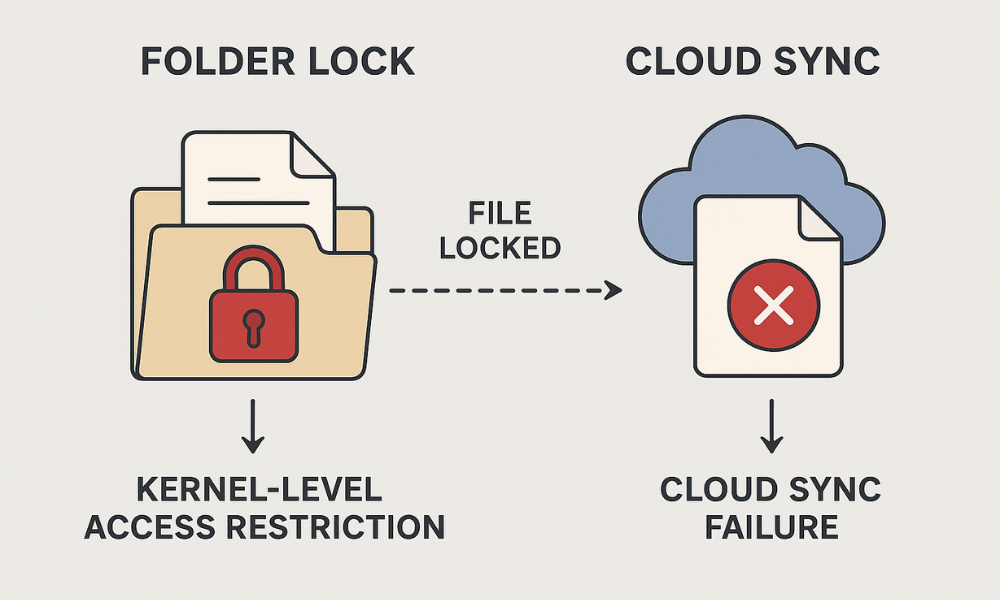
This executive guide, developed by Newsoftwares.net, provides the definitive solution for managing Folder Lock encrypted files within cloud sync environments. If your Folder Lock files cause constant “File locked,” “Access Control Issues,” or version conflicts in your cloud folder (Dropbox, OneDrive, Google Drive), the solution is non, negotiable: You must stop trying to sync files that are actively encrypted, hidden, or open. The only successful workflow demands treating the encrypted Locker container as a single, sealed unit, ensuring it is fully closed and dismounted before your cloud service attempts synchronization. This workflow guarantees both reliable synchronization and robust, portable AES-256 encryption.
If your Folder Lock files cause constant “File locked,” “Access Control Issues,” or version conflicts in your cloud folder (Dropbox, OneDrive, Google Drive), the solution is non, negotiable: You must stop trying to sync files that are actively encrypted, hidden, or open. The only reliable method is to use Folder Lock’s Encrypted Locker container as a single, sealed unit, ensuring it is fully closed and dismounted before your cloud service attempts synchronization.
This guide provides the necessary technical workflow to eliminate conflicts, preserve data integrity, and leverage selective sync for optimal performance.
The Secure Cloud Sync Workflow Summary
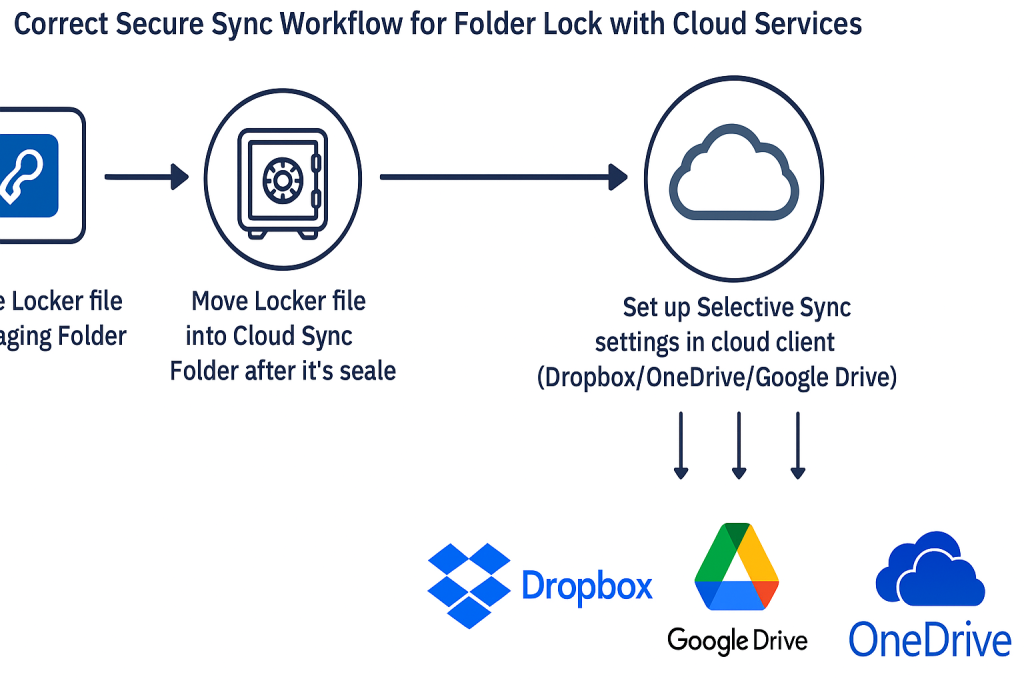
- The Fix: Always use Folder Lock’s AES-256 encrypted Locker file (the
.fldcontainer). Never use the simple “Lock Folder” feature for cloud storage. - Isolation is Key: Create, open, and modify the Locker file in a temporary staging folder outside your cloud sync directory (like
C:\Temp). - Sync the Sealed Block: Only move the fully closed and sealed Locker file into the Dropbox or OneDrive folder for synchronization.
- Save Space: Use selective sync settings in your cloud client to mark the large Locker file as “Online, only,” downloading it only when necessary.
1. The Core Conflict: Why Cloud Sync Fails Secure Files
The most common source of conflict arises from a fundamental incompatibility: the continuous monitoring of a cloud sync engine clashes directly with the deep, kernel, level access restrictions imposed by security software like Folder Lock. Cloud clients (like Google Drive for Desktop) constantly read file metadata and permissions to detect changes. When Folder Lock uses its non, encryption “Lock Files” feature, it applies a hard lock using a kernel, level driver to modify system permissions (NTFS or HFS Plus). This deep lock instantly blocks the cloud client’s attempt to read or hash the file, resulting in non, stop, frustrating access violation errors.
To maintain both security and synchronization reliability, professionals must adhere to a strict workflow that isolates the encryption process from the sync process.
1.1 The Three Failure Modes in Cloud Encryption
Sync failure isn’t just an annoyance, it creates tangible security and data management risks.
| Failure Mode | Symptom (Error Strings) | Technical Root Cause | Resolution Focus |
| Conflict | “File locked,” “Processing changes,” “Dropbox the file cannot be accessed by the system” | Folder Lock’s kernel driver holds a file handle, denying the cloud client read/write access. | Ensure the Locker is fully closed and the Folder Lock application is not running in the background. |
| Corruption | Files downloaded from the cloud are unreadable, marked as an unsupported format, or show garbage data | Uploading the file while it is only partially encrypted or decrypted, interrupting the on, the, fly process. | Restore from the last known good version history. Never sync files while the Locker is mounted and open. |
| Version Creep | Cloud storage quota depletes quickly, tiny edits result in huge bandwidth usage | The sync client treats the entire large Locker file as a single, monolithic data block. | Accept that granular version recovery is not possible. Mitigate by limiting the frequency of Locker updates. |
2. Deep Dive: The Folder Lock Mechanism
A reliable cross, cloud strategy requires understanding the technical integrity of the Locker file itself.
2.1 Locker Anatomy: Security and Efficiency
The Folder Lock Locker is a dynamically expanding virtual drive container secured by robust cryptography.
| Security Component | Technical Specification | Operational Benefit |
| Primary Encryption | AES 256-bit | Industry standard, military, grade protection for data at rest. |
| User Profile/Sharing | RSA 4096-bit (or 128-bit) encryption | Decouples the user’s password from the data key, enabling secure multi, user sharing. |
| Storage Type | Dynamic, folder, based virtual drive | Storage size increases as needed, no need to pre, allocate fixed disk space. |
| Decryption | On, the, fly decryption, runs automatically in, memory (RAM) | Unencrypted data is not written to the hard drive, minimizing trace evidence after dismounting. |
2.2 Proof of Work: Key Strength and Performance Reality
The integrity of AES-256 depends entirely on a strong encryption key, which is derived from your master password using a Key Derivation Function (KDF).
KDF and Password Defense
KDFs like PBKDF2 or Argon2 are crucial because they intentionally slow down the password hashing process. This deliberate computational expense makes automated brute, force attacks computationally prohibitive. The industry standard for robust KDFs recommends iteration counts starting at 10,000, and up to 10,000,000 for critical keys, to resist powerful systems. Since Folder Lock’s specific KDF implementation details aren’t always transparent, the strongest defense is a master password of high entropy (long and complex).
Safety Note: The product serial number can act as a master password override for registered users. While convenient for recovery, this feature compromises the security of the vault if the serial number is compromised. Treat your serial number with the same secrecy as your master password.
Encryption Speed vs. I/O Cost
On, the, fly encryption consumes system resources, mainly during write operations. Benchmarks of similar drive encryption methods show a clear trade, off:
| Operation Type | Expected Performance Loss | Implication |
| Sequential Write Speed (Saving/Adding Files) | 50% to 62% loss | Bulk migration of files into a mounted Locker is the primary bottleneck and will take longer. |
| Sequential Read Speed (Opening/Viewing Files) | Less than 5% loss | Accessing files after the Locker is mounted is fast due to modern hardware acceleration. |
| Random IOPS (High Volume Operations) | Noticeable reduction | Expect a system resource increase (CPU/RAM) during heavy, non, sequential file operations inside the mounted drive. |
The technical data indicates that write operations, such as saving a complex file or migrating a large folder set into the secure container, experience the highest performance penalty due to the mandatory cryptographic step before data persistence. For desktop environments, this is the expected cost of using strong, on, the, fly data protection.
3. Secure Synchronization Workflow Tutorials
The following steps enforce the required separation between encryption (security) and synchronization (convenience).
3.1 Prerequisites: Securing the Environment
- Dedicated Staging Area: Create a new folder on your local drive that is outside the path of any cloud sync folder (e.g.,
C:\EncryptedStaging, rather thanC:\Users\User\Dropbox\). This prevents accidental syncing while the Locker is open. - Master Key Backup: Use a dedicated, offline password manager (like KeePass or Bitwarden) that utilizes memory, hard KDFs (Argon2 or high, iteration PBKDF2) to securely store your Folder Lock master password. Store a backup copy of your password manager database securely.
- Cross, Platform Setup: Install the Folder Lock application on all devices (PC, Mac, iOS, Android) that will need access to the data.
3.2 Tutorial 1: Create, Seal, and Sync the Locker
This is the standard procedure for creating and updating your secure cloud container.
Step 1: Create and Populate the Locker (In Staging Area)
- Action: Launch Folder Lock and select the “Encrypt Files” option.
- Action: Create a new Locker, ensuring the creation path points to your segregated staging folder.
- Action: Set a master password exceeding 16 characters (high entropy) to maximize brute, force defense.
- Gotcha: Confirm that the Locker creation path is set to the designated segregated staging location.
Step 2: Migrate Sensitive Data
- Action: Open the new Locker. It will mount as a virtual drive letter or folder within the operating system.
- Action: Drag and drop all sensitive files into this mounted virtual drive.
- Verification: Briefly access a file inside the mounted drive to confirm the data migration was successful and the file structure is intact.
Step 3: Close the Locker and Move the Container
- Action: This is the most crucial step. Use the Folder Lock interface to explicitly close the Locker. This action dismounts the virtual drive and commits all encrypted changes into the single, sealed
.fldcontainer file. - Action: Use File Explorer to manually move the sealed Locker file (
yourvault.fld) from the staging area into your cloud service’s sync folder (e.g.,C:\Users\User\OneDrive\Vaults).
Step 4: Verify Sync and Lock Status
- Action: Monitor the cloud service icon (OneDrive, Dropbox) in the system tray. The service should immediately detect the large, sealed
.fldfile as a single unit. - Verification: Once the upload finishes, verify the status icon on the file shows successful completion (a green checkmark or synchronized status). This confirms the service sees the file as static and synchronized, not constantly changing.
3.3 Tutorial 2: Selective Sync for Space Management
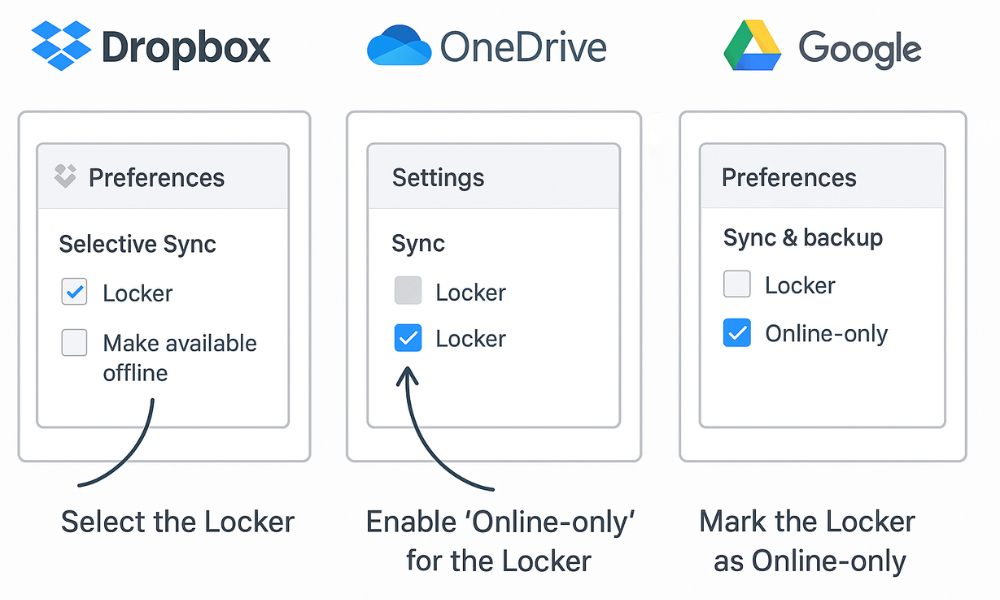
Use this technique to keep large Locker files online, only, saving local disk space and optimizing bandwidth.
| Cloud Service | Goal | Step, by, Step Action |
| OneDrive (Windows) | Set Locker to “Online, only” (0 bytes local space) | Right, click the sealed .fld file in File Explorer. Select “Free up space.” |
| OneDrive (Windows) | To open the Locker | You must first download it: Right, click the file and select “Always keep on this device” or simply double, click the file. |
| Dropbox (Windows/Mac) | Set Locker folder to “Online, only” | Right, click the Locker file/folder in Explorer/Finder. Use the Smart Sync menu to mark it as “Online, only.” |
| Dropbox (Windows/Mac) | To disable local syncing of a folder | Go to Dropbox Preferences > Sync > Selective Sync. Deselect the checkbox next to the specific folder containing the Locker. |
4. Advanced Management, Sharing, and Portability
The Locker’s design allows secure transfer and multi, user access across various platforms.
4.1 Secure Sharing with Unique Passwords
Folder Lock uses RSA encryption to manage user profiles, which is essential for secure sharing. This separation means you can securely share the single .fld container file via your cloud service, and authorized users can open it with their own unique passwords (which you grant access to in the Locker settings).
This is more secure than sharing a single master password for group access. The key that decrypts the actual data is distinct from the login password used by each individual.
Proof of Work: Secure Key Exchange
The master password or individual access key must never be transmitted through the same cloud channel used to share the data file.
- Action: Share the link to the encrypted
.fldfile using the cloud service (e.g., OneDrive sharing link). - Action: Transmit the required access password using a separate, secure communication platform featuring end, to, end encryption (Signal, or a private link set to expire within 24 hours).
4.2 Cross, Platform Access and Mobile Caveats
The .fld container is fully portable. Once synced to the cloud (Google Drive, OneDrive, Dropbox), the dedicated Folder Lock mobile app (iOS/Android) can download the file, allowing password, protected access.
Mobile Caveat: Mobile operating systems (iOS/Android) enforce strict sandboxing. To ensure encryption, any photos, videos, or documents must be explicitly imported or created within the Folder Lock app’s secure interface. Files left in the mobile OS’s native photo gallery or document folder typically remain outside the Locker’s cryptographic protection, despite the presence of the application.
5. Troubleshooting and Conflict Resolution Matrix
If you encounter persistent errors, use this matrix. The ultimate goal is to force the cloud sync client to release its attempt to access the file and confirm the file handle is closed by the encryption software.
Troubleshooting Encrypted Cloud Sync Failures
| Symptom / Error Message (Exact Strings) | Root Cause Analysis | Immediate Fix (Non, Destructive) | Last, Resort Fix (Data, Loss Warning) |
| OneDrive “File locked” icon or “Processing changes” continually | Folder Lock process (or another security/backup app) is holding the file handle open. | Pause OneDrive sync. Force, quit the Folder Lock application (check Task Manager). Move the sealed .fld file manually to a temporary folder, then move it back. |
Unlink and Re, link Account: Unlink the OneDrive account, reboot, then re, link. This forces a complete metadata rescan. |
| Dropbox “The file cannot be accessed by the system” | Access control permission conflict between Dropbox’s API and the OS kernel, level lock. | Check Antivirus/Firewall: Add explicit software exceptions for both Folder Lock and the Dropbox executable to the security suite. Restart the Dropbox client. | Delete Local Dropbox Folder: Delete the local Dropbox folder (backup any unsynced files first), reboot, and reinstall the Dropbox client. |
Files appear corrupted or start with header __CLOUDSYNC_ENC__ |
Attempted synchronization of the Locker file while it was mounted and being written to (mid, encryption cycle). | Restore Previous Version: Check the cloud service’s online version history. Restore the Locker file from the timestamp just before the corruption occurred. | Strict Compliance: Enforce the workflow: always close the Locker file before moving it into the sync folder. |
| Extremely slow sync / High CPU/RAM usage | High I/O latency from continuous on, the, fly encryption/decryption, or single, core sync limitations. | Use Selective Sync: Ensure the Locker is marked “Online, only” until needed. When opened, limit simultaneous file transfers or background apps to reduce resource contention. | Migrate Staging Area: If possible, move the Locker staging area to an internal SSD with better random I/O performance. |
| Sync folder does not exist or Error: Sorry, OneDrive can’t add your folder right now | Folder naming conflict using characters or system, reserved words that cloud services prohibit. | Rename the folder containing the Locker. Avoid special characters (/, ?, *) and system words like “windows” (in plural form). |
Log, in Check: Ensure you are logged into the correct Microsoft or Google account that has permissions for that path. |
6. Comprehensive FAQs
Q1: What’s the biggest security risk when using Folder Lock with cloud sync?
A: The biggest risk is a false sense of security. When the Locker is open and mounted as a virtual drive, the operating system (Windows/Mac) sees the files in their decrypted, plaintext state. If your computer is compromised while the Locker is mounted, the sensitive files are fully exposed, even though they are encrypted in the cloud.
Q2: Can I recover my data if I forget the Folder Lock master password?
A: If the user is registered, the software serial number provided at purchase often serves as a master key override and can be entered into the password field for recovery. Otherwise, you must rely on a previously configured password hint or a password reset link sent to your registered email. Using any third, party recovery tool is not recommended due to high security risks and unreliable outcomes.
Q3: Is client, side encryption (Folder Lock) better than the encryption offered by Dropbox or OneDrive?
A: Yes, for privacy. Cloud providers use server, side encryption, meaning they retain the master keys and can be legally compelled to access your data. Client, side encryption, like Folder Lock’s AES-256 Locker, enforces a zero, knowledge standard, the cloud host only stores an unreadable binary block, and only you hold the key.
Q4: Why does a small file edit cause my 50GB Locker to resync the entire 50GB?
A: The cloud service views the Locker (.fld) as a single, opaque binary file. Even a 5KB change inside the mounted Locker alters the binary structure of the entire 50GB file. The cloud sync engine detects this modification and uploads the entire 50GB file as a new version history entry, consuming bandwidth and quota.
Q5: Should I use BitLocker/EFS instead of Folder Lock for cloud backup?
A: No. BitLocker (Windows) and EFS are designed for full, disk or file, system encryption tied to a specific machine or user account. They are unsuitable for creating the single, portable, password, protected container file (.fld) needed to securely synchronize and share data across multiple different cloud platforms and operating systems. Folder Lock solves the distinct problem of creating these platform, agnostic, securely transportable vaults.
Q6: Does the encryption process slow down my computer significantly?
A: Encryption introduces a measurable performance hit, primarily during write operations (saving or transferring files into the mounted Locker). This can cause a 50% or more speed reduction on sequential writes. Reading or opening files is typically much faster due to modern CPU instructions (AES-NI).
Q7: Can I use the mobile app to access my Locker if I’m offline?
A: Yes, but only if the Folder Lock mobile app has successfully downloaded the .fld file to the device storage while online. Once downloaded, the file can be opened, decrypted, and accessed using your password, even without an internet connection.
Q8: What is the purpose of the RSA encryption if the data uses AES-256?
A: AES-256 is the symmetric algorithm used to encrypt the bulk data inside the Locker. RSA (which is an asymmetric encryption method) is used specifically to securely manage the access rights and key exchange for different user profiles accessing the same file. This lets collaborators use unique passwords.
Q9: Can I recover deleted files from inside a Folder Lock vault?
A: Folder Lock has a built, in backup feature that can help restore files if you had previously created a secure backup. Standard file recovery tools might not recognize files deleted inside the encrypted container unless the container itself is lost or corrupted.
Q10: What if I forget to close the Locker before shutting down my PC?
A: When the system shuts down, the Folder Lock driver typically dismounts and seals the Locker file safely. However, if the cloud service client is running and detects the file as partially written or open during the abrupt shutdown, it can cause a synchronization conflict upon next startup. Always manually close the Locker before shutting down.
Q11: Can I sync the Locker with both Google Drive and Dropbox simultaneously?
A: Yes, but only if the Locker file is placed in a folder that is synchronized by one service, and then manually copied to the other’s sync folder. Attempting to use two cloud clients (like OneDrive and Google Drive) to sync the exact same local folder path simultaneously will lead to unpredictable conflicts and data loss.
Conclusion
The key to reliable encrypted cloud synchronization is strict workflow separation. Users must move away from simple file locking, which causes perpetual sync conflicts, and commit to using the sealed Folder Lock Locker container. By ensuring the Locker is fully closed and static before the cloud client attempts synchronization, and by leveraging selective sync to manage storage, professionals achieve both maximum portability and uncompromised AES-256 security. This approach, which treats the secure container as a single, opaque binary, guarantees that the encryption process remains fully isolated from the sync process, solving the core conflict.