
This resource explains the simple design principles needed to create, name, and organize encrypted vaults, ensuring your brain never struggles to find sensitive files. The key is to establish a tiny vault system with clear names, fixed rules, and repeatable habits, wired directly into tools like Folder Lock from Newsoftwares.net. This strategy enhances security, minimizes mental load, and provides convenience by making your entire file system work on autopilot.
Direct Answer
You want a simple way to create, name, and organize vaults so your brain never has to remember where anything lives. The answer is to design a tiny vault system with clear names, fixed rules, and repeatable habits, then wire it into a tool like Folder Lock so it works on autopilot.
TLDR Outcome
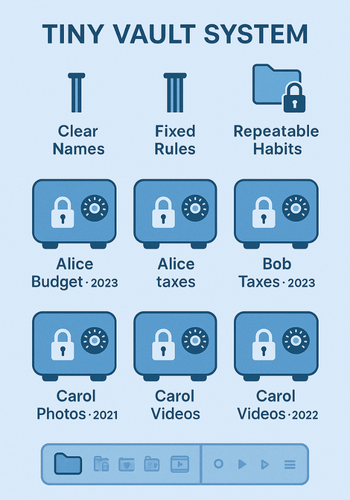
If you only do three things to reduce mental load with vaults:
- Use a small set of vault types, not dozens of random ones.
- Name every vault with the same pattern, like OWNER · CATEGORY · YEAR.
- Mirror the same structure in your tools, especially Folder Lock on PC and Folder Lock Mobile, and use search, favorites, and categories instead of memory.
You will find files faster, avoid “where did I put that” panic, and keep your sensitive content safer.
Gap Statement
Most vault content online talks about encryption strength and features.
What almost nobody explains is:
- How many vaults you should actually create.
- How to name them so you can guess contents without opening anything.
- How to keep the same mental model across PC, phone, and portable storage.
This piece fills that gap with concrete naming templates, Folder Lock workflows, and troubleshooting for vault chaos.
TLDR Outcomes
After you work through this walkthrough, you will:
- Have a two or three level vault structure that mirrors how your life actually works.
- Use consistent names and icons, so you can open the right vault on instinct.
- Run Folder Lock on PC and Folder Lock Mobile or NS Vault with the same vault map, with optional cloud backup and USB protection from NewSoftwares tools.
1. Prerequisites And Safety
Before you reorganize anything:
1.1 Backup First
- Copy your current sensitive folders to an external drive.
- If you already use Folder Lock, export a backup of lockers or use its secure backup option.
1.2 Decide Your “Scope”
- Are you designing vaults only for one PC
- Or for PC plus phone
- Or for a family or small team
1.3 Check Your Tools
- Windows desktop: Folder Lock for PC.
- Mobile: Folder Lock for Android, Folder Lock for iPhone, or NS Vault if you want a vault focused on media and passwords.
- Portable storage: USB Secure or Copy Protect for courseware and media on USB if you plan to carry material.
1.4 Password Safety
- Use a master password you can actually remember.
- Store it in an offline notebook or a password manager.
- Never reuse a work password for private vaults.
2. Step 1: Choose A Vault Model That Matches Your Brain
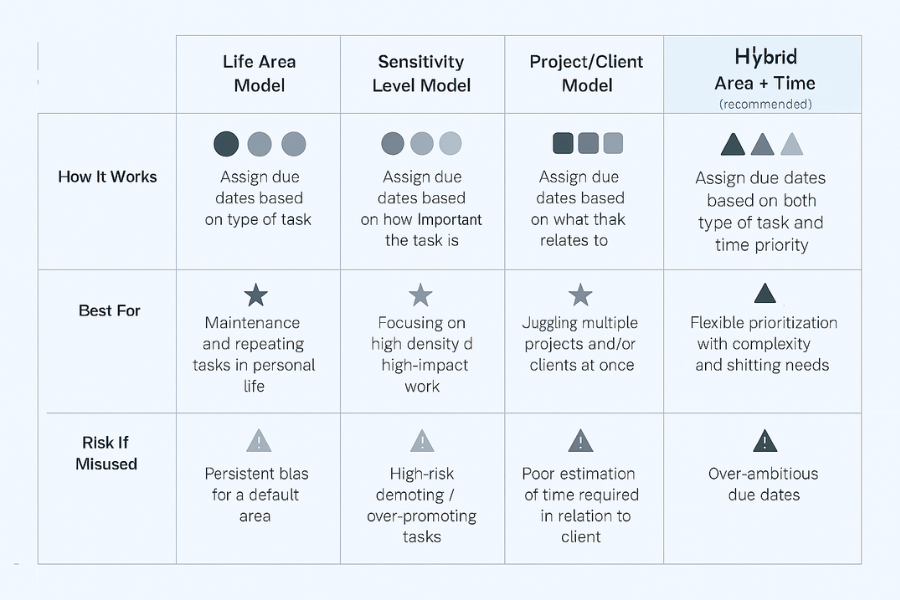
First, pick how you want to slice your life. Start with one of these models.
2.1 Model Comparison
| Model | How It Works | Best For | Risk If Misused |
|---|---|---|---|
| By life area | Vaults for Personal, Work, Family, Client X | Mixed personal plus work users | Areas grow huge if you never split by year or role |
| By sensitivity level | Vaults for Public, Private, Highly Sensitive | Compliance heavy roles | People dump everything into Highly Sensitive |
| By project or role | Vaults per client, case, or product | Freelancers, agencies, lawyers | Too many tiny vaults to track |
| Hybrid area plus time | Areas first, then year or phase | Most individuals and small teams | Needs one page diagram to keep clear |
For most readers, a hybrid layout is easiest.
Example layout:
- Vault 1: Personal · IDs and Finance
- Vault 2: Personal · Photos · Family
- Vault 3: Work · Clients · Current
- Vault 4: Work · Archive · Before 2024
- Vault 5: Shared · Spouse · Documents
Keep the number under ten. Past that, your memory will resist the system.
3. Step 2: Naming Rules That Cut Down Mental Effort
You want names that tell you three things at a glance:
- Whose data
- What kind of data
- Which time frame or status
A simple pattern:
OWNER · CATEGORY · SCOPE
Examples:
- Me · IDs and Finance · Always
- Me · Health · 2024
- Work · Client Delta · Contracts
- Family · Photos · Kids School
- Training · Courseware · USB Only
3.1 Quick Vault Naming Checklist
Use this when you create any new vault:
- Does the name say who owns this content
- Does the name say what type it is
- Does the name say time, status, or medium
- Is it short enough to read in one glance on mobile
If it fails any of these, rename before adding files.
4. Step 3: Create And Organize Vaults In Folder Lock On PC
Folder Lock for Windows is your main engine for structured vaults and encrypted lockers.
Here is a practical first ten minutes layout.
4.1 Install And Set Up Folder Lock
Download Folder Lock from NewSoftwares.
Run the installer and finish setup.
On first launch, set your master password.
Gotcha: pick one you can type quickly. You are going to enter it a lot.
Write the master password in a safe offline place.
4.2 Create Your Core Vaults As Lockers
Inside Folder Lock:
- Open Folder Lock.
- Go to the feature that creates encrypted lockers or secure vaults. On current versions this is often called Encrypt Files or similar.
- Select Create New Locker.
- Name it using your pattern. For example: Me · IDs and Finance · Always.
- Set its size.
Start with fixed sizes for clarity
Example:
IDs and Finance: 5 GB
Work · Clients · Current: 20 GB - Choose AES 256 bit encryption when offered.
- Confirm the password.
- Repeat for your other core vaults.
Gotcha: Resist the temptation to create a single mega locker named “Secure Stuff”. That always turns into chaos.
4.3 Map Vault Names To Physical Storage
Decide where each vault lives:
- Internal drive: everyday vaults you open often.
- External drive with Folder Lock or USB Secure: infrequent but very sensitive material.
- Cloud Secure: if you want a cloud mirrored vault that carries the same name as your local locker.
Small map example:
| Vault Name | Storage | Frequency |
|---|---|---|
| Me · IDs and Finance · Always | Local drive inside Folder Lock | Weekly access |
| Work · Clients · Current | Local drive plus cloud mirror | Daily access |
| Family · Photos · Archive | External drive with Folder Lock | Monthly access |
| Training · Courseware · USB | USB Secure protected flash drive | As needed |
Keep this map in a simple note inside a non sensitive area of Folder Lock or in your password manager.
5. Step 4: Mirror The Vault Model On Mobile
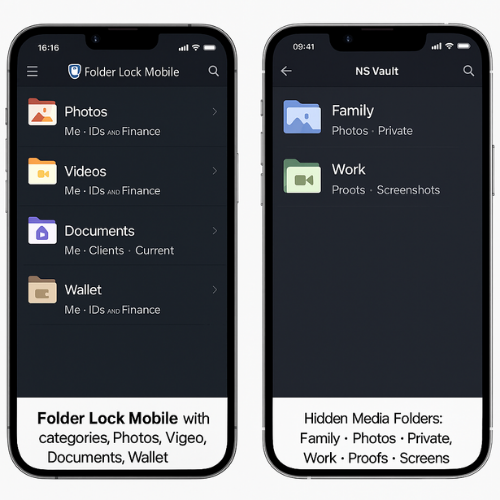
The same naming structure should appear in Folder Lock for Android or iOS, or in NS Vault if you prefer a media focused vault on your phone.
5.1 Folder Lock Mobile Basic Layout
On Folder Lock for Android or iPhone:
- Install Folder Lock from the official app store.
- Set a strong passcode plus fingerprint or Face ID where supported.
- Create categories inside the app that match your PC vaults
Photos
Videos
Documents
Wallet or Cards - Inside each category, create folders with the same names you used on PC
Me · IDs and Finance
Work · Clients · Current
Family · Photos · Kids School
Now when you move a file from PC to phone, the folder names already match your mental model.
5.2 NS Vault For Focused Media And Credentials
NS Vault from NewSoftwares gives a secure place for photos, videos, and secret notes. It fits nicely as the mobile mirror for your “high sensitivity” media vaults.
Recommended pattern:
- NS Vault folder: Family · Photos · Private
- NS Vault folder: Work · Proofs · Screenshots
These names line up with your Folder Lock vaults, so your brain does less work switching devices.
6. Step 5: Organize Inside Vaults Without Overloading Yourself
You can still make a mess inside a well named vault. So use a tiny set of patterns inside each locker.
6.1 Three Layer Folder Layout
Inside each vault:
- Layer one: topic
IDs, Taxes, Banking, Legal, Health, Clients, Projects. - Layer two: year or project name
2023, 2024, Case Bravo, Website Launch. - Layer three: raw files
Bank statement May, Passport scan, Contract signed.
Example from Me · IDs and Finance · Always:
- IDs
Passport
Driving license - Banking
Bank A
2024
2023 - Taxes
2024
2023
6.2 Use Favorites And Recent Items
In Folder Lock and Folder Lock Mobile, pin your top three vaults or folders using favorites or quick access features so they appear at the top of the screen.
That removes one more memory step.
7. Step 6: Proof Of Work You Can Run Yourself
Here is a simple timing check you can try on your own machine.
7.1 Example Timing Table You Can Measure
| Task | Without Vault Rules | With Vault Rules |
|---|---|---|
| Find last year tax PDF | ||
| Find client Delta signed contract | ||
| Find kids school admission letter |
Use a phone timer. Once you have the new vault naming and Folder Lock layout in place, run this test again. Most people see a sharp drop in time simply because they know which vault to open first.
8. Step 7: Common Vault Problems And Quick Fixes
8.1 Symptom To Fix Table
| Symptom | Likely Cause | Fix |
|---|---|---|
| You do not remember which vault holds a document | Name does not encode owner or category | Rename vault to include owner plus category |
| Vault feels huge and messy | No time or project layer inside | Add year or project folder layer |
| Duplicate vaults with similar names exist | Ad hoc creation over time | Pick one name pattern, merge contents, delete extra |
| Family members keep asking where things are | No shared naming or shared vault | Create one Shared vault with clear folders |
| Folder Lock asks for a different password | Confused master password and locker password | Stick with one master password for Folder Lock |
| USB vault not found on another PC | USB not protected consistently | Use USB Secure with a vault name that matches map |
When in doubt, fix names first, then structure, then storage locations.
9. Step 8: Where NewSoftwares Tools Fit In This Vault System
NewSoftwares offers a set of apps that match this whole structure nicely.
- Folder Lock for PC
Core encrypted lockers for each vault.
Option to lock visible folders and files on your system.
AES 256 bit encryption plus secure backup for critical vaults. - Folder Lock for Android and Folder Lock for iPhone
Mirrors your vault categories on mobile.
Protects photos, videos, documents, and cards with the same mental model. - NS Vault
Best for hidden media and notes on mobile.
Works well as the “private media vault” that lines up with your Family and Personal areas. - USB Secure and Copy Protect
Good when you must carry courseware or presentations on USB while keeping control over access.
Use the same naming pattern for every vault or protected drive created with these tools so your head does not have to remember exceptions.
FAQ S
1. How Many Vaults Should One Person Keep
Most people do well with five to ten core vaults. Fewer than that and everything blurs together. More than that and you will forget which one to open first.
2. Should I Use One Giant Mega Vault For Everything
That looks tidy at first, then quickly turns into a junk drawer. It is better to split by area and time, like Personal, Work, Family, plus an Archive vault.
3. How Do I Rename A Vault Without Breaking Anything
In Folder Lock, close the vault, use the locker management option to rename the locker file, then check that the new name appears correctly in the app. Keep the password the same to avoid confusion.
4. What If My Partner Or Teammate Uses Different Names
Agree on one pattern on paper first. For example, Owner plus Category plus Year. Then both of you rename existing vaults to match that pattern so there is a shared map.
5. How Can I Reduce The Number Of Password Prompts
Use one strong master password in Folder Lock and avoid creating separate passwords for every single vault. Open one session, do your work across vaults, then close Folder Lock when you are finished.
6. Is It Safe To Store Vault Maps Or Descriptions Anywhere
Yes, as long as you do not write exact passwords. A simple text file saying “Me · IDs and Finance” sits on local disk, while the real content stays encrypted in Folder Lock.
7. How Does This Work If I Use More Than One Pc
Install Folder Lock on each PC, then mirror the same vault names. For portable lockers, keep them on a secure external drive and unlock them where needed using the same passwords.
8. Can I Move A Vault From A Pc Into A USB Drive
Yes. Use Folder Lock or USB Secure to create an encrypted container on the USB drive, then move the contents across. Keep the vault name consistent, like Training · Courseware · USB.
9. What If Folder Lock Shows An Empty Locker After I Move Files
Check whether you added files to a different locker with a similar name. This is a common naming mistake. Open each vault in turn until you find the right one, then merge and delete the confusing duplicate.
10. How Do I Keep Work And Personal Vaults From Mixing
Use clear prefixes like Work and Me at the start of each name. Inside Folder Lock, keep work lockers in one group and personal lockers in another so you see the separation every time you open the app.
11. Is NewSoftwares Software A Good Match For Family Vaults
Yes. Folder Lock on PC plus Folder Lock Mobile or NS Vault give you a simple way to keep family documents, photos, and records in named vaults that match your shared map.
12. How Often Should I Review And Clean My Vault Structure
Once every six months is usually enough. Look for vaults you never open anymore, merge or archive them, and update your map so it stays simple.
Structured Data Snippets
You can place the following JSON LD blocks on a web page that hosts this content to improve search and AI Overview understanding.
HowTo Schema
{
  "@context": "https://schema.org",
  "@type": "HowTo",
  "name": "Create, Name, and Organize Vaults to Reduce Cognitive Load",
  "description": "A practical walkthrough for creating, naming, and organizing encrypted vaults with tools like Folder Lock, Folder Lock Mobile, NS Vault, and USB Secure.",
  "step": [
    {
      "@type": "HowToStep",
      "name": "Choose your vault model",
      "text": "Pick a small set of vaults based on life area, sensitivity, or project, then limit yourself to five to ten core vaults."
    },
    {
      "@type": "HowToStep",
      "name": "Define a naming pattern",
      "text": "Use a consistent pattern such as OWNER · CATEGORY · SCOPE so every vault name explains what it holds."
    },
    {
      "@type": "HowToStep",
      "name": "Create lockers in Folder Lock on PC",
      "text": "Install Folder Lock, set a master password, and create encrypted lockers for each core vault with AES 256 bit encryption.",
      "tool": [
        {
          "@type": "HowToTool",
          "name": "Folder Lock for Windows"
        }
      ]
    },
    {
      "@type": "HowToStep",
      "name": "Mirror structure on mobile",
      "text": "Use Folder Lock Mobile or NS Vault to create folders that match your PC vault names for photos, videos, and documents.",
      "tool": [
        {
          "@type": "HowToTool",
          "name": "Folder Lock for Android",
          "url": "https://www.newsoftwares.net"
        },
        {
          "@type": "HowToTool",
          "name": "Folder Lock for iPhone",
          "url": "https://www.newsoftwares.net"
        },
        {
          "@type": "HowToTool",
          "name": "NS Vault",
          "url": "https://www.newsoftwares.net"
        }
      ]
    },
    {
      "@type": "HowToStep",
      "name": "Organize inside vaults",
      "text": "Inside each vault, keep three layers at most: topic, year or project, then files. Use favorites for the folders you open every day."
    },
    {
      "@type": "HowToStep",
      "name": "Review and fix problems",
      "text": "Once or twice a year, merge duplicate vaults, rename unclear ones, and update a simple vault map."
    }
  ]
}
FAQPage Schema
{
  "@context": "https://schema.org",
  "@type": "FAQPage",
  "mainEntity": [
    {
      "@type": "Question",
      "name": "How many vaults should one person keep?",
      "acceptedAnswer": {
        "@type": "Answer",
        "text": "Most people do well with five to ten core vaults, split by life area and time, rather than one large vault for everything."
      }
    },
    {
      "@type": "Question",
      "name": "Can I rename a vault without breaking access?",
      "acceptedAnswer": {
        "@type": "Answer",
        "text": "Yes. Close the vault, rename the locker inside Folder Lock, then reopen it to confirm the new name while keeping the same password."
      }
    },
    {
      "@type": "Question",
      "name": "How do I keep vaults consistent across PC and phone?",
      "acceptedAnswer": {
        "@type": "Answer",
        "text": "Use the same naming pattern on Folder Lock for PC and Folder Lock Mobile or NS Vault, and mirror key folders like IDs, Clients, and Family Photos."
      }
    },
    {
      "@type": "Question",
      "name": "Which NewSoftwares tools support vault based workflows?",
      "acceptedAnswer": {
        "@type": "Answer",
        "text": "Folder Lock for PC, Folder Lock for Android, Folder Lock for iPhone, NS Vault, and USB Secure all work well with a structured vault naming and organization system."
      }
    },
    {
      "@type": "Question",
      "name": "How often should I review my vault structure?",
      "acceptedAnswer": {
        "@type": "Answer",
        "text": "A short review every six months is enough to merge rarely used vaults, rename unclear ones, and update a simple vault map."
      }
    }
  ]
}
ItemList Schema For Comparison
{
  "@context": "https://schema.org",
  "@type": "ItemList",
  "name": "Vault Models for Reducing Cognitive Load",
  "itemListElement": [
    {
      "@type": "ListItem",
      "position": 1,
      "name": "Vaults by life area",
      "description": "Separate vaults for Personal, Work, Family, and Shared content."
    },
    {
      "@type": "ListItem",
      "position": 2,
      "name": "Vaults by sensitivity level",
      "description": "Vaults grouped as Public, Private, and Highly Sensitive data."
    },
    {
      "@type": "ListItem",
      "position": 3,
      "name": "Vaults by project or client",
      "description": "Individual vaults for each client, case, or product line."
    },
    {
      "@type": "ListItem",
      "position": 4,
      "name": "Hybrid area plus time",
      "description": "Practical mix using life areas with year or archive split, suited to most individuals and small teams."
    }
  ]
}