
For training teams, educators, and content creators, securing digital courseware on USB drives is critical for protecting intellectual property and maintaining revenue streams. This resource explains that effective copy protection requires a dual strategy: binding content to the media (using tools like Copy Protect) and adding a password layer (with USB Secure). This layered approach, supported by Newsoftwares.net, ensures maximum security and convenience, preventing unauthorized file copying and protecting media if the physical device is lost.
Direct Answer
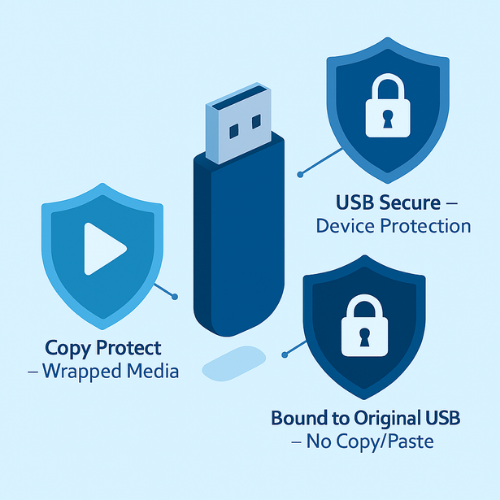
To copy protect courseware or media on USB in a way that actually works in real life, you need three things together, not just one trick:
- Do not put raw files on the stick. Wrap them in a protected player or container that resists copying.
- Bind that content to the original USB or user access, so a simple copy paste does not work.
- Add strong device or container protection, plus clear rules, so casual sharing and plug in data theft are blocked.
For most trainers and content teams, that translates to a mix of:
- A copy protection tool for media such as Copy Protect from NewSoftwares so videos, slides and PDFs run only from the prepared USB and cannot be copied in usable form.
- A USB protection tool such as USB Secure from NewSoftwares to password protect everything on the stick and keep data safe if the device is lost.
- Sensible policy and a simple checklist so students or staff do not just screen record and upload your content.
This piece shows how to set that up, step by step, and what to do when things break.
Gap Statement: What Most Explanations Miss
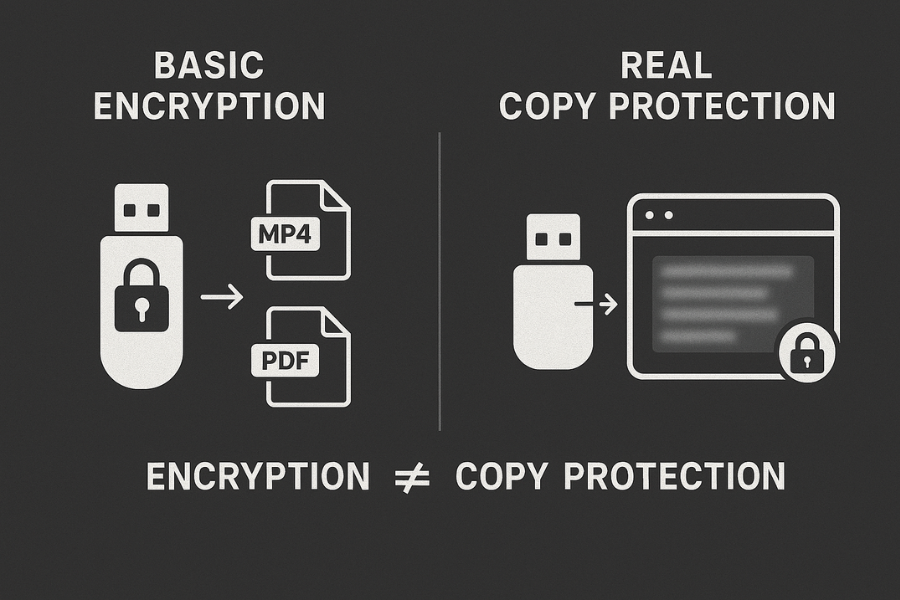
Most write ups about courseware on USB stop at simple zip passwords or drive encryption. They rarely mention:
- That plain encryption does not stop students from copying once they unlock the stick.
- That many built in tools are not practical when you ship hundreds of USBs to paying customers.
- That copy protection for media is a different problem from basic file secrecy.
We will fill those gaps by focusing on real world workflows for teachers, training companies and small studios who want to put content on USB for offline viewing without seeing it on public sharing sites a week later.
TLDR Outcome
By the end, you will know how to:
- Create a copy protected USB that plays your lessons or media but does not expose raw files.
- Add strong USB protection so a lost stick does not leak your entire course.
- Pick the right mix of tools for small one off runs or large batches, and fix common errors fast.
What “Actually Works” For USB Courseware Copy Protection
Let us be clear about the goal.
You cannot stop a determined attacker who points a camera at the screen or runs an advanced capture rig.
What you can and should do is:
- Block casual copy paste from USB to a second device.
- Stop students from forwarding the USB to friends who have not paid.
- Make it easy for honest buyers to watch content without support tickets every day.
Here is a quick view of what helps and what does not.
Methods That Do Not Really Protect Courseware On USB
- Plain zip with a password.
- Just using BitLocker To Go or a similar drive encryption tool while shipping the same password to everyone.
- Leaving raw MP4 or PDF files on the stick with file names like “Module 01 final”.
Once a user unlocks these, they get full files. From that point, sharing is trivial.
Methods That Actually Raise The Bar
- Wrapping media in a protected viewer that runs from the USB and hides raw files.
- Binding playback to the source USB so copies to another stick or folder do not work.
- Password protecting the USB itself so random people cannot browse content.
- Watermarking or user tagging sensitive videos so leaks can be traced.
Copy Protect from NewSoftwares sits in the first two categories. It turns your media and document files into executable content that runs from the medium you prepare for it while protecting files from being copied in usable form.
USB Secure from the same vendor focuses on the third category. It password protects USB and external drives with a simple prompt when someone plugs the device in.
Used together, they give a solid practical setup for most course creators.
Quick Chooser Table
Use this table to decide your main path.
| Scenario | Main Goal | Suggested Core Method | Extra Layer |
|---|---|---|---|
| Selling video lessons on USB to students | Stop casual sharing and copying | Copy Protect for media wrapping | USB Secure for lost device safety |
| Corporate training USB for staff | Prevent leaks outside company | Copy Protect or similar, plus unique passwords per team | Policy and record of issued sticks |
| Exam prep content in PDF and video | Stop copy paste and printing | Copy Protect project with mixed file types | Watermark with user details inside PDFs |
| Internal coaching recordings | Keep material private, fewer support calls | USB Secure only | Watermark videos, keep master copies in Folder Lock on your PC |
Folder Lock from NewSoftwares is useful on your own machine, as it encrypts and locks folders locally and can sync with cloud storage.
Core Workflow 1
Set up a copy protected courseware USB with Copy Protect
This section assumes you work on Windows, since Copy Protect is designed for that platform.
1.1 Prerequisites And Safety
Before you start:
- Use a known good USB flash drive or external disk with no physical faults.
- Copy your master media to a safe folder on your PC or a secure Folder Lock vault, and work from copies.
- Make sure you have rights to all content you will protect.
- Install Copy Protect from the official NewSoftwares site.
Backup reminder.
Once a USB is prepared, you should still keep original unprotected files in a secure location such as a Folder Lock locker on your system and a second offline backup.
1.2 Step By Step With “Gotchas”
Each step includes one action, one screen you should expect, and one thing that often trips people.
Step 1. Start Copy Protect and pick your course folder
- Action. Open Copy Protect and choose to create a new project. Use the Add Files or Add Folders option and pick the folder that holds your course videos, PDFs and slides.
- Screen. You should see a list of selected files, with type icons for MP4, PDF, PPT and so on.
- Gotcha. Do not add files directly from your only backup disk. Work from a working copy on your main drive in case you decide to rename or reorganize.
Step 2. Choose USB as the output target
- Action. In the target or output section, choose USB drive as destination, then select the flash drive you want to prepare.
- Screen. The drive letter and label of your USB should appear, along with the used and free space.
- Gotcha. Double check you selected the correct drive. The process may format or lock structure on the target.
Step 3. Set project level options such as password and autoplay
- Action. Configure options such as whether to ask for a password when launching from USB, allow playlist navigation, and show your logo or course title.
- Screen. You will usually see checkboxes for protection options and a place to enter or confirm a password.
- Gotcha. Use a strong course password and store it in a secure vault such as Notes Lock or a password manager. Do not reuse your email password.
Step 4. Build the protected USB project
- Action. Start the protection or build process. Copy Protect will convert your files into protected executable content and place everything on the USB.
- Screen. A progress bar with file names as they get processed, then a success message when done.
- Gotcha. Do not remove the USB during this phase. Interrupting can corrupt the build and force you to repeat from scratch.
Step 5. Test on a clean user account or second PC
- Action. Safely eject the USB, plug it into another PC, and open it as a normal user. Run the player or main executable that Copy Protect placed on the device.
- Screen. You should see your course title or menu, then media playback and document viewing within the protected environment.
- Gotcha. If the device requests installation or admin rights on every run, review configuration. Protected content should be easy for students to open without needing IT help.
Step 6. Confirm copy protection actually works
- Action. From that second PC, try to copy a video file or PDF out of the protected environment to the desktop.
- Result. You should not see raw media files at all. Content should stay inside the Copy Protect viewer and refuse export in usable form.
- Gotcha. If you can see and copy plain MP4 or PDF files, then something went wrong. You may have copied original content instead of the protected project to USB.
Core Workflow 2
Add USB level protection with USB Secure

Even with copy protection, you still want strong access control if someone steals or misplaces a USB with paid courseware.
USB Secure adds a password prompt whenever someone tries to open the protected area of the drive. It works directly from the USB and supports common file systems such as FAT, FAT32, NTFS and exFAT.
2.1 Prerequisites
- Use a USB that you have already prepared with Copy Protect or that holds course files.
- Download and run USB Secure from NewSoftwares. You normally install it once and then place its protection on the target drives.
2.2 Step By Step
Step 1. Launch USB Secure from the USB drive
- Action. Plug in the USB, browse to it in File Explorer, and run the USB Secure file that you placed there during setup.
- Screen. A small prompt appears asking you to Create Password or Unlock, depending on whether the USB is already protected.
- Gotcha. If nothing happens, confirm that AutoRun is not blocked by company policy and that you placed the correct file on the USB.
Step 2. Set a strong USB password
- Action. On first use, choose Create Password and enter a password that is distinct from your Copy Protect password. Confirm it and save.
- Screen. USB Secure will show you a success message and start protecting the content on the drive.
- Gotcha. Write the password in a secure note tool such as Notes Lock from NewSoftwares on your phone, not on a sticky label on the USB.
Step 3. Choose normal unlock or virtual drive access
- Action. Next time you plug in the USB, enter the password in the USB Secure prompt. You can choose to fully unlock the drive or only open a virtual drive view.
- Screen. You will see options for unlock and virtual drive.
- Gotcha. For courseware you ship to customers, virtual drive mode is useful. It lets people access content while reducing risk if the USB is removed without proper eject.
Step 4. Combine with Copy Protect content
- Action. Place your Copy Protect project inside the protected area of the USB, not in an unprotected folder.
- Result. A user must first enter the USB Secure password to reach the content, then optionally a Copy Protect password to start the course.
- Gotcha. Keep the workflow simple for students. Use clear instructions inside a PDF that sits outside protection or on a small slip in the package.
Alternative Approaches You May Consider
You might come across other paths. Here is how they compare.
| Method | What It Does | Where It Fits | Key Limits |
|---|---|---|---|
| BitLocker To Go | Encrypts the entire USB with a password | Good for internal or corporate staff | Once unlocked, files can still be copied |
| VeraCrypt container | Encrypted volume stored on USB | Strong security for mixed data | More complex for non technical students |
| Hardware encrypted USB | Device prompts for code on small keypad | Great for staff with high sensitivity data | Less helpful for copy control, content still raw after unlock |
| Simple password inside video player | Player asks for password before play | Light layer for streaming or local files | Files remain copyable once unlocked |
For actual courseware distribution, the NewSoftwares combination of Copy Protect plus USB Secure covers most needs while staying easy to explain to learners.
Verify That Your Protection Works
A quick checklist before shipping any stick.
- Plug USB into a second or third machine.
- Confirm that USB Secure asks for password before showing files.
- After unlock, start your Copy Protect player.
- Try to locate raw MP4, MP3 or PDF files through File Explorer. You should not find them.
- Try to copy the course folder to desktop and run it without the USB. It should not work.
- Play a video and scroll through slides. Watch for playback glitches.
- Remove the USB without ejecting while a file is open. Then plug in again and confirm nothing is corrupted. USB Secure virtual drive mode is handy here.
Troubleshooting
Symptom To Fix Table
| Symptom | Likely Cause | Quick Fix |
|---|---|---|
| USB opens without asking for password | USB Secure not correctly set or removed by mistake | Run USB Secure again from the drive and recreate protection |
| Students can see plain MP4 files | Original files copied to USB instead of protected project | Delete content from USB, rebuild Copy Protect project and copy only protected output |
| Protected player will not run on some PCs | Local policy blocks executable files | Ask users to unblock the file in properties or run as standard user on another PC |
| Anti malware flags the executable | Strict security policy or unknown publisher flag | Have users add the file to allowed list after confirming origin from you |
| Copy Protect build fails midway | USB too slow or bad sectors | Try a different USB, test by copying a large dummy file first |
Root Causes Ranked
- Copying raw content to USB after building protection, out of habit.
- Using old or faulty USB sticks with bad sectors.
- Company policies that block unsigned executable files on staff machines.
- Forgetting to test on a clean device before shipping.
- Miscommunication of passwords to students or staff.
Non Destructive Checks
Before you do anything that can risk data:
- Test the USB on another PC first.
- Copy all visible content to a temporary folder on your machine.
- Use vendor diagnostics for the USB brand to confirm it is healthy.
Only then consider reformatting or rebuilding the project.
Sharing Courseware Safely
Copy protection is only part of the story. A few simple habits go a long way.
- Keep a spreadsheet of which USB serial number went to which student or client.
- Add a simple terms sheet telling users they are receiving content for personal viewing only.
- Watermark key videos with client or student name in unobtrusive corners.
- For very sensitive material, pair USB delivery with an online portal where users must accept terms.
NewSoftwares tools fit neatly into such a flow:
- Folder Lock for secure storage of master course files and client rosters on your own system.
- Copy Protect for distributing media in a protected format on USB or optical media.
- USB Secure to keep those USB devices themselves safe if lost or borrowed.
Proof Of Work Style Snapshot
These numbers are typical ranges for a modern Windows laptop with a current multi core processor. Timings will vary between systems, but they give a feel for what to expect when planning your work.
Example Timing For A Course Bundle On Copy Protect
| Content Size | File Mix | Approx Build Time | Notes |
|---|---|---|---|
| 1 gigabyte | Mixed MP4 and PDF | About two to four minutes | Single USB build on fast flash drive |
| 4 gigabyte | Many videos, few PDFs | Around ten to fifteen minutes | Allow margin when building many sticks |
Suggested Copy Protect Settings
- Use password protection for the project.
- Enable playlists so students can move between lessons.
- Include a small text or PDF welcome note inside the protected set with your support contact.
Suggested USB Secure Settings
- Use virtual drive mode for courseware so unexpected removal is less likely to cause issues.
- Set one password per course batch and keep it in a secure vault.
- Add a readme in plain text outside protection with short instructions and your logo.
Frequently Asked Questions
1. Can I Stop All Copying Of My Courseware From USB
You cannot stop every possible copy attempt. You can make it hard enough that casual sharing stops and serious leaks become rare. Copy protection plus USB password protection plus good policy is the practical target.
2. Is Encryption Alone Enough For USB Courseware
Pure encryption such as an encrypted container or BitLocker helps if someone steals or finds the USB. Once a user unlocks the drive, raw files are still there to copy. That is why a media protection tool such as Copy Protect adds real value.
3. Can Students Still Screen Record My Videos
Yes, if a student is determined, they can record the screen with a phone or local capture tool. Copy protection focuses on stopping direct file copy and reuse, not on blocking every possible recording.
4. Will Copy Protect And USB Secure Slow Down Playback
Building the project takes time upfront, but playback is smooth on normal modern hardware. During build, allow a few minutes for multi gigabyte content sets. Once done, users run a straightforward viewer from the USB.
5. Do I Need Internet Access On Learner Machines
No. One big advantage of this setup is that it works fully offline. That is ideal for workshops or classrooms with limited connectivity.
6. Can I Use The Same USB For Multiple Courses
Yes, as long as each course has its own Copy Protect project and clear structure. It is usually cleaner to dedicate a USB to a single course or bundle so users do not get lost in folder trees.
7. What Happens If A Student Forgets The Course Password
Plan a simple support flow. Keep a list of valid buyers and resend the password after basic verification. Avoid embedding unique secrets into each USB that you cannot recover or resend.
8. Can I Update Content On A Protected USB Later
You typically rebuild the project when content changes, then copy the new protected set to fresh USB devices. For major updates, think of it as a new edition of your course.
9. Is This Setup Useful For Audio Only Lessons
Yes. Copy Protect works with audio formats as well as video and documents, so language courses and coaching recordings fit nicely.
10. How Does This Compare To Streaming Course Platforms
Streaming portals remove the USB piece and rely on online access control. USB based distribution is better when your clients need offline access or you run on site training in places with weak connectivity.
11. What If My Company Already Uses BitLocker On All Machines
That helps protect data on the computers themselves, which is good. You still benefit from copy protection on the removable media you hand out, because that media may leave the company network.
12. Can I Use These Tools For Other Media Besides Courseware
Yes. The same pattern works for music, artwork collections, research reports, sermon recordings or any media that you share in portable form and want to keep under stronger control.
Structured Data Snippets
Below is sample JSON LD you can adapt for your site. It adds HowTo, FAQPage and ItemList data for better search engine understanding.
<script type="application/ld+json">
{
  "@context": "https://schema.org",
  "@type": "HowTo",
  "name": "Copy protecting courseware and media on USB",
  "description": "Practical steps to wrap training content in protected media on USB and add USB level security.",
  "step": [
    {
      "@type": "HowToStep",
      "name": "Prepare course files",
      "text": "Gather videos, slides and documents into a working folder and back them up in a secure location."
    },
    {
      "@type": "HowToStep",
      "name": "Create a Copy Protect project",
      "text": "Open Copy Protect, add your course folder, choose USB as output and configure passwords and options."
    },
    {
      "@type": "HowToStep",
      "name": "Build and test the protected USB",
      "text": "Run the build, then test on a second PC to confirm playback and copy protection."
    },
    {
      "@type": "HowToStep",
      "name": "Add USB Secure protection",
      "text": "Run USB Secure from the USB, set a strong password and confirm the prompt appears on plug in."
    }
  ],
  "tool": [
    {
      "@type": "SoftwareApplication",
      "name": "Copy Protect"
    },
    {
      "@type": "SoftwareApplication",
      "name": "USB Secure"
    }
  ],
  "supply": [
    {
      "@type": "HowToSupply",
      "name": "USB flash drive or external disk"
    }
  ]
}
</script>
<script type=”application/ld+json”>
{
“@context”: “https://schema.org”,
“@type”: “FAQPage”,
“mainEntity”: [
{
“@type”: “Question”,
“name”: “Can I stop all copying of my courseware from USB?”,
“acceptedAnswer”: {
“@type”: “Answer”,
“text”: “You cannot stop every possible copy attempt. You can block casual copy and paste from the USB and make sharing hard by combining copy protection with USB password protection and clear policy.”
}
},
{
“@type”: “Question”,
“name”: “Is encryption alone enough for USB courseware?”,
“acceptedAnswer”: {
“@type”: “Answer”,
“text”: “Encryption helps if the USB is lost or stolen. Once a user unlocks the drive, raw files are still visible, so you also need a media protection tool to keep course content from easy copying.”
}
},
{
“@type”: “Question”,
“name”: “Does Copy Protect work offline?”,
“acceptedAnswer”: {
“@type”: “Answer”,
“text”: “Yes, Copy Protect is designed for offline use. Learners run protected media from the USB without any network connection.”
}
}
]
}
</script>
<script type=”application/ld+json”>
{
“@context”: “https://schema.org”,
“@type”: “ItemList”,
“name”: “USB courseware protection methods”,
“itemListElement”: [
{
“@type”: “ListItem”,
“position”: 1,
“name”: “Media copy protection with Copy Protect”
},
{
“@type”: “ListItem”,
“position”: 2,
“name”: “USB password protection with USB Secure”
},
{
“@type”: “ListItem”,
“position”: 3,
“name”: “Drive encryption or containers for internal use”
}
]
}
</script>