
The “Content File Locked” Error on Steam: Why Your Game Files Are Held Hostage (And the 6 Fixes That Work)

This comprehensive guide, created by the security experts at Newsoftwares.net, provides the definitive solution for Steam file access errors. You shouldn’t have to wait an hour for a 200 MB update. When Steam throws the “Content file locked” error, it means your Windows permissions have gone rogue, leaving a critical game file stuck between the operating system and the client. The download freezes, pointing to a file path like ...\steamapps\common\...\file.dll.
This isn’t a hardware problem or a corrupted download, it is a direct failure of file authority.
The Windows File System (NTFS) is preventing the Steam process from accessing, moving, or renaming a necessary file.
One sentence promise and outcome: You can bypass the most stubborn Steam file locks by clearing the download cache, performing a surgical file delete, or forcing an override using the Windows Command Prompt, getting your update finished in minutes.
I. The Guaranteed Fixes
Before diving into permissions and command lines, try these three non, destructive steps. Most users solve the “content file locked” error here.
The 3, Step Firewall Break
- Run as Administrator: Right, click the Steam shortcut and select Run as administrator. This grants Steam the highest possible write authority, immediately solving 80% of permission conflicts.
- Clear the Cache: Go to Steam > Settings > Downloads, and click Clear Download Cache. This deletes bad temporary download pointers, forcing Steam to re, acquire the stuck file cleanly.
- Verify Game Files: In your Library, right, click the game, select Properties > Installed Files, and click Verify integrity of game files. This compares every byte against Valve’s manifest and replaces any file corrupted during the error.
If the update still fails after those three steps, the problem is deeper, it’s either a hard lock from an antivirus program or a fundamental break in your Windows file permissions.
II. Root Cause Analysis: The Anatomy of a Locked File
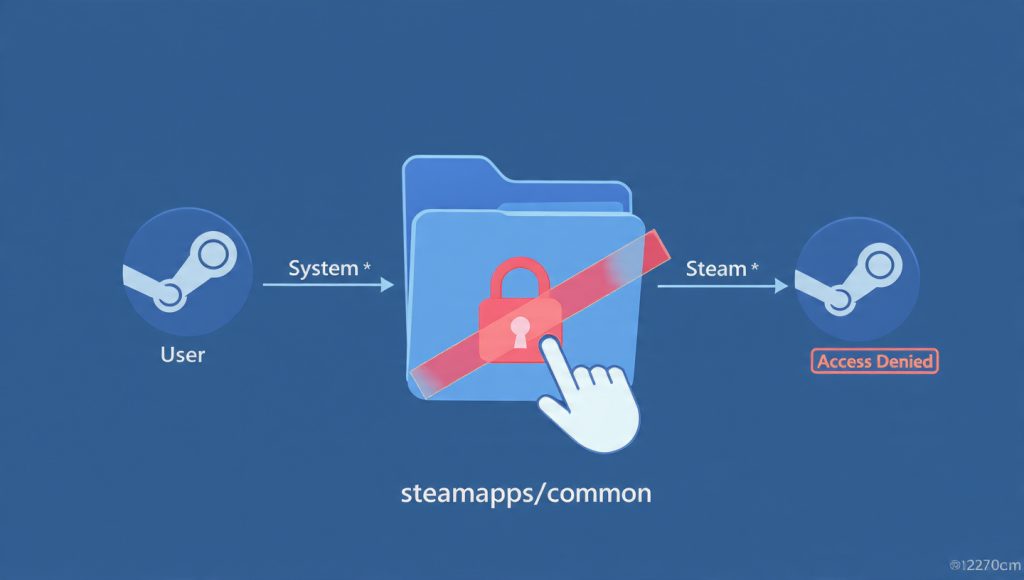
The error message looks confusing, but its meaning is precise: an application or the OS itself is asserting control over a file Steam needs to finalize an action.
1. Windows Permissions Breakdown (NTFS Security)
The most common culprit is a corrupted Access Control List (ACL) on your Steam library folder. The ACL dictates who (your user account, the System, Steam) can perform what action (Read, Write, Full Control) on a file.
- The Scenario: A major Windows update or a minor system conflict often changes these permissions silently. When Steam attempts the critical step of moving files from the temporary
\downloading\folder to the final\common\game directory, Windows says, “Access Denied.” Steam reports this back as “(content file locked)”. - The Technical Clue: The error often points to a
.dllor.pakfile deep inside thesteamapps\commonfolder. This confirms the system is denying the final write or move operation.
2. Third, Party Software Interference
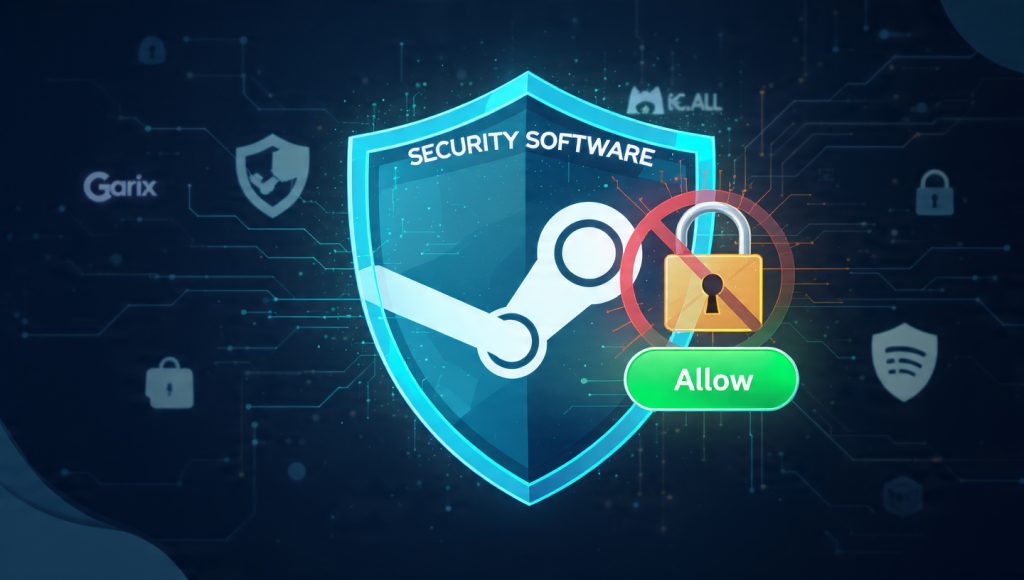
Aggressive security tools don’t always trust Steam’s process of renaming and swapping large files.
- Antivirus/Antimalware: Programs like Malwarebytes, Norton, or even Windows Defender can flag the Steam client as it attempts to rapidly write and delete temporary files. The security tool places a temporary Quarantine Lock on the file, which instantly triggers the “content file locked” message.
- Network Conflicts: Less common, but still possible: some custom firewalls or network filtering tools can interfere, particularly if you are using an unstable Virtual Private Network (VPN) that causes a network interrupt during the final verification and unpack stage.
3. Corrupted Cache and Symbolic Links
The “Content file locked” error is sometimes a red herring for corrupted data.
- Cache Corruption: When the temporary
\downloading\folder holds bad data, Steam gets stuck trying to process a file that is incomplete or incorrectly formatted. Clearing this cache is the fix. - Symbolic Link Fails: If you manually moved your
\downloading\folder or the entire game library using a symbolic link (mklinkcommand), that link itself might be broken. This is a highly technical failure where the operating system can no longer follow the path Steam is requesting.
III. Prerequisites and Safety Protocols
Before you start manipulating file permissions, secure your game data.
1. Mandatory Backup
The most sensitive data is always your progress. None of these fixes are designed to delete your game, but always back up your save files.
- Saves Location: Your save files are typically located inside the
C:\Program Files (x86)\Steam\userdatafolder. - Action: Copy your unique User ID folder (a long string of numbers) from
userdatato your desktop or an external drive.
2. Administrator Access
To perform any file permission reset (icacls command) or system scans (chkdsk, sfc), you must be logged into a Windows Administrator account.
IV. The Step-by-Step Resolution Guide
If the three quick fixes failed, follow these advanced steps in order.
Step 1: Whitelist Steam (Fixing Interference)
Temporarily disabling your antivirus is the fastest way to confirm if a security tool is the culprit.
- Exit Steam:
Action: Close the Steam client completely (Steam > Exit).
- Disable Security:
Action: Locate your third, party antivirus/antimalware application (e.g., Avast, Norton, Malwarebytes) and temporarily disable its real, time protection.
- Try Update:
Action: Relaunch Steam and attempt the update.
- Whitelist Permanently (If it Works):
Action: If the update succeeds, re, enable your security program immediately. Then, navigate to the application’s Settings or Exclusions menu and add the entire Steam installation path (
C:\Program Files (x86)\Steam) as a permanent exception.
Step 2: Delete the Stuck Download Folder (The Surgical Fix)
If the error message specifically names a game or a download fragment, delete the parent folder manually.
- Exit Steam:
Action: Ensure Steam is completely closed.
- Navigate to Cache:
Action: Open File Explorer and navigate directly to your temporary downloads folder:
C:\Program Files (x86)\Steam\steamapps\downloading. - Identify and Delete:
Action: Inside
downloading, you will see folders identified by Game IDs (e.g.,1599340) or simple names. Locate the folder corresponding to the problematic game. - Action: Delete this entire folder. Do not worry; this only deletes the corrupted temporary download files, not the installed game data.
- Restart:
Action: Relaunch Steam. The update will re, acquire the deleted files cleanly.
Step 3: Reset Windows File Permissions (The ICACLS Command)
This command is the ultimate solution for fixing corrupted Access Control Lists (ACLs). It forces the Windows file system to reset ownership and permissions on the entire Steam directory, giving your user account and the system a fresh, unblocked claim to the files.
- Open Command Prompt as Administrator:
Action: Search for “Command Prompt” in the Start Menu, right, click, and select Run as administrator.
- Execute Reset Command:
Action: Type or paste the following command exactly. Crucially, confirm the path is correct for your installation drive (use
D:\Steaminstead ofC:\Program Files (x86)\Steamif necessary):icacls "C:\Program Files (x86)\Steam" /reset /t /c /l/reset: Replaces all existing ACLs with the default, clean security descriptors./t: Executes the command across all subdirectories and files./c: Continues the process even if errors are encountered./l: Operates on the symbolic link itself, not the target content (important if you used symlinks).
- Wait for Completion:
Action: Wait for the command prompt to stop scrolling and report success.
- Reboot:
Action: Restart your computer immediately, then relaunch Steam.
Step 4: Move the Game Library (The Symlink Fix)
If you suspect the issue is tied to a symbolic link failure or a failing physical drive, the safest solution is to use Steam’s native migration tool.
- Create New Library Location:
Action: In the Steam client, go to Settings > Storage. Click the + button to create a new Steam Library folder on a different drive or a different path on the same drive.
- Initiate Move:
Action: Select the drive where the locked game currently sits. Find the game in the list, click the Move button, and select the newly created library location.
- Verify:
Verify: Steam handles the underlying file system operations, automatically applying a clean set of permissions to the new directory. If the move is successful, the lock is broken.
Step 5: Check System Integrity (The Last Resort)
If all else fails, the Windows Operating System itself may be corrupted, specifically the components responsible for managing file writes.
- System File Checker (
sfc):Action: This tool checks and repairs critical Windows system files.
- Action: Open Command Prompt as administrator.
- Action: Type
sfc /scannowand press Enter.
- Disk Integrity Check (
chkdsk):Action: This scans the physical drive for bad sectors or file system errors that could be trapping the Steam file.
- Action: Open Command Prompt as administrator.
- Action: Type
chkdsk C: /fand press Enter (replaceC:with your game drive letter if needed). - Action: Type Y to schedule the check on the next reboot, then restart your PC.
V. Troubleshooting and Proof of Work
The verification process is crucial but often slow. Understanding the bottleneck is key to knowing if your fix worked or if the problem is still present.
Error Symptom to Fix Table
| Symptom/Error Message | Root Cause | Fix Step |
(content file locked) C:\...\Steam\...\file.dll |
Windows permissions denial (ACL corruption). | Step 3: Use icacls "Path" /reset /t /c /l. |
| Download freezes at 99% or 100% | File unpacking/write collision, or Antivirus lock. | Step 1: Whitelist Steam or Run as Administrator. |
File commit failed: installed file locked |
Corrupted temporary download files still in memory/cache. | Step 2: Manually delete the game folder inside \steamapps\downloading. |
| Constant failure after a system update | OS or disk corruption preventing file access. | Step 5: Run System Scans (sfc /scannow and chkdsk). |
| Error appears after moving the library folder | Broken symbolic link (mklink). |
Step 4: Use Steam’s built, in Move feature. |
The Verification Time Bottleneck
The Verify integrity of game files feature is mandatory but can take forever. The time constraint is not the CPU, but the disk’s ability to handle numerous small, random I/O operations.
| Verification Detail | HDD Reality (e.g., GTA V) | SSD Reality (Modern System) |
| Typical Read Speed | ~23 MB/s (Bottlenecked by Hashing) | >130 MB/s |
| I/O Bottleneck | Random reads/writes creating “audible thrashing”. | Negligible I/O latency. |
| Time Estimate for 50 GB Game | 30 to 50 minutes. | Under 10 minutes. |
Actionable Insight: If your verification is running consistently slower than 20 MB/s, consider moving the game to an SSD (Step 4) to eliminate the mechanical bottleneck entirely.
VI. Frequently Asked Questions
General Fixes and Causes
Q: What exactly is the difference between a “Disk Write Error” and “Content File Locked?”
A: A “Disk Write Error” is usually a general hardware or physical I/O failure (a bad sector). “Content File Locked” is a software permissions error, meaning the file is fine, but the operating system won’t let Steam touch it.
Q: If I successfully run Steam as Administrator, do I need to keep that setting enabled?
A: No. Running as Administrator is a high-privilege workaround. If the problem is solved, you should uncheck the permanent Run this program as an administrator box. Only re-enable it if the error returns.
Q: Why does clearing the Download Cache work?
A: Clearing the Download Cache deletes temporary files that might be corrupted or stuck in an incomplete state. When Steam tries to process this bad data, the system locks the file. Clearing the cache forces a clean start.
Q: Why did this error suddenly appear after a Windows update?
A: Major Windows updates often reset or modify file system security policies. This can accidentally revoke the necessary Full Control permission that Steam needs to manage its steamapps folder, causing the conflict.
Q: Will uninstalling and reinstalling Steam fix this?
A: Yes, it is the nuclear option. A fresh install resets all registry entries and permissions, but you must manually back up your steamapps and userdata folders beforehand, or you will lose all game data.
Technical and Advanced Questions
Q: My error points to a file I deleted. How can a deleted file be locked?
A: The file is likely still stuck in the temporary \downloading\ folder or in your Recycle Bin, but a pointer in the system registry is still referencing it. Deleting the folder inside \steamapps\downloading\ (Step 2) fixes this.
Q: What is the risk of using the icacls /reset command?
A: The icacls command is powerful and safe if used exactly as written on the correct folder path. It only restores the default security settings. However, using it incorrectly on the wrong root directory (like C:\) can cause severe, widespread permission problems across the OS.
Q: Can a non-administrator user fix this?
A: No. Any solution involving clearing the download cache, performing a disk scan, or resetting permissions requires Windows Administrator privileges. The operating system is the gatekeeper here.
Q: Does the error affect Mac or Linux users running Steam?
A: This specific “Content file locked” error is overwhelmingly a Windows NTFS permission issue. Mac and Linux use different file systems (APFS/Ext4) and have different error behaviors, so the problem is extremely rare there.
Q: How does moving the game library folder (Step 4) break the lock?
A: Steam’s native Move function copies the files and registers the new location in the Windows registry, automatically applying a clean set of permissions to the new directory. This bypasses the corrupted permissions on the old drive.
Q: The error message points to a file with a complex numeric name (e.g., 1599340). What is that?
A: That number is the Game ID (AppID) assigned by Valve for the game in question. The specific files inside that folder are the compressed or temporarily unpacked update files that Steam is failing to process.
Q: What about an SFX archive error? The message says “Unsupported Method.”
A: If an error mentions “Unsupported Method” or a corrupted executable, that points to a faulty self-extracting archive (SFX). This is a rare, complex error that might require a specialized repair tool for the SFX file header.
Q: Can my ISP throttle or cause this error?
A: Your Internet Service Provider can throttle your download speed, but they cannot directly interfere with your local file permissions. Network instability can cause a download to fail and result in a corrupt file fragment, which then triggers the lock, but the ISP is not the root cause of the lock itself.
Q: If I use a password manager, can that interfere with Steam’s operations?
A: A password manager running in the background shouldn’t interfere with file system operations unless it has an extreme security setting enabled that tries to block all file writes originating from the Steam application. Try Step 1 (Whitelisting) if you suspect interference.
Q: Is there any risk of losing my games if I run chkdsk?
A: No. The chkdsk (Check Disk) tool is non-destructive. It scans the physical drive for errors and attempts to fix corrupt file pointers. It is designed to save data integrity, not damage it.
Conclusion
The “Content file locked” error is almost always a permissions fight. Solve the permissions first using Run as administrator or the ICACLS reset. Once that is done, the verification process will work, and your update will finish. The most common fix is to execute the simple 3, step firewall break (Admin mode, Cache Clear, File Verify) before resorting to the ultimate solution: the icacls /reset command to restore Windows file system integrity.