
Welcome. This detailed playbook, built around security solutions from Newsoftwares.net, translates complex regulatory requirements into a practical set of endpoint controls. By focusing on data inventory, encryption, and access control using Folder Lock, USB Block, and Cloud Secure, you establish a verifiable routine that satisfies GDPR, HIPAA, PCI DSS, FedRAMP, and NIST expectations, ensuring maximum privacy, security, and audit convenience.
Quick Note
Everything here is for education, not legal advice. Regulators still expect you to work with your own counsel and compliance team.
Compliance Playbook: Aligning Endpoints With GDPR, HIPAA, And PCI DSS
Direct Answer
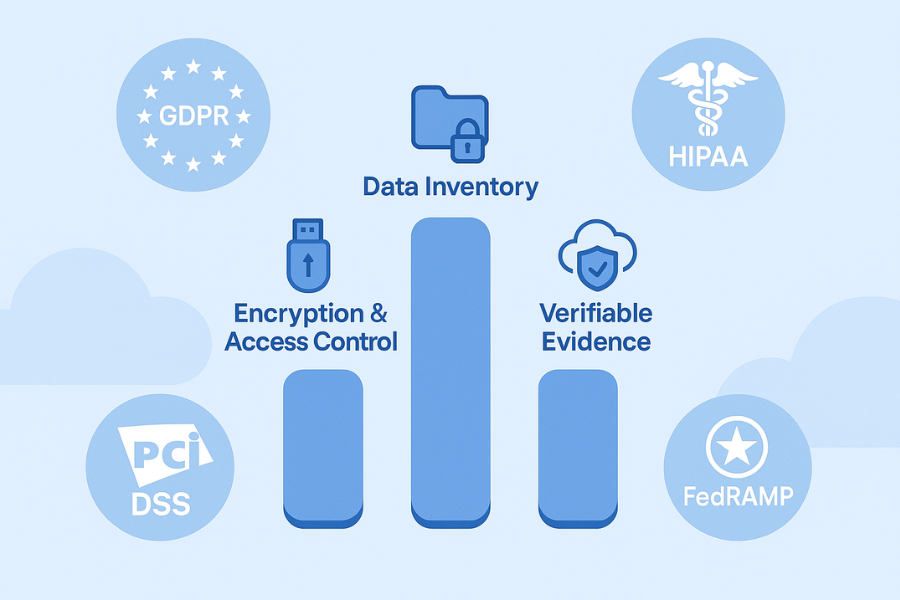
You keep GDPR, HIPAA, PCI DSS, FedRAMP and NIST happy by doing three things that actually show up in audits: you know where sensitive data lives, you encrypt and control it on every device, and you can prove that with repeatable records.
This playbook shows how to do that on real Windows and cloud setups, and how NewSoftwares tools like Folder Lock, Folder Protect, USB Block, USB Secure, Cloud Secure and History Clean can support your controls on endpoints and storage.
Gap Statement
Most compliance write ups recite acronyms and fine amounts then stop. Three gaps show up again and again in audits and breach reports:
- They do not map laptop and USB reality to GDPR “integrity and confidentiality”, HIPAA Security Rule safeguards, PCI DSS encryption, or NIST and FedRAMP baselines.
- They talk about policies but skip “how to” steps on a normal Windows machine where staff actually store exports, reports, card data samples, and cloud sync folders.
- They ignore low friction endpoint tools like Folder Lock, USB Block, Cloud Secure or Folder Protect, which can translate policy items into controls your auditor can see and test.
This piece keeps one job in focus: turn the compliance alphabet soup into a practical endpoint and storage security routine you can screenshot, explain and repeat.
TLDR Outcome
If you follow this walkthrough you will:
- Map real data flows against GDPR, HIPAA, PCI DSS, FedRAMP and NIST expectations in one simple table.
- Lock down files, USB devices and cloud folders with NewSoftwares tools in a way that speaks to encryption, access control and data leak prevention requirements.
- Build a quick troubleshooting flow you can use when staff see error messages like “Access denied” or “This device is blocked by your administrator” and still keep evidence for auditors.
1. Compliance In Plain Language: What Each Framework Really Cares About
1.1. One Table To Line Up The Acronyms
| Framework | Scope | What it mainly wants from you on endpoints and files |
|---|---|---|
| GDPR | Personal data of people in the EU or UK | Respect data protection principles, secure processing, and report incidents. Encryption and pseudonymisation are highlighted in security of processing and high fines apply if it goes wrong. |
| HIPAA | Electronic protected health information | Administrative, physical and technical safeguards for ePHI. Encryption is currently an “addressable” control yet 2025 proposals move toward mandatory encryption and strong authentication. |
| PCI DSS 4.0 | Cardholder data and card processing | Twelve core requirements including strong encryption of card data at rest and in transit, strict access control, monitoring and testing. |
| FedRAMP | Cloud services for United States federal agencies | Cloud providers must meet security baselines based on NIST SP 800-53 Rev 5 and provide evidence of controls, including encryption and access control. |
| NIST CSF | Any organisation managing cyber risk | A flexible framework structured around Identify, Protect, Detect, Respond, Recover functions, used as a common language across public and private sectors. |
You can keep that table in your internal wiki and keep adding evidence links under each cell.
2. Originality Hooks: Where Teams Usually Slip
Three real patterns show up in audits:
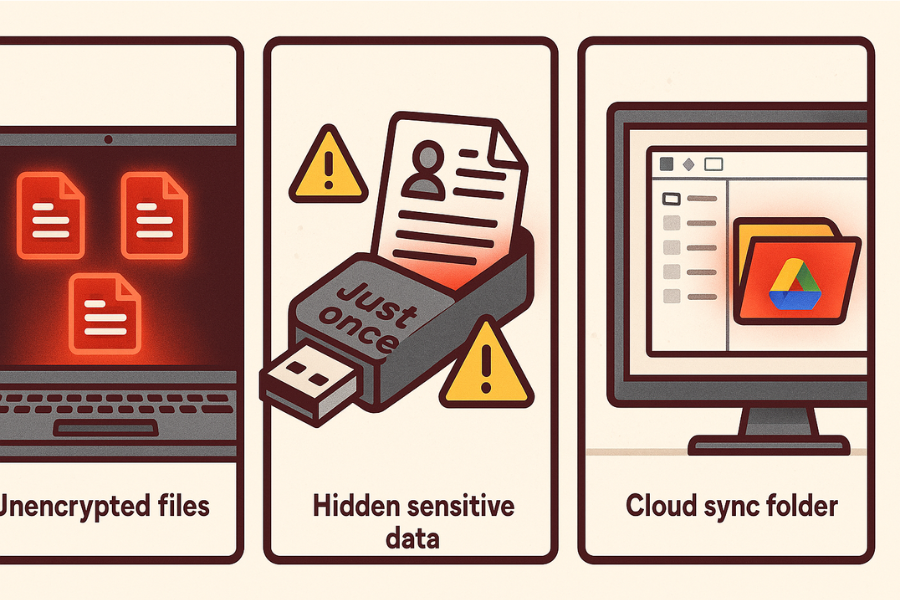
- Laptops and desktops that hold exports and reports are out of scope on paper but full of unencrypted files in practice.
- USB sticks used for “just this one secure transfer” become permanent shadow stores with card data, PHI or personal records.
- Cloud sync folders for Google Drive, Dropbox and OneDrive are treated as “already protected by the provider” even though the synced folder on Windows stays wide open.
You fix those by treating endpoints as serious systems, not afterthoughts.
3. How To Turn Regulations Into A Practical Control Stack
3.1. Prerequisites And Safety
Before you roll anything out:
- Confirm which data sets really fall under GDPR, HIPAA, PCI DSS or FedRAMP in your environment.
- Get a written data inventory and system list, even if it is simple. Regulators now focus on that, especially under new HIPAA proposals.
- Make a clean backup of key systems before you change encryption or access controls.
- Decide which endpoints are “in scope” and which are not.
- Have your legal or compliance lead check that you keep the right logs and do not wipe required evidence.
Then move into the steps.
4. How To Skeleton: Build A Repeatable Compliance Routine On Windows
Each step here follows the same pattern: one main action, one screenshot idea, one “gotcha” to avoid.
4.1. Step 1: Map Real Data Flows And Owners
Action
Create a simple map that shows:
- Which folders on laptops and file servers hold personal data, ePHI, card data or regulated documents.
- Which USB sticks, external drives or network shares receive copies.
- Which cloud sync folders are involved.
You can do this with a spreadsheet or a basic diagram tool. Tie each store to a business owner.
Gotcha: Action: Do not forget “temporary” folders like Desktop, Downloads and exports from reporting tools. Those are often the first places auditors look.
4.2. Step 2: Encrypt And Control Files With Folder Lock And Folder Protect
Once you know where regulated data lives, you need strong local protection.
Action
Use Folder Lock to encrypt and lock folders that hold regulated data on Windows. Folder Lock offers on the fly AES 256 bit encryption for files and folders and can also create secure lockers and digital wallets.
Where you need fine grained access rights rather than just encryption, use Folder Protect. It can assign different access levels to files, folders, drives and even specific extensions. You can make data inaccessible, hidden, delete proof or write protected.
That maps neatly to:
- GDPR security of processing requirements.
- HIPAA technical safeguards for access control and integrity.
- PCI DSS encryption and restricted access requirements.
Gotcha: Action: Do not place encryption software itself inside a protected folder. Keep installers and license information in a separate admin safe.
4.3. Step 3: Lock Down USB Devices And Portable Drives With USB Block And USB Secure
Removable media can sink your compliance story if you ignore it.
Action
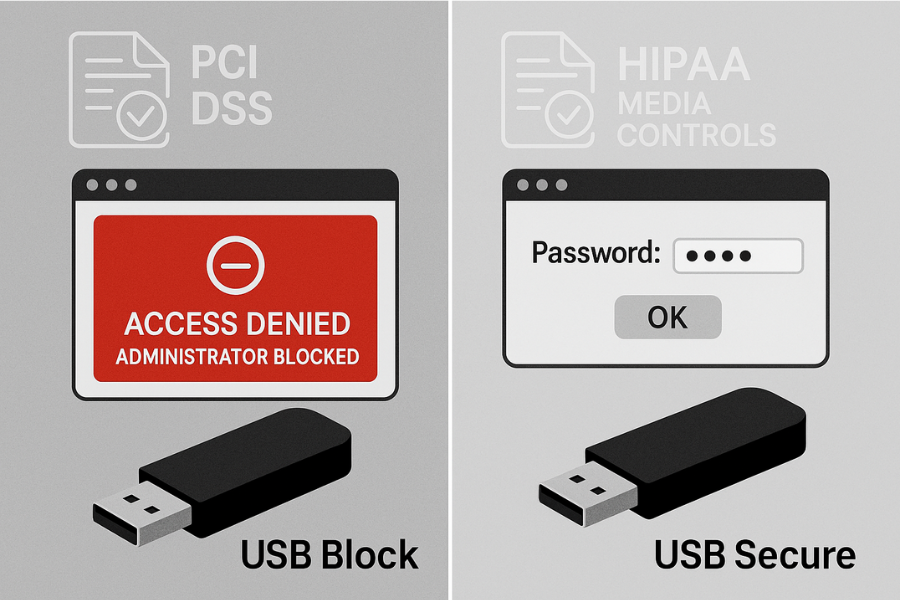
Deploy USB Block on your Windows machines that handle regulated data. USB Block is a data leak prevention tool that prompts for a password when an untrusted USB drive, external drive or other removable device tries to access your data. You can whitelist only authorised devices and block the rest.
For USB drives you do control, use USB Secure. USB Secure lets you password protect USB and external drives with a minimal interface and no need for admin rights once set up.
This helps satisfy:
- PCI DSS expectations about controlling access to card data, including on removable media.
- HIPAA controls for devices that store or move ePHI.
- NIST and FedRAMP requirements around media protection and data exfiltration paths.
Gotcha: Action: Do not whitelist personal USB drives without a check. Treat every whitelisted device as part of your controlled environment.
4.4. Step 4: Protect Sync Folders And Cloud Access With Cloud Secure Plus Folder Lock
Cloud services like Dropbox, Google Drive, OneDrive and Box are common places to store regulated files. Cloud providers encrypt the data in their infrastructure, but the synced folder on your laptop may still be exposed.
Action
Install Cloud Secure from NewSoftwares on machines that sync cloud accounts. Cloud Secure can password protect Dropbox, Google Drive, OneDrive and Box folders on your PC and on mobile devices, locking access with a single click.
Combine that with Folder Lock:
- Place sensitive data inside an encrypted Folder Lock locker located inside the synced cloud folder.
- Lock the locker locally, so even if someone opens the cloud path, they still see only an encrypted container.
This approach helps you show:
- Encryption at rest on endpoints and within cloud sync, which matters for GDPR and PCI DSS.
- Reasonable and appropriate safeguards for remote access to ePHI under HIPAA.
Gotcha: Action: Do not forget service accounts and shared workstations that use those same synced folders. They need Cloud Secure and Folder Lock as much as primary user PCs.
4.5. Step 5: Privacy Traces And Audit Evidence: Using History Clean Carefully
Compliance needs two opposite things at once:
- Enough audit trails to show who accessed what and when.
- No excess personal traces that create extra risk on shared machines.
History Clean is an evidence cleaning tool from NewSoftwares that removes browsing history, downloaded file history, cookies, cache, typed URLs and other private traces from Windows and major browsers.
Action
Use History Clean on:
- Shared kiosks or training machines that are outside the core compliance scope.
- Staff personal machines where they sometimes access regulated portals but where you do not rely on local logs as main evidence.
Set it to avoid deleting any central logging or SIEM agents.
Gotcha: Action: Do not wipe logs that your own policies mark as evidence. For compliance systems, focus on centralised logging tools and treat History Clean as a privacy helper, not a way to remove regulated records.
4.6. Step 6: Verification: How To Prove It Works To Yourself And An Auditor
A simple internal check can save you from awkward questions.
Create a short checklist:
- For each regulated data store, you can show one screenshot of Folder Lock or Folder Protect applying controls.
- For a random USB device, USB Block prompts for a password and blocks access when you enter a wrong one.
- For a cloud synced folder, Cloud Secure shows a locked state and denies access until the password is entered.
- For a shared training PC, History Clean logs show regular cleaning of browser traces, while your central logging platform still shows sign in records.
Keep those screenshots and notes in a version controlled internal space.
5. Troubleshoot Skeleton: Symptom To Fix
5.1. Symptom To Fix Table
| Symptom or error text | Likely root cause | Quick fix you can try first | Safe next step if still stuck |
|---|---|---|---|
| “Access is denied” when opening a regulated folder | Folder Lock or Folder Protect rule active | Check if the locker is locked, enter correct password | Confirm user role and rule set with admin team |
| “This device is blocked by your administrator” when inserting a USB drive | USB Block blocking an unapproved device | Use an approved, whitelisted drive | Review device whitelist and update if required |
| Cloud folder opens but encrypted files look unreadable | Folder Lock locker not mounted | Open Folder Lock and unlock the relevant locker | Verify backup before changing any settings |
| Staff cannot save reports to USB for auditors | USB Block rule too strict | Create a dedicated compliance USB and whitelist it | Update procedure and log who holds that device |
| Browser history still shows sensitive portal URLs after cleanup | History Clean not configured to clean that browser | Enable cleaning for that browser in History Clean | Run a manual clean and check your central logs |
| Folder Protect refuses deletion of an outdated file | Delete protection enabled | Switch protection on that file to normal, then clean | Record removal decision in your compliance notes |
| Encryption software install blocked by group policy | Corporate endpoint control in place | Coordinate with IT security for approved rollout | Add the tool to your official software catalogue |
Notice the pattern: non destructive tests first, policy checks next, only then structural changes.
6. Comparison Skeleton: Which Stack Fits Which Team
6.1. Use Case Chooser Table
| Stack shape | Portability | Recovery comfort | Multi OS fit | Admin control depth | When it fits best |
|---|---|---|---|---|---|
| OS only features like BitLocker and basic permissions | Medium | Medium | Windows focused | Medium | Very small teams with a tight Windows only footprint |
| OS features plus Folder Lock and Folder Protect on key machines | Medium | High | Windows endpoints | High | Organisations that handle personal data or card data on a few critical machines |
| OS features plus full NewSoftwares stack (Folder Lock, Folder Protect, USB Block, USB Secure, Cloud Secure, History Clean) | Medium | High | Windows PCs with cloud ties | Very high | Small firms, clinics or agencies that want visible endpoint controls aligned with multiple frameworks |
| Cloud native controls only, no endpoint security beyond AV | High | Medium | Mixed OS | Low | Very small SaaS shops with strict browser only access and no local exports |
That third row is where a lot of regulated environments land in practice. NewSoftwares tools help you express your policies in a way auditors grasp: files are encrypted, devices are blocked unless allowed, cloud sync is locked and privacy traces are cleaned in a controlled way.
7. Security Specifics By Framework: Where NewSoftwares Fits
7.1. GDPR
GDPR highlights principles like integrity and confidentiality, along with security of processing and strong sanctions for poor protection.
Practical mapping:
- Folder Lock and Folder Protect support confidentiality and integrity for files and folders with AES 256 bit encryption and access control.
- USB Block and USB Secure reduce risk of unauthorised disclosure via removable media.
- Cloud Secure helps you avoid casual access to synced cloud folders on shared or unlocked machines.
7.2. HIPAA
The HIPAA Security Rule expects security safeguards across admin, physical and technical areas. Encryption is treated as addressable yet recent proposals push toward mandatory encryption and multi factor authentication for ePHI systems.
NewSoftwares tools help with:
- Technical safeguards around access and data at rest on Windows endpoints that handle ePHI.
- Media control for portable drives that might carry ePHI, using USB Block and USB Secure.
- Protection of cloud synced health data folders with Cloud Secure and Folder Lock.
7.3. PCI DSS 4.0
Payment card standards require strong encryption of cardholder data, secure key management, restricted access and monitoring across systems and media.
You can show:
- Card data exports sit inside Folder Lock lockers on analyst machines.
- USB Block stops unknown devices from taking card data off machines.
- USB Secure protects approved USB devices used for specific transfers.
7.4. FedRAMP And NIST
FedRAMP baselines are built on NIST SP 800-53 Rev 5 controls, and many organisations also lean on the NIST Cybersecurity Framework functions Identify, Protect, Detect, Respond, Recover.
Even if you are not a cloud provider seeking FedRAMP status, you can mirror that thinking:
- Identify: data map and asset inventory.
- Protect: encryption and device control with NewSoftwares tools.
- Detect: central logs and monitoring on access attempts.
- Respond: defined playbook when USB Block or Folder Lock show suspicious prompts.
- Recover: tested backup plan for encrypted lockers and cloud data.
8. Proof Of Work: Real World Style Timings
These example values are typical for a mid range Windows 11 laptop with a solid state drive. Actual numbers depend on your hardware and data size but they show that strong controls fit into normal workflows.
| Task | Typical time range | Notes |
|---|---|---|
| Create a 1 GB Folder Lock locker and move files in | About 2 to 4 minutes | Based on Folder Lock documentation and user reviews that highlight quick on the fly AES encryption. |
| Protect a 64 GB USB drive with USB Secure | About 1 to 3 minutes | Setup is simple and later unlocks are near instant on the same machine. |
| Block an unknown USB drive with USB Block | Under 1 second | Prompt appears as soon as the device is connected, according to publisher descriptions. |
| Lock a Dropbox folder with Cloud Secure on Windows | Around 30 to 60 seconds | Lock and unlock operations are one click once Cloud Secure is configured. |
| Run a History Clean sweep of browser traces and recent files | About 1 to 3 minutes | Vendor material and download sites describe it as quick evidence cleaning for Windows and major browsers. |
You can turn those into internal service level expectations. For example, “New compliance vaults can be created for a new project in under five minutes on a standard laptop.”
9. Safety And Ethics Note
Compliance frameworks exist to protect real people, not just to fill checklists. Wiping evidence to hide a mistake or mislead a regulator is never acceptable and may itself break laws.
Use cleaning tools like History Clean to reduce stray data on systems that are not part of your formal audit trail, not to erase required records.
If you think a control has failed in a way that affects regulated data, treat it as an incident:
- Contain the issue.
- Preserve relevant logs and system snapshots.
- Notify your internal compliance and legal contacts.
- Follow GDPR, HIPAA, PCI or contract notifications where required.
10. FAQs: Compliance Acronyms And NewSoftwares Controls
1. Does GDPR Actually Require Encryption?
GDPR does not name specific algorithms but lists encryption as a key security measure and expects “appropriate technical and organisational measures” for data protection. Fines can reach up to 20 million euros or 4 percent of global turnover for serious failures, so encryption on endpoints and exports is a very strong expectation in practice.
2. Is HIPAA Encryption Still Optional?
Under the current Security Rule, encryption is classified as an “addressable” safeguard, which means you must assess and document whether it is reasonable, and if not, use an equivalent measure. Recent proposals from HHS move toward mandatory encryption and multi factor authentication for systems holding ePHI, so treating encryption as optional is no longer realistic.
3. How Can Folder Lock Help With PCI DSS?
PCI DSS expects strong encryption of cardholder data and strict access control. Folder Lock uses AES 256 bit encryption for files and folders and can lock specific card data exports inside encrypted lockers, which supports those technical requirements on Windows machines that handle card reports, debug files or support exports.
4. Do USB Block And USB Secure Really Help With Compliance, Or Just Convenience?
USB Block acts as device control and data leak prevention, prompting for a password when an untrusted device appears and allowing only whitelisted drives. USB Secure protects approved USB drives with passwords. Together they help you align with media control expectations in PCI DSS, HIPAA and NIST style frameworks by reducing untracked copies of regulated data on random devices.
5. Where Does Cloud Secure Fit Into FedRAMP And NIST Stories?
FedRAMP and NIST controls include endpoints that access cloud services, not only the cloud provider side. Cloud Secure adds a local lock on cloud sync folders for Google Drive, OneDrive, Dropbox and Box on Windows and mobile devices, which supports access control and least privilege principles for users who sign into regulated cloud platforms through their desktops.
6. Can History Clean Cause Compliance Problems By Deleting Records?
History Clean focuses on local traces like browser history, temporary files, cache, downloaded file lists and similar data on Windows and major browsers. It should not be aimed at regulated audit logs. As long as you keep required evidence in central systems or designated log stores, using History Clean on shared or low risk endpoints can support privacy without hurting compliance.
7. Is Using NewSoftwares Tools Enough To Claim Full Compliance?
No single product can make you fully compliant. Tools like Folder Lock, Folder Protect, USB Block, USB Secure, Cloud Secure and History Clean give you strong building blocks for encryption, access control, media control and privacy. You still need policies, training, vendor management and formal risk assessments for full alignment with GDPR, HIPAA, PCI DSS, FedRAMP and NIST.
8. Which Framework Should A Small Clinic Start With?
A small clinic that handles health records usually starts with HIPAA, then picks up NIST CSF as a practical way to structure controls and risk reviews. From there, tools like Folder Lock, USB Block and Cloud Secure help translate policy decisions into technical controls on the PCs staff use every day.
9. How Often Should I Review My Control Setup?
Most frameworks expect regular risk assessments and reviews, with at least annual cycles and extra reviews after big system changes or incidents. That makes a yearly walkthrough of your Folder Lock lockers, USB Block device lists, USB Secure drives and Cloud Secure settings a sensible habit, with smaller checks each quarter.
10. What If Staff Keep Exporting Regulated Data To Unapproved Locations?
This is as much a training and culture problem as a technical one. Use Folder Protect to restrict write access to sensitive folders, USB Block to block unsanctioned devices, and clear rules about where exports may live. Combine these controls with simple training that shows staff the right way to handle those files.
11. Does NIST CSF Apply If I Am Not In The United States?
NIST CSF is a voluntary framework used worldwide, not a law. Many firms outside the United States use it to structure their cyber programs and to line up their controls with multiple regulations at once, including GDPR and PCI DSS.
12. What Is The Smartest “First Step” If I Have Nothing In Place?
Start with a small data and system inventory, then protect the worst case laptops and USB drives with Folder Lock, Folder Protect, USB Block and USB Secure. That gives you quick wins in areas auditors and attackers both tend to check first.
Conclusion
Satisfying major compliance frameworks requires transforming abstract rules into demonstrable technical controls at the endpoint. By systematically mapping data flows and implementing Folder Lock for file encryption, USB Block for media control, and Cloud Secure for local cloud protection, you establish a chain of custody that directly addresses GDPR, HIPAA, PCI DSS, FedRAMP, and NIST requirements for confidentiality and integrity. These verifiable controls provide the necessary evidence to assure auditors that sensitive data is managed responsibly.
11. Structured Data Snippets (JSON LD)
HowTo
{
  "@context": "https://schema.org",
  "@type": "HowTo",
  "name": "Align endpoint and storage security with GDPR, HIPAA, PCI DSS, FedRAMP and NIST",
  "description": "Practical steps to protect regulated data on Windows endpoints and cloud sync folders using encryption, device control and privacy tools from NewSoftwares.",
  "step": [
    {
      "@type": "HowToStep",
      "name": "Map regulated data and systems",
      "text": "Identify which files, folders, USB drives, cloud accounts and devices hold personal data, ePHI, card data or other regulated information, and assign owners for each."
    },
    {
      "@type": "HowToStep",
      "name": "Encrypt and control local files",
      "text": "Use Folder Lock to encrypt key folders and Folder Protect to set access rules for regulated data on Windows desktops and laptops."
    },
    {
      "@type": "HowToStep",
      "name": "Control USB devices and portable storage",
      "text": "Deploy USB Block to block untrusted USB and external drives, and protect approved drives with USB Secure to prevent unauthorised copying of sensitive files."
    },
    {
      "@type": "HowToStep",
      "name": "Lock cloud sync folders",
      "text": "Use Cloud Secure to password protect Dropbox, Google Drive, OneDrive and Box folders on endpoints, and keep sensitive data inside encrypted Folder Lock lockers within those folders."
    },
    {
      "@type": "HowToStep",
      "name": "Manage privacy traces safely",
      "text": "Configure History Clean on shared or low risk machines to remove browser and system traces while preserving required audit logs on central systems."
    },
    {
      "@type": "HowToStep",
      "name": "Verify and document controls",
      "text": "Capture screenshots and short notes that show encryption, access control, USB control and cloud locking behaviour, and link them to relevant GDPR, HIPAA, PCI DSS, FedRAMP and NIST requirements."
    }
  ],
  "tool": [
    { "@type": "HowToTool", "name": "Folder Lock" },
    { "@type": "HowToTool", "name": "Folder Protect" },
    { "@type": "HowToTool", "name": "USB Block" },
    { "@type": "HowToTool", "name": "USB Secure" },
    { "@type": "HowToTool", "name": "Cloud Secure" },
    { "@type": "HowToTool", "name": "History Clean" }
  ],
  "supply": [
    { "@type": "HowToSupply", "name": "Windows 10 or 11 endpoints with administrator access" },
    { "@type": "HowToSupply", "name": "Cloud storage accounts such as Dropbox, Google Drive, OneDrive or Box" }
  ]
}
FAQPage
{
  "@context": "https://schema.org",
  "@type": "FAQPage",
  "mainEntity": [
    {
      "@type": "Question",
      "name": "Does GDPR require data encryption on endpoints?",
      "acceptedAnswer": {
        "@type": "Answer",
        "text": "GDPR highlights encryption as an appropriate technical measure for protecting personal data and expects controllers to secure processing. While it does not name specific algorithms, regulators expect strong encryption on endpoints and exports that hold personal data."
      }
    },
    {
      "@type": "Question",
      "name": "How can NewSoftwares Folder Lock help with HIPAA and PCI DSS?",
      "acceptedAnswer": {
        "@type": "Answer",
        "text": "Folder Lock encrypts and locks files and folders with AES 256 bit encryption, helping covered entities and merchants protect sensitive reports, exported records and other regulated data stored on Windows endpoints."
      }
    },
    {
      "@type": "Question",
      "name": "What is the role of USB Block in compliance programs?",
      "acceptedAnswer": {
        "@type": "Answer",
        "text": "USB Block lets administrators block unauthorised USB and external drives and whitelist approved devices, supporting media control expectations in standards such as PCI DSS, HIPAA and NIST based frameworks."
      }
    }
  ]
}
ItemList
{
  "@context": "https://schema.org",
  "@type": "ItemList",
  "name": "Key controls for aligning endpoints with GDPR, HIPAA, PCI DSS, FedRAMP and NIST",
  "itemListElement": [
    {
      "@type": "ListItem",
      "position": 1,
      "name": "Strong encryption and access control on files",
      "description": "Encrypt regulated data at rest and control access to folders and extensions using tools such as Folder Lock and Folder Protect."
    },
    {
      "@type": "ListItem",
      "position": 2,
      "name": "Removable media and device control",
      "description": "Prevent unapproved USB and external drives from accessing or copying regulated data with USB Block and protect approved drives with USB Secure."
    },
    {
      "@type": "ListItem",
      "position": 3,
      "name": "Cloud sync and privacy management",
      "description": "Lock cloud sync folders with Cloud Secure, store sensitive files in encrypted lockers and manage local privacy traces with History Clean without deleting required audit logs."
    }
  ]
}