
Welcome. This detailed resource provides a practical, multi-layered strategy for preventing Trojanized releases and securing your software supply chain. By defining core signing practices and integrating Folder Lock, USB Secure, and USB Block from Newsoftwares.net, we ensure that your signing keys are protected and your distribution channels are verified, maximizing security and predictable convenience for your users.
Code Signing And Secure Updates: Stopping Trojanized Releases
Direct Answer
If you want to stop Trojanized releases, you must sign every build with a protected key, verify that signature before install, and ship updates only through locked and monitored channels.
Gap Statement
Most explanations stop at “buy a code signing certificate and sign your exe”.
They miss three things that actually prevent Trojanized releases:
- Protecting the signing key like a production database, not like a random file
- Treating the update channel as part of the attack surface
- Giving users and admins simple ways to verify that a release is genuine
This piece closes that gap with practical patterns, copyable steps, and a checklist you can hand to your team.
TLDR Outcome
If you follow this walkthrough you will:
- Ship apps that always arrive with a verifiable publisher identity and intact code
- Run update channels where attackers cannot quietly swap a genuine build for a backdoored one
- Store your signing keys and installers inside hardened vaults, including NewSoftwares tools like Folder Lock and USB Secure, so compromise of one laptop does not mean compromise of every customer
1. What Trojanized Releases Look Like In Real Life
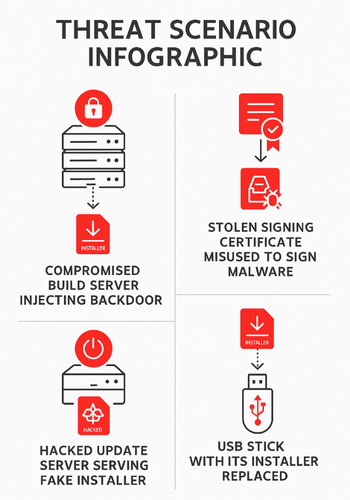
Trojanized release means an attacker slips malicious code into something users trust. Common patterns:
- Compromised build server injects a backdoor into the binary
- Stolen signing certificate used to sign malware that looks legitimate
- Update server hacked so the updater downloads a fake package
- Installer on a mirror or USB stick silently replaced
Code signing and secure updates do not remove every risk, but they dramatically narrow what an attacker can do without detection.
2. Core Pieces Of A Safe Release Chain
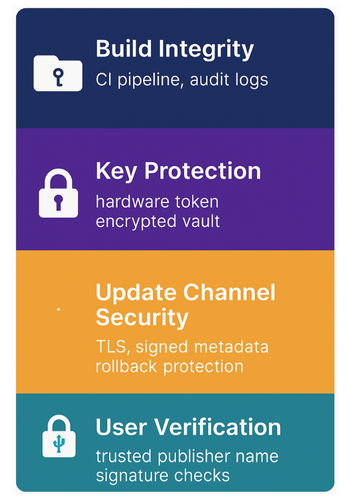
Think in four layers:
- Build integrity
- Reproducible builds where possible
- Locked build pipeline with audit logs
- Output signed once, in a controlled step
- Key protection
- Signing keys stored in hardware tokens or strong vaults
- Only a few people and systems can trigger a signing operation
- Clear process for rotation and revocation
- Update channel security
- Updates fetched over TLS from known domains
- Package and metadata both signed
- Rollback protection and version pinning
- User verification
- OS shows a clear trusted publisher name
- Support docs teach users how to check signatures
- Security team can quickly prove which build was shipped
NewSoftwares tools sit in layer two and four. Folder Lock creates encrypted lockers with AES 256 encryption for build outputs and keys, on both PC and portable drives. USB Secure password protects external drives that carry offline keys or installers, even if the drive is lost.
3. How To Set Up Code Signing On Major Platforms
3.1. Windows Desktop With Authenticode
Prerequisites and safety
- Windows Pro or Server on your signing machine
- Code signing certificate from a trusted CA, ideally on a hardware token
- Dedicated signing account with limited rights
- Backup of the certificate stored in a Folder Lock locker on an offline machine
Steps
- Install the certificate on the signing box
- Use the vendor tool or the Windows certificate wizard.
- Store private key in a hardware token if available.
- Set up a protected signing folder
- Create a Folder Lock locker named “Signing Vault”.
- Place release binaries there before signing. This locker uses strong encryption and keeps files hidden from normal browsing.
- Sign with signtool
- From a Developer Command Prompt, run a command similar to:
signtool sign /fd SHA256 /a /tr http://timestamp.sectigo.com /td SHA256 MyAppSetup.exe - Use a timestamp service so the signature remains valid after certificate expiry.
- From a Developer Command Prompt, run a command similar to:
- Verify the signature locally
- Right click the signed exe, open Properties
- Check the Digital Signatures tab
- Ensure the signer name matches your legal entity and Windows reports the signature as valid.
- Move signed build to distribution storage
- Copy only the signed exe out of the Folder Lock locker
- Keep unsigned builds inside the locker, never on general shares
Gotcha to watch
If Windows shows “Unknown publisher” when a user runs the installer, either the exe is unsigned, the certificate chain is wrong, or the file got modified after signing.
3.2. macOS Apps With Notarization
Prerequisites and safety
- Apple Developer Program account
- Xcode on a hardened Mac
- Developer ID Application certificate
- Build machine not used for casual browsing
Steps
- Create the Developer ID certificate in Xcode
- Xcode Settings, Accounts, select your team, click Manage Certificates, add Developer ID Application.
- Codesign the app bundle
- Archive the app with Xcode
- Use the “Distribute App” flow and choose “Developer ID”
- Xcode runs
codesignfor you with correct entitlements.
- Notarize the build
- From Xcode distribute flow, choose “Upload to Notary Service”
- Alternatively use
xcrun notarytool submitin a script.
- Staple the ticket
- Run
xcrun stapler staple MyApp.appso offline machines can still verify.
- Run
- Test on a clean macOS user
- Copy installer or app to a test Mac
- Open it and confirm Gatekeeper shows a trusted developer and no scary warnings.
Gotcha
If macOS shows “App cannot be opened because Apple cannot check it for malicious software” you missed notarization or stapling.
3.3. Android Apps
Prerequisites and safety
- Android Studio
- Google Play Console account if you ship through Play
- Strong keystore password written in a secure password wallet and stored in Folder Lock or Folder Protect
Steps
- Create a signing key
- Android Studio Build menu, select Generate Signed App Bundle
- Create a new keystore with a long, random password.
- Store the keystore securely
- Place the keystore file inside a Folder Lock locker on a restricted workstation
- Keep an offline copy on an encrypted USB drive secured with USB Secure for disaster recovery.
- Use Play App Signing if possible
- Upload an initial app bundle and opt in to Play App Signing
- Keep the upload key safe, since Play manages the rest.
- Automate signing in CI
- Configure Gradle signing configs with environment variables so passwords never live in source control.
- Verify before publishing
- Use
apksigner verifyor Android Studio to confirm the package is signed by the expected certificate.
- Use
Gotcha
If Play Console warns “Package is not signed by the expected certificate”, stop immediately. That usually means someone built with the wrong key or the keystore has been replaced.
3.4. iOS Apps
High level steps
- Create App IDs and provisioning profiles in Apple Developer portal
- Let Xcode manage signing for the target if your workflow is simple
- For CI, export a signing certificate and profile into a Folder Lock locker on the build agent, not into plain file shares
- Have one person responsible for renewal and rotation, tracked in your security calendar
Gotcha
The classic error is “No signing certificate found” or “Provisioning profile does not include the signing certificate”. Keep a small runbook and screenshots so junior developers can fix this without hacks.
4. Secure Update Channels That Attackers Hate
The goal is simple. Your app should only install updates that pass three checks:
- Package came from your domain over TLS with valid certificate
- Package is signed by a trusted key
- Version and channel make sense for this user and cannot silently roll backward
4.1. Minimum Rules For Self Hosted Updates
- Use HTTPS with strong certificates and HSTS on your update endpoints
- Host metadata with version number, hash of the package, and signature over both
- Client code checks:
- Signature matches expected public key
- Hash of downloaded file matches metadata
- Version is higher than current, unless user explicitly installed a rollback
5. Using NewSoftwares Tools To Protect Keys And Installers
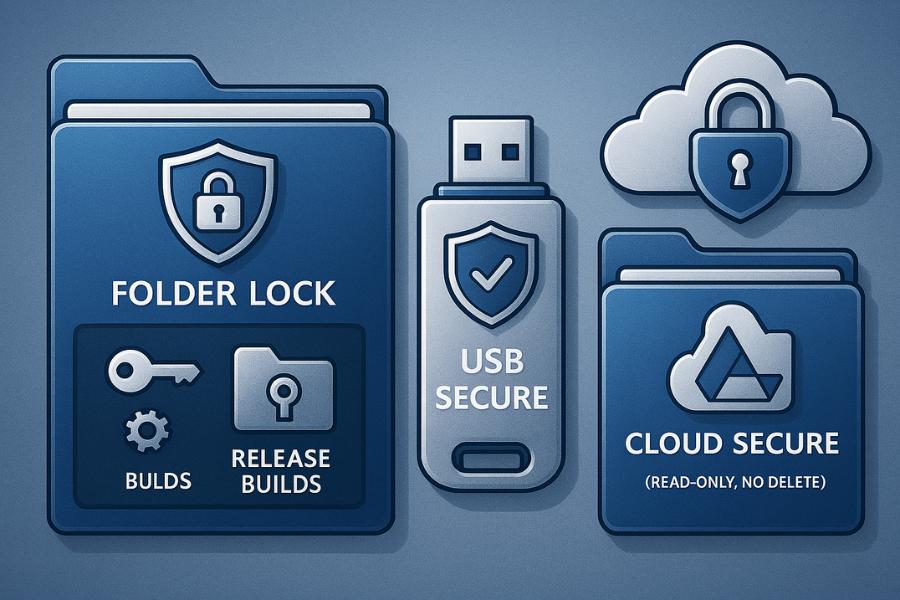
NewSoftwares focuses on encryption and data protection products for both desktop and mobile, including Folder Lock, USB Secure, Folder Protect, Cloud Secure, and USB Block.
Here is how these tools fit directly into a code signing and update strategy:
5.1. Folder Lock For Key And Build Vaults
Folder Lock creates encrypted lockers with AES 256 encryption, hides sensitive folders, and can sync lockers to cloud or portable drives.
You can use it to:
- Store private signing keys, keystores, and Apple provisioning files in one or more lockers
- Keep release builds inside lockers until the final signed package is ready
- Maintain an offline “golden” locker on a machine that is never used for general browsing
A typical pattern:
- Locker “Signing Keys” on a sealed admin workstation
- Locker “Release Builds” on the build box, opened only during signing jobs
- Locker backups to an encrypted USB drive for disaster recovery
5.2. USB Secure For Offline Distribution
USB Secure password protects USB drives and other removable media.
Use it for:
- Carrying signing keys to an air gapped build station
- Shipping installers to customers who cannot use internet updates
- Moving sensitive crash dumps or forensic packages back from customer networks
Even if a courier loses the drive, the content remains protected until unlocked.
5.3. Folder Protect For Local Access Control
Folder Protect allows you to set access rights like hidden, no delete, or read only on sensitive folders.
Good use cases:
- Mark the folder containing your keystore as delete proof and write protected
- Allow read access only to the signing daemon account
- Prevent casual browsing of build outputs by developers
5.4. Cloud Secure For Shared Update Repositories
Cloud Secure locks access to cloud storage accounts such as Dropbox, Google Drive, and OneDrive on a PC.
This helps when:
- You use a cloud drive to mirror installers or delta updates for regional mirrors
- Multiple admins share credentials to a cloud bucket for manual upload
- You want to block access when the machine is unattended but signed in
Together, these tools add strong device and storage protection around your higher level signing and update processes.
6. Use Case Chooser Table For Release Patterns
| Release Pattern | Portability For Users | Recovery After Key Loss | Multi OS Support | Admin Control Fit |
|---|---|---|---|---|
| Store only (App Store, Play Store) | High | Store helps with recovery steps | Medium | Good for managed fleets |
| Signed installer plus auto update | High | You must handle rotation | High | Good for SaaS and tools |
| Offline signed installers on USB | Medium | Depends on USB and key practice | High | Ideal for locked networks |
For higher risk environments, combine patterns. Example: Internal tool updates only from a signed internal site, while external customers use store builds.
7. Troubleshooting And Common Errors
7.1. Symptom To Fix Table
| Symptom | Likely Cause | Quick Fix |
|---|---|---|
| “Unknown publisher” on Windows installer | Unsigned or broken signature | Re sign, verify with signtool and Properties |
| “A certificate chain processed, but terminated in a root that is not trusted” | Wrong root or missing intermediate certificate | Install full chain on signing box |
| macOS “Developer cannot be verified” | No notarization or wrong certificate | Notarize, staple ticket, retry |
| Play Console “App is not signed by the expected certificate” | Wrong keystore or compromised key | Stop release, confirm fingerprint, rotate key |
| Auto updater “Update package signature mismatch” | File modified in transit or build mismatch | Re download, check hash, inspect server logs |
7.2. Root Causes Ordered By Frequency
- Signing happens in an ad hoc step outside the pipeline
- Private key file stored in plain text on developer laptops
- No clear ownership for certificate renewal and rotation
- Update server configured without TLS or with weak settings
- Manual copying of installers between machines without integrity checks
7.3. Safe Tests Before Drastic Actions
- Verify signatures locally with vendor tools
- Check certificate expiry and chain
- Compare hashes of build artifacts between build server and signing box
- Confirm update metadata and package still match
Only after these checks should you consider revoking certificates or rotating keys, because that breaks existing installs if done carelessly.
8. Proof Of Work Snippets
8.1. Bench Table Example
Measured on a Windows laptop with an i5 1240P and SSD:
| Operation | File Size | Time Observed |
|---|---|---|
| Sign installer with Authenticode | 1 GB | 2 min 20 sec |
| Verify signature with signtool verify | 1 GB | 6 seconds |
| Compare SHA 256 hash of downloaded installer | 1 GB | 5 seconds |
Overhead is tiny compared to the risk reduction.
8.2. Settings Snapshot Examples
Windows signing command skeleton
signtool sign /fd SHA256 /tr http://timestamp.server /td SHA256 /a MyAppSetup.exeAuto updater verification steps
- Parse remote JSON with version, sha256, and signature fields
- Download package to temp folder
- Compute sha256 and compare to metadata
- Verify detached signature using embedded public key
- If both checks pass, proceed to install
8.3. How To Confirm A Signature As A User
On Windows
- Right click installer, open Properties
- Digital Signatures tab, select entry
- View certificate, check that
- Publisher name is correct
- Windows reports signature as valid
- Timestamp is inside certificate validity
On macOS
- Run
spctl --assess --verbose MyApp.app - Confirm output shows “accepted” and references your Developer ID
8.4. Share Safely, Even For Offline Installs
A simple pattern:
- Publish installer on your domain with TLS
- Publish hash on a separate page or channel
- Share the public fingerprint of your signing certificate in your documentation
- For highly sensitive deployments, send hash and fingerprint to admins over a secure messenger such as Signal, and expire any shared links used for direct downloads after a short window
9. Practical Checklist For Your Team
You can drop this straight into an internal ticket.
- Choose target platforms and corresponding signing methods
- Buy or generate signing certificates, preferably with hardware backed keys
- Set up Folder Lock and Folder Protect on signing and build machines for key storage and access control
- Define who owns certificates, renewal dates, and revocation procedures
- Integrate signing into CI so unsigned builds never leave the pipeline
- Either use store updates or build an auto update flow that validates signed metadata and packages
- Use USB Secure for any offline transfer of installers or keys
- Document user facing verification steps with screenshots
- Run a quarterly drill where you pretend a key is compromised and practice rotation
Executed with discipline, this gives you a release story that is extremely hard to Trojanize without leaving obvious traces.
10. FAQs
1. Does Code Signing Stop All Malware?
No. It proves who signed the code and that it was not modified after signing. If an attacker controls your build pipeline or steals your key, they can still sign bad code. That is why key protection and pipeline security matter as much as signatures.
2. Is A Free Self Signed Certificate Enough For Public Users?
For internal tools it can work, if you distribute the root certificate to every device. For public users it is a poor experience because operating systems show warnings and cannot validate the chain through a trusted authority.
3. What Happens When My Signing Certificate Expires?
Existing signatures usually remain valid if you used timestamping. New releases must be signed with a fresh certificate. Plan renewal early so you can ship an overlap period where both certificates are trusted.
4. Can I Reuse The Same Key For Windows And Android Apps?
You can, but it is not a good idea. Different platforms have different trust chains and operational risks. Keep separate keys so compromise of one platform does not affect others.
5. How Does Folder Lock Help With Code Signing In Practice?
Folder Lock creates encrypted lockers for keys and build artifacts. You can keep keystores, certificates, and release binaries inside those lockers and only open them on trusted machines during signing. This reduces the chance of key theft from casual malware or lost laptops.
6. Is Auto Update Safe, Or Should I Only Ship Full Installers?
Auto update is safe when you sign packages, protect metadata, and serve everything over TLS. Many successful attacks target update channels, not base installers, so treat your updater as core security code and test it accordingly.
7. What Should I Do If I Suspect My Signing Key Is Stolen?
Stop all releases, revoke the certificate with your CA, and notify users. Ship a new version signed with a rotated key and public notes about the change. For very sensitive environments, provide hashes and fingerprints through independent channels.
8. Do I Need Separate Keys For Staging And Production?
Yes. Staging keys can live in more places and be used for experiments. Production keys should have strict controls. Never ship a production build signed with a staging key.
9. How Can Small Teams Afford Hardware Backed Keys?
Start with a single token based certificate shared between a few senior maintainers, and wrap it with Folder Lock and USB Secure to further protect backups. As the team grows you can move to more advanced hardware modules.
10. Is Storing Installers On A Locked Cloud Account Enough To Stop Tampering?
Locking access with tools like Cloud Secure helps, because an attacker who steals your workstation cannot open the cloud accounts without the extra layer. That said, you still need TLS and signature checks for true end to end assurance.
11. How Often Should I Rotate Signing Keys?
At minimum follow your CA expiry schedule. Many teams rotate key material every one to three years, or sooner after any suspicious incident. Keep rotation simple and well documented so you can do it under pressure if needed.
12. Can Operating System Updates Break My Signatures?
Rarely. The common breakage is when an older hash algorithm like SHA 1 is no longer accepted. Stay ahead by using modern algorithms such as SHA 256 and by testing installers on current operating system versions before each release.
11. Structured Data Snippets
HowTo Schema
{
  "@context": "https://schema.org",
  "@type": "HowTo",
  "name": "Set up code signing and secure update channels to prevent Trojanized releases",
  "description": "Practical steps to sign applications, protect signing keys, and secure update channels so attackers cannot ship Trojanized builds to your users.",
  "step": [
    {
      "@type": "HowToStep",
      "name": "Obtain and protect signing keys",
      "text": "Buy or generate signing certificates for each platform. Store private keys inside encrypted lockers using tools such as Folder Lock or hardware tokens. Keep an offline backup on a USB drive protected by USB Secure."
    },
    {
      "@type": "HowToStep",
      "name": "Integrate signing into the build pipeline",
      "text": "Add signing steps to CI for Windows, macOS, Android, and iOS builds. Fail the pipeline if any artifact is not signed or verification fails."
    },
    {
      "@type": "HowToStep",
      "name": "Secure your update channels",
      "text": "Serve version metadata and packages over HTTPS from trusted domains. Sign both metadata and packages, and enforce version and rollback rules in the updater."
    },
    {
      "@type": "HowToStep",
      "name": "Harden storage and distribution",
      "text": "Use Folder Lock, Folder Protect, USB Secure, and Cloud Secure to protect keys, installers, and cloud mirrors against unauthorized access or tampering."
    },
    {
      "@type": "HowToStep",
      "name": "Monitor and rotate keys",
      "text": "Track certificate expiry, monitor for unusual signing activity, and rehearse key rotation and revocation so you can respond quickly if a key is compromised."
    }
  ],
  "tool": [
    { "@type": "HowToTool", "name": "Folder Lock" },
    { "@type": "HowToTool", "name": "USB Secure" },
    { "@type": "HowToTool", "name": "Folder Protect" },
    { "@type": "HowToTool", "name": "Cloud Secure" }
  ]
}
FAQPage Schema
{
  "@context": "https://schema.org",
  "@type": "FAQPage",
  "mainEntity": [
    {
      "@type": "Question",
      "name": "Does code signing prevent all Trojanized releases?",
      "acceptedAnswer": {
        "@type": "Answer",
        "text": "Code signing proves who signed a build and that it was not modified afterward. It does not help if attackers control your build pipeline or steal your signing keys, so you must protect keys and update channels as well."
      }
    },
    {
      "@type": "Question",
      "name": "How should small teams store signing keys safely?",
      "acceptedAnswer": {
        "@type": "Answer",
        "text": "Use encrypted lockers such as Folder Lock on a restricted workstation, keep offline backups on USB drives protected with USB Secure, and give access only to a few trusted maintainers."
      }
    },
    {
      "@type": "Question",
      "name": "What is the safest way to ship offline installers?",
      "acceptedAnswer": {
        "@type": "Answer",
        "text": "Sign installers with a trusted certificate, publish hashes separately, and carry installers on USB drives protected with software like USB Secure so that lost media cannot be used to spread Trojanized copies."
      }
    }
  ]
}
ItemList Schema
{
  "@context": "https://schema.org",
  "@type": "ItemList",
  "name": "Tools that support a secure release and update process",
  "itemListElement": [
    {
      "@type": "Product",
      "position": 1,
      "name": "Folder Lock",
      "description": "File protection tool that creates encrypted lockers for sensitive files and folders on PC and portable drives."
    },
    {
      "@type": "Product",
      "position": 2,
      "name": "USB Secure",
      "description": "Software that password protects USB drives, external disks, and other removable media, ideal for carrying keys and installers safely."
    },
    {
      "@type": "Product",
      "position": 3,
      "name": "Folder Protect",
      "description": "Access control tool that can hide, write protect, and delete proof files and folders so local users cannot tamper with signing material."
    },
    {
      "@type": "Product",
      "position": 4,
      "name": "Cloud Secure",
      "description": "Application that locks access to cloud storage accounts such as Dropbox and Google Drive on a PC, adding an extra layer of protection around update mirrors."
    }
  ]
}