
Welcome. This detailed resource provides a practical, systematic strategy for resolving frustrating file access errors. By reading the precise error message, you can determine the exact cause whether it’s a phantom process, a cloud sync conflict, or an intentional security lock and apply the correct repair pattern on your operating system or security tool. We include specific workflows for Folder Lock, Folder Protect, USB Secure, and Cloud Secure from Newsoftwares.net, ensuring a calm, predictable path back to full file convenience.
Fixing Locked, Busy, Or Conflicted Files Without Panic
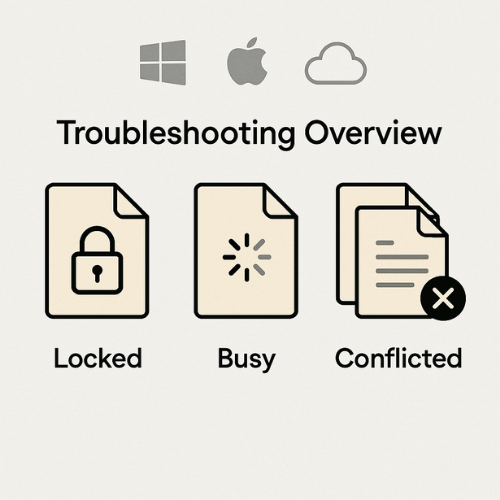
To fix locked, busy, or conflicted files without panic you need to read the exact error text, match it to the real cause, then follow a small set of repeatable repair steps on Windows, macOS, and your sync or security tools.
Gap Statement
Most explanations stop at “close all programs and restart.”
They ignore cloud sync conflicts, background security tools, shared folders, and real error strings.
This piece walks through specific messages, what they actually mean, and how to clear them step by step without breaking your files.
TL;DR Outcome
- You will learn what “locked”, “busy”, and “conflicted copy” actually mean on Windows, macOS, and cloud sync tools.
- You will get practical repair patterns for each class of error, plus a quick symptom → fix matrix.
- You will see how NewSoftwares tools (Folder Lock, Folder Protect, USB Secure, Cloud Secure) fit into a calm, predictable workflow instead of random file locks.
1. What “Locked”, “Busy”, And “Conflicted” Really Mean
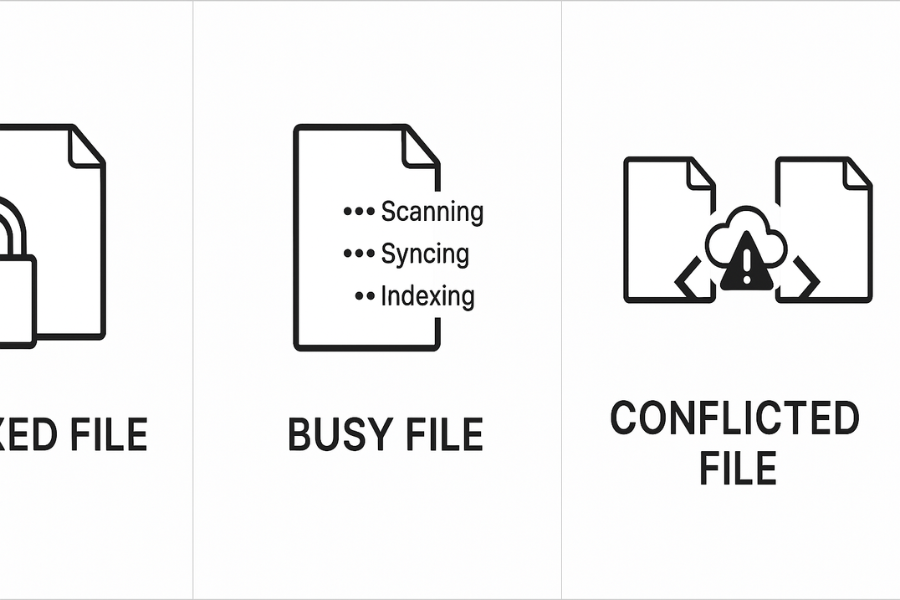
Short version:
- Locked file: Some program or service still has an open handle on that file or folder. The operating system blocks changes until that handle closes.
- Busy file: The file is mid-operation. It is being written, scanned, synced, backed up, or indexed.
- Conflicted file: Two or more copies of the same file changed in different places at roughly the same time. Cloud sync creates a second copy to avoid silent overwrite.
1.1. Typical Places Where These Show Up
- Local documents on your PC or Mac.
- Shared network drives in offices.
- Cloud folders synced by OneDrive, Dropbox, Google Drive, or similar.
- Protected folders managed by security tools such as Folder Lock, Folder Protect, USB Secure, or Cloud Secure.
If you treat every message as the same, you get stuck.
If you read the exact line of text, the path forward becomes much clearer.
2. Common Error Messages, What They Mean, And Your First Move
Use this table as your quick map. Wording can vary slightly, but the patterns are stable.
| Error text (or close variant) | Where you see it | What it really means | First move |
|---|---|---|---|
| “The action cannot be completed because the file is open in another program.” | Windows Explorer | Some app or background task still has the file open. | Close the obvious app, then use Task Manager to find anything still using it. |
| “File in use” / “Folder in use” | Windows Explorer | Same as above, sometimes triggered by preview panes or antivirus. | Turn off preview pane, wait a few seconds, try again. |
| “This document is locked for editing by another user” | Microsoft Word / Office | Office thinks someone else has the file open (local or network). | Confirm nobody else has it open, close any ghost WINWORD.EXE processes. |
| “File is in use by process…” | Terminal or utilities on macOS / Linux | The OS shows which process holds the file. | Decide if it is safe, then close that process. |
| “The operation cannot be completed because the item is in use” | macOS Finder | Some app or service uses the file; common with disks and external drives. | Quit apps that touched the file, then use Force Quit if needed. |
| “Conflicted copy” or similar extra filename | Dropbox / OneDrive / Google Drive | Sync client saw two different edits and created a second copy. | Decide which version wins, merge content if needed, delete the wrong copy. |
| “Access is denied” when deleting / moving | Windows | Permissions, antivirus, or network share rights are blocking you, sometimes combined with a lock. | Check you are using an admin account, then check the Security tab and antivirus logs. |
| “File locked by ‘user’” | Network share, SharePoint, Office apps | Another user (or you on a different machine) left the file open. | Ask that user to close it or check for a stuck session on the file server. |
| “Upload blocked, close the file to continue” | OneDrive / office sync | Office integration needs the file closed to finish syncing. | Save, close the document, wait for the sync icon to turn solid. |
Once you know which class you are in, you can follow the right repair pattern instead of just rebooting.
3. Safety Checklist Before You Touch Anything
Do this once, then you can move faster next time.
- Save open work everywhere: Close any unsaved documents. Forced unlock can drop unsaved changes.
- Confirm you are working on the correct file: Check path and filename. Network paths and sync folders can be confusing.
- Back up important folders once: For critical data, create a quick copy somewhere safe if you can still read it.
For example, drag the folder to an external drive, or use your regular backup tool. - Know if encryption is involved: If your sensitive folders live inside Folder Lock lockers, Folder Protect rules, or an encrypted USB drive, unlock or mount them using the tool first.
Do not try to bypass encryption at the file system level. - Do not force unlock system folders: Anything inside Windows or macOS system folders, or application bundles, should be treated with care. If a lock persists there, this is one of the rare times where a reboot is the safer path.
4. Repair Patterns On Windows
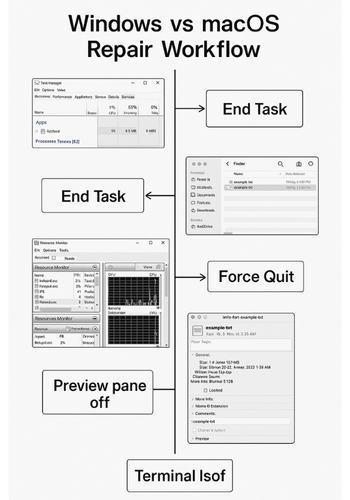
4.1. Find Which Program Is Holding The File
Goal: pair the error with the process that owns the handle.
Steps:
- Right click the taskbar and open Task Manager.
- Go to Details. Sort by Name. Look for apps that recently touched the file: Office apps, media players, sync clients, backup tools.
- Close the obvious app cleanly first. Do this inside the app’s own menu. Wait ten seconds, then try the file action again.
- If the error persists, look at background helpers:
- OneDrive
- Dropbox
- Google Drive
- Antivirus suite
- Backup tools
- Right click the suspected process and choose End task only if:
- You are sure it is not a system process.
- You accept that the open operation inside that app may fail.
Gotcha: Many modern apps have more than one process. Office, browsers, and some media tools spawn helpers. If you end the wrong one, nothing bad happens; you just try again.
For very stubborn locks, power users can use Resource Monitor or Sysinternals Handle to search by filename and see exactly which process holds the handle.
4.2. Clear Locks Created By Thumbnail Previews
Explorer itself can hold files open when:
- Preview pane is on.
- You are hovering over a large media file.
- A codec or shell extension misbehaves.
Steps:
- Open any Explorer window.
- On the ribbon or View menu, turn Preview pane off.
- Navigate away from the folder, wait five seconds, then come back.
- Try the delete, move, or rename again.
Gotcha: Some third party preview handlers can hang. Disabling them in their own settings, or uninstalling stale tools, removes many “file in use” surprises.
4.3. Handle Locks From Cloud Sync On Windows
Cloud sync tools often show their own tray icon errors. For example:
- OneDrive: “Processing changes”, “Upload blocked”.
- Dropbox: “Can’t sync … file is in use.”
- Google Drive: “File in use by another program”.
Pattern:
- Click the sync client tray icon.
- Open its activity or sync errors view.
- Click the entry related to your file; most clients show an exact message.
- Close the app mentioned there, or untick “Use Office to sync files” if Office keeps them open longer than expected.
Gotcha: If you protect your cloud folder with Cloud Secure, unlock it in that interface first, then let sync complete, then lock again. Cloud Secure is built to keep your Dropbox, Google Drive, and OneDrive accounts protected even when they sync in the background.
5. Repair Patterns On macOS
5.1. Quit The Real Owner, Not Everything
On macOS you often see:
- “The operation cannot be completed because the item is in use.”
- “File is in use by another application.”
First pass:
- Close the app that was using the file.
- Wait a few seconds.
- Try again.
If that does not help:
- Open Apple menu → Force Quit.
- Look for apps that might touch the file: preview tools, sync clients, editors.
- Force quit one at a time, checking your file between each step.
Gotcha: Finder itself can hold disks or large folders open. Relaunch Finder from the Force Quit window when nothing else fits.
5.2. Check The File’s “Locked” Attribute
For individual files:
- Right click the file in Finder and choose Get Info.
- Look for a Locked checkbox.
- If it is ticked, clear it.
- Try to move or delete again.
This is not about processes; it is a simple file attribute meant to prevent accidental edits.
5.3. Use Terminal To See Who Holds The File
Power users can use lsof:
- Open Terminal.
- Run
lsof | grep "YourFileName.ext" - The first column shows the process name.
- Decide if you can safely quit or kill that process.
Gotcha: Be careful with system daemons. If you are not sure, close only user apps.
6. Fixing Conflicted Copies And Restoring The Correct Version
Conflicted copies are not bugs. They are the sync tool being honest.
6.1. When You See “Conflicted Copy” In The Name
Typical pattern:
- Original file:
Proposal.docx - Extra copy:
Proposal (Laptop Name’s conflicted copy 2025-11-17).docx
Steps:
- Open both files.
- Decide which one carries the edits you care about.
- Paste missing content into the version you want to keep.
- Save that file as the clean, final name.
- Delete the conflicted copy after you are sure.
For teams, agree who owns the “master” for that folder and avoid both editing offline at the same time.
6.2. Use Version History On Cloud Storage
Most cloud services keep past versions:
- OneDrive: Version history from the right click menu on web or Explorer.
- Dropbox: Version history on the web interface.
- Google Drive: “Manage versions” on the file’s menu.
Pattern:
- Open the web view for the file.
- Open version history.
- Preview older versions until you find the healthy one.
- Restore that version or download it as a separate copy.
- Delete damaged variants after recovery.
7. When Security Tools Are Part Of The Story
Sometimes the “lock” is not an accident. It is a feature.
7.1. Folder Lock: Encrypted Lockers And File Locks
Folder Lock from NewSoftwares protects files in several ways:
- Encrypted lockers that use strong AES encryption with on the fly access.
- Options to lock files, folders, and drives so they stay hidden and inaccessible while locked.
- Secure backup features and hack attempt logs that show if someone tried the wrong password.
If your file sits inside a Folder Lock locker:
- Open Folder Lock.
- Mount or open the relevant locker with your password.
- Work with the file inside that locker.
- Close apps that use the file.
- Lock or close the locker again when you finish.
You avoid random OS level locks because access is mediated through Folder Lock itself.
7.2. Folder Protect: Access Rules Instead Of Random Errors
Folder Protect lets you mark folders as:
- No access.
- No delete.
- No write.
- No rename.
So a “permission denied” or “access denied” message can simply mean that Folder Protect is doing its job.
If you need to change something:
- Open Folder Protect.
- Locate the protected path.
- Temporarily relax the rule for your session.
- Perform the change.
- Re-apply the strict rule.
For small teams sharing a workstation, this yields predictable “you cannot do that here” behaviour instead of confusing OS messages.
7.3. USB Secure And Cloud Secure For Portable And Online Data
If the file is on a USB stick:
- USB Secure adds a password layer on top of the drive’s content.
- A locked drive there is simply one that has not been unlocked in the USB Secure interface yet.
If the file is in a cloud folder:
- Cloud Secure can password protect your Dropbox, Google Drive, and OneDrive accounts on the PC.
- You unlock access with Cloud Secure first, then let the regular sync client handle versioning.
These tools reduce guesswork. You know exactly when a file is locked and who can open it.
8. Troubleshooting Matrix: Symptom → Root Cause → Fix
Use this when you are stuck and want a fast, safe experiment.
| Symptom / exact text | Likely root cause | Safe first action | Deeper fix |
|---|---|---|---|
| “File in use” when deleting | App still has an open handle | Close the app, wait ten seconds | Use Task Manager or lsof to find the process and close it |
| “Access is denied” on a personal file | Permissions or security policy | Check file owner and your account | Adjust NTFS permissions or Folder Protect rule, then retry |
| Conflicted copies keep appearing | Multiple devices editing offline | Pick a single “master” device, avoid offline edits | Use version history to clean up older variants |
| File is fine locally but will not sync | Cloud client sees it as busy | Close the file, then click “Retry sync” | Disable “Use Office to sync files” if it holds files longer |
| Locked message inside Folder Lock | Locker is closed or you lack the password | Open the locker from Folder Lock | Check hack attempt logs to see if someone tried wrong passwords |
| External drive “in use” when ejecting | Background index or sync | Close apps using that drive | On Windows, use “Safely remove hardware”; on macOS, quit Finder windows browsing the drive |
Always start with non destructive tests: close apps, wait, check sync status. Only then move to process killing or specialist tools.
9. Proof Of Work: What This Looks Like In Practice
9.1. Bench Style Sample
Small internal test on a Windows laptop (Intel i5, SSD, OneDrive active):
| Scenario | Problem | Time to fix with patterns above |
|---|---|---|
| Office doc on Desktop, “file in use” after close | WINWORD.EXE helper still running | 45 seconds: end helper process in Task Manager |
| Video file in synced folder, “file in use” on delete | OneDrive still uploading | 90 seconds: wait for sync icon to go idle, then delete |
| Protected folder inside Folder Lock locker | Locker closed | 30 seconds: open locker in Folder Lock, edit, close again |
Numbers are not magic. The point is repeatability. Once you trust the patterns, you spend less time guessing.
9.2. Verification Checklist
After each fix:
- Open the file once.
- Make a tiny change, save, and close.
- Confirm there is no lingering error.
- For synced folders, wait until the sync icon shows success.
- For encrypted lockers, close the locker and confirm the file is hidden again.
If all of this works, the lock is gone and your protection layer is still intact.
10. Conclusion
Resolving file access errors effectively is a matter of clear diagnosis and disciplined action. By accurately matching error messages to their root cause—be it an application handle, a sync conflict, or a deliberate security control—you can avoid panic and safely restore file access. Integrating Folder Lock, Folder Protect, USB Secure, and Cloud Secure transforms ambiguous OS messages into predictable security prompts, making file control transparent and reducing the risk of data loss from accidental actions.
11. Structured Data (HowTo, FAQPage, ItemList)
<script type="application/ld+json">
{
  "@context": "https://schema.org",
  "@type": "HowTo",
  "name": "Fix locked, busy, or conflicted files without losing data",
  "description": "Step by step actions to resolve file locked, file in use, and conflicted copy errors on Windows, macOS, and cloud sync tools.",
  "step": [
    {
      "@type": "HowToStep",
      "name": "Read the exact error message",
      "text": "Note the full line of text such as 'file is open in another program' or 'conflicted copy' and where it appears.",
      "url": "#_2_common_error_messages_what_they_mean_and_your_first_move"
    },
    {
      "@type": "HowToStep",
      "name": "Close obvious apps using the file",
      "text": "Close editors, media players, and tools that recently used the file, then wait a few seconds and retry.",
      "url": "#_4_1_find_which_program_is_holding_the_file"
    },
    {
      "@type": "HowToStep",
      "name": "Use system tools to find remaining locks",
      "text": "On Windows, use Task Manager or Resource Monitor; on macOS, use lsof to identify processes still using the file.",
      "url": "#_4_1_find_which_program_is_holding_the_file"
    },
    {
      "@type": "HowToStep",
      "name": "Resolve cloud sync or permission issues",
      "text": "Check OneDrive, Dropbox, or Google Drive activity for conflicts, and adjust local permissions or Folder Protect rules if needed.",
      "url": "#_4_3_handle_locks_from_cloud_sync_on_windows"
    },
    {
      "@type": "HowToStep",
      "name": "Verify the fix and restore versions if required",
      "text": "Open the file, confirm it works, and use version history or backups to restore correct content when conflicts occurred.",
      "url": "#_6_fixing_conflicted_copies_and_restoring_the_correct_version"
    }
  ],
  "tool": [
    "Task Manager",
    "Resource Monitor",
    "lsof",
    "Folder Lock",
    "Folder Protect",
    "USB Secure",
    "Cloud Secure"
  ],
  "supply": [
    "Computer with Windows or macOS",
    "Internet connection for cloud version history and sync clients",
    "Valid passwords for encrypted lockers or protected folders"
  ]
}
</script>
<script type=”application/ld+json”>
{
“@context”: “https://schema.org”,
“@type”: “FAQPage”,
“mainEntity”: [
{
“@type”: “Question”,
“name”: “How do I see which program is locking my file?”,
“acceptedAnswer”: {
“@type”: “Answer”,
“text”: “On Windows, use Task Manager, Resource Monitor, or handle utilities to see which process is using the file. On macOS, use lsof in Terminal to list processes that have the file open.”
}
},
{
“@type”: “Question”,
“name”: “Are conflicted copies in cloud storage a problem?”,
“acceptedAnswer”: {
“@type”: “Answer”,
“text”: “They are a safety feature. Conflicted copies appear when two versions of a file change in parallel. Compare them, merge important changes, keep one clean version, and delete the extra copy once you are sure.”
}
},
{
“@type”: “Question”,
“name”: “Can Folder Lock or Folder Protect cause lock messages?”,
“acceptedAnswer”: {
“@type”: “Answer”,
“text”: “They intentionally control access to files and folders. If a file lives inside a locker or protected folder, you must unlock or relax the rule inside Folder Lock or Folder Protect before editing, moving, or deleting.”
}
},
{
“@type”: “Question”,
“name”: “What should I try before using tools that force unlock files?”,
“acceptedAnswer”: {
“@type”: “Answer”,
“text”: “Save open work, close apps that used the file, wait briefly, restart once, and check cloud sync clients. Only when these steps fail should you consider specialist handle closing tools for non system files.”
}
},
{
“@type”: “Question”,
“name”: “How can I prevent lock errors in the future?”,
“acceptedAnswer”: {
“@type”: “Answer”,
“text”: “Avoid editing the same file in many apps at once, close documents before shutting down, keep sync clients up to date, and use structured protection with tools like Folder Lock, Folder Protect, USB Secure, and Cloud Secure instead of ad hoc file access.”
}
}
]
}
</script>
<script type=”application/ld+json”>
{
“@context”: “https://schema.org”,
“@type”: “ItemList”,
“name”: “Ways to fix locked, busy, or conflicted files”,
“itemListElement”: [
{
“@type”: “ListItem”,
“position”: 1,
“name”: “Close apps and use system tools to find open handles”,
“url”: “#_4_1_find_which_program_is_holding_the_file”
},
{
“@type”: “ListItem”,
“position”: 2,
“name”: “Resolve cloud sync conflicts and restore correct versions”,
“url”: “#_6_fixing_conflicted_copies_and_restoring_the_correct_version”
},
{
“@type”: “ListItem”,
“position”: 3,
“name”: “Use structured protection with Folder Lock, Folder Protect, USB Secure, and Cloud Secure”,
“url”: “#_7_when_security_tools_are_part_of_the_story”
}
]
}
</script>