
Password Forgotten? A Legitimate Owner’s Overview to Recovering Encrypted ZIP and PDF Files
This guide provides legitimate, step-by-step methods for you, the file owner, to regain access to your password-protected ZIP and PDF files. These tutorials are designed to help you recover your essential data without compromising its integrity or resorting to questionable tactics.
- Learn to differentiate between weak file protection and strong cryptographic encryption.
- Follow detailed tutorials to use legitimate recovery tools on files you own.
- Understand best practices to prevent losing access to your critical files in the future.
These methods are exclusively for owners recovering their own data. Attempting to access files you do not own can have severe legal consequences. The first and most essential step is always establishing your right to recover the file.
Before You Begin: Establishing Digital Provenance

Why Provenance Matters: Establishing Your Right to Recover
Before attempting to open a locked file, you must confirm you are the rightful owner. This concept is known as “digital provenance”the verifiable history of a digital file’s creation, modification, and ownership. Password recovery tools are powerful and, in the wrong hands, can be used for unauthorized access. By first gathering proof of ownership, you establish an ethical foundation for your recovery attempt. This process is not just about legal or ethical lines, it is also a practical first step. Recalling the context of a file’s creationthe project it was for, who you sent it to, the date it was madecan often trigger your memory of the password itself.
Gathering Your Evidence: A Checklist for Proving Ownership
Use this checklist to gather evidence that you are the file’s legitimate owner. This process can help you recall password details and provides a record of ownership.
- File Metadata: Check the file’s properties for the creation date, last modified date, and author information. While this data can be altered, it is a strong starting point.
- Email Chains: Search your email for the message where the file was originally sent or received. Email records contain difficult-to-forge timestamps and sender/recipient data that provide powerful context.
- Drafts and Version History: Look for earlier versions or drafts of the file on your computer or in cloud storage. These demonstrate a timeline of creation and prove your involvement.
- Cloud Storage and Backup Logs: Check the version history in services like Dropbox or Google Drive. These logs often show who created or last modified the file and when.
- Digital Signatures and Watermarks: If the file was digitally signed or watermarked, this provides strong cryptographic proof of its origin.
- Witness Corroboration: If the file was for a team project, colleagues who saw you create or use it can confirm your ownership.
Know Your Lock: A Guide to File Protection Types
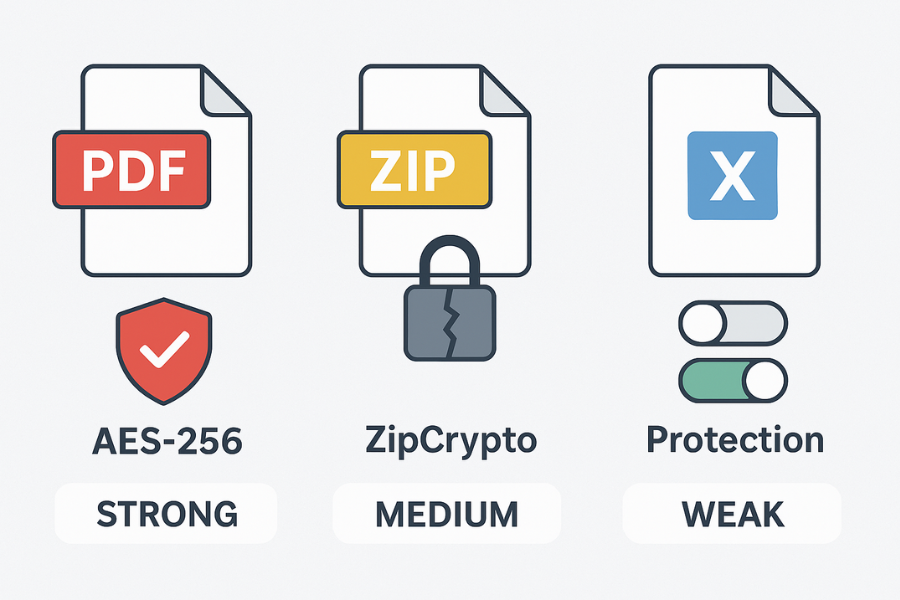
Not all passwords are created equal. The term “password-protected” can mean anything from a simple deterrent to military-grade encryption. Identifying the type of lock on your file is the most important step, as it determines which recovery method will work.
| Protection Type | What It Does | Security Level | Easiest Recovery Path |
| PDF “User” (Open) Password | Encrypts the entire file with AES-256. Required to open. | Strong | Password recovery attack (Dictionary, Mask). |
| PDF “Owner” (Permissions) Password | Restricts actions like printing/editing after opening. | Weak | Removable instantly with a browser’s “Save as PDF” function. |
| ZIP (AES-256) | Encrypts file contents with AES-256. Used by 7-Zip, WinRAR. | Strong | Password recovery attack (Dictionary, Mask). |
| ZIP (Legacy ZipCrypto) | Encrypts file contents with an outdated, weak algorithm. | Very Weak | Can be broken quickly with modern recovery tools. |
| Excel/Word File Encryption | Encrypts the entire file with AES-256 (modern versions). | Strong | Password recovery attack (Dictionary, Mask). |
| Excel Sheet/Workbook Protection | Prevents accidental edits to cells or structure. Not encryption. | Very Weak | Bypassable by editing the file’s internal XML. |
Understanding File-Specific Protection
PDF Passwords: The Critical Difference Between “Owner” and “User”
PDF files can have two types of passwords, and knowing the difference is key to recovery.
- A User Password (also called a “Document Open” password) encrypts the file’s contents. You cannot view the document without this password. This is a strong form of protection, typically using AES-256 encryption.
- An Owner Password (also called a “Permissions” password) restricts actions like printing, copying, or editing after the file is already open. This is a weaker form of protection because it relies on the PDF viewing software to enforce the restrictions.
Many online “PDF unlocker” tools only work on the Owner password. If a file has an Owner password but no User password, its restrictions can often be removed instantly.
ZIP Archives: Legacy ZipCrypto versus Modern AES-256
The security of a ZIP archive depends entirely on the tool used to create it.
- Legacy ZipCrypto: This is the original encryption method for ZIP files. It is fundamentally weak and can be broken by modern password recovery tools in a short amount of time, even with a strong password. You should never use it for sensitive data.
- AES-256: Modern archiving tools like 7-Zip and WinRAR use the Advanced Encryption Standard (AES-256). This is the same encryption standard used by governments and is considered unbreakable with current technology. If a file is encrypted with AES-256, the only way to recover it is to guess the correct password.
Metadata Leakage: A major weakness of the standard ZIP format is that it does not encrypt filenames. For better security, use the 7z format with 7-Zip or the Encrypt file names option in WinRAR, which hides the file list until the correct password is entered.
A Note on Microsoft Office: File Encryption versus “Sheet/Workbook Protection”
Microsoft Office applications like Excel have different levels of protection that are often confused.
- Sheet/Workbook Protection: Found under the Review tab, this is designed to prevent accidental changes. Microsoft explicitly states this is not a security feature. This protection can be easily removed without the password.
- File Encryption: Found under File > Info > Protect Workbook > Encrypt with Password, this feature locks the entire file using strong AES-256 encryption in modern Office versions. Recovering this requires the same cryptographic guessing techniques as a secure ZIP or PDF file.
Legitimate Recovery Methods: Step-by-Step Tutorials
These methods are for file owners to regain access to their own data. Always work on a backup copy of your file to prevent accidental data loss.
Method 1: Removing PDF Permissions (Owner Password)
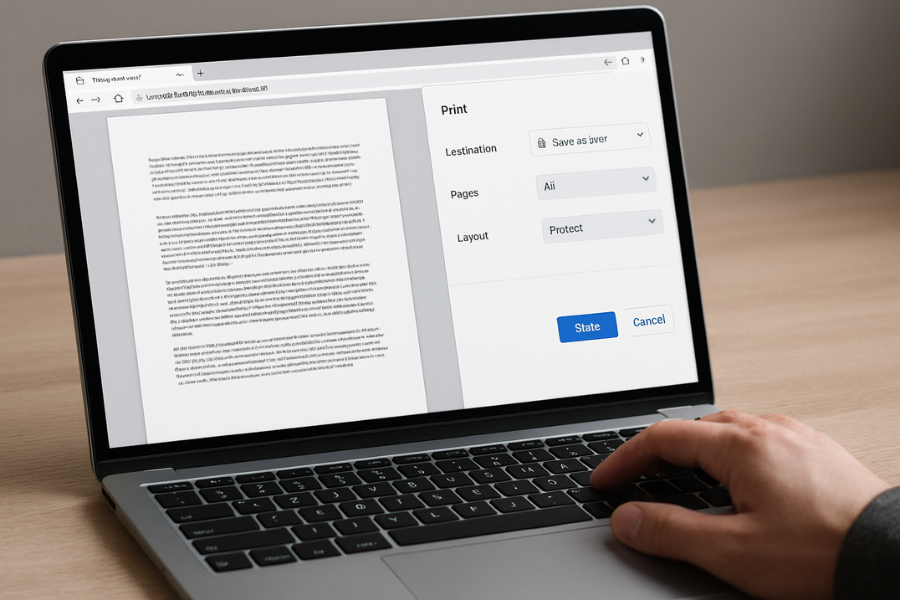
This method works if you can open a PDF but cannot print, copy, or edit it because you have forgotten the permissions (Owner) password.
Outcome: Create a new, unrestricted copy of a PDF that you can already open.
Prerequisites: You must know the User (open) password, or the PDF must not have one.
Steps:
- Open the PDF: Open your password-protected PDF file in a web browser like Google Chrome or Microsoft Edge. Enter the User password if prompted.
- Use the Print Function: Click the “Print” icon in the browser’s PDF viewer.
- Change the Destination: In the print dialog, change the “Destination” printer to Save as PDF or Microsoft Print to PDF.
- Save the New File: Click Save and choose a name and location for the new file. This new PDF is a clean copy with no password restrictions.
- Gotcha: This process creates a “flattened” version of the PDF. Interactive elements like form fields, comments, and digital signatures may be lost.
- Verify It Worked: Open the newly saved PDF. You should be able to select and copy text, and the “Print” option should be fully available.
Method 2: Bypassing Excel Sheet/Workbook Protection (XML Edit)
This technique removes the password from a protected worksheet or workbook structure. It does not work for files encrypted via File > Encrypt with Password.
Outcome: Remove editing restrictions from an Excel worksheet or workbook without knowing the password.
Prerequisites: Your file must be in a modern format (.xlsx or .xlsm).
Steps:
- Create a Backup: Make a copy of your Excel file before you begin.
- Change File Extension: In File Explorer, enable File name extensions under the View tab. Right-click your backup file and rename it, changing the extension from
.xlsxto .zip. Confirm the change when Windows warns you. - Explore the Archive: Open the
.zipfile with File Explorer or a tool like 7-Zip. - Locate the XML File:
- For worksheet protection, navigate to the
xl\worksheets\folder. You will see files likesheet1.xml,sheet2.xml, etc. - For workbook structure protection, navigate to the
xl\folder and find theworkbook.xmlfile.
- For worksheet protection, navigate to the
- Edit the XML: Drag the relevant XML file out of the zip archive to your desktop. Right-click it and choose Open with > Notepad.
- Remove the Protection Tag:
- For worksheet protection, press Ctrl+F and search for
<sheetProtection. Carefully select and delete the entire tag, starting from<sheetProtectionand ending with the corresponding/>. - For workbook protection, search for and delete the entire
<workbookProtection... />tag.
- For worksheet protection, press Ctrl+F and search for
- Save and Update: Save the changes in Notepad. Drag the modified XML file back into its original folder inside the zip archive, choosing to Copy and Replace the old file.
- Revert to Excel File: Close the zip archive and rename the file’s extension from
.zipback to .xlsx.- Gotcha: If you delete the wrong part of the XML file, the Excel file may become corrupted. This is why working on a backup is essential.
- Verify It Worked: Open the new
.xlsxfile. You should now be able to edit the previously protected cells or modify the workbook structure without a password prompt.
Method 3: Password Recovery for Strongly Encrypted Files (AES-256 ZIP/PDF)
When a file is protected with strong encryption like AES-256, the encryption itself cannot be broken. The only way to gain access is to find the original password. Password recovery tools automate the process of guessing, using clues that you provide.
Introduction to “Self-Recovery” Attacks
These are guided techniques to help you reconstruct your own forgotten password.
- Dictionary Attack: This is the most effective method for owners. You create a text file containing words and phrases you might have used (old passwords, names, dates, project names). The software then tries every word on this list.
- Mask Attack: This is for when you remember parts of the password. You define a pattern, or “mask,” for the software to follow. For example, if you know the password was a capital letter, followed by four numbers, and ended with “!”, the mask would specify that structure, drastically reducing the number of possibilities.
- Brute-Force Attack: This is the last resort. The software tries every possible combination of characters. For a long, complex password, this is impractical, potentially taking decades or centuries.
Tutorial: Using Passware Kit for Guided Recovery
Passware Kit is a user-friendly forensic tool ideal for guided recovery attacks. A demo version is available for testing.
Prerequisites: Install Passware Kit from the official website. Have a backup of your encrypted ZIP or PDF file ready.
Steps:
- Load the File: Launch Passware Kit. Click Recover File Password and select your locked file.
- Choose Your Strategy: On the next screen, select Customize Settings.
- Set up a Dictionary Attack: Click the + button and choose Dictionary. Use the Dictionary Manager to add a custom dictionary. Create a simple
.txtfile with any passwords, names, dates, or phrases you might have used.- Gotcha: The power of this attack comes from your personal wordlist. A generic dictionary is unlikely to contain your specific password.
- Set up a Mask Attack (Optional): Click + and choose Mask. Use the “Pattern” field to define the password structure. Common symbols are
?c(lowercase letter),?C(uppercase letter), and?d(digit). - Run the Recovery: Arrange your attacks from most likely to least likely. Click Recover to begin. The process time depends heavily on your computer’s hardware, especially its GPU.
- Verify It Worked: When successful, Passware Kit will display the recovered password. Use this to open your file.
For Advanced Users: An Overview of Hashcat and John the Ripper
For maximum performance, professionals use command-line tools like Hashcat and John the Ripper. These require technical skill but offer greater speed, especially with powerful GPUs.
- Extract the Hash: Use a companion utility (like
zip2johnfor ZIP files) to extract the encrypted password hash from the file. - Crack the Hash: Run the main program against the extracted hash file, specifying the attack mode (e.g., dictionary attack).
Troubleshooting Common Recovery Issues
| Symptom / Error Message | Probable Cause(s) | First-Step Solution |
| “Data Error,” “Unexpected end of archive,” or “file is corrupt” | The file was damaged during download, transfer, or due to a failing storage drive. | Try downloading or copying the file again from its source. Use a different extraction tool (like 7-Zip) that may be more tolerant of errors. |
| “Access is denied” | The recovery software does not have permission to read the file. | Right-click the recovery software’s icon and select Run as administrator. |
| Recovery software runs extremely slowly | The password is very complex, or the file uses a strong Key Derivation Function (KDF) with many iterations. | Narrow your attack parameters (e.g., use a more specific mask). Ensure GPU acceleration is enabled in the software’s settings. |
| Antivirus flags the recovery tool as “malware” or a “PUP” | Heuristic analysis detects password-cracking behavior (a false positive). | Ensure you downloaded the tool from the official vendor. Add a temporary exception for the tool’s executable file in your antivirus settings. |
| “The volume header is corrupt” | The encrypted file’s header, which contains decryption information, is damaged. | Use the tool’s built-in header recovery feature. For VeraCrypt, this is Tools > Restore Volume Header. |
Best Practices: How to Avoid Future Lockouts
The best recovery method is prevention. Follow these steps to ensure you never lose access to your important files again.
- Use a Password Manager: This is the most effective solution. Generate long, random, and unique passwords for your encrypted files and store them securely in a reputable password manager.
- Back Up Your Keys and Certificates:
- For Windows EFS, you must back up your encryption certificate. Use the Certificate Manager (
certmgr.msc) to export your certificate as a.pfxfile and store it in multiple safe locations. - For BitLocker, always save your recovery key. Store it in your Microsoft account and save it to a separate USB drive.
- For Windows EFS, you must back up your encryption certificate. Use the Certificate Manager (
- Standardize Your Tools: Choose one reliable encryption tool, like 7-Zip with AES-256 and filename encryption, and use it consistently. This avoids confusion about which tool or password protected which file.
Frequently Asked Questions (FAQs)
Is it legal to use password recovery software on my own files?
Yes. Using these tools to recover access to files you own is a legitimate use. However, using them to access files you do not own without permission is illegal and unethical.
What is the difference between a PDF “User Password” and “Owner Password”?
A User (or Open) password encrypts the file and is required to view it. An Owner (or Permissions) password restricts actions like printing or editing after the file is open.
Why do some online “PDF unlockers” work but others don’t?
Most free online tools can only remove the weaker Owner (Permissions) password. They cannot break the strong encryption protected by a User (Open) password.
Is the old ZIP encryption (ZipCrypto) secure?
No. ZipCrypto is a legacy algorithm that is considered broken. It can be cracked quickly with modern software, even if you use a strong password.
How secure is 7-Zip’s AES-256 encryption?
It is extremely secure. The AES-256 algorithm itself is the industry standard and is considered unbreakable with current technology. Gaining access depends entirely on guessing the password.
My Excel sheet is password protected. Can I get in?
If it is only “Sheet Protection” or “Workbook Protection,” yes, you can easily bypass it by editing the file’s internal XML. If the file is fully encrypted with “Encrypt with Password,” you need to use password recovery tools.
Why can I see the filenames inside my encrypted ZIP file?
Standard ZIP encryption does not encrypt the file list (metadata). For better privacy, use the 7z format with 7-Zip and enable the Encrypt file names option.
How long will a brute-force attack take?
It depends on password length, complexity, and your hardware. An 8-character password with mixed cases and numbers can take hours or days on a modern GPU. A 12+ character complex password could take centuries or longer.
What is the best way to prove I own a file?
A combination of evidence is best: original draft files, email records showing you sent or worked on the file, and file metadata from the computer where it was created.
My recovery software was flagged as a virus. Is it safe?
This is usually a false positive. Antivirus programs sometimes flag recovery tools because their behavior (aggressively trying to open a file) mimics malware. If you downloaded the software from the official vendor’s website, it is likely safe.
Conclusion
Recovering a forgotten password from an encrypted file is an achievable goal for the legitimate owner. The successful strategy is not about brute force; it is about precision and preparation.
First, you must establish your digital provenanceknowing the file’s origin is often the key to remembering the lock. Second, you must identify the security level of the file, differentiating between a trivial permissions lock and a strong, unbreakable AES-256 cipher.
By using Dictionary Attacks built from your personal history or by leveraging simple XML bypasses for weak protections, you maintain control of your data without compromising its integrity.
The ultimate lesson is prevention: standardize your encryption tool, avoid weak legacy ciphers, and commit to using a reputable password manager. Do this, and you will ensure that the only person who can unlock your critical files is you, the rightful owner.