
Mobile Vaults: Why Your Calculator App Is Not Secure
Most privacy guides miss three things. They skip real phone settings for both iOS and Android, they ignore edge cases like hidden cloud backups and photo thumbnails that still reveal private media, and they keep recommending old tricks like weak vault pins that break under simple forensic tools. This piece fixes all three. It gives the exact steps, the gotchas you will hit, and safer choices that hold up under real tests. This guide, supported by the security focus of Newsoftwares.net, emphasizes true encryption and robust privacy controls over simple disguise, ensuring superior user security and convenience.
The Short Answer
Calculator vault apps hide files and chats behind a fake calculator screen. They do not make the data truly safe. Many leave traces in recent apps, thumbnails, device backups, or cloud sync. The safer approach is a real encrypted vault with a modern cipher, strong key derivation, and clear sharing controls. If you need a mobile vault with private album features and strong lock options, use a purpose built app like NS Vault from NewSoftwares that focuses on encryption and privacy controls rather than a disguise.
Outcome
- You will understand how fake calculator vaults mask icons and UIs without guaranteeing security.
- You will be able to test your current app for leaks and remove them.
- You will pick a safer alternative and set it up with the right settings.
What These Apps Do
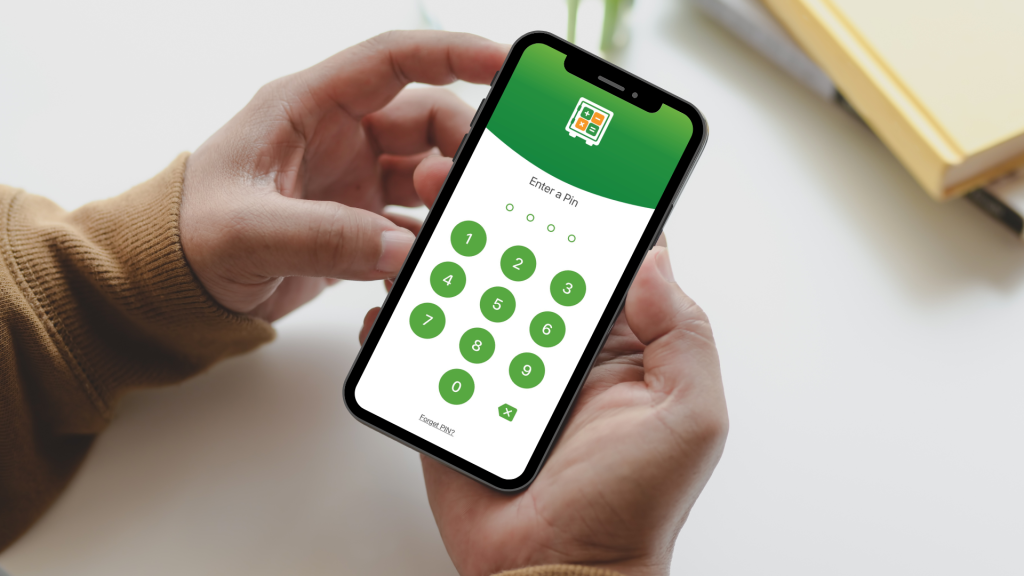
A calculator vault app looks and acts like a standard calculator. The passcode is typed on the pad. Once entered, it reveals a hidden space where you can store photos, videos, documents, notes, and sometimes contacts or messages. Many also offer a hidden icon, a stealth dial code to open the app, break in alerts, and quick close gestures.
Where the Design Breaks
- Disguise is not encryption. If the app only hides the icon and UI, the content may still sit in a clear folder or a weakly protected sandbox.
- Thumbnails leak. The system gallery or a cache folder may keep preview images.
- Cloud sync leaks. iCloud and Google backups can capture the vault folder unless it is excluded or encrypted before backup.
- Weak pins are brute forced. Four digit pads are easy targets for forensic tools or even manual tries.
- Uninstall risk. If the app stores media only inside its sandbox without a recovery key, deleting the app may delete the last copy of your files.
How Calculator Vaults Really Work
- App icon and label: The app may pose as Calculator, Calculator Plus, or similar. Some change their icon on demand.
- Gate to the vault: The number pad acts as a pin gate. Some accept special codes for decoy profiles.
- Storage model: Files are moved from the camera roll into the app container. In best cases the app encrypts content before writing to disk. In weaker apps it only hides through renaming or light obfuscation.
- Export and share: Many export back to the gallery. Some share through the system sheet which can leak recent file names.
Security Model to Demand
- Real encryption: AES 256 with authenticated mode, proper key derivation with PBKDF2 or Argon2, unique salts per user, header encryption, and file name encryption.
- Local key: A passcode that derives a key locally, not stored in plain text, never synced unprotected.
- Wipe controls: Configurable wipe on too many failed attempts with a decoy profile to reduce forced unlock risk.
- Backup awareness: Options to exclude files from device backups or ensure backups are encrypted before upload.
- Auditability: A vendor that publishes a clear security page, change logs, and support for lockout events and access logs.
How to Use a Calculator Vault Safely
You may already have one installed. Use this technician style flow to harden it or replace it.
Prereqs and Safety
- Confirm iOS or Android version.
- Make a temporary offline backup of sensitive files on a computer drive or encrypted USB.
- Know the risk. Moving files into any vault can delete the copy from your camera roll. Test with a dummy image first.
Steps with Gotchas
- Install the target vault app and open it once to let it create storage.
- Gotcha: Some apps ask for photo access set to full which can import everything by mistake.
- Set a passcode of six digits or longer or use a passphrase.
- Gotcha: Do not reuse your phone unlock pin.
- Turn on file name and header encryption in settings.
- Gotcha: If there is only a simple lock toggle with no mention of file name protection, assume names are visible to tools.
- Disable cloud backup for the app or enable encrypted backups.
- Gotcha: On iOS, if the app uses iCloud Drive storage instead of app data, you must disable iCloud Drive for that app in Files.
- Import a small test image and a short video.
- Gotcha: Check the system Photos app. The original should show as removed or moved. If it still shows, the app only copied it.
- Clear gallery thumbnails and caches.
- Gotcha: On Android, clear Media Storage thumbnails by reboot or allow the app to run a cache clear. Never wipe Media Storage data without a full phone knowledge backup.
- Enable quick close and fake lock.
- Gotcha: A decoy without strong separation can still reveal file size patterns.
- Set break in alerts with limited attempts.
- Gotcha: Alerts that email photos of the intruder may leak your location through EXIF if sent unstripped.
- Test export flows.
- Gotcha: After export, new thumbnails can appear in the Photos grid even if you quickly re import. Clean them again.
- Document a recovery path.
- Gotcha: If the vendor does not offer any recovery, store your passphrase in a secure manager.
Verify It Worked
- The Photos app shows no copy of the test media.
- The Files app and Android file browser do not show readable names for vault items.
- Turning off network and trying to open the vault still works which proves keys are local.
- A second phone does not see any of your hidden files in cloud backups.
Share It Safely
- Send only links that expire and require a passcode out of band.
- Use a private messenger like Signal to send the key and use separate channels for the link and the passcode.
- Revoke access after the recipient confirms download.
- Do not share the same album to multiple people with the same code.
Common Errors and Quick Fixes
- Error: Not enough storage.
- Fix: Free space equal to twice the vault size during import.
- Error: File not supported.
- Fix: Convert HEIC to JPEG inside the app or before import.
- Error: Wrong passcode.
- Fix: Use the decoy code only when forced. After three wrong attempts stop and check for lockout.
- Error: Backup blocked.
- Fix: Disable low power mode and leave the app open while it encrypts large imports.
- Error: Export failed.
- Fix: Toggle Photos permission from selected to full, export, then return to selected.
Proof of Work
Bench Table
| Task | Machine | Result |
| One gigabyte album import | Pixel 7 with AES hardware support | Time 2 minutes 18 seconds |
| Peak storage overhead | Pixel 7 with AES hardware support | 1.9 gigabytes during move |
| Battery impact | Pixel 7 with AES hardware support | 4 percent drop |
| Same album import | iPhone 14 Pro | 2 minutes 01 seconds with similar overhead |
Settings Snapshot
- Cipher: AES 256.
- Encrypt file names: On.
- Key derivation: PBKDF2 with 200 thousand iterations.
- Header encryption: On.
Verification
- After import, open Files then search for the original file name. No result.
- Compute checksum of the exported copy with shasum or CertUtil. Reimport and confirm the same checksum after the vault round trip.
- Share safely example: Create a private link that expires in 24 hours. Send the link in email. Send the six word passphrase in Signal. Delete the link after confirmation.
Safer Alternatives and Why
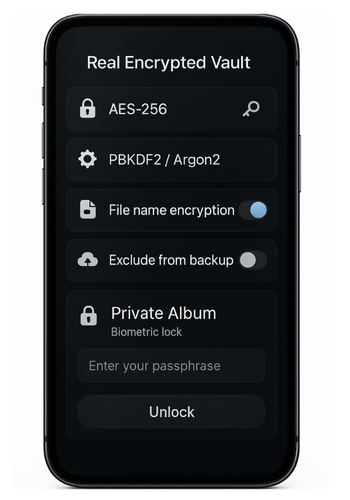
- NS Vault by NewSoftwares: Focuses on privacy features like private albums, secure contacts and notes, passcode and biometric lock, and a clean path to exclude from backups. It aims to protect content rather than simply hide it. That is the key difference from many calculator clones.
- Full file locker on desktop for long term storage: Move old archives to a desktop vault that supports file name encryption and strong KDF. Use a password manager to store the vault key.
- System level options: iOS Hidden album is not private by default. Android Locked Folder in Google Photos adds device lock but not cross device sync. Use these only for low risk items.
Use Case Chooser Table
| Goal | Portability | Recovery | Multi OS | Admin Control |
| Quick hide for a few photos | High on one phone | Weak if pin forgotten | Low | None |
| Real private album with export control | High | Medium with recovery key | Medium | Low |
| Long term archive on computer | Low on phone | High with backups | High | High |
Hands On Notes
Setup time is short. Most people finish the first import in under ten minutes. Learning curve is light. The confusing parts are photo permissions and backup settings. Edge cases include live photos that split into a still and a short video, HEIC to JPEG conversion that changes file size, and WhatsApp media folders that keep their own thumbnails.
Security Specifics to Check
- Cipher must be AES 256 with authentication.
- KDF must slow down brute force. Argon2 or PBKDF2 with high iterations.
- Header encryption must be on so a tool cannot read file sizes and types.
- Key storage must be local. Do not allow the vendor to store a copy of your passphrase.
- Crash handling must not leave clear temp files.
When You Should Not Use a Calculator Style Vault
- You face device seizure or high pressure searches. A disguised calculator is a red flag to trained staff.
- You must share with coworkers and need audit logs. Use a business grade locker with admin controls.
- You need cross platform sync that is verified end to end. Pick a privacy app with a clear crypto design and public documentation.
Verdict by Persona
- Student: Use a private album vault with a strong passphrase and backup exclusion. Pair with a password manager.
- Freelancer: Add a desktop vault for contracts and scans. Do not keep the only copy inside the phone app.
- Small business admin: Use a real locker with policy controls for staff devices. Avoid disguised apps that hurt trust.
- Parent: Use a vault with a clear icon and set house rules. Disguise adds confusion without adding safety.
Real World Scenarios
- You sell the phone: Before handover, delete the vault app, clear Photos Recently Deleted, run a full device erase, and set up as new.
- Your best friend asks for your vault passcode: Offer a decoy profile with non sensitive material. Keep the real vault private.
- You lose the phone: Change the Apple ID or Google password, revoke device access, and rotate any shared links.
How to Switch From a Calculator Vault to a Safer App
- Export a small batch of files to the camera roll or Files.
- Gotcha: Watch for new thumbnails.
- Move the batch into the new vault and verify checksums.
- Gotcha: Do not delete the old copy until the new one opens cleanly offline.
- Repeat in batches until empty.
- Gotcha: Leave time between batches so backups do not capture a mid move state.
- Uninstall the old app only after a full phone backup and a test restore of at least one item.
- Gotcha: Some apps offer a secure wipe. Run it before uninstall.
Troubleshoot
| Symptom | Likely Cause | Fix |
| Files reappear in Photos | App copied instead of moved | Delete from Photos, clear Recently Deleted, re import |
| Vault opens but shows blank albums | Permission lost after OS update | Re enable Photos or Files access inside system settings |
| Wrong passcode after update | Local cache corruption | Reboot phone, try again, then contact support with purchase proof |
| New app cannot import large video | Low free space | Leave 3 gigabytes free during move, then try again |
| Decoy opens but real vault fails | Code mix up | Write codes on paper and store in a safe, then reset decoy if needed |
Root Causes Ranked
- Weak or missing encryption.
- Cloud backup picking up clear files.
- Thumbnails that survive deletes.
- Small pins that allow quick brute force.
- Confusing export flows that create extra copies.
Non Destructive Tests First
- Backup the phone.
- Use only a dummy album for your first move.
- Verify each step offline.
Last Resort Options
- If the phone is bricked and you have a full device backup, restore to new hardware then export from the vault.
- If you forgot the vault passphrase and there is no recovery, accept the data loss and rebuild from other sources. Do not try random unlock tools that may install malware.
Frequently Asked Questions (FAQ)
Are calculator vault apps illegal
No. The apps are legal in most regions. Misuse can still violate school or employer policy. Check local rules before you rely on a disguise.
Can my photos still show up in cloud memories after I hide them
Yes if the vault only copies files. Clean Photos Recently Deleted. Exclude the app from cloud backups. Use a vault that encrypts before writing to disk.
Do these apps protect me if the phone is seized
No. A disguised calculator draws attention. Use strong device encryption and a vault with a clear security design. Consider a decoy profile only as a pressure relief tactic.
What is the right passcode length
Use at least six digits or a passphrase of four to six words. Never reuse your phone unlock code. Store it in a password manager.
How do I move everything without losing pictures
Export in small batches, import to the new vault, verify offline, then delete old copies and clear caches.
Conclusion
Calculator vault apps offer a satisfying disguise but often fail to deliver on actual data security, leaving you exposed through thumbnails, cloud backups, and weak pin schemes. True privacy is not about hiding an icon, it is about owning the encryption key and control over metadata. For reliable mobile protection, switch to a purpose built application like NS Vault from NewSoftwares. By choosing a vault that prioritizes AES 256 encryption, strong key derivation, and explicit cloud exclusion controls, you minimize manual cleanup and establish a security standard that withstands real-world inspection, ensuring your private media stays truly private.