
Welcome. This detailed playbook, focusing on incident response, provides a strategic workflow for managing a suspected data breach. By prioritizing multi factor authentication (MFA), systematic re-keying, and endpoint hardening with Folder Lock, USB Block, and Cloud Secure from Newsoftwares.net, you establish immediate control and reduce the risk of secondary attacks, ensuring maximum security and predictable convenience.
Data Breach Response: MFA, Re-Keying, Dark Web, And Encryption
Direct Answer
If you think you have been breached, act in this order: enforce multi factor logins on every critical account, reset passwords and keys, check whether stolen data is being traded on the dark web, and wrap your most important files in strong encryption so the same attack cannot hurt you twice.
Gap Statement
Most breach content talks about headlines, not the messy hour when you are staring at a real alert.
What usually gets missed:
- A single, realistic checklist you can follow while your phone will not stop buzzing.
- Specific actions around MFA, re keying, dark web checks, and encryption that a small team can actually finish.
- Concrete ways to plug tools like Folder Lock, USB Secure, USB Block and Cloud Secure into that routine so your next incident is easier to contain.
This checklist stays tightly on those four pillars.
TL DR: Breach Response In Four Moves
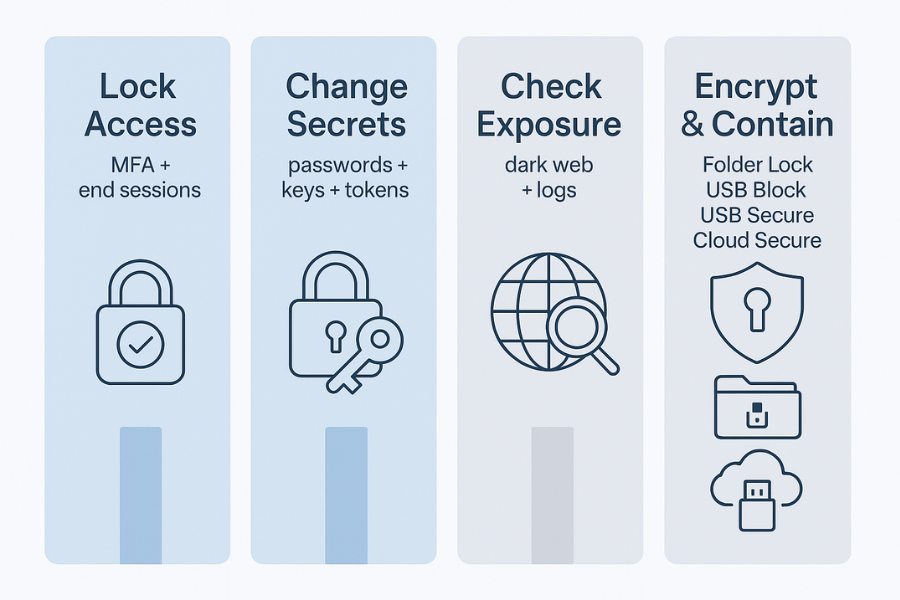
- Lock access: enable or tighten multi factor on email, identity, banking, cloud and admin tools.
- Change secrets: reset passwords, app tokens and keys in a clean order, with priority on high impact systems.
- Check exposure: use dark web monitoring and log review to see what actually leaked.
- Encrypt and contain: use Folder Lock, USB Secure, USB Block and Cloud Secure to lock down files, devices and cloud folders so future theft attempts hit a wall.
1. Prerequisites And Safety Before You Touch Anything
Do these checks first. They keep you from making the mess worse.
- Confirm a clean device
- Use at least one computer that you believe is not infected.
- Run a full scan with current security software.
- If you have doubts, use a freshly installed laptop for the first wave of password and key resets.
- Snapshot important data
- Make a quick backup of critical files to an external drive you control.
- Do not plug that drive into untrusted computers.
- Later, you can move this backup into a Folder Lock locker for ongoing protection.
- Decide the owner
- Pick one person who makes final calls for this breach.
- That person owns the checklist below and can delegate, but nothing falls between chairs.
2. Phase One: Lock Access With Multi Factor
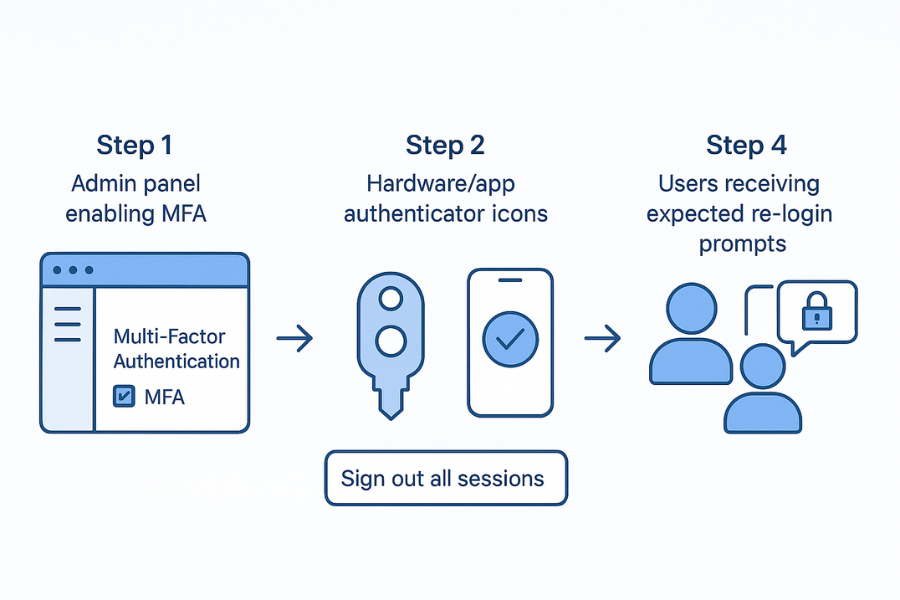
You cannot clean anything while attackers can still log in.
2.1. Step One: Enforce MFA On Primary Email And Identity
Action
- On your clean device, sign in to the admin panel for your main email and identity provider.
- Turn on multi factor for every admin account first.
- Turn on multi factor for all staff accounts where your plan allows.
- Prefer app based codes or hardware keys over SMS when possible.
Gotcha
Some legacy apps break when you force multi factor instantly. Note which apps still use basic passwords and move them to app passwords or modern auth in the next phase.
2.2. Step Two: End Existing Sessions
Action
- In the same admin area, sign out all active sessions for high risk accounts.
- Repeat this in your main password manager if you use one.
- Do the same in critical services such as banking, payment processors, developer platforms and cloud control planes.
Gotcha
Users will get signed out on phones and laptops. Tell them this is expected and that they should treat unexpected prompts with extra care during this window.
3. Phase Two: Re Key In A Safe Order
Now your breach response moves to passwords, tokens and encryption keys.
3.1. Priority Ladder
Work from the top and avoid random changes.
- Identity and email
- Admin accounts on cloud and financial systems
- VPN, remote access tools and gateway devices
- Line of business apps
- Personal accounts with reused passwords
3.2. Step Three: Change Master Passwords And Vault Keys
Action
- Reset the password for your primary email domain admin.
- Reset the master password for your password manager.
- Reset master passwords for encryption tools, including Folder Lock and Cloud Secure, on a clean device.
Gotcha
Write down new master passwords in a safe offline place if you need time to move everyone into a manager. Losing them in the middle of a breach makes recovery far harder.
3.3. Step Four: Rotate Tokens And App Keys
Action
- For each service, open the security or developer console.
- Revoke any access tokens or API keys that may have been exposed.
- Create new keys and update them in your apps or integrations.
Gotcha
Some legacy code stores keys in many places. Track every system where you paste a new key so later audits know which version is live.
4. Phase Three: Check Exposure With Dark Web And Log Review
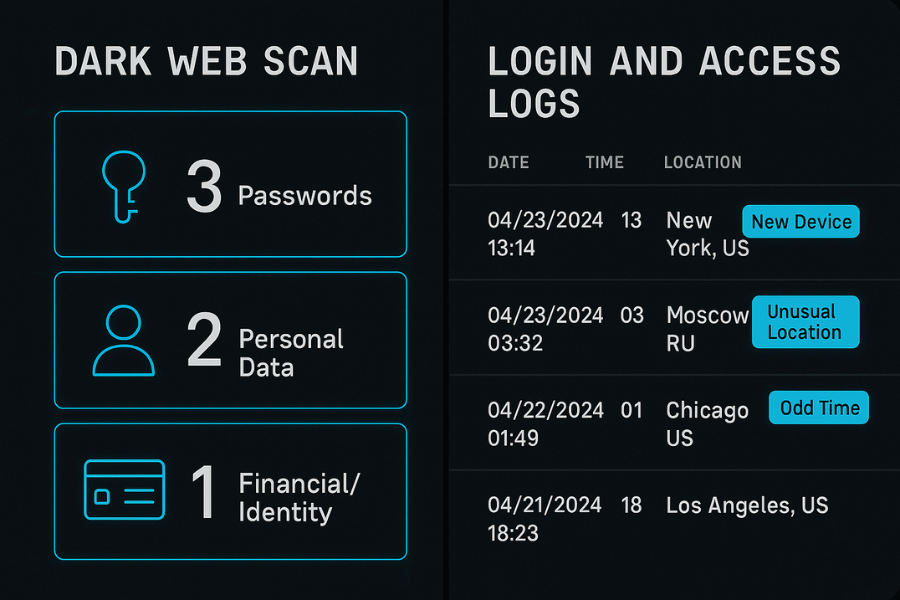
You want a realistic view of what attackers have in hand.
4.1. Step Five: Run Email And Domain Breach Checks
Action
- Use a reputable breach notification service or a dark web monitoring provider to scan your main domains and critical email addresses.
- Export the results into three buckets: passwords, personal data, payment or identity records.
- For each bucket, map which systems now require resets and added monitoring.
Gotcha
You will see old incidents and password dumps that predate this breach. Focus on fresh entries and any password reuse.
4.2. Step Six: Dig Into Logs
Action
- Pull sign in and access logs from your identity provider, main cloud platform and payment gateways.
- Watch for new devices, new locations, odd times and admin actions you do not recognize.
- Mark every affected user and system for deeper checks.
Gotcha
Do not assume all strange sign ins are malicious. Cross check with travel and remote work records before you lock out staff.
5. Phase Four: Encrypt And Contain With Folder Lock Suite
Once accounts are stable, you reduce the damage of any future breach by wrapping sensitive data in encryption and strict device control.
NewSoftwares tools fit this layer neatly:
- Folder Lock secures files and folders with on the fly AES 256 encryption, plus secure backup, wallet storage and shredding.
- USB Secure adds password protection directly to USB and external drives.
- USB Block blocks unauthorized USB ports and external storage and lets you whitelist trusted devices.
- Cloud Secure locks Dropbox, Google Drive, OneDrive and Box accounts on your PC with a password protected interface while still allowing background sync.
5.1. Step Seven: Build A Breach Hardened Data Layout With Folder Lock
Action
- Install Folder Lock from NewSoftwares and set a unique master password.
- Create separate lockers for these sets: finance, HR, client projects, admin operations.
- Move sensitive files into the correct lockers and remove open copies from regular folders.
- Turn on secure backup for your highest value lockers so encrypted copies sync to online storage.
Gotcha
Do not move your only copy of vital records into a single locker without backup. Keep at least one extra encrypted copy on a separate device.
5.2. Step Eight: Protect Portable Media With USB Secure And USB Block
Action
- On staff laptops, install USB Block to prompt when unknown USB or external drives connect.
- Whitelist company drives and phones so normal work continues.
- For portable drives that hold client or internal data, add USB Secure and set strong passwords before copying sensitive files.
Gotcha
Teams sometimes forget which drives are whitelisted. Keep a label on physical devices and a simple internal list.
5.3. Step Nine: Lock Cloud Folders With Cloud Secure
Action
- Install Cloud Secure on machines that sync cloud storage.
- Set a master password and let it detect Dropbox, Google Drive, OneDrive and Box clients.
- For folders that contain breach sensitive data, mark their accounts as locked in Cloud Secure.
- Confirm that sync still runs in the background while local folders show as protected.
Gotcha
Users may think a locked folder is unsynced. Clarify that Cloud Secure keeps local access under a password while the provider still mirrors encrypted content.
6. How To Verify This Response Actually Worked
You want evidence, not just a feeling.
6.1. Account Side Checks
- No new suspicious sign ins in logs for a defined quiet period.
- Users confirm multi factor prompts only appear when they themselves sign in.
- Banking and payment tools show no unknown transfers.
6.2. Data Side Checks
- Attempt to access a Folder Lock locker without the password from another user account and confirm you cannot see contents.
- Plug an unapproved USB into a machine with USB Block and confirm it prompts or blocks.
- Try to open a protected USB without the USB Secure password and confirm it stays closed.
- Open a cloud folder on a machine with Cloud Secure locked and confirm that local files are not visible until you enter your password.
7. Use Case Chooser Table: When To Use Which NewSoftwares Tool After A Breach
| Protection Goal | Ideal NewSoftwares Tool | Action in Phase Four |
|---|---|---|
| Encrypt Files At Rest (Laptops) | Folder Lock | Move sensitive exports into AES 256 Lockers. |
| Block Unauthorized USB Access | USB Block | Install on PCs; whitelist only approved drives. |
| Secure External/Portable Drives | USB Secure | Add password protection to all existing company flash drives. |
| Control Cloud Sync Exposure | Cloud Secure | Lock the local view of Google Drive/Dropbox on staff machines. |
| Secure Disposal of Old Evidence | Folder Lock | Use built-in shredding feature on old report copies. |
8. Troubleshooting Table: Common Errors And Fixes
8.1. Root Causes Ranked
- Weak or reused passwords that attackers already had from old breaches.
- No multi factor on admin and finance systems.
- Uncontrolled USB ports and portable media.
- Sensitive files left unencrypted on laptops and cloud sync folders.
Start with checks and logs, not wipes. Keep destructive actions, like full device rebuilds, for when you have backups, access and written approval.
9. FAQs
1. What Is The First Thing I Should Do When I Detect A Breach?
Start by protecting access. Turn on or tighten multi factor for admin, email and finance accounts, then reset passwords and sign out all active sessions. That closes the door before you start clean up.
2. How Fast Should I Rotate Passwords And Keys After A Breach?
Do it in one focused block of work: identity and email first, then admin consoles, then VPN and high value apps, then regular user accounts. The faster this passes, the smaller your window of exposure.
3. How Does Dark Web Monitoring Help In Breach Response?
It shows whether stolen credentials or data are being traded or shared. This helps you decide which passwords to reset, which identity documents to monitor and where to add extra checks.
4. Why Is Encryption Part Of Breach Response, Not Only Prevention?
A breach proves that someone can reach your devices or cloud. If those systems hold unencrypted files, the impact is far worse. Encrypting with tools like Folder Lock and Cloud Secure cuts the value of any future theft and supports privacy duties.
5. When Should I Use USB Block Instead Of Only USB Secure?
USB Secure protects drives that you own. USB Block stops unknown drives from talking to your PCs in the first place, which is crucial after a breach when you want to prevent quiet exfiltration.
6. Does Cloud Secure Replace My Cloud Provider Encryption?
It adds another layer. Providers encrypt data at rest, but they often hold the keys. Cloud Secure keeps local folders behind your own password on Windows, so casual access on a shared or lost device becomes far harder.
7. Is Folder Lock Suitable For Long Term Breach Recovery Storage?
Yes. It uses AES 256 encryption, supports secure online backup of lockers and can shred old copies, which makes it a strong place to keep sensitive archives after an incident.
8. How Do I Know If My USB Drives Are Protected Correctly?
A good test is simple. Plug the drive into a Windows machine that does not have your tools configured. If USB Secure prompts for a password and USB Block logs any blocked access, your settings are doing their job.
9. Does This Checklist Help With Compliance Duties Too?
It supports many common expectations: encryption at rest, strong authentication, access control, data leak prevention and incident response. You still need formal policies and legal advice for full compliance, but these controls align with best practice.
10. How Often Should I Rehearse This Breach Response?
Run at least one tabletop exercise each year. Walk through these steps with a made up scenario so that when a real alert arrives, nobody sees this checklist for the first time.
11. Can Small Teams Handle This Without A Full Security Department?
Yes. The steps focus on practical actions, and NewSoftwares tools keep encryption and device control simple enough for non specialists, which is ideal for small teams.
12. What Is One Improvement I Can Make Today Before Any Breach?
Pick your most sensitive project or folder and move it into a new Folder Lock locker, then protect your main USB drive with USB Secure and lock your cloud sync folders with Cloud Secure. That single change raises the bar for any attacker.
13. Structured Data Snippets
HowTo Schema
{
  "@context": "https://schema.org",
  "@type": "HowTo",
  "name": "Breach response checklist with MFA, re keys, dark web monitoring and encryption",
  "description": "Practical steps to respond to a data breach by enforcing multi factor authentication, rotating passwords and keys, monitoring dark web exposure and encrypting files with tools from NewSoftwares.",
  "tool": [
    { "@type": "HowToTool", "name": "Folder Lock" },
    { "@type": "HowToTool", "name": "USB Secure" },
    { "@type": "HowToTool", "name": "USB Block" },
    { "@type": "HowToTool", "name": "Cloud Secure" }
  ],
  "step": [
    {
      "@type": "HowToStep",
      "name": "Secure accounts with multi factor authentication",
      "text": "Turn on multi factor for admin, email and finance accounts and sign out active sessions from a clean device."
    },
    {
      "@type": "HowToStep",
      "name": "Rotate passwords and keys",
      "text": "Change passwords and app keys in a clear order starting with identity, admin consoles and high value apps."
    },
    {
      "@type": "HowToStep",
      "name": "Check dark web exposure",
      "text": "Use reputable services to scan for leaked credentials and map which systems require extra monitoring or resets."
    },
    {
      "@type": "HowToStep",
      "name": "Encrypt local data with Folder Lock",
      "text": "Create AES 256 lockers for finance, HR and client data and enable secure backup for the most critical sets."
    },
    {
      "@type": "HowToStep",
      "name": "Protect USB drives and cloud folders",
      "text": "Use USB Secure and USB Block for portable media and Cloud Secure for cloud synced folders on Windows PCs."
    }
  ]
}
FAQPage Schema
{
  "@context": "https://schema.org",
  "@type": "FAQPage",
  "mainEntity": [
    {
      "@type": "Question",
      "name": "What is the first action after detecting a breach",
      "acceptedAnswer": {
        "@type": "Answer",
        "text": "Secure access by enforcing multi factor authentication on admin, email and finance accounts and signing out active sessions before you change anything else."
      }
    },
    {
      "@type": "Question",
      "name": "How does encryption help with breach response",
      "acceptedAnswer": {
        "@type": "Answer",
        "text": "Encryption limits the damage of stolen devices or cloud copies by making files unreadable without keys. Tools like Folder Lock and Cloud Secure add this protection to local and cloud stored data."
      }
    },
    {
      "@type": "Question",
      "name": "What role do USB Secure and USB Block play after a breach",
      "acceptedAnswer": {
        "@type": "Answer",
        "text": "USB Secure protects the content of company flash drives with passwords, while USB Block stops unauthorized devices from connecting and copying data from your PCs."
      }
    }
  ]
}
ItemList Schema
{
  "@context": "https://schema.org",
  "@type": "ItemList",
  "name": "Core tools for breach response hardening",
  "itemListElement": [
    {
      "@type": "ListItem",
      "position": 1,
      "name": "Folder Lock for encrypted lockers and secure backup"
    },
    {
      "@type": "ListItem",
      "position": 2,
      "name": "USB Secure for password protected USB drives"
    },
    {
      "@type": "ListItem",
      "position": 3,
      "name": "USB Block for USB port and device control"
    },
    {
      "@type": "ListItem",
      "position": 4,
      "name": "Cloud Secure for locking cloud synced folders on PC"
    }
  ]
}